
01Who this is for
- Agencies that want to eliminate third party providers, because LC Email works out of the box for each client subaccount.
- Founders managing multiple subaccounts, since they can monitor usage and adjust limits centrally.
- Affiliate marketers who need reliable inbox placement without configuring external SMTP services.
02LC Email, explained
LC Email is a fully hosted email service integrated into the HighLevel platform. It sends and receives messages for every subaccount, removing the need to sign up for services like Mailgun or Sendgrid. The service provides industry standard deliverability and tracks errors automatically.
When a new subaccount is created, the platform applies a seven day ramp up model that raises daily sending limits from 250 on day one to 10 000 by day seven. From day eight onward, limits depend on whether the subaccount uses a shared domain (up to 25 000 per day) or a dedicated sending domain (up to 550 000 per day).
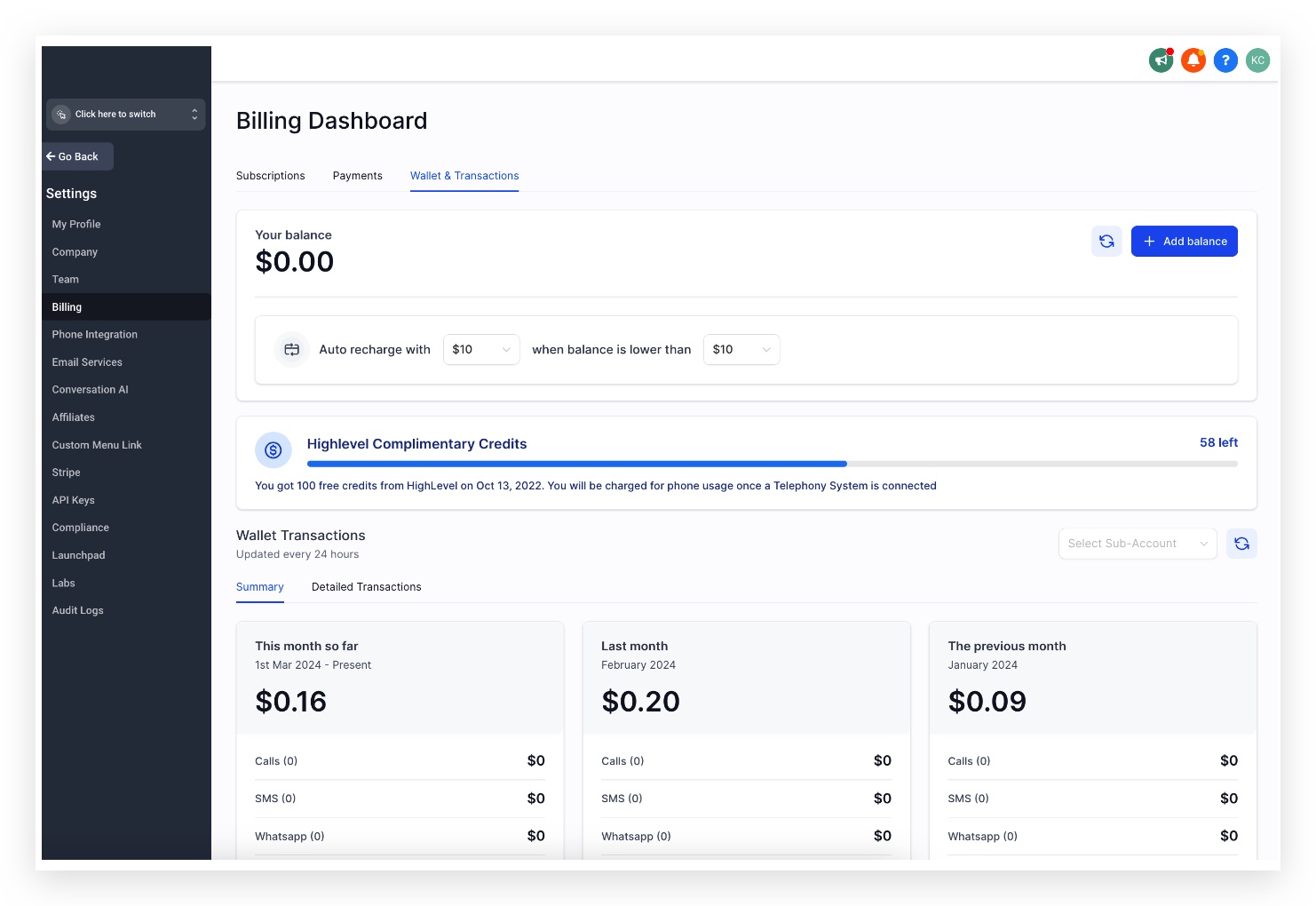
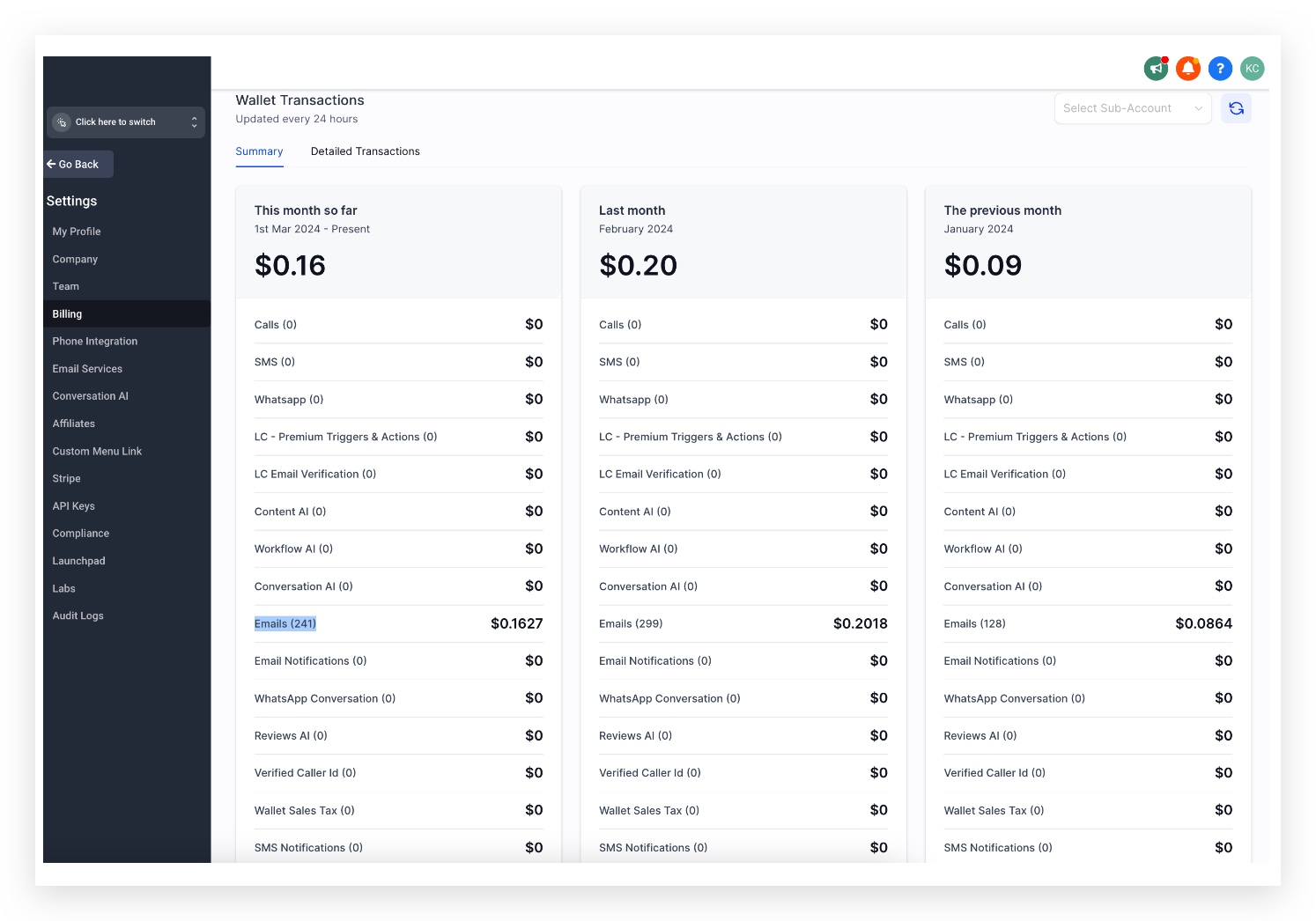
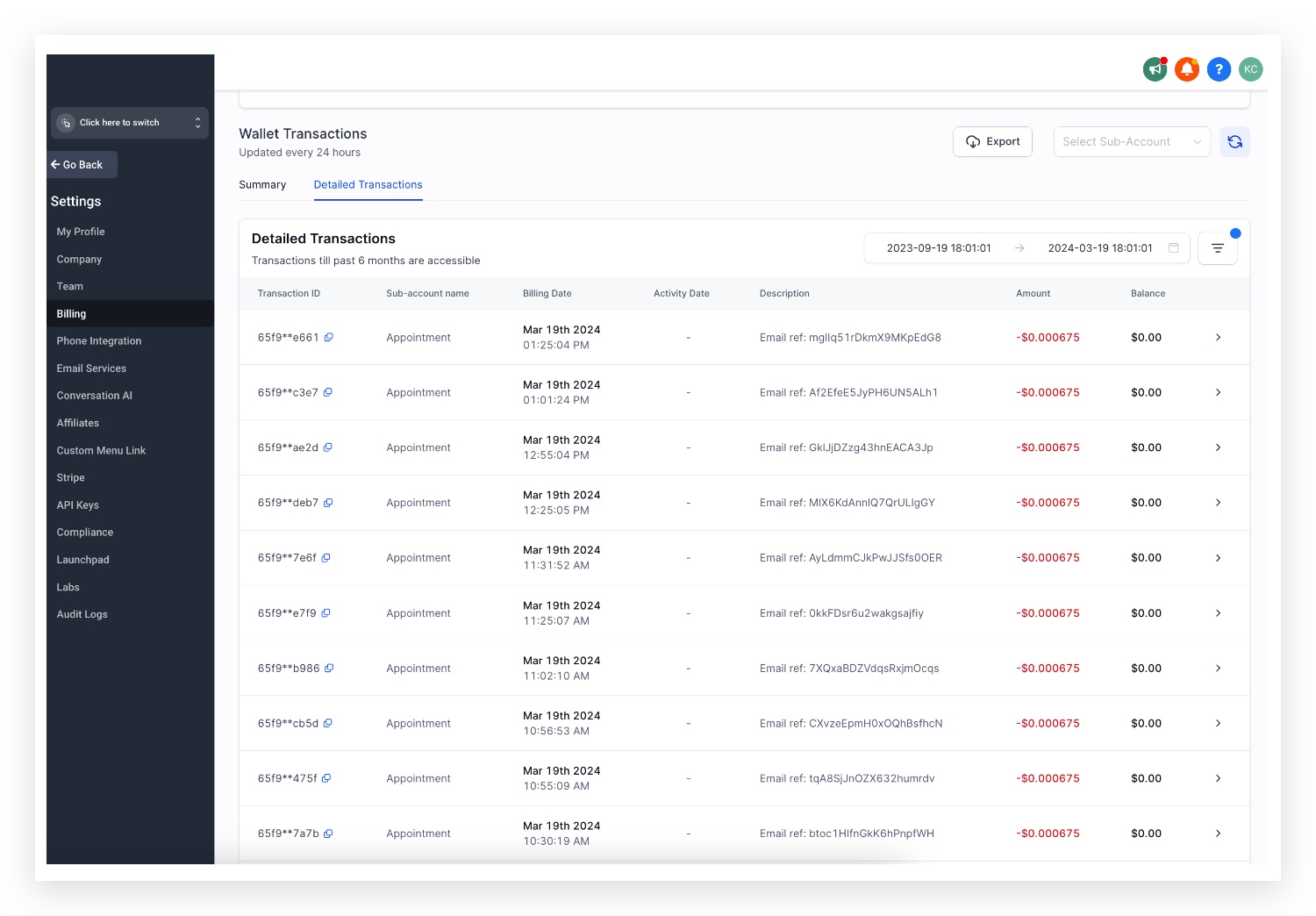
Pricing is charged per 1,000 emails at $0.675 (per HighLevel's help center, checked November 2026).
03How businesses use LC Email
- Digital marketing agency. The agency creates subaccounts for each client, relies on LC Email for all campaign sends, and monitors daily limits. If a client needs higher volume, the agency updates the subaccount’s Additional Settings to a dedicated domain.
- Affiliate program manager. The manager sets up subaccounts for affiliates, uses the built in sending to distribute newsletters, and watches the ramp up schedule to avoid limit locks. When limits approach the shared cap, they switch the affiliate’s subaccount to a dedicated domain.
- SaaS Founder. The Founder enables LC Email for user onboarding emails. They track usage in Agency Settings > Billing and, when necessary, extend the sending limit by navigating to the subaccount’s Additional Settings and selecting the appropriate domain type.
04The numbers and rules that matter
- Email Sending, $0.675 per 1,000 emails (per HighLevel's help center, checked November 2026).
- Email Verification, $2.50 per 1,000 verifications (per HighLevel's help center, checked November 2026).
- Email Forwarding, $0.675 per 1,000 forwarded emails (per HighLevel's help center, checked November 2026).
- Day 1 daily limit, 250 emails.
- Day 2 daily limit, 500 emails.
- Day 3 daily limit, 1,000 emails.
- Day 4 daily limit, 2,500 emails.
- Day 5 daily limit, 5,000 emails.
- Day 6 daily limit, 7,500 emails.
- Day 7 daily limit, 10,000 emails.
- Day 8 onward shared domain limit, 25,000 per day.
- Day 8 onward dedicated domain limit, 550,000 per day.
05How to set up and use LC Email in HighLevel
Extend a subaccount’s sending limit
- Open Agency View and click Subaccounts.
- Search for the desired subaccount and select its name.
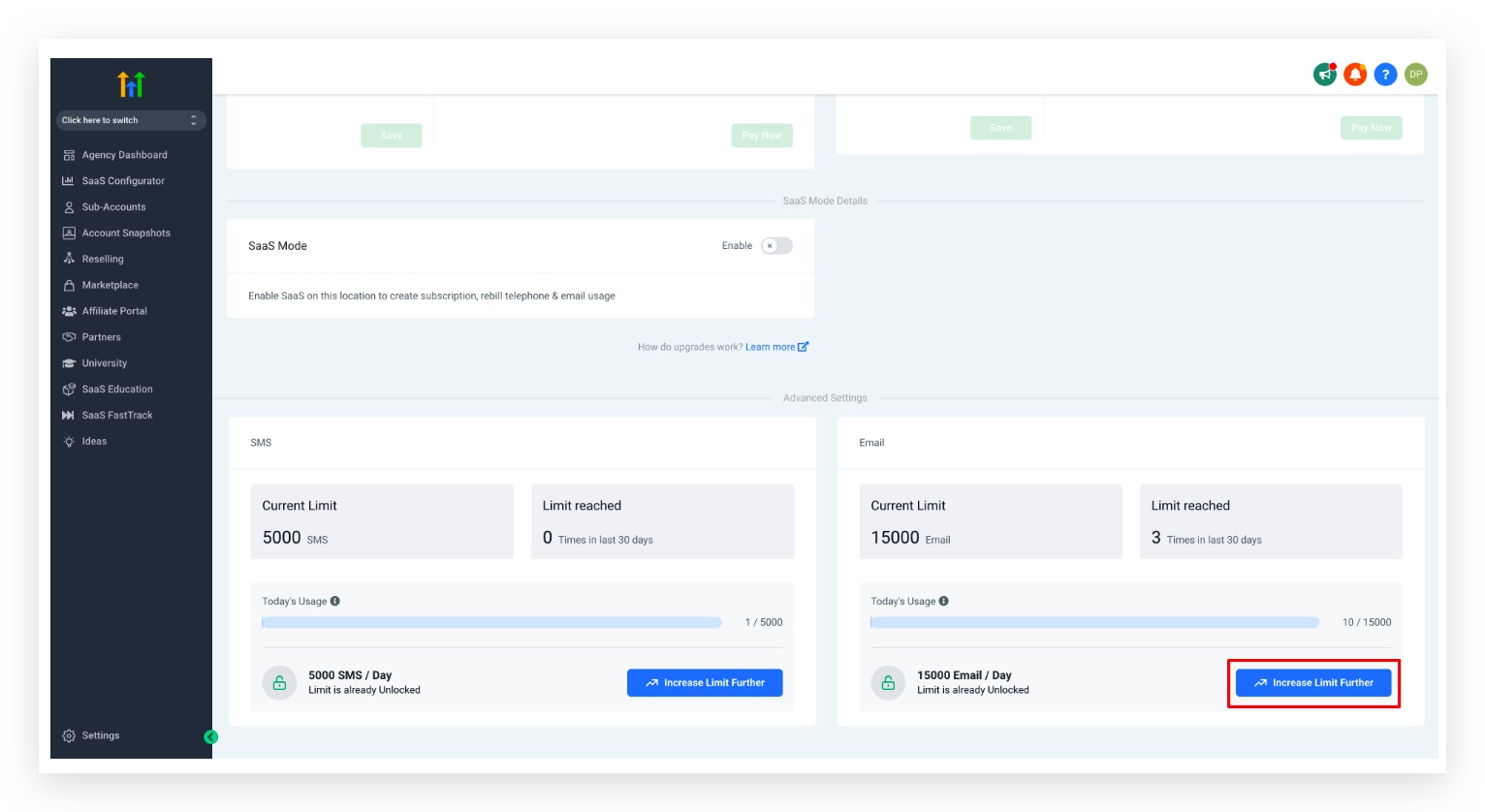
- In the subaccount detail page, choose Additional Settings.
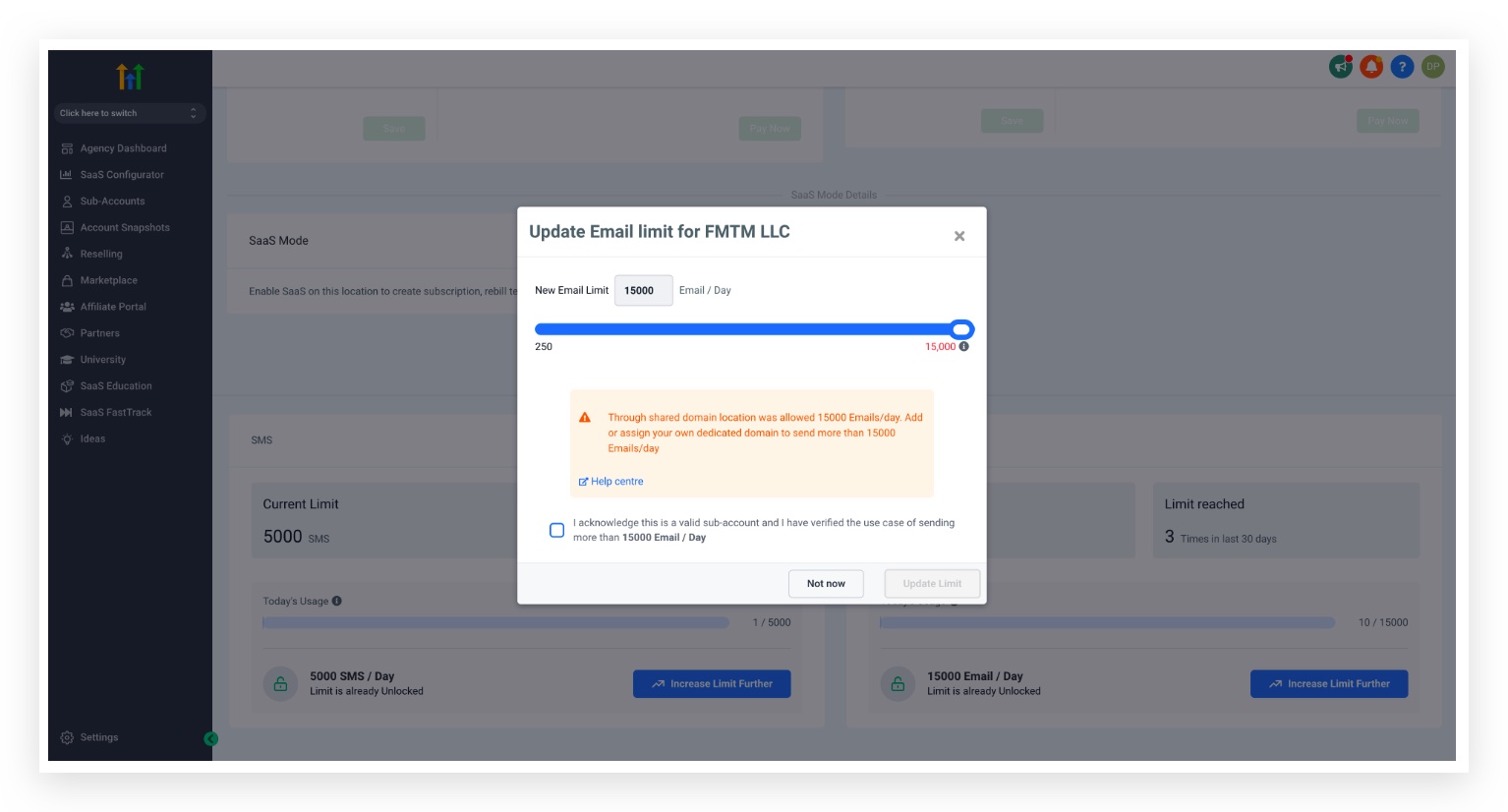
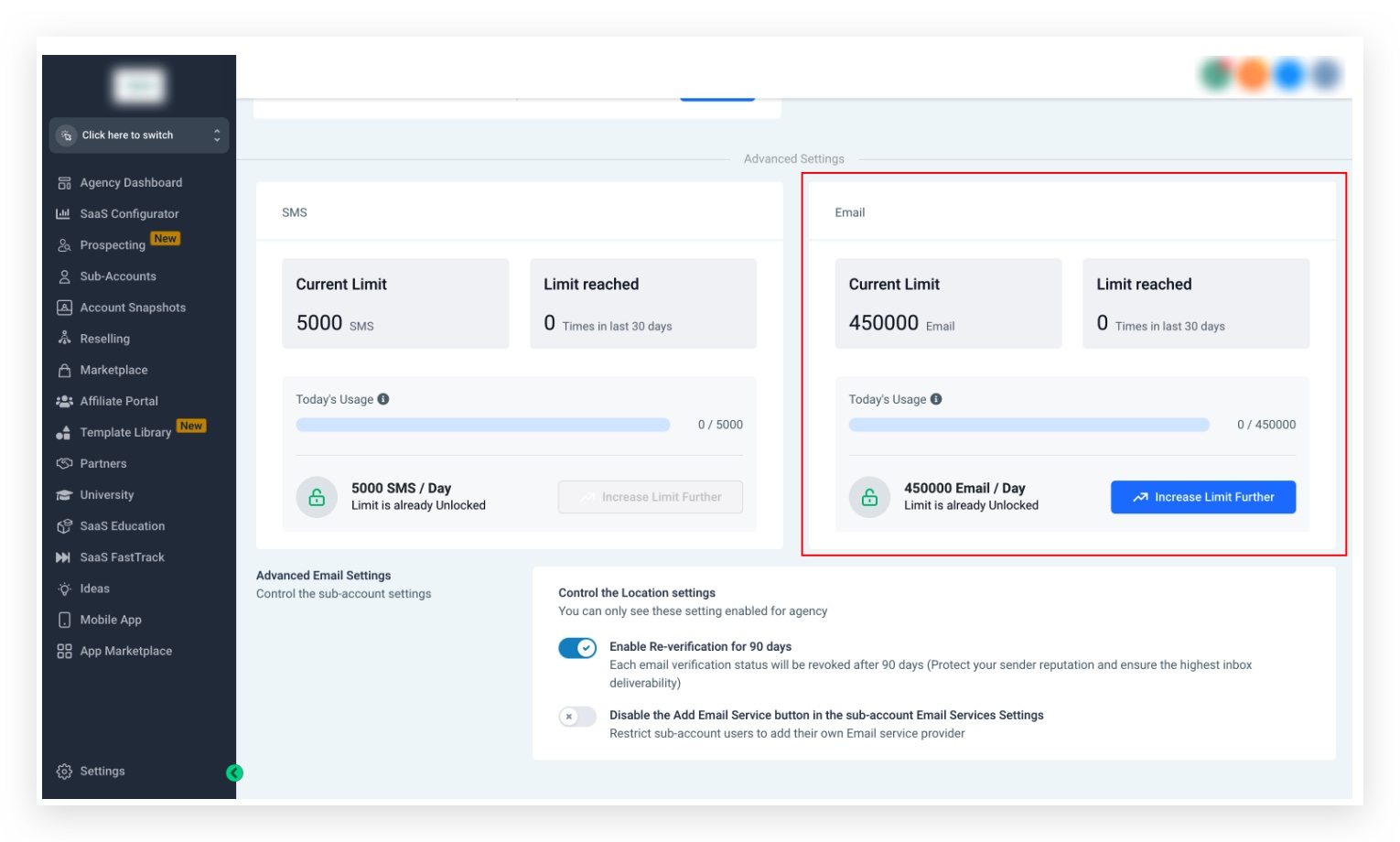
- Adjust the limit: shared domain can be raised up to 25 000 per day; dedicated domain can be raised up to 550 000 per day, and contact support for limits beyond 450 000.
- Important: if the daily limit is reached the account is locked for the remainder of the UTC day until the counter resets at 00:00:01 AM.
06What it looks like in HighLevel
07Settings that matter
- Dedicated Sending Domain. Controls whether a subaccount uses its own domain for email, allowing limits up to 550 000 per day.
- Shared Domain. Defines the default domain for a subaccount, capping daily sends at 25 000.
08Things to know before you rely on it
- Daily counters reset at 00:00:01 AM UTC each day; exceeding the limit locks the account for the rest of that day.
- Shared domain limits range from 250 to 25 000 per day; dedicated domain limits range from 250 to 550 000 per day.
- To exceed 450 000 per day on a dedicated domain, you must contact the support team.
09If something goes wrong
- Scheduled email exceeds the current sending limit. Reduce the recipient count or split the send into smaller batches. If higher throughput is needed, follow the ramp up model or use the Extend Sending Limit steps.
10How it connects to the rest of HighLevel
- View LC Email pricing per email HighLevel pricing
- Learn how to migrate an agency to LC Email Migrate agency guide
- Start a 30 day HighLevel trial Free trial
Michael's take

Wondering if you really need to juggle another email service? LC Email gives you a ready made inbox and outbox inside HighLevel, so you can focus on the messages that matter instead of wiring up Mailgun or Sendgrid.
If I were starting a new agency, I’d flip the switch to LC Email right away, then run a small test batch to confirm deliverability before scaling up.