
01Who this is for
- Founders of SaaS companies, need a reliable way to meet email compliance and avoid legal risk.
- Marketing managers at ecommerce firms, want control over link placement while staying within CAN SPAM and GDPR.
- Agency owners handling multiple client campaigns, require a simple toggle to apply the default footer link across all messages.
02Default unsubscribe links, explained
The platform inserts an unsubscribe link at the bottom of every LC Email by default. This automatic footer satisfies legal requirements without extra effort. If you turn the setting off, the platform stops adding the link, so you must place the {{email.unsubscribe_link}} tag yourself in each email. The tag is converted to a clickable link when the message is sent.
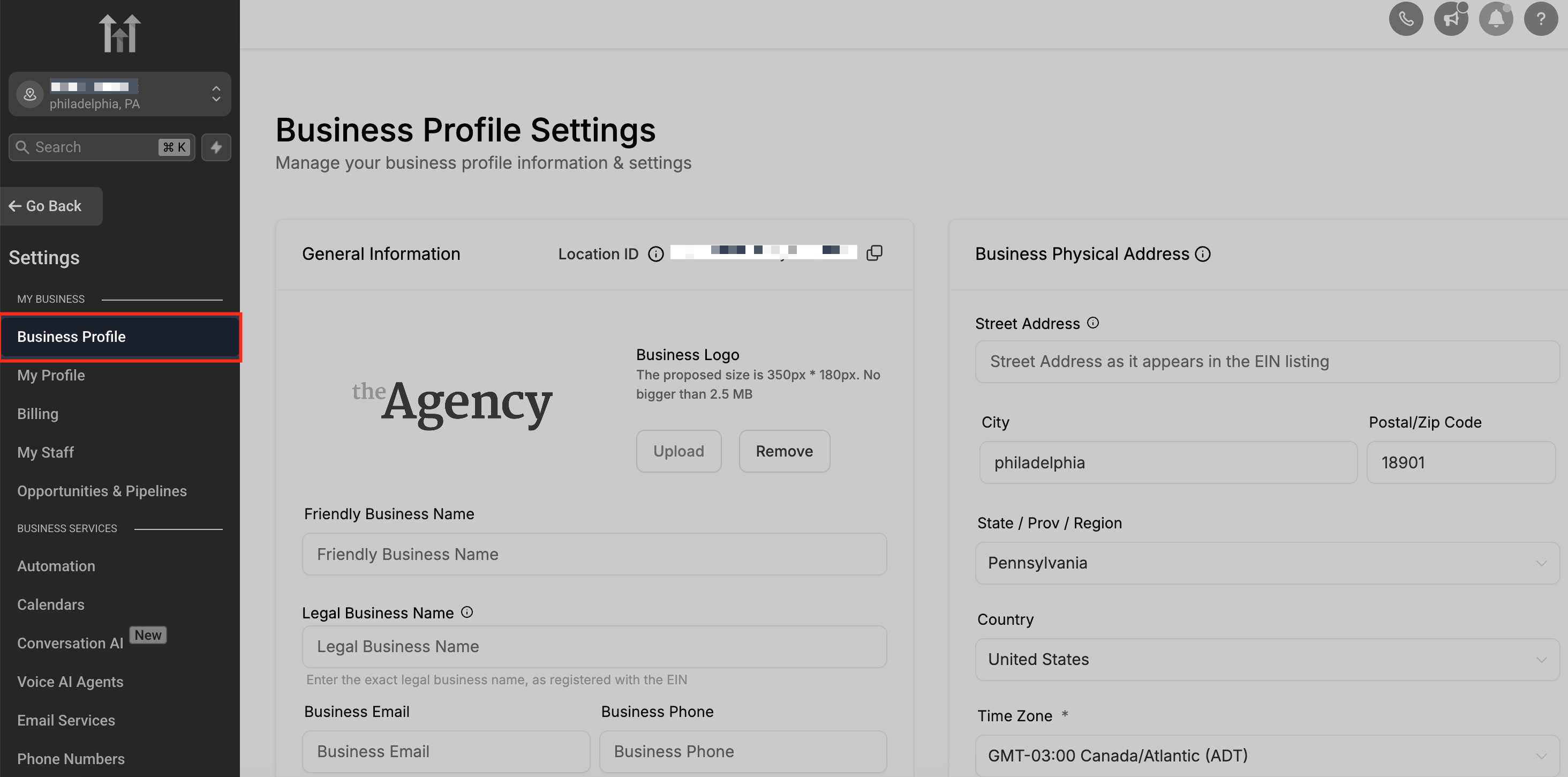
The toggle lives in Subaccount Settings under the Business Profile section. The tag can be added from any LC Email Builder, whether you are creating a campaign, a template, or a one off email. The system will render the tag as a functional opt out link at the spot you choose.
03How businesses use default unsubscribe links
- Ecommerce store. The store disables the default footer link, then inserts {{email.unsubscribe_link}} in the promotional newsletter template to position the link next to the discount code. This keeps the email design consistent while remaining compliant.
- Consulting agency. The agency leaves the default unsubscribe toggle on, allowing the platform to automatically add the link to every client outreach email. No manual tags are needed, saving time on each campaign.
- Non profit organization. The organization adds the {{email.unsubscribe_link}} tag inside its fundraising email template to place the opt out option beside the donation button. The default link remains disabled to avoid duplication.
04The numbers and rules that matter
- Noncompliance with GDPR can result in a fine of €20 million or 4% of annual global turnover, whichever is higher.
05How to set up and use default unsubscribe links in HighLevel
Enable or disable the default unsubscribe link
- Go to Subaccount Settings > Business Profile.
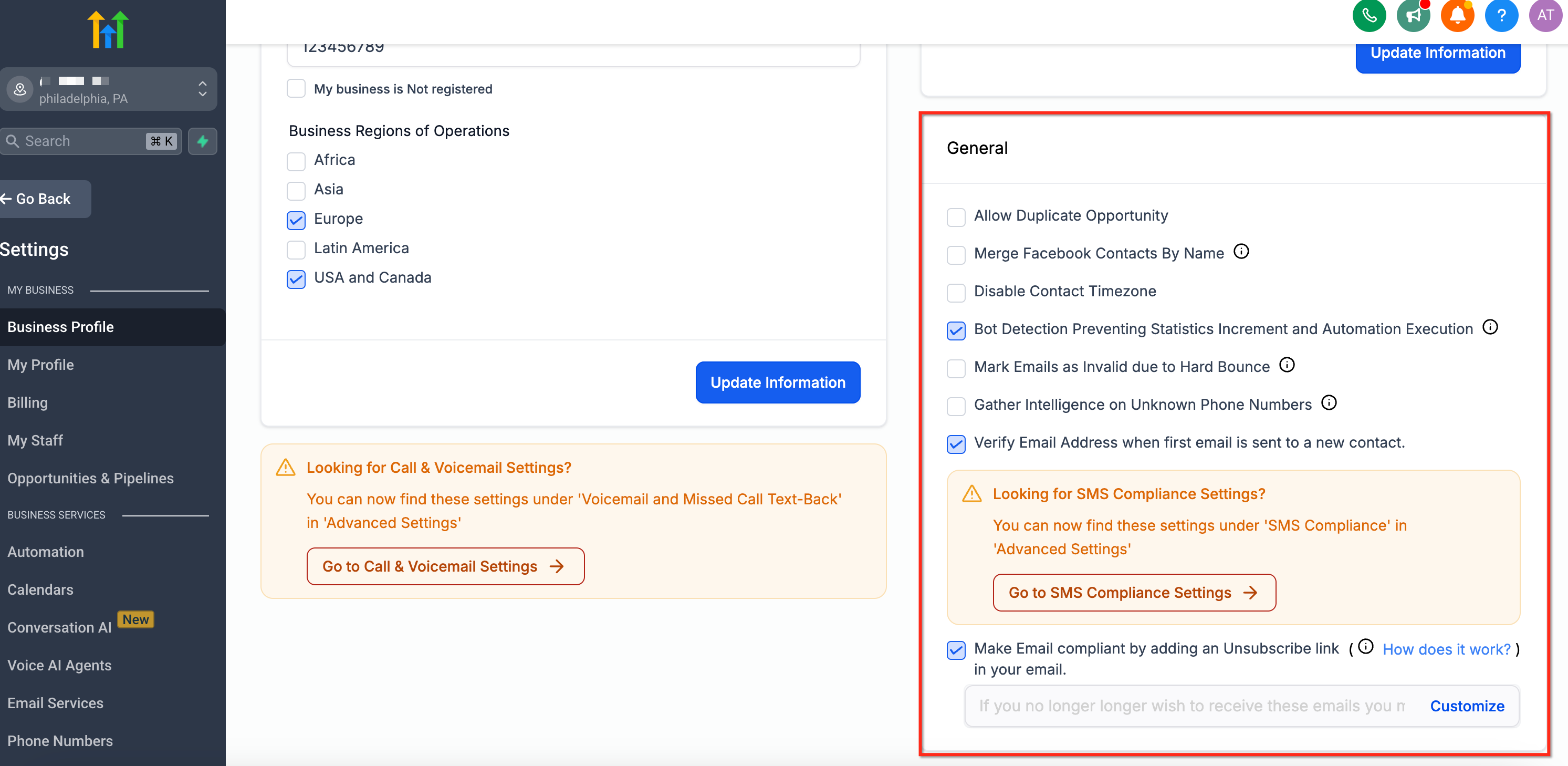
- Scroll down until you see the General tab.
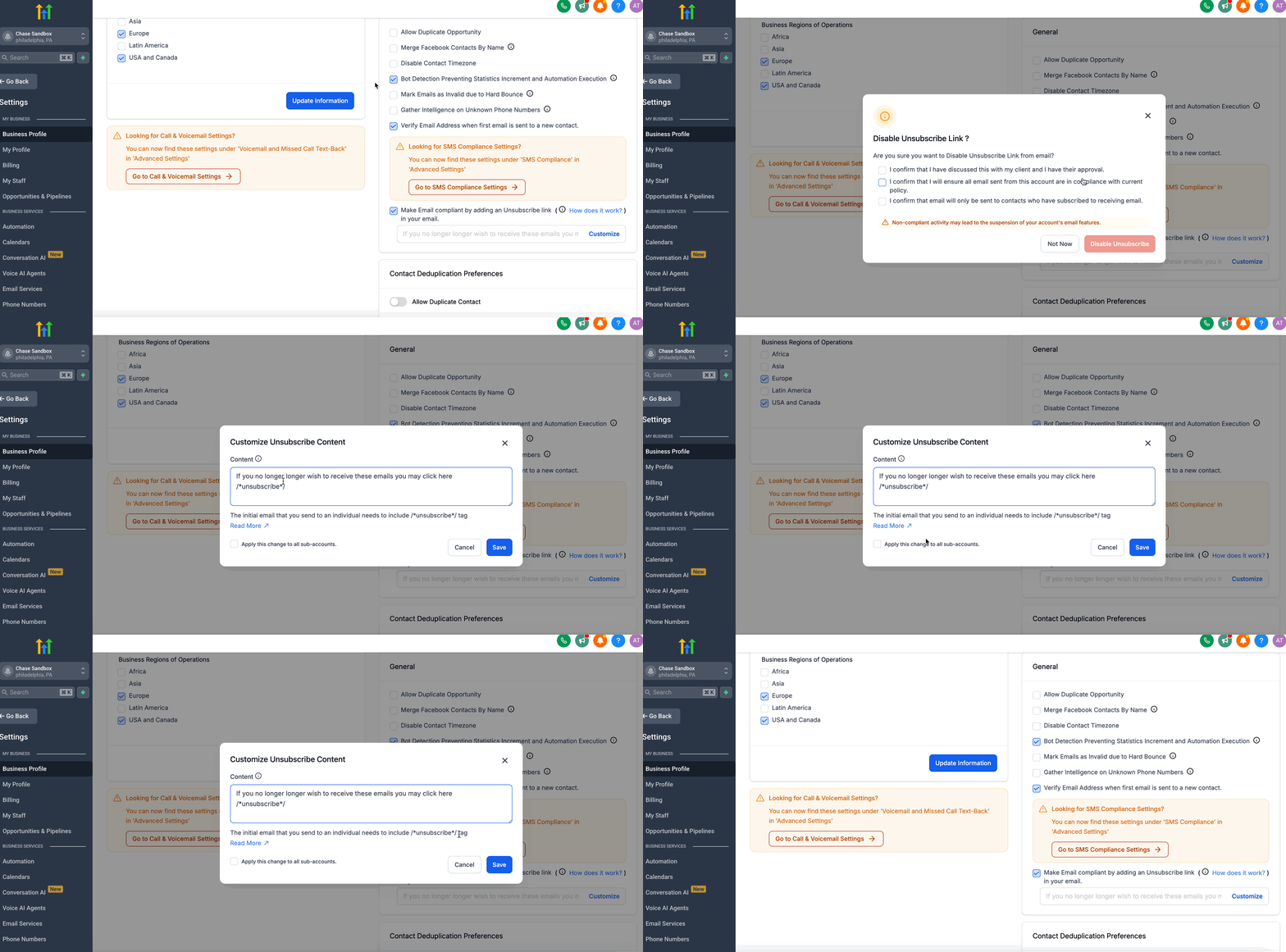
- Toggle the Include Unsubscribe Link option on or off.
Manually add the unsubscribe link
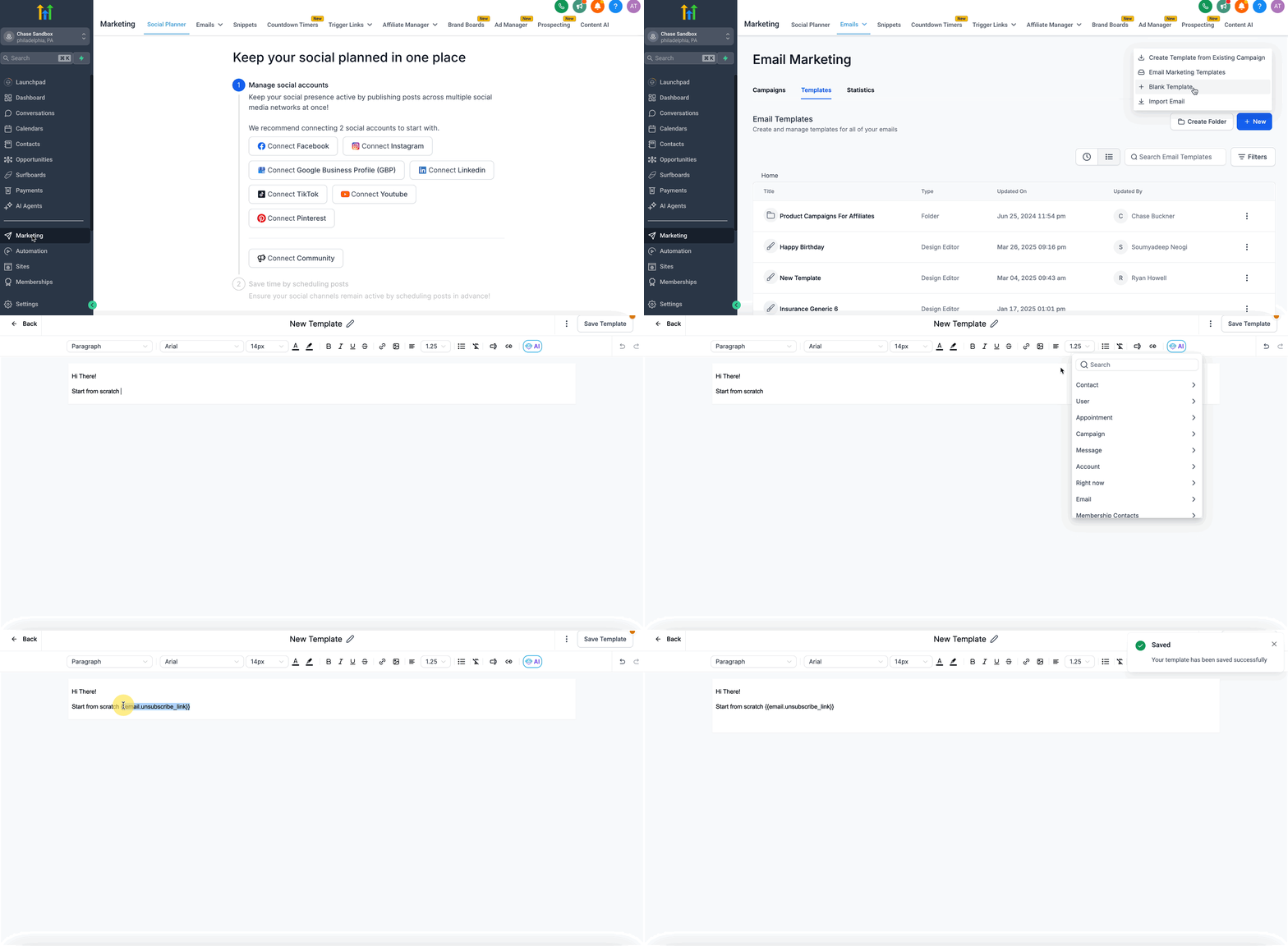
- Open the LC Email Builder from Conversations, Email Campaigns, or Email Templates under the Marketing tab.
- Place the cursor where you want the unsubscribe link to appear.
- Type or paste the tag {{email.unsubscribe_link}}.
- Or choose the built in custom value called UNSUBSCRIBE LINK from the EMAIL custom values list.
06What it looks like in HighLevel
07Settings that matter
- Include Unsubscribe Link. Controls whether the platform automatically adds the default unsubscribe link to the footer of every email sent from the subaccount.
08Things to know before you rely on it
- If both the default footer link and a manual {{email.unsubscribe_link}} tag are present, two unsubscribe links will appear in the same email, which can clutter the design.
- Turning off the default link without adding the manual tag results in an email that lacks any unsubscribe option, which may lead to suspension of sending ability.
- The text generated by the {{email.unsubscribe_link}} tag cannot be edited directly; you can only adjust surrounding wording or build a custom unsubscribe page.
09If something goes wrong
- Email is sent without an unsubscribe link. Make sure either the Include Unsubscribe Link setting is on or the {{email.unsubscribe_link}} tag is present in the email before sending.
10How it connects to the rest of HighLevel
- Learn about LC Email sending limits and upgrade options. LC Email limits
- Find out how to add and verify a sending domain for your emails. Add sending domain
- Explore all email related features available in HighLevel. All Email features
Michael's take

Getting rid of unwanted spam complaints starts with giving recipients an easy way out. In HighLevel LC Email, the first thing I would lock down is the Include Unsubscribe Link toggle, making sure it matches the placement strategy I plan to use.
If the default footer works for my campaigns, I leave it on and skip the manual tag. When I need a specific spot or branding, I turn the default off and stick the {{email.unsubscribe_link}} tag right where the design calls for it. Either way, I double check that one link is present before hitting send.