
01Who this is for
- Agency Founders who want to eliminate the need for external email providers and simplify account setup.
- Marketing teams that manage multiple subaccounts and need a uniform sending platform.
02LC, Email, explained
LC Email provides sending and receiving functionality directly inside HighLevel. It works out of the box for every subaccount once the agency selects it as the default provider. No separate Mailgun or SMTP credentials are required.
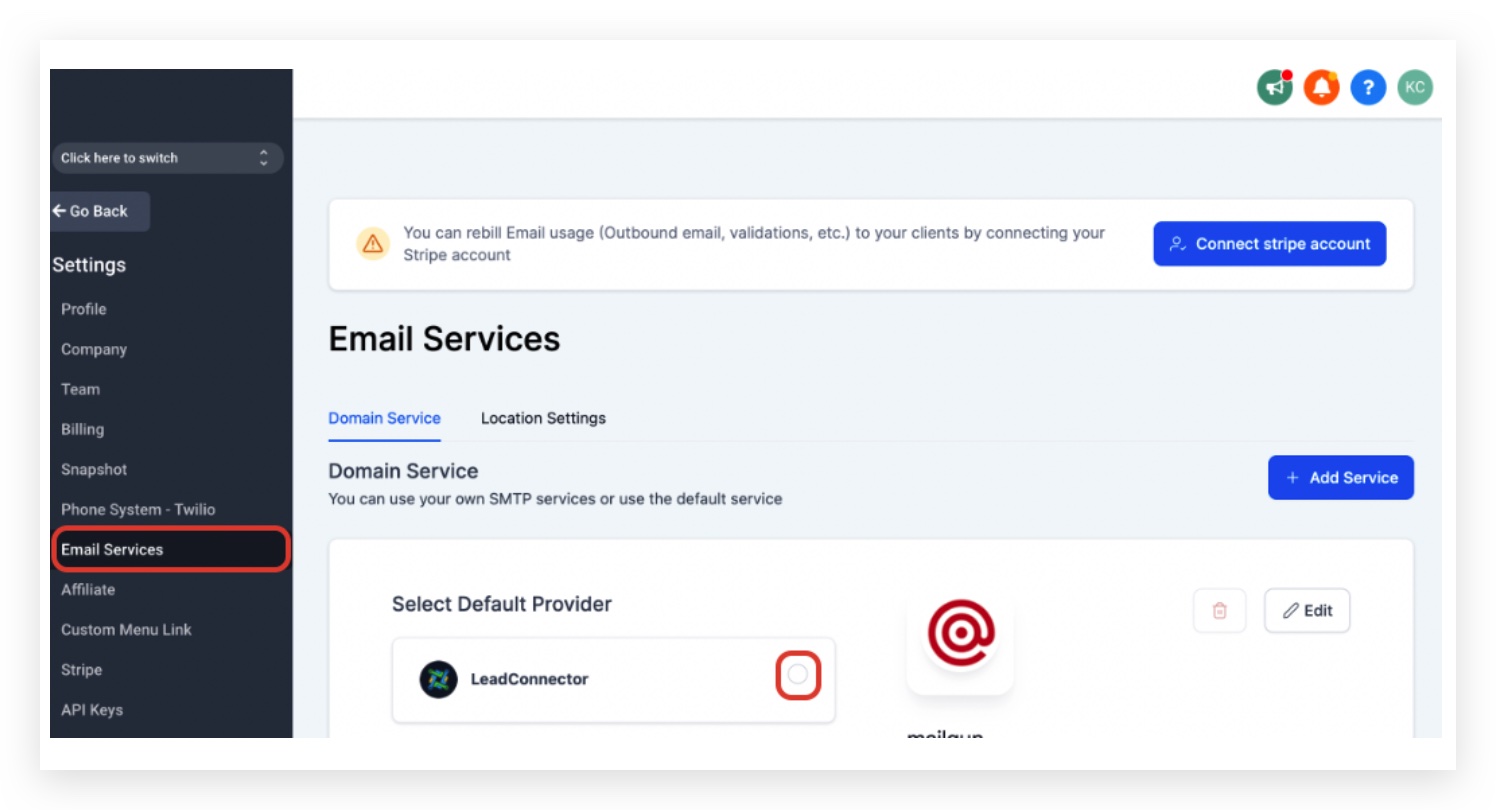
The setting lives under Agency Settings > Email Services. When the “Use LC - Email” button is pressed, new subaccounts automatically use LC Email, while existing ones keep their current provider until the SMTP integration is removed.
03How businesses use LC, Email
- Marketing agency. The agency selects LC Email as the default provider, follows the prompts, and then removes the old Mailgun integration. This gives all client subaccounts a consistent sending source without managing external accounts.
- Coaching business. The owner checks the list of LC Email sending domains to verify the switch. With the native service active, outbound messages are sent using HighLevel’s servers, reducing setup steps.
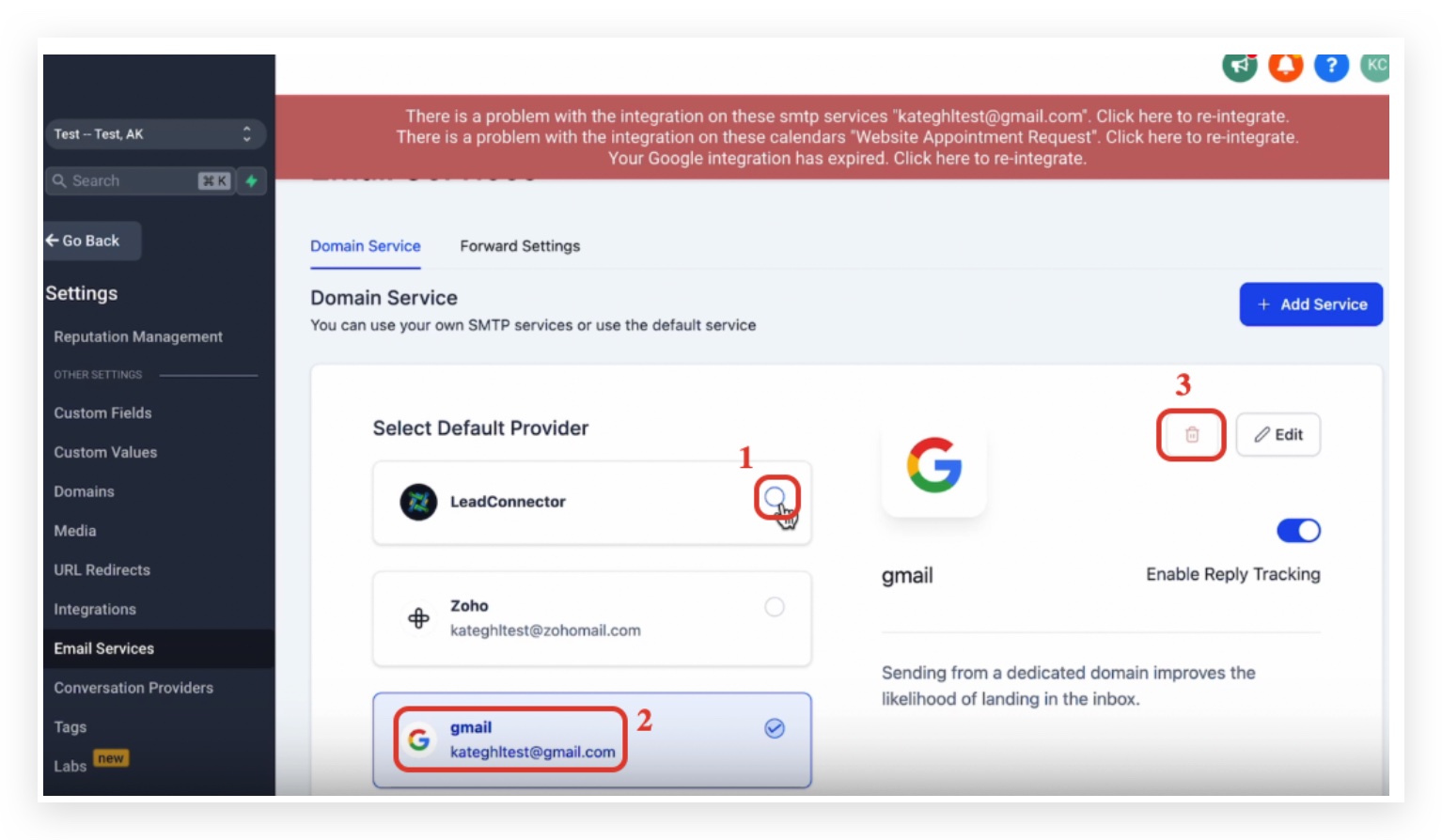
- Real estate brokerage. The team removes the Gmail integration that was used for SMTP, selects LeadConnector as the default provider, and deletes the integration. After removal, they rely on LC Email for all client communications.
04The numbers and rules that matter
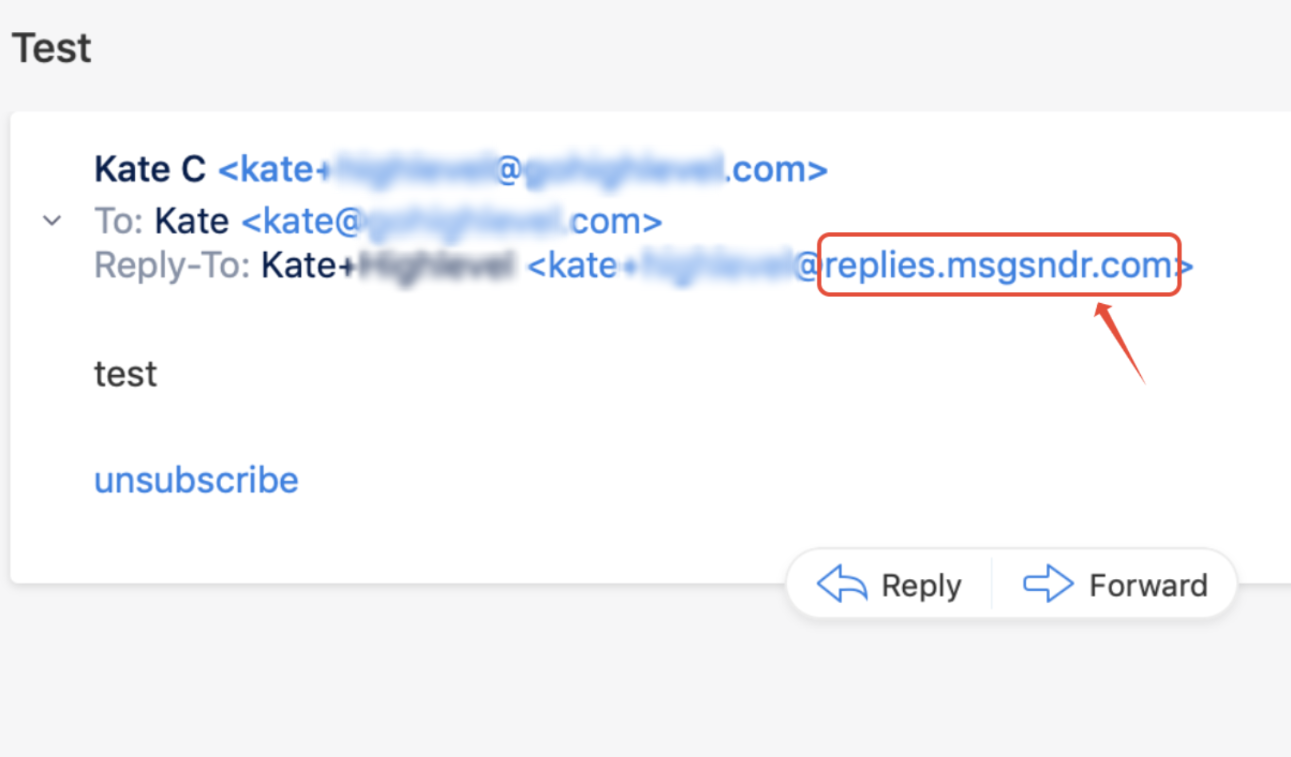
- Domains that indicate LC, Email is active: Mg.msgsndr.org, mg.msgsndr.net, replies001.msgsndr.com, replies.msgsndr.com, replies000.msgsndr.com, ec1.msgsndr.org, ec1.msgsndr.net.
05How to set up and use LC, Email in HighLevel
Migrate agency to LC Email
- Open Agency Settings and navigate to Email Services.
- Locate the button labeled “Use LC - Email.”
- Select LeadConnector as the default provider and follow the prompts.
- Note: Clicking the “Use LC - Email” button does not affect subaccounts that already have SMTP or Mailgun integrated.
- All new accounts created after this action will automatically use LC Email.
Remove existing SMTP integration
- Choose LeadConnector as the Default provider.
- Click on the Gmail integration entry.
- Press the trash icon to delete the integration.
06What it looks like in HighLevel
07Settings that matter
- Use LC - Email. Activates the built in LC Email service as the agency’s email provider.
- Default provider. Determines which email service (LeadConnector or an external SMTP) the agency uses.
08Things to know before you rely on it
- Pressing “Use LC - Email” does not change subaccounts that already have SMTP or Mailgun set up.
- New subaccounts created after activation will automatically use LC Email.
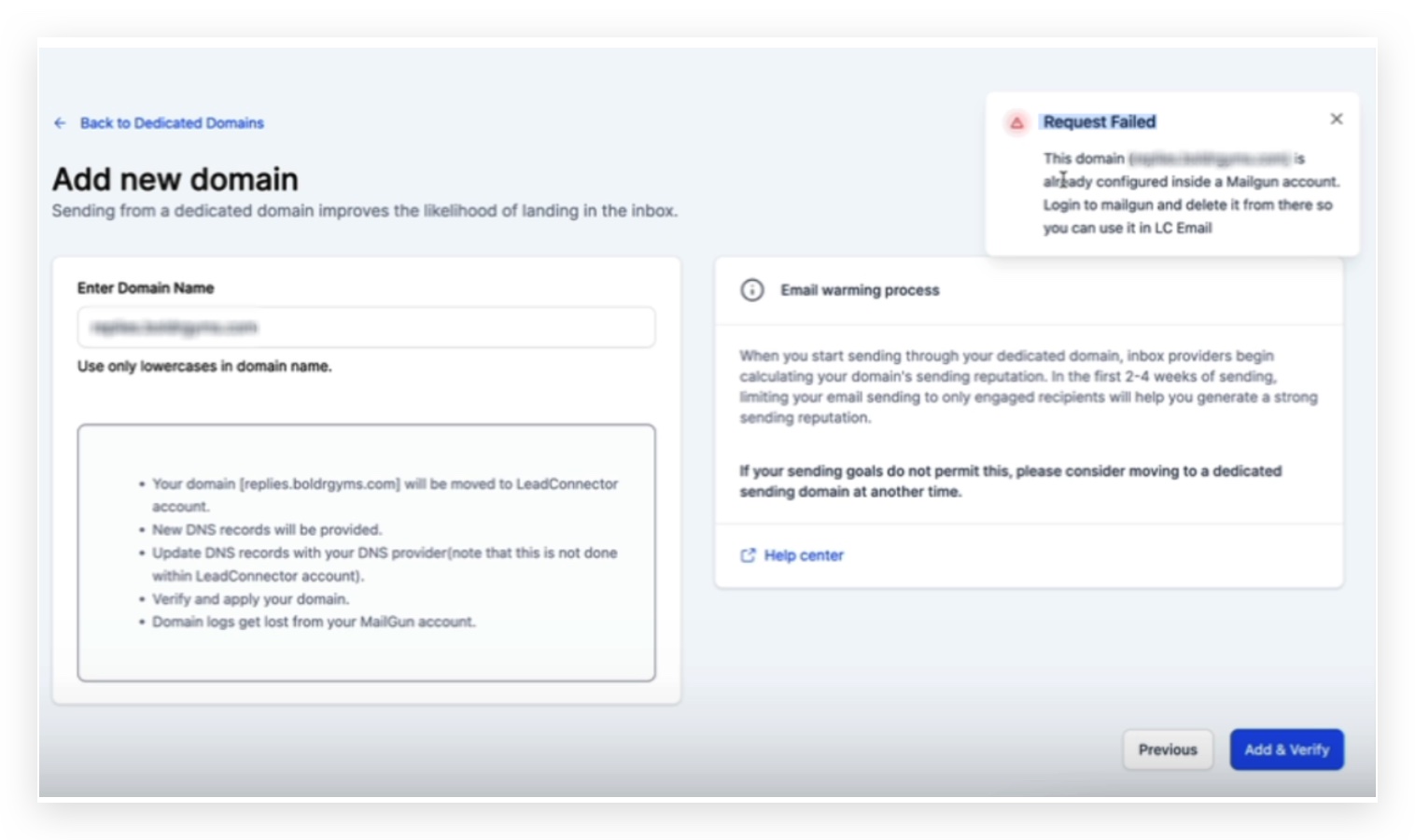
- If a domain is already configured in a Mailgun account, it cannot be added to LC Email until it is removed from Mailgun.
09If something goes wrong
- Domain addition fails with “Request Failed, this domain is already configured inside a Mailgun account.”. Log in to Mailgun and delete the domain, then try adding it to LC Email again. If removal is not possible, submit a support request.
10How it connects to the rest of HighLevel
- Learn about the built in LC Email limits and upgrade options. LC Email limits
- Guide to adding and verifying a sending domain in HighLevel. Add sending domain
- How to manage default unsubscribe links in LC Email. Unsubscribe links
Michael's take

Michael ReimerFounder of CRM Pros, HighLevel Commander and Certified Admin
If I were moving an agency, I’d verify the domain list first, then clean any lingering Mailgun entries. That way the transition is clean and there are no surprise errors.
Get More InformationOpens on HighLevelPublished November 2, 2026 · Updated November 16, 2026