
01Who this is for
- Online retailers who serve repeat buyers, because customers can checkout faster without re entering address details.
- Businesses that offer multiple shipping locations, since a default address can be pre selected while still allowing a different saved address per order.
- Agency managers handling several ecommerce stores, because saved addresses are kept per store and do not bleed across other sites.
02Saved customer addresses, explained
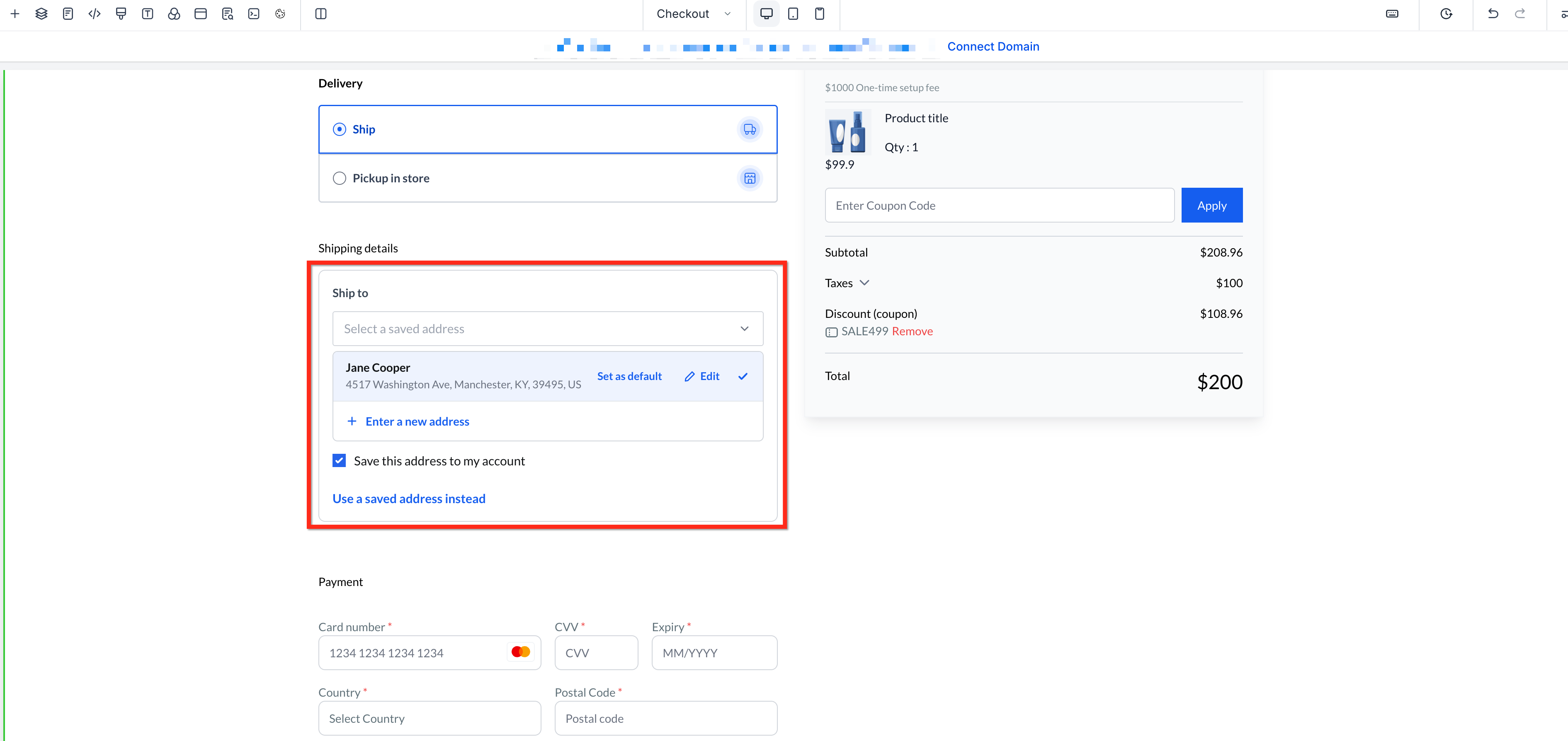
The feature stores a shopper’s shipping and billing information inside their user profile for each individual store. Up to ten addresses can be saved; one may be marked as the default and is auto filled during checkout. Customers retain the ability to choose another saved address or enter a new one at any time, and guest checkout remains unchanged.
In the Store Builder, merchants can turn on the Customer Login toggle to see how the signed in checkout appears. The checkout canvas updates right away, showing the saved address card that can be edited on the spot. Turning the toggle off returns the view to the standard guest checkout preview.
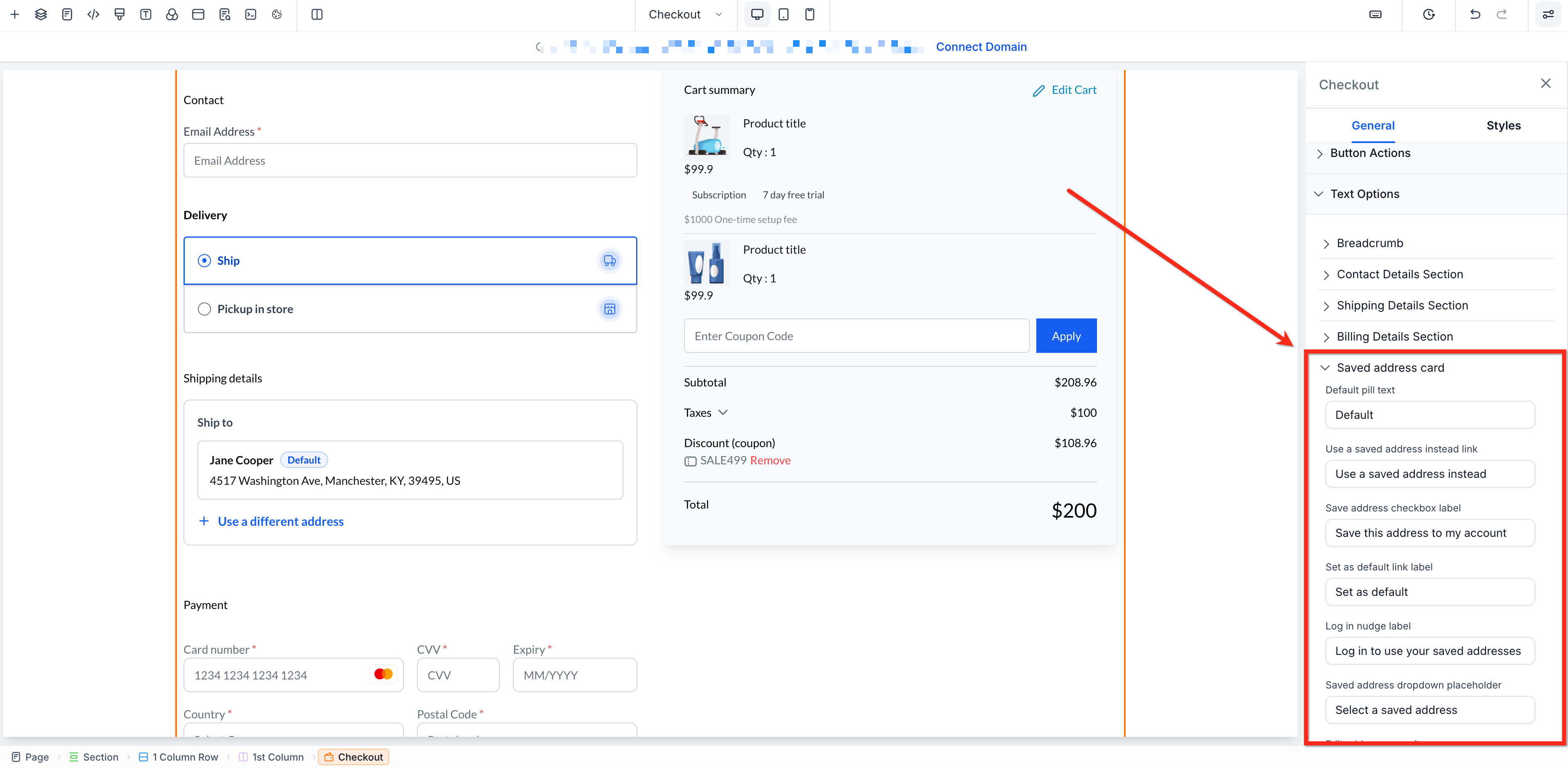
Merchants also have control over the wording displayed on the saved address card. Through the Checkout element’s Text Customization section, the labels for saved address controls can be rewritten to match brand tone or language preferences.
03How businesses use saved customer addresses
- Fashion boutique. The boutique enables customers to keep up to ten delivery addresses, so repeat shoppers can select their preferred address with one click at checkout. The owner edits the saved address labels to match the store’s casual voice, and uses the preview mode to ensure the signed in view looks correct before publishing.
- Furniture retailer. Because large items often ship to different locations, the retailer lets buyers store a default warehouse address and additional delivery sites. Staff customize the saved address copy to clarify billing versus shipping fields, and use the signed in preview to verify the layout works on desktop and mobile.
- Multi store agency. The agency configures each client’s ecommerce site with saved address functionality, ensuring each store keeps its own address pool. They adjust the wording per client brand and preview the signed in checkout for each site without publishing changes, keeping client sites consistent.
04The numbers and rules that matter
- Customers can save up to 10 addresses per store.
05Before you start
- A HighLevel ecommerce store must already exist with a Navigation Menu element in the site layout.
- The store must include a Checkout page that contains a Checkout element.
06How to set up and use saved customer addresses in HighLevel
Preview signed in checkout experience
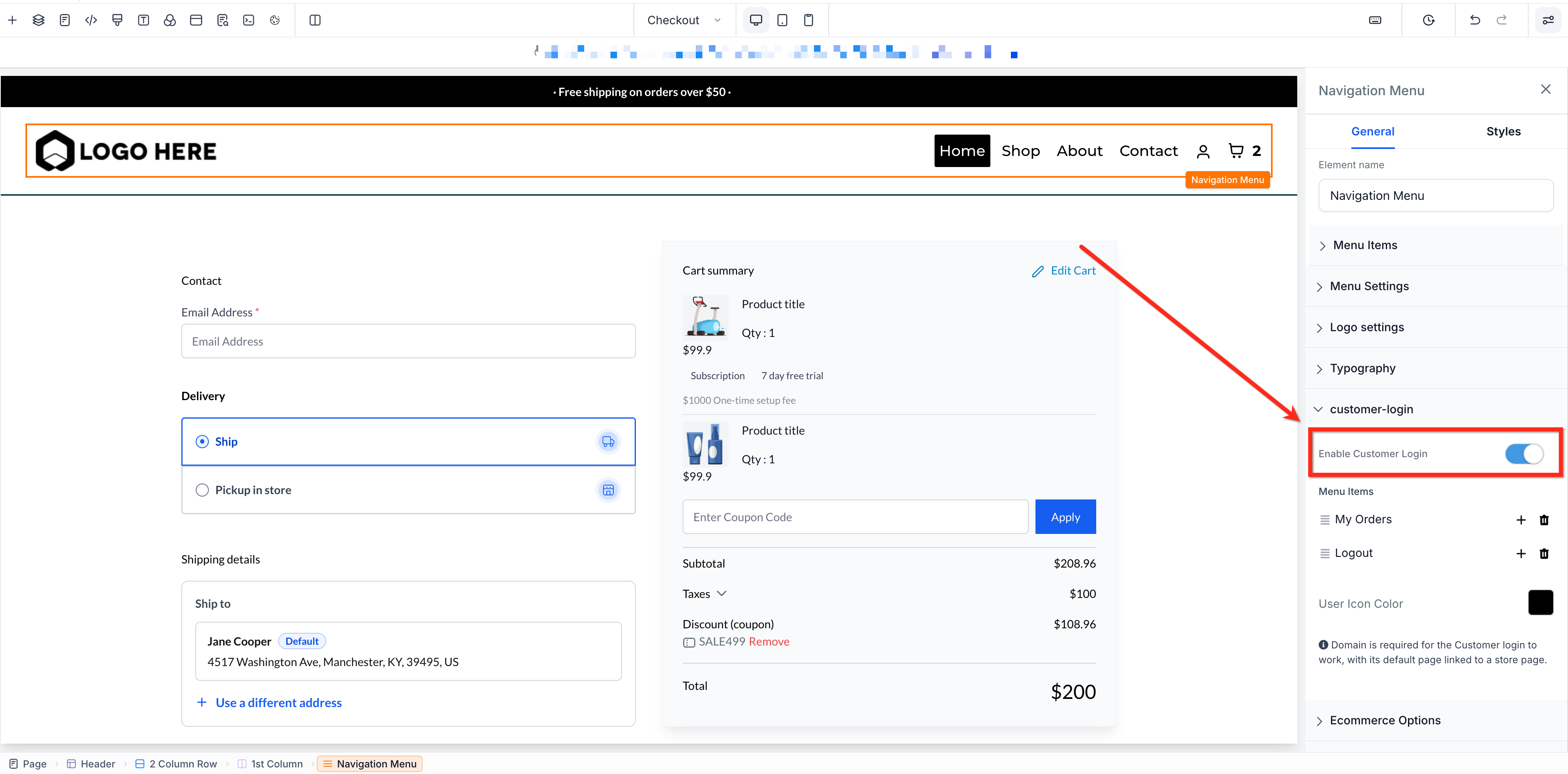
- Open the Store Builder and click on the Navigation Menu element.
- Switch the Enable Customer Login toggle to on.
- Watch the saved address card appear in the checkout preview area.
- Edit the card’s text or layout as needed.
- Turn the Enable Customer Login toggle off to return to the guest view.
Customize saved address copy
- Open the Checkout page inside the Store Builder.
- Select the Checkout element on that page.
- Scroll down to the Text Customization section and locate Saved Address Card.
- Enter the desired wording for the saved address labels and save the changes.
07What it looks like in HighLevel
08Settings that matter
- Enable Customer Login. Activates or deactivates the signed in checkout preview, allowing merchants to see how saved addresses appear to logged in shoppers.
- Saved Address Card (under Text Customization). Controls the text shown on the saved address section of checkout, letting merchants rewrite labels to fit their branding.
09Things to know before you rely on it
- Customers can store a maximum of ten addresses per ecommerce store.
- One address may be set as default and will be auto selected during checkout.
- Saved addresses are isolated to the individual store and do not carry over to other stores within the same subaccount.
10How it connects to the rest of HighLevel
- Step by step guide to building an ecommerce store in HighLevel Set up a HighLevel ecommerce store
- Configuring shipping zones and ZIP limits for product delivery Shipping zones and ZIP limits
- How to connect Stripe for payment processing in HighLevel stores Connect Stripe
Michael's take

People often think the saved address feature will automatically appear for every shopper. It only shows up for customers who are signed in, and the preview requires you to toggle the login setting in the builder first.
I would turn on Enable Customer Login, check the saved address card in the preview, then edit the copy to match my brand tone. A quick test with a signed in test account confirms the default address loads as expected before I push the changes live.