
01Who this is for
- Founders who need a quick online storefront without integrating separate platforms, because the store lives inside their HighLevel subaccount.
- Small retailers who want to manage products, payments, and orders from a single dashboard, simplifying daily operations.
02Ecommerce stores, explained
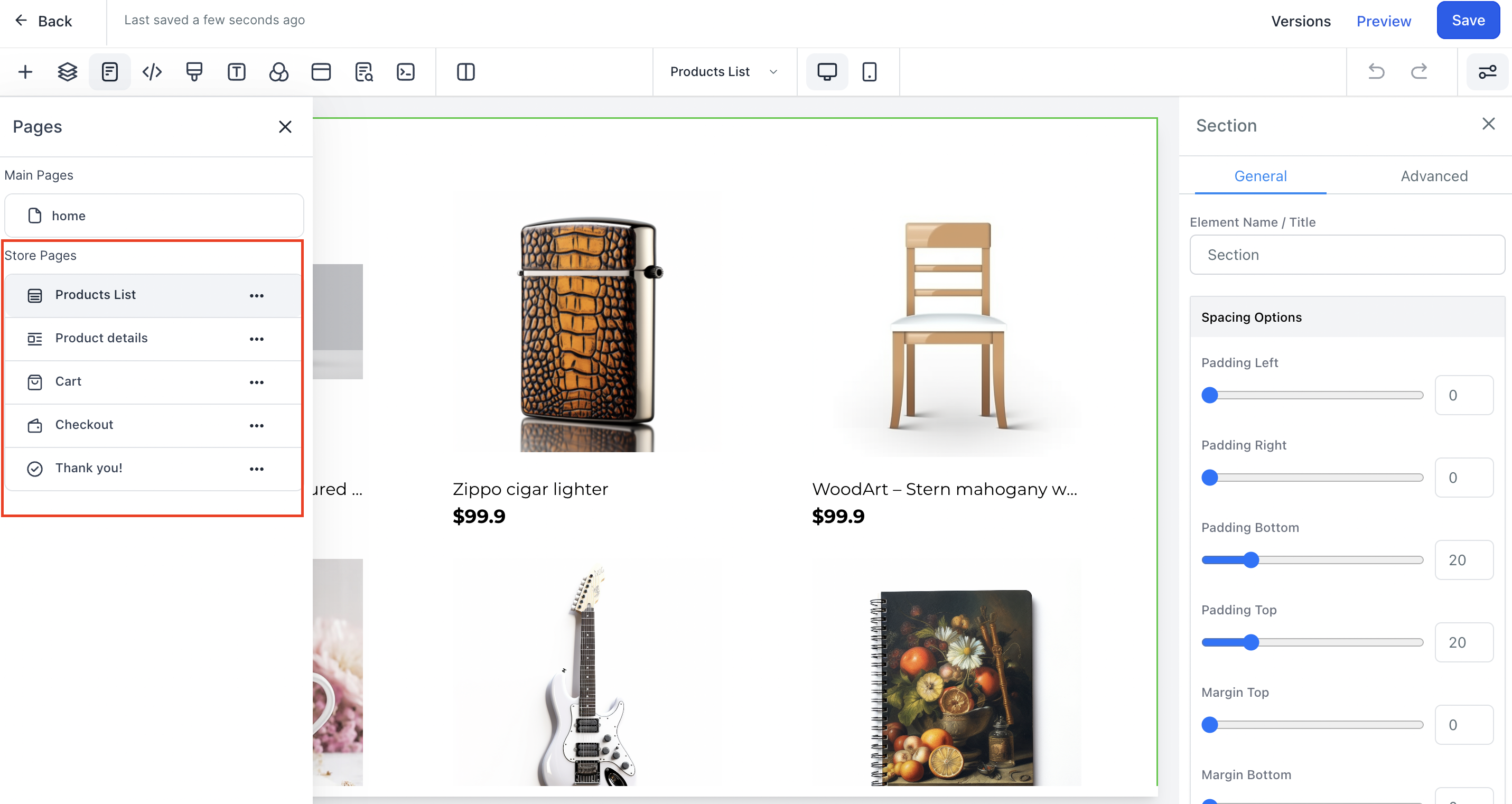
The ecommerce store feature adds five predefined pages, product list, product details, cart, checkout, and thank you, that work together to move a visitor from browsing to purchase. These pages are generated automatically when the first store element is placed on a website and remain in a fixed order.
Store data, such as products and payment records, are managed under the Payments section. Products appear in the storefront only when the Include in Online Store flag is turned on. Checkout collects required contact information, applies coupons, and offers fulfillment options like pickup, which hides the shipping fields when selected.
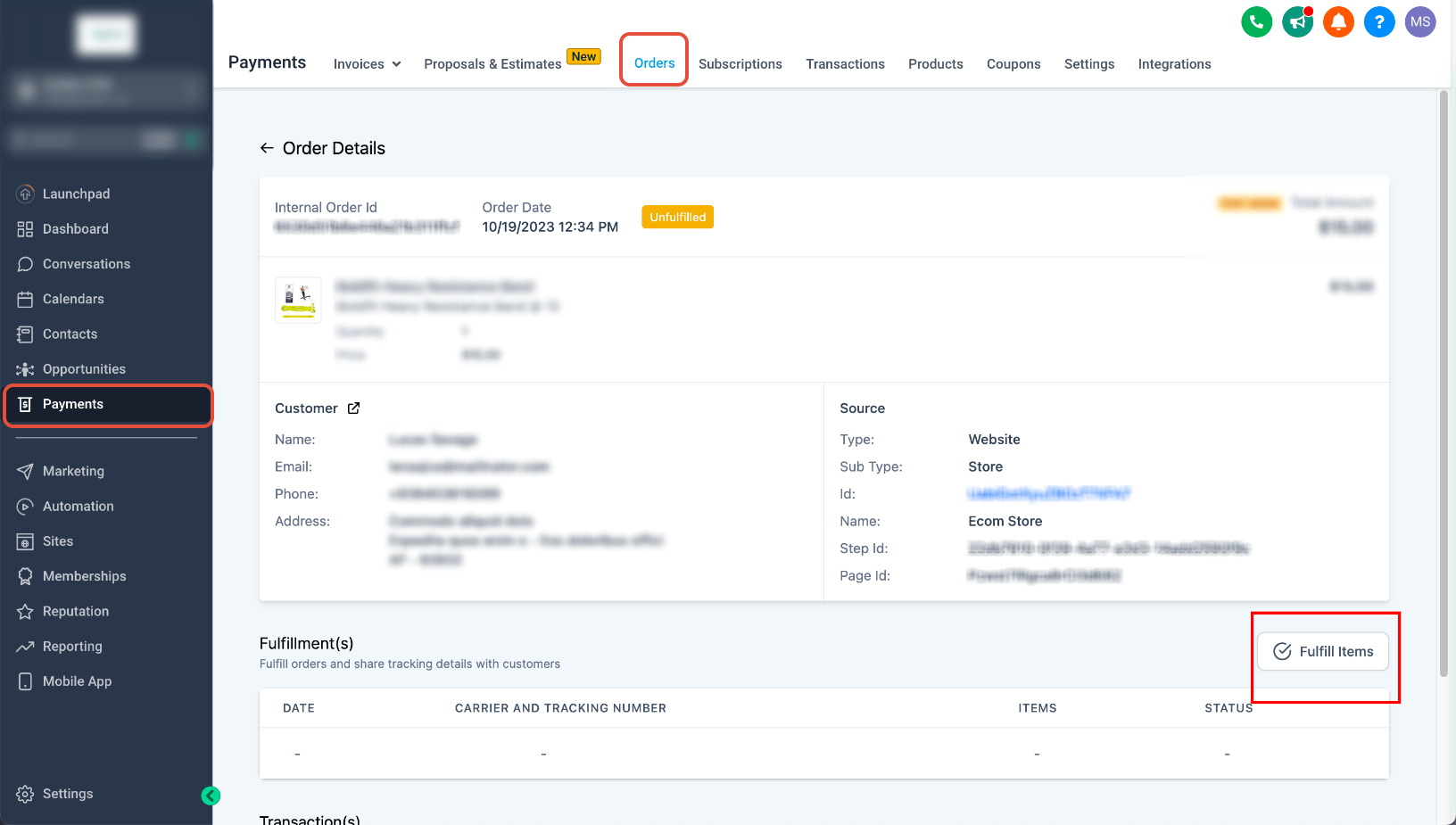
All store functions are accessed from the Subaccount view under Sites > Stores. Order and transaction details are viewable in Payments > Orders and Payments > Transactions, enabling fulfillment and refund processing from the same interface.
03How businesses use ecommerce online store
- Boutique clothing shop. The owner creates each garment as a product in Payments > Products, enables Include in Online Store, and places a Collections List element on the home page. Visitors browse, add items to the cart, and complete checkout without leaving the boutique’s website.
- Online fitness coach. The coach defines a digital course product, uploads video media, and activates Include in Online Store. A Featured Products element on the landing page showcases the program, and the checkout page processes payments through the connected Stripe account.
- Local hardware supplier. The supplier adds hardware items as products, configures pickup in store as a fulfillment option, and embeds a Cart element on a product page. When a customer selects pickup, HighLevel hides the shipping fields and uses the chosen location as the address.
04Before you start
- A domain must be connected to the store, either existing or new, before publishing.
- A payment provider such as Stripe must be linked manually.
- Products intended for the storefront must have Include in Online Store enabled.
05How to set up and use ecommerce online store in HighLevel
Set up your first store with Ask AI
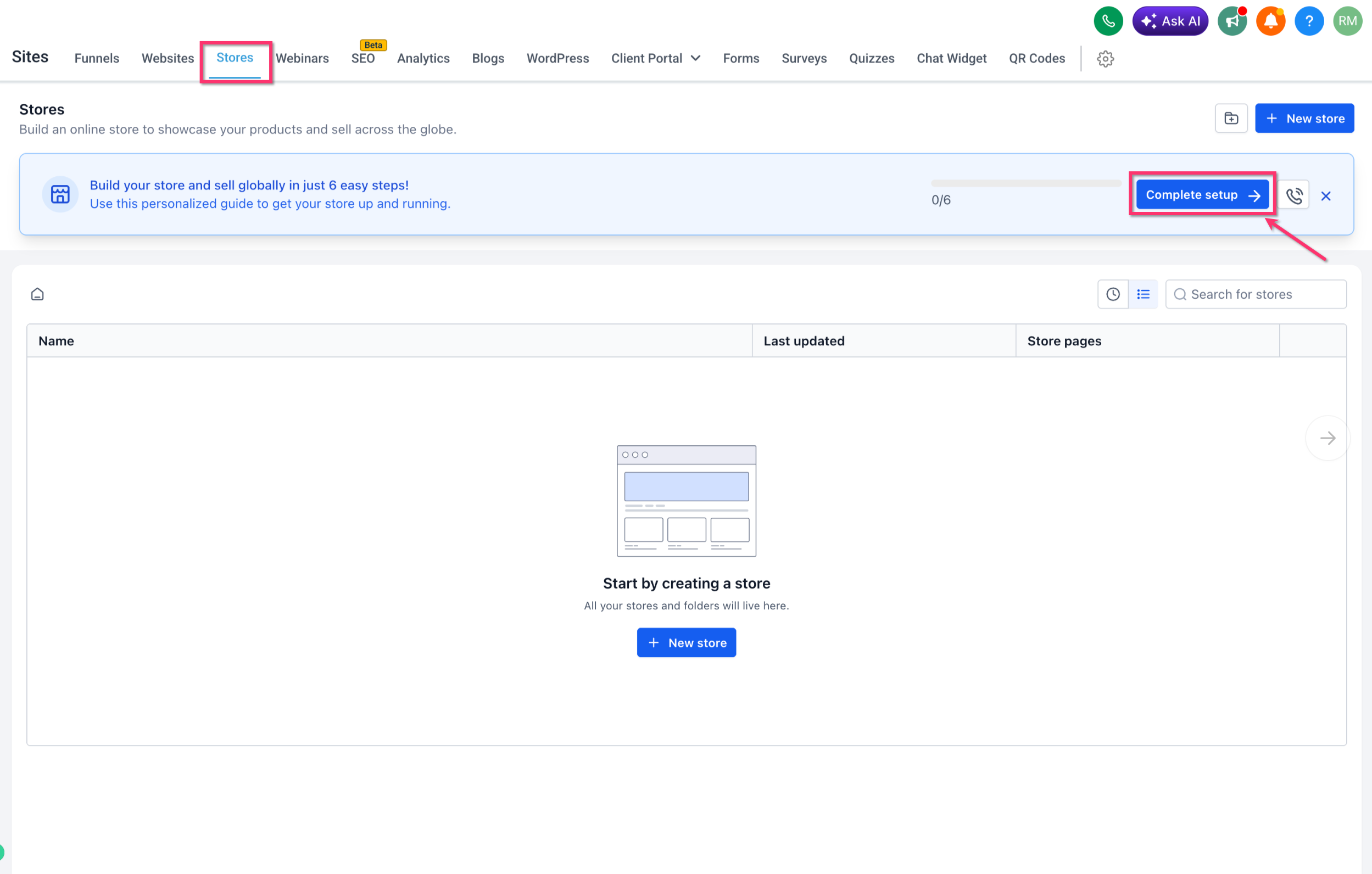
- From the Subaccount view, open Sites.
- Choose Stores in the top navigation.
- Click the Complete Setup button shown in the Store setup banner.
- Pick a specific setup task or run the full Store setup.
- Answer each question presented by Ask AI.
- Review any confirmation prompts before Ask AI saves changes.
- Proceed through the recommended tasks until all supported steps are finished.
Complete domain and payment setup
- If using an existing domain, let Ask AI help connect it to the Store.
- For a new domain, perform the manual domain configuration outside Ask AI.
- Manually link a payment provider, as Ask AI does not collect credentials.
Create and configure store products
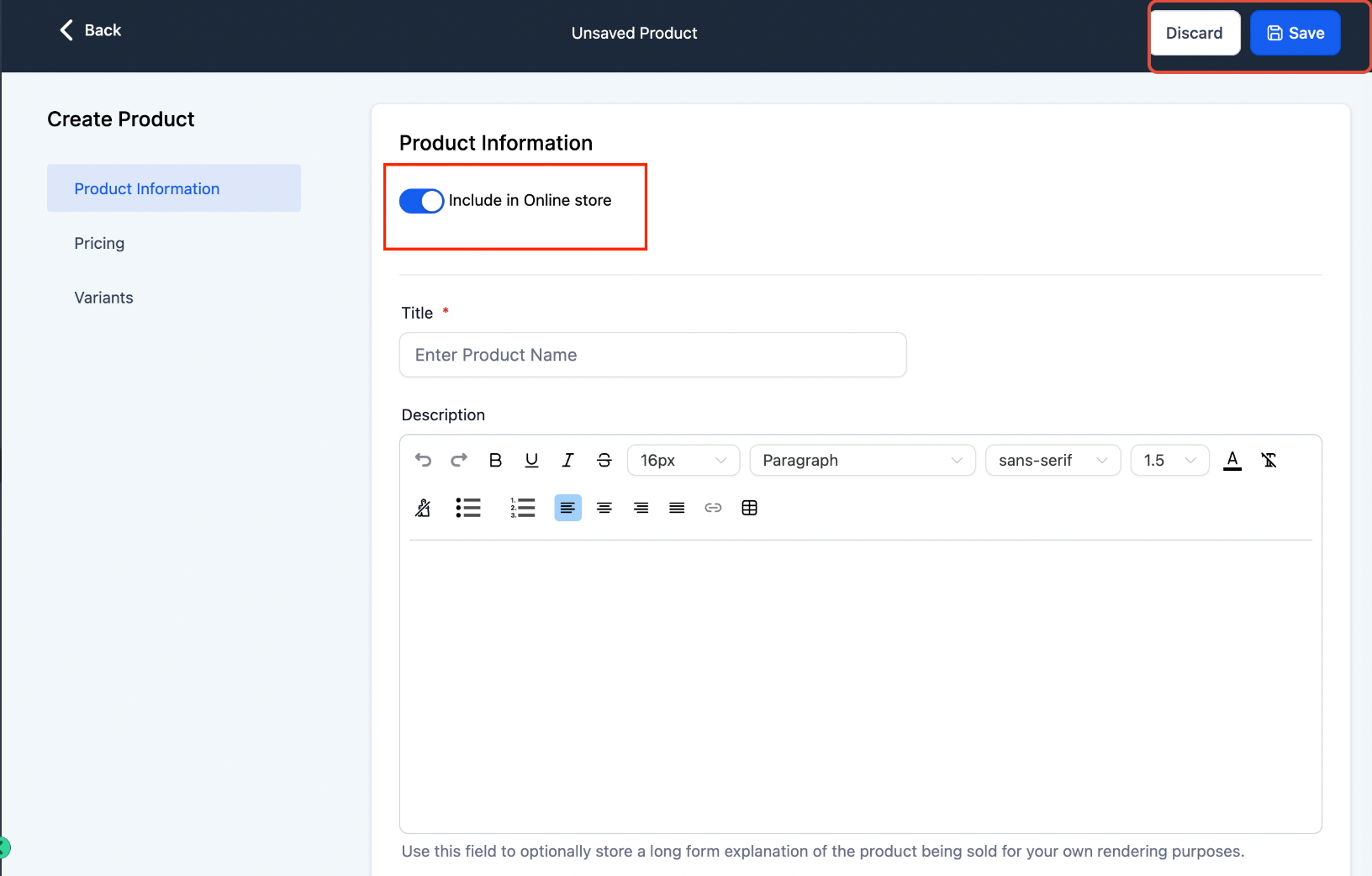
- Navigate to Payments > Products.
- Create a new product or open an existing one.
- Enter the product name, description, media, pricing, and any variants.
- Toggle Include in Online Store for items that should be visible in the Store.
- Save the product record.
Add the store to a website
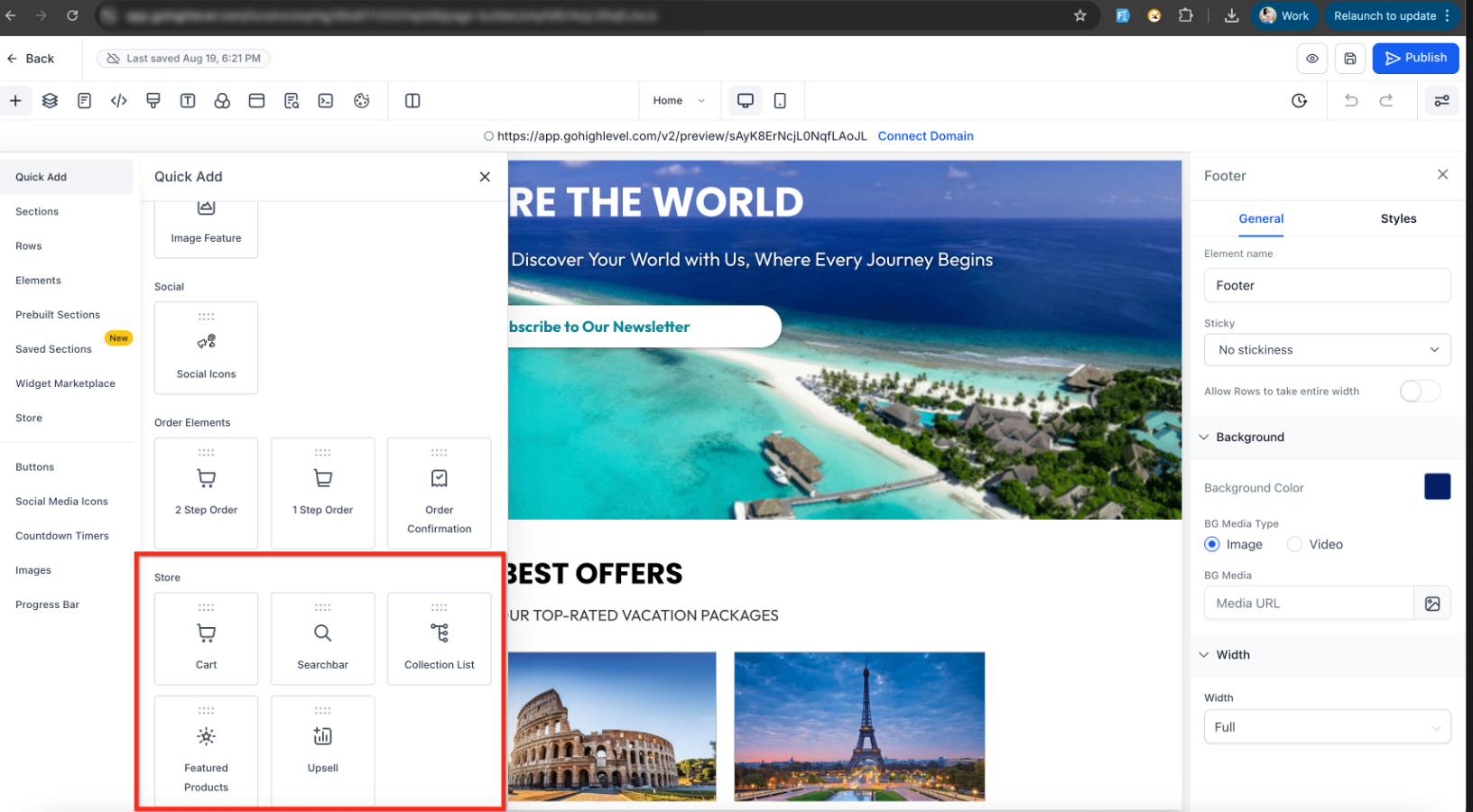
- Open the target website in the Website Builder.
- Click Add element.
- Drag a Store element, such as Cart, Collections List, or Featured Products, onto the page, or select a pre built Store section.
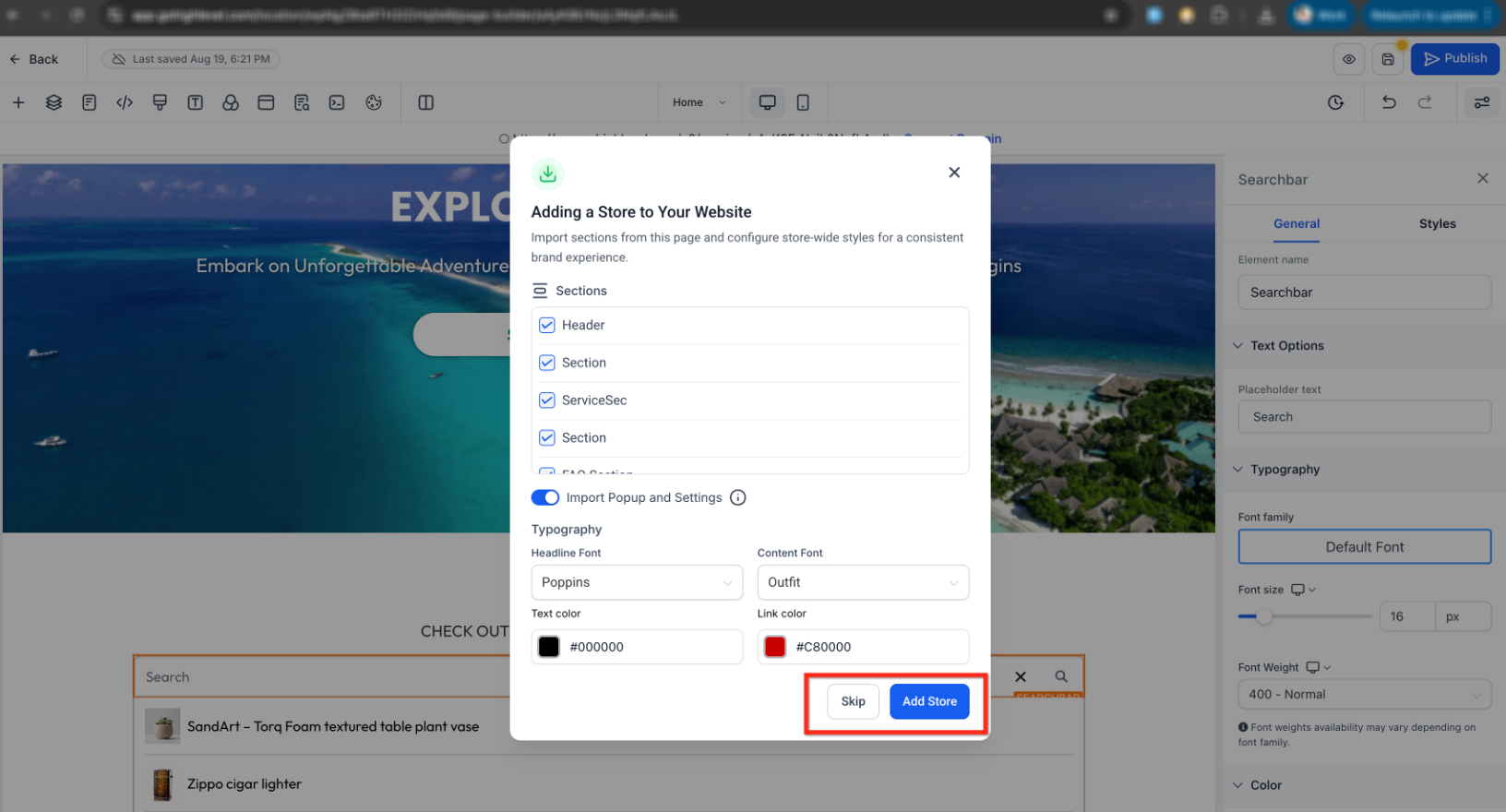
- When the import modal appears, choose Add Store to create the Store and import design settings, or choose Skip to create the Store without importing them.
- Continue customizing the generated Store pages and elements as needed.
Manage Store page order
- Open the Store’s Pages grid to view the five required pages.
- Attempting to move any of the five pages relative to each other will be rejected and a message will explain the restriction.
- Regular website pages can be placed before or after the group, but not between the five Store pages.
Delete a store
- Go to Sites > Stores.
- Open the three dot menu for the Store or open Store Settings.
- Select Delete Store.
- Type DELETE in the confirmation dialog.
- Click Delete to remove the Store and its five pages. Other website pages remain unchanged.
06What it looks like in HighLevel
07Settings that matter
- Include in Online Store. Controls whether a product appears in the storefront; only products with this option turned on are shown to customers.
08Things to know before you rely on it
- The five Store pages (Products List, Product Details, Cart, Checkout, Thank You) must stay together and cannot be reordered relative to each other.
- Ask AI cannot create a new domain or configure a payment provider; those steps require manual action.
- Multiple stores can exist in the same subaccount, each with its own set of pages.
- When deleting a store, only the store related pages are removed; other website pages remain untouched.
09If something goes wrong
- Product does not appear in the storefront. Open the product under Payments > Products and ensure Include in Online Store is enabled.
10How it connects to the rest of HighLevel
- Connect a Stripe account to process payments for your store. Connect Stripe
- Set up shipping zones and ZIP limits to control delivery options. Shipping zones
- Recover abandoned checkouts with automatic email reminders. Abandoned checkout emails
Michael's take

People often assume Ask AI will finish the whole shop for them, but it stops short at domain and payment provider setup. I prefer to let Ask AI handle the supported steps, then manually connect my domain and payment gateway so I know exactly what credentials are being used.
Once the store is live, I would check that each product has the Include in Online Store flag turned on and run a quick test checkout to verify the flow from cart to thank you page before promoting the site.