
01Who this is for
- Founders who operate multiple sales channels benefit because they can centralize Stripe setup and route payments without leaving HighLevel.
- Ecommerce store owners gain control over supported cards, wallets and bank debit options for both test and live environments.
- Service based businesses can use Stripe for appointment bookings and subscription courses while keeping payment preferences inside the platform.
02Stripe connections, explained
Connecting Stripe registers the account as a payment provider for the selected HighLevel subaccount. Once linked, any eligible HighLevel checkout, invoices, payment links, order forms, stores, calendars, courses or communities, can send transactions to Stripe for processing. The integration does not import historic Stripe payments; it only tracks new transactions created through HighLevel.
The connection lives under the Payments section. Within Payments > Integrations you can see Stripe’s connection status, launch the Manage screen, and adjust payment method availability for test and live modes. Channel level routing settings let you prefer Stripe or another provider for each funnel, form, store or other checkout area.
03How businesses use Connecting Stripe
- Online retailer. The retailer links their Stripe account in Payments > Integrations, verifies the connection, then enables Stripe as the provider for product order forms and the storefront. They adjust supported cards and wallet options in the Manage view before publishing the store.
- Course creator. A creator connects Stripe, confirms the link, and selects Stripe as the preferred provider for the course checkout channel. They use the Manage screen to enable card and payment plan methods, then launch the course enrollment page.
- Appointment based service. The service provider adds Stripe through Payments > Integrations, verifies the setup, and configures the calendar channel to route bookings to Stripe. They control which payment methods appear for clients scheduling appointments.
04The numbers and rules that matter
- Supported payment methods depend on Stripe account verification, country, currency and checkout type.
05Before you start
- Be logged into the HighLevel subaccount where Stripe should be linked.
- Have access to the intended Stripe account or be ready to create one during the process.
- Hold the necessary Stripe permissions to authorize the integration.
- Confirm Stripe is supported in the country where the business operates.
06How to set up and use Connecting Stripe in HighLevel
Set up Stripe in HighLevel
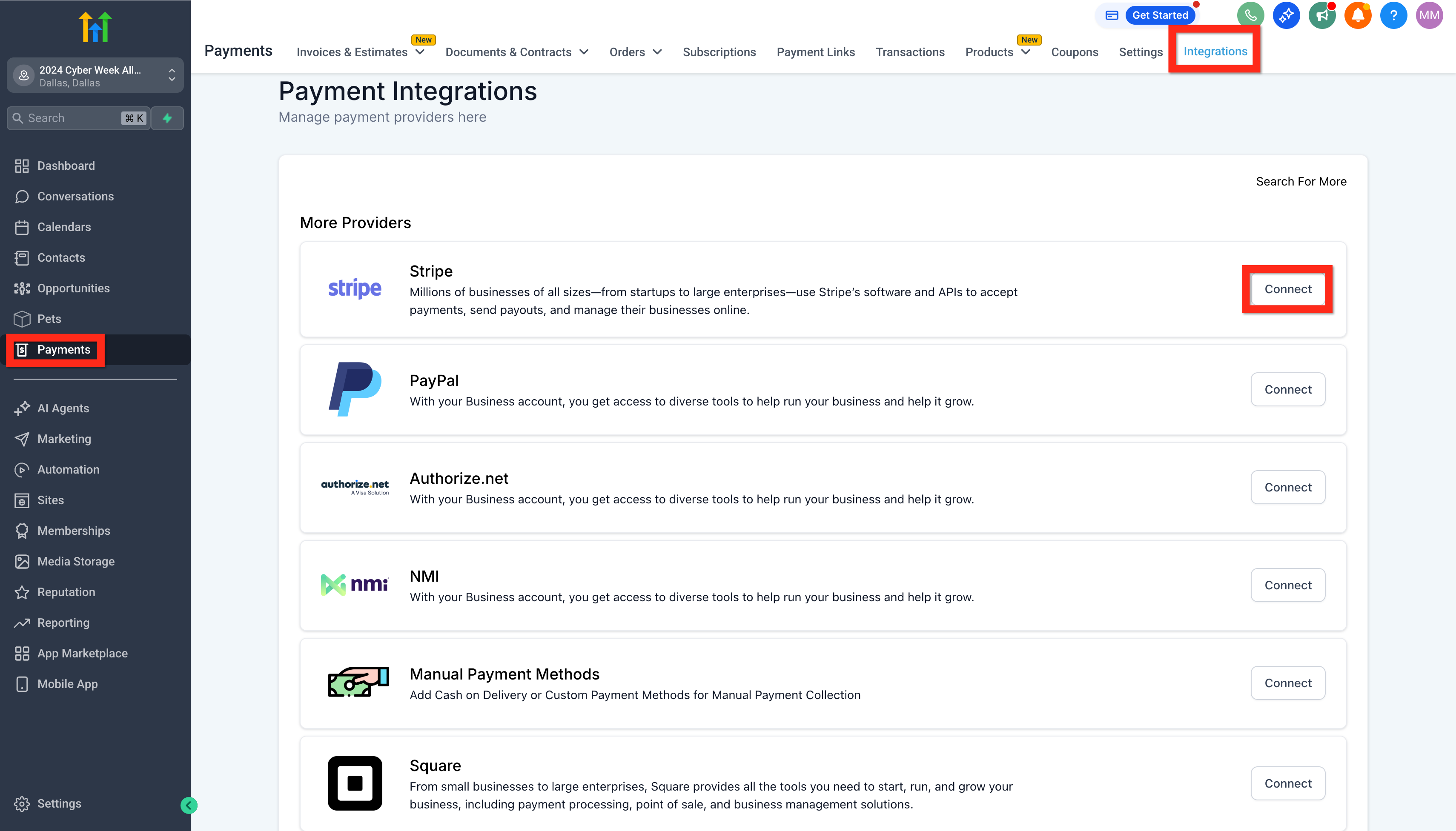
- Open the Payments area in the selected HighLevel subaccount.
- Choose the Integrations tab.
- Find Stripe and click the Connect (or Connect with Stripe) button.
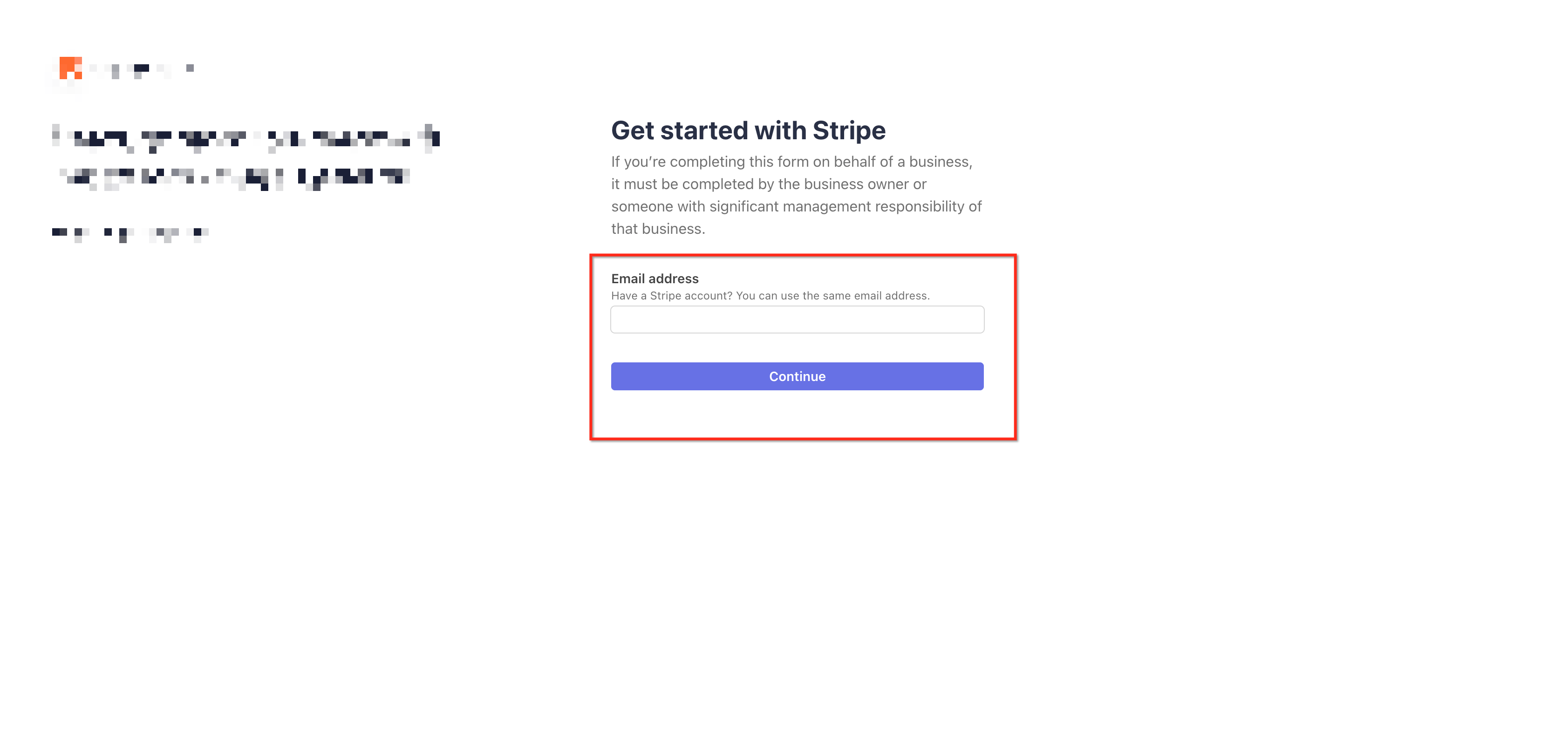
- Complete Stripe’s authorization flow, including logging in or creating a Stripe account and approving the link.
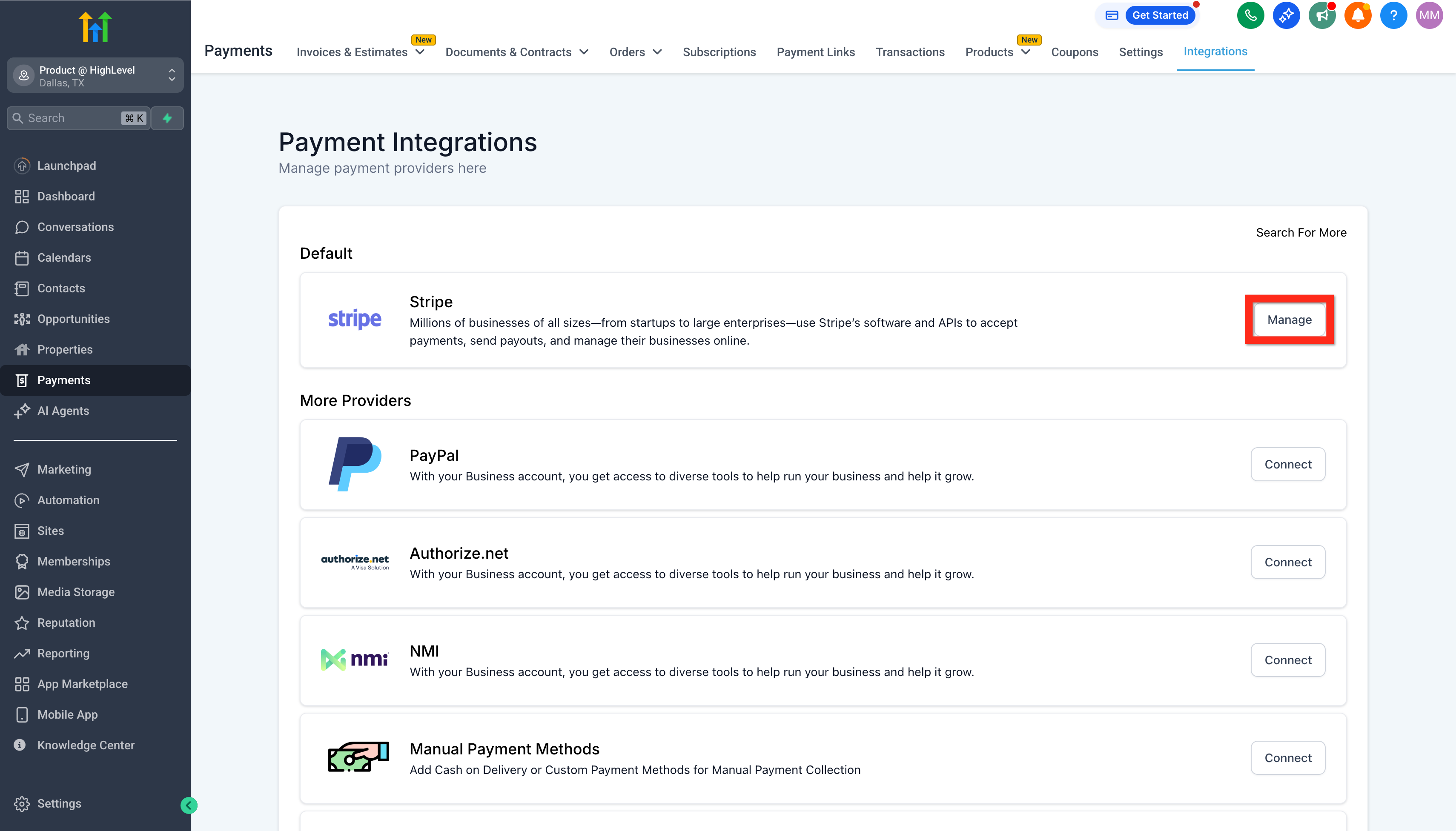
- Return to Payments > Integrations and verify that Stripe appears as connected.
- If the Manage button is present, click it to adjust Stripe payment method and provider options.
07What it looks like in HighLevel
08Settings that matter
- Stripe payment methods. Controls which eligible cards, wallets, bank debit and regional options customers can use when Stripe processes a checkout.
- Payment Provider and Channel Configuration. Determines which connected provider, such as Stripe, is preferred for each checkout channel like funnels, forms, stores or invoices.
09Things to know before you rely on it
- A subaccount can connect to only one Stripe account at a time.
- Stripe must be supported for the business’s country before setup.
- Payment method availability depends on Stripe verification, country, currency, checkout type and test or live mode.
- Existing Stripe transactions created before the connection are not imported into HighLevel.
- Only recurring or subscription products can be imported from Stripe; one time products must be created inside HighLevel.
10If something goes wrong
- Stripe does not show as connected after completing authorization.. Return to Payments > Integrations and check the Stripe status. Ensure the Stripe account used has sufficient permissions. Re connect Stripe or ask the account owner to verify access if needed.
11How it connects to the rest of HighLevel
- Create and sell products after linking Stripe. Create & sell products
- Review HighLevel pricing and plan options for accessing Stripe integrations. Pricing & plans
Michael's take

People often think they can link several Stripe accounts to a single HighLevel subaccount and then pick the right one per checkout. The platform only allows one Stripe connection per subaccount, so you need a separate subaccount for each distinct Stripe account you want to use.
If I were setting this up, I would first verify the Stripe permissions and country support, then connect the account and immediately check the provider routing for any channels that already have a preferred provider. That way I avoid surprises when a checkout falls back to a different payment method.