
01Who this is for
- Coaches who need a simple way to bundle training videos and worksheets for clients.
- Consultants looking to monetize a repeatable methodology as a paid online program.
- Membership site owners who want to add structured learning modules to their community.
02Courses, explained
The Courses feature lives under the Memberships section of HighLevel. It provides a workspace where you define modules, lessons, quizzes, and assignments, then attach the finished product to an offer. Pricing can be set as free, a one time fee, or a recurring subscription.
When an offer is published, HighLevel creates a unique URL that you can share. Learners who click the link are taken through the checkout flow (if a price is set) and then receive access to the course content you built in the editor.
03How businesses use courses
- Fitness coach. The coach creates a course containing workout videos and nutrition PDFs. After publishing an offer, the coach shares the link in email newsletters so clients can enroll and view the lessons directly in HighLevel.
- Software trainer. The trainer builds modules with screen recorded demos and quizzes. By setting the offer as a recurring subscription, the trainer can collect monthly payments and grant continuous access through the platform.
- Non profit educator. The educator assembles free lessons and downloadable guides, marks the course as free, and publishes the offer link on the organization’s website to provide open access.
04Before you start
- Access to Memberships > Courses in your HighLevel account.
- Prepared course assets such as videos, PDFs, and quizzes.
- A thumbnail image for the course (optional).
- A connected payment provider if the course will be sold.
- A defined pricing model: Free, One Time, or Recurring.
05How to set up and use courses in HighLevel
Create a Course
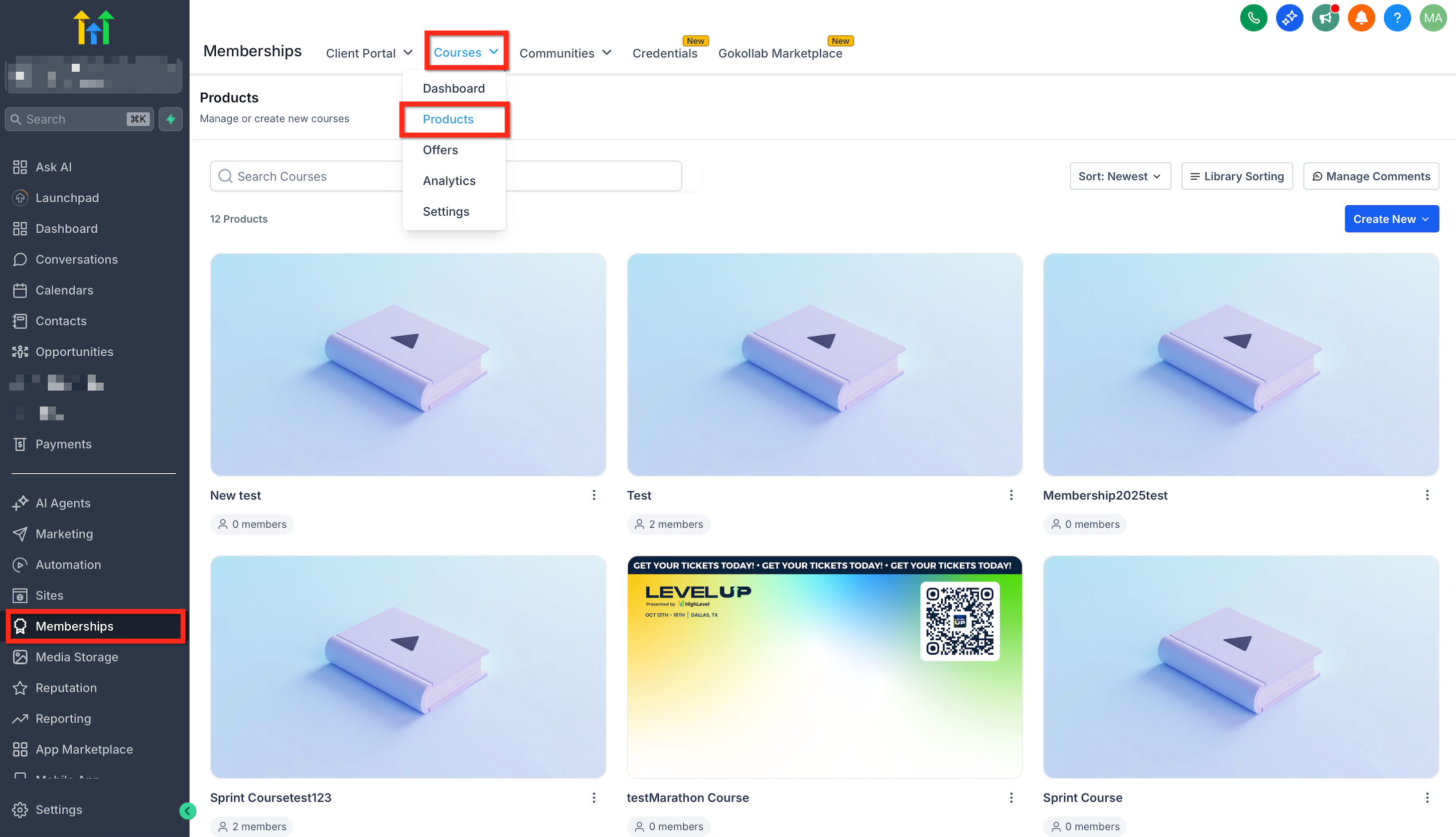
- Open Memberships > Courses > Products.
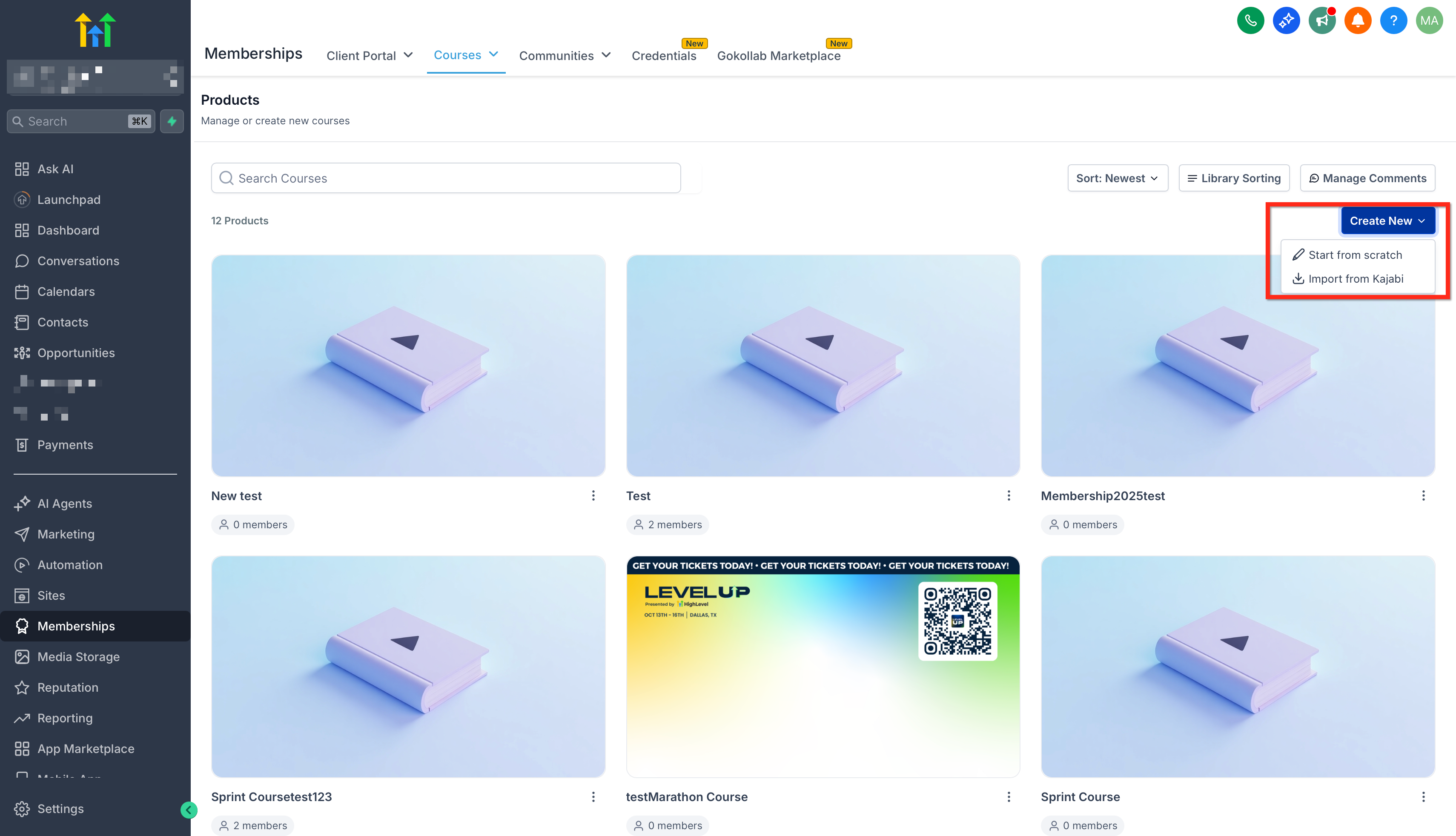
- Select Create Product and choose Start from Scratch.
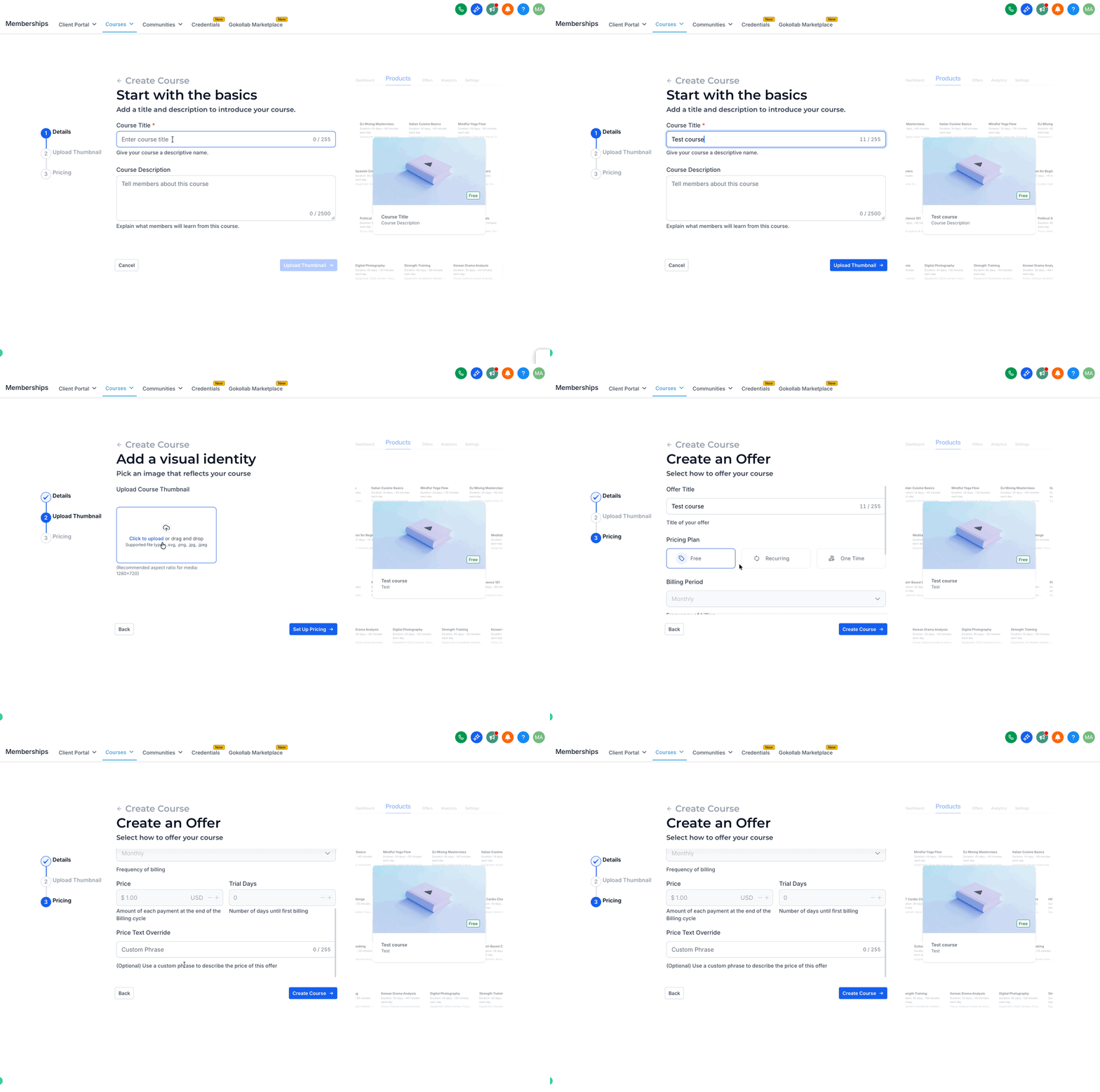
- Enter the Course Title.
- Write the Course Description.
- Upload a thumbnail image and pick a pricing option (Free, Recurring, or One Time).
- Click Create Course to save the new product.
Build Your Course Content
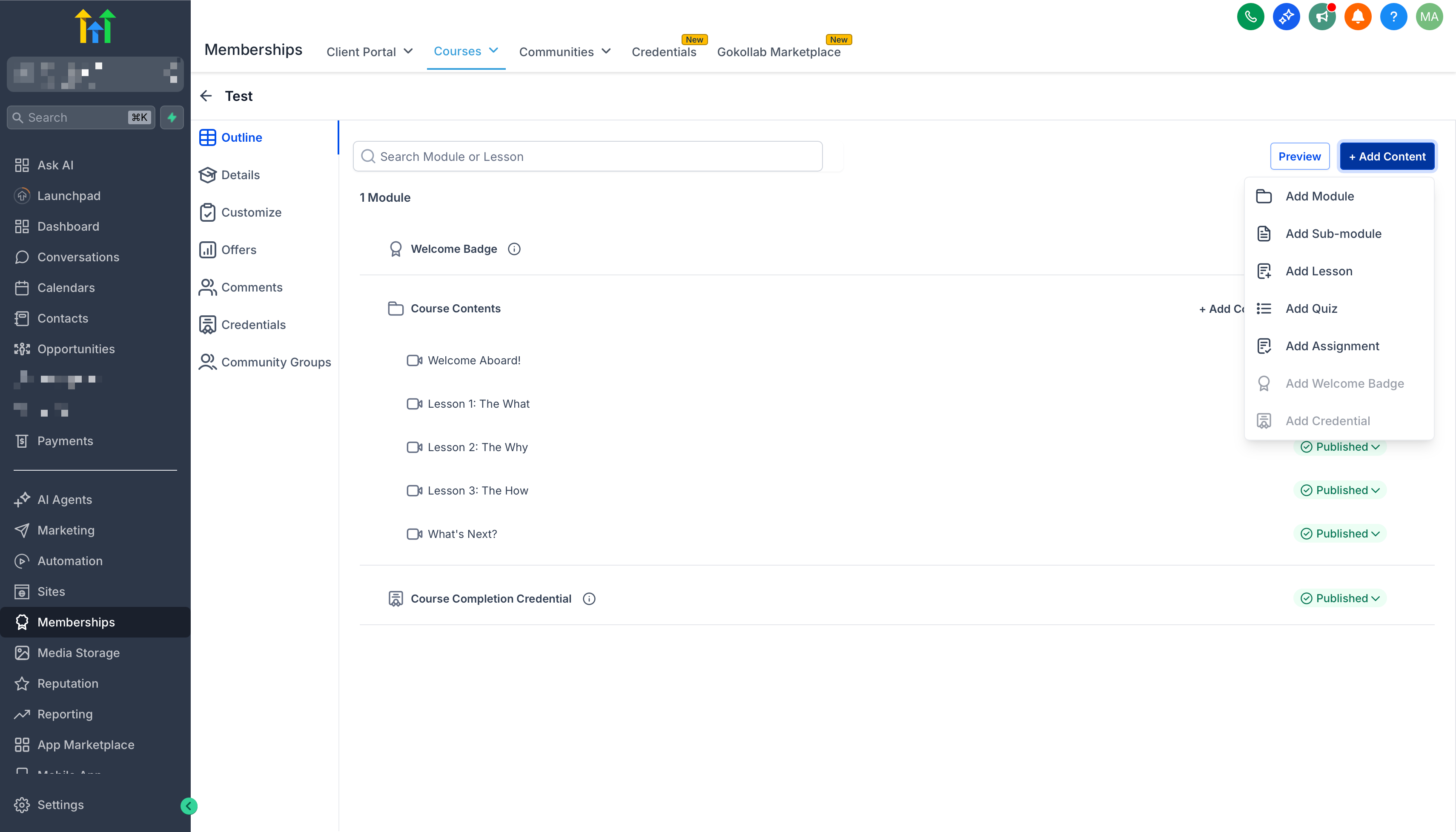
- Open the newly created course in the Course Editor.
- Add a new module or section on the left panel.
- Create a lesson within the module.
- Upload a video or file to the lesson.
- Drag modules or lessons to reorder them as needed.
- Save all changes before exiting the editor.
Create an Offer
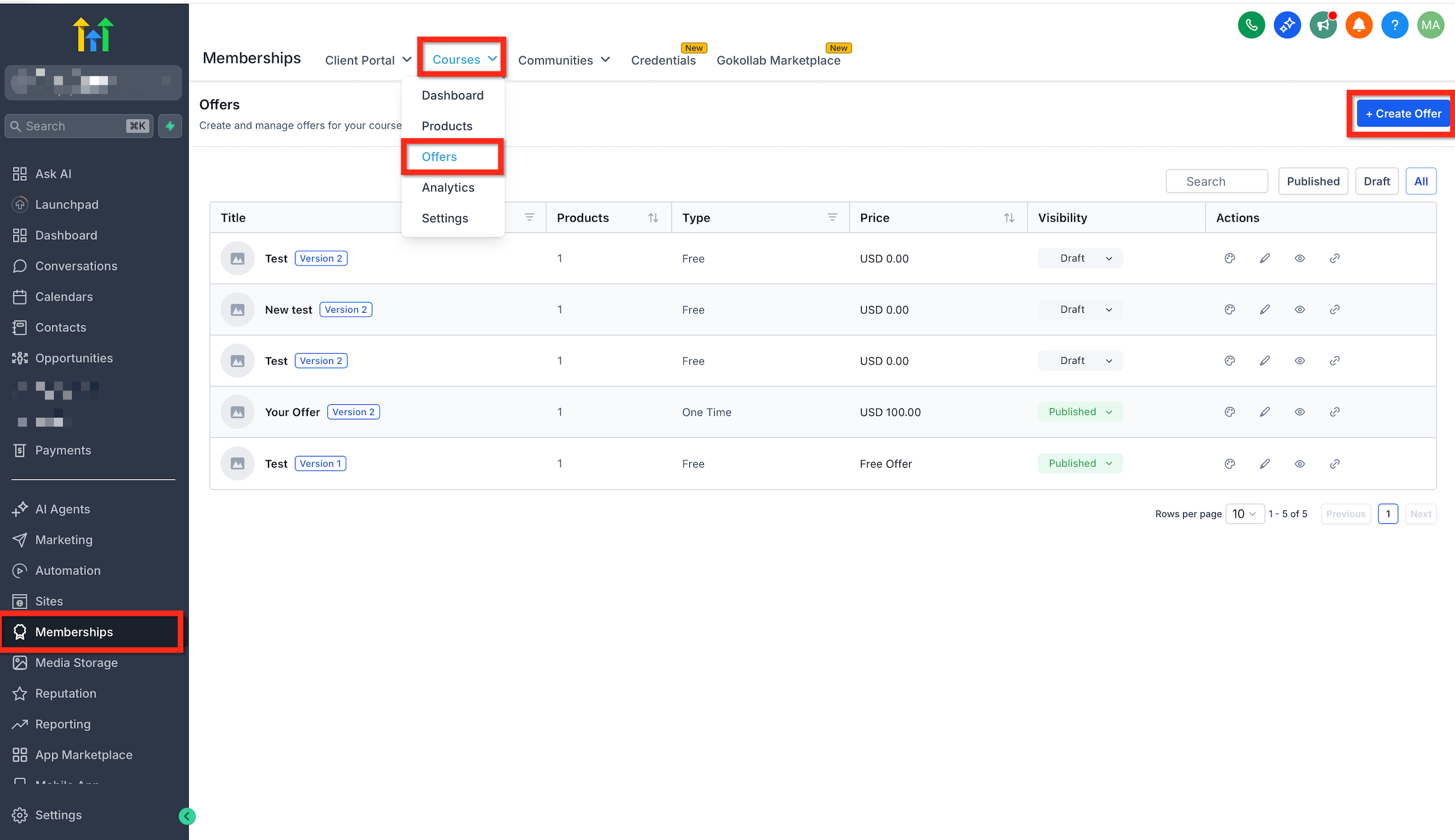
- Navigate to Memberships > Courses > Offers.
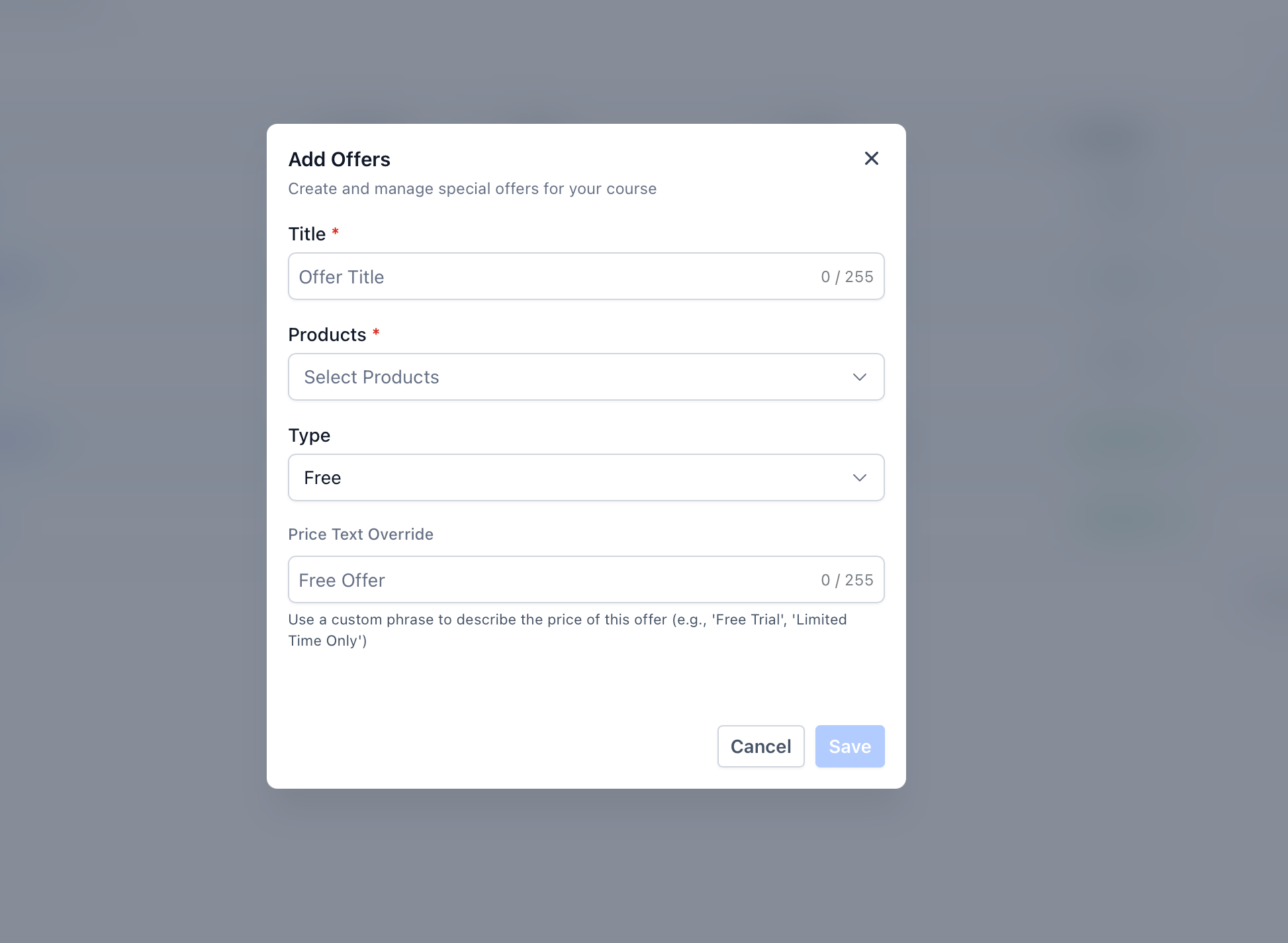
- Click Create Offer.
- Enter the offer name and description.
- Select the course product you just built.
- If the course is paid, verify a supported payment provider is connected.
- Set the desired price for the offer.
- Click Create to generate the offer record.
- Change the status from Draft to Published and save.
Publish and Share Your Offer
- Verify the pricing details are correct.
- Confirm the attached course matches the intended one.
- Set the offer status to Published.
- Copy the generated offer URL.
- Distribute the link via email, landing pages, website, social media, or direct messages.
06What it looks like in HighLevel
07Settings that matter
- Pricing option. Controls whether the course is free, sold for a one time fee, or billed on a recurring schedule.
- Offer status. Determines if the offer is visible to learners; switch between Draft and Published.
08Things to know before you rely on it
- User interface labels and button names may differ depending on account rollout.
09If something goes wrong
- Course not visible. Confirm the course was created successfully, check you are in the correct subaccount, and refresh the Courses page.
- Offer not appearing. Verify the offer is published, ensure the correct course is attached, and review that the offer configuration was saved.
- Learners cannot purchase the course. Make sure a supported payment provider is connected, review the offer pricing and payment settings, and confirm the offer is published.
- Learner cannot access the course after enrollment. Check that enrollment completed, confirm the correct course is linked to the offer, and review any workflow that grants access.
- Videos or files fail to load. Refresh the page, verify the upload finished, ensure the lesson references the correct media file, and re upload if needed.
10How it connects to the rest of HighLevel
- Connect a payment provider before creating a paid offer. Connect Stripe
- Learn how to set up pricing links for your course offers. Setup payment links
- Review HighLevel pricing plans to ensure your account can use Courses. HighLevel pricing
Michael's take

Michael ReimerFounder of CRM Pros, HighLevel Commander and Certified Admin
Launching a course in HighLevel is straightforward for those ready to share expertise online.
Businesses that lack any digital content or a clear pricing strategy should skip this until they have material to teach.
Get More InformationOpens on HighLevelPublished November 2, 2026 · Updated November 16, 2026