
01Who this is for
- Small business owners who need a quick way to bill clients and keep records organized.
- Service providers who require recurring invoices for ongoing contracts.
- Agency Founders who must customize invoice branding to match their company image.
02Invoices, explained
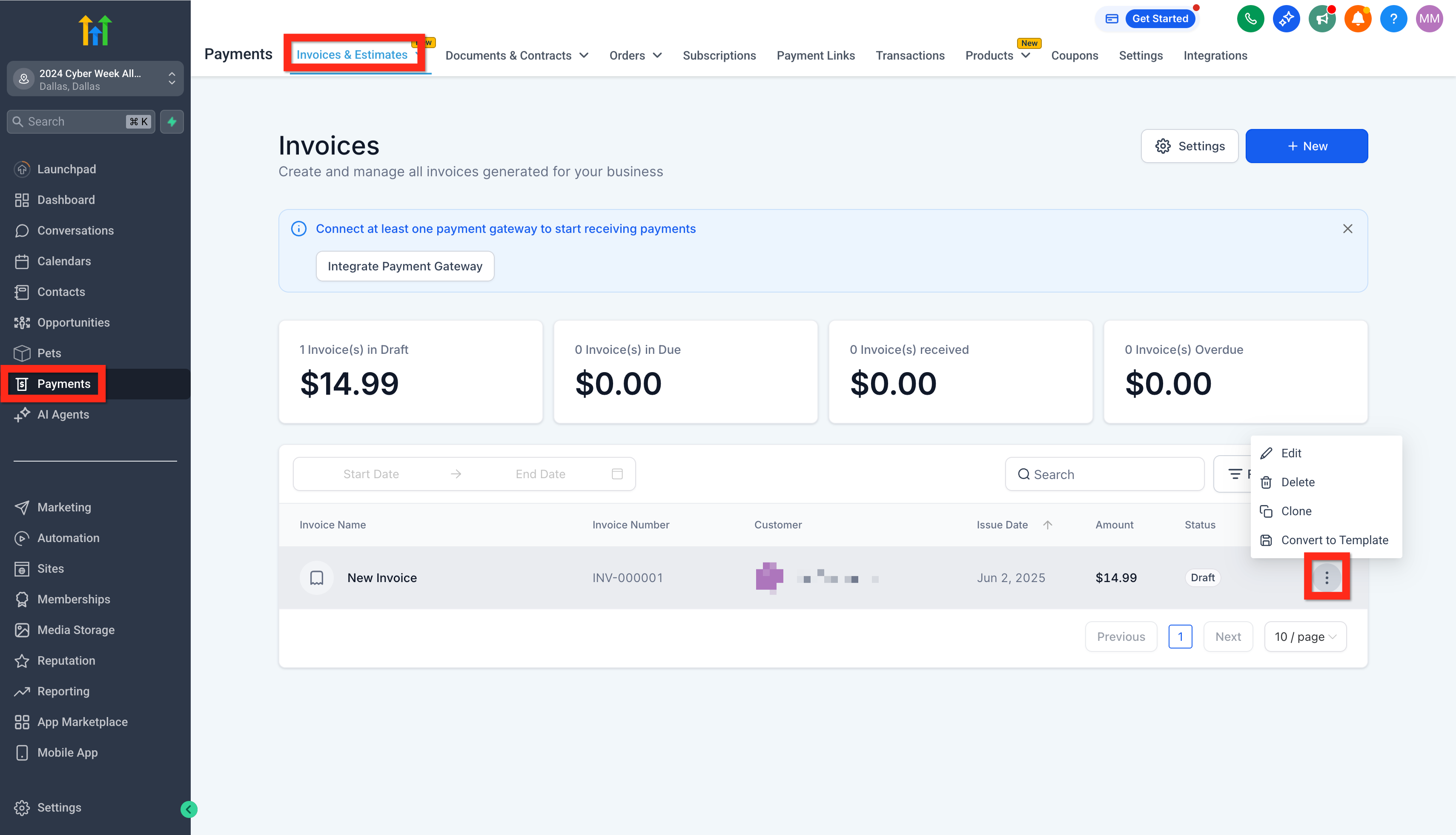
The invoice feature lives under Payments > Invoices & Estimates. From there you can start a new invoice, fill in line items, prices, and client details, then save and send it. The same area holds a gear icon that opens general invoice settings, where you add a logo, company info, and default payment terms. Existing invoices appear in a list showing their current status, such as Draft, Sent, or Paid, allowing you to monitor progress.
03How businesses use invoices
- Consulting firm. A consultant creates an invoice for a project, adds the firm’s logo and standard payment terms in the settings, saves the invoice, and clicks Send to deliver it to the client from the Payments dashboard.
- Fitness studio. The studio updates its general invoice settings with a new logo and modifies default terms, then generates monthly membership invoices, saves them, and sends them automatically to members.
- Digital marketing agency. The agency navigates to the invoice list, finds a draft invoice, reviews its status, and edits details before sending the final version to the client.
04How to set up and use invoices in HighLevel
Create an invoice
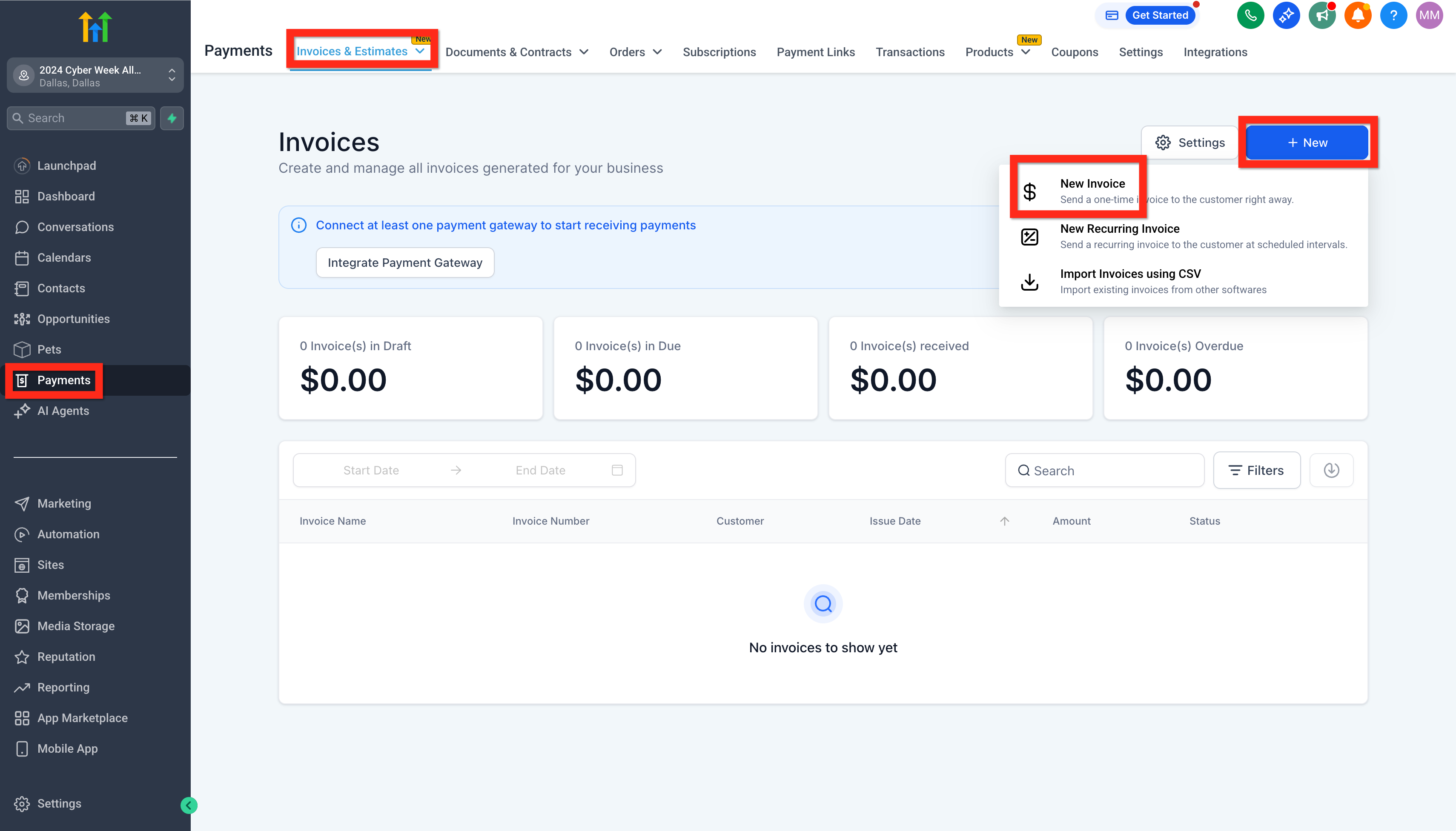
- Navigate to Payments > Invoices & Estimates.
- Click New > New Invoice.
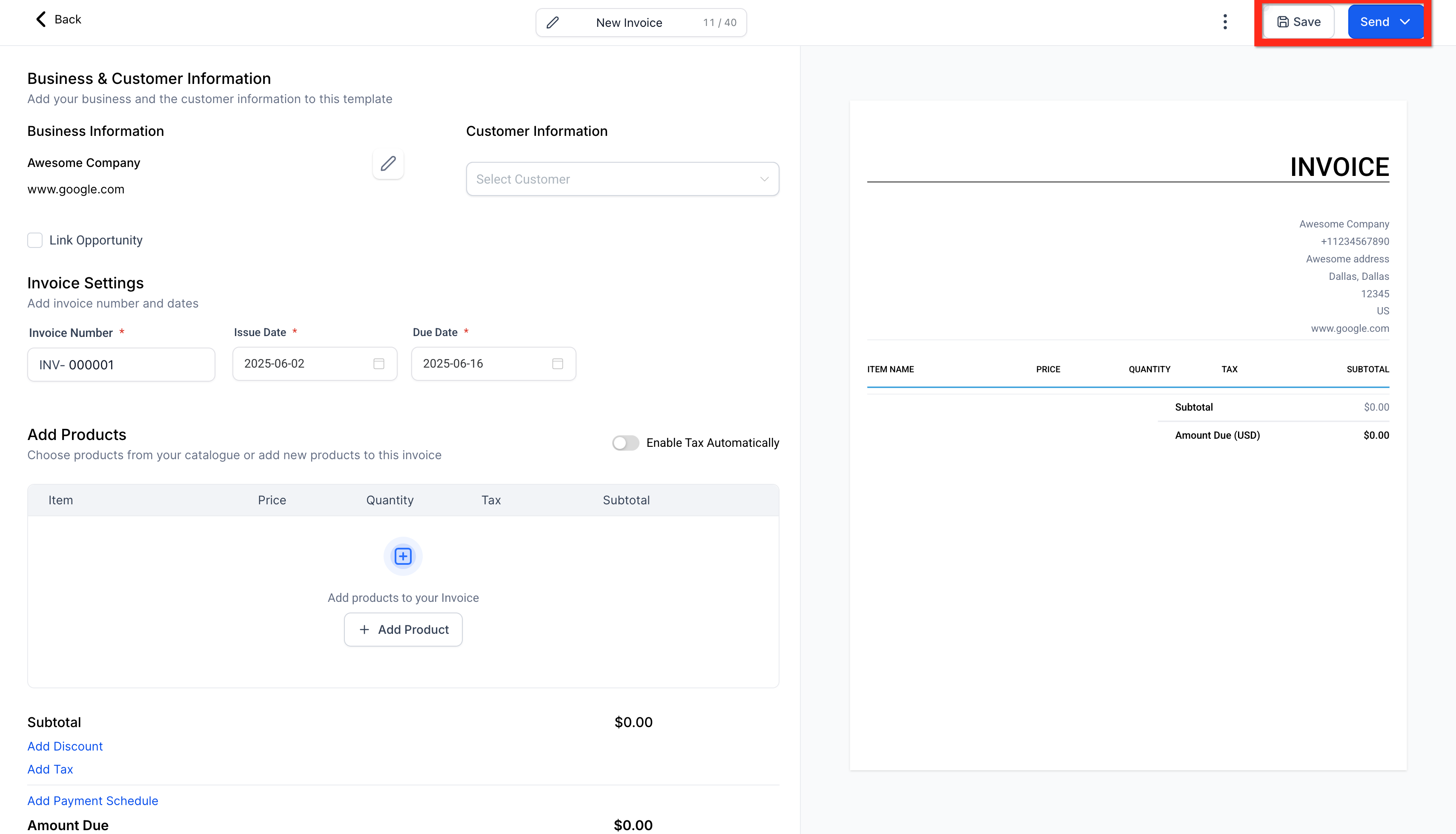
- Enter invoice details such as items, prices, and customer information.
- Click Save.
- Click Send.
Edit general invoice settings
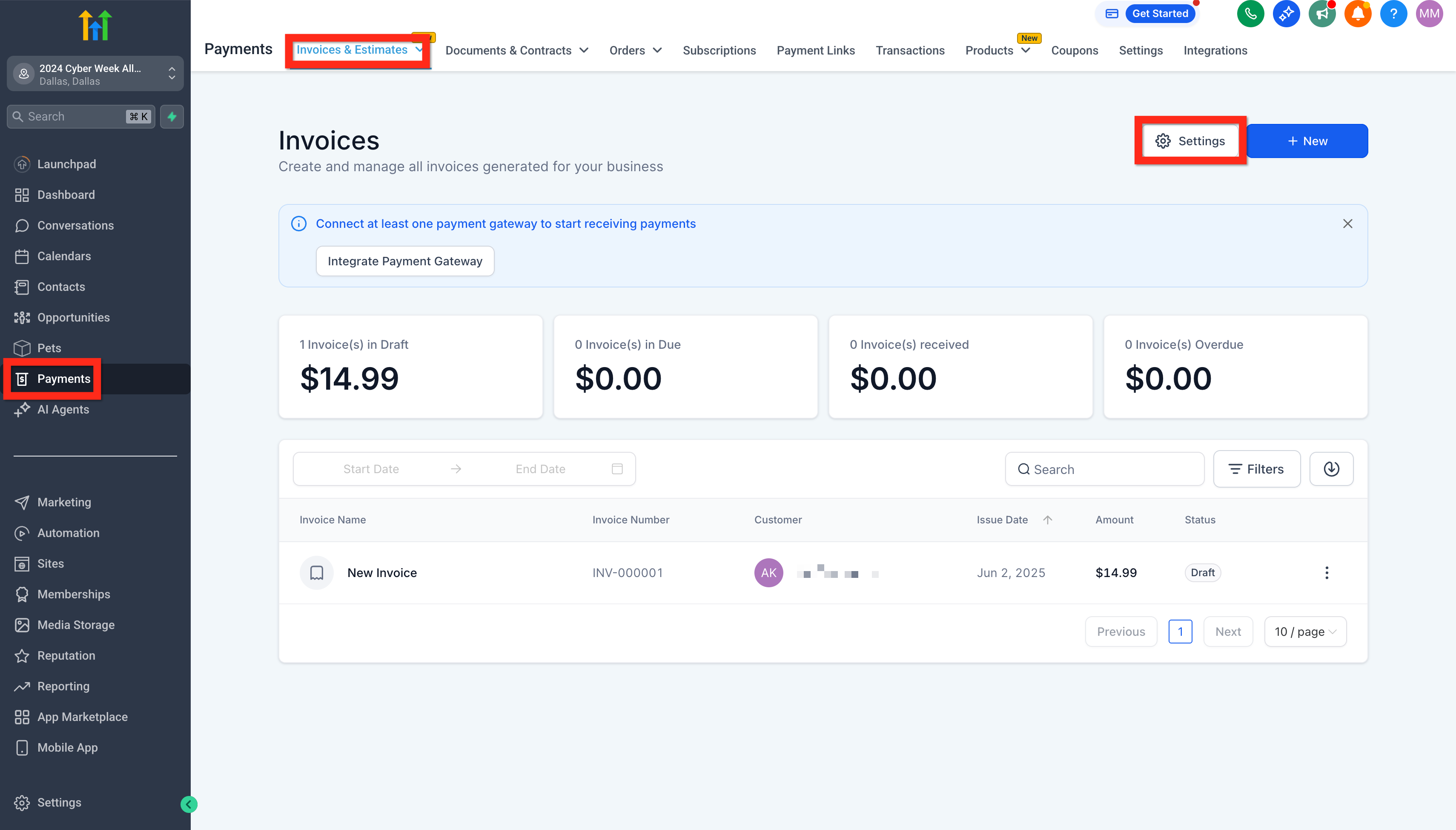
- Navigate to Payments > Invoices & Estimates.
- Click the Settings gear icon.
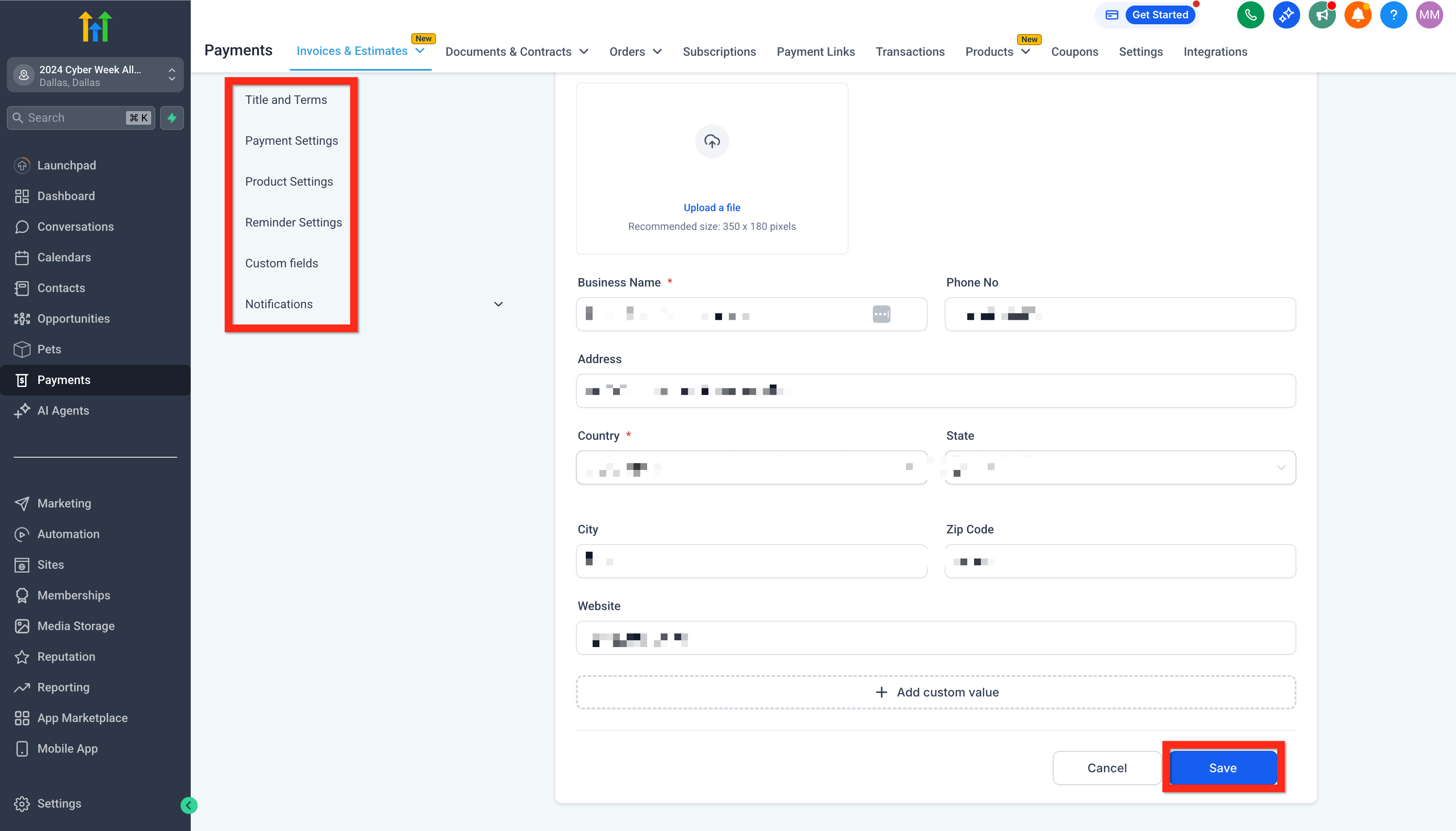
- Modify settings like logo, company information, and default payment terms.
- Click Save.
Manage an invoice
- Navigate to Payments > Invoices & Estimates.
- Locate the desired invoice in the invoice list.
- Review its status (for example, Draft, Sent, Paid).
05What it looks like in HighLevel
06Settings that matter
- General invoice settings. Controls the logo, company information, and default payment terms that appear on every new invoice.
07Things to know before you rely on it
- Paid invoices cannot be edited, so logo changes will not appear on already paid records.
- If the original logo file is removed from the Media Library, older invoices will lose the image.
- Browser cache or cookie problems can prevent the text editor from loading correctly in the invoice editor.
08If something goes wrong
- Logo missing on older invoices. Upload a new logo to the Media Library and ensure Business Details reference the new file; the logo will appear on unpaid invoices.
- Terms & Conditions text box does not appear. Clear the browser cache and cookies, close all tabs, then log back into HighLevel.
- Invoice shows as Sent but the client never received it. Clear the browser cache and cookies, log out and back in, and resend the invoice.
09How it connects to the rest of HighLevel
- Set up payment links Payment links guide
- HighLevel invoice workflow details Invoice workflow
- Explore pricing and plans Pricing page
Michael's take

Michael ReimerFounder of CRM Pros, HighLevel Commander and Certified Admin
Getting invoices set up lets you handle billing inside HighLevel.
Get More InformationOpens on HighLevelPublished November 2, 2026 · Updated November 16, 2026