
01Who this is for
- Online retailers who need a quick checkout page for single product purchases.
- Service providers who want to invoice clients with a simple click through link.
- Coaches and course creators who prefer to share enrollment links without building a full storefront.
02Payment links, explained
The payment link feature creates a hosted checkout page that lives under Payments > Payment Links. Once a link is generated, the checkout inherits the platform language set in the Business Profile and can be styled with brand colors later.
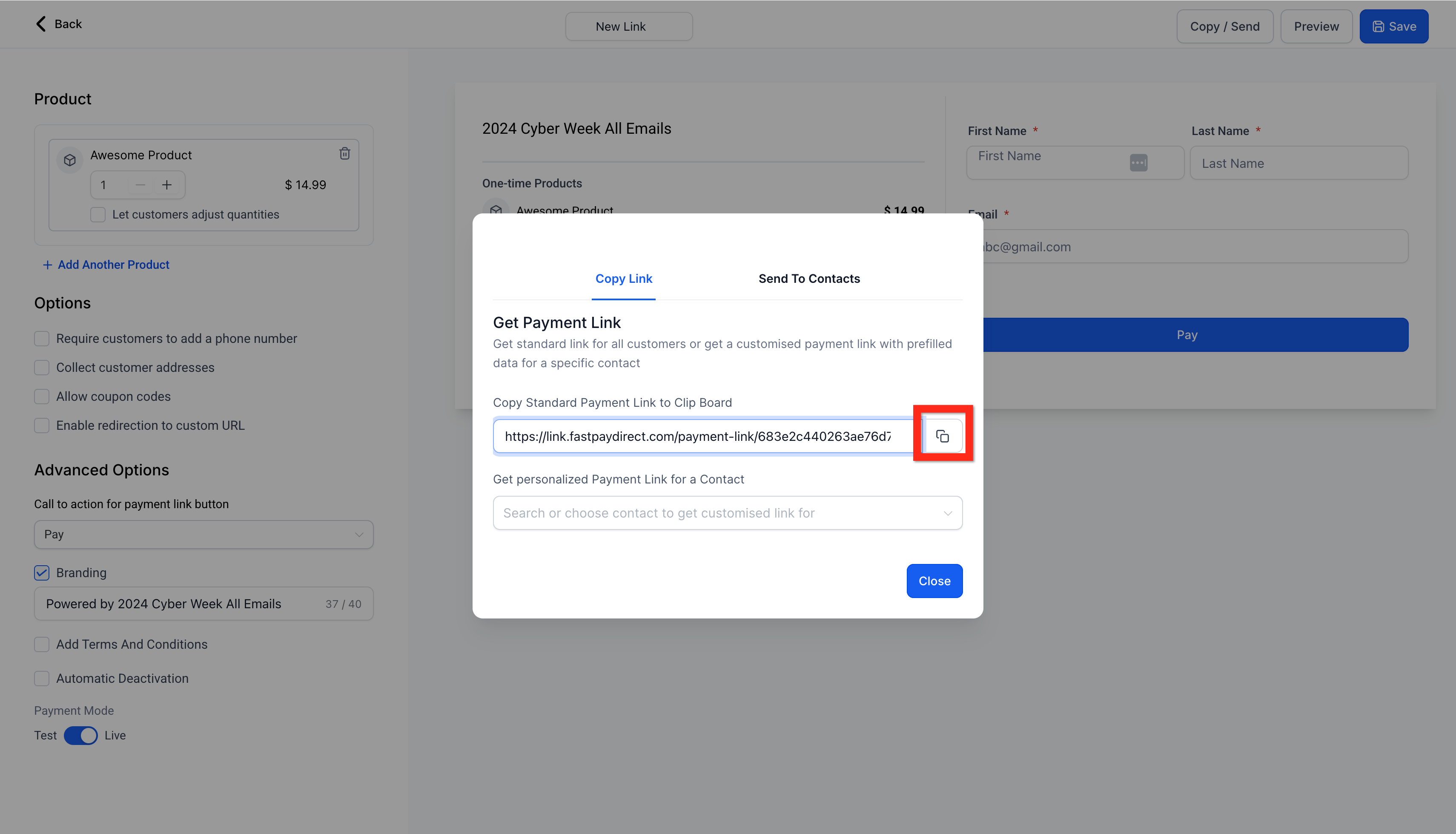
When you select a product, you can define allowed quantities, choices, and other preferences. After saving, the link can be sent as a generic URL that anyone with the link can use, or as a personalized URL that only a named recipient may open.
The link can be delivered directly to contacts saved in HighLevel, making it easy to reach existing customers without leaving the platform.
03How businesses use payment links
- Ecommerce store. The store picks a product, configures any quantity options, saves the link, and shares the generic URL on social media or email to let shoppers purchase without a full storefront.
- Consulting agency. The agency creates a personalized payment link for a specific client, selects the service package, saves the link, and sends it directly to that client’s contact record for secure payment.
- Online course creator. The creator builds a payment link for a single course, sets the allowed enrollment quantity, saves it, and distributes the link to a list of leads via the contacts list.
04The numbers and rules that matter
- Supported checkout languages: English, Danish, German, Spanish, Finnish, French (regional variants), Italian, Dutch, Norwegian, Portuguese (regional variants), Swedish.
05How to set up and use payment links in HighLevel
Create a payment link for a product
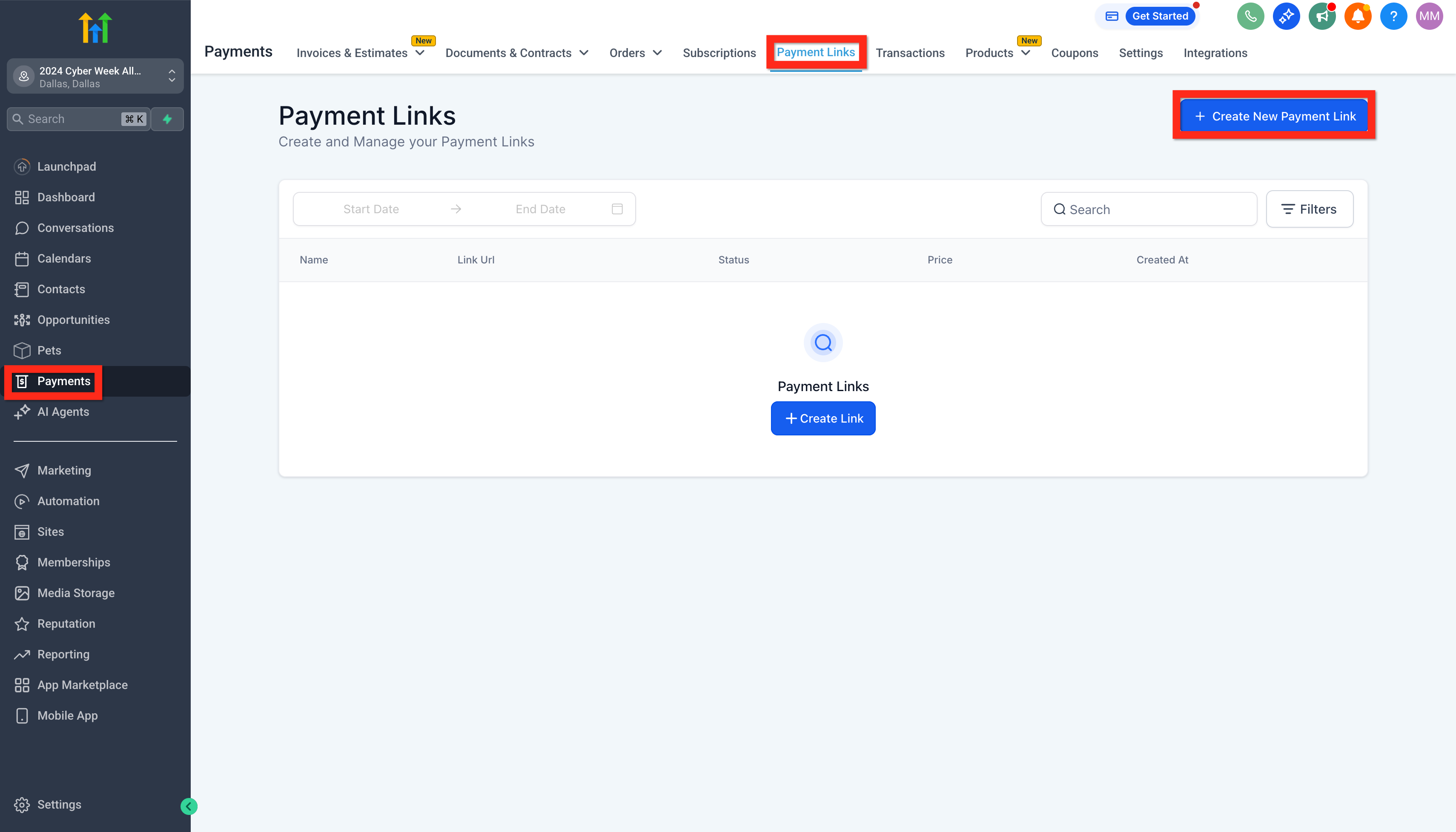
- Open Payments > Payment Links in the HighLevel navigation.
- Click the Create New Payment Link button.
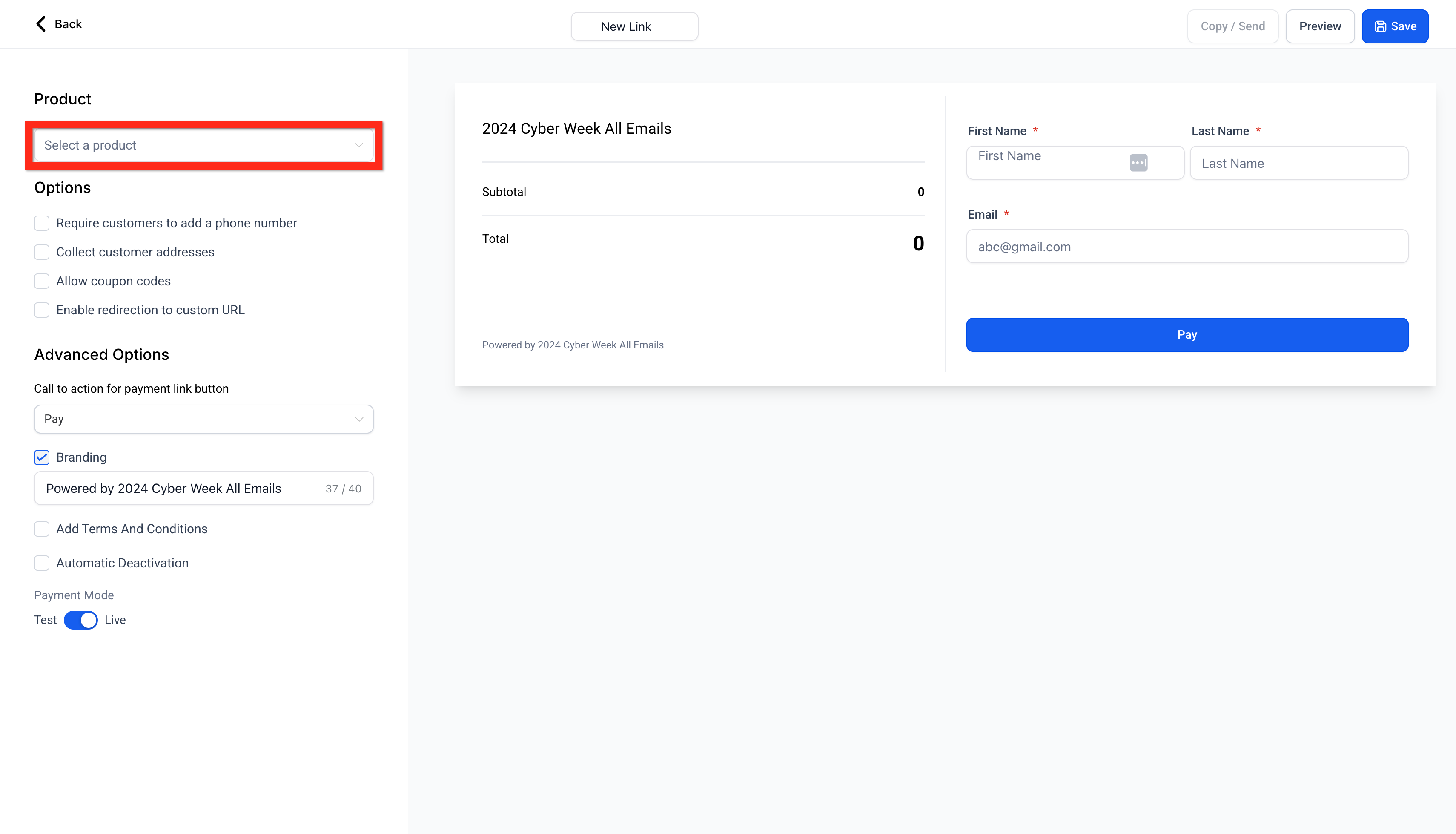
- Choose the product you want to sell.
- Set the desired quantities, options, and other preferences for that product.
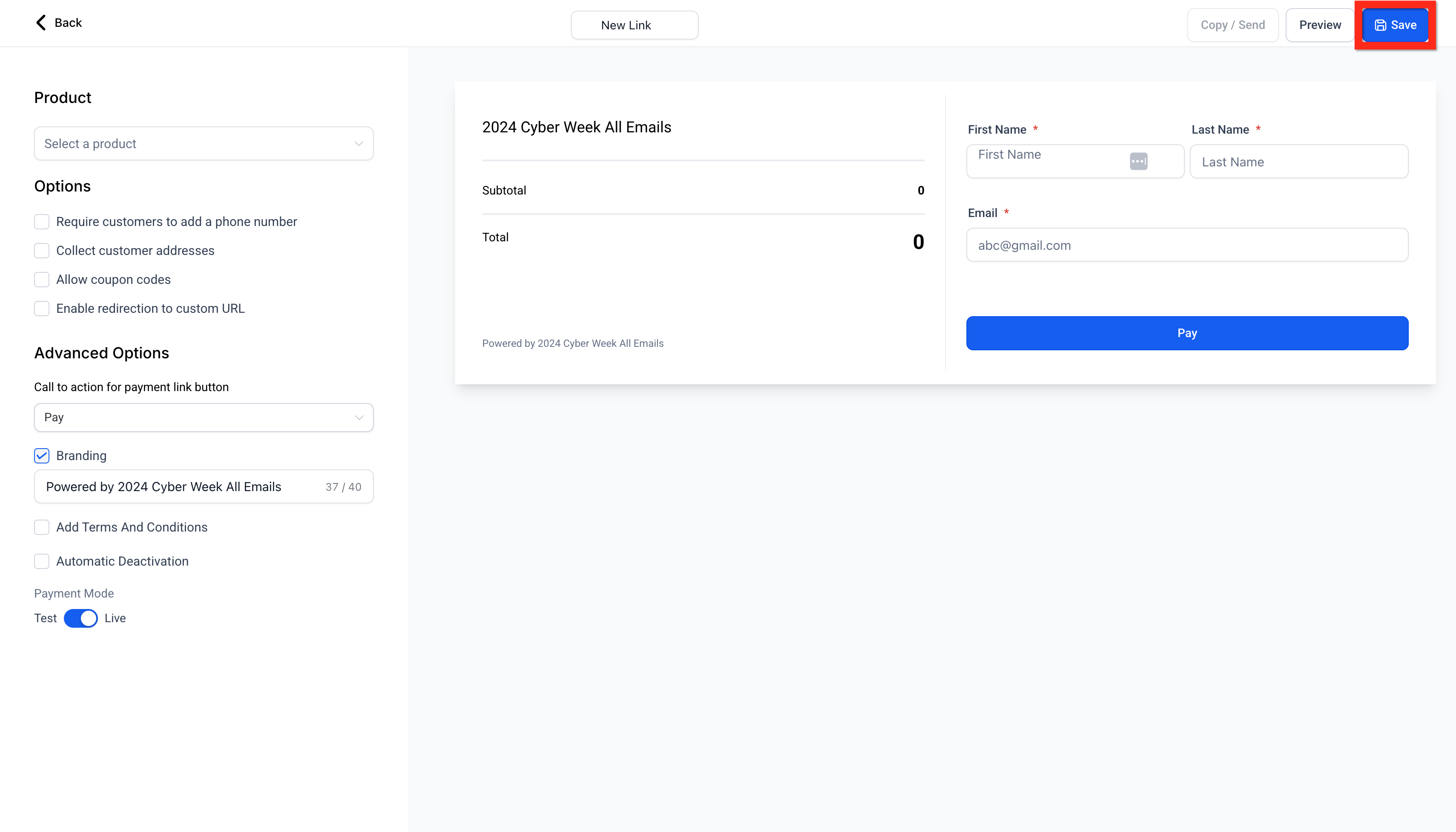
- Click Save to store the link configuration.
- Click Send and choose how to share the link (generic, personalized, or to contacts).
06What it looks like in HighLevel
07Settings that matter
- Platform Language. Determines the language displayed on the hosted checkout page; it follows the language set in the Business Profile.
08Things to know before you rely on it
- Checkout language supports English, Danish, German, Spanish, Finnish, French (regional variants), Italian, Dutch, Norwegian, Portuguese (regional variants), and Swedish.
- A generic link can be accessed by anyone who has the URL, while a personalized link restricts access to the specified recipient.
09How it connects to the rest of HighLevel
- Create products first to use them in payment links. Create & Sell Products
- Connect a Stripe account to process payments through the links. Connect Stripe
- Review all payment related capabilities and pricing options. Payments features
Michael's take

Businesses often lose sales because the checkout process is clunky or hidden. Payment links solve that by giving you a clean, ready to use URL that customers can click and pay in seconds. The biggest win is the ability to hand a link to anyone. Whether via email, text, or a direct contact record. Without building a full store.
The first setting I would lock down is the Platform Language in your Business Profile, so the hosted checkout always greets customers in the right tongue. Once that’s set, I jump straight to creating a link, pick the product, turn on the options you need, and fire it off to a contact.