
01Who this is for
- Agency owners can invoice clients for project work and track payment status.
- Fitness studio owners can invoice membership packages, add applicable taxes, and send reminders by text.
- SaaS Founders can generate invoices for subscription fees, preview them in test mode, and manage discounts.
02Invoices, explained
The invoice feature creates a record of what a client owes for products set up in a subaccount. It stores sender information, client details, line items, tax rates, and optional discounts. After creation, the invoice can be sent through email or text, or held in test mode for review.
Invoices live under the Payments tab in the platform. The interface includes a dedicated Invoices sub tab and a global gear wheel option for default terms. Tax configuration is accessed via a Tax Settings dialog, and sending options appear as a green button with an advanced toggle for live or test mode.
03How businesses use invoices
- Digital marketing agency. Create an invoice for each client project, add the service products, apply the appropriate sales tax, and email the invoice. Check the Invoices tab to see whether the client has paid.
- Fitness studio. Build invoices for membership packages, include any required tax, add a discount for promotions, and send the invoice as a text message to members. Use the status view to monitor pending payments.
- SaaS startup. Generate invoices for subscription fees, set tax rates, optionally preview in test mode using the advanced option, then switch to live mode to deliver the final invoice to subscribers.
04Before you start
- Create the products you will invoice on the Products tab of the subaccount.
05How to set up and use invoices in HighLevel
Create a new invoice
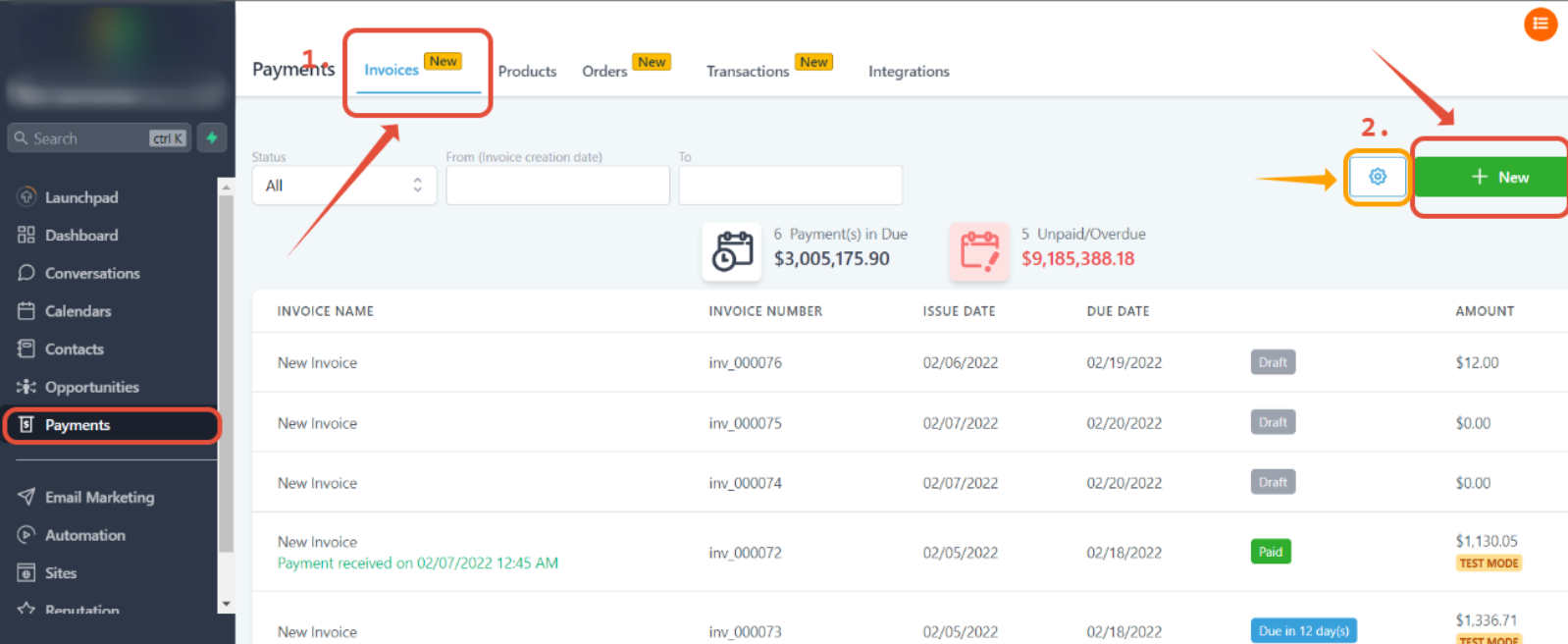
- Go to the Payments tab and click on the Invoice tab.
- Click the New button to start a fresh invoice.
- Add global terms of service or notes by clicking the gear wheel icon next to the + New button.
Edit invoice information
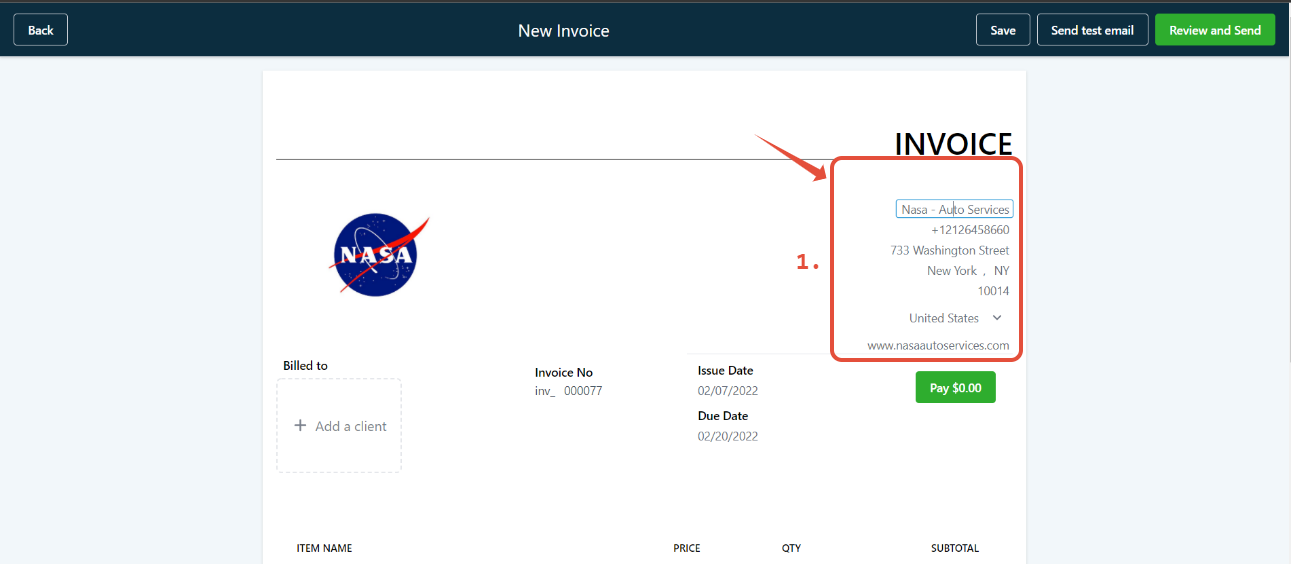
- Click the “from info” text to edit sender details.
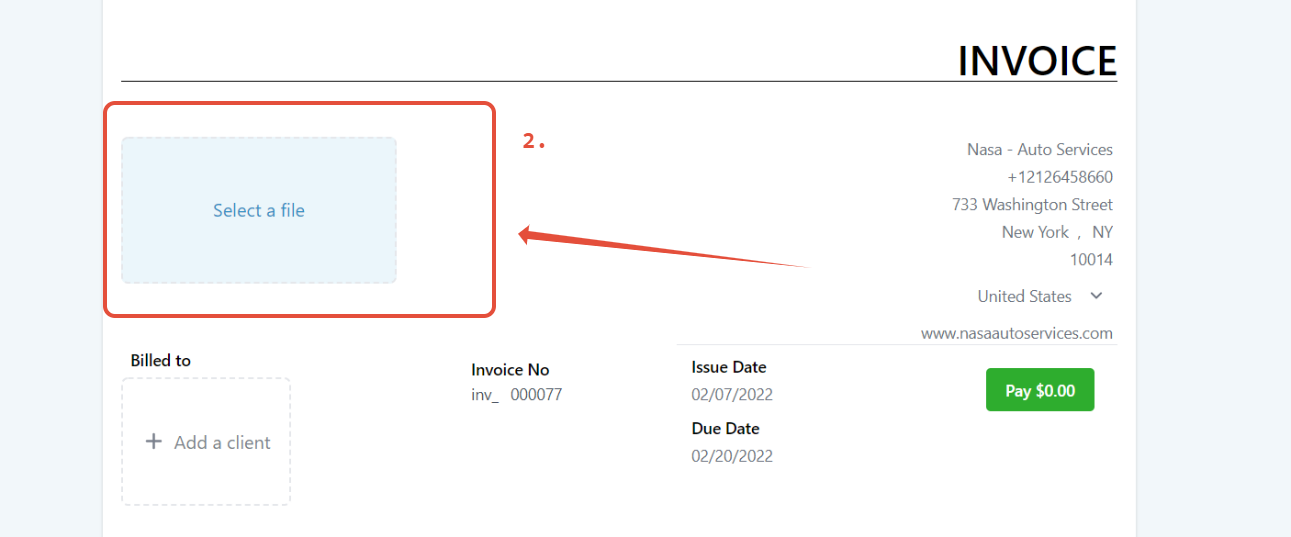
- Click the invoice image to open the media library and choose or upload a new picture.
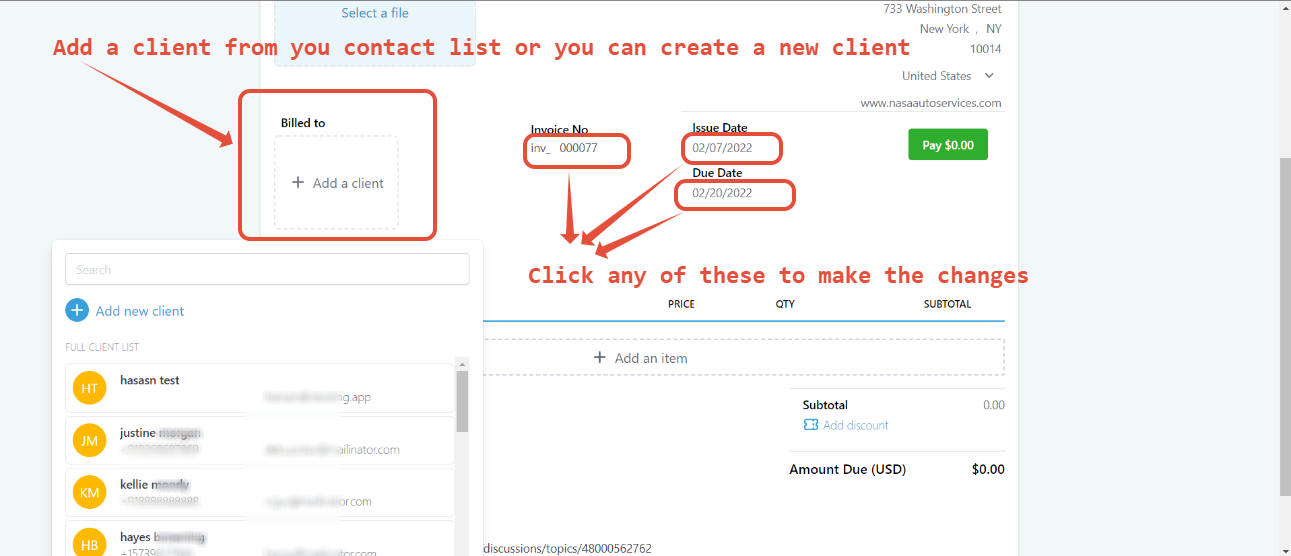
- Enter or modify the client name, invoice number, issue date, and due date.
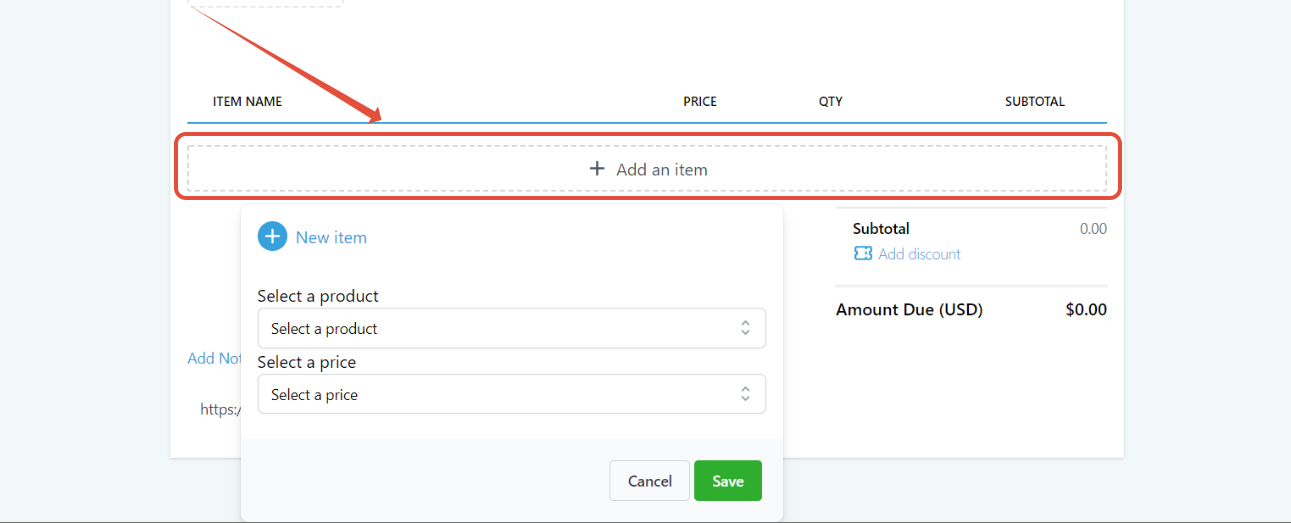
- Press Add an item to include a product from the Products tab.
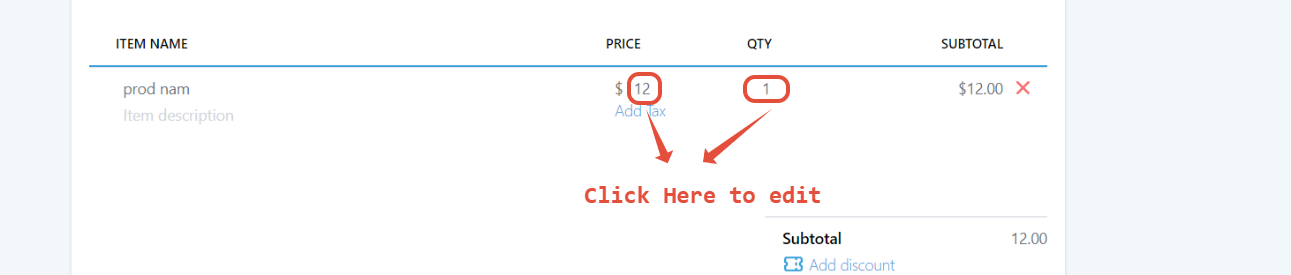
- Adjust the product’s price and quantity as needed.
Add taxes to an invoice
- Click on Tax Settings…
- Click Add Tax.
- Enter the tax name, rate in %, and optionally a description or tax ID number.
Add a discount to an invoice
- Click the “add discount” icon on the invoice screen.
- Enter the discount amount or percentage as required.
Send an invoice
- Press the green button at the top right of the invoice screen.
- Choose to send the invoice via email, text, or test mode.
- Use the advanced option to toggle between live and test mode before confirming the send.
Check the status of invoices
- Go to the Invoices tab to view the list of invoices and their current statuses.
- Use the filter options to narrow results by status or date range.
Find invoices in the Transaction tab
- Navigate to Payments > Transactions (available only in the new UI).
- Locate successful or failed transactions related to invoices and open them directly.
06What it looks like in HighLevel
07Settings that matter
- Tax Settings…. Controls which taxes are applied to an invoice, including name, rate, and optional description.
- gear wheel icon. Opens the global terms of service editor to add default notes to every new invoice.
- Advanced option. Switches the send mode between live and test, allowing a preview before the invoice is delivered.
08Things to know before you rely on it
- Invoices created without Stripe Connect require manual recording of payments.
- The Transaction tab for viewing invoice related payments is only available in the new UI.
09How it connects to the rest of HighLevel
- Learn about the new invoice UI and where to find transaction details. Invoices UI
- Explore common ways to use payments and invoices in the platform. Payments use cases
- See all payment related features, including invoicing. All Payments features
Michael's take

Invoices let you build a professional bill, add taxes or discounts, and push it out by email or text in a few clicks.
I start by setting the global terms of service so every invoice carries the same legal language.
The ability to see the status and related transactions from the Payments area helps keep track of invoice activity.