
01QuickBooks integration, explained
QuickBooks integration creates a two way sync between HighLevel and QuickBooks. When a payment is made in HighLevel, a sales receipt is registered in QuickBooks and matched by contact email. When an invoice is marked as sent in HighLevel, a matching invoice is created in QuickBooks and subsequent updates are pushed.
The integration also pulls existing QuickBooks contacts into HighLevel (sync may take up to 5 minutes) and can import old QuickBooks invoices if the Import Invoices toggle is enabled during setup. Review requests can be automatically sent from HighLevel when a contact’s first invoice is paid in full in QuickBooks; this automation can be toggled off.
02How businesses use QuickBooks integration
- Sync new sales receipts. When a client pays through an order form, subscription, membership checkout, or calendar payment in HighLevel, the integration creates a matching sales receipt in QuickBooks. The receipt is linked to the contact by email.
- Create and update invoices. Sending an invoice in HighLevel triggers the creation of a corresponding invoice in QuickBooks. Any subsequent status changes. Such as paid, voided, or updated. Are pushed to QuickBooks as well.
- Import existing QuickBooks invoices. If the Import Invoices option is turned on during the initial connection, all previously created QuickBooks invoices are brought into HighLevel. Those imported invoices do not sync back to QuickBooks after changes.
- Automate review requests. When QuickBooks shows that a contact’s first invoice is fully paid, the integration can automatically send a review request from HighLevel. This automation can be toggled off on the integration card.
03The numbers and rules that matter
- Contact sync from QuickBooks to HighLevel may take up to 5 minutes.
04Before you start
- Accept all permissions during connection.
- Have a QuickBooks account with appropriate access.
05How to set up and use QuickBooks integration in HighLevel
Integrate QuickBooks
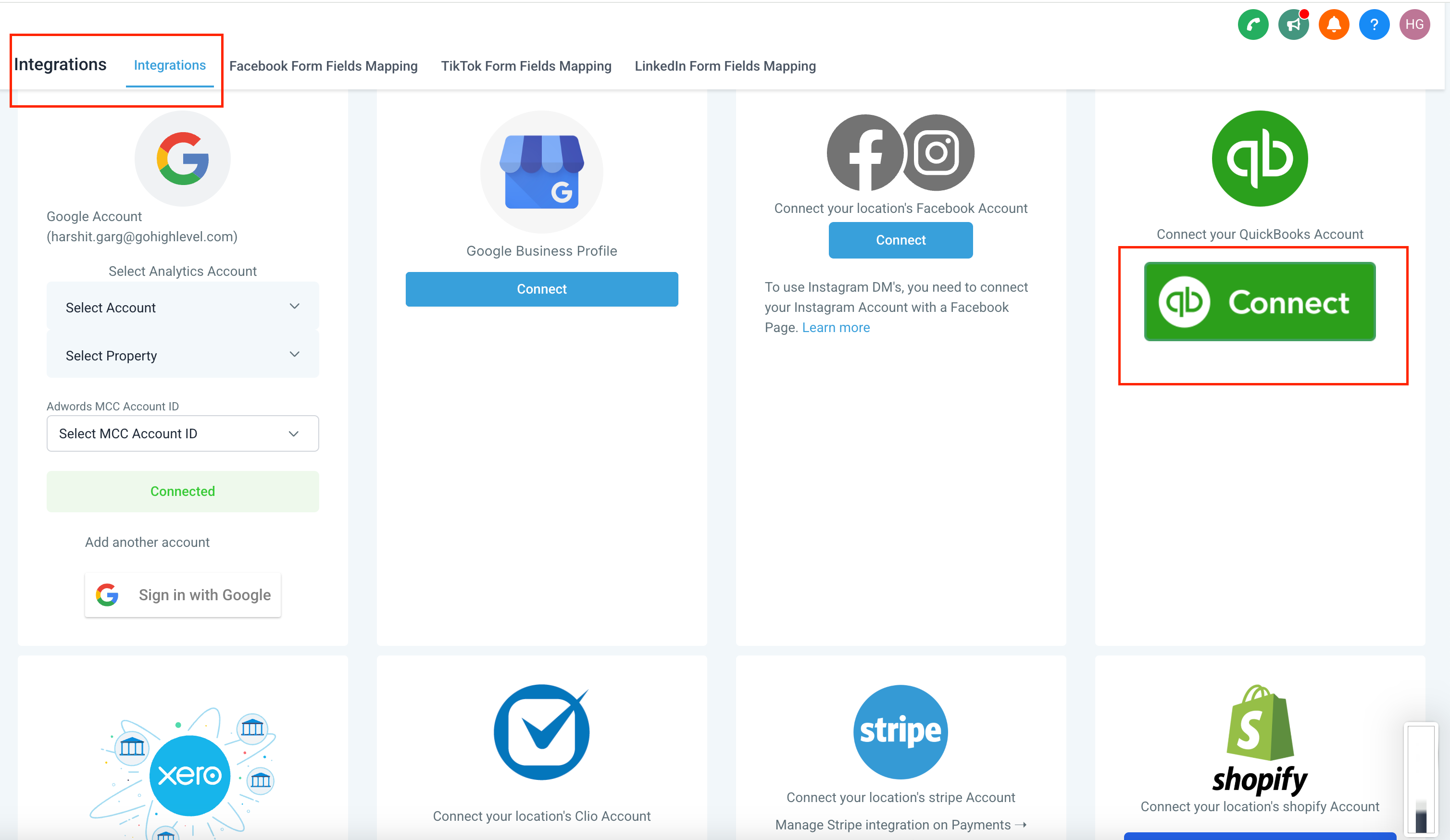
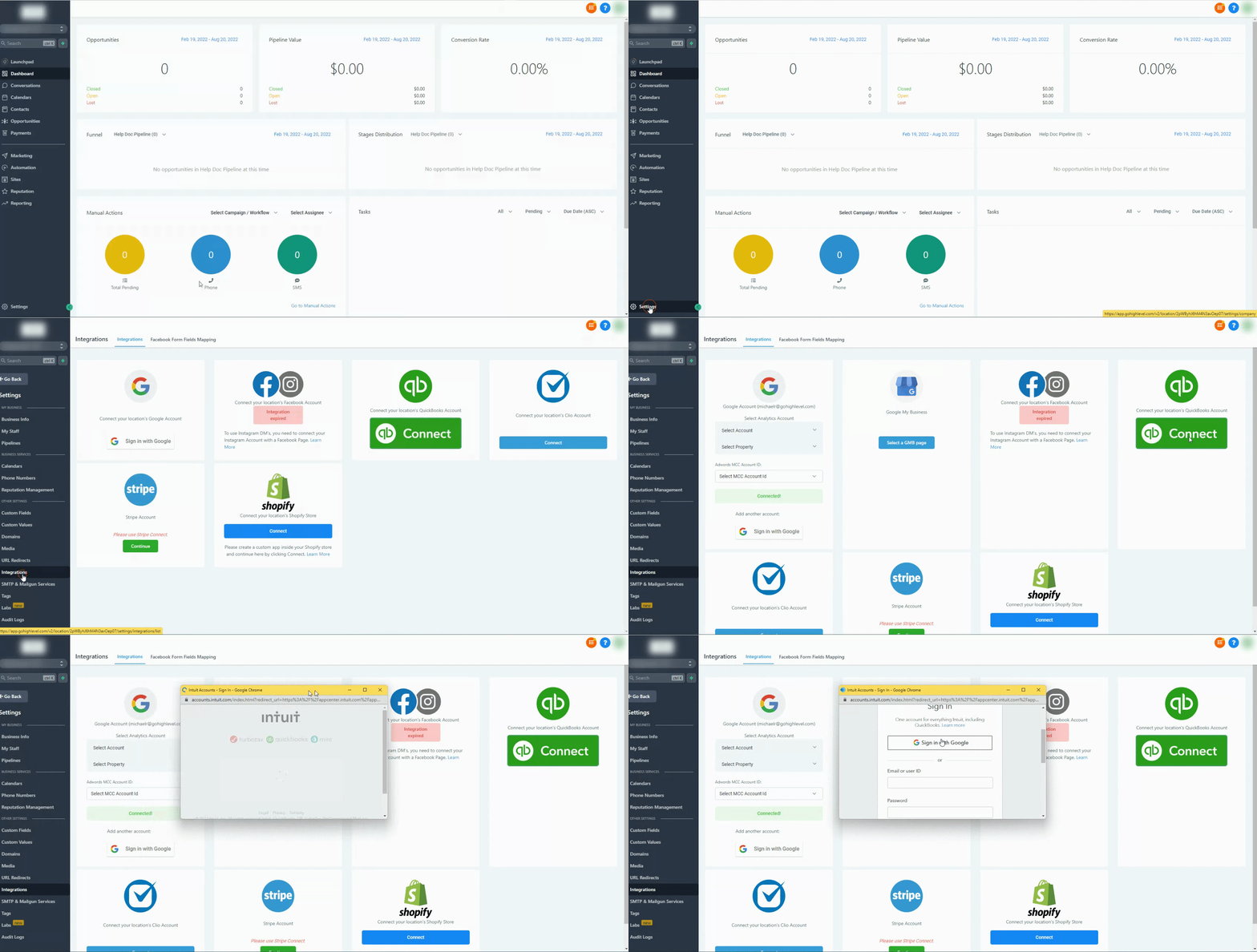
- Navigate to Settings > Integrations.
- Click on the "QB Connect" button.
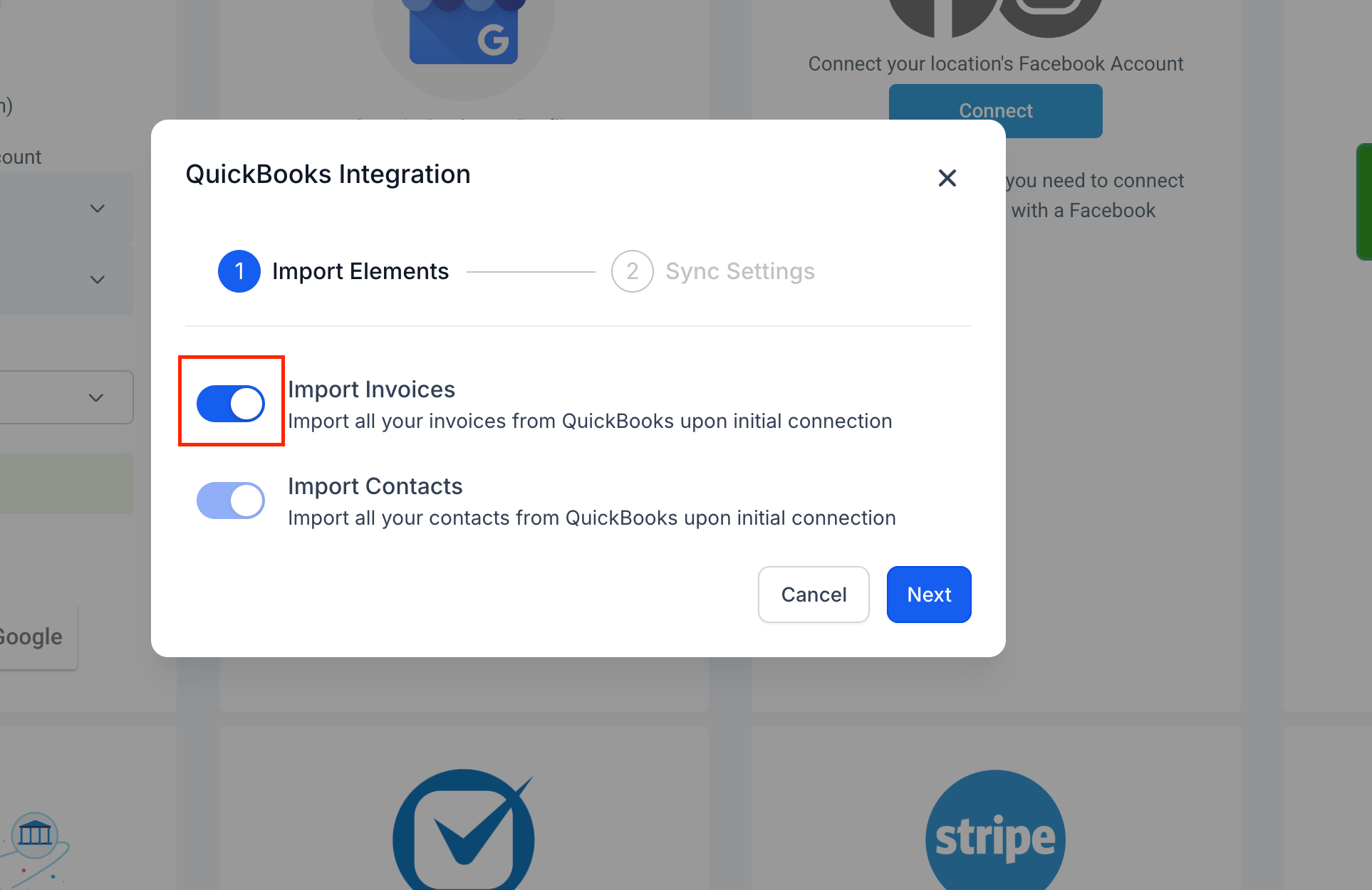
- Toggle "Import invoices" to import previously created invoices.
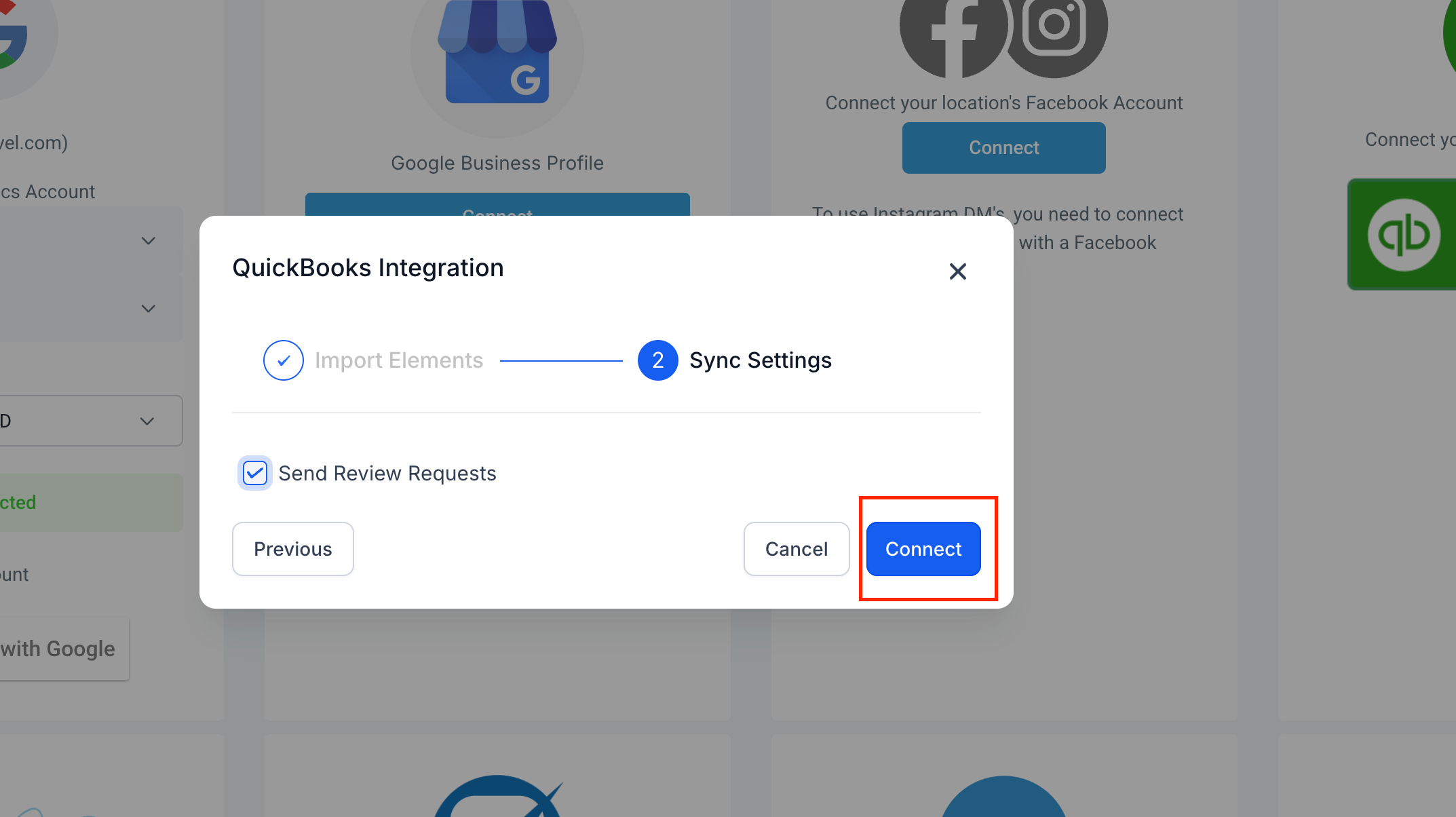
- Enable review automation if needed.
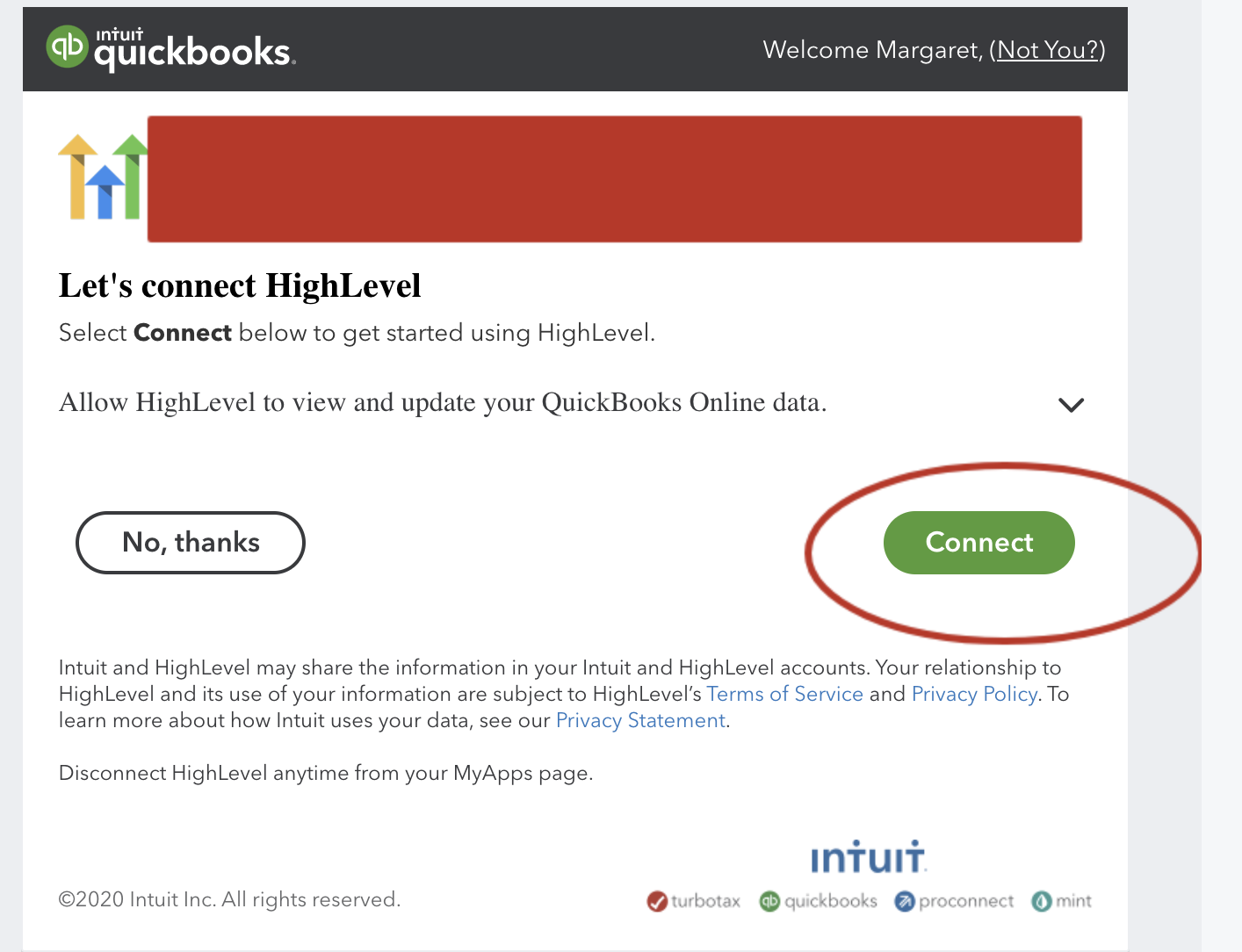
- Connect and log in with your QuickBooks credentials.
- Accept all permissions.
06What it looks like in HighLevel
07Settings that matter
- Import invoices toggle. When enabled during the initial connection, it imports all previously created QuickBooks invoices into HighLevel.
- Enable review automation. Turns on automatic sending of review requests from HighLevel when a contact’s first QuickBooks invoice is paid in full.
08Things to know before you rely on it
- Draft invoices do not sync to QuickBooks; they must be sent.
- Only invoices with status Sent, Pending, or Paid are pushed to QuickBooks.
- Changes made to imported QuickBooks invoices in HighLevel do not sync back to QuickBooks.
- No loop is created when invoices are imported from HighLevel to QuickBooks and back.
09If something goes wrong
- Invoice not syncing to QuickBooks. Open the invoice in HighLevel, click Send (do not leave it as Draft), confirm the customer exists in QuickBooks, then ensure the integration connection is active.
Michael's take

Watch out for the temptation to rely on the sync before you’ve actually sent an invoice. Draft invoices sit idle and never make it into QuickBooks, so you’ll think the link is broken when it’s simply waiting for that final click.
Once you get past that, the two way bridge synchronizes payments, receipts and invoices automatically, and can send review requests when a first invoice is paid, if the option is enabled.