
01Who this is for
- Subscription based SaaS Founders who need automated monthly billing for each user.
- Service oriented small businesses, such as agencies or consultants, that bill clients on a regular retainer schedule.
- Product sellers offering installment payment plans, ensuring each payment is invoiced at the right interval.
02Recurring invoices, explained
Recurring invoices are templates stored in the platform that trigger new invoice creation on a defined cadence. After you set the frequency, start date and any end condition, HighLevel automatically builds each invoice, applies taxes, fees and any attached terms, then sends it to the selected customer.
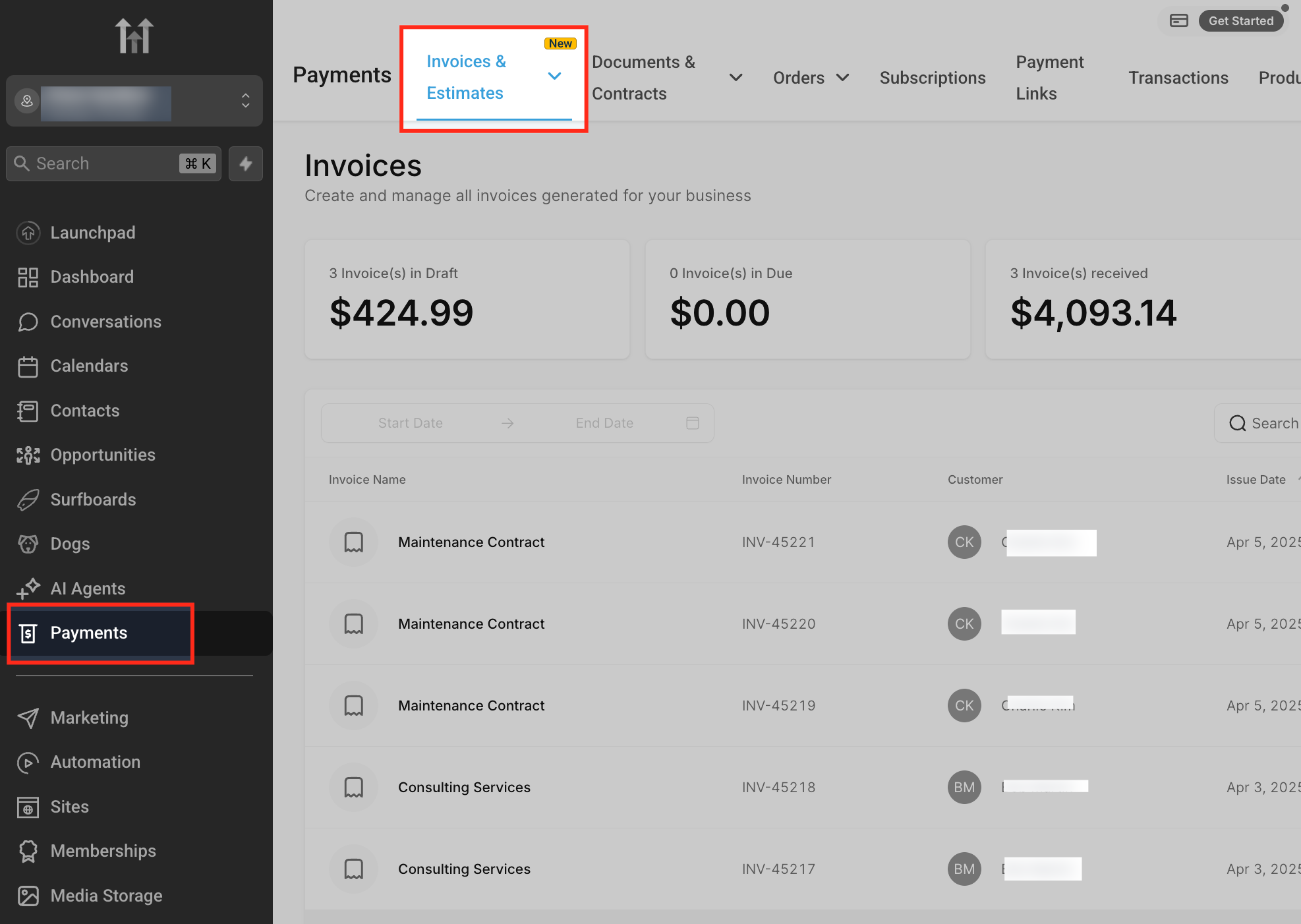
The feature lives under Payments > Invoices & Estimates. From the Recurring Templates list you can view, edit while in Draft, delete, clone or end each schedule. Statuses such as Draft, Active, Scheduled, Canceled and Completed control what actions are allowed.
When an invoice is sent, the system tracks its payment state, Sent, Overdue, Paid or Not Sent, so you can monitor collection without leaving the invoice view.
03How businesses use recurring invoices
- Fitness studio. Create a monthly membership invoice template, set the start date to the first day of each month, and enable the Send in Advance option so members receive their bill two days before payment is due.
- Legal consultancy. Set up a weekly retainer invoice that includes a late fee clause. Add a custom attachment with the engagement letter, then schedule the template to begin on the client’s onboarding date.
- Online course provider. Build an annual invoice for a yearly subscription, attach the course syllabus as a PDF, and configure the Charge Processing Fees option to pass gateway costs to the buyer.
04The numbers and rules that matter
- Additional options: Terms and Conditions, Charge Late Fees, Charge Processing Fees, Include Tipping, Add Attachment.
05How to set up and use recurring invoices in HighLevel
Create a recurring invoice
- Navigate to Payments > Invoices & Estimates from the left menu.
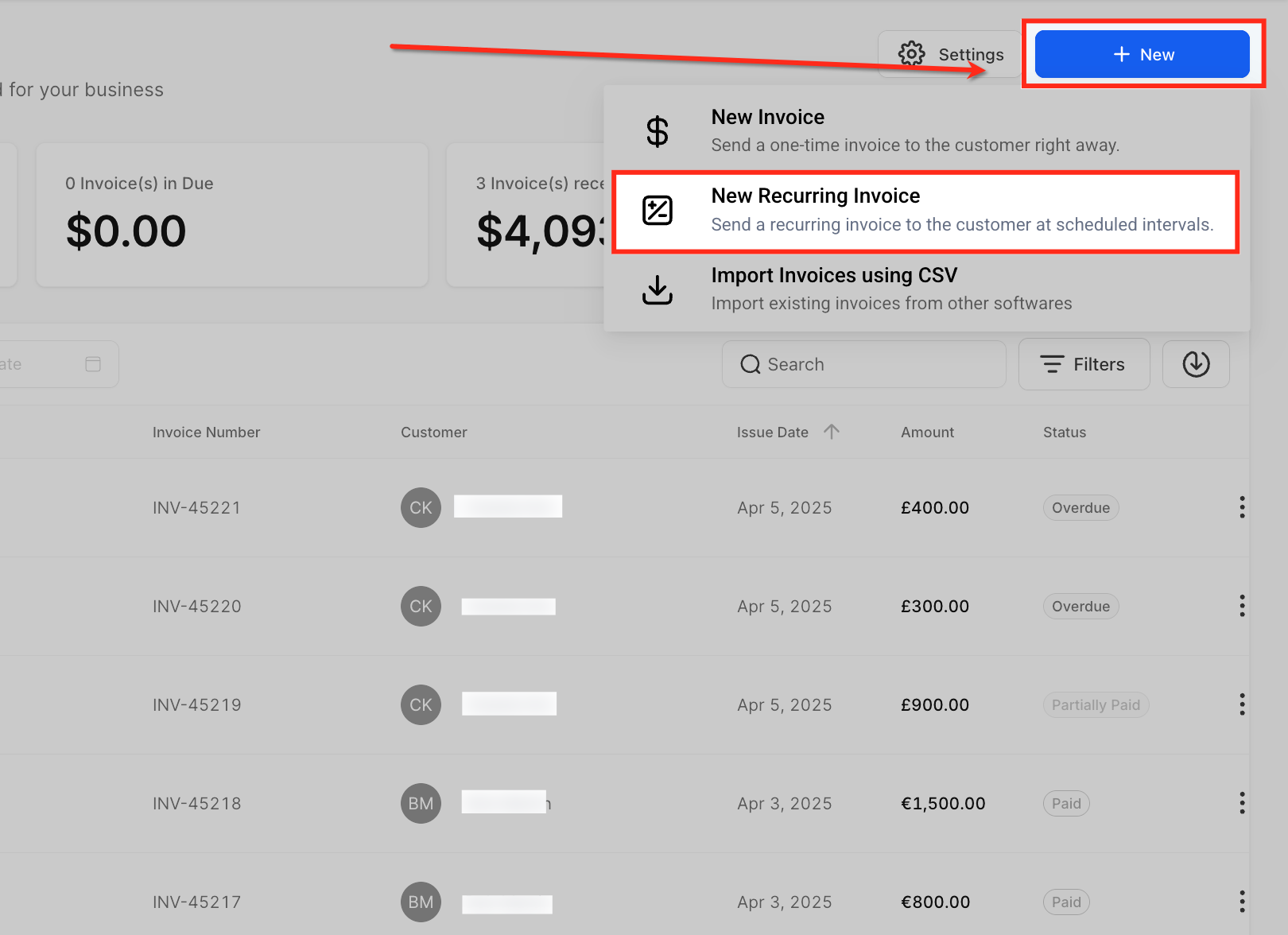
- Click the New button in the top right corner and choose New Recurring Invoice.
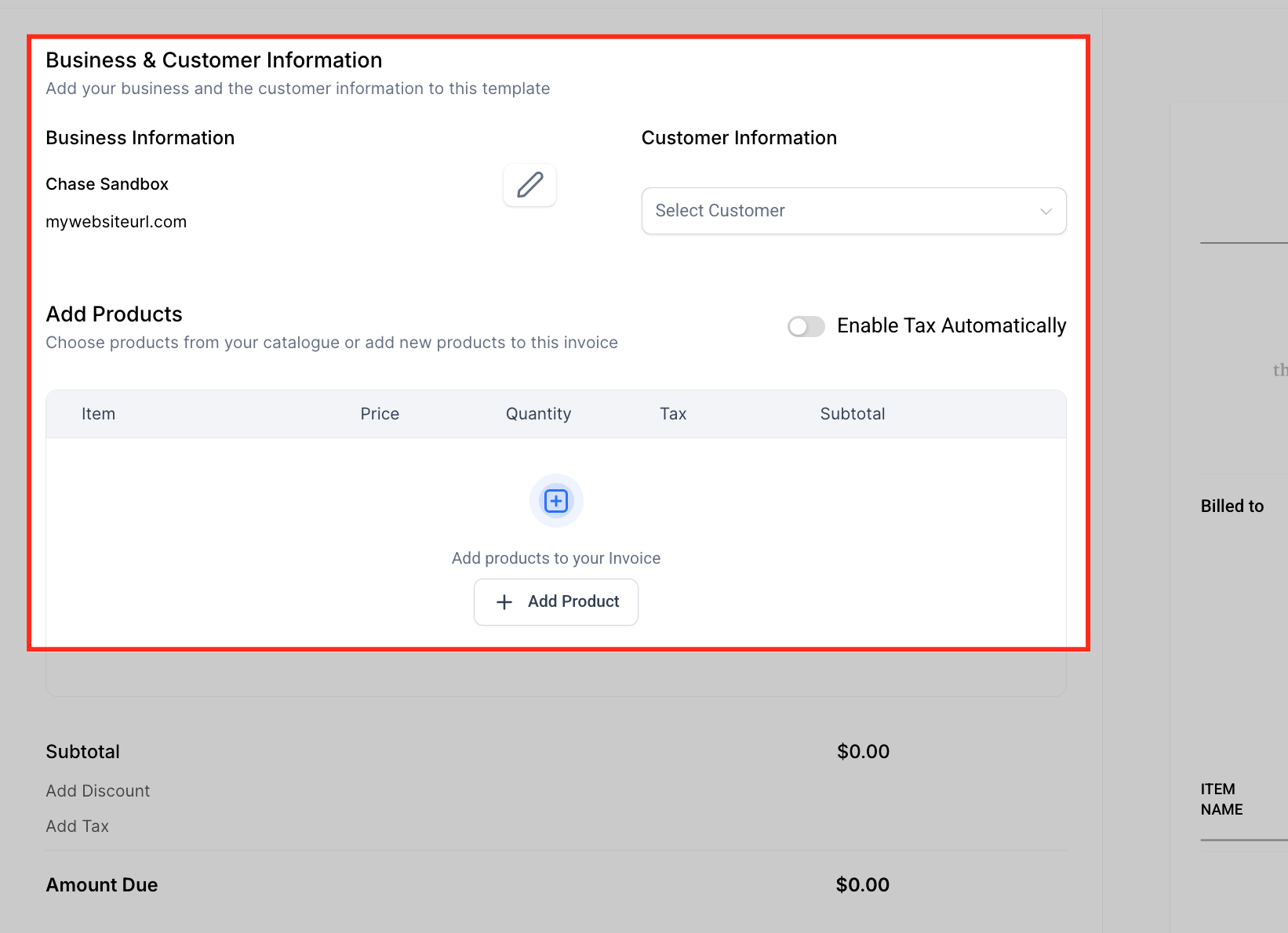
- Enter your business information and select the customer who will receive the invoice.
- Add the products or services, set their price, quantity and applicable taxes.
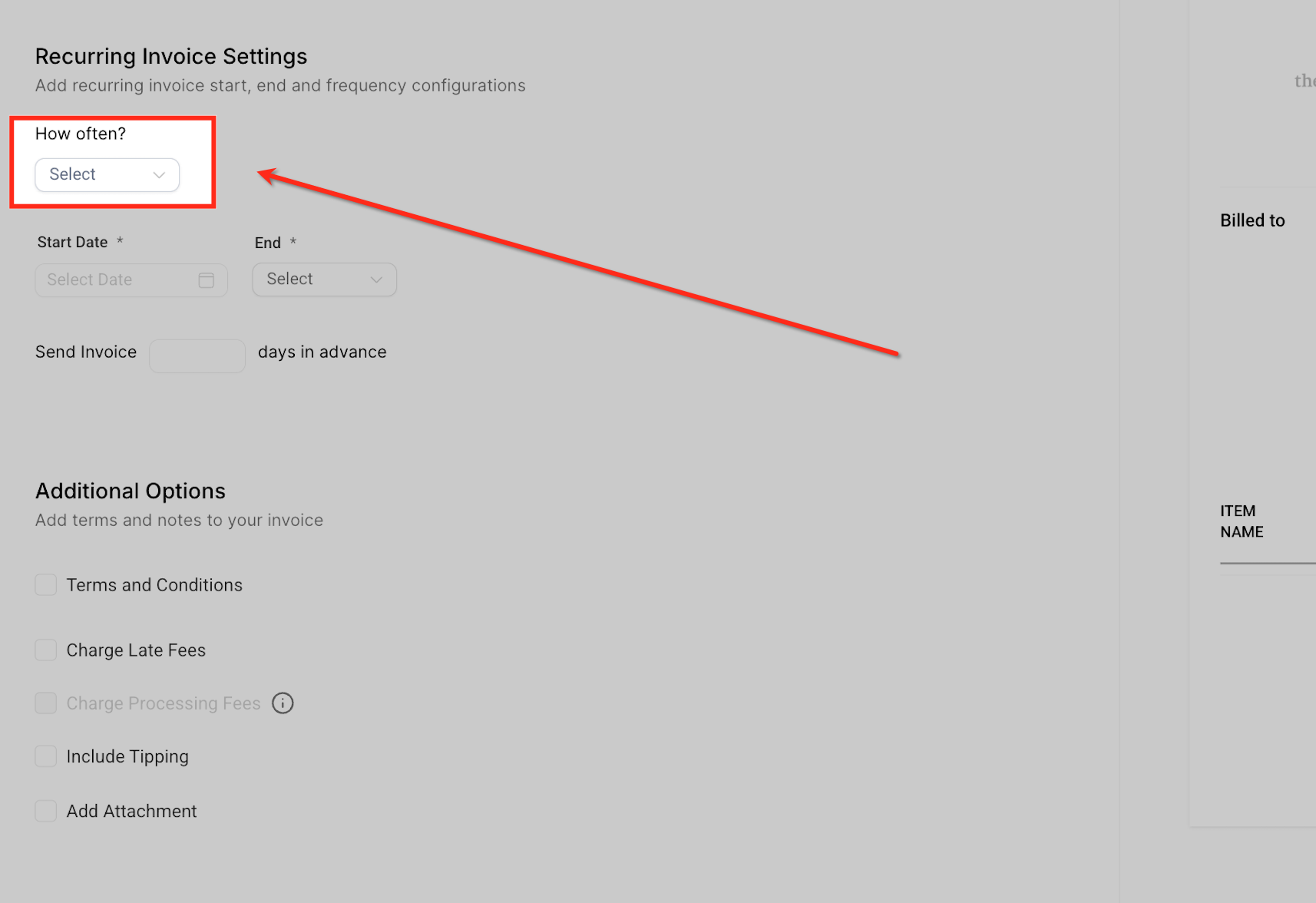
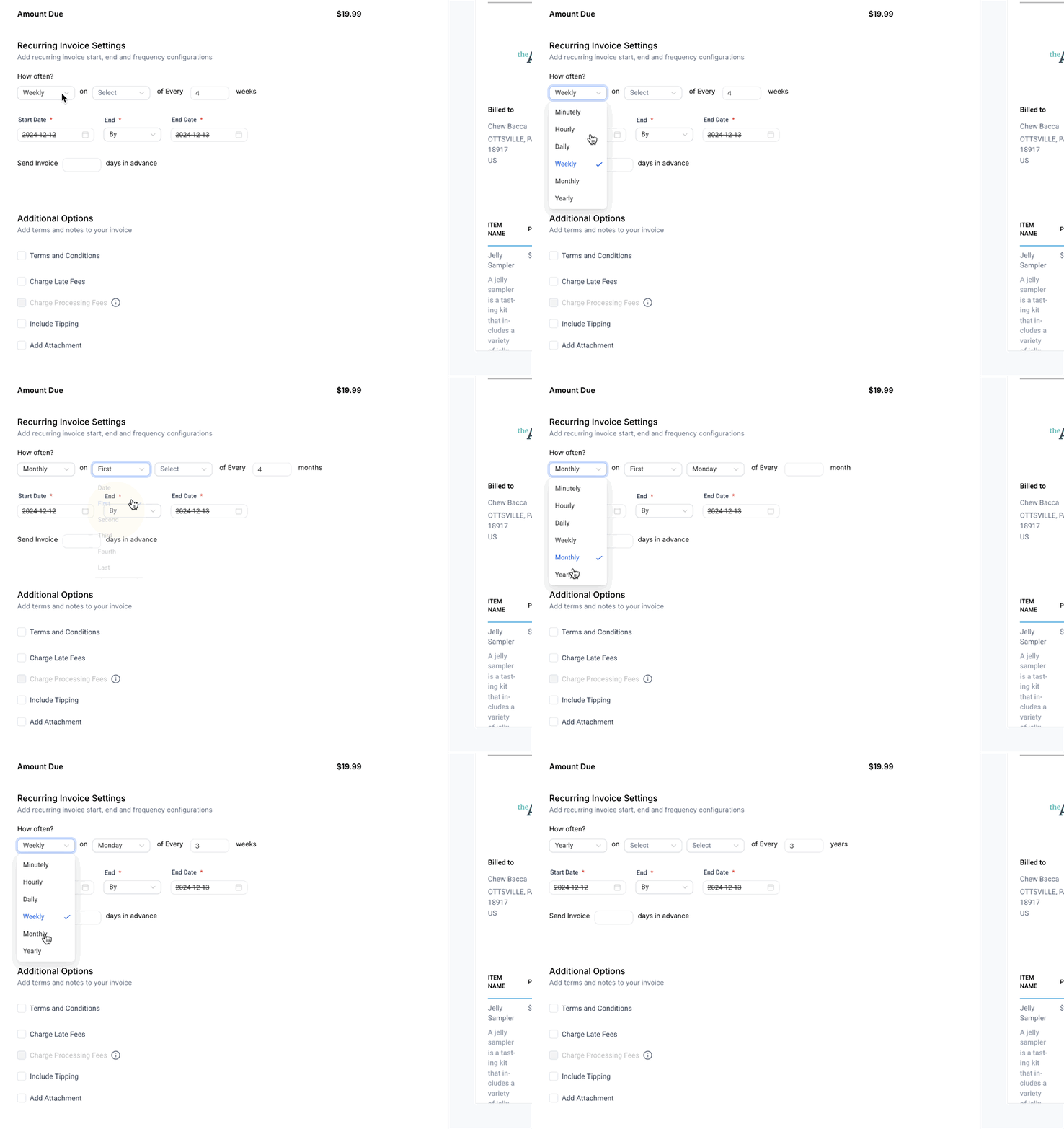
- Select the desired frequency from the How often? dropdown.
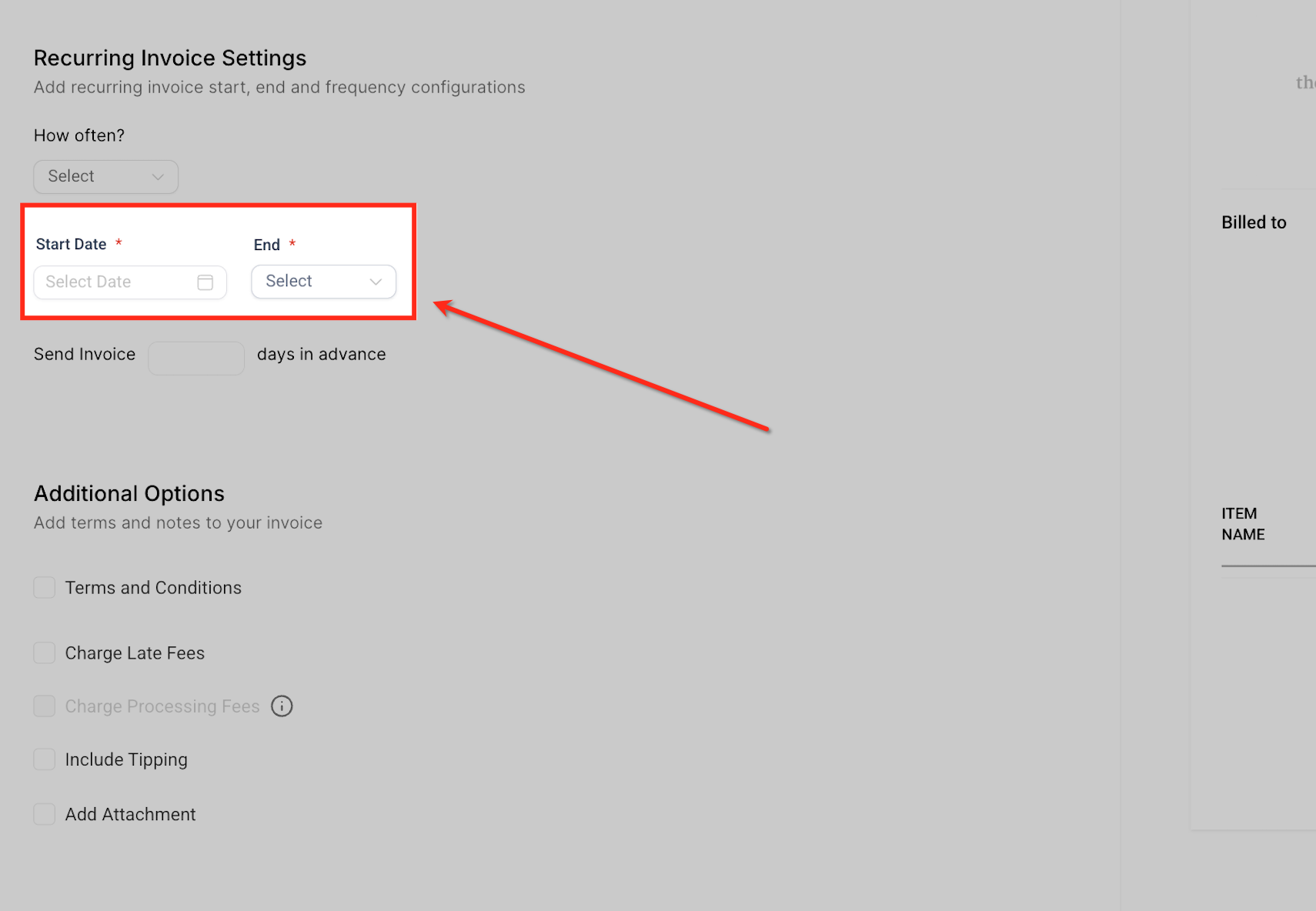
- Choose a Start Date and define an End condition, either a specific date or a number of occurrences.
- Set how many days before the due date the invoice should be sent using the Send in Advance option.
- Add any extra details such as Terms and Conditions, Late Fees, Processing Fees, Tipping or an attachment, then save the template.
- Do not edit the template after it becomes Active or Scheduled because fields are locked at that point.
End a recurring invoice
- Navigate to Payments > Invoices & Estimates.
- Select the Recurring tab on the far right of the screen.
- Click the three dot (⋮) menu for the active schedule and choose End.
06What it looks like in HighLevel
07Settings that matter
- How often?. Controls the interval at which the invoice is regenerated, such as daily, weekly, monthly, yearly or a custom period.
- Start Date. Sets the date for the first invoice to be generated and sent.
- End condition. Defines when the recurring series stops, either on a fixed date or after a set number of occurrences.
- Send in Advance. Specifies how many days before the due date the invoice is delivered to the customer.
- Terms and Conditions. Adds custom policy text or notes that appear on every invoice generated from the template.
- Charge Late Fees. Automatically adds a fee to invoices that are not paid by their due date.
- Charge Processing Fees. Passes payment gateway or transaction fees to the customer, if those fees are enabled in payment settings.
- Include Tipping. Provides a field for customers to add a tip on top of the invoice amount.
- Add Attachment. Allows you to upload supporting documents, contracts or other files to accompany each invoice.
08Things to know before you rely on it
- Fields cannot be changed after the template becomes Active or Scheduled; only Draft templates are editable.
- Active, Scheduled, Canceled and Completed templates have limited actions; only Draft templates can be edited or deleted freely.
- HighLevel does not offer a native option to CC additional recipients on recurring invoices.
- Automatic reminder emails for overdue recurring invoices are not sent by default; you must build a workflow to handle reminders.
09If something goes wrong
- Voided a recurring invoice but the system continues to send monthly invoices.. Terminate the entire schedule by navigating to Payments > Invoices & Estimates, selecting the Recurring tab, locating the active schedule, clicking the three dot menu and choosing End.
10How it connects to the rest of HighLevel
- Create and edit invoices in HighLevel Invoice workflow
- Set up auto payments for recurring invoices Auto payments
- Common use cases for payments and invoices Use cases
Michael's take

Recurring invoices are a solid way to automate repeat billing for subscription based businesses.
If you only bill one off projects or rarely need to invoice the same client, you can skip this feature.