
01Who this is for
- Businesses that issue invoices and need to receive payments via direct bank transfers.
- Organizations that want to avoid credit card processing fees by offering only bank transfer payments.
02Bank only transfers, explained
The bank only transfer setting changes the payment options on a HighLevel invoice so that the only way a client can pay is by sending a direct bank transfer. Credit card options are hidden and cannot be selected.
When the invoice is sent, the client receives the invoice showing the bank transfer option; any payment recorded appears in the Invoices list like other payment types.
The option is located inside the invoice editor under the Payment Options section and is available when invoicing is enabled and a Stripe integration is configured.
03How businesses use bank only transfers
- Regional business. The business creates or edits an invoice, selects Bank Transfer as the sole payment method, saves the invoice and emails it to the client who then pays via bank transfer.
- Cost conscious company. To avoid card processing fees, the company issues invoices with only the Bank Transfer option, saves the changes and sends the invoice for direct bank payment.
- Secure payment vendor. The vendor creates an invoice, sets Bank Transfer as the exclusive payment choice, saves and sends it, allowing the client to complete a secure bank to bank transaction.
04Before you start
- A Stripe account linked to HighLevel.
- Invoicing feature enabled in your current HighLevel plan.
05How to set up and use bank only transfers in HighLevel
Set up bank only transfers in invoices
- Log in to your HighLevel account.
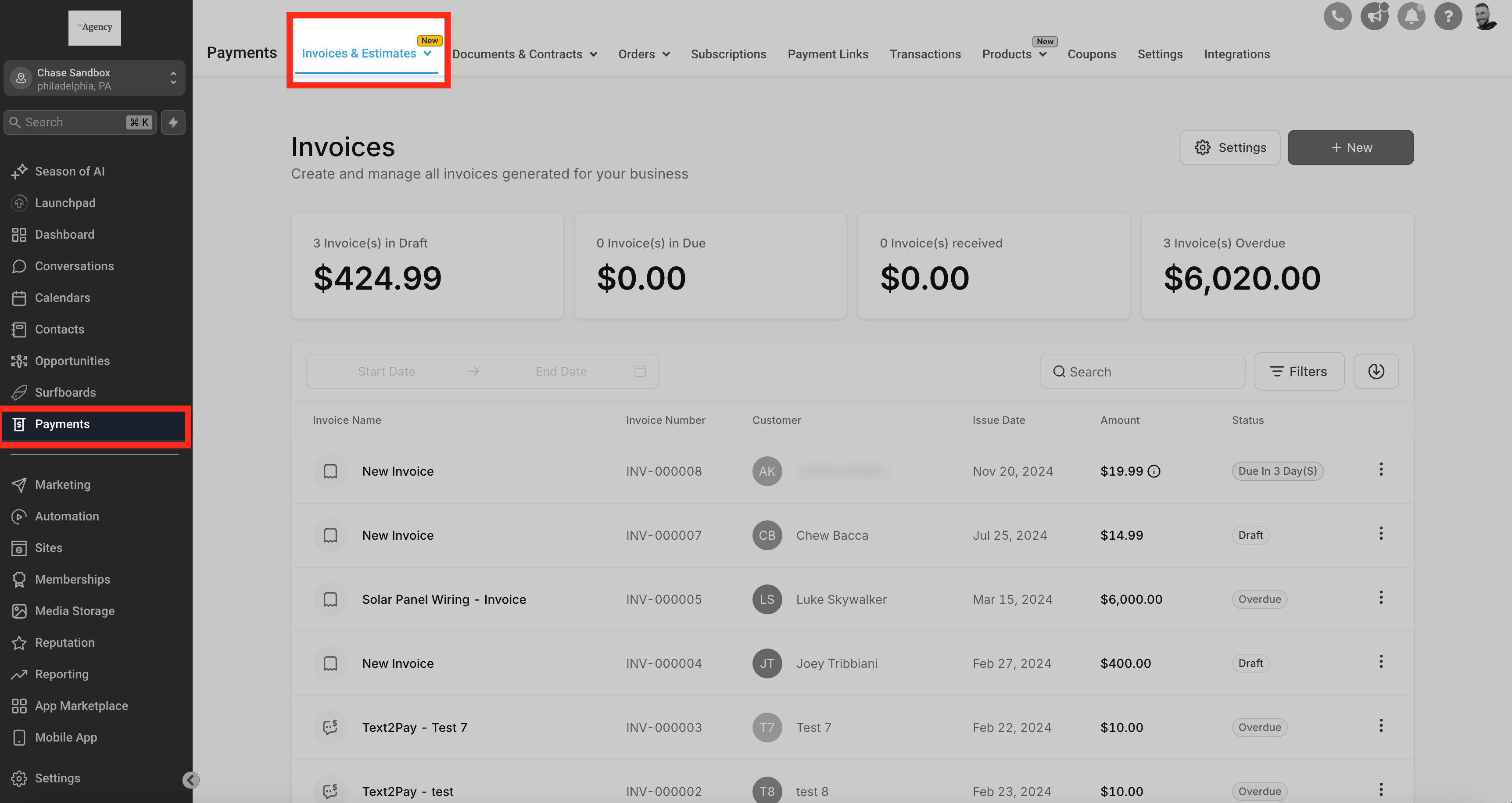
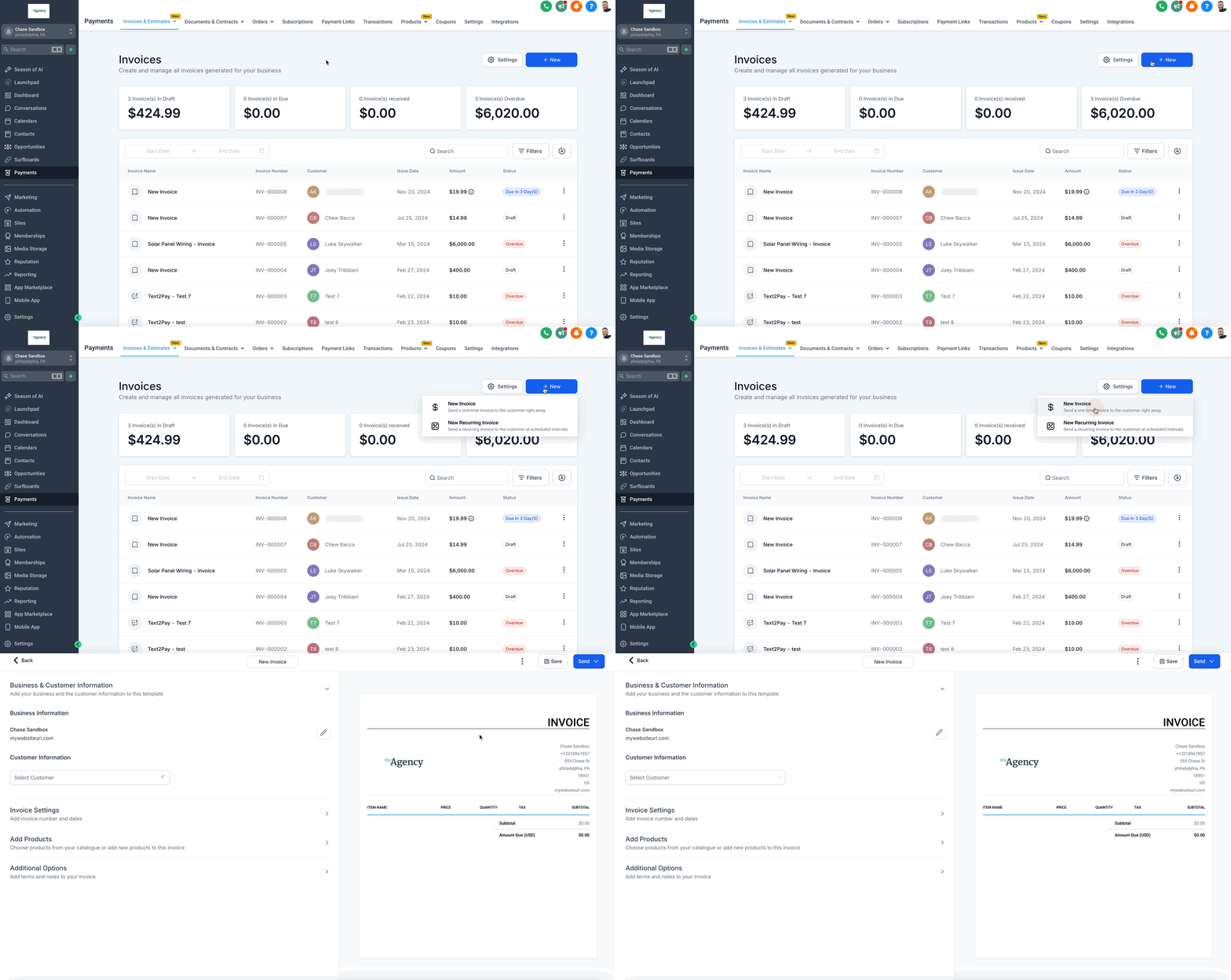
- Navigate to the Invoices section from the main dashboard.
- Click the + Create Invoice button to start a new invoice, or locate an existing invoice in the list and click Edit.
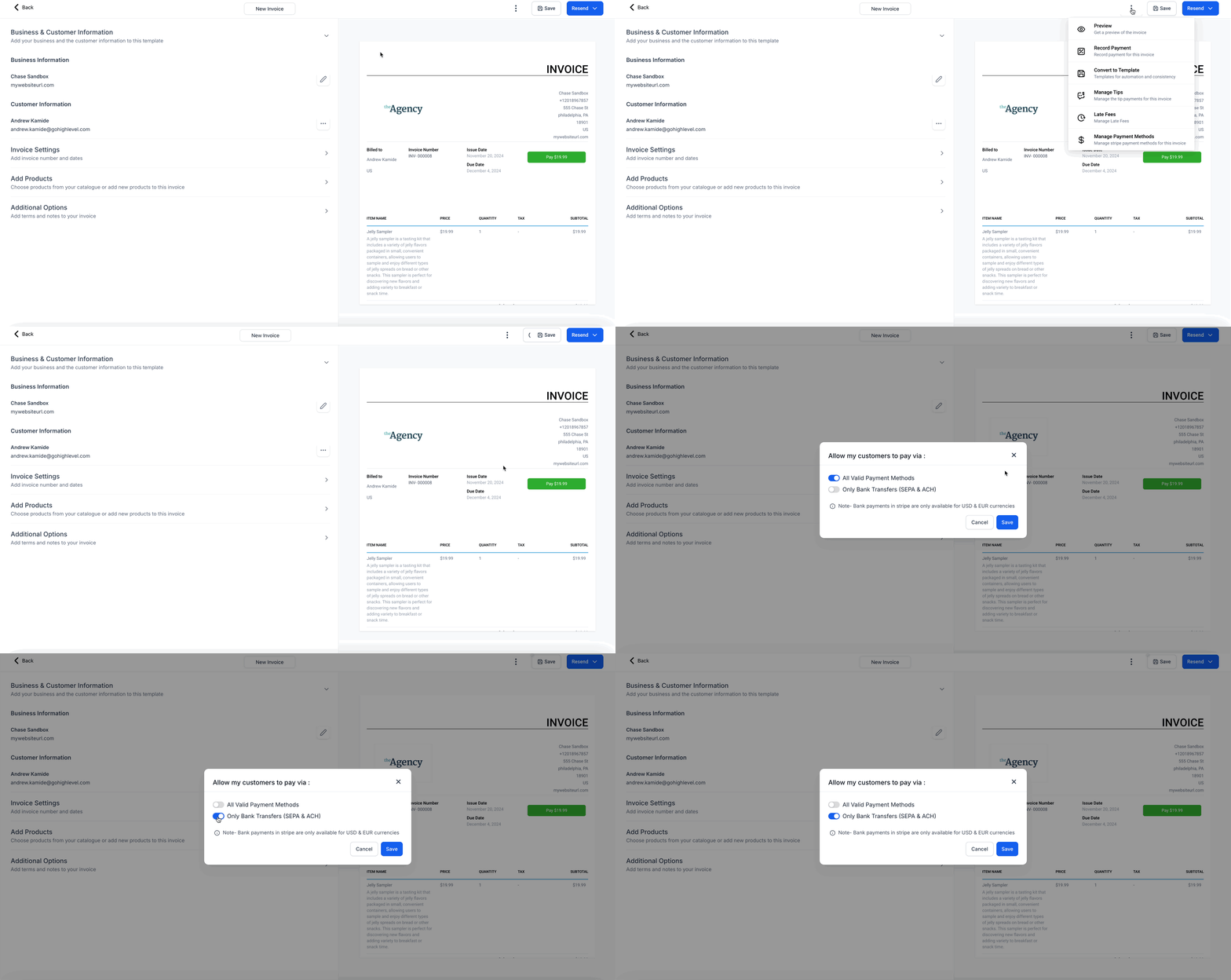
- Scroll down to the Payment Options area within the invoice editor.
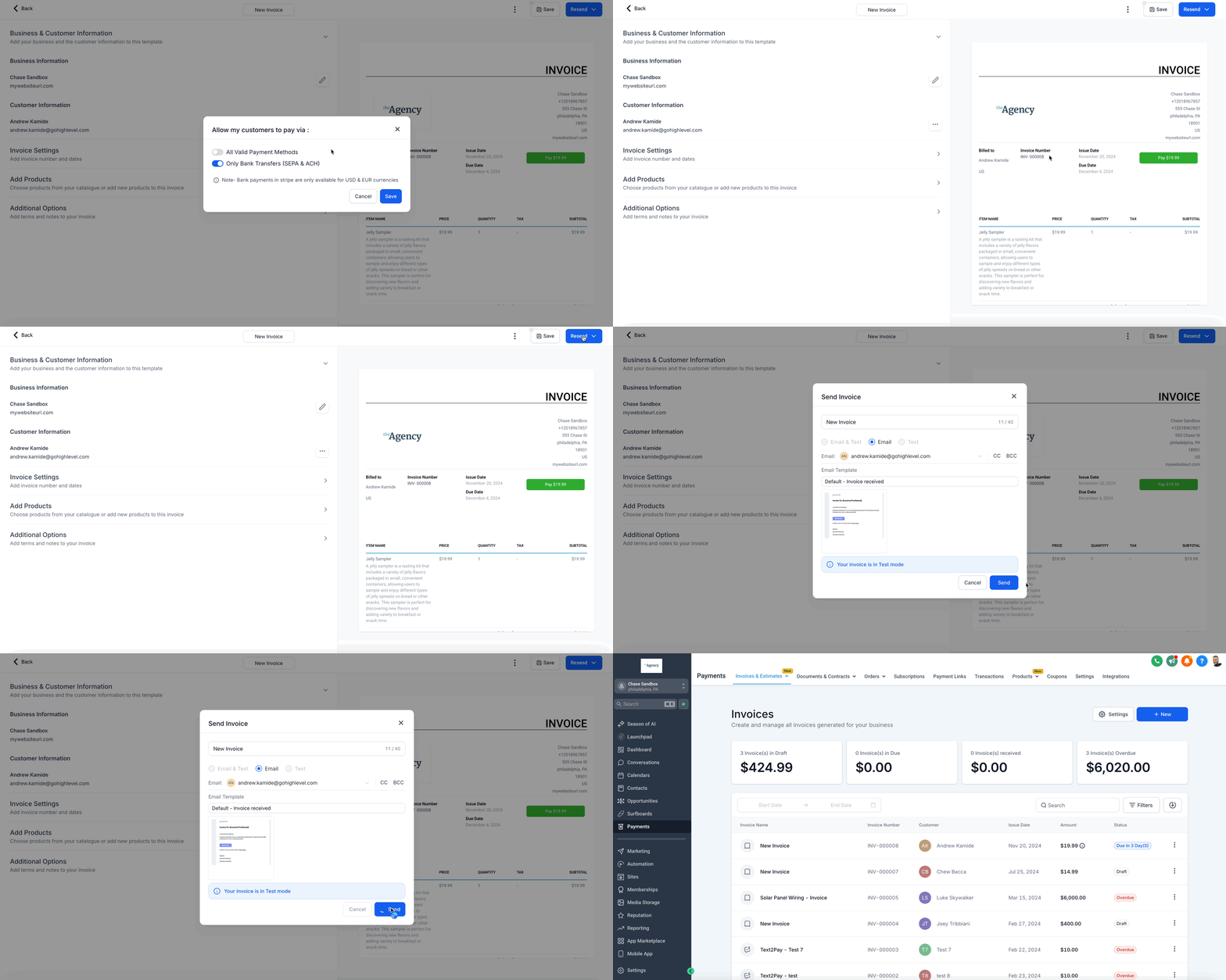
- Choose Bank Transfer as the exclusive payment method.
- Click the Save button to store the invoice changes.
- Press the Send Invoice button to email the invoice to the client.
06What it looks like in HighLevel
07Settings that matter
- Bank Transfer. Controls which payment method is offered on the invoice, limiting the client to pay only via a direct bank transfer.
08Things to know before you rely on it
- The feature makes bank transfer the only payment option; card payments cannot be added on the same invoice unless "All Valid Payment Methods" is enabled.
- Bank only transfers require a connected Stripe account to process the payments.
- The option is available on any HighLevel plan that includes invoicing.
09How it connects to the rest of HighLevel
- Learn how to enable ACH debit as a bank transfer method in HighLevel invoices. ACH debit on invoices
- Manage which Stripe payment methods appear on your invoices. Stripe payment methods
- Check plan details to confirm invoicing is included in your subscription. HighLevel pricing
Michael's take

Most people assume they can just flip a switch and start accepting bank transfers without any back end work. In reality, the feature depends on Stripe, so you have to make sure your Stripe account is set up for ACH or SEPA first. If I were configuring this, I’d verify Stripe is ready, then create a test invoice to confirm the bank only option appears correctly before sending it to a real client.
Once the integration is solid, I’d use the bank only setting for any client who explicitly asks for a direct transfer or for projects where minimizing card fees makes a big difference. It’s a simple way to keep invoicing clean and costs low.