
01Who this is for
- Coaches who need to take card payments during a discovery call can do it without sending an invoice.
- Service firms that often sell one off items can record cash or check payments manually when Stripe Connect is not used.
02Payments and invoices, explained
Payments in HighLevel record the exchange of money for goods or services. Invoices act as the ledger entry that shows what a client owes and what has been paid. The invoice builder lets you add products, taxes, discounts, and extra fees, then either send the invoice or record a payment directly. All of these tools are located under the Payments menu on the left side of the dashboard.
The platform supports credit and debit cards, ACH transfers, cash, checks, and other methods. When Stripe Connect is not enabled, only manual recording of payments is possible, and it works only for one time invoices. Card processing fees can be configured in the tax settings and applied like a tax line on any new invoice.
03How businesses use payments and invoices
- Coaching business. During a strategy call, the coach creates an invoice for the session, adds the coaching package, and uses the Record Payment option to charge the client’s card right away. The client receives no automatic notification, so the coach confirms the charge verbally.
- Dental practice. When a patient pays with cash after a procedure, the office staff opens the Invoices section, creates a new invoice, and selects Record Manually. They choose the Cash payment method and submit, ensuring the patient’s account reflects the payment.
- Event management company. If a client requests an extra service that is not in the product catalog, the manager adds a New Item directly on the invoice, optionally saves it for future use, and sends the updated invoice to the client.
04Before you start
- A contact record must exist in HighLevel before creating an invoice.
- If you plan to record card payments, Stripe Connect must be configured; otherwise, only manual methods are available.
05How to set up and use payments and invoices in HighLevel
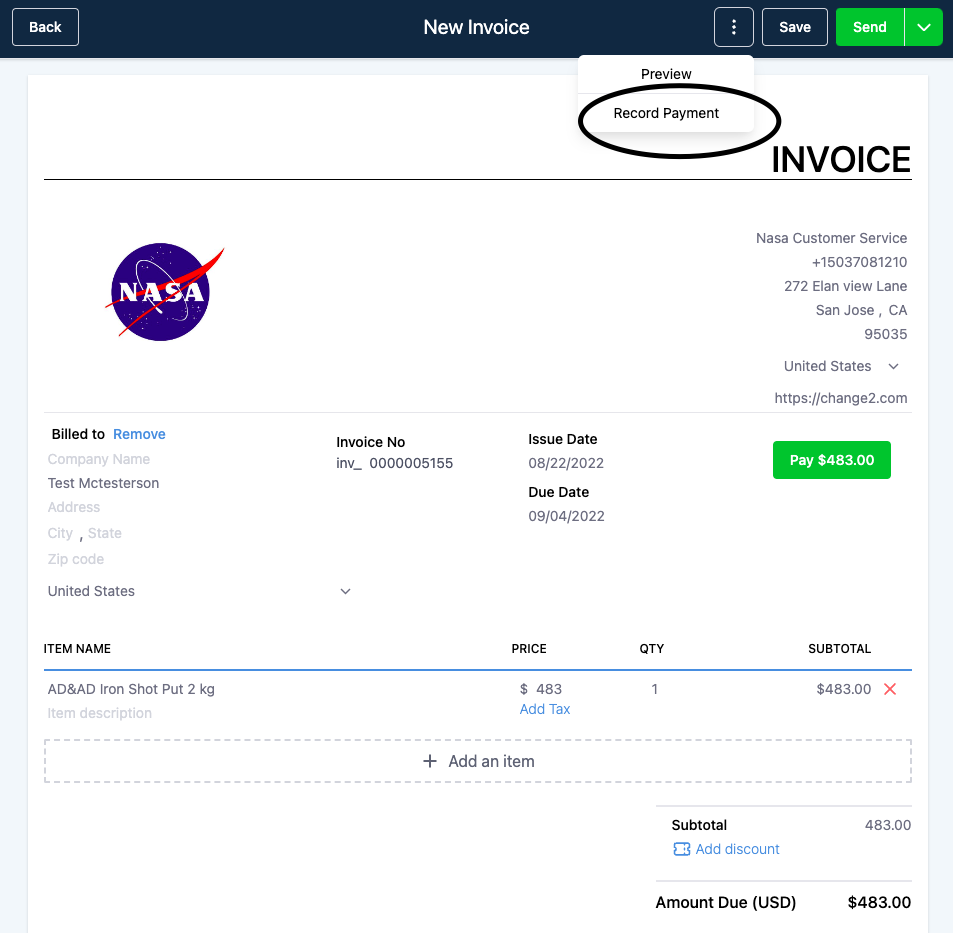
Charge a card while on the phone without sending an invoice
- Open the invoice builder by selecting an existing contact or adding a new one on the fly.
- Select the product being sold; choose “Add New Item” if it is not listed.
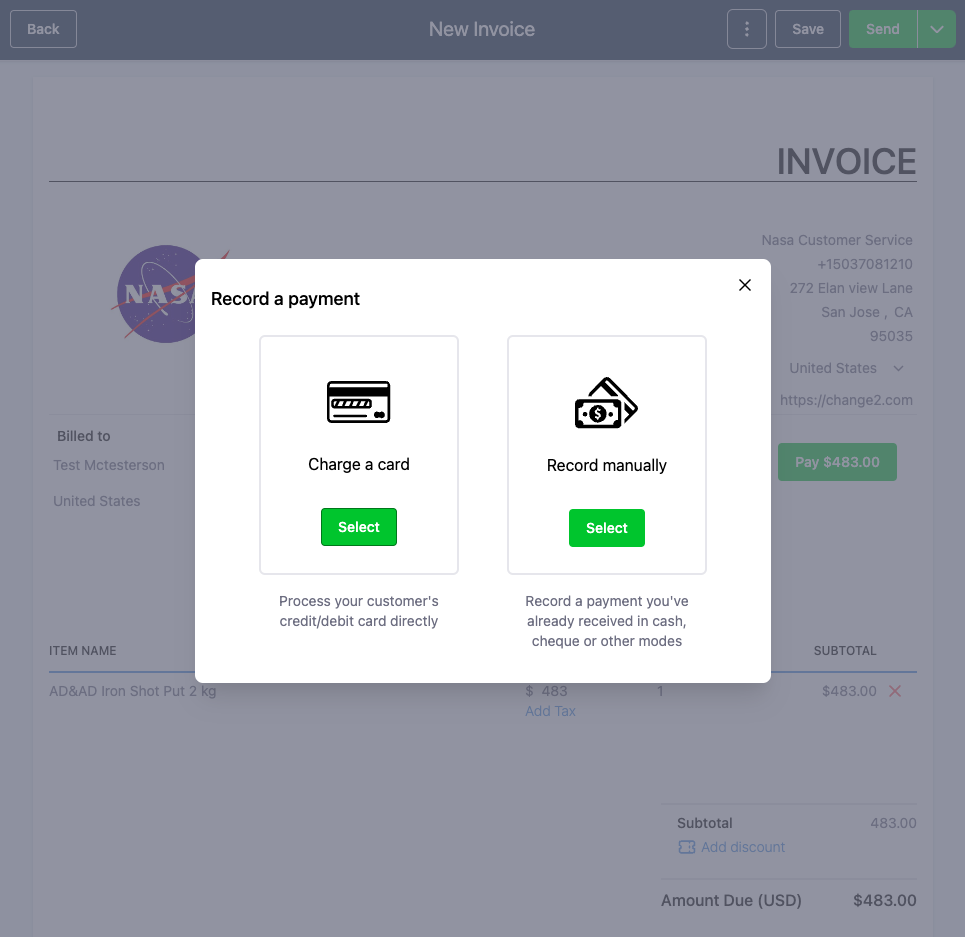
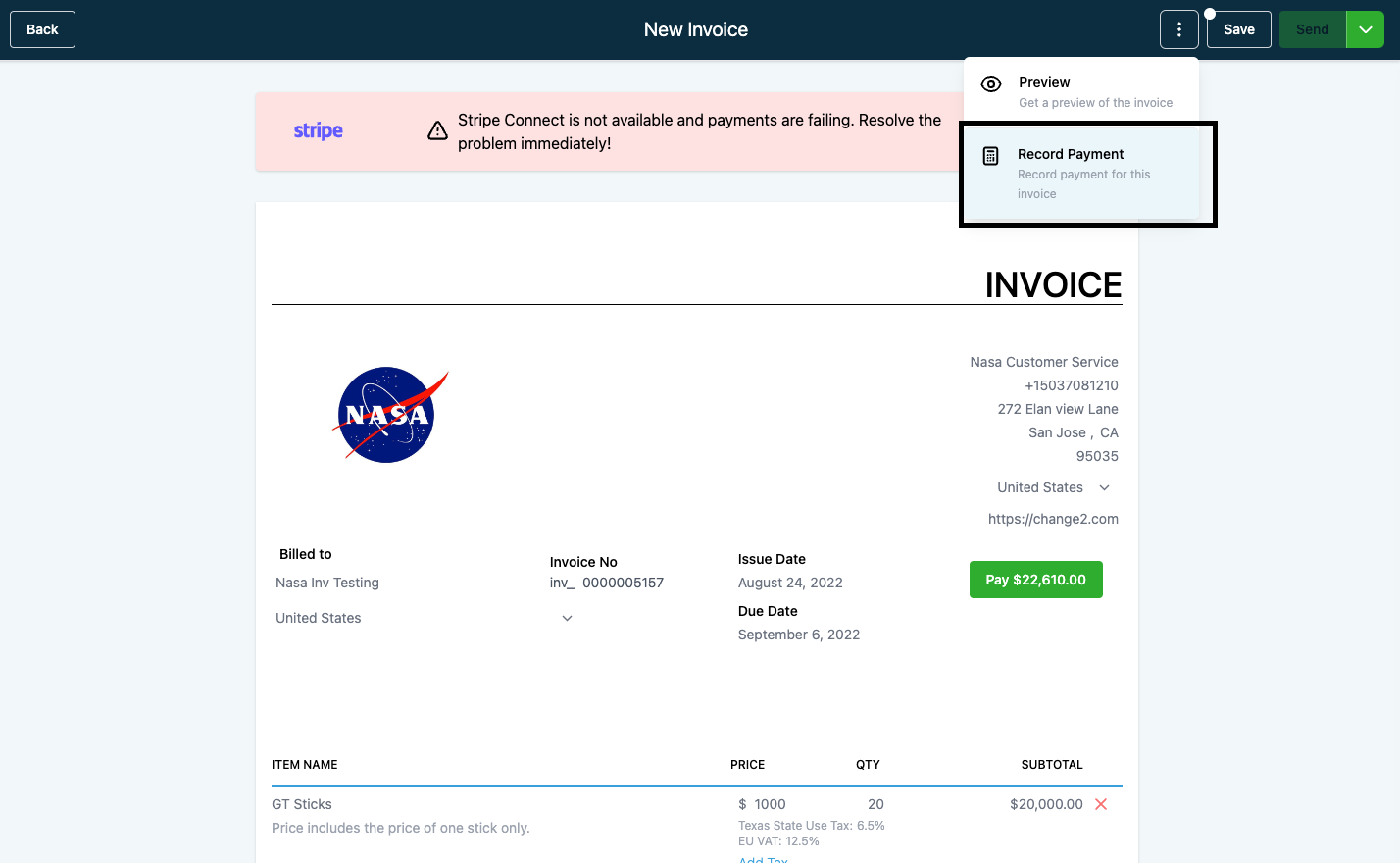
- Click the three dot menu at the top and choose “Record Payment”.
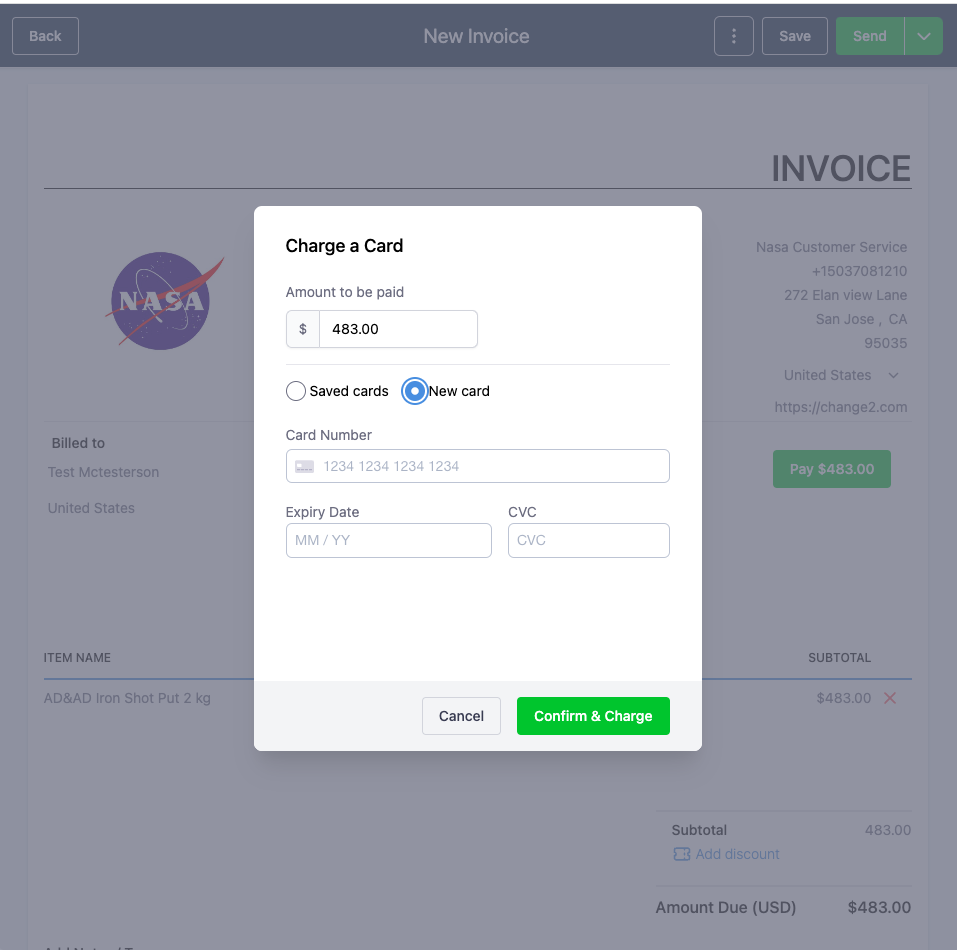
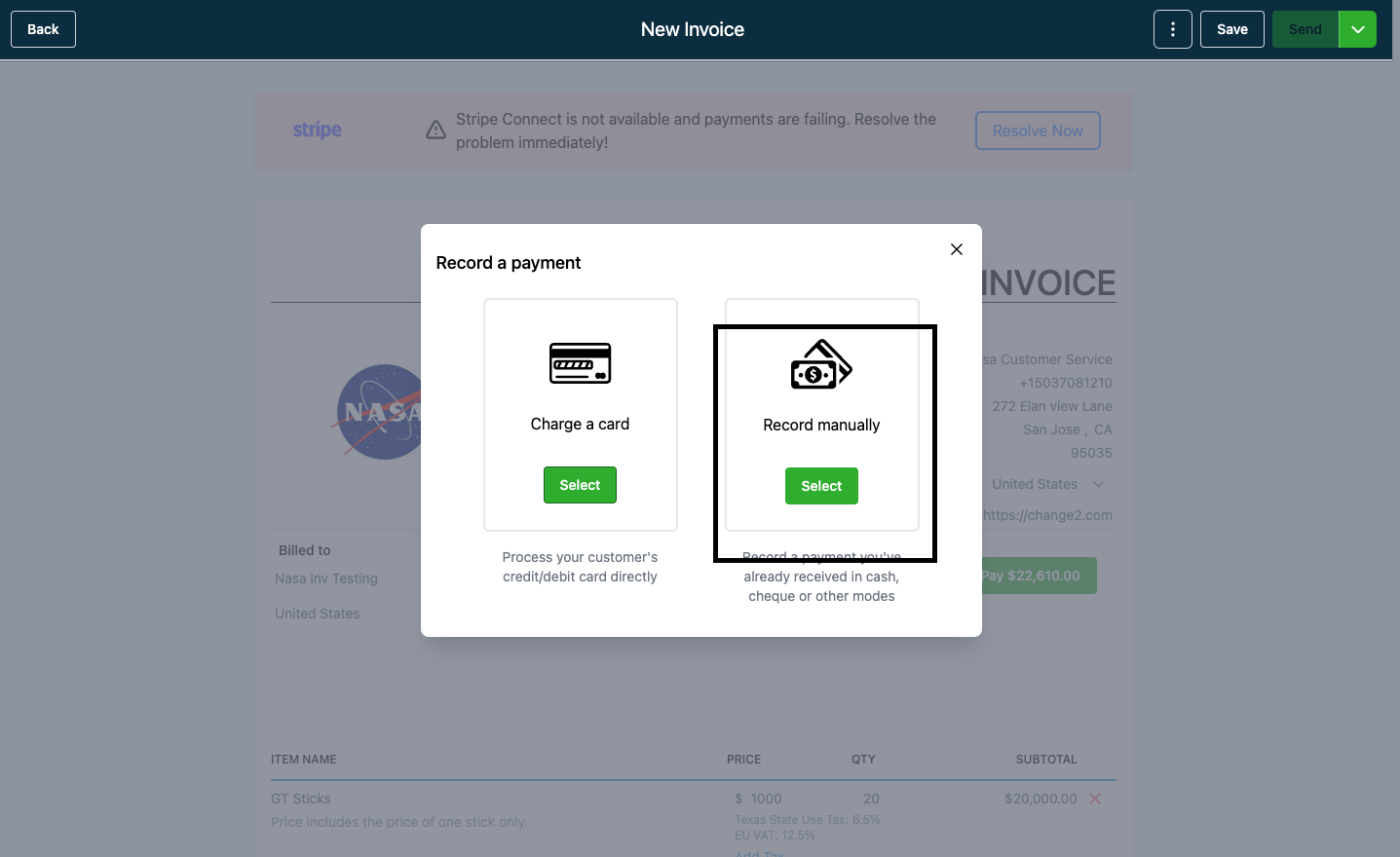
- In the modal window, select “Charge a card”.
- Pick “New Card” for a first time buyer or choose a saved card for a returning client.
- Please note: customers charged this way will not receive an automated email or text confirmation.
Record a manual payment without Stripe Connect
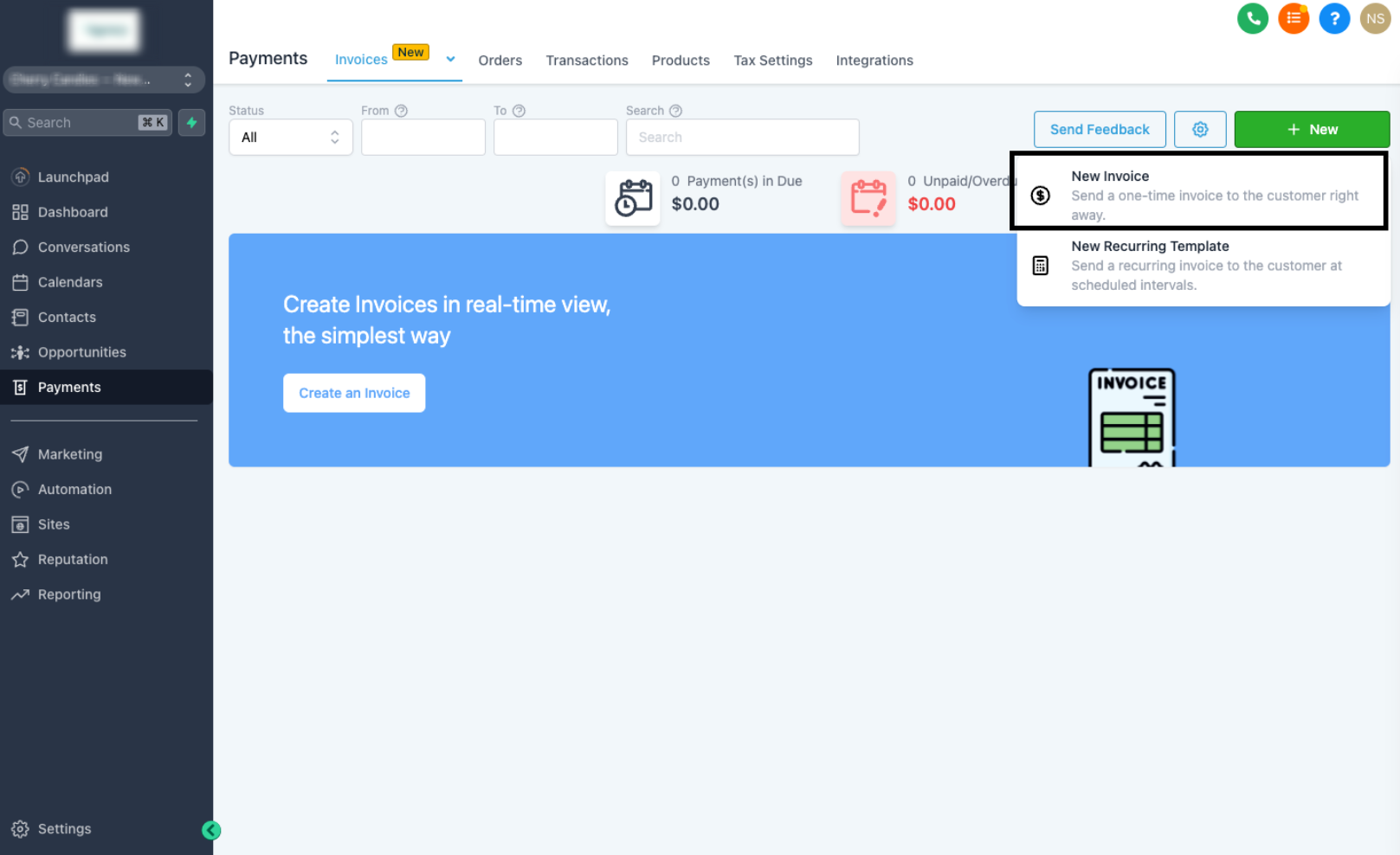
- Navigate to Invoices under the Payments menu on the left side.
- Close the popup that asks to add Stripe Connect.
- Click the “New” button and select “New Invoice”.
- Enter customer details, add items, tax, and discounts, then open the three dot menu and choose “Record Payment”.
- Select the “Record Manually” option.
- Choose the payment method that matches the transaction (Cash, Card, Check, Bank Transfer, Other) and click “Submit”.
- The invoice updates to show the manually recorded payment.
- Please note: customers recorded this way will not receive an automated email or text confirmation.
Add an ad hoc item to an invoice
- Create a new invoice and click “Add an Item”.
- Select “New Item” to define a product not present in the catalog.
- Enter the item’s name and price on the following screen.
- Optionally check “Save for later use” to add the item to the products area.
- Click “Add new item” to place the item on the invoice.
Add a card processing fee to an invoice
- Go to Payments > Tax Settings and create a fee entry that will be applied as a tax.
- Open a new invoice and add the primary charge item.
- Click “Add Tax” and select the processing fee tax you created, then save.
- The fee appears as an additional line in the invoice builder.
06What it looks like in HighLevel
07Settings that matter
- Tax Settings. Allows you to define tax entries, including a card processing fee that can be added to invoices as a tax line.
08Things to know before you rely on it
- Customers charged through the Record Payment flow do not receive automated email or text confirmations.
- Manual payments without Stripe Connect are limited to one time invoices only.
- A processing fee added in Tax Settings is only available on invoices created after the fee is saved; existing invoices are unaffected.
- Partial payments cannot be recorded on invoices that already have a payment schedule attached.
09If something goes wrong
- Manual payment date shows “Invalid Date” error. Make sure the payment date is on or after the invoice issue date, then submit again.
- Processing fee does not appear on an invoice. Recreate the invoice after the fee has been added in Tax Settings, as the fee applies only to new invoices.
- Unable to make a partial payment on an invoice. Remove any existing payment schedule from the invoice, then record a manual partial payment.
10How it connects to the rest of HighLevel
- Step by step guide for creating, editing, and sending invoices with taxes and discounts Invoice workflow
- How to set up auto payments in recurring invoice templates Auto payments
- Use ACH debit as a payment method on invoices ACH debit
- Overview of all payments capabilities in the platform All Payments features
- View HighLevel pricing, plans, and trial options related to the Payments module Pricing
Michael's take

Payments and invoices are a solid baseline for keeping track of what’s been sold and paid.
If you never bill clients or handle any card transactions, you can skip this feature.