
01Who this is for
- Businesses that bill customers on a recurring basis, such as membership clubs, online course platforms, and service providers, can use Auto Payments to automate collection.
- Organizations that need to reduce manual follow up on invoice payments and improve cash flow consistency can benefit from the feature.
02Auto Payments, explained
Auto Payments is a setting on a recurring invoice template that tells HighLevel to charge a card automatically when an invoice becomes due. The charge uses the card you specify, either the first card the customer used, a card already saved in their profile, or a new card entered at setup.
When enabled, HighLevel attempts the charge on the invoice due date. If the charge fails, the platform notifies both the customer and the location user and retries twice, 24 hours apart. After the retries, no further automatic attempts are made and the invoice must be paid manually.
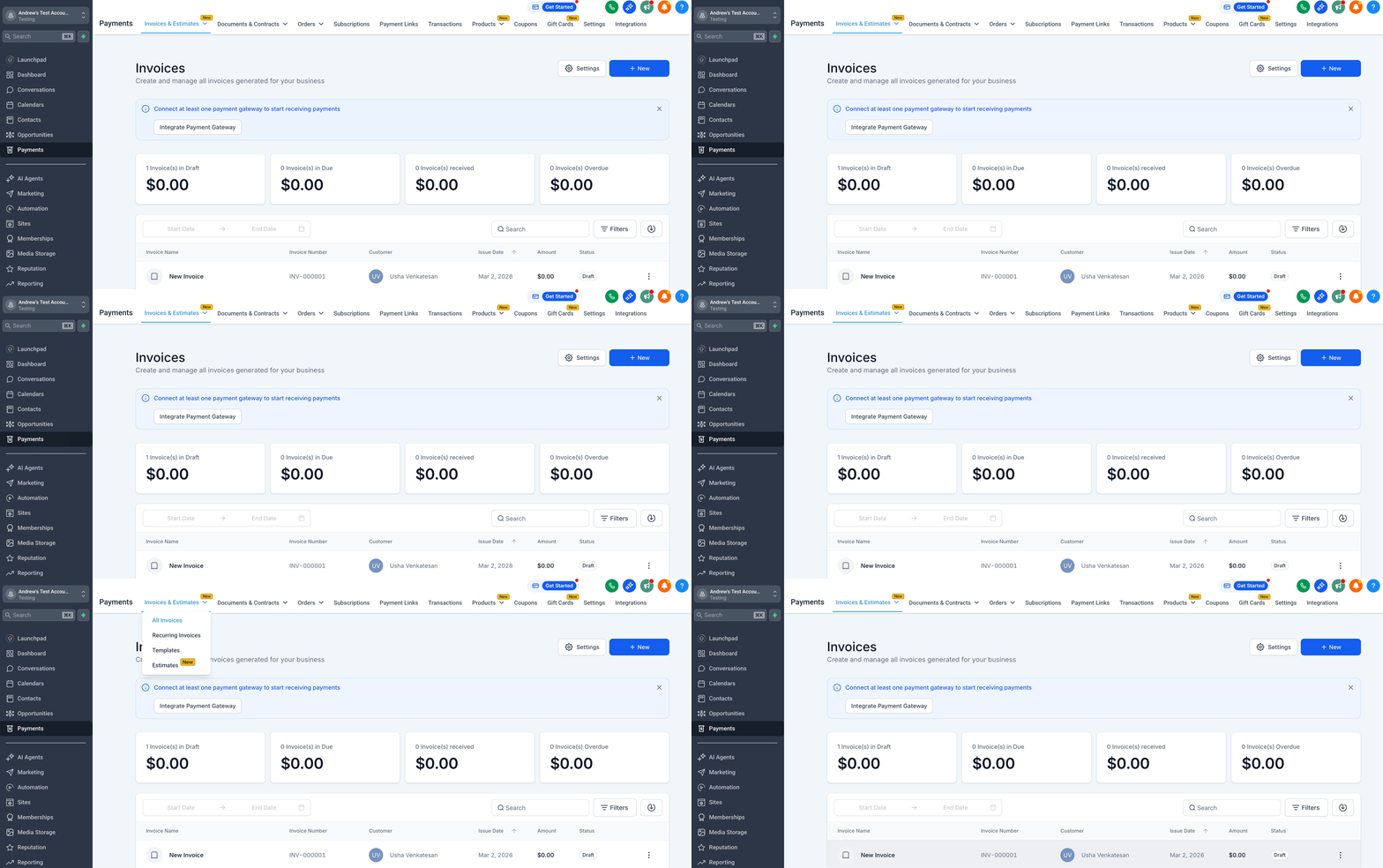
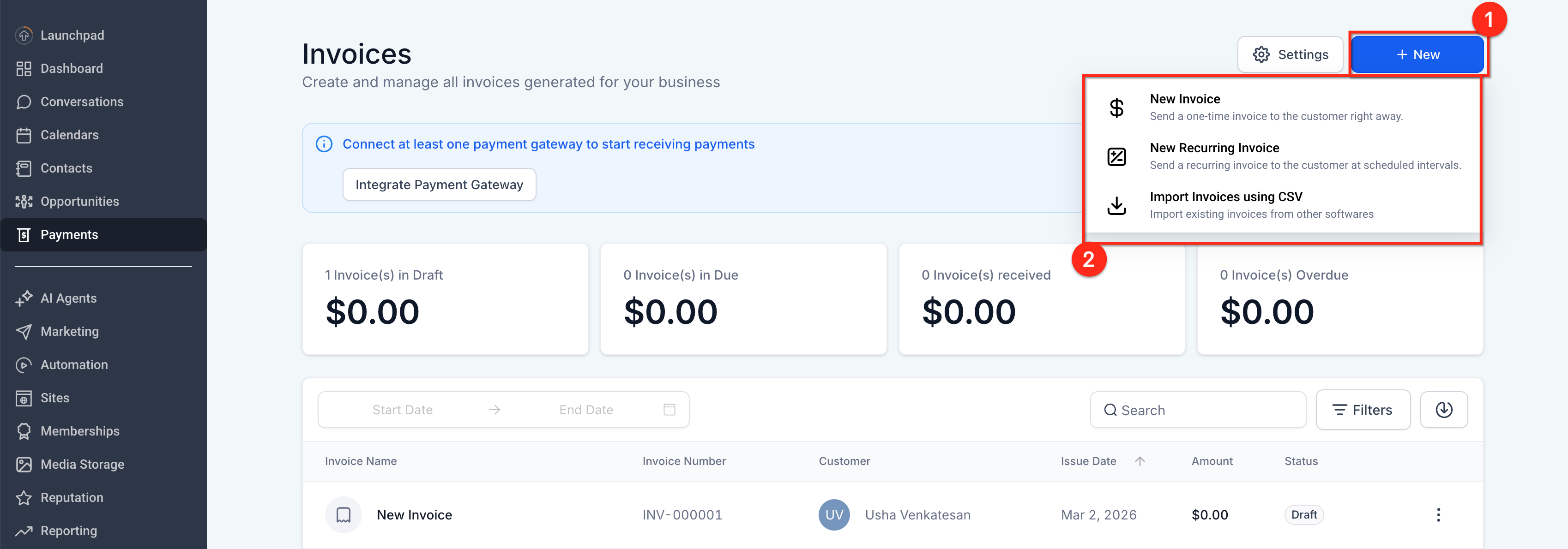
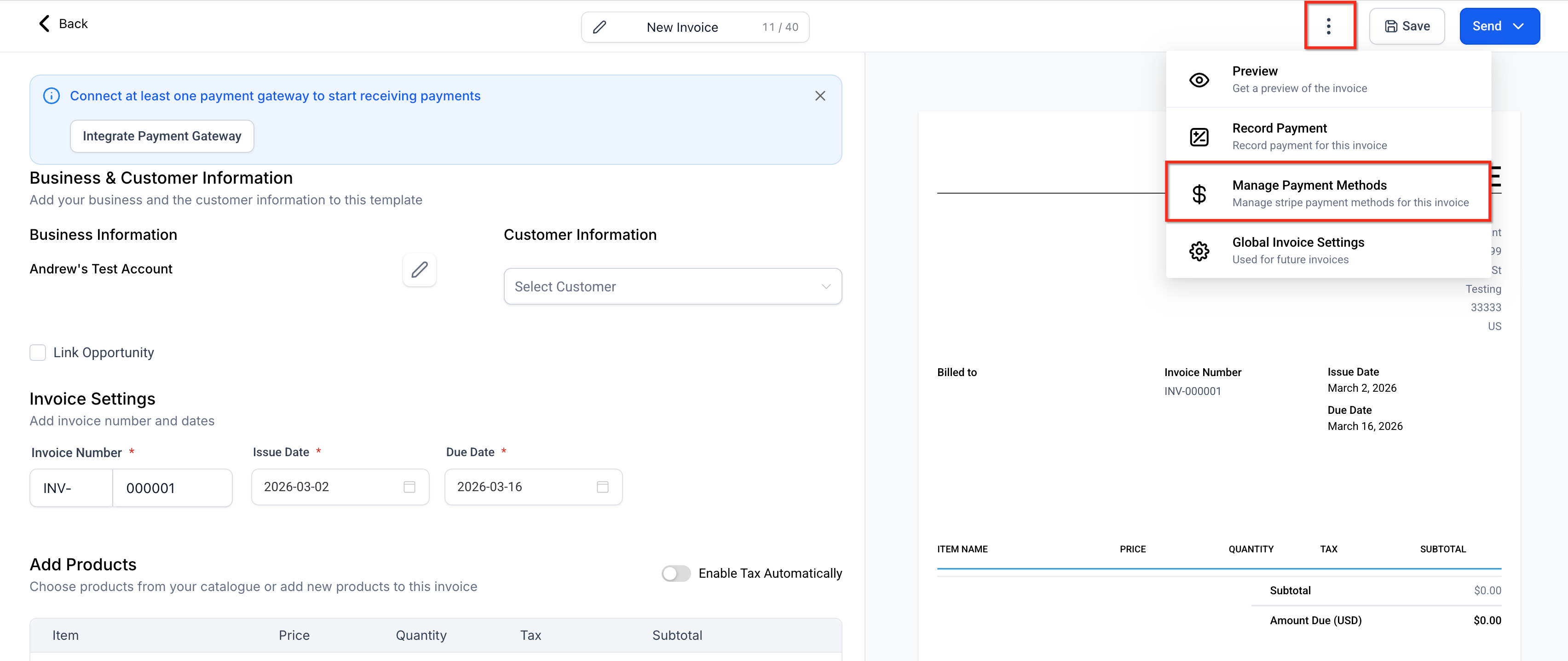
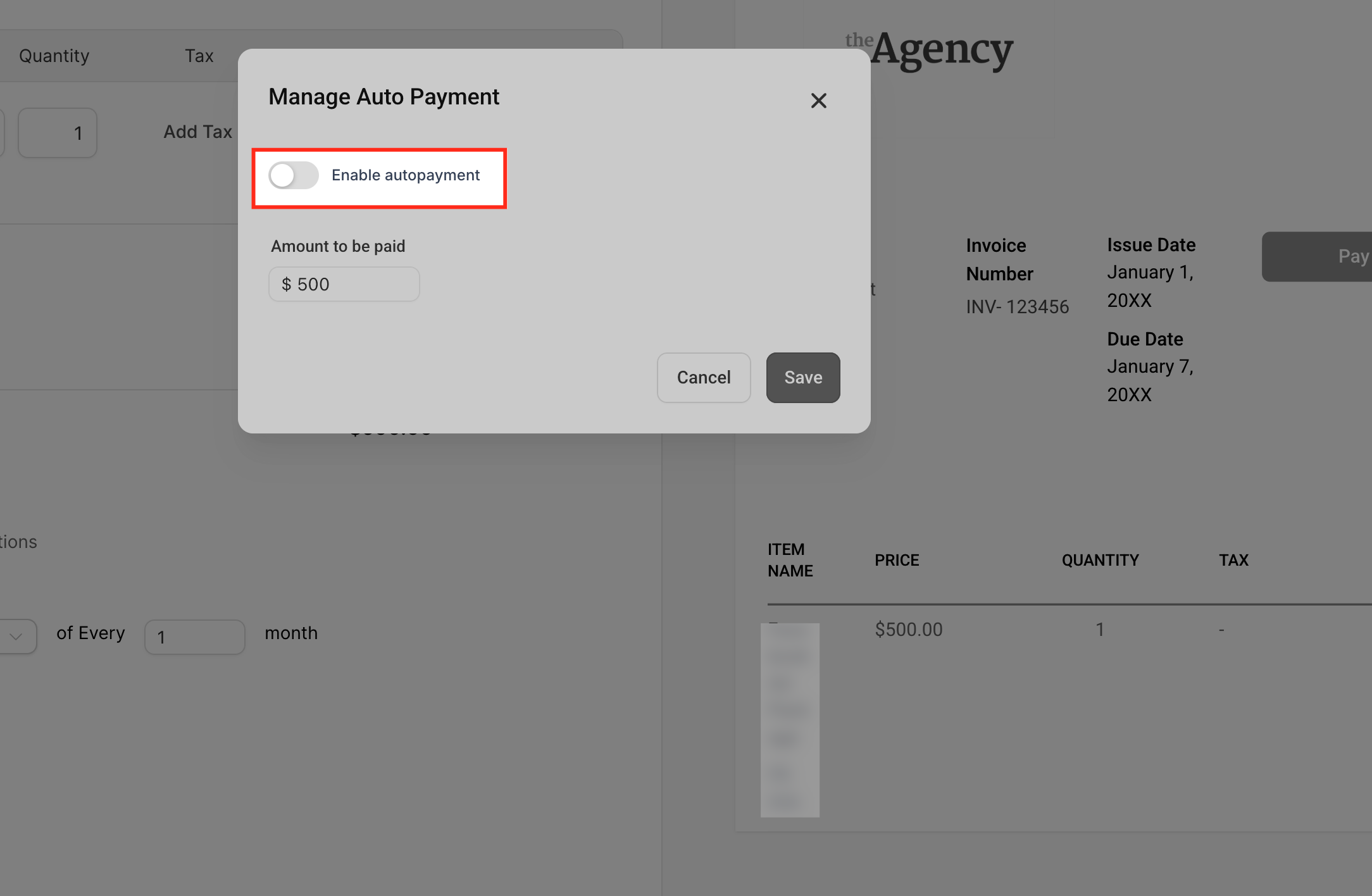
The controls live inside the recurring invoice builder under Payments > Invoices & Estimates > Recurring Invoices. From the schedule editor you open the three dot menu, select Manage Auto Payment, and then toggle the Enable autopayment switch.
03How businesses use auto payments
- Fitness studio. The studio creates a recurring invoice for monthly memberships. By enabling Auto Payments with the Saved Card option, the first invoice charges automatically and each subsequent month is billed without manual steps.
- Online course provider. When a new learner signs up, the provider adds a New Card during enrollment. Auto Payments starts on the next invoice after the card is saved, ensuring continual access without waiting for manual payments.
- Consulting firm. The firm uses a Customer Card for clients who pay the first invoice manually. After that payment succeeds, Auto Payments switches to that card for all future invoices, reducing follow up work.
04The numbers and rules that matter
- Failed payment retry attempts: Two additional attempts, 24 hours apart.
05Before you start
- A recurring invoice must already exist or be in the process of creation.
- A supported payment gateway must be connected to the account.
- A valid customer card must be on file if you expect automatic charging.
06How to set up and use auto payments in HighLevel
Turn on Auto Pay and choose the card source
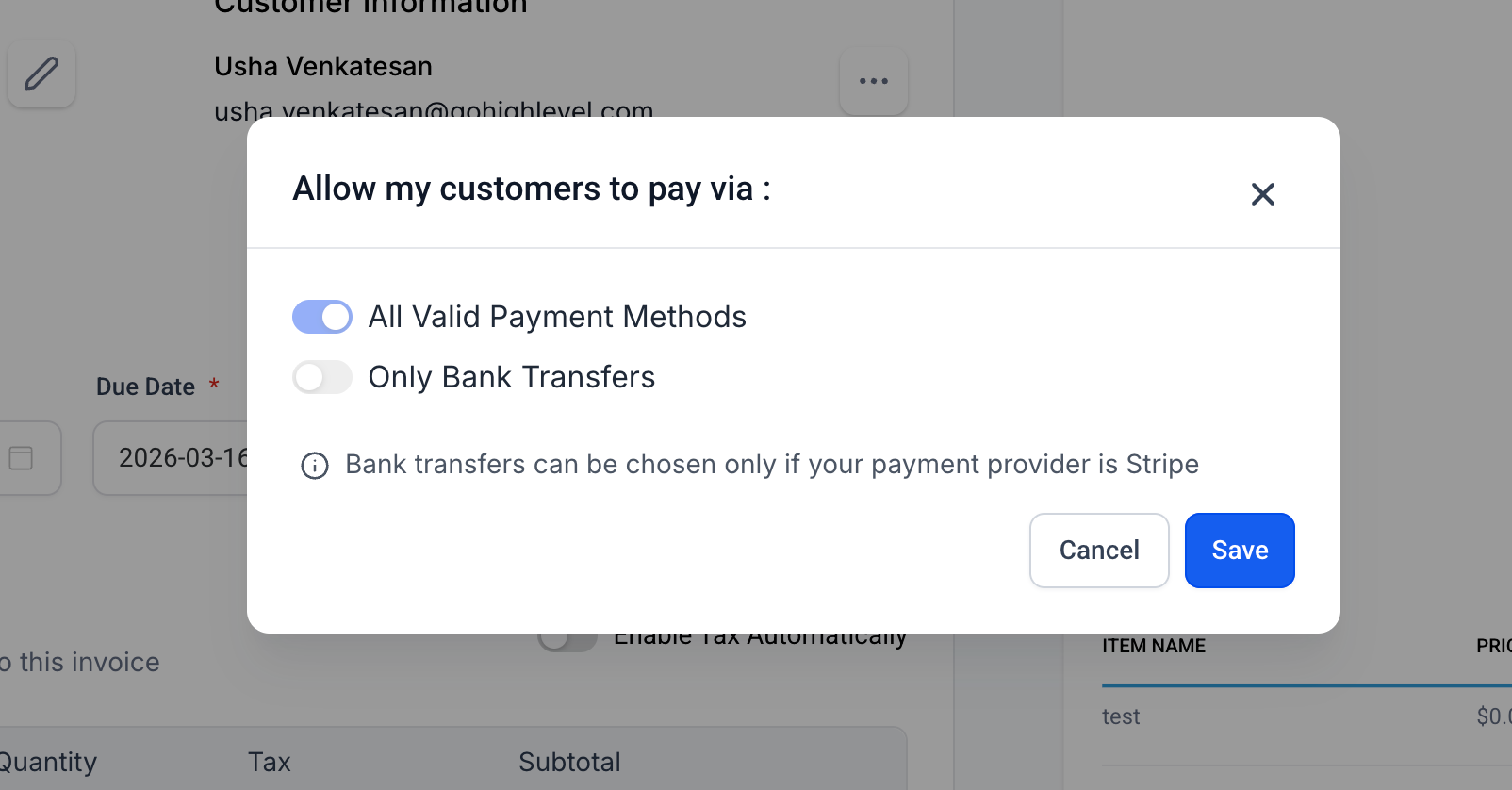
- Toggle Enable autopayment ON.
- Select Customer Card, Saved Card, or New Card as the source.
- Click Save to apply the setting.
Disable Auto Pay for future invoices
- Open the recurring schedule and choose the three dot menu, then Manage Auto Payment.
- Toggle Enable autopayment OFF.
- Click Save; Auto Pay will stop beginning with the next invoice occurrence.
07What it looks like in HighLevel
08Settings that matter
- Enable autopayment. Controls whether HighLevel will charge the chosen card automatically for each future invoice in the schedule.
09Things to know before you rely on it
- Auto Pay only affects invoices that are generated after the setting is enabled; existing invoices are unchanged.
- The feature works only with card payments; manual methods like cash or bank transfer are not auto charged.
- Behavior varies if the next invoice was already created before Auto Pay was turned on or if no valid card is available.
- A small authorization may occur when a New Card is added.
10If something goes wrong
- The next invoice was already generated before Auto Pay was enabled.. Verify that the upcoming invoice has not been created, then enable Auto Pay.
- A valid card is not available for the customer.. Add or select a saved card in the customer’s profile before enabling Auto Pay.
- The recurring invoice was updated after an earlier occurrence was created.. Ensure changes are made before the next invoice is generated.
- The payment setup is not configured for automatic charging.. Connect a supported payment gateway and confirm card payment methods are active.
- The invoice requires manual review because the charge was not completed successfully.. Complete the manual payment or resolve the issue before re enabling Auto Pay.
11How it connects to the rest of HighLevel
- Create and manage recurring invoices in HighLevel Recurring invoices guide
- Common use cases for payments and invoices in HighLevel Payments use cases
- HighLevel pricing and plans Pricing page
Michael's take

In my experience, AutoPayments only start on future occurrences once the setting is saved and a valid card is available; if the next invoice has already been generated, it won’t be autocharged.
I would first verify that the upcoming invoice hasn’t been created yet, then enable Auto Pay and select the appropriate card source. After saving, I’d double check the schedule and make sure the customer’s card is available, so the first automatic charge happens exactly when I expect it.