
01Who this is for
- Ecommerce Founders who want to capture revenue from shoppers that leave the checkout page because the feature automatically follows up with an email.
- Online marketers managing a HighLevel store who need a hands free way to remind customers about incomplete purchases.
- Store managers who use guest checkout and need a solution that works without requiring a logged in account.
02Automatic abandoned checkout emails, explained
The abandoned checkout email feature watches the checkout flow for customers who enter an email address and then stop before payment. When the system detects this, it queues a single email containing a personalized link back to the abandoned cart. The email is sent after a configurable delay and shows the exact products, prices and quantities that were left in the cart.
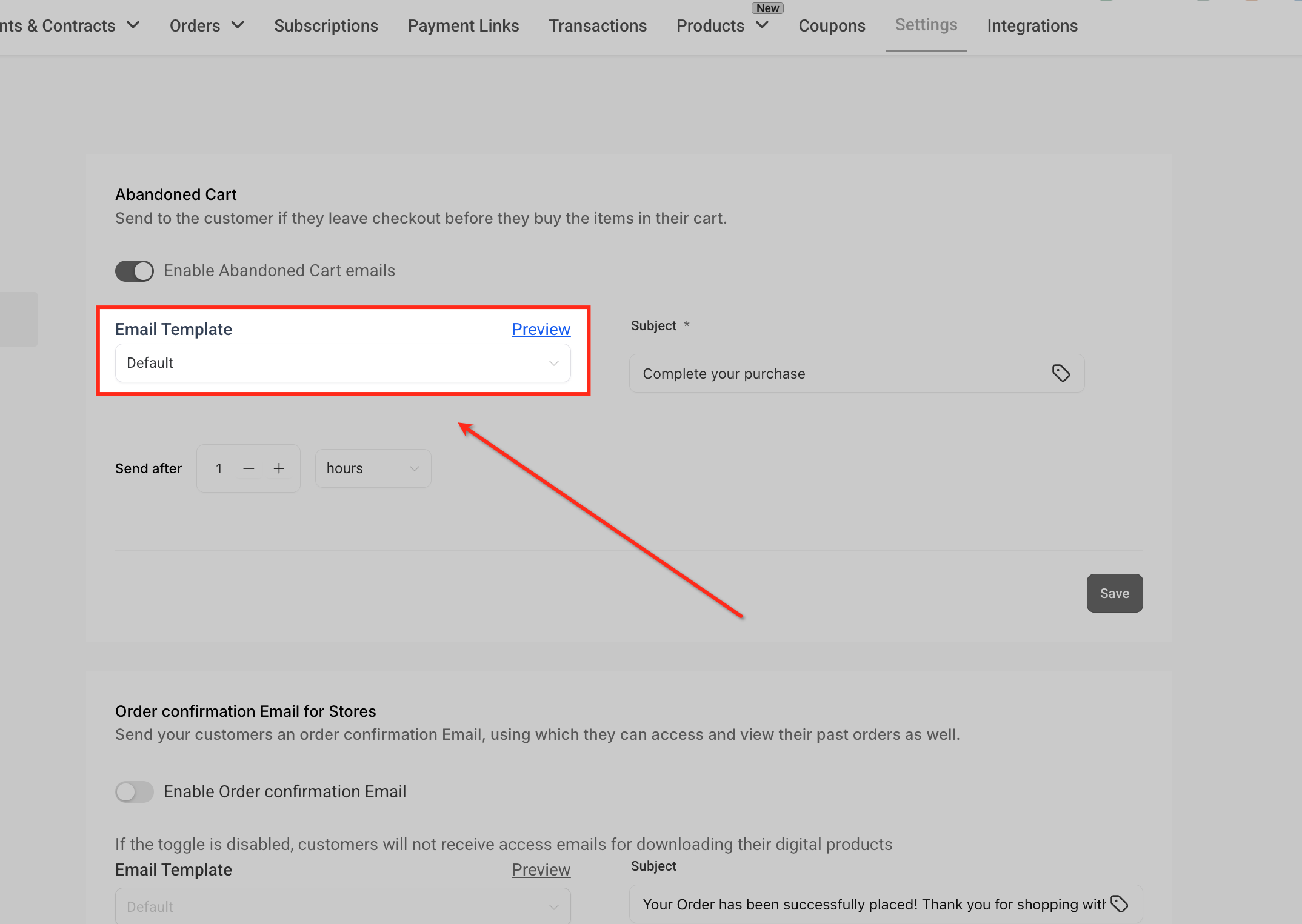
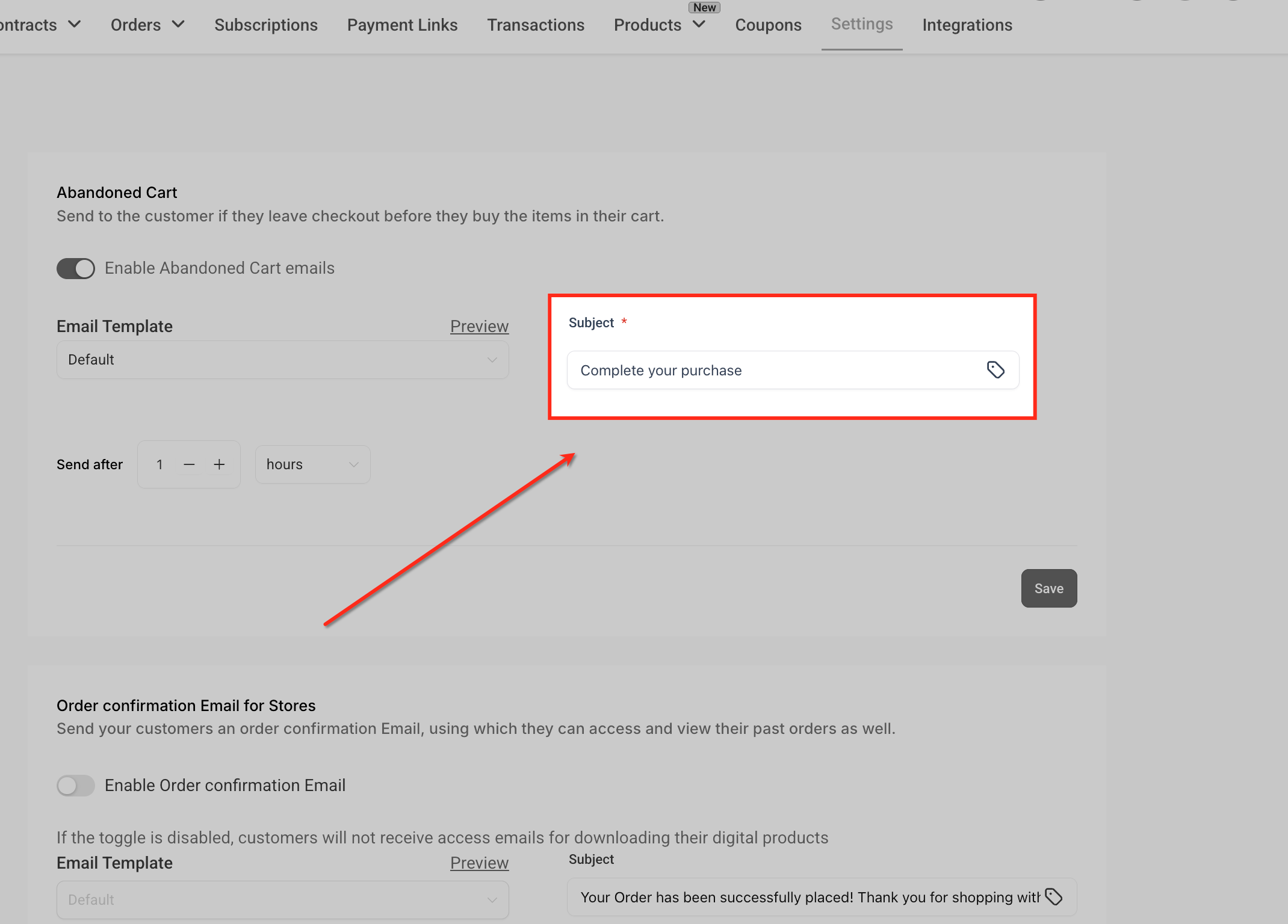
The feature lives in the Payments area of a Subaccount. Within Payments, the Settings tab holds a Notifications section where the email can be turned on, a template chosen, a subject line written and a send after interval set. The email template can be edited in the Email Builder, where dynamic ecommerce fields and a Shopping Cart element can be added.
The link in the email works on any device, but it is view only. Shoppers cannot add new items from the link. If an item is out of stock, a remove item button appears. When all items become unavailable, the checkout displays a Continue Shopping button instead.
03How businesses use automatic abandoned checkout emails
- Boutique clothing store. The owner enables the abandoned checkout email, selects a branded template, and sets a four hour delay. When a shopper abandons a cart, the system sends the email with a link that shows the exact clothing items, encouraging the shopper to return and complete the purchase.
- Digital product vendor. The vendor creates a custom email template that includes a dynamic link to the checkout page. The template uses the Shopping Cart element so the email displays the downloadable files left in the cart, helping recover sales of digital goods.
- Home goods retailer. The retailer configures the notification to use the default template, sets the subject line, and chooses a twelve hour delay. The email sent to the shopper contains a link that displays the abandoned home items and shows a remove item button if any product is out of stock.
04The numbers and rules that matter
- Default email delay is 10 hours.
- Only one automated abandoned checkout notification per cart abandonment.
- One link per abandoned cart.
05Before you start
- A Subaccount must exist with the Payments module enabled.
- The shopper must reach the checkout page and enter an email address for the system to trigger the email.
06How to set up and use automatic abandoned checkout emails in HighLevel
Enable and configure abandoned checkout emails
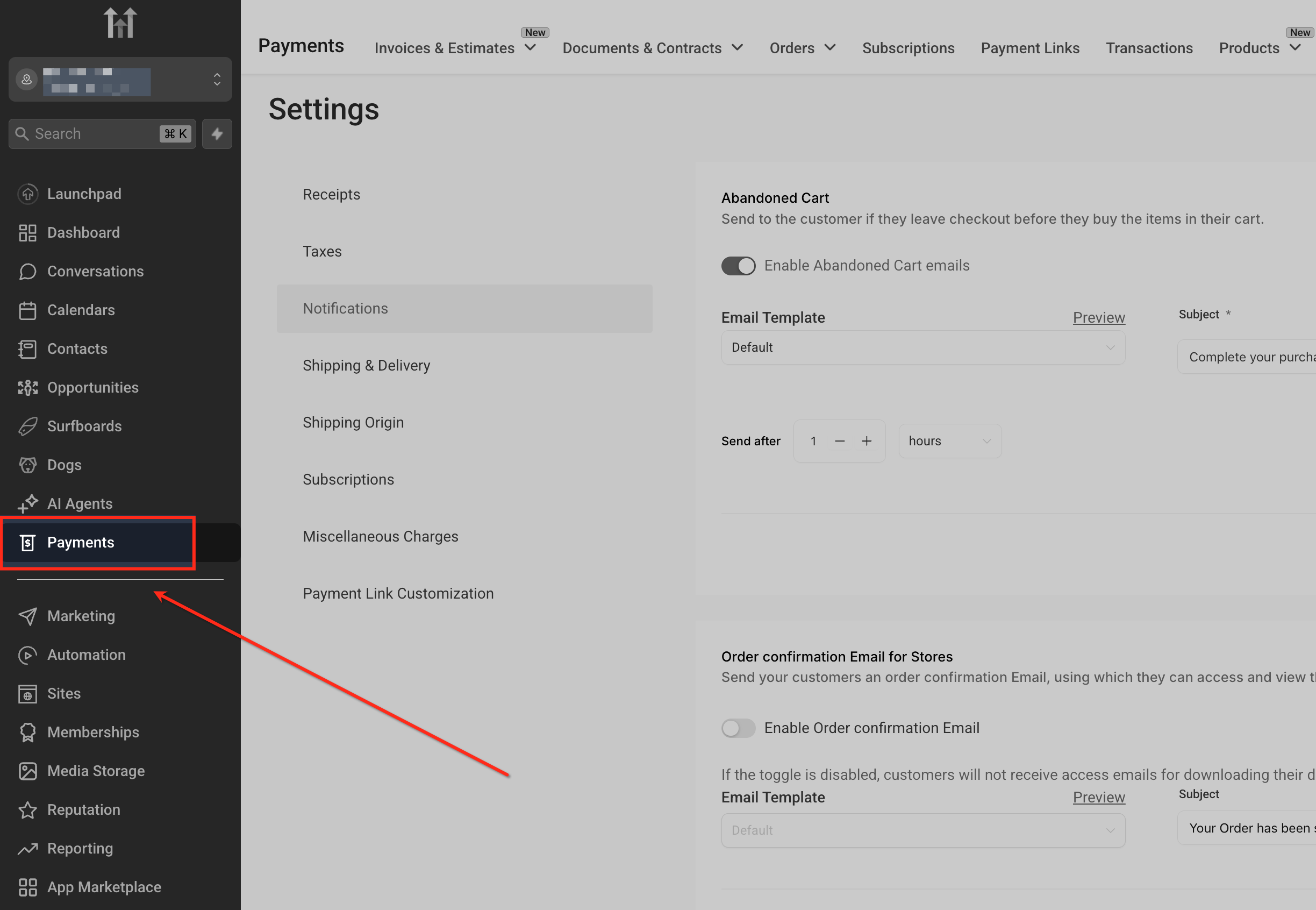
- Open the Payments section in the left navigation of the Subaccount.
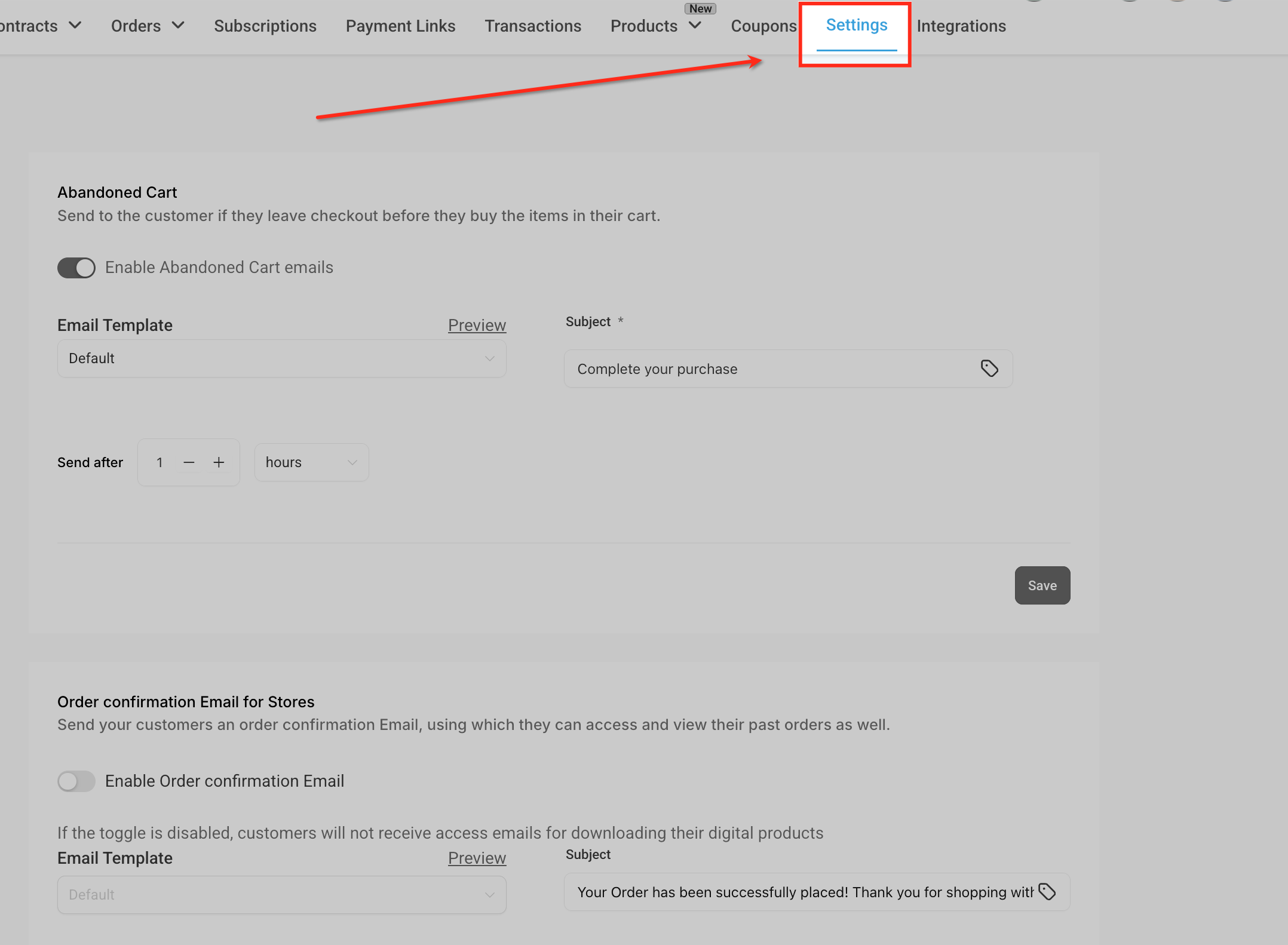
- Click the Settings tab at the top of the Payments page.
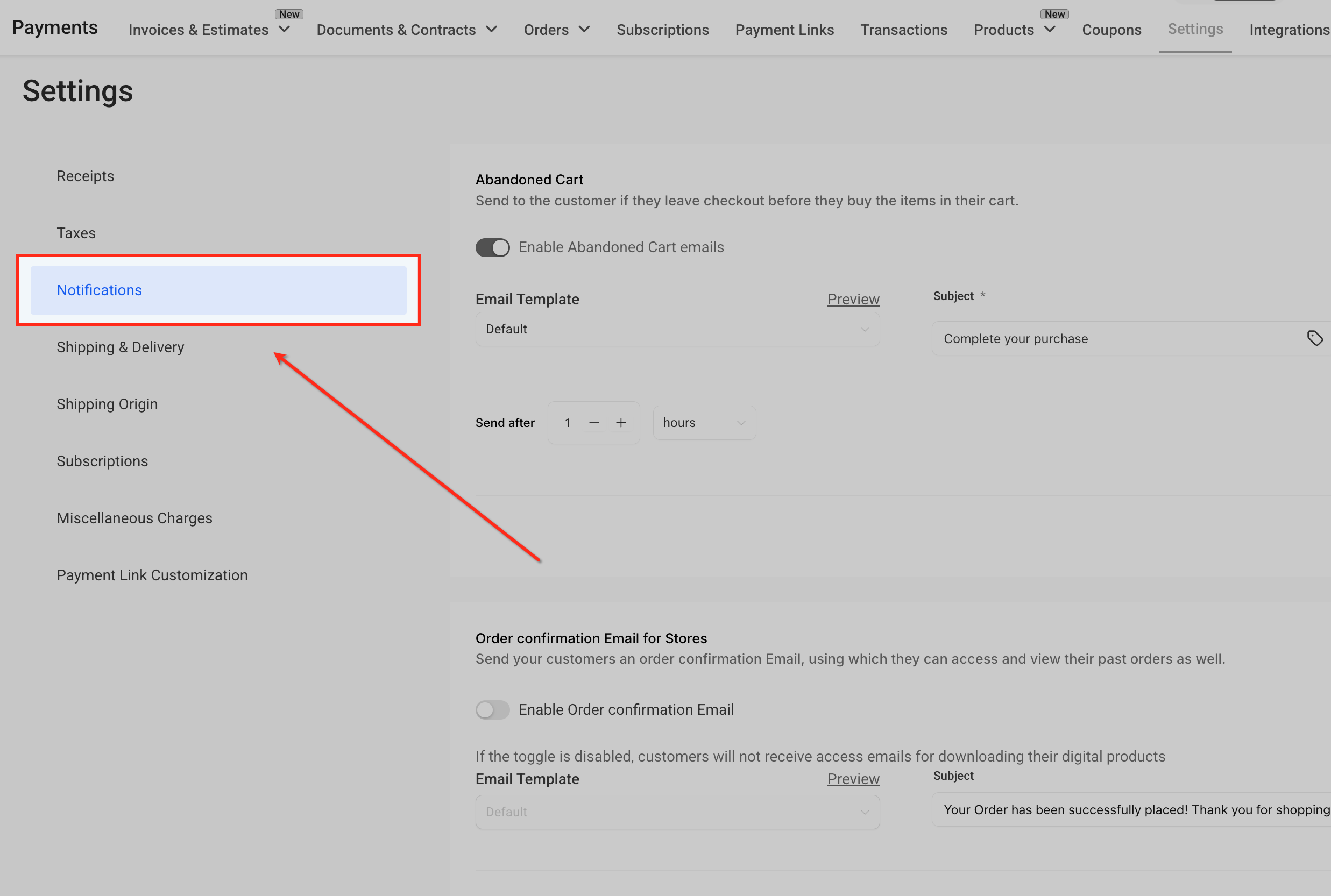
- Select Notifications from the left hand menu within Settings.
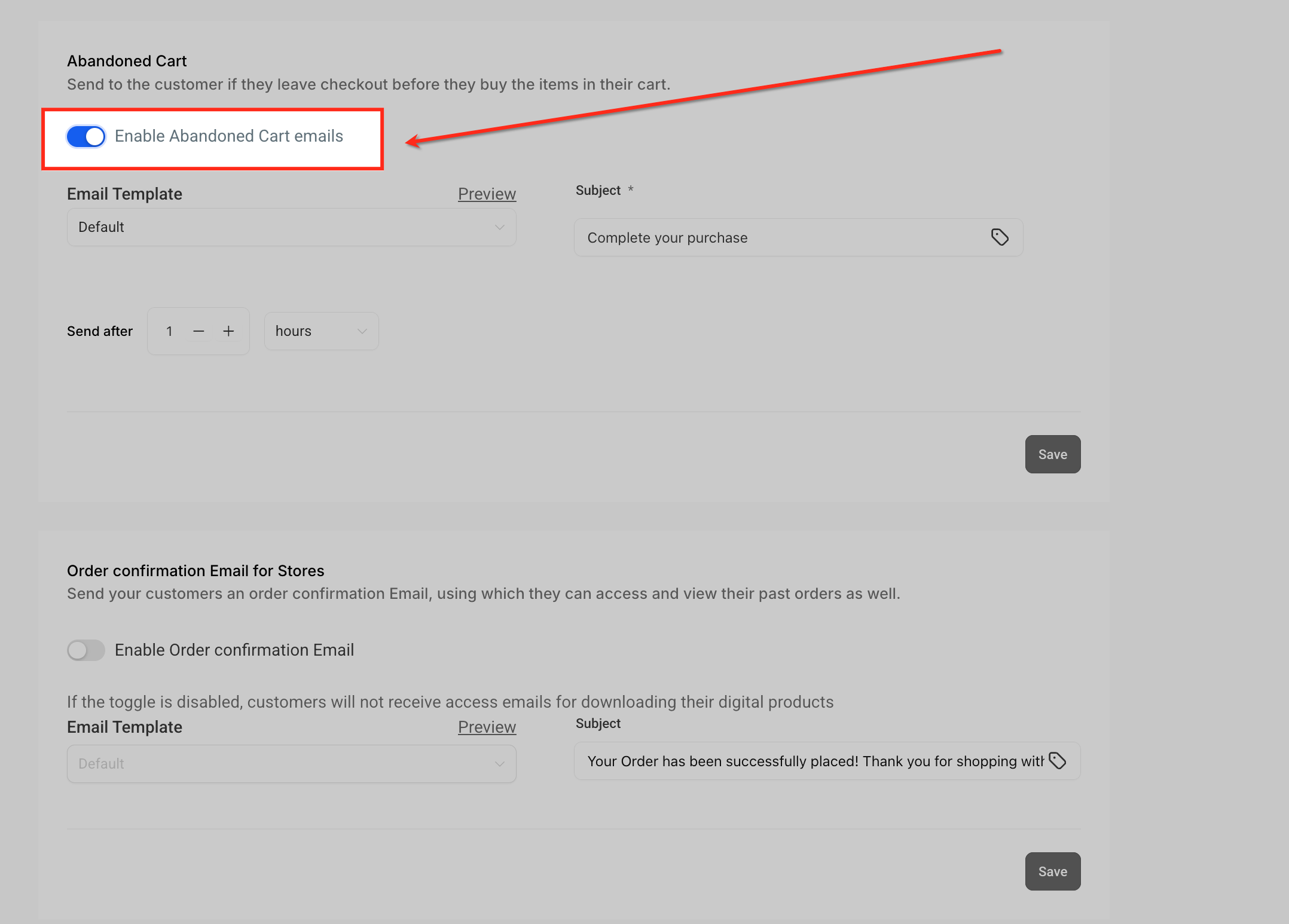
- Toggle on Enable Abandoned Cart emails.
- Open the email template dropdown.
- Choose the desired email template from the list.
- Enter the email subject line.
- Set the send after delay using the Send after option.
Customize the email template
- Navigate to Marketing > Emails > Templates.
- Click the Templates tab inside Email Marketing.
- Press the + New button to create a new template or click an existing template name to edit it.
- Click the custom value icon in the email editor toolbar.
- Select Ecommerce from the custom value menu.
- Choose Checkout page URL or Product list page to insert a dynamic link.
- Drag the Shopping Cart element from the eCommerce elements into the email layout.
07What it looks like in HighLevel
08Settings that matter
- Enable Abandoned Cart emails. Turns the automatic email reminder on or off for cart abandonments.
- Email template. Determines which email design is used for the abandoned checkout message.
- Email subject. Sets the line that appears in the recipient’s inbox.
- Send after. Specifies the delay before the email is sent, in hours or minutes.
09Things to know before you rely on it
- The feature is enabled by default but can be turned off per Subaccount.
- Only one abandoned checkout email is sent per cart abandonment.
- The email works only for store checkouts managed under Payments; funnel or website order forms do not trigger it.
- A notification is generated only if the shopper provides an email address during checkout.
- The link in the email is view only; shoppers cannot add new items from it.
- If all items in the abandoned cart are deleted or unavailable, the checkout shows a Continue Shopping CTA.
10If something goes wrong
- Abandoned checkout email is not sent. Confirm that the shopper entered an email address during checkout and that Enable Abandoned Cart emails is toggled on.
- Emails do not fire for funnel or website order forms. Create a custom workflow that tracks order form visits and sends a follow up if no payment is recorded.
11How it connects to the rest of HighLevel
- Set up your HighLevel ecommerce store Store setup guide
- View HighLevel pricing and plans Pricing page
- Start a thirty day HighLevel trial Free trial
Michael's take

When a shopper drops out of checkout, the sale walks out the door. Automatic abandoned checkout emails give you a chance to bring that buyer back without lifting a finger, and the first thing I’d get right is the send after delay. Set it to match how quickly you want to remind them.
After the delay is set, I’d hook a custom template that shows the exact items left in the cart. A visual reminder drives the emotional tie and lets the customer finish where they left off. Test the link on a phone and a desktop to be sure it works across devices before you rely on it.