
01Who this is for
- Ecommerce Founders who want to sell non physical goods without manual fulfillment, because the platform handles secure file delivery automatically.
- Course creators needing to distribute video or PDF lessons, as each variant can hold its own set of files.
- Retailers offering both physical and digital versions of a product, to keep shipping rules separate and avoid COD conflicts.
02Digital product delivery, explained
Digital Product Delivery is a feature that attaches downloadable files to a product price or variant. When a customer completes checkout, the platform automatically marks the order as fulfilled and makes the files available through a protected Customer Access Center.
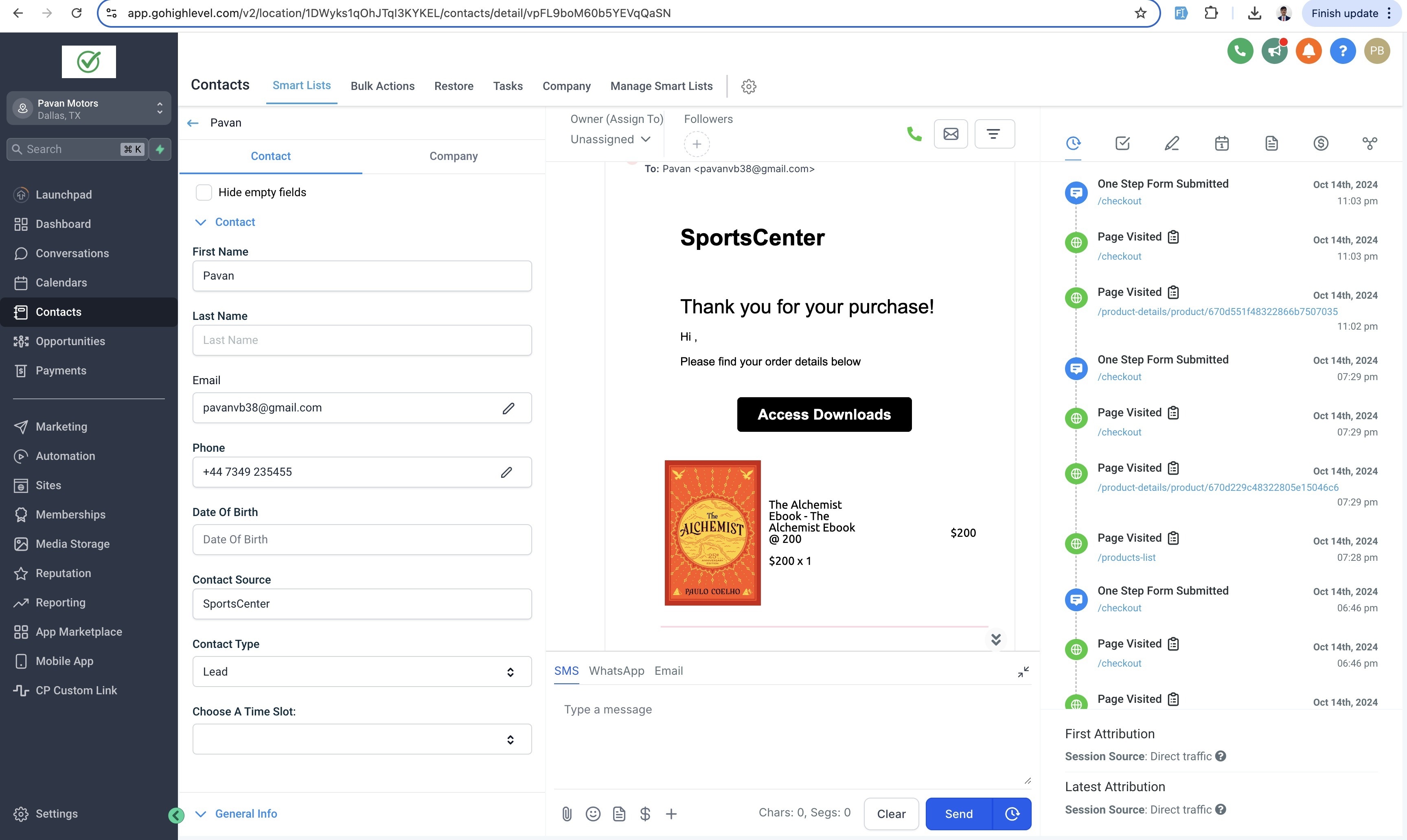
The download experience requires the buyer to log in with an OTP sent to the checkout email address. Files appear only when at least one valid upload exists for the purchased item. The feature also works with a download button on the thank you page, which redirects the buyer to the same access center.
All settings for this flow live under Payments for product configuration and under Stores for the thank you page button.
03How businesses use digital product delivery
- Online education business. Create a product variant for each course module, upload the video files, and enable the thank you page button. Students receive an email after purchase and can log into the Customer Access Center to download the lessons.
- Graphic design studio. Add a digital product for design templates, upload the PSD files, and set the variant type to Digital. Clients get a direct download button on the thank you page and can retrieve files later from the access center.
- Music label. Set up an album as a digital product, attach the audio tracks, and turn on the Order Confirmation Email. Buyers receive a link in the email and can also use the thank you page button to access the tracks immediately.
04The numbers and rules that matter
- You can upload up to 10 files for a digital product or variant.
- Each file can be up to 100 MB.
- Supported file types include images, audio, video, documents, and ZIP files.
05Before you start
- An ecommerce store must already exist in HighLevel.
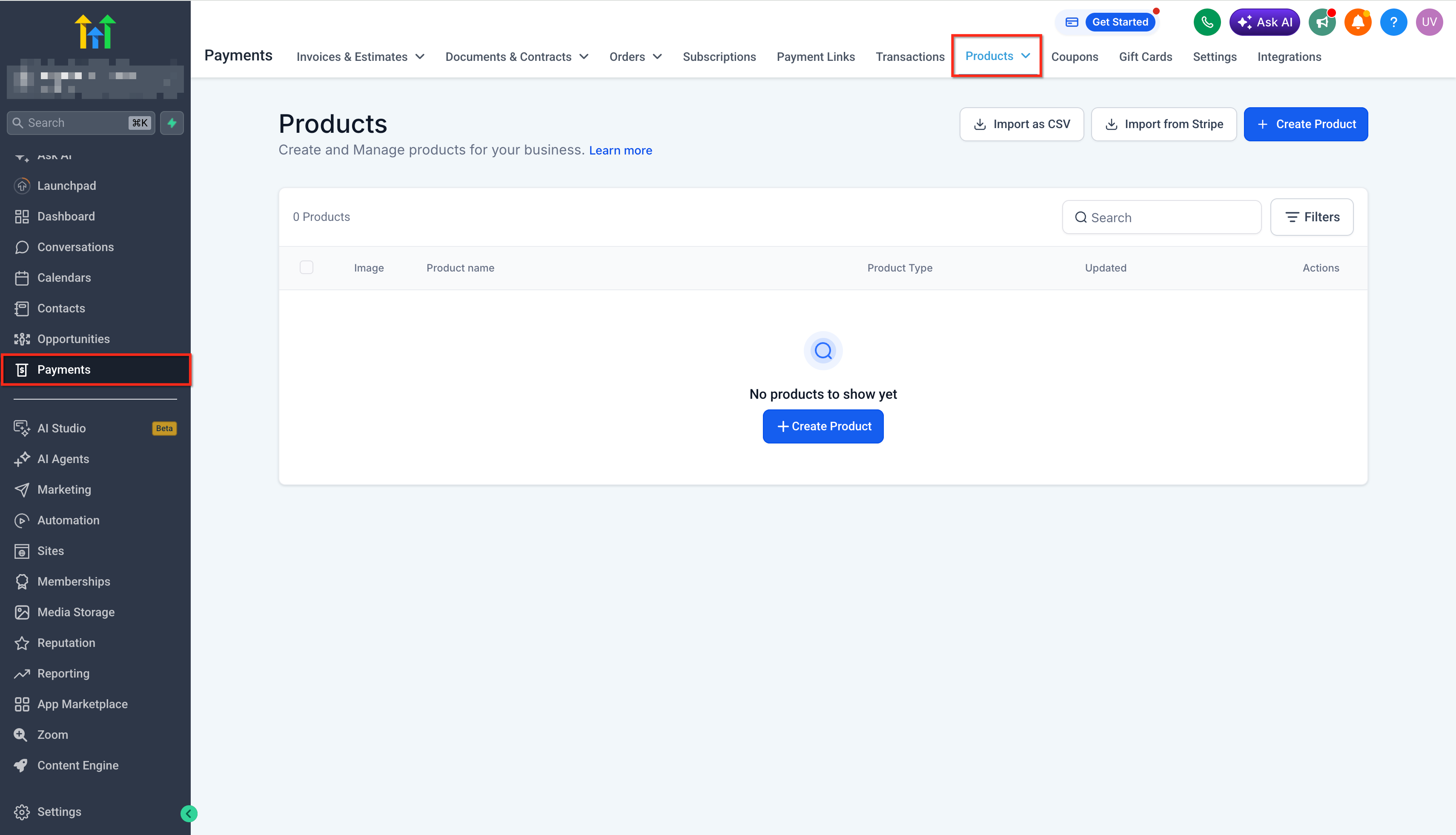
- A product with pricing or variants must be created under Payments > Products.
- Digital files ready for upload must be prepared.
- Order Confirmation Email for Stores must be enabled in Payments > Settings > Notifications.
06How to set up and use digital product delivery in HighLevel
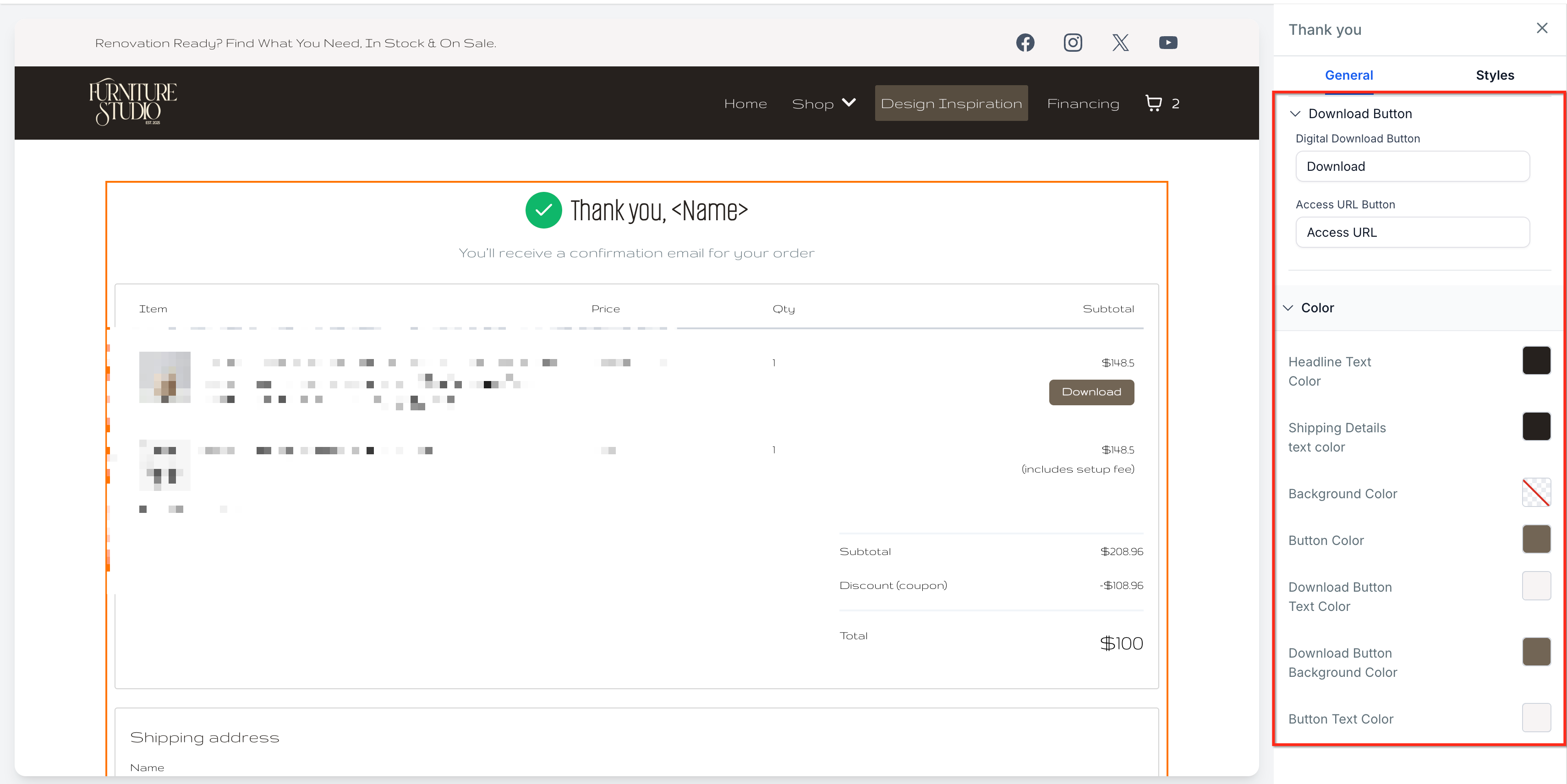
Enable the download button on the thank you page
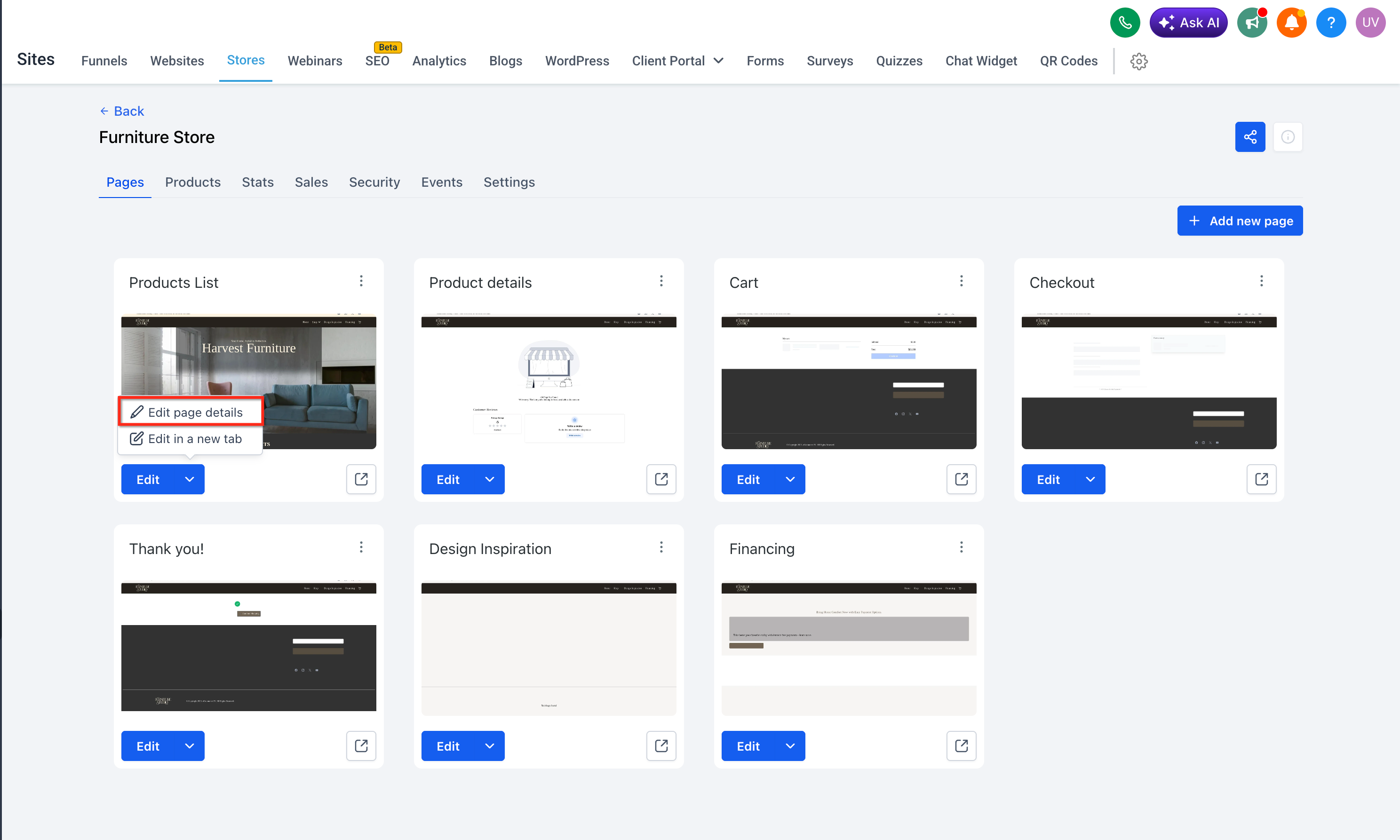
- Open Stores, pick the store, and select Edit Page Details.
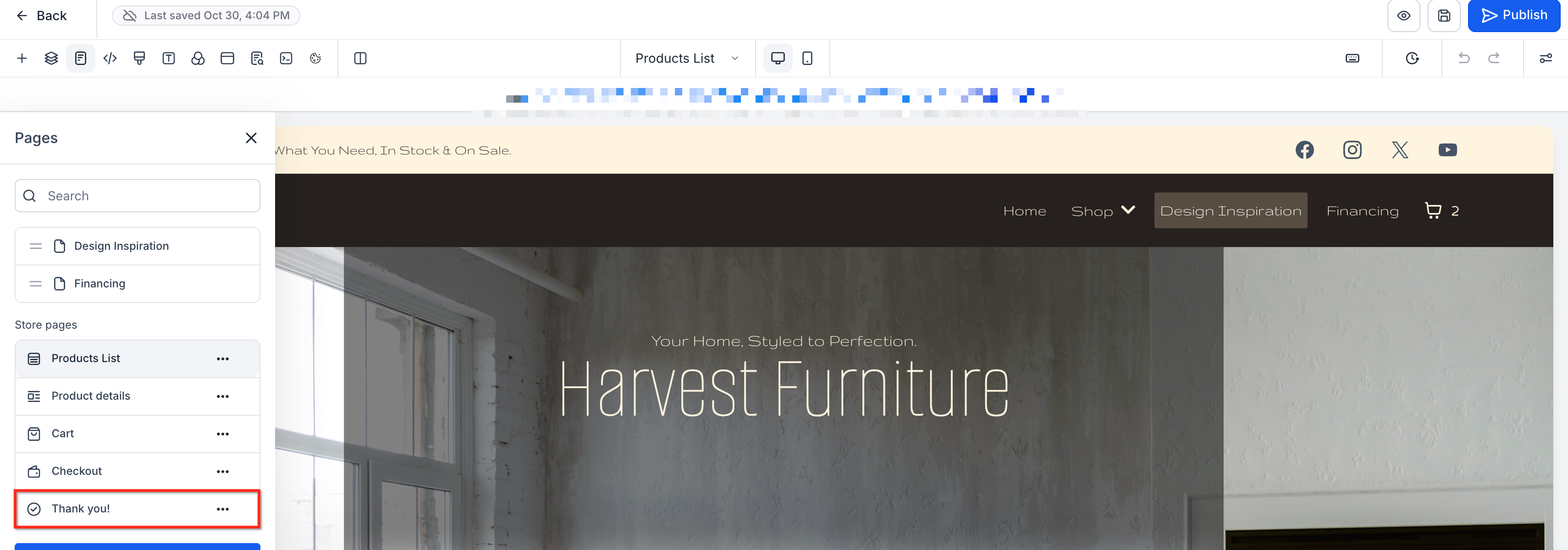
- Click the Thank You Page element.
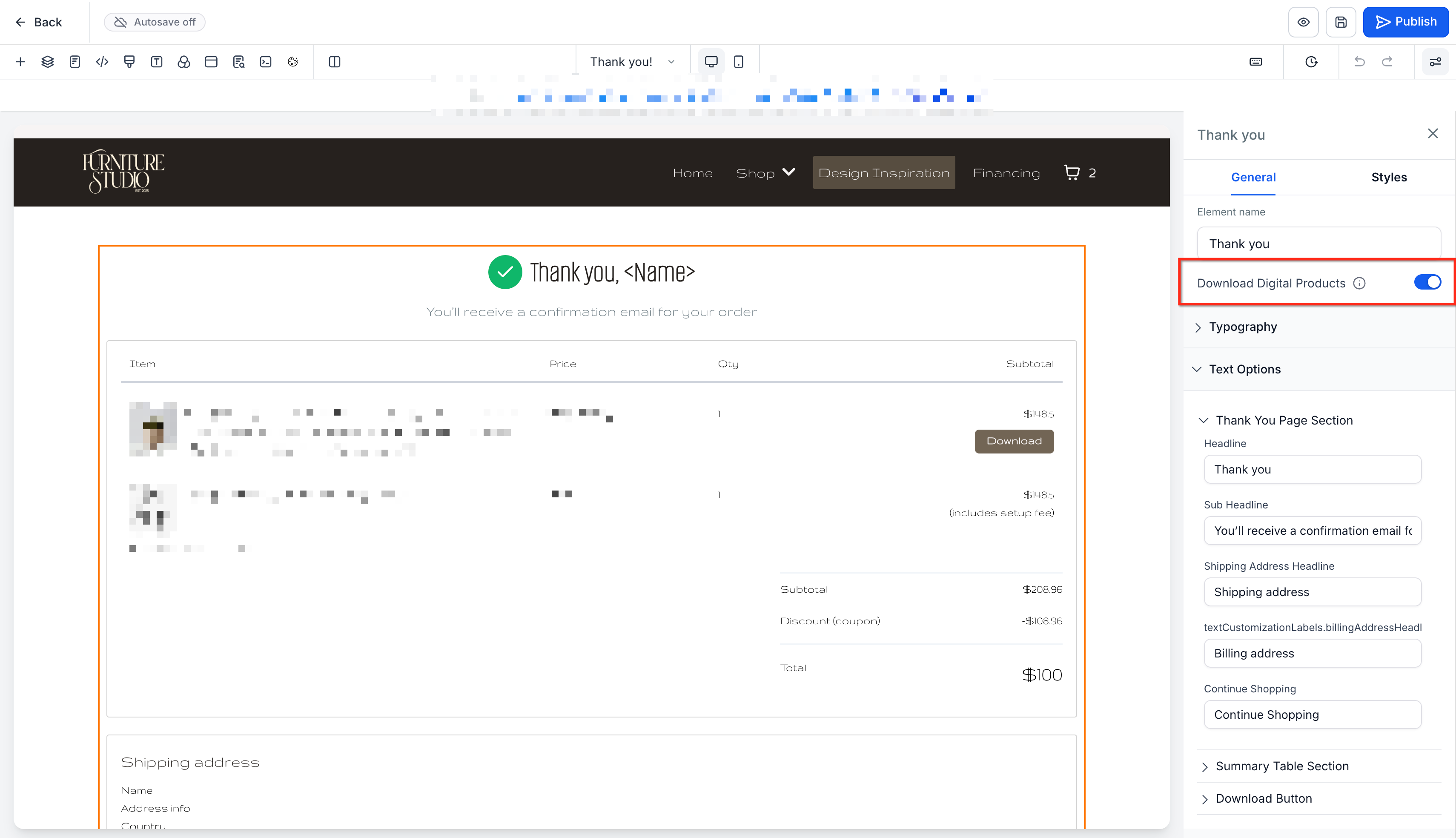
- In the right hand panel, switch on the Download Digital Products toggle.
- Edit the button label and colour to match the brand.
- Save the changes and publish the page.
Set up digital product delivery
- Go to Payments > Products.
- Choose an existing product or create a new one.
- Open the Inventory section for the selected product.
- Select Shipping and Delivery.
- Set the product or variant type to Digital.
- Upload each digital file to the product or variant.
- Confirm every file respects size and type limits.
- Save the product variant after all uploads.
- Navigate to Payments > Settings > Notifications.
- Activate the Order Confirmation Email for Stores.
- Save the notification settings.
- Run a test checkout to verify email delivery and download access.
07What it looks like in HighLevel
08Settings that matter
- Download Digital Products toggle. Controls whether a download button appears on the thank you page for eligible digital purchases.
- Order Confirmation Email for Stores. Enables the automatic email that contains the Access Downloads button for customers who bought digital items.
- Product or variant type. Determines if a product is handled as Digital, affecting fulfillment and shipping behavior.
09Things to know before you rely on it
- A maximum of 10 files can be attached to a single digital product or variant.
- Each uploaded file may not exceed 100 MB.
- Supported formats include images, audio, video, documents, and ZIP files.
- Files are delivered individually; only a ZIP file that you upload will appear as a single download.
10If something goes wrong
- Download button does not appear after purchase. Ensure at least one valid digital file is uploaded to the purchased product or variant.
- Customer Access Center shows “No downloads available yet”. Check that digital files have been attached to the product or variant; add them if missing.
- Files uploaded after a purchase are not visible to the buyer. The Customer Access Center updates automatically; once files are added, the buyer can download them.
- All uploaded files are removed and the download button disappears. Re upload the necessary files and save the variant to restore the download option.
11How it connects to the rest of HighLevel
- Set up your ecommerce store before configuring digital products Store setup guide
- Enable order confirmation emails for stores Notifications settings
- Review pricing and plan details for HighLevel Pricing page
Michael's take

Digital product delivery feels like a small convenience that can turn a content focused business into a reliable revenue stream. It removes the need for manual file sharing and lets you keep everything inside HighLevel, which is a real shift for creators who already sell services.
If you run an online course or publish a series of guides, set up a Digital variant for each lesson or guide. Upload the PDF or video, enable the thank you page button, and you’ll have a hands free fulfillment system that lets students grab their materials fast after checkout.