
01Who this is for
- Founders who need a single platform for ecommerce data and marketing automation, because the migration consolidates contacts, orders and product info.
- Ecommerce managers looking to keep product catalogs and order history in one place, ensuring consistent data for follow up campaigns.
- Small business owners on Shopify Basic who want to access customer and order data through a more secure OAuth connection.
02Shopify migrations, explained
The migration feature pulls supported Shopify entities into HighLevel. During the initial connection you decide which records are imported once and which elements continue to sync automatically. After the import, the data lives in the platform’s Payments > Products area for items and in the Contacts section for customers.
The integration lives under Settings > Integrations > Shopify. It uses an OAuth flow, so no custom app or API tokens are required for new connections. Once authorized, HighLevel can trigger workflows such as Order Submitted or Payment Received based on incoming Shopify activity.
03How businesses use Shopify migrations
- Fashion retailer. The retailer connects the Shopify store via the OAuth app, selects product and order imports, and then reviews the catalog in Payments > Products. They adjust any missing details and set up order submitted triggers to power post purchase email workflows.
- Online course provider. The provider imports digital product records and collections, checks the imported items for correct pricing and files, and then configures a payment gateway in HighLevel to sell courses through the rebuilt checkout page.
- Home goods store. The store pulls its inventory and collections, verifies that each item appears in the right collection, and enables sync for future stock updates while rebuilding shipping and thank you pages inside HighLevel.
04The numbers and rules that matter
- Supported import and sync data: Contacts, orders, transactions, products, collections, Order Submitted trigger, Payment Received trigger.
05Before you start
- Admin access to the Shopify store.
- Admin access to the HighLevel subaccount.
- Permission to create or manage custom apps in Shopify.
- Ability to generate a Shopify Admin API access token.
- The Shopify store URL or name.
- A list of existing automations and checkout flows that will need to be rebuilt.
06How to set up and use Shopify migrations in HighLevel
Connect using the OAuth app
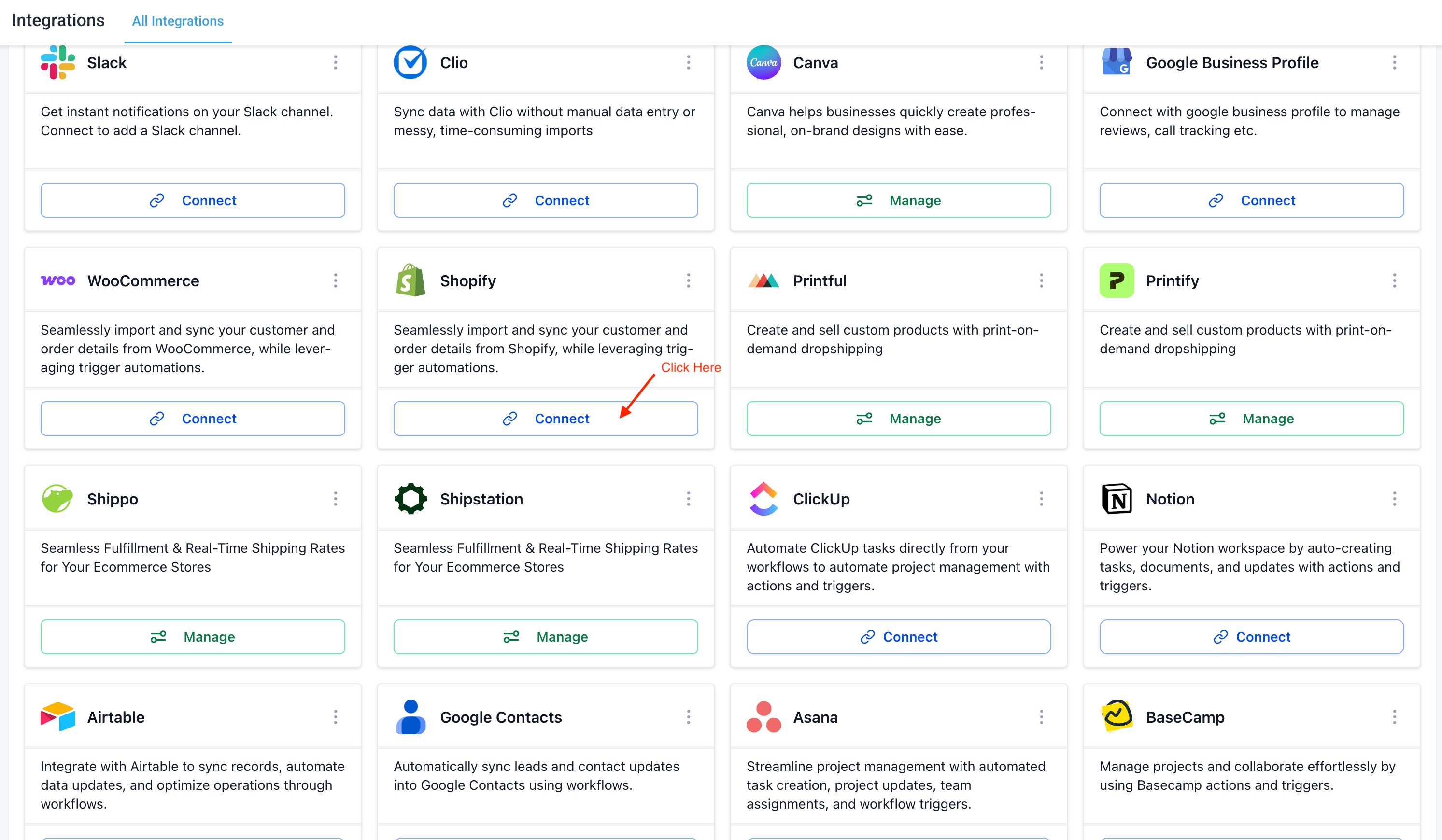
- Open the subaccount and go to Settings > Integrations > Shopify.
- Click the Connect button.
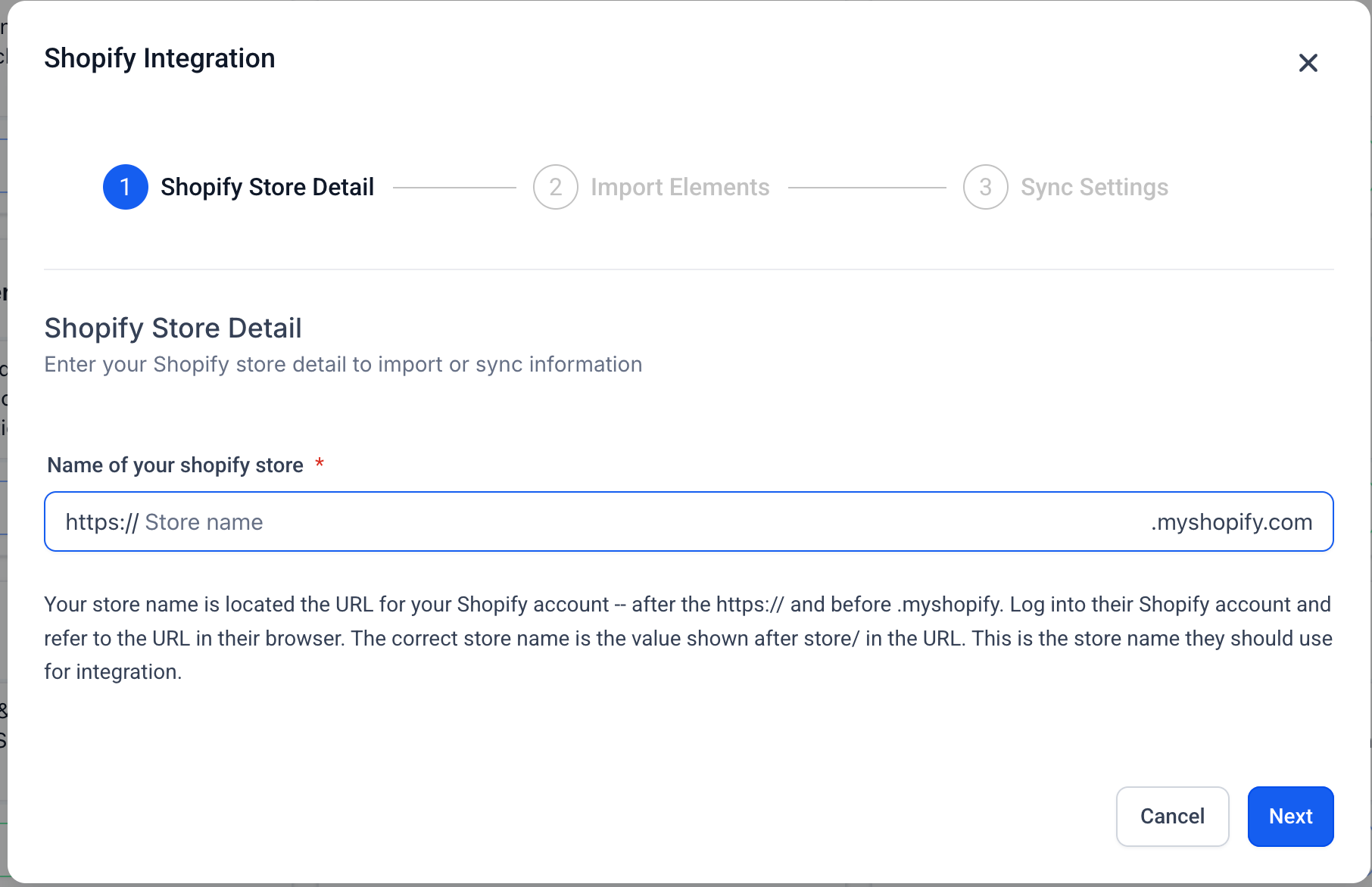
- Enter the store URL or name, then select Next.
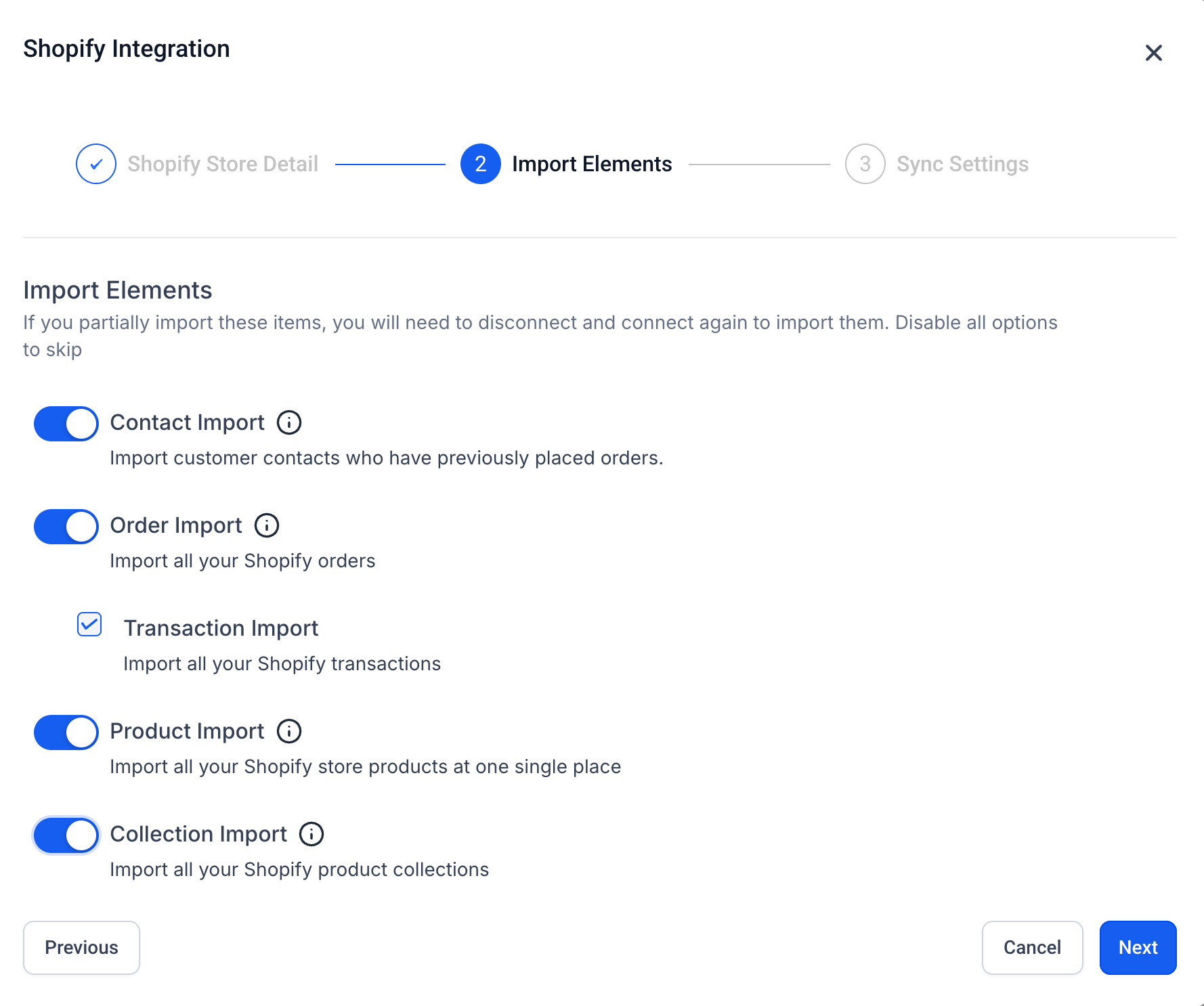
- On the Import Elements screen, pick the data types you want to import.
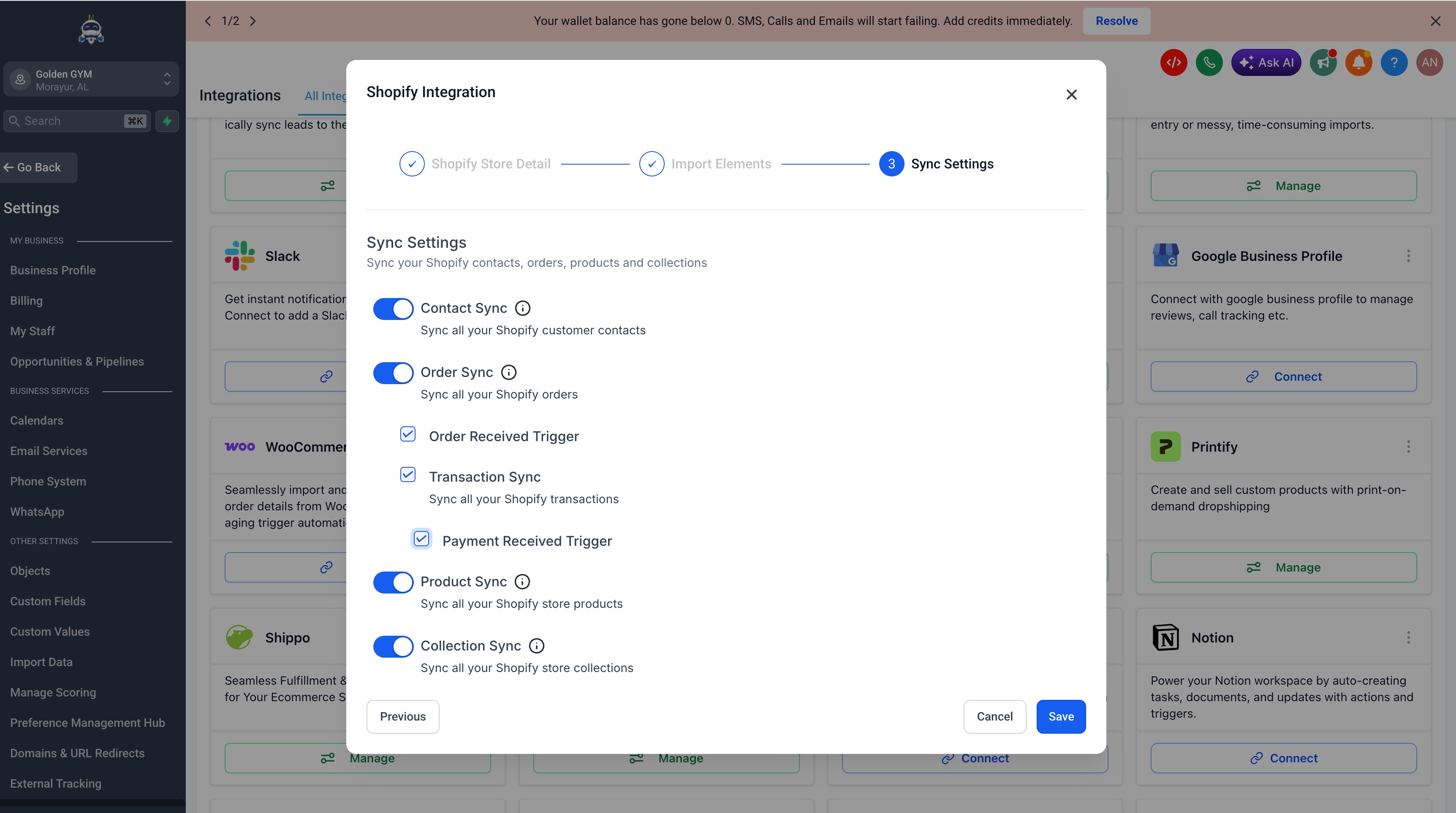
- Proceed to the Sync Settings screen and choose which data and triggers should stay in sync.
- Save the selection to start the OAuth authorization flow.
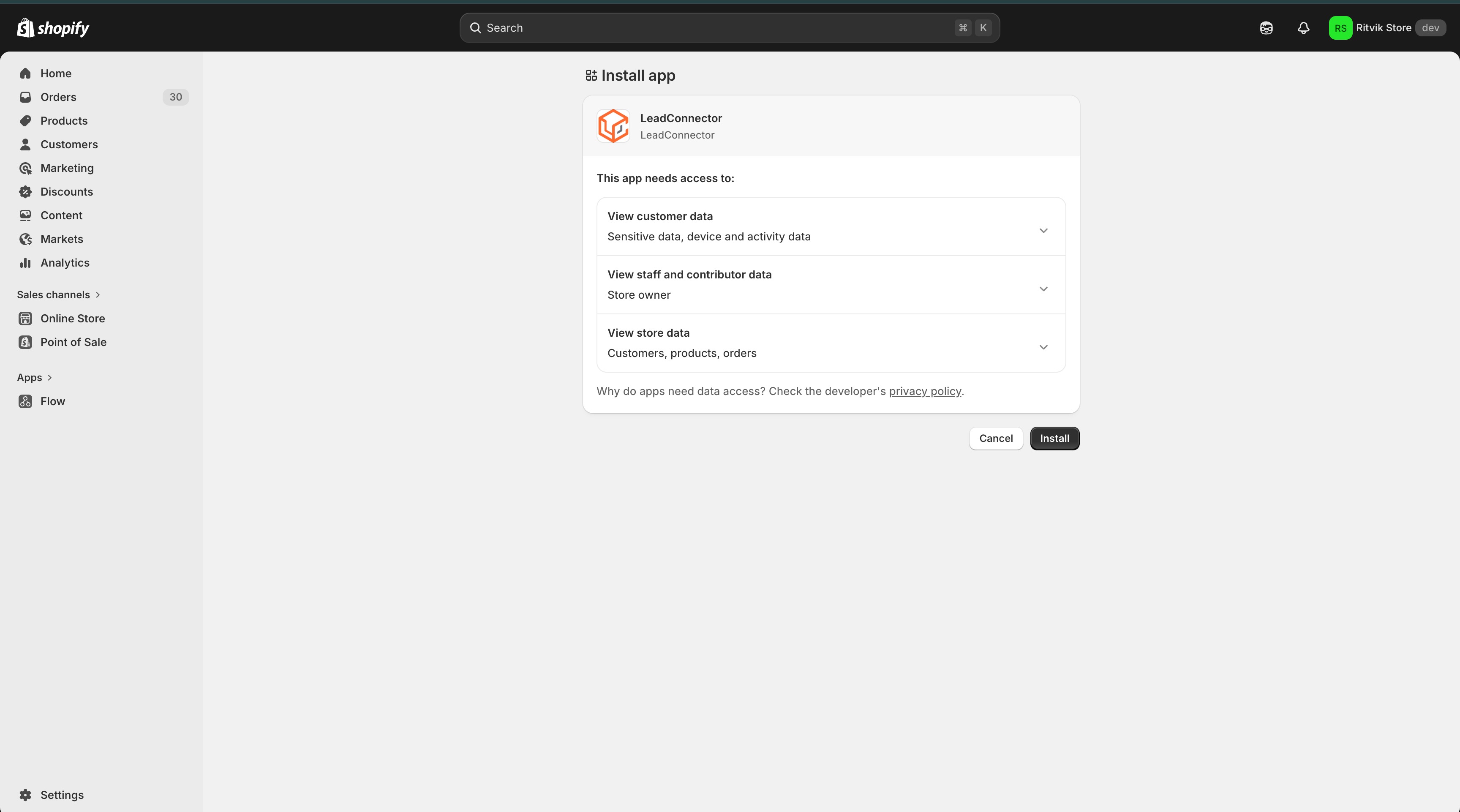
- On Shopify’s install screen, review the permission list and click Install.
- After approval you are returned to HighLevel and the integration is active.
- If you were previously using a legacy Custom App, reconnect using this OAuth flow to access protected customer data.
Review imported products and collections
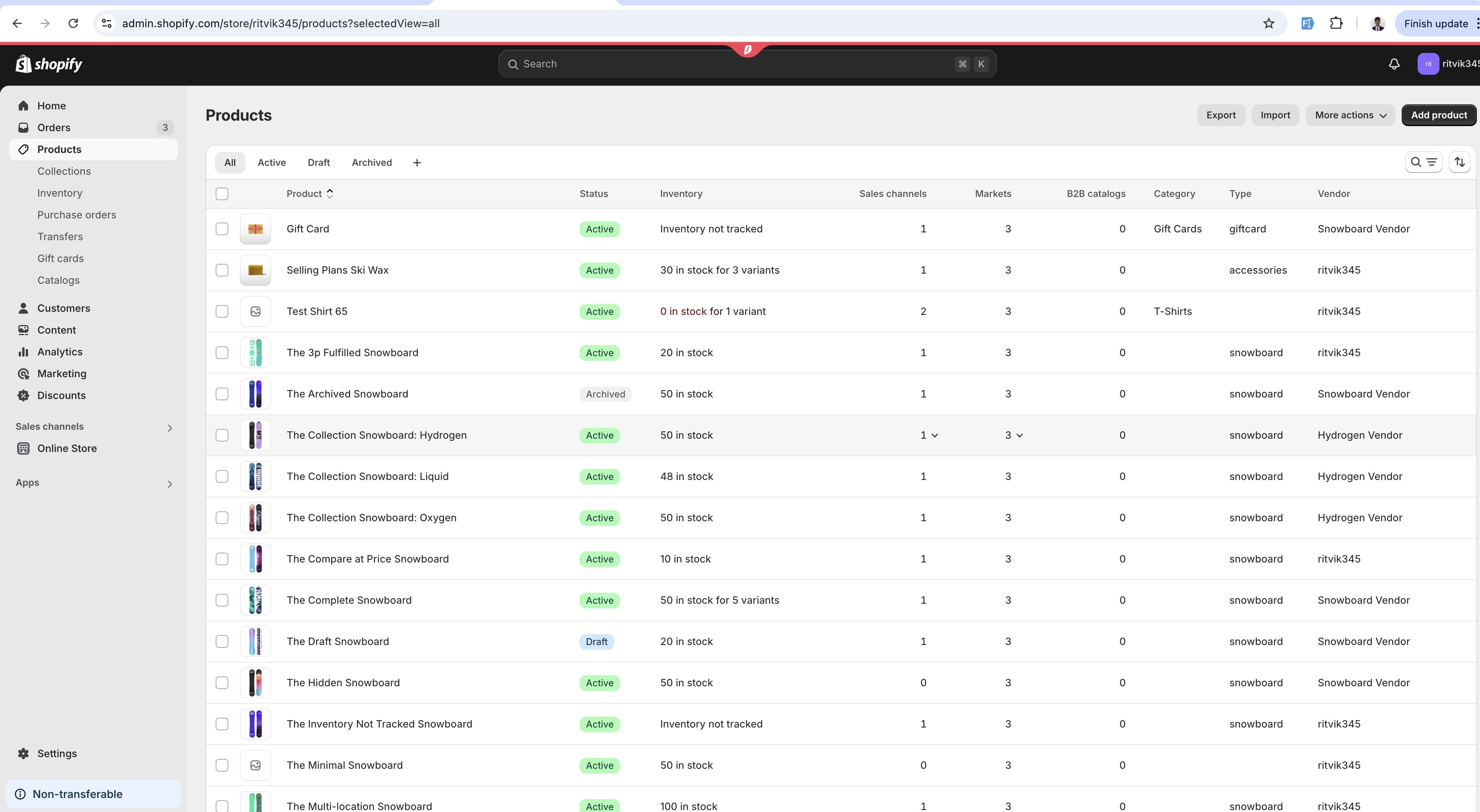
- When the import finishes, open Payments > Products > Products to see the imported items.
- Open Payments > Products > Product Collections to view the imported collections.
- Check each product’s name, description, image, price and inventory levels.
- Verify that products are placed in the correct collections.
- Edit any fields that need correction, noting that taxes are not imported and SEO data may be blank.
07What it looks like in HighLevel
08Settings that matter
- Contact Import. Controls whether Shopify customers who have placed orders are brought into HighLevel as contacts during the initial import.
- Order Import. Determines if past Shopify orders are loaded into HighLevel as order records.
- Transaction Import. Specifies whether payment transactions linked to orders are imported.
- Product Import. Enables the one time import of Shopify product records.
- Collection Import. Allows Shopify collections to be imported and organized in HighLevel.
- Contact Sync. Keeps new or updated Shopify contacts synchronized with HighLevel after the initial import.
- Order Sync. Updates HighLevel with new or changed Shopify orders on an ongoing basis.
- Order Received Trigger. Activates the Order Submitted workflow trigger when a Shopify order is received.
- Payment Received Trigger. Activates the Payment Received workflow trigger for incoming Shopify payments.
09Things to know before you rely on it
- Tax information is not transferred for products during import or sync.
- SEO fields may be empty if they were not customized in Shopify.
- Shopify Basic stores can only sync products and collections; contacts, orders and transactions require a higher Shopify plan.
- Legacy custom app connections must be re established via OAuth to access protected customer data.
- The OAuth app is recommended for all new connections; the custom app method is deprecated for new setups.
10If something goes wrong
- Shopify contacts are not syncing into HighLevel. Upgrade the Shopify subscription to Grow, Advanced, or Plus so that customer PII is available through the API.
- Legacy Custom App integration not receiving customer data. Reconnect the store using the OAuth app as described in the connection steps.
- Existing OAuth connection appears disabled. No reconnection is required; verify that the integration remains enabled under Settings > Integrations > Shopify.
11How it connects to the rest of HighLevel
- Set up an ecommerce store in HighLevel ecommerce store setup
- View pricing and plan options for HighLevel pricing page
- Start a 30 day trial of HighLevel free trial
Michael's take

Shopify migrations are worthwhile only if you plan to run your entire ecommerce operation inside HighLevel.
Businesses that are happy with a dedicated Shopify setup and don’t need a unified CRM should skip this migration.