
01Who this is for
- Service based businesses such as salons or fitness studios can view revenue per service and staff performance without leaving the dashboard.
- Rental operations like equipment or property managers can monitor active, overdue and upcoming rentals to keep inventory visible.
- Multi location teams can filter widgets by location to compare branch performance in real time.
02Services & rentals widgets, explained
The platform lets you add Services and Rentals widgets to any dashboard. Each widget pulls data from the corresponding scheduling type in Calendars and displays it as a number, bar, donut, table or other chart style.
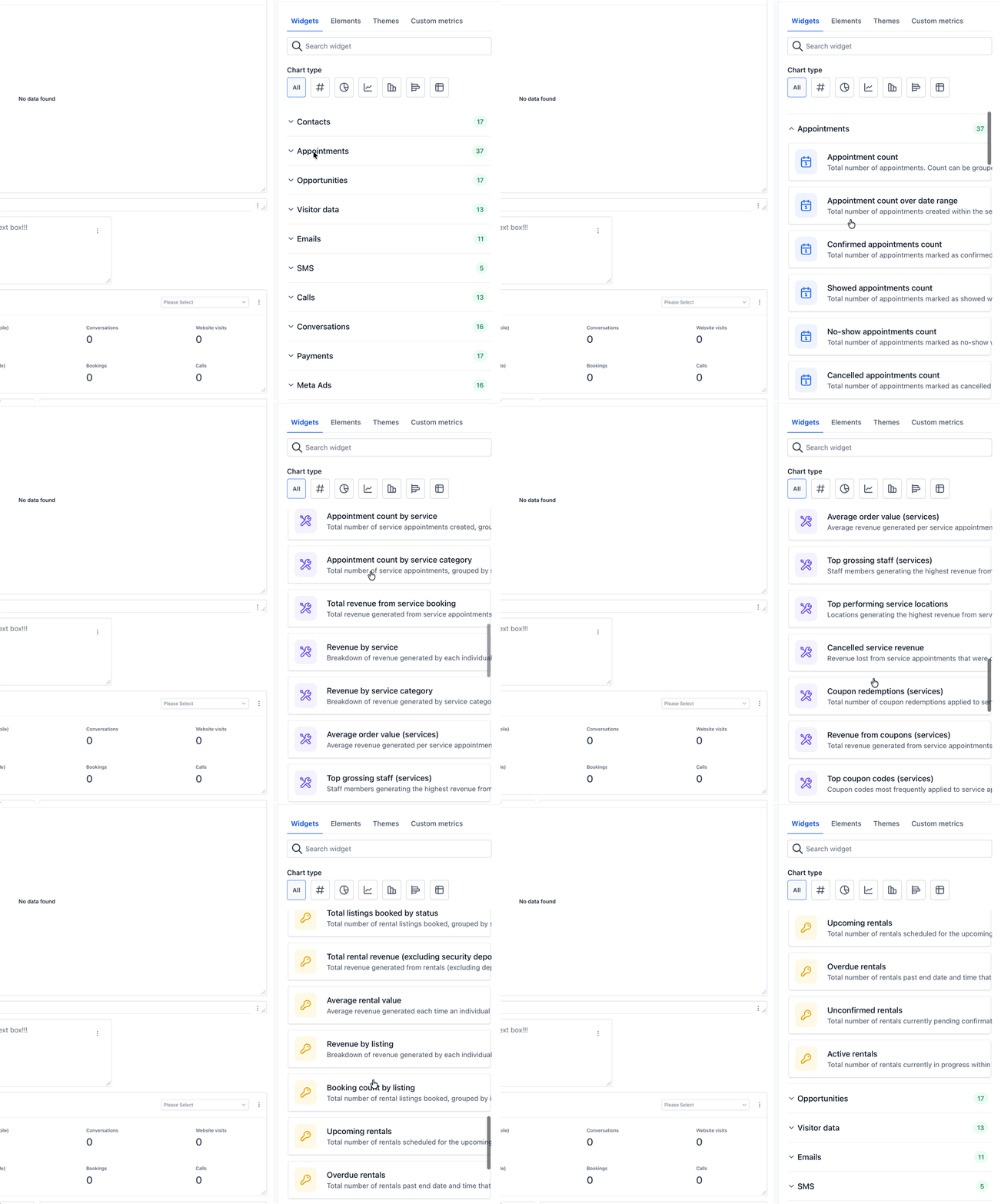
In the widget library they appear under the Appointments category. Services widgets carry a purple wrench icon, while Rentals widgets use a gold key icon, making them easy to spot among other appointment widgets.
Widgets update in real time, so the figures you see reflect the current state of bookings, revenue, staff activity, or inventory without needing to export reports.
03How businesses use services & rentals widgets
- Salon. The salon adds a Services widget, selects a bar chart, and filters by staff and service type. The widget then shows revenue per service and which stylists generate the most income.
- Equipment rental company. The rental company places a Rentals widget on its dashboard, chooses a table view, and filters by listing and status. The widget displays active rentals, overdue items and upcoming bookings for quick operational oversight.
- Consulting firm. A consulting firm adds a Services widget, picks a donut chart, and filters by location and date range. The widget visualizes revenue distribution across consulting service categories for each office.
04Before you start
- Services and/or Rentals scheduling types must be enabled in Calendar Settings for the subaccount.
05How to set up and use services & rentals widgets in HighLevel
Add a Services or Rentals widget to a dashboard
- Switch to the subaccount you want to customize.
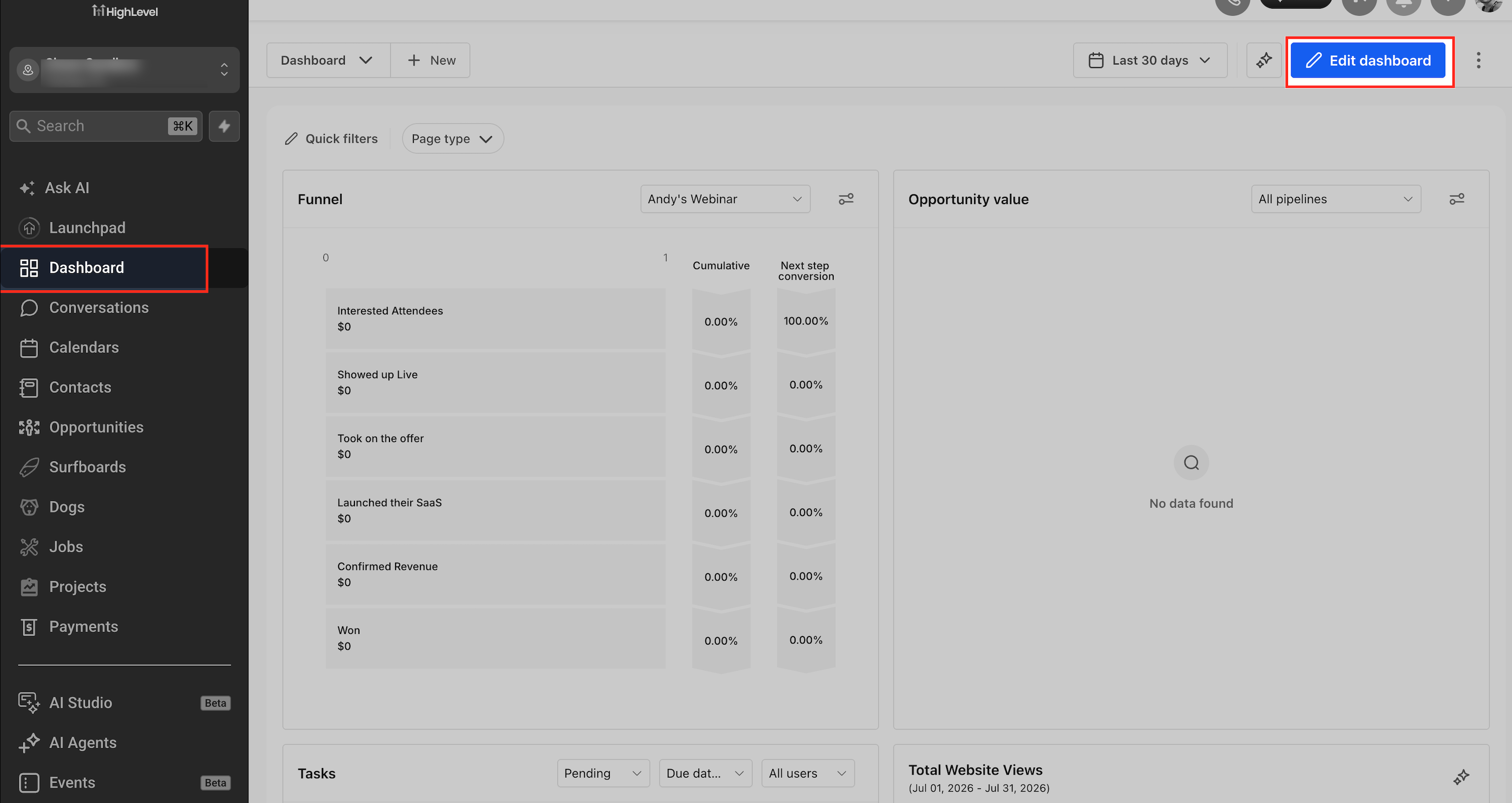
- Click Dashboard in the left navigation.
- Create a new dashboard or open an existing one.
- Click Edit dashboard to enter edit mode.
- Click Add widget in the dashboard editor.
- Open the Appointments category in the widget panel.
- Scroll through the list to locate Services and Rentals widgets.
- Identify the widget type by its icon, purple wrench for Services, gold key for Rentals.
- Click the desired widget to add it to your dashboard.
Configure the added widget
- Resize the widget to the preferred dimensions.
- Drag the widget to the desired spot on the dashboard.
- Select the chart type you want, such as number, bar, donut, or table.
- Apply filters like date range, staff, location, service or listing as needed.
06What it looks like in HighLevel
07Settings that matter
- Chart Type. Controls the visual representation of the widget, allowing selection of number, bar, donut, table or other chart styles.
- Filters. Limits the data shown in the widget by criteria such as date range, staff member, location, service, listing or status.
08Things to know before you rely on it
- Widgets appear only when the matching scheduling type (Services or Rentals) is enabled in Calendar Settings.
- Standard Appointment Count widgets now display only meeting appointments, separating them from Service and Rental counts.
- The widgets are located under the Appointments category in the widget library.
09If something goes wrong
- Services or Rentals widgets do not appear in the widget library.. Enable Services and/or Rentals in Calendar Settings for the subaccount.
10How it connects to the rest of HighLevel
- Learn how to add and customize other dashboard widgets. Dashboard widgets overview
- Create custom metrics for deeper dashboard reporting. Custom metrics guide
- Manage who can view or edit dashboard widgets. Dashboard permissions
Michael's take

Jumping into Services & Rentals widgets can feel risky if you haven’t turned on those scheduling types yet. Without Services or Rentals enabled, the widgets simply won’t show up, leaving you with an empty slot.
Once enabled, the widgets consolidate booking data onto a single dashboard, giving you a real time view of revenue, bookings and inventory.