
01Who this is for
- Marketing managers can isolate contacts that arrived via a specific campaign by filtering on UTM values.
- Sales leaders can see which attribution type (first or latest) drives more opportunities by grouping widgets on Session Source.
- Analytics teams can export detailed records from table widgets that include UTM columns for external reporting.
02Attribution and UTM filters, explained
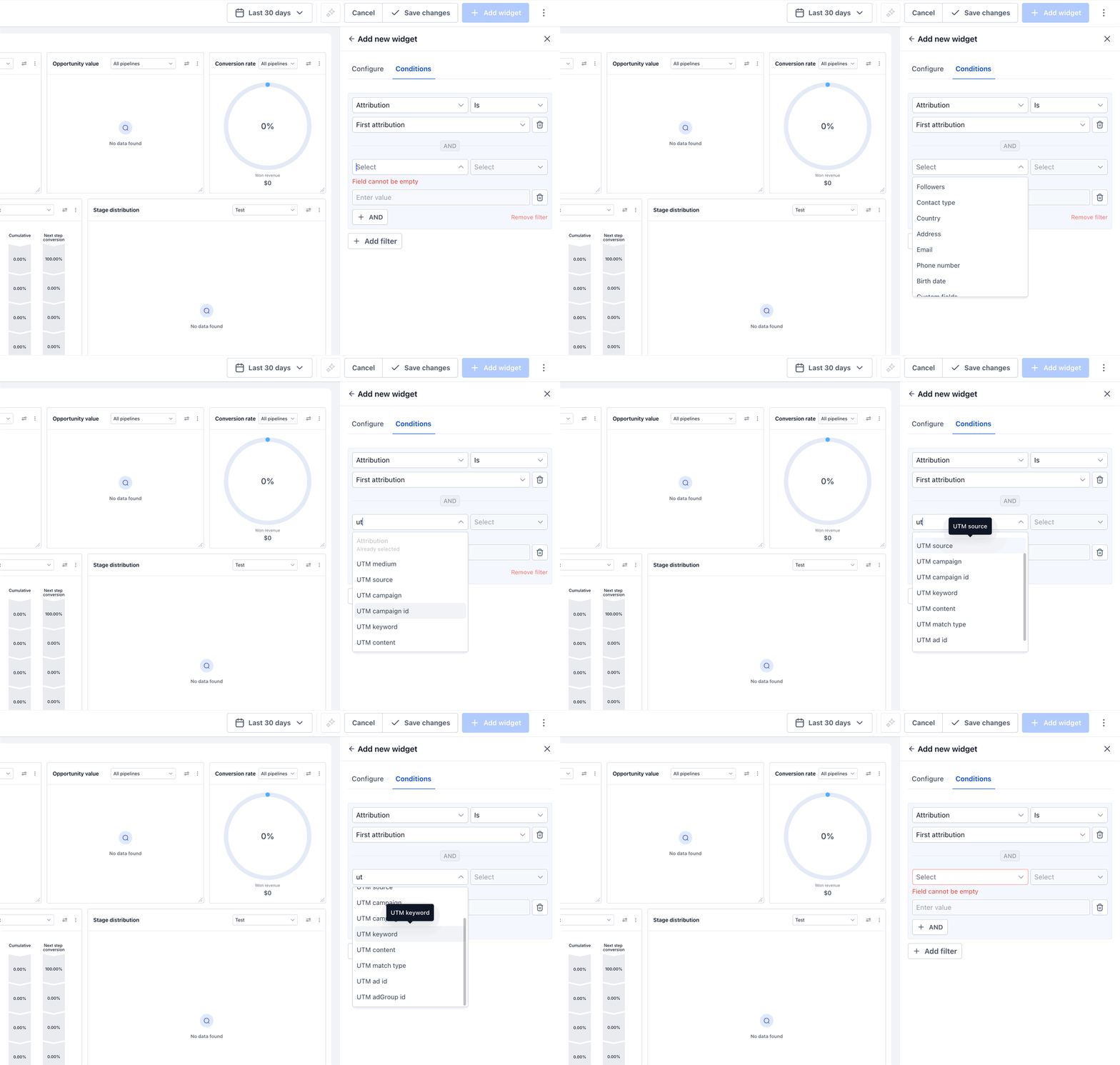
The feature adds a set of attribution and UTM fields to the widget filter builder. After you add an Attribution condition, choosing either First Attribution or Latest Attribution, the platform reveals related fields such as Medium, Session Source, UTM Source, UTM Campaign and others. These fields can be used with operators like Is, Contains, or Is not to narrow the records shown in the widget.
When the widget type supports grouping, the same attribution context unlocks Session Source and Medium as grouping dimensions. Selecting one of these options changes the chart to show separate totals for each source or medium. For table widgets, the attribution fields appear in the Select Columns panel, allowing each record to display the chosen UTM values.
All of this lives inside a dashboard widget’s edit mode under the Conditions tab and the visualization controls. The behavior is limited to Contact and Opportunity widgets; other widget types do not expose these options.
03How businesses use attribution and UTM filters
- Digital advertising agency. The agency creates a Contact widget, adds a Latest Attribution filter, then adds a UTM Source condition that contains "facebook". The widget now shows only contacts whose most recent interaction came from Facebook ads.
- SaaS startup. A startup configures an Opportunity widget, selects First Attribution, and groups the chart by Session Source. The visual now compares how many first time deals originated from organic search versus paid search.
- Ecommerce retailer. The retailer edits a Contact table widget, adds First Attribution, switches to the Table view, and selects UTM Campaign and UTM Keyword columns. Each row lists the campaign and keyword that first brought the customer to the store.
04Before you start
- Use a Contact or Opportunity widget.
- Make sure the records you want to analyze contain applicable attribution data.
- Decide whether you want to report against First Attribution or Latest Attribution.
- Add the chosen Attribution Type to the widget's Conditions before looking for related UTM fields.
05How to set up and use attribution and UTM filters in HighLevel
Filter a custom widget by attribution or UTM
- Go to Dashboard in your HighLevel subaccount.
- Open the dashboard you want to customize and enter Edit mode.
- Add a new Contact or Opportunity widget, or edit an existing supported widget.
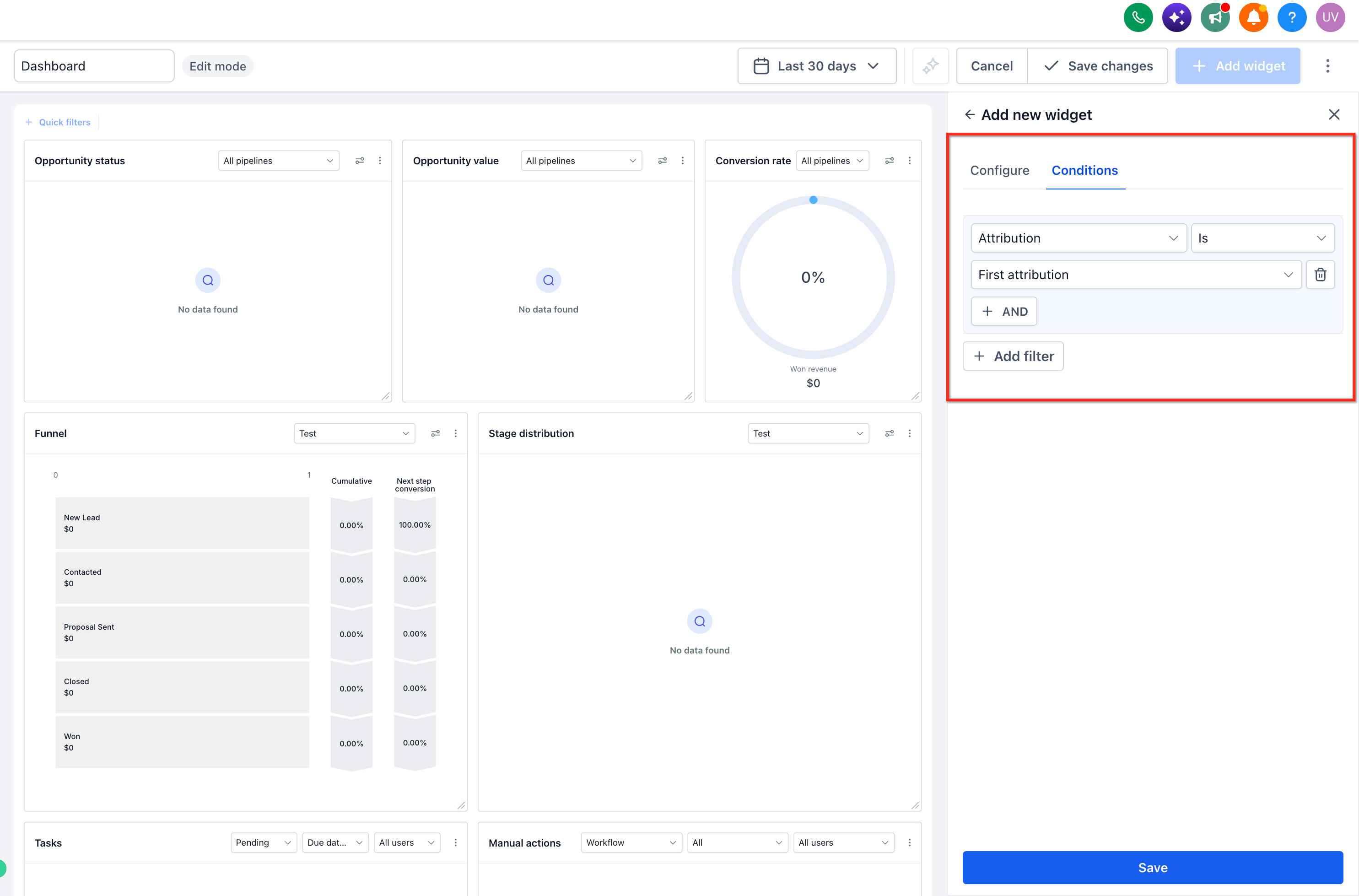
- Open the widget's Conditions tab.
- Click Add Filter.
- Select Attribution.
- Choose either First Attribution or Latest Attribution.
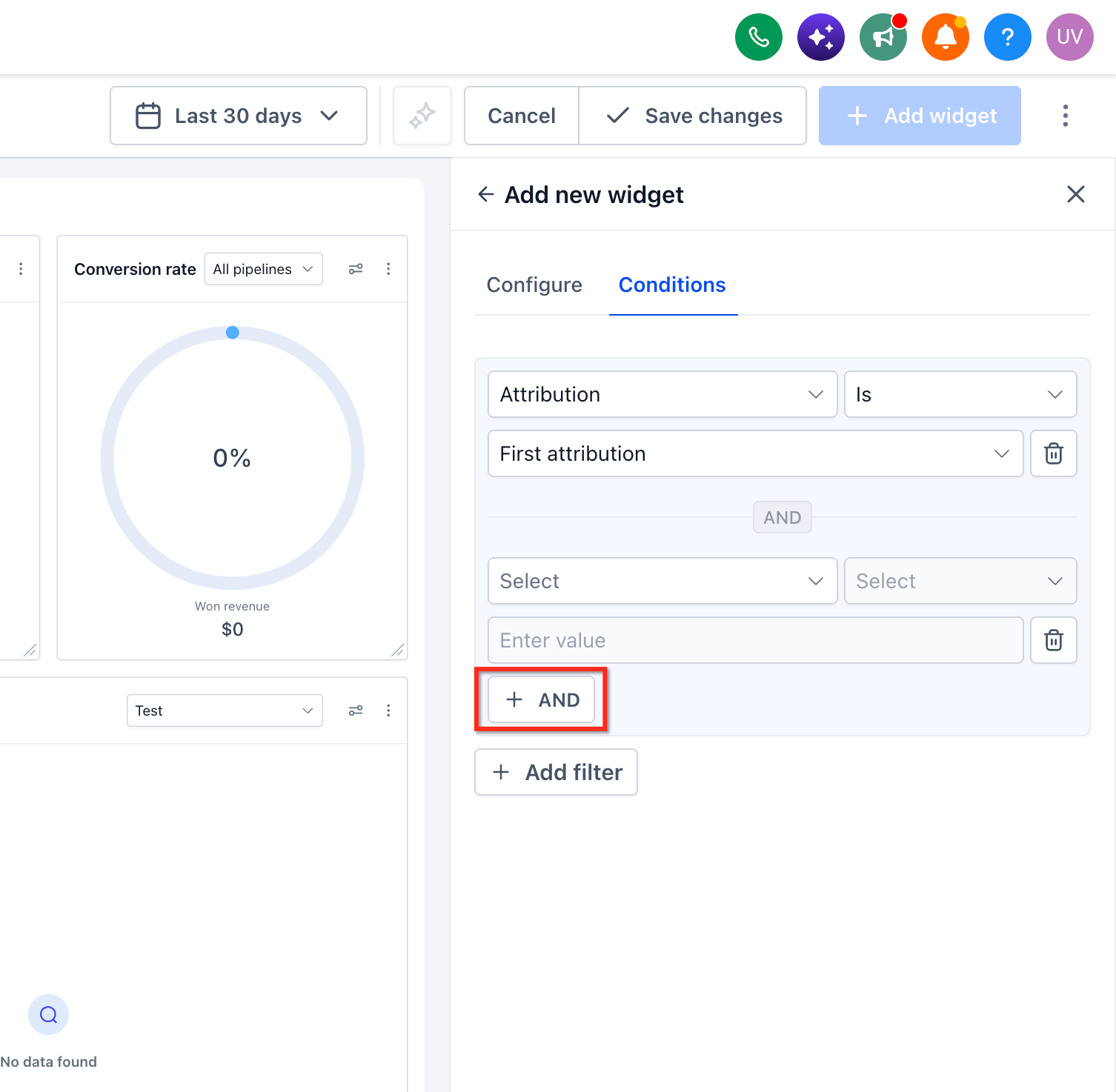
- Within the same filter group, click +AND to add another condition.
- Select the attribution or UTM field you want to use, such as Medium or UTM Source.
- Select the available operator for that field.
- Enter or select the value you want the widget to evaluate.
- Add additional +AND conditions when all criteria should apply together.
- Review the widget results and save your changes.
Group a widget by Session Source or Medium
- Open the supported Contact or Opportunity widget in Edit mode.
- Go to Conditions.
- Add Attribution and choose First or Latest Attribution.
- Keep all required conditions within the same filter group.
- Open the applicable Group By/View By control for the widget.
- Select Session Source or Medium.
- Review the visualization and save the widget.
Add attribution and UTM columns to a Table widget
- Edit a supported Contact or Opportunity widget.
- Open Conditions.
- Add Attribution.
- Select First Attribution or Latest Attribution.
- Switch the supported widget visualization to Table.
- Open Select Columns.
- Select the attribution and UTM fields you want to display.
- Save the widget.
06What it looks like in HighLevel
07Settings that matter
- Attribution. Determines whether the widget evaluates the first recorded touchpoint or the most recent one.
- Medium. Filters or groups by the HighLevel interaction type such as form, survey, or API.
- Session Source. Filters or groups by the traffic channel classification like organic search or referral.
- UTM Medium. Filters using the captured utm_medium value with a Contains operator.
- UTM Source. Filters using the captured utm_source value with a Contains operator.
- UTM Campaign. Filters using the captured utm_campaign value with a Contains operator.
- UTM Campaign ID. Filters using the captured campaign identifier with Is or Is not operators.
- UTM Keyword. Filters using the captured keyword value with a Contains operator.
- UTM Content. Filters using the captured content value with a Contains operator.
- UTM Matchtype. Filters using the captured match type value with a Contains operator.
- UTM Ad ID. Filters using the captured advertisement identifier with Is or Is not operators.
- UTM Ad Group ID. Filters using the captured ad group identifier with Is or Is not operators.
08Things to know before you rely on it
- Attribution and UTM filters are only available on Contact and Opportunity widgets.
- Session Source and Medium appear as grouping options only when a single compound filter group contains the Attribution condition.
- UTM fields become visible in Conditions only after adding First Attribution or Latest Attribution.
- If multiple filter groups are created, grouping by Session Source or Medium may disappear.
09If something goes wrong
- UTM fields do not appear in Conditions. Confirm you are editing a Contact or Opportunity widget, you added Attribution first, and you selected either First Attribution or Latest Attribution.
- Session Source or Medium does not appear in Group By/View By. Confirm the Attribution Type is present in a single filter group and that no additional OR filter groups have been added.
- The widget returns no results after adding a UTM filter. Check that the underlying records contain the UTM value, that the correct Attribution type is selected, that the entered value matches the captured data, and that the appropriate operator is used.
- Attribution columns do not appear in a Table widget. Return to Conditions and ensure First or Latest Attribution has been added before opening Select Columns.
- The report shows a different source than expected. Verify whether the widget is using First Attribution or Latest Attribution, as the two can deliver different source information.
10How it connects to the rest of HighLevel
- Learn how to add and customize dashboard widgets Dashboard widgets overview
- Step by step guide to creating custom dashboards Create custom dashboard
- HighLevel pricing and plan details Pricing
Michael's take

Most people add a UTM filter before they set an attribution type, and then wonder why the field never shows up. The widget only shows UTM options after you first add First Attribution or Latest Attribution to the Conditions. Skip that step and you’ll spend time chasing a phantom filter.
If I were building a traffic source report, I would begin with adding the appropriate attribution condition, pick First Attribution for acquisition analysis, then layer on the UTM Source and UTM Campaign filters I need. Once the conditions are locked in, I’d switch to a table view and pull the columns I care about before exporting for deeper insight.