
01Who this is for
- Agency owners, they can craft separate panels for each client to highlight performance indicators.
- Sales managers, they receive a dashboard that aggregates deals, calls and revenue for quick monitoring.
- Finance teams, they can build a view that tracks invoices, payments and overall cash flow.
02Custom dashboards, explained
A custom dashboard is an analytics canvas inside each subaccount. It pulls data from contacts, appointments, opportunities, calls, revenue and other sources. The user decides which widgets appear, how they look, and which metrics drive them.
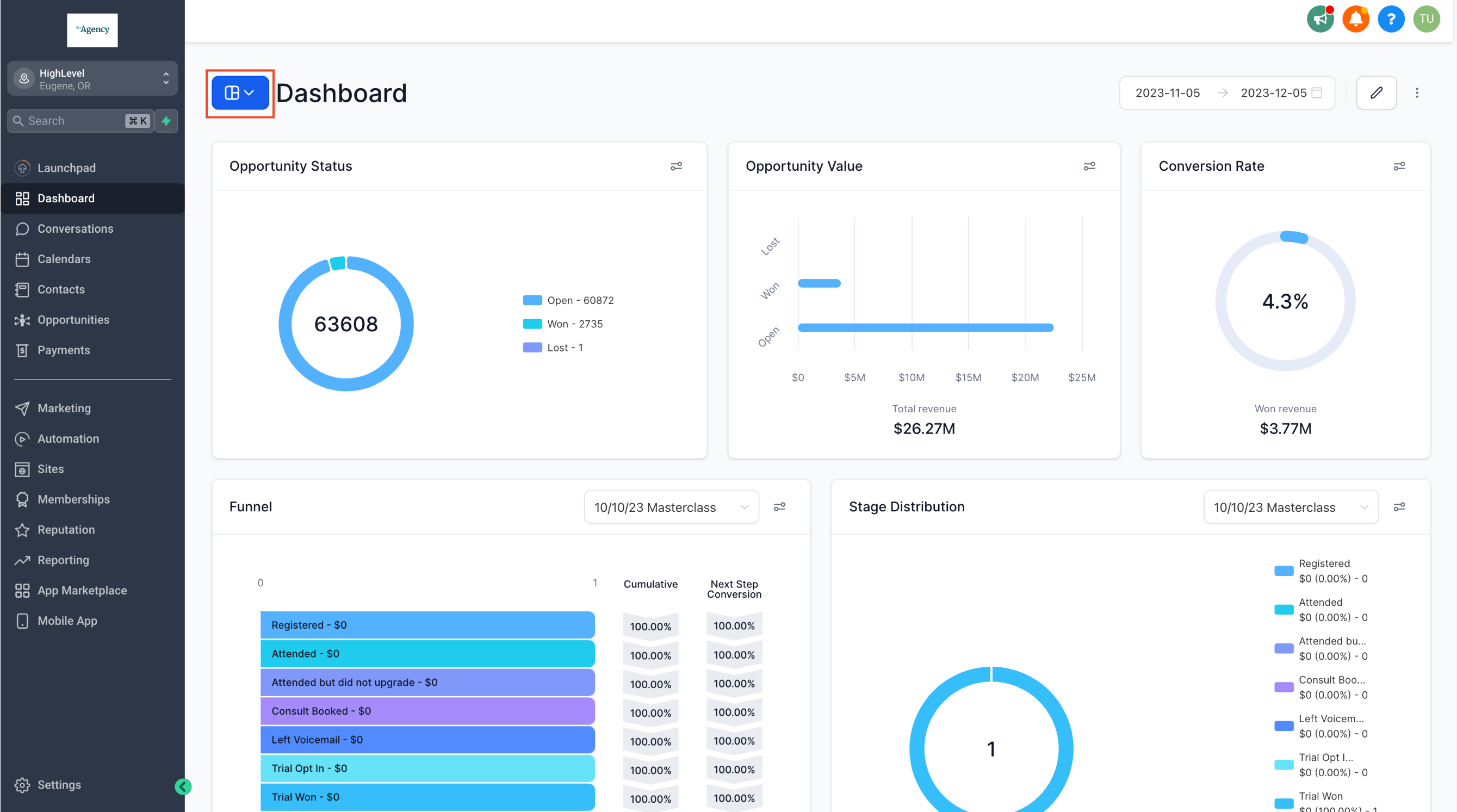
The dashboard lives under the Dashboard section of a subaccount. From there you can add unlimited dashboards, set one as the default, and adjust themes, colors, and backgrounds. Permissions are controlled with the Private Dashboard toggle, allowing the owner to expose the view to agency users, admins, or keep it hidden.
Reports generated from a dashboard can be scheduled at any frequency and emailed to any valid address, including clients who do not have a HighLevel login.
03How businesses use custom dashboards
- Digital marketing agency. The agency creates a dashboard for each client that shows ad spend, lead volume, and conversion rates. Widgets are arranged to reflect the client’s primary goals, and the agency schedules a weekly email with the latest numbers.
- Real estate brokerage. A broker builds a dashboard that tracks new listings, showings, and closed deals per agent. Permissions are set so agents see only their own data while the manager sees the entire office performance.
- Healthcare clinic. The clinic assembles a dashboard displaying appointment bookings, patient intake forms, and revenue per service line. The view is branded with clinic colors and sent daily to the operations team.
04The numbers and rules that matter
- Unlimited custom dashboards.
05Before you start
- Be logged into a subaccount where you have permission to view the Dashboard section.
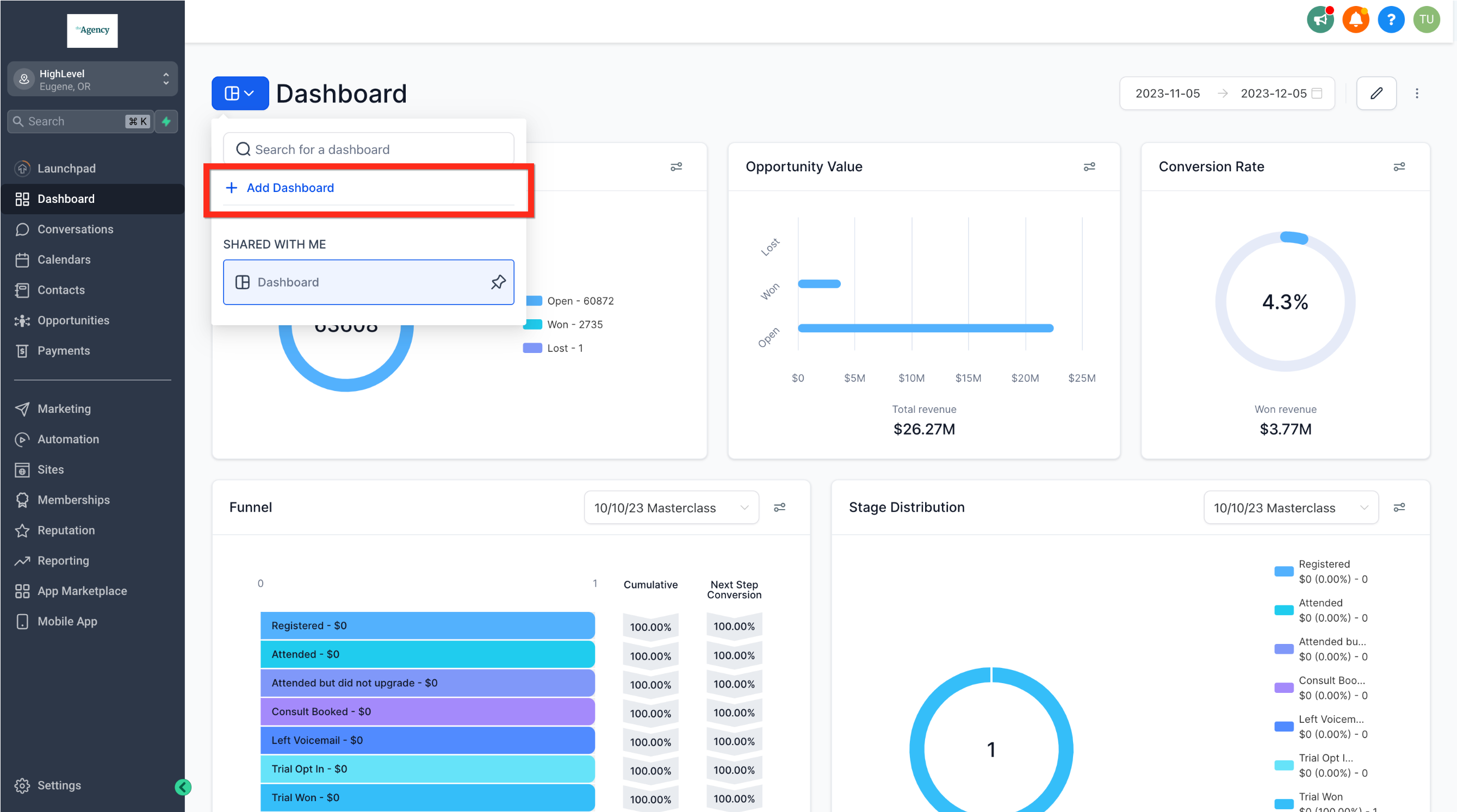
- Switch to dashboard view mode so the “+ Add Dashboard” button is visible.
- Remain on the New Dashboard page if you need to access the Private Dashboard toggle.
06How to set up and use custom dashboards in HighLevel
Create a new custom dashboard
- Navigate to the Dashboard area inside your subaccount.
- Open the Dashboard Selection Menu and click the “+ Add Dashboard” button.
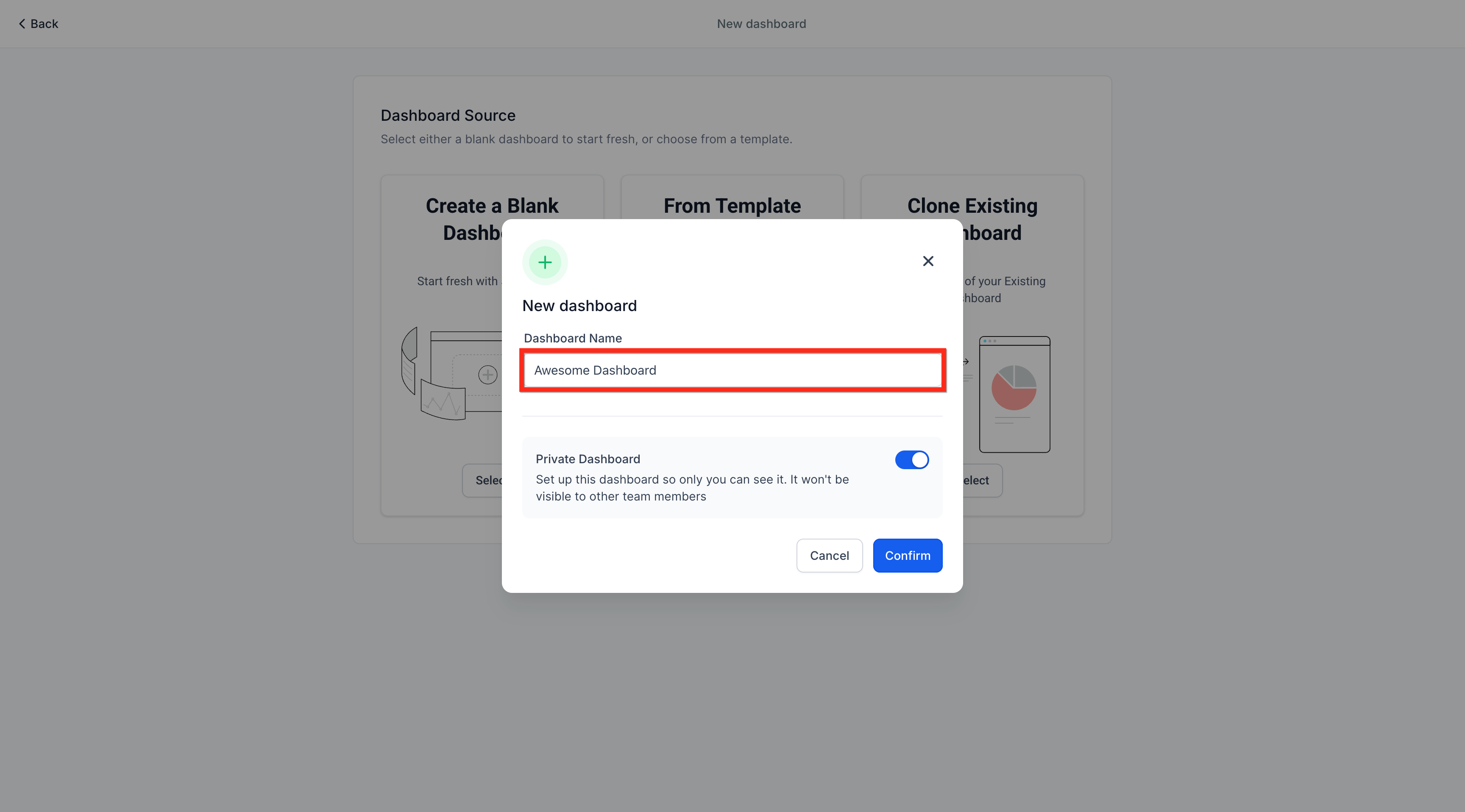
- Enter the desired name in the Dashboard Name field.
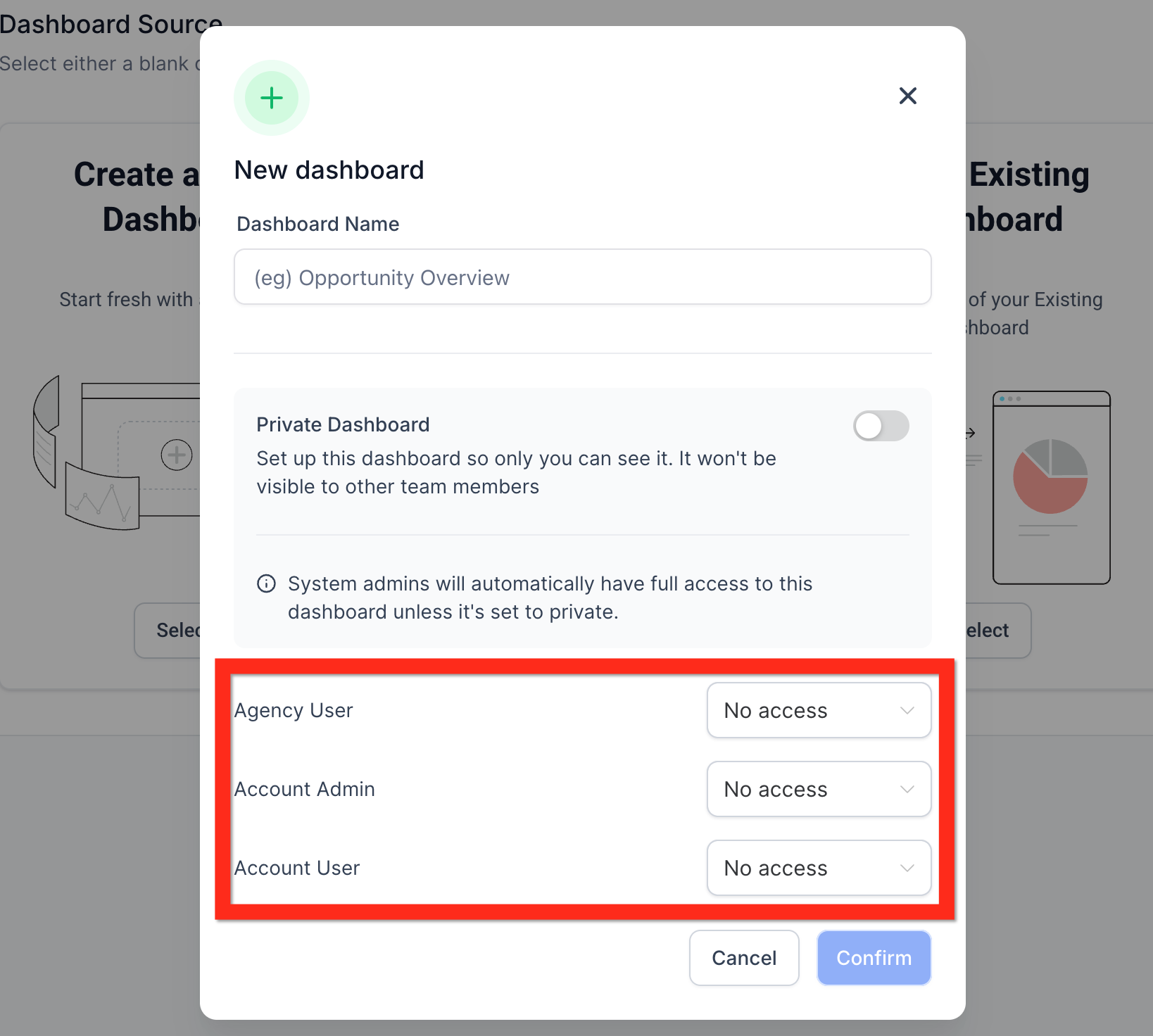
- Toggle Private Dashboard on to keep the view private, or off to allow team access, then set access levels for Agency User, Account Admin, and Account User.
- Press the Confirm button to finish creating the blank dashboard.
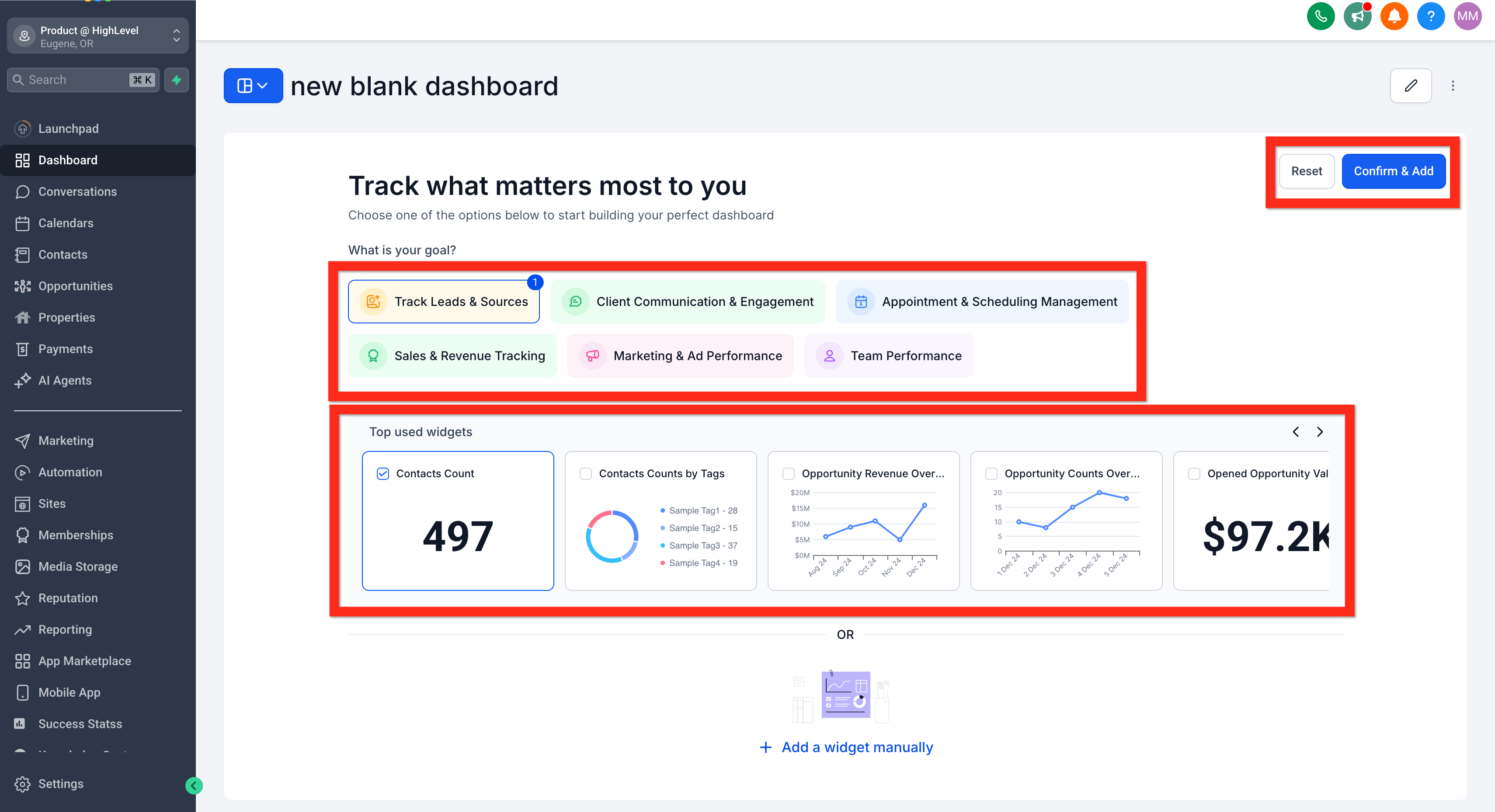
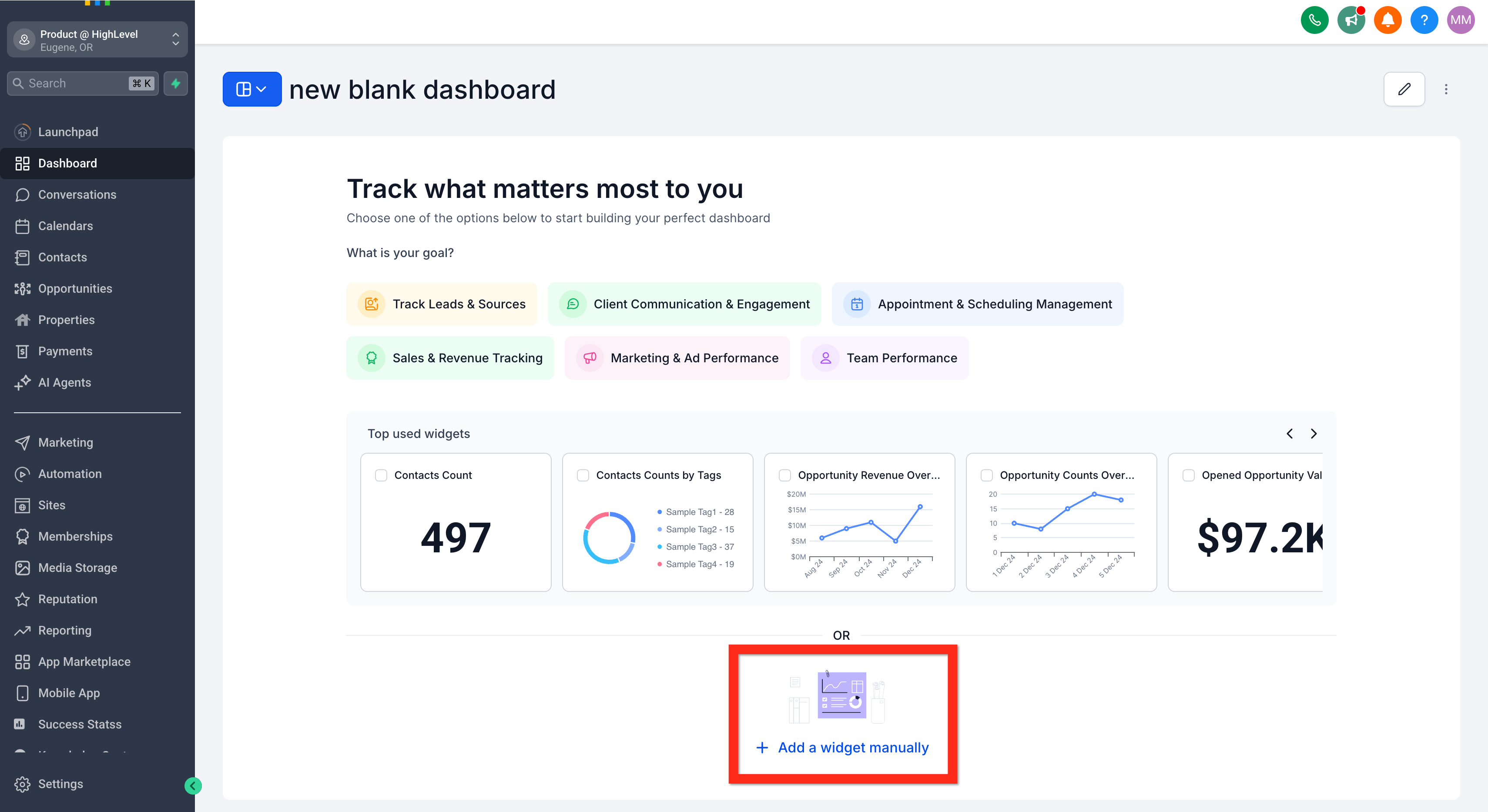
- On the Quick Start Widgets page, choose either Suggested Widgets, Add a widget manually, or add a widget while in edit mode.
- If adding manually, open the Add New Widget panel and configure the widget’s settings.
- Click Save inside the widget panel to store the widget.
- Click the ✓ Save Changes button to exit edit mode and preserve the dashboard layout.
07What it looks like in HighLevel
08Settings that matter
- Private Dashboard toggle. Controls whether the dashboard is visible only to its creator or can be shared with selected user roles.
09Things to know before you rely on it
- Unlimited custom dashboards are available on all HighLevel plans.
- Widget chart types vary; some widgets support scorecards, time series, bar/column, donut/pie, or tables.
- Only users with edit access can modify a dashboard’s layout or widgets.
10If something goes wrong
- The “+ Add Dashboard” button does not appear.. Confirm you are in dashboard view mode; switch from any other view to see the button.
- The Private Dashboard toggle is missing.. Make sure you are on the New Dashboard page; the toggle only appears there.
- The Edit (pencil) icon is not visible when trying to add a widget.. Enter edit mode by clicking the Edit button; the icon appears only in that mode.
11How it connects to the rest of HighLevel
- Learn how to edit an existing dashboard after it has been created. Edit a dashboard
- Manage who can view or edit a dashboard with permission settings. Dashboard permissions
- Duplicate a dashboard to another subaccount for reuse across teams. Duplicate dashboard
Michael's take

I find custom dashboards useful for keeping all key metrics in one place and for automating email snapshots. For very simple reporting needs, the default reports may be sufficient.