
01Who this is for
- Agency admins, need full visibility across client dashboards while respecting private ones.
- Account admins, require the ability to set default dashboards and manage team access.
- Team members, benefit from view or edit rights to collaborate on shared dashboards.
02Dashboard permissions, explained
Dashboard permissions define the access a user or role has to a specific dashboard. The levels are Full, Edit, View and No Access. Full lets a user create, edit, share and delete a dashboard; Edit allows changes to the dashboard and its widgets but not deletion; View provides read only access; No Access hides the dashboard completely.
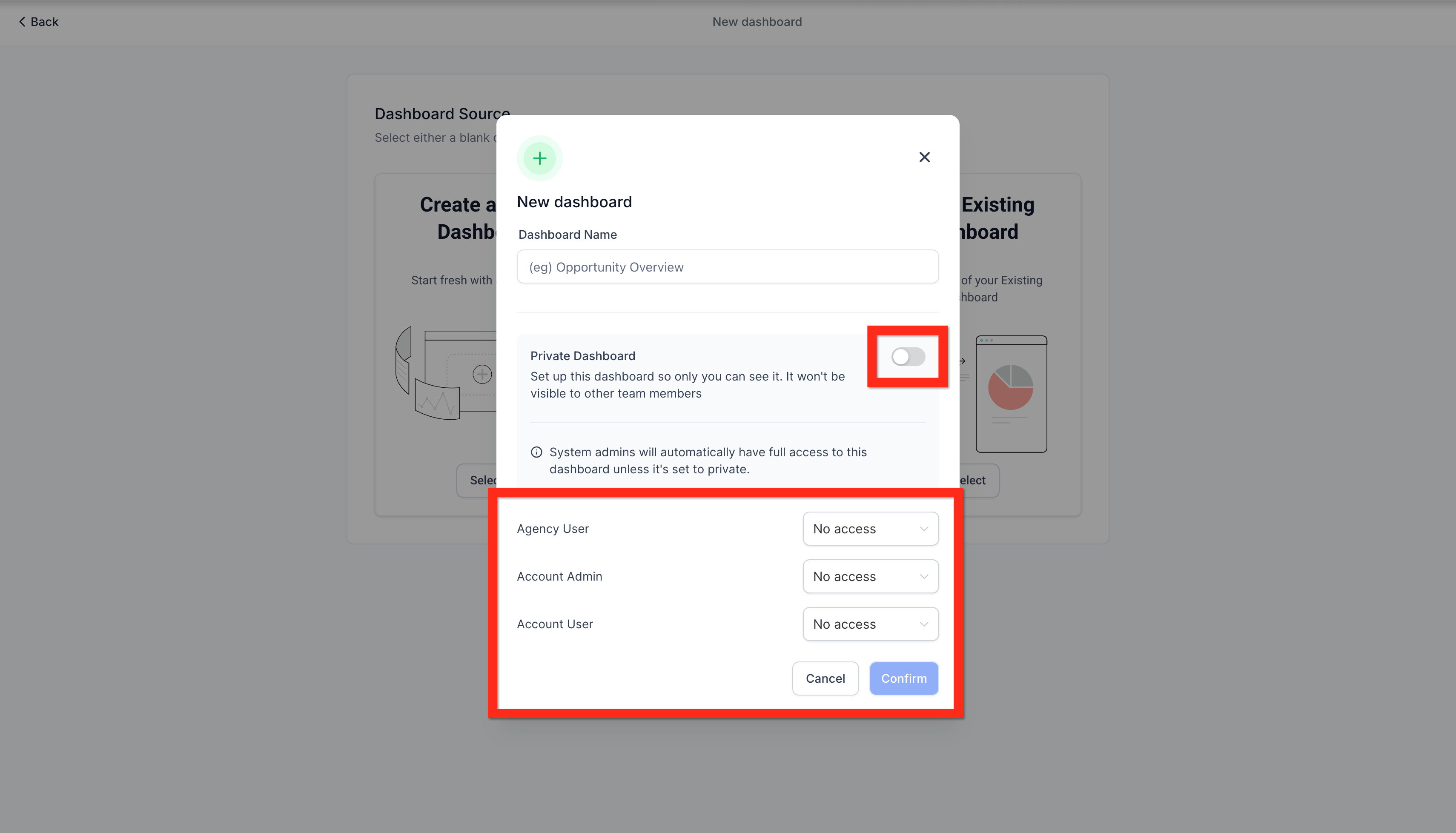
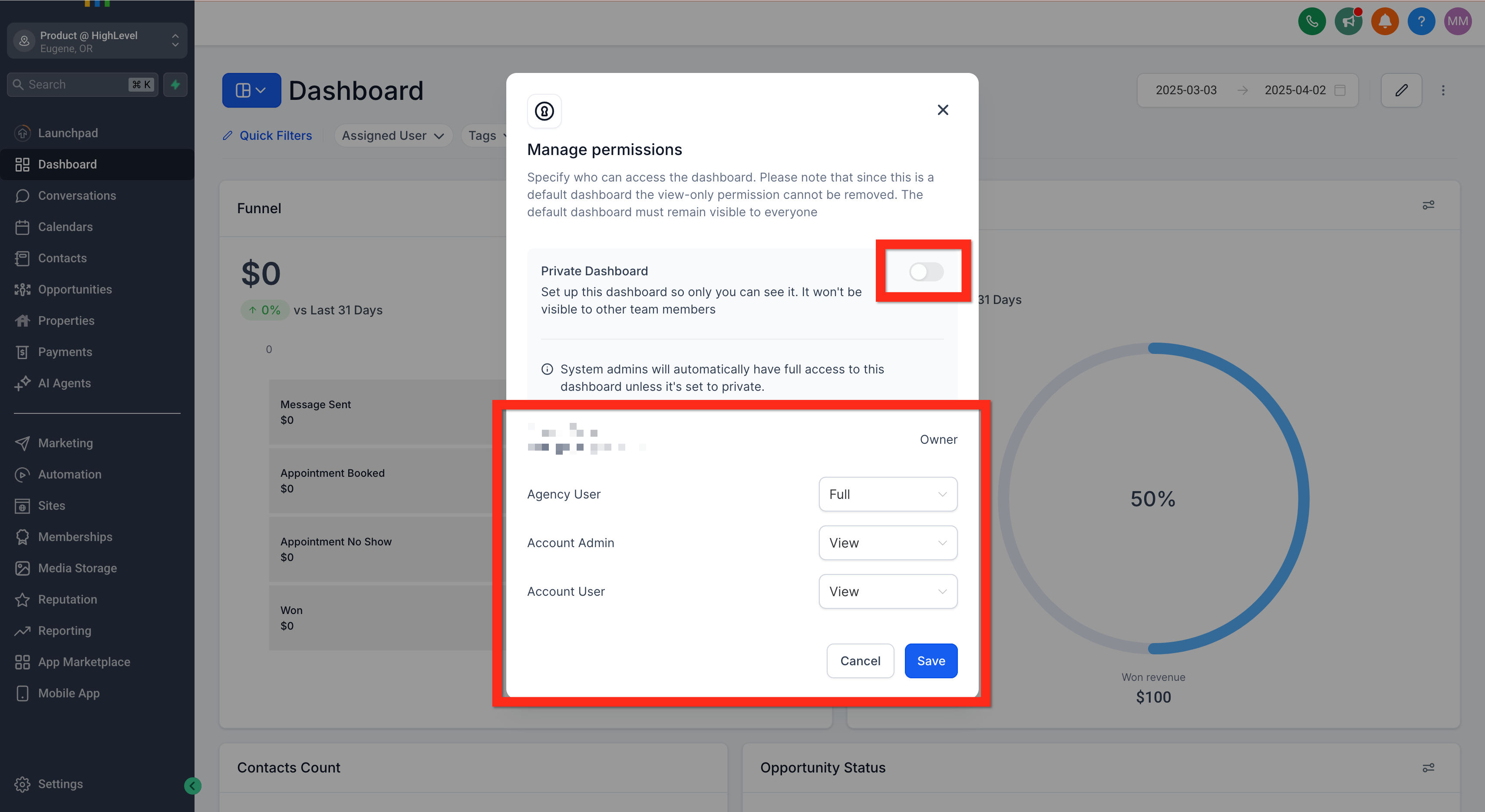
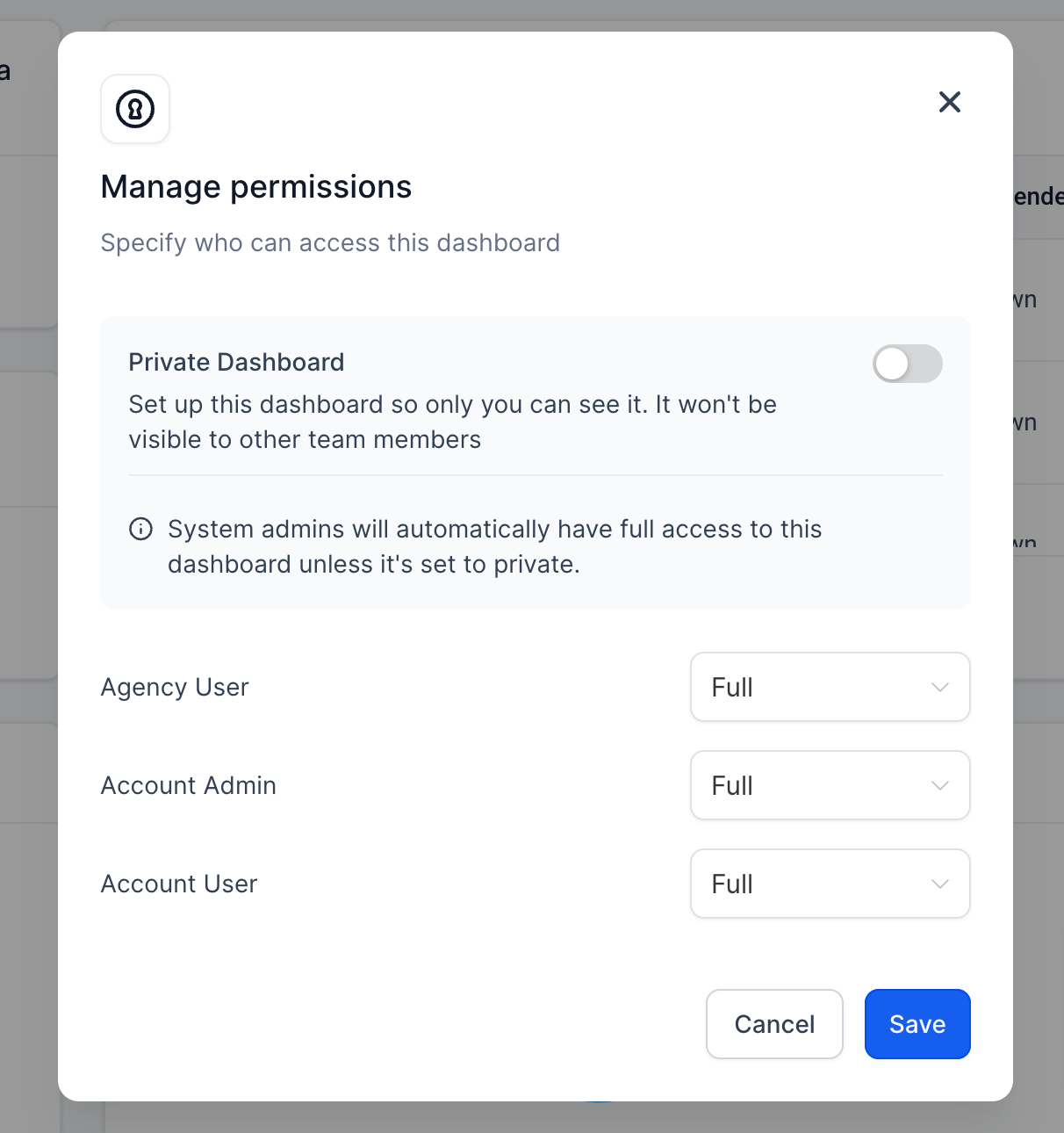
Permissions are applied in the Manage Permissions modal, reachable from a dashboard’s action menu. Private dashboards are visible only to the creator unless the Private toggle is turned off to enable sharing. The permission screen adapts based on whether the logged in user is an Agency admin, Agency user, Account admin or Account user.
The hierarchy follows Agency Admin > Agency User > Account Admin > Account User. Higher level settings override lower ones, ensuring consistent access across the organization.
03How businesses use dashboard permissions
- Marketing agency. The agency creates dashboards for client campaigns, sets Full permission for senior managers, Edit for account strategists, and View for junior staff. The agency admin retains Full access to all dashboards that are not private, ensuring oversight.
- Real estate brokerage. A broker builds a dashboard showing market metrics, marks it private while configuring Edit rights for agents. Agents can adjust widget filters but cannot delete the dashboard, preserving the broker’s original layout.
- Fitness studio. The studio owner creates a performance dashboard, grants View access to instructors so they can monitor class attendance. Instructors cannot edit or delete the dashboard, keeping the data consistent.
04How to set up and use dashboard permissions in HighLevel
Set permissions on a new dashboard
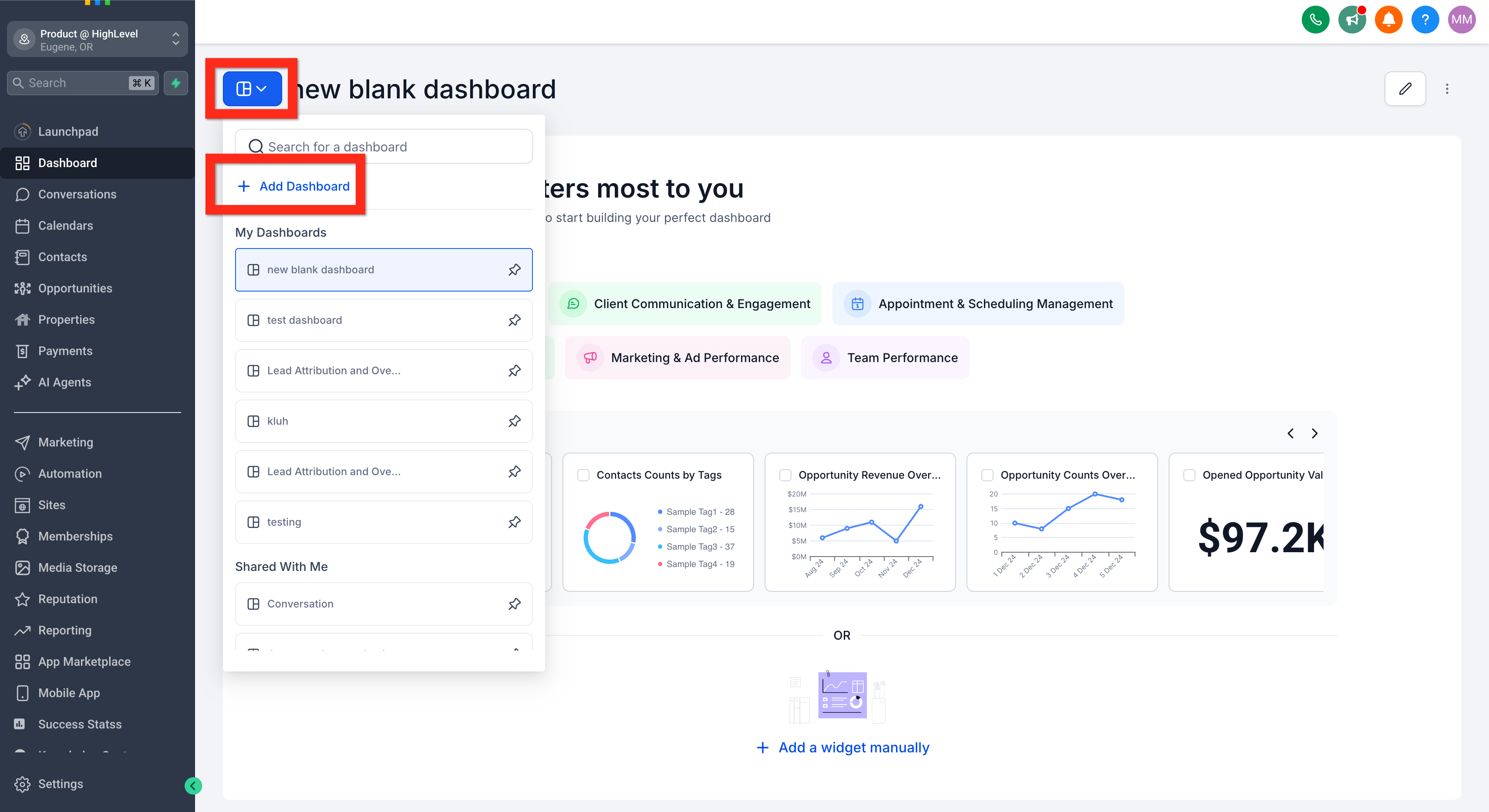
- Open the Dashboard area, click the blue Dashboard Selection menu and choose Add Dashboard.
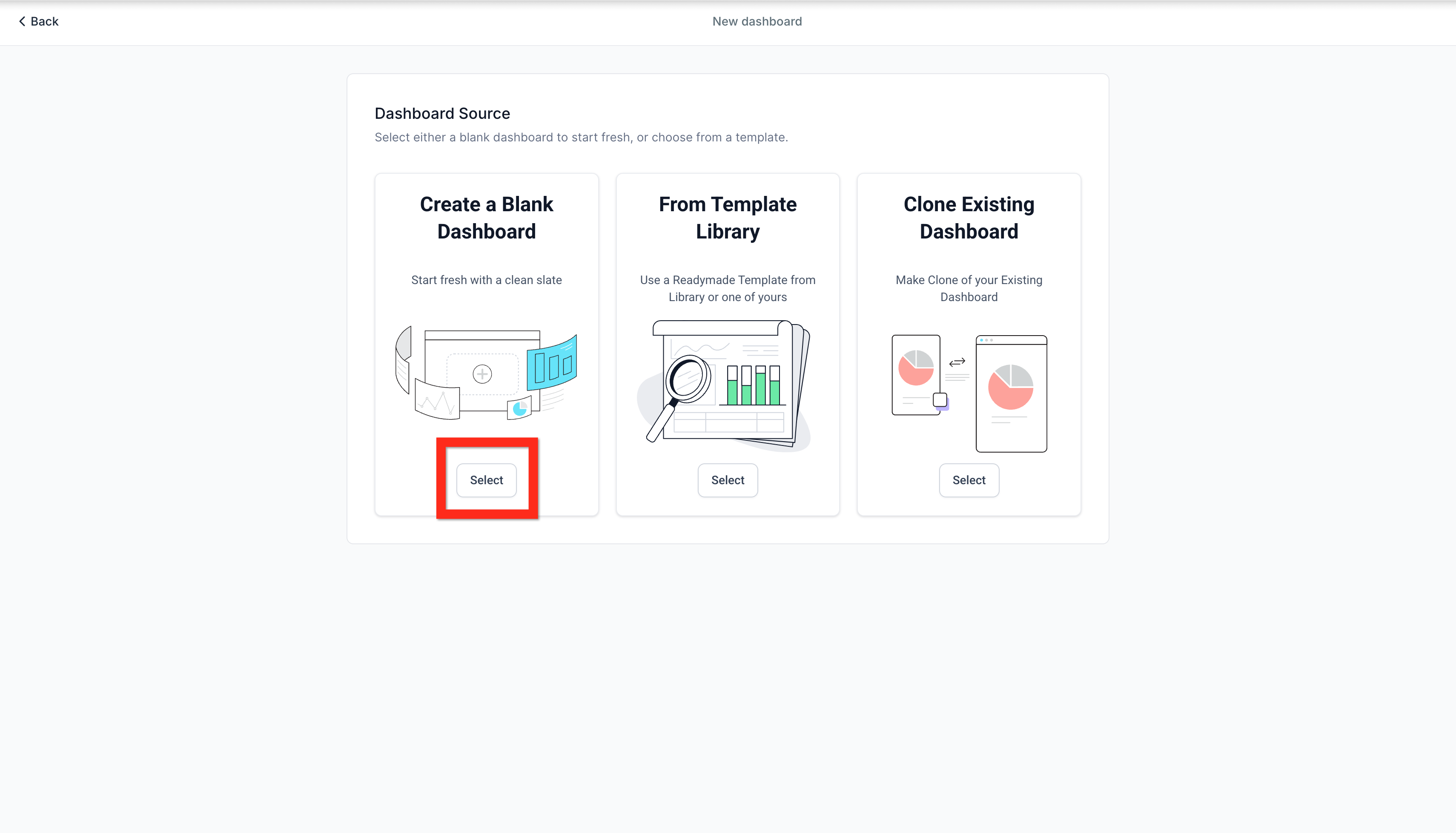
- Select the Blank Dashboard option by clicking Select under Create a Blank Dashboard.
- In the New Dashboard modal, leave the Private toggle on for a private board or turn it off to enable sharing, then click Confirm to save the dashboard with those permissions.
Set permissions on an existing dashboard
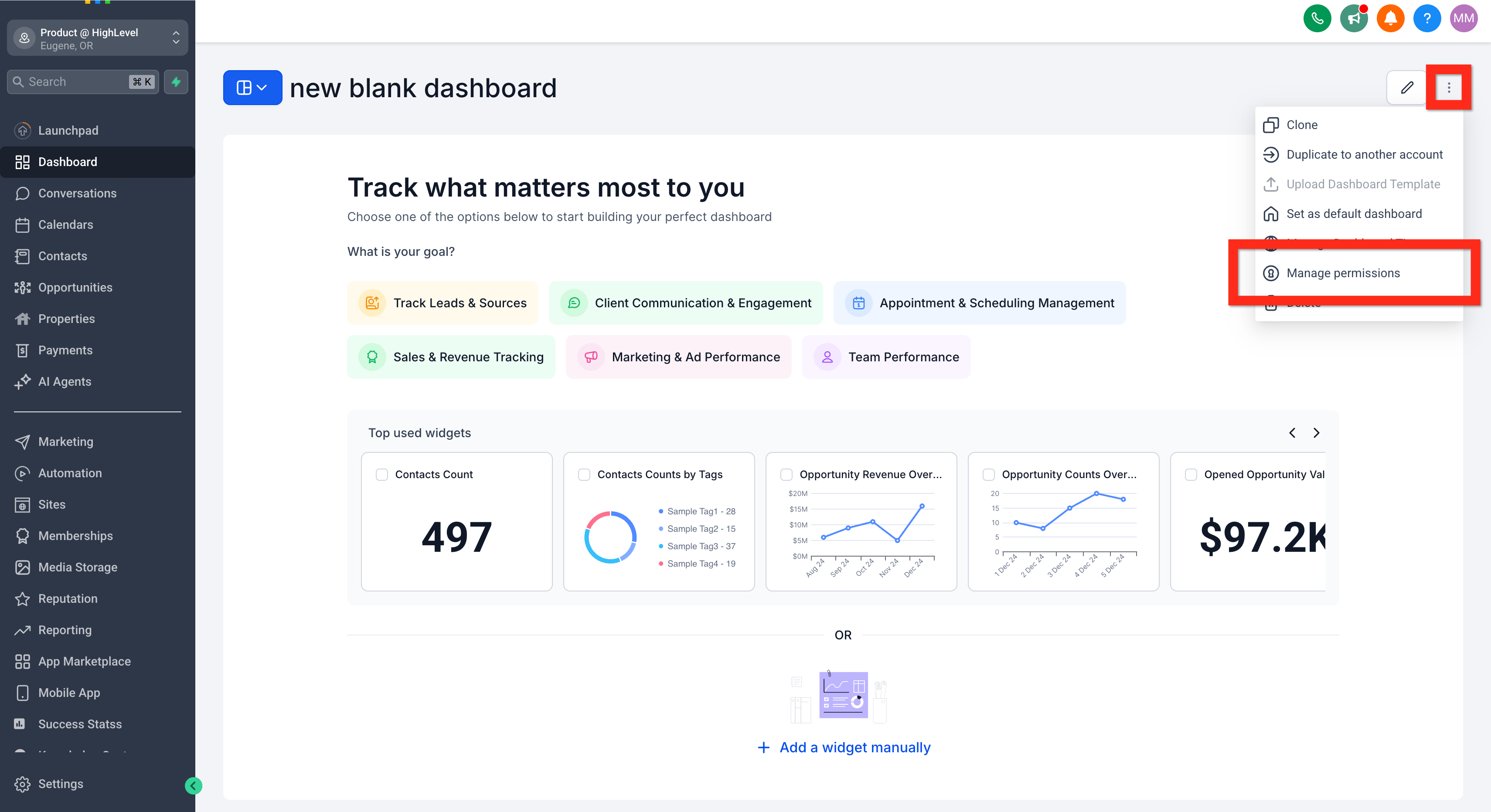
- On the desired dashboard, open the three dot action menu and pick Manage Permissions.
- Toggle Private to switch between a private board and shared permissions, adjust the role levels as needed, and click Save.
05What it looks like in HighLevel
06Settings that matter
- Private toggle. Controls whether a dashboard is visible only to its creator (private) or can be shared with other roles.
- Export data permission. Determines if a user may download data from dashboard widgets.
07Things to know before you rely on it
- Only owners or roles with Full permission can modify a dashboard’s permission settings.
- Agency admins automatically have full access to every dashboard except those marked private by their creator.
- Only Account Admins or Agency roles with Full permission can set a dashboard as the default.
- Only Agency roles are allowed to duplicate a dashboard to another subaccount.
- If no permissions are defined, dashboards are visible to all users by default.
08How it connects to the rest of HighLevel
- Edit a dashboard Edit dashboard guide
- Duplicate a dashboard to another subaccount Duplicate dashboard guide
- Set a default dashboard Default dashboard guide
Michael's take

Dashboard permissions are essential for keeping data safe and organized.
If you don’t need granular control over who can edit or view dashboards, you can skip this feature.