
01Who this is for
- Agency owners can copy pre designed dashboards to client subaccounts, avoiding manual rebuilds.
- Agency administrators can ensure the correct default dashboard is set for users after loading.
02Snapshots with dashboards, explained
The Snapshot feature lets you transfer dashboard layouts, widgets and their settings from a saved Snapshot into another subaccount. During the load you decide which dashboards to bring over and optionally mark one as the default for the destination account. If you do not mark a new default, the Snapshot’s original default dashboard is applied. The process lives within the Agency View under Subaccounts and uses the Load Snapshot action.
When you start a load, HighLevel shows the available dashboard assets, lets you select supporting assets like Custom Values or Pipelines, and displays any conflicts with existing assets. You resolve each conflict by overriding or skipping. After confirming, the dashboards appear in the destination subaccount, and you can verify the default selection and widget display.
03How businesses use loading snapshots with dashboards
- Digital marketing agency. The agency loads a Snapshot containing client reporting dashboards into each new client subaccount, assigns the most relevant dashboard as the default, and checks that the required custom values are included.
- Real estate brokerage. The brokerage copies performance dashboards from a Snapshot into its agents’ subaccounts, sets the sales overview dashboard as the default, and verifies that agents have view permission to see it.
- Fitness studio. The studio imports membership and class attendance dashboards from a Snapshot into a new location’s subaccount, selects the member summary dashboard as the default, and confirms that widget data loads correctly.
04Before you start
- The Snapshot must contain the dashboards you want to load.
- Private dashboards are not included in the Snapshot asset list.
- Only one selected dashboard can be marked as the default during the Snapshot load.
- Users who need to open the default dashboard must have at least VIEW permission for that dashboard.
- Include supported assets referenced by dashboard widgets, such as Custom Values or Pipelines, when required.
05How to set up and use loading snapshots with dashboards in HighLevel
Load dashboards from a Snapshot into a destination subaccount
- In Agency View, go to Subaccounts, locate the destination subaccount, open its three dot menu and select Manage Client.
- Click Actions in the upper right corner and choose Load Snapshot.
- In the Pick a Snapshot window, select the desired Snapshot and click Proceed.
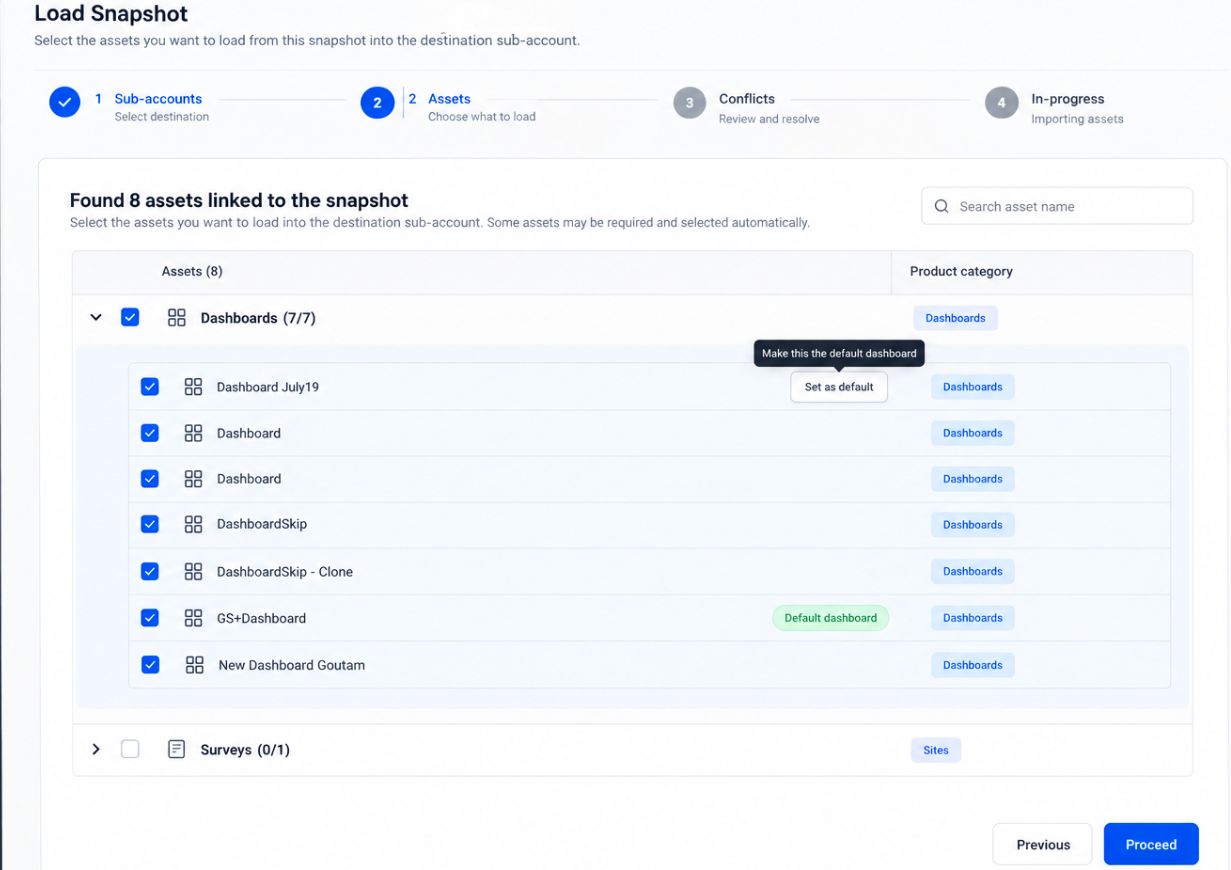
- In the asset list, find the Dashboards section and check the dashboards you want to import.
- Click Set as default on one of the selected dashboards to mark it as the default; click again to change or remove the selection.
- Check any required supporting assets such as Custom Values or Pipelines referenced by widgets, then click Proceed.
- Review any conflicts shown; choose Override to replace an existing asset or Skip to keep the current version.
- Click Proceed, type confirm when prompted, and click Proceed again to start the load.
- Open the destination subaccount, go to Dashboard, confirm the chosen default dashboard appears and its widgets display correctly, and verify user permissions.
06What it looks like in HighLevel
07Settings that matter
- Set as default. Marks the selected dashboard to become the default view for the destination subaccount after the Snapshot load.
08Things to know before you rely on it
- Private dashboards are excluded from the Snapshot asset list.
- Only one dashboard can be marked as the default during a load.
- If no dashboard is marked, HighLevel uses the Snapshot’s existing default dashboard.
- Asset conflicts must be resolved by overriding or skipping before the load proceeds.
- A dashboard may load even if some widgets encounter issues because required linked assets are missing.
09How it connects to the rest of HighLevel
- How to set a Default Dashboard Set default dashboard
- How to manage dashboard permissions Dashboard permissions
- Creating custom dashboards in HighLevel Custom dashboards
Michael's take

Snapshotted dashboard loads are a shortcut for agencies that need to roll out the same reporting view to many clients.
If you already built a solid reporting template, skip this feature if you only ever use a single subaccount or don’t need to copy dashboards between accounts.