
01Who this is for
- Agency Admins can adjust dashboard access for staff to match role responsibilities.
- Agency Users on $497+ plans need edit rights to personalize their dashboards (per HighLevel's help center, checked November 2026).
- Account Admins can view the full dashboard but cannot modify permissions.
02Custom dashboard widgets, explained
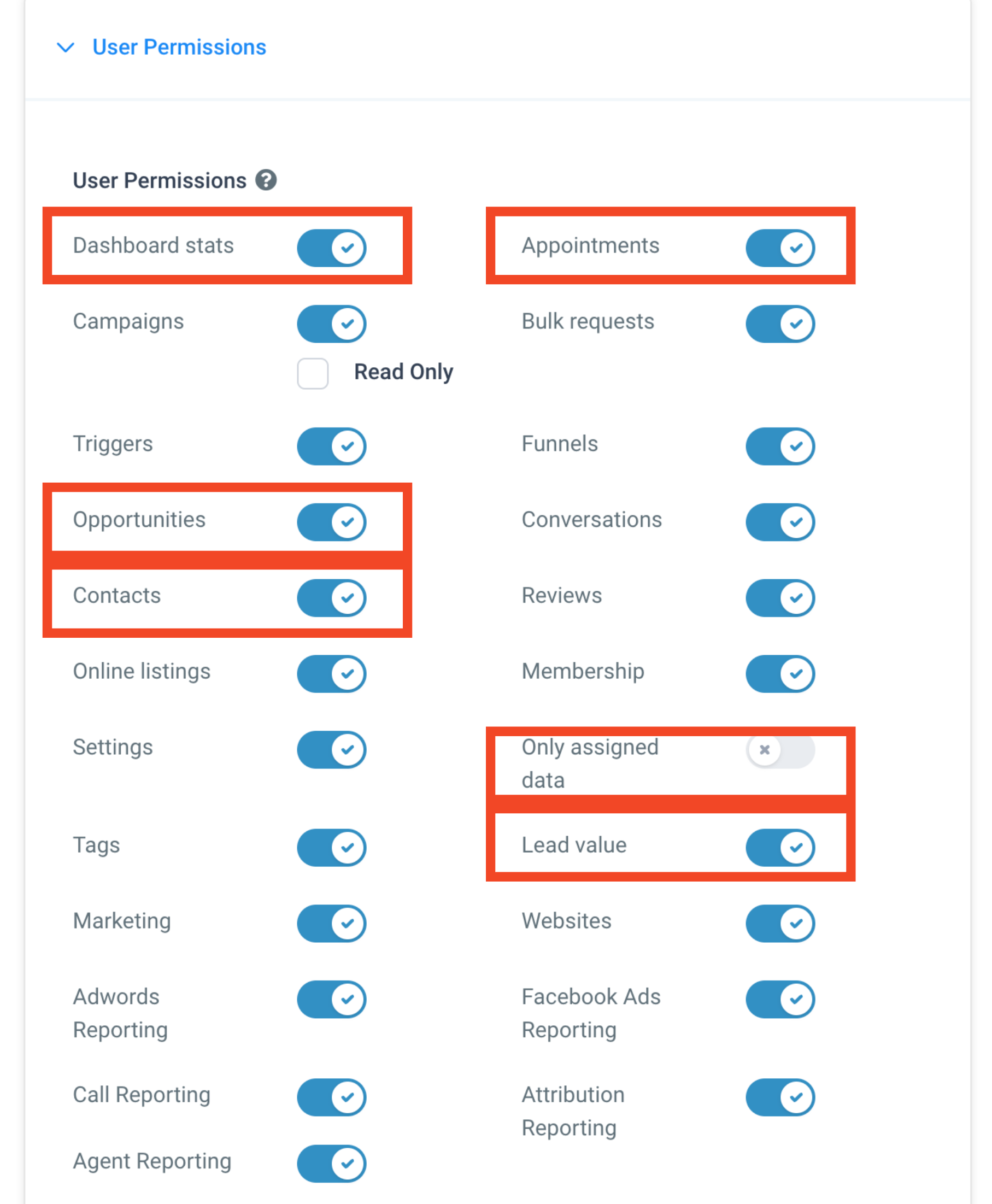
The dashboard permission settings reside in the Settings area under My Staff. Each user has a set of checkboxes that grant or restrict access to specific dashboard sections such as Contacts, Opportunities, Appointments, Lead value and the ability to hide data that isn’t assigned to them. These permissions determine whether a user can view the whole dashboard or only selected widgets.
Widgets can be customized to show data that belongs only to the person viewing the dashboard. This is done by adding a condition in the widget’s Conditions tab that uses the USER > LOGGED IN USER selector. When the condition is applied, the widget filters its data on the fly, displaying each team member’s own records while hiding others’ data.
03How businesses use custom dashboard widgets
- Marketing agency. The agency admin opens Settings > My Staff, edits a staff member, and checks the dashboard permissions that match the staff role. This limits the staff member to only the contacts and appointments they need to see.
- Sales team. A sales manager edits a widget, goes to the Conditions tab, and selects USER > LOGGED IN USER. Each salesperson then sees only their own leads and opportunities on the dashboard.
- Consulting firm. An account admin views the dashboard with only view access, ensuring they can monitor overall metrics without being able to change any widget settings.
04The numbers and rules that matter
- $297 and $497+ plans include multiple custom dashboards, widgets and custom reports (per HighLevel's help center, checked November 2026).
- Agency Admin and Agency User on $497+ plans have Complete Edit and View Access (per HighLevel's help center, checked November 2026).
05Before you start
- User must have Agency Admin or Agency User role to edit custom widgets.
06How to set up and use custom dashboard widgets in HighLevel
Modify dashboard permissions for a user
- Open Settings and select My Staff.
- Click Edit next to the user whose permissions you want to change.
- In the User Permissions section, adjust the dashboard permission checkboxes as needed.
Set widget to show only logged in user data
- Open the widget you want to edit.
- Navigate to the Conditions tab within the widget settings.
- Add a condition using USER > LOGGED IN USER.
07What it looks like in HighLevel
08Settings that matter
- Dashboard Stats. Grants view only access to the entire dashboard for Account Admin and Account users.
- Contacts. Allows access to all contacts and any contact related widgets.
- Opportunity. Provides access to all opportunities and opportunity related widgets.
- Appointment. Gives access to all appointments and appointment related widgets.
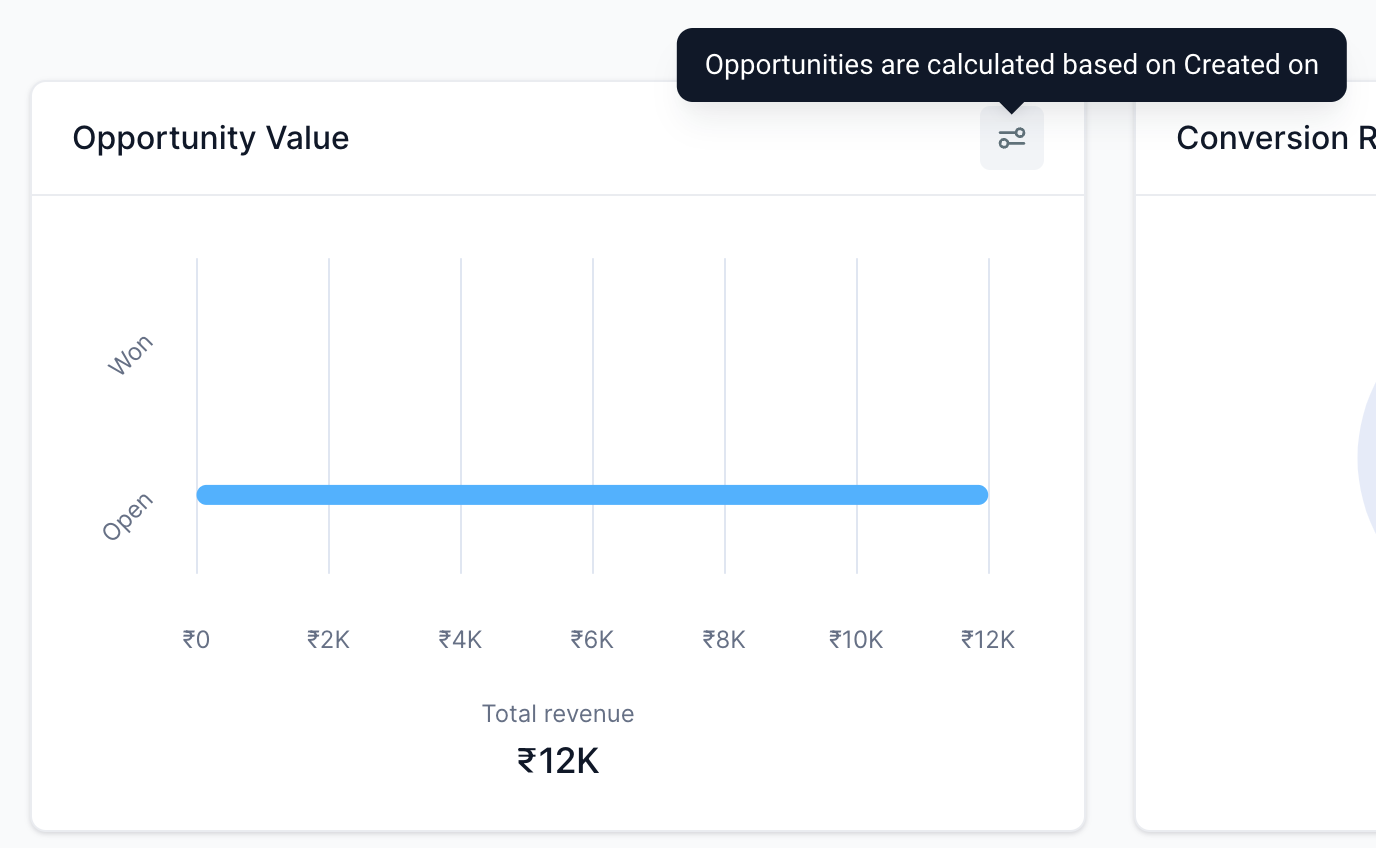
- Lead value. Enables visibility of monetary value widgets on the dashboard.
- Only Assigned data. When enabled, no data appears on custom widgets for users who are not assigned to that data.
09Things to know before you rely on it
- Custom dashboards and widgets are only available on the $297 and $497+ plans (per HighLevel's help center, checked November 2026).
- Only Agency Admins and Agency Users on the $497+ plan can edit dashboard widgets (per HighLevel's help center, checked November 2026).
- The Only Assigned data setting hides all data on a widget if the user has no assignment.
- Changing time and date formats inside widgets is not yet available; it is planned for a future update.
10How it connects to the rest of HighLevel
- Explore all dashboard features All Dashboards features
- Learn how to add and customize dashboard widgets Dashboard widgets guide
- See which plans include custom dashboards HighLevel pricing and plans
Michael's take

Custom dashboard widgets feel like a small convenience that can become a real shift for agencies that need each team member to see only their own numbers. When you turn on the USER -> LOGGED IN USER condition, you give every rep a personal snapshot without building separate reports.
A coaching business with multiple trainers benefits most. Each trainer can glance at their own appointments, leads, and revenue on the shared dashboard, keeping focus sharp while the agency owner still sees the full picture.