
01Who this is for
- Founders who need a single view of third party analytics without leaving the platform.
- Marketing teams that want to showcase live social media feeds or video tutorials on their reporting dashboard.
02Embed external content, explained
Embedding is a dashboard feature that pulls content from other websites into a widget on a HighLevel dashboard. When you add an embed element, the platform either loads the address you provide via a direct URL or renders the full iframe HTML you supply. The widget can show the content in real time, staying inside the dashboard layout.
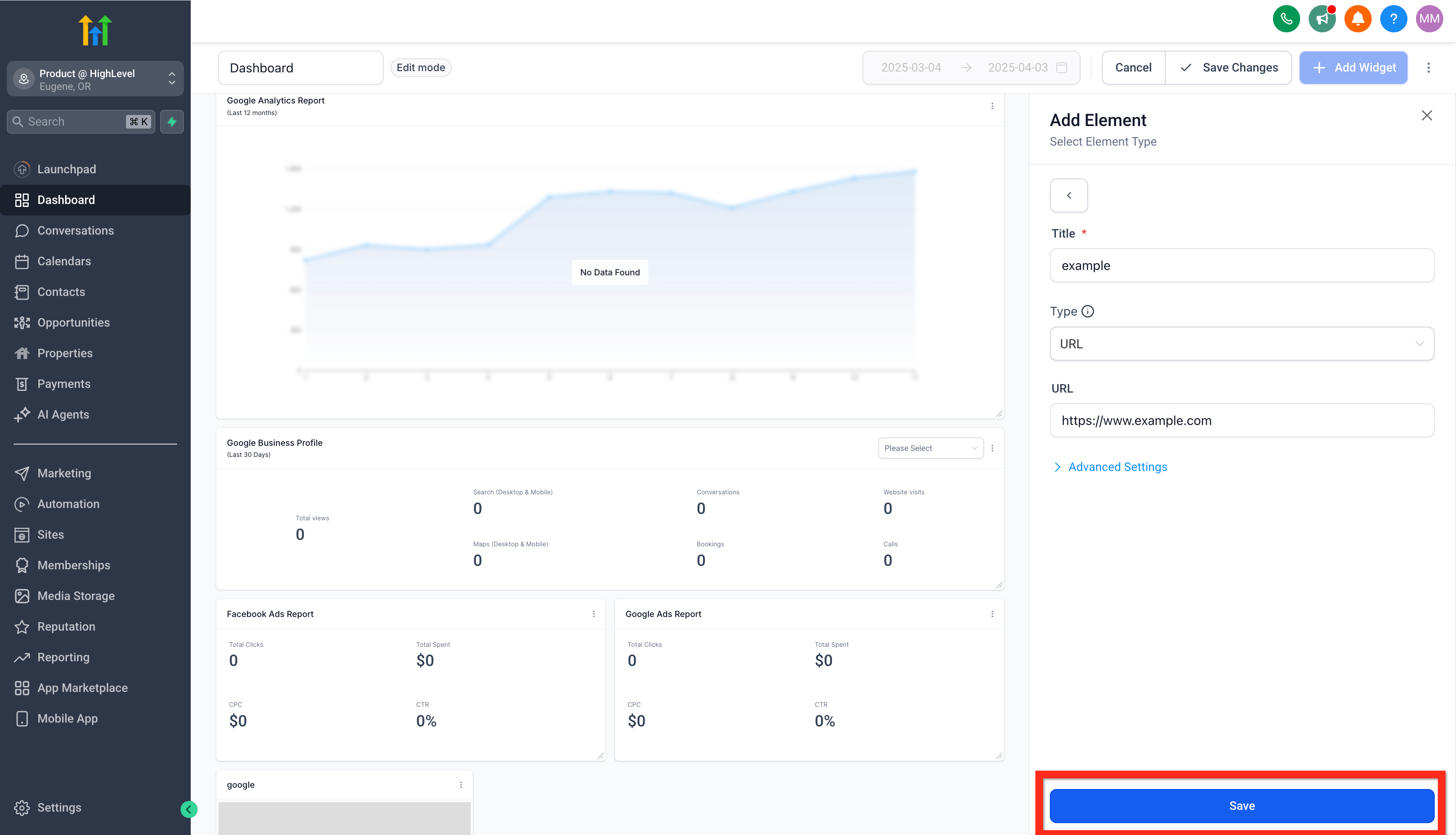
The embed element lives under the Elements tab while editing a dashboard. After selecting Embed, you configure a title, choose the embed type, and paste either a fully qualified URL or an iframe snippet. Advanced settings let you hide the widget title if you prefer a cleaner view. Once saved, the external content displays alongside other widgets on the same page.
If the source site blocks embedding, the widget will remain blank. Only sites that allow embedded content will render correctly.
03How businesses use embed external content
- Digital marketing agency. The agency adds a YouTube video by creating an embed widget, entering the video ID into the YouTube embed URL format, and saving the widget so the video plays on the performance dashboard.
- Social media manager. The manager embeds an Instagram post by copying the shareable link, replacing the query string with /embed/, and adding the resulting URL to the embed element, displaying the post on the reporting dashboard.
- Content creator. The creator embeds a TikTok video by adding an embed widget and inserting the video ID into the TikTok embed URL format, allowing the video to appear directly on the dashboard.
04The numbers and rules that matter
- Supported content includes web pages, Google Data Studio reports, Google Docs, slideshows, calendars, Loom videos, YouTube videos, social media posts, feeds and more.
05How to set up and use embed external content in HighLevel
Embed external content on a dashboard
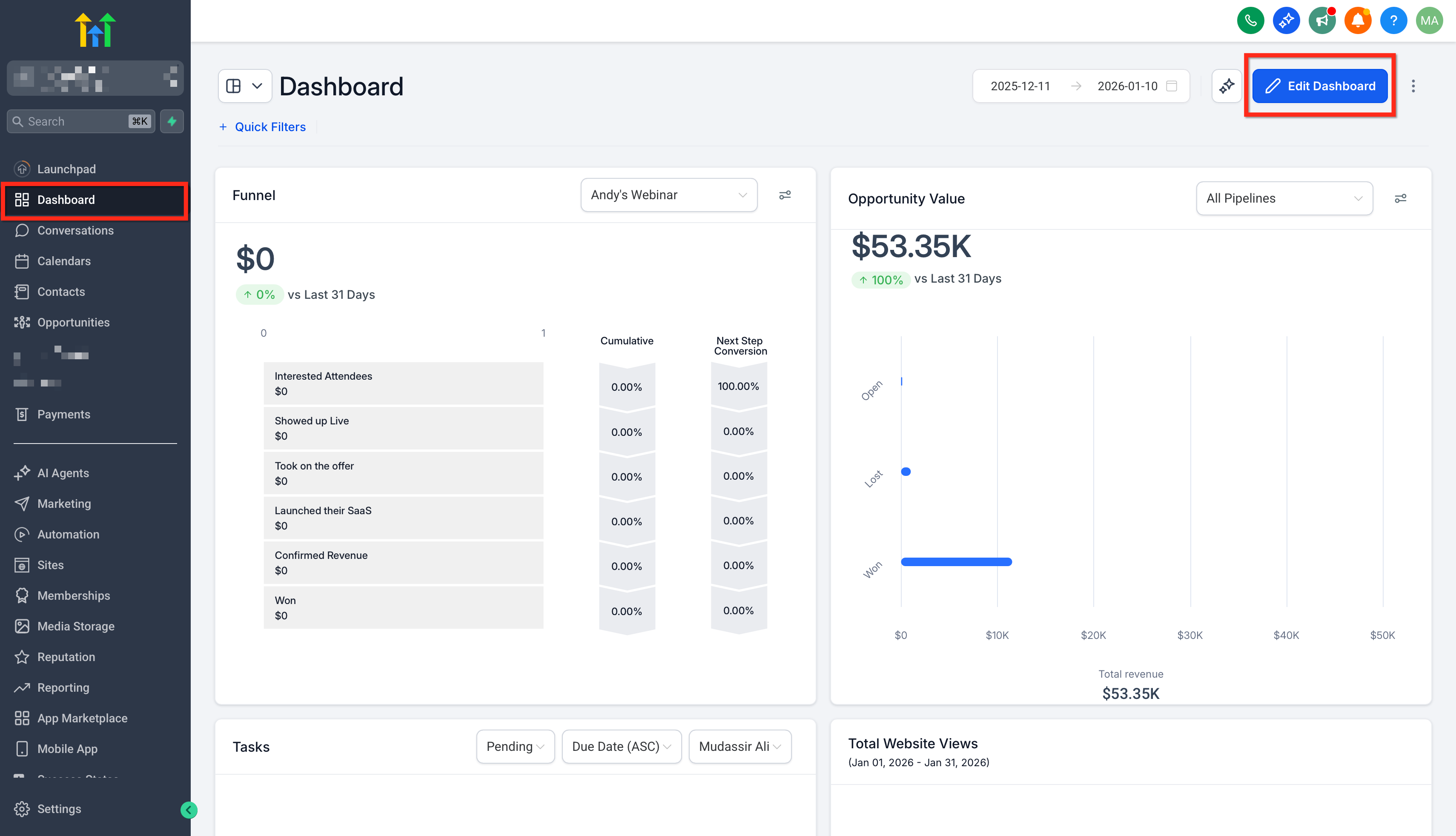
- Navigate to Subaccount > Dashboard > Edit Dashboard and click the pencil button to open edit mode.
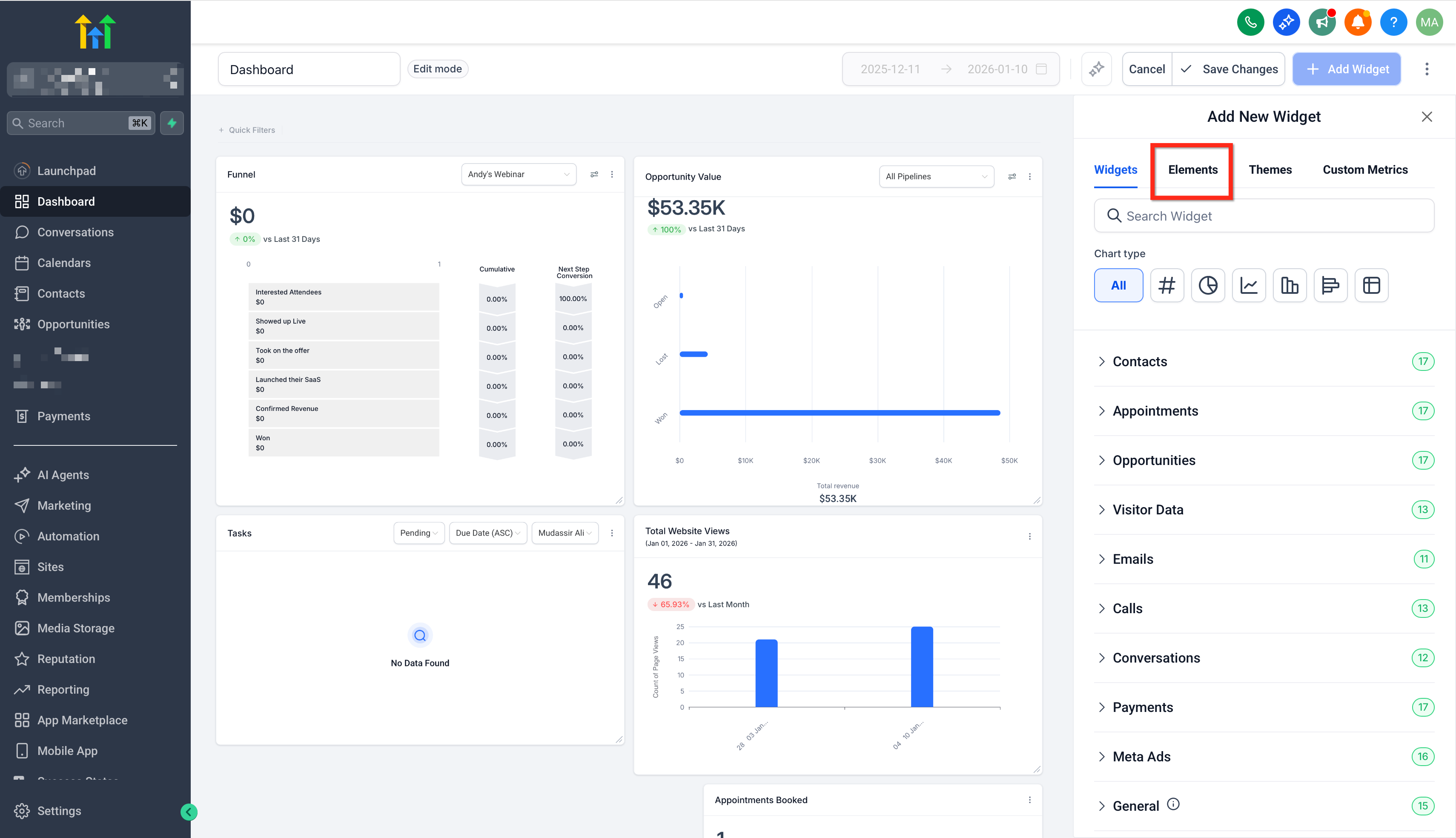
- Select the Elements tab in the dashboard editor.
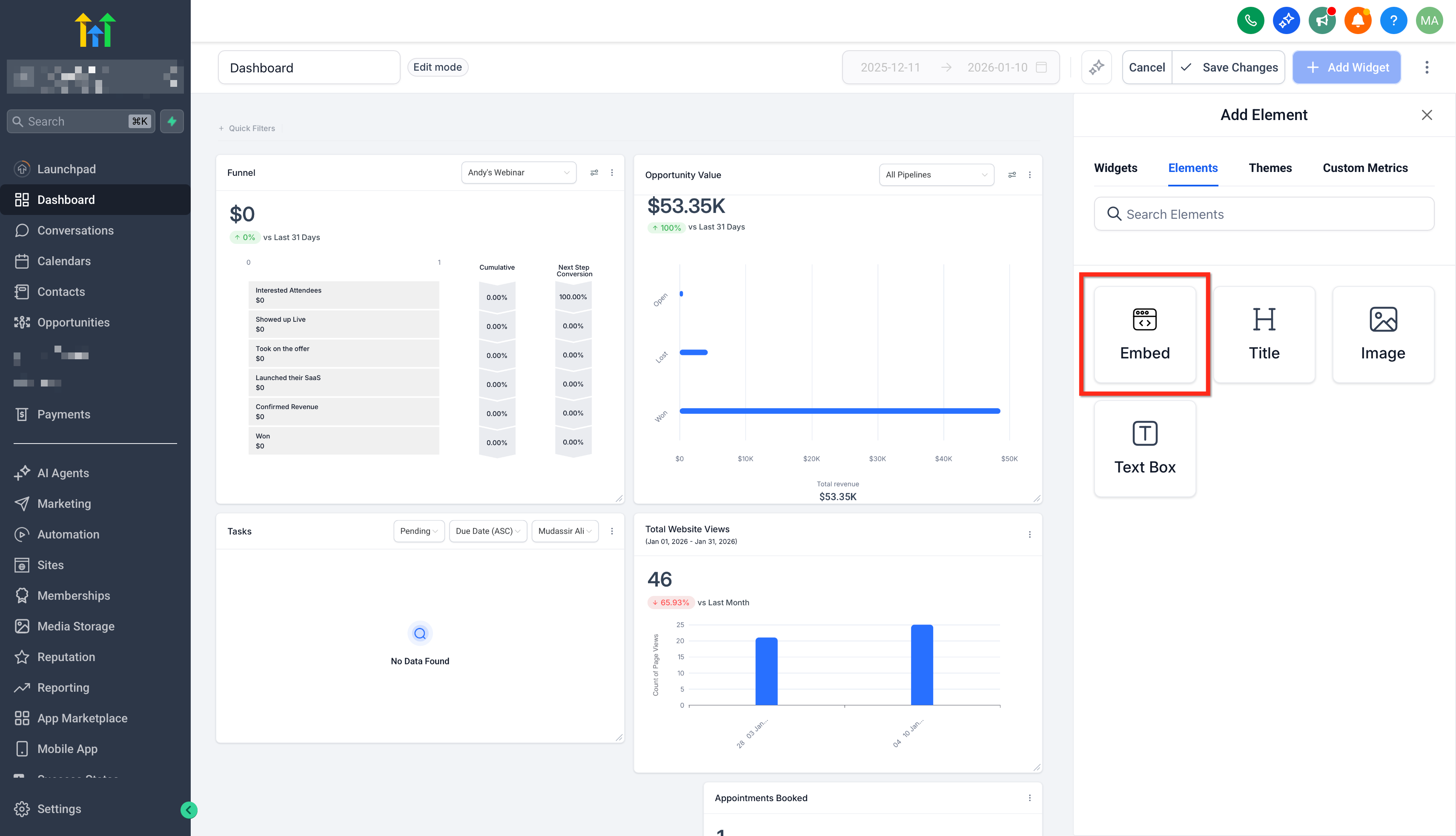
- Click the Embed button to create a new embed widget.
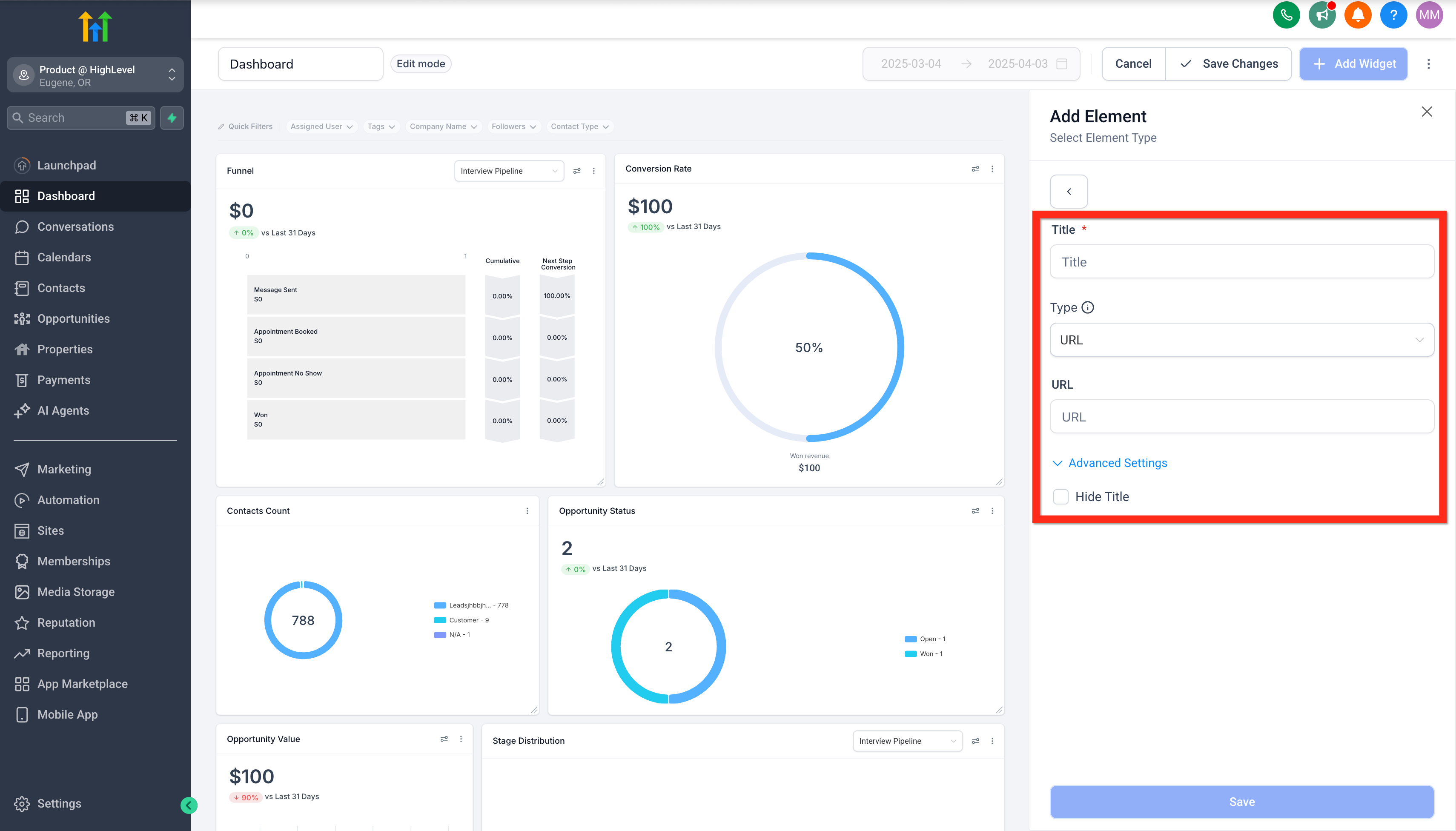
- Enter a title, choose the embed type, and provide either a full URL or an iframe snippet; optionally hide or show the title in advanced settings.
- Press the blue Save button to add the embed element to the dashboard.
06What it looks like in HighLevel
07Settings that matter
- title. Sets the label that appears above the embed widget on the dashboard.
- type of embed. Determines whether the widget loads content via a direct URL or renders an iframe snippet.
- URL. The web address to load; must be a fully qualified URL with no extra content.
- IFRAME. A complete iframe HTML snippet that the widget will display.
- advanced settings, hide/show title. Controls whether the widget’s title is visible on the dashboard.
08Things to know before you rely on it
- Only platforms that allow embedding will display; sites that block embedding will show a blank area.
- The URL field accepts only a fully qualified URL; any additional parameters or characters are not permitted.
- When using the IFRAME option, you must provide a complete iframe snippet; partial code will not render.
09How it connects to the rest of HighLevel
- Add and customize dashboard widgets Dashboard widgets guide
- Create and add dashboard widgets Widget creation tutorial
- Edit a dashboard in HighLevel Edit dashboard steps
Michael's take

Embedding external content can feel risky if you don’t verify that the source actually permits it. Some sites block embeds, so you may see a blank area instead of the expected widget.