
01Who this is for
- Operations managers who need to run a renewal workflow on a batch of contracts quickly.
- Marketing directors looking to re engage a segment of inactive companies in one step.
- Customer success teams that must onboard newly imported custom object records without waiting for triggers.
02Trigger automations in bulk, explained
This feature adds a bulk action to the list views of Companies and Custom Objects. Users can pick any number of records, apply filters or Smart Lists, and send all of them into a specific workflow at once. The workflow must already exist and be published.
The action sends the chosen records directly to the selected workflow, bypassing normal trigger conditions. Progress can be followed in the Bulk Actions area, where each record’s processing status is displayed.
03How businesses use trigger automations in bulk
- Real estate agency. Apply a Smart List filter for property status, select the matching Company records, and use the bulk trigger to start a follow up workflow for all listings simultaneously.
- Subscription SaaS company. Filter Custom Object records that have renewal dates approaching, select them, and bulk trigger the renewal workflow to handle all upcoming renewals in one step.
- Insurance agency. After importing new policy Custom Object records, select the relevant rows and bulk trigger an onboarding workflow to assign agents and send welcome communications.
04Before you start
- A workflow that matches the selected object type must already exist.
- The workflow must be published before it can be used in the bulk action.
- The bulk action works only for Companies and Custom Objects.
- Only workflows applicable to the selected object can be triggered.
05How to set up and use trigger automations in bulk in HighLevel
Trigger automation for selected records
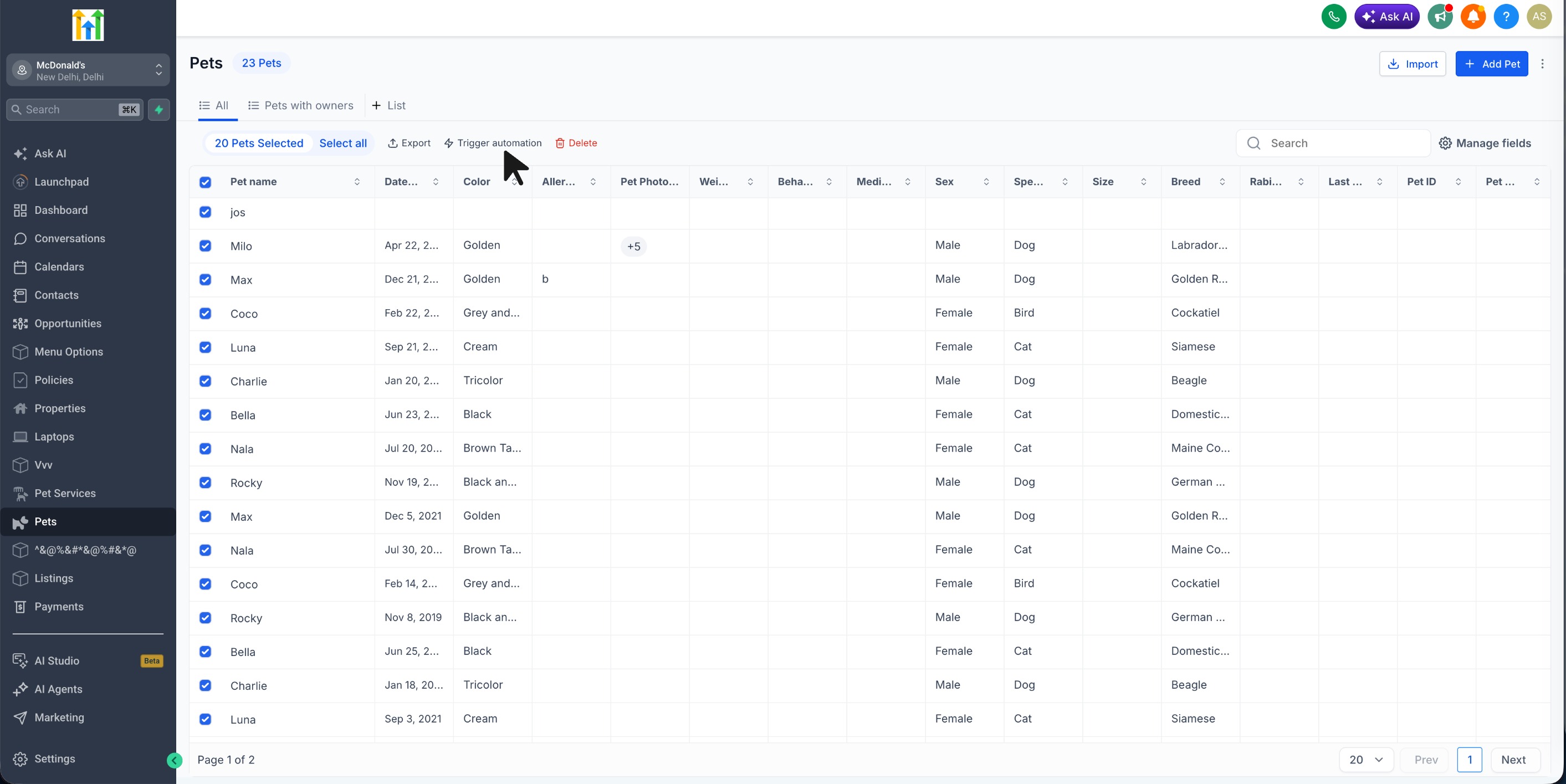
- Select the desired records from the Companies or Custom Object list view, using any applied filters or Smart List.
- From the bulk actions menu, click Trigger Automation.
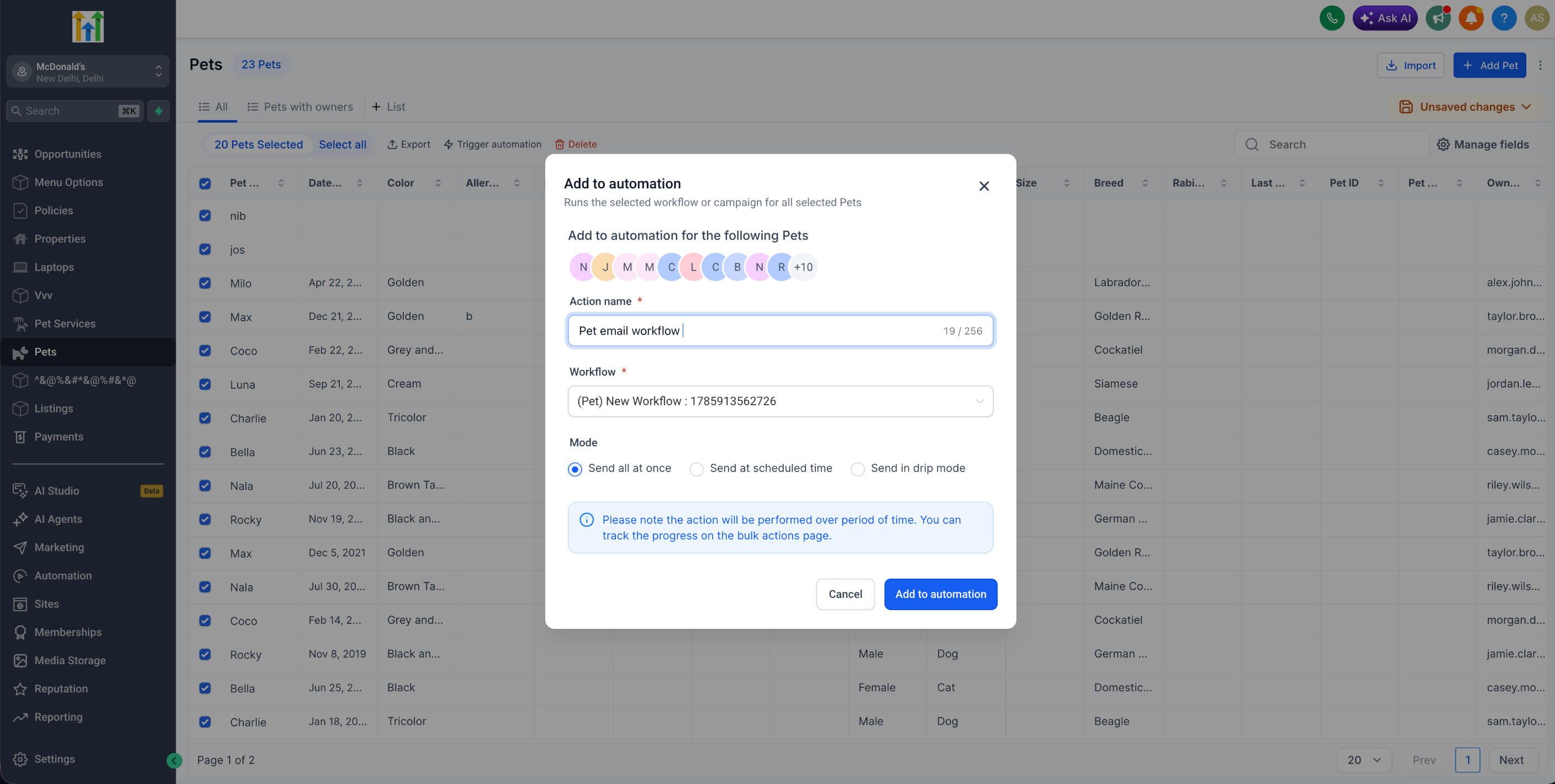
- Choose the workflow you wish the selected records to enter.
- Review your selection and confirm the bulk action.
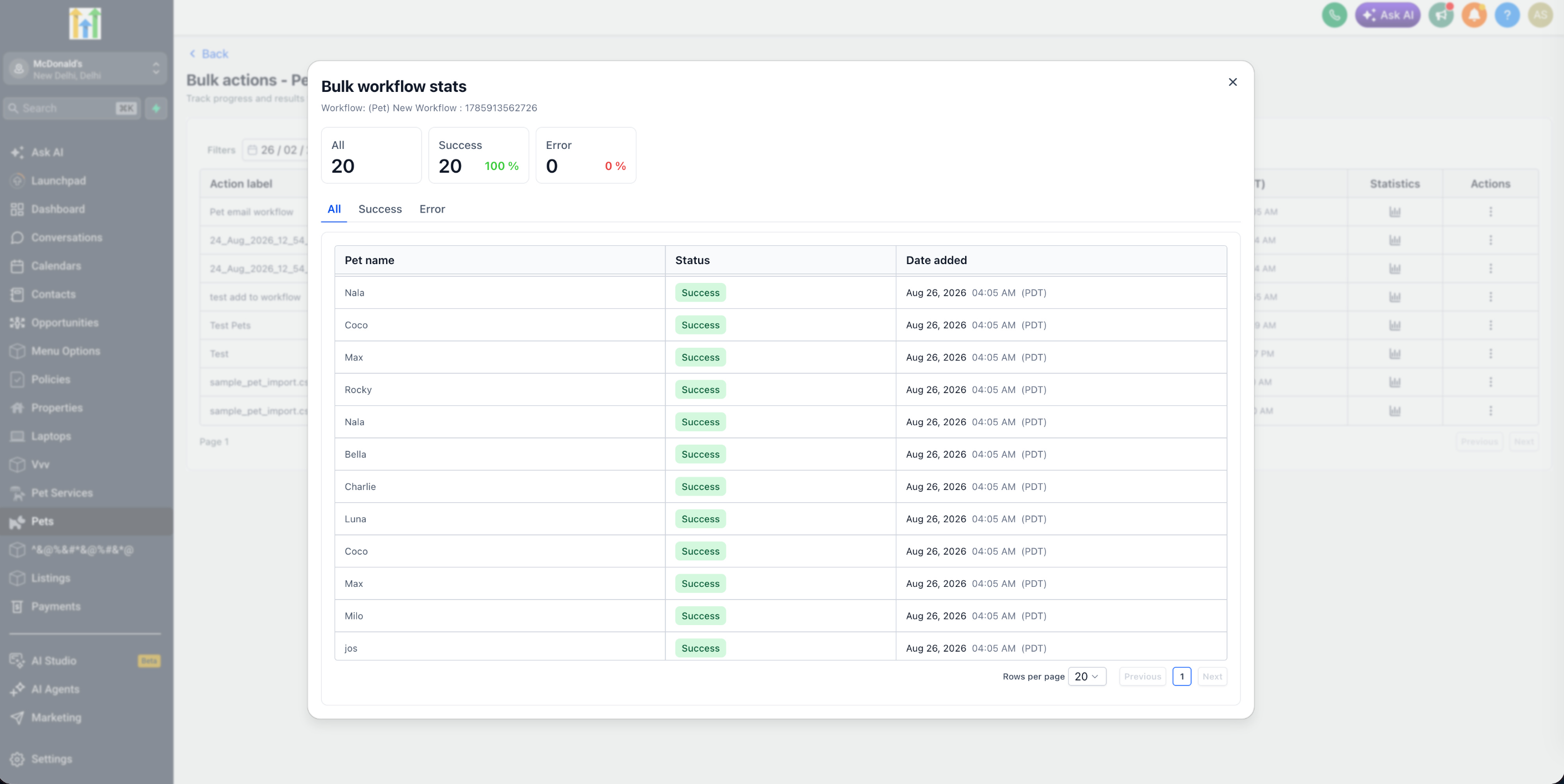
- Open the Bulk Actions area to monitor progress and view each record’s status.
06What it looks like in HighLevel
07Things to know before you rely on it
- The bulk action is currently available only for Companies and Custom Objects.
- Only workflows that apply to the selected object type can be triggered.
- The workflow must be published before it can be used in the bulk action.
08If something goes wrong
- Desired workflow does not appear in the selection list. Confirm that the workflow applies to the selected object type and that it has been published.
- Unable to see processing results for individual records. Open Bulk Actions and review the workflow statistics for the bulk action.
09How it connects to the rest of HighLevel
- Use custom objects in workflow actions and triggers Custom object workflows
- Apply advanced filters to custom objects for segmenting records Advanced filters
- Get started with custom objects in HighLevel Getting started
Michael's take

Michael ReimerFounder of CRM Pros, HighLevel Commander and Certified Admin
Never try to use it as a replacement for the normal automated triggers.
Get More InformationOpens on HighLevelPublished November 3, 2026 · Updated November 17, 2026