
01Who this is for
- Sales reps can capture deal updates on custom objects like policies, keeping the whole team informed.
- Support agents can log client interactions on custom objects such as subscriptions for quick reference.
- Real estate managers can add property visit notes on the Property custom object to share context across agents.
02Notes for Custom Objects, explained
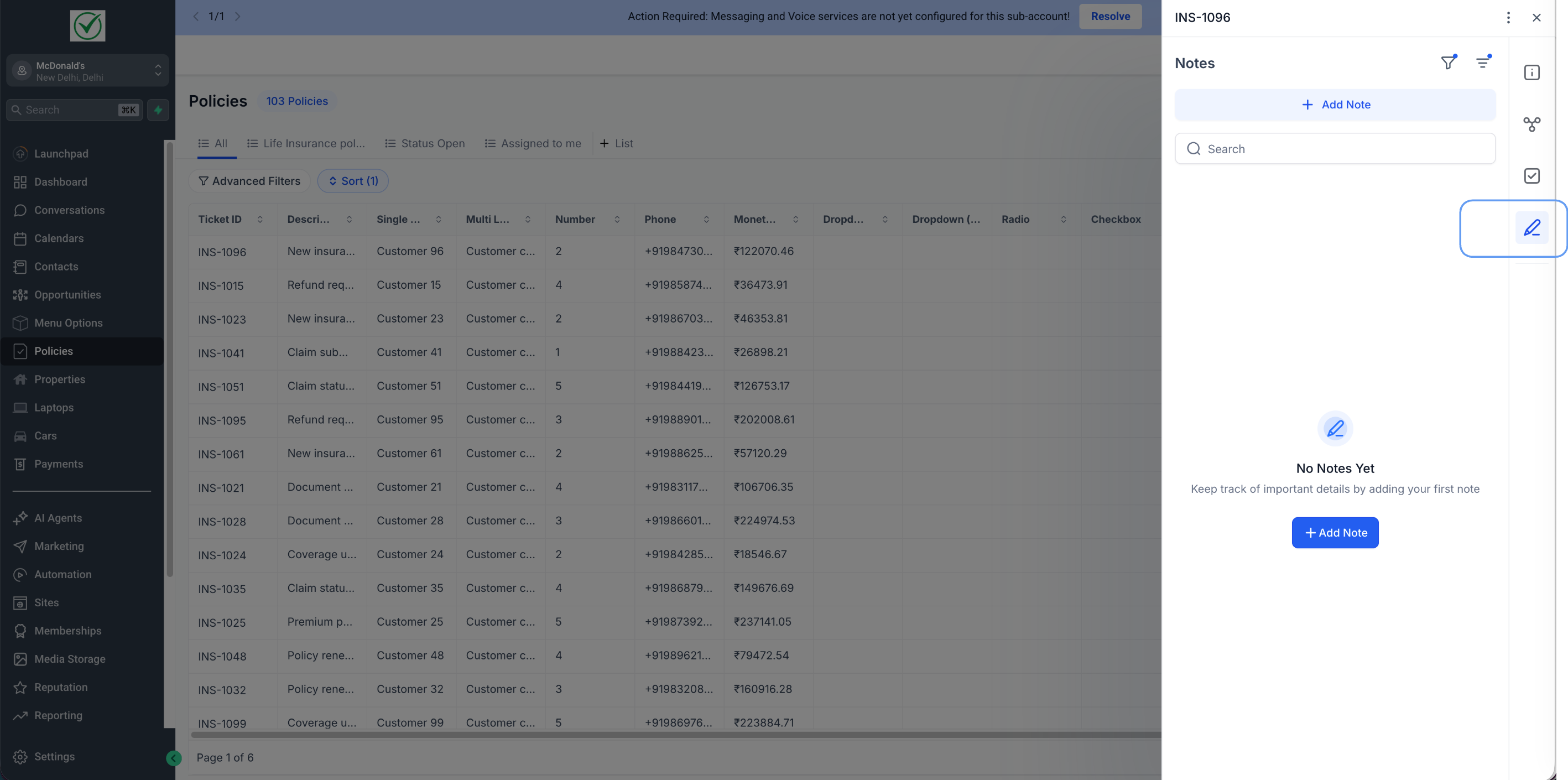
Notes for Custom Objects extend the familiar notes pane from contacts to any custom object record. Users can type free form notes, then search the text or apply filters and sorting to manage extensive note lists. The notes panel lives on the right side of a custom object's detail view. In addition to creating new notes, the feature lets you link an existing note from a related contact or opportunity. The linked note appears on both the original record and the associated custom object, maintaining a single source of truth. Automation is also supported: a workflow can add a note to a custom object when certain conditions are met.
03How businesses use notes for Custom Objects
- Real estate agency. Agents open a Property record and add visit observations in the notes pane. They later search for specific client preferences by keyword to prepare for showings.
- Auto service center. Technicians add inspection details on a Car custom object. They filter notes to view the most recent service entries when planning upcoming maintenance.
- Insurance brokerage. A broker creates a workflow that adds a renewal discussion note automatically to a Policy record whenever a renewal trigger fires.
04Before you start
- The custom object record must already be linked to the same Contact or Opportunity before a note can be associated.
- A workflow must be created for the custom object if you want notes added automatically.
05How to set up and use notes for Custom Objects in HighLevel
Add notes directly on a custom object record
- Navigate to Custom Objects and open the desired object type.
- Select a specific record to view its details.
- Open the Notes panel from the right side.
- Click Add Note, type the content, and press Save.
- Enter a keyword in Search to locate notes quickly.
- Apply Filters or Sorting to narrow the displayed notes.
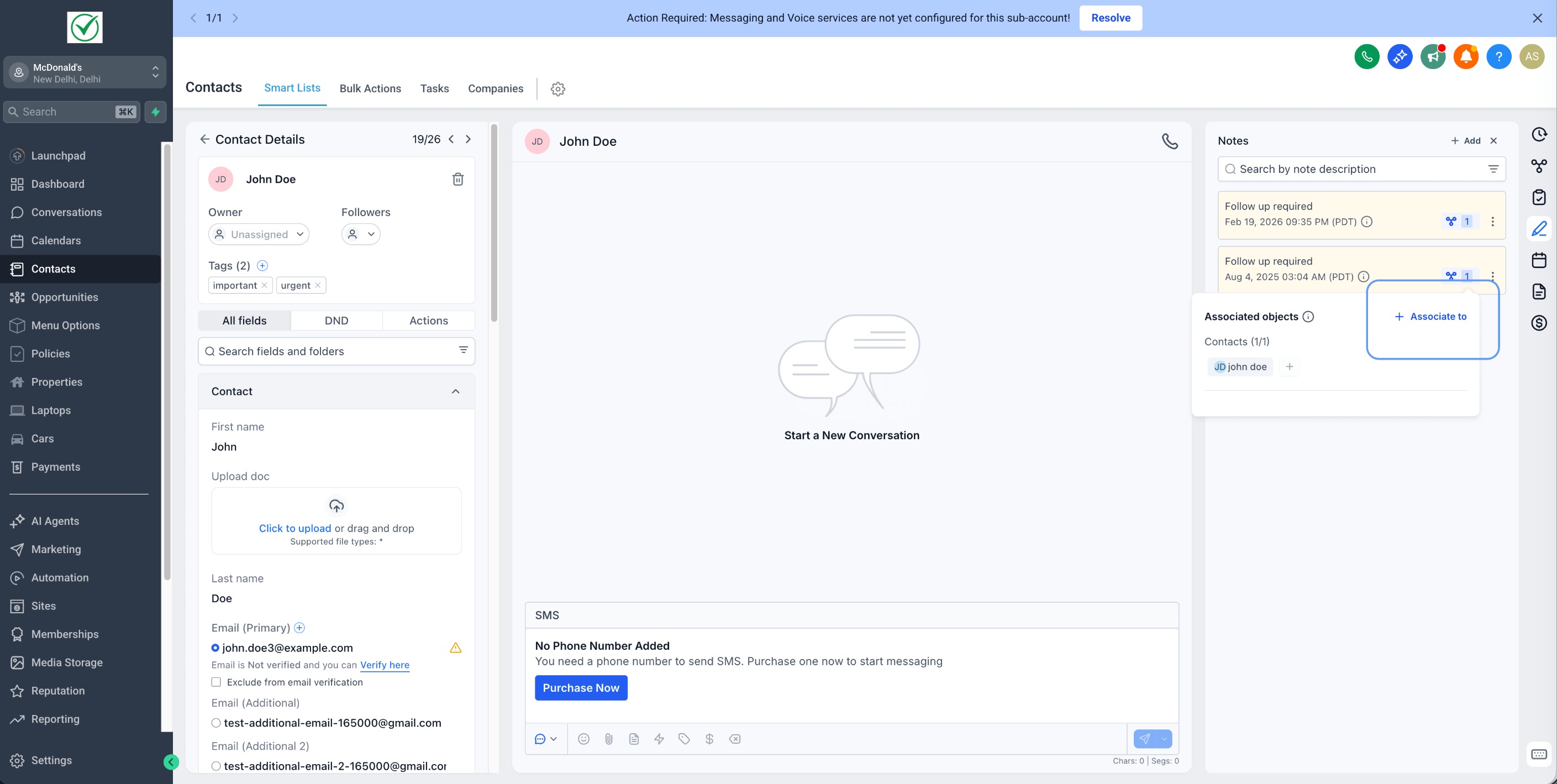
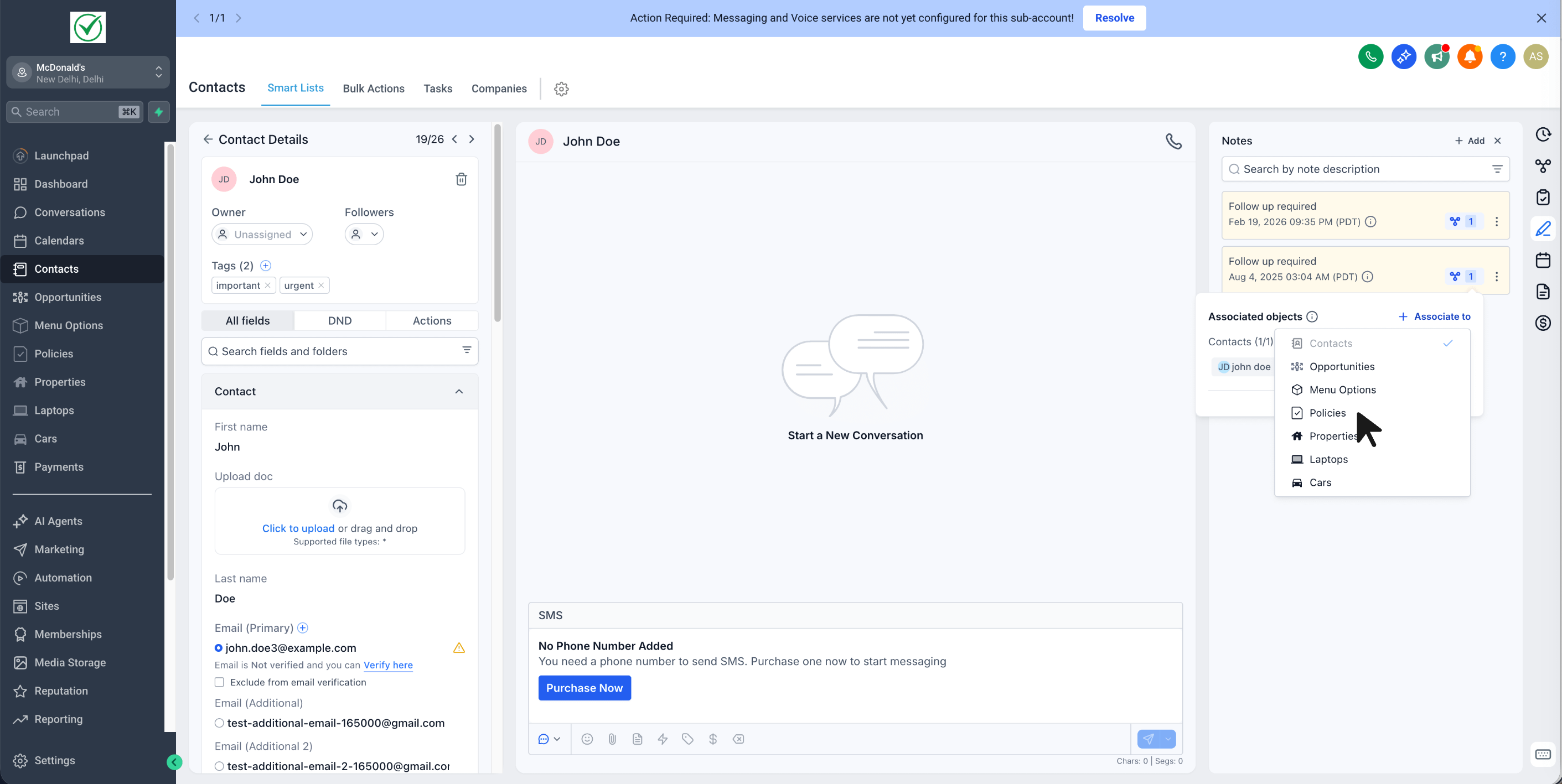
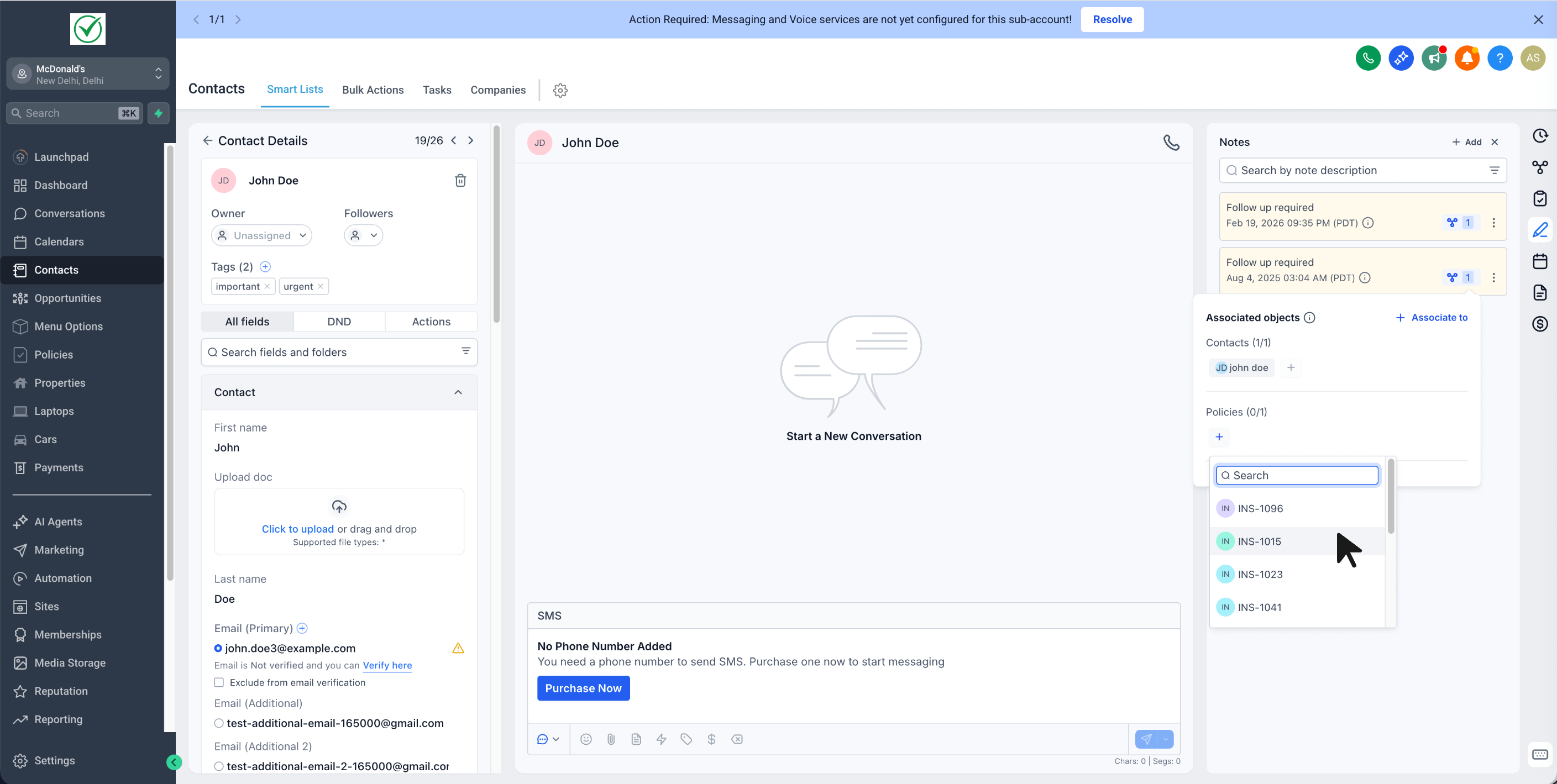
Associate a Contact or Opportunity note to a custom object record
- Open the Contact or Opportunity record containing the note.
- Go to the Notes section and either create a new note or open an existing one.
- In the note’s Associations area, choose the related custom object record.
- Save the note; it now appears under both the original record and the custom object.
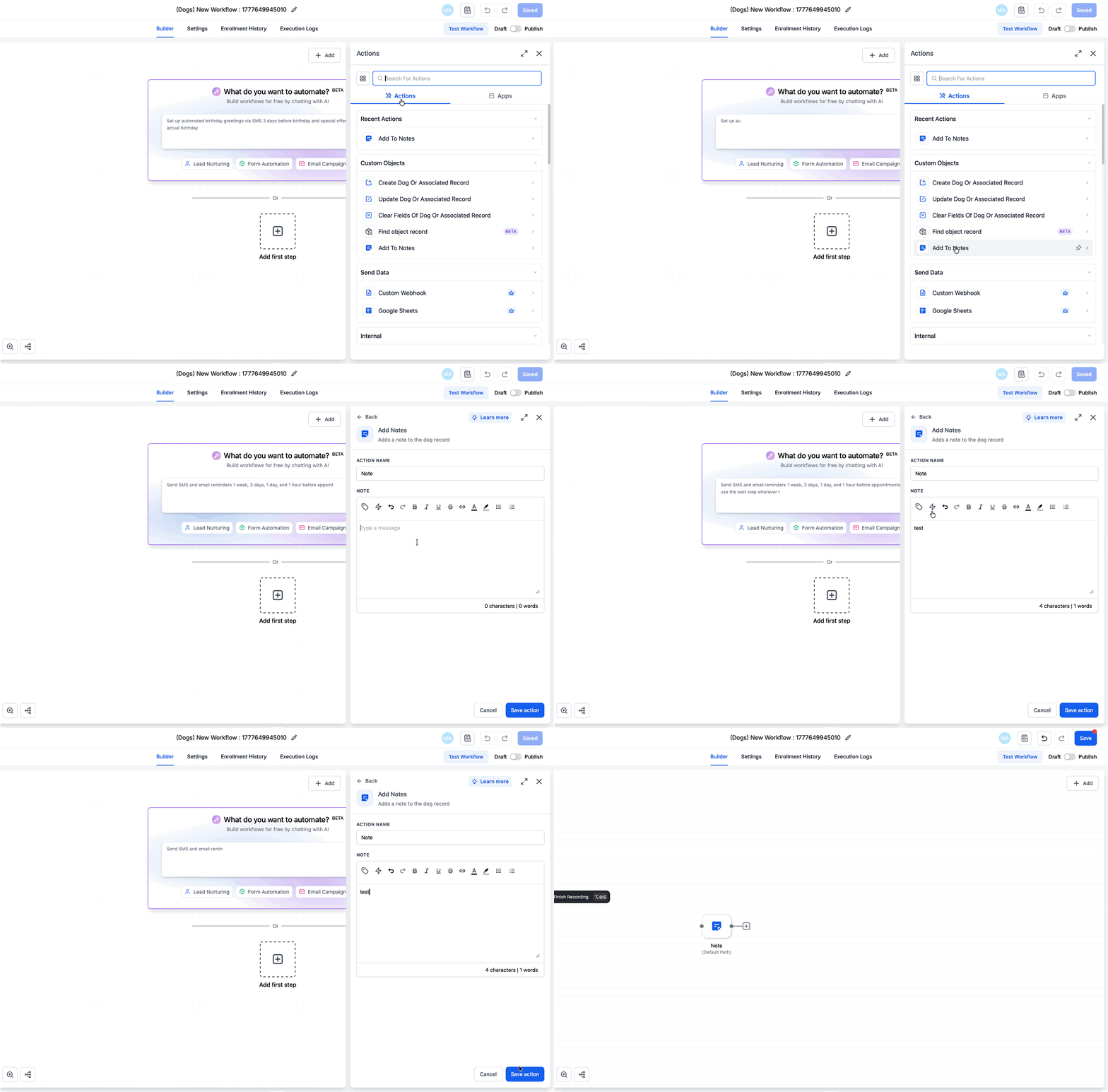
Automate note creation with a workflow
- Open the workflow editor for the relevant custom object.
- Add the Add to Note action to the workflow steps.
- Enter the note content, then save and publish the workflow.
06What it looks like in HighLevel
07Settings that matter
- Add to Note action. Adds a predefined note to a custom object when the workflow runs.
08Things to know before you rely on it
- Workflow notes cannot include a custom title or color at this time.
- A note can only be associated with a custom object that is already related to the same Contact or Opportunity.
09How it connects to the rest of HighLevel
- Use advanced filters to locate specific notes on custom objects. Advanced filters
- Sort and filter note columns in the custom object list view. List view sorting
- View audit logs to see who added or edited notes on custom objects. Audit logs
Michael's take

Notes for Custom Objects are worth enabling for any team that needs shared context across records.
Teams that never use notes or have no Custom Objects can skip it.