
01Who this is for
- Users of Custom Objects who need to locate specific records quickly.
- Team members who work with many fields and want to refine their data views.
02Advanced filters for Custom Objects, explained
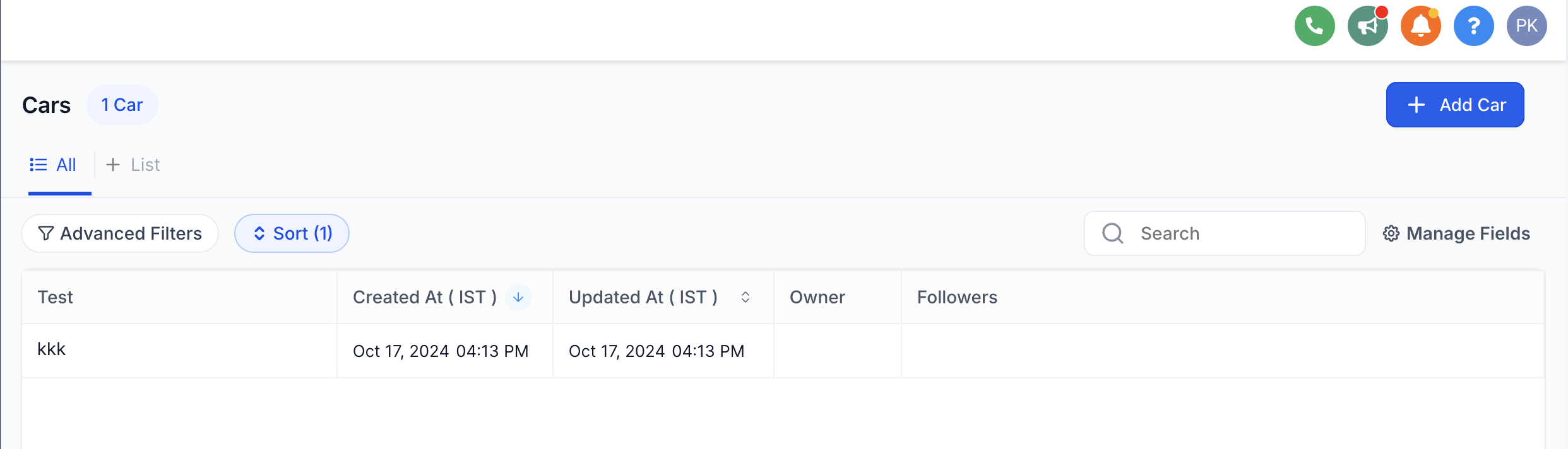
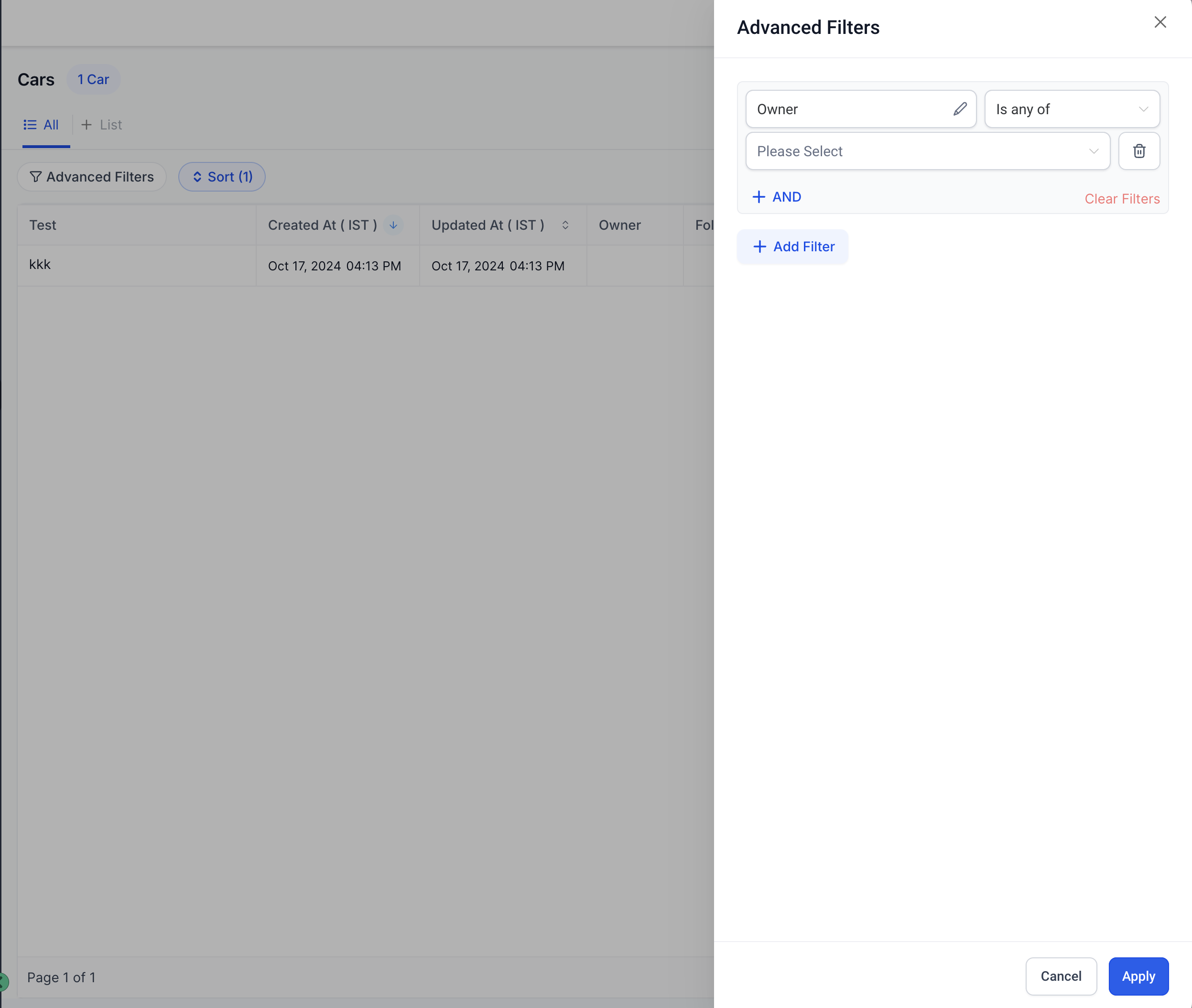
The Advanced Filters feature appears on the Custom Objects page. It opens a panel where you can choose which fields to filter, including any custom attributes you have created. You add conditions, link them with AND or OR, and rearrange them for clarity. When you are done, the list updates to show only records that meet the combined criteria.
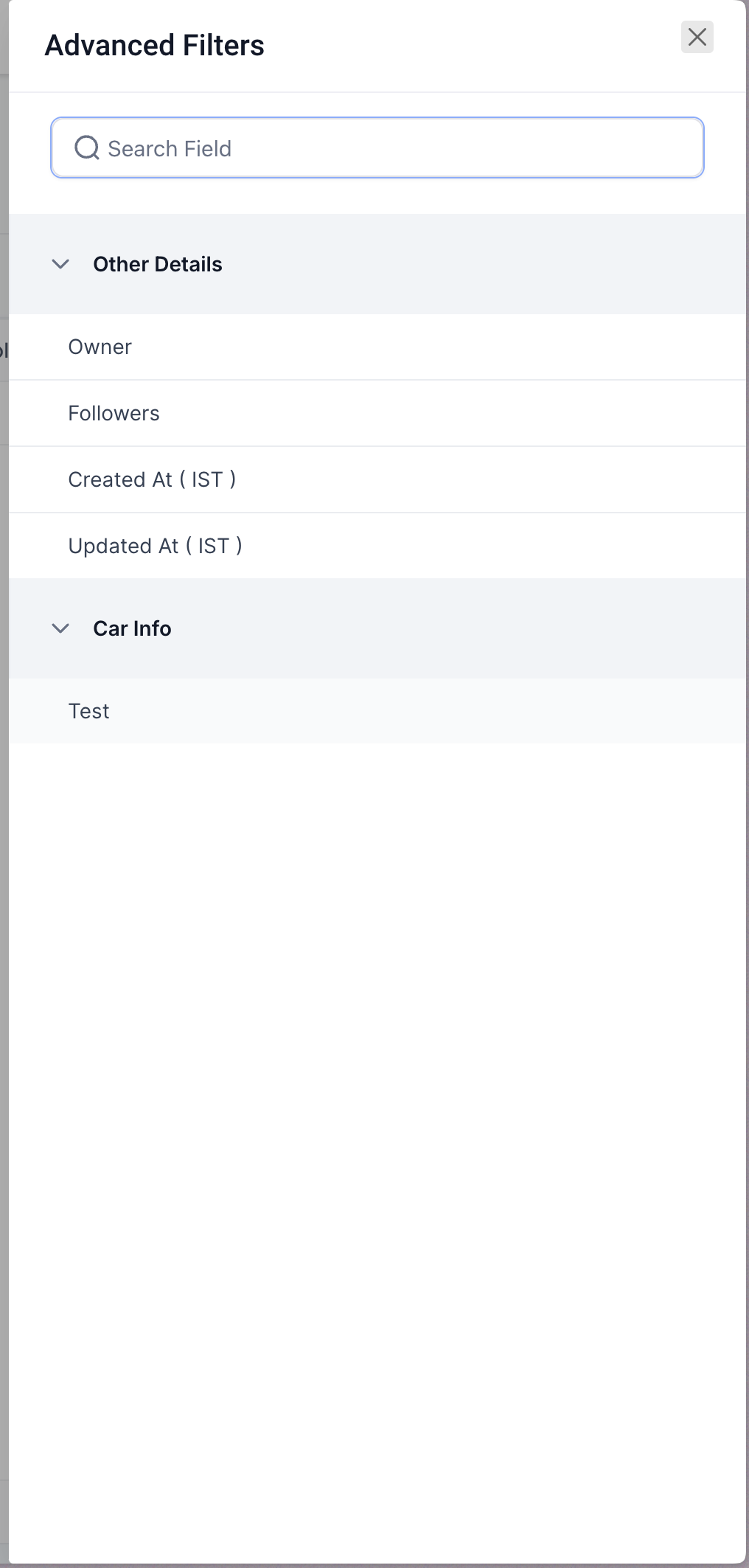
The panel lives at the top right of the Custom Objects interface. It offers a search bar to find fields quickly and expands sections such as Other Details, Car Info, and Price. You can also reset the panel, which clears all selections.
03How businesses use advanced filters for Custom Objects
- Filter records by specific criteria. Open the Advanced Filters panel, select the desired fields, apply AND or OR logic, and view the filtered list.
- Refine searches with custom attributes. Choose custom object fields in the panel, combine them with logical operators, and narrow results to exact matches.
- Reorder and reset filters for new queries. Drag filters to change their sequence for priority, then use the reset button to start a fresh search.
04How to set up and use advanced filters for Custom Objects in HighLevel
apply advanced filters to custom objects
- Locate the "Advanced Filters" button at the top right of the Custom Objects page.
- Click the button to open the Advanced Filters panel.
- Enter a field name in the search bar to find a specific attribute.
- Expand a category such as Other Details, Car Info, or Price and select a field.
- Choose a filter condition and link it with AND or OR logic as needed.
- Drag filters within the panel to set the desired order.
- Deselect fields or press the reset button to clear all filters.
05What it looks like in HighLevel
06Settings that matter
- Advanced Filters. Controls which custom object records are displayed by applying selected field criteria and logical operators.
07How it connects to the rest of HighLevel
- Learn how list view sorting and filtering works for custom objects. List view for custom objects
- See how to set unique fields that can be used in advanced filtering. Unique fields support
- Get started with custom objects before using advanced filters. Getting started
Michael's take

Advanced filters let you pick the fields you need and set AND/OR logic to focus on the records you’re looking for.
It’s a handy way to narrow down data before you run a campaign.