
01Who this is for
- Founders of B2B firms who manage Companies and need to reach each company's contacts without rebuilding lists.
- Real estate team leaders who store property records as Custom Objects and want to email potential buyers linked to those properties.
02Bulk email to associated contacts, explained
The feature creates a bulk email audience from the associations stored on Company or supported Custom Object records. When you start a bulk send, HighLevel resolves the contacts linked to the selected records and builds the final recipient list at run time.
You choose which association labels qualify for Custom Objects and whether to send to the most recent, earliest, or all associated contacts. The system de duplicates contacts that appear through multiple labels. All standard bulk email options, composer, scheduling, batch mode, tracking, and reporting, remain available.
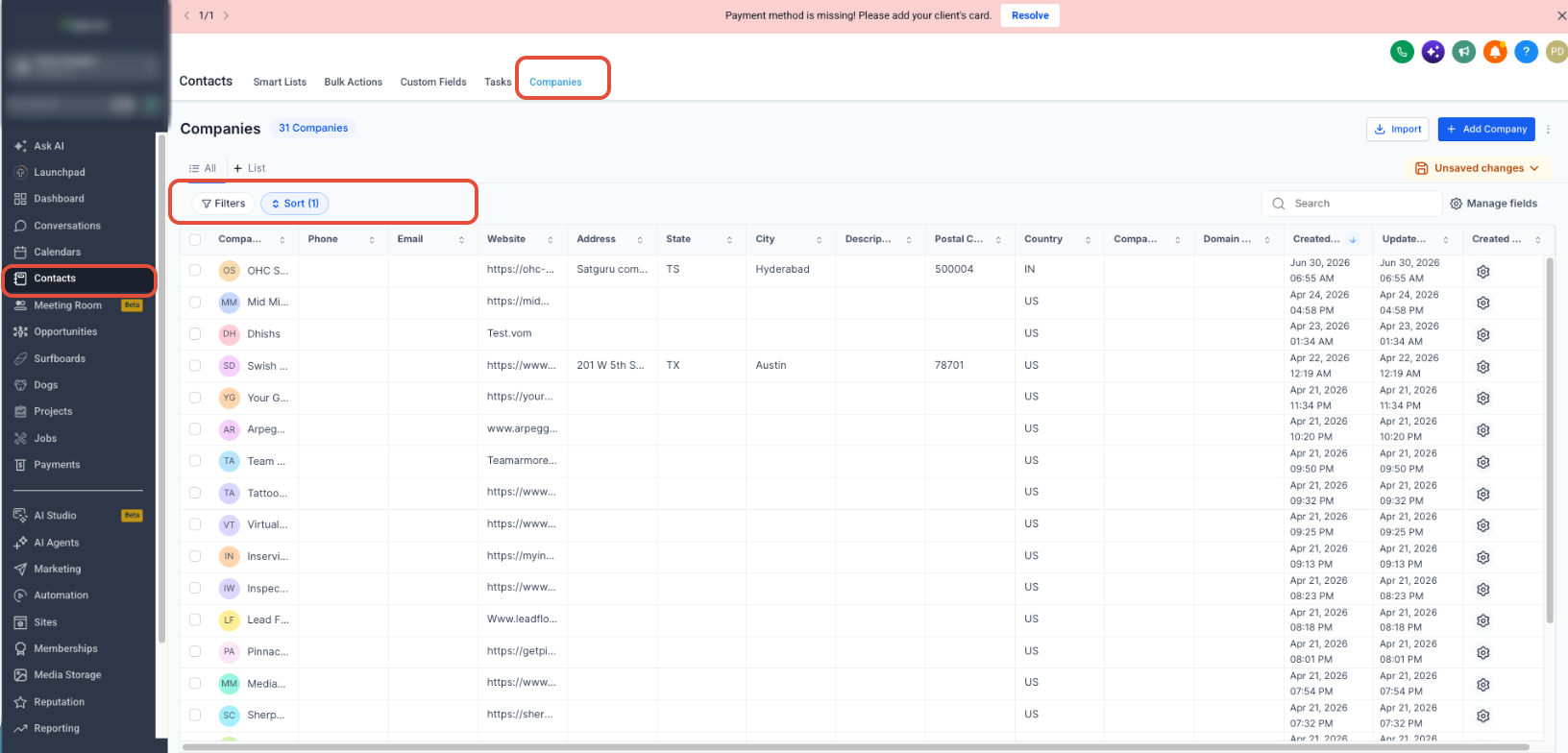
This functionality lives in the bulk email actions accessible from the Companies list or from any Custom Object view in the subaccount navigation.
03How businesses use bulk email to associated contacts
- Real estate practice. Select Property custom object records, pick the "Potential Buyer" association label, choose to email all associated contacts, and send a personalized property update using the property’s address merge fields.
- Insurance agency. Filter Policy custom object records that are nearing renewal, select the "Policy Holder" association, choose the most recently associated contact, and dispatch a renewal reminder via the bulk email builder.
- Veterinary clinic. Open the Pet custom object list, select pet records, choose the owner association label, and send a health check reminder to the earliest associated owner contact using the pet’s name as a merge field.
04The numbers and rules that matter
- Existing permissions, consent requirements, deliverability protections, rate limits, and other bulk email restrictions still apply.
05Before you start
- The selected Company or Custom Object records must already have contacts associated with them.
- For Custom Objects, an association with contacts must exist before the Send email bulk action appears.
06How to set up and use bulk email to associated contacts in HighLevel
Set up bulk email to associated contacts
- Navigate to Companies or the relevant Custom Object and select the records whose contacts should receive the email.
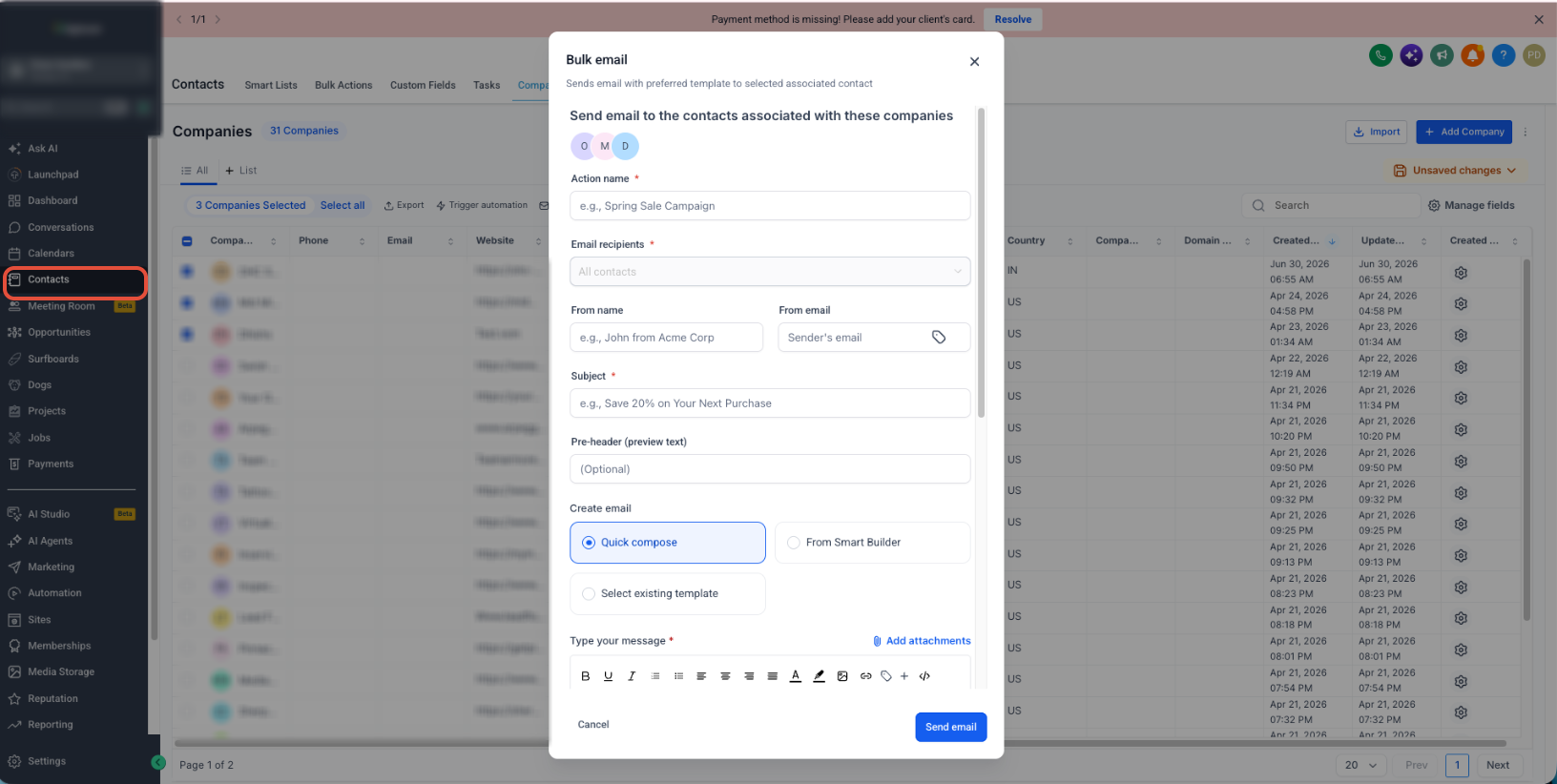
- Click Send email from the bulk action bar, review the record count, and click Confirm to begin recipient resolution.
- Enter an Action name, choose applicable Association label values (for Custom Objects), and select whether to send to the most recent, earliest, or all associated contacts.
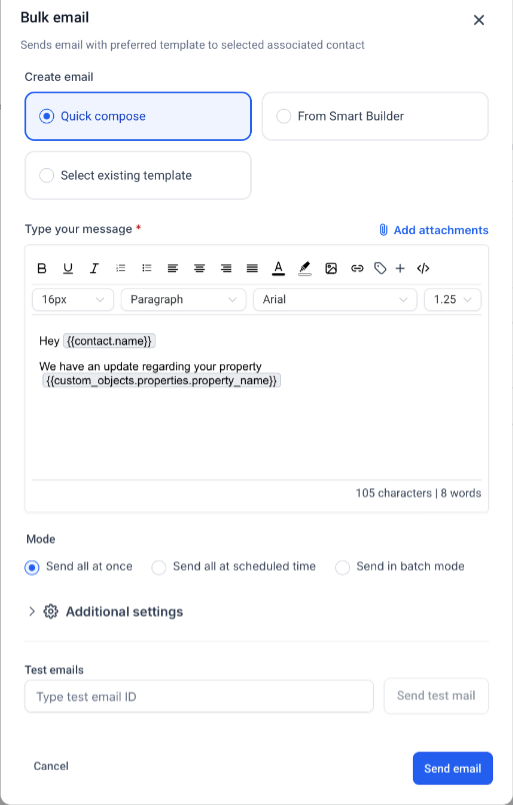
- Use the Bulk Email Builder to craft the message, insert merge fields from the source record, add any needed attachments or tracking, pick a send mode, complete any required consent acknowledgment, and then click Send email.
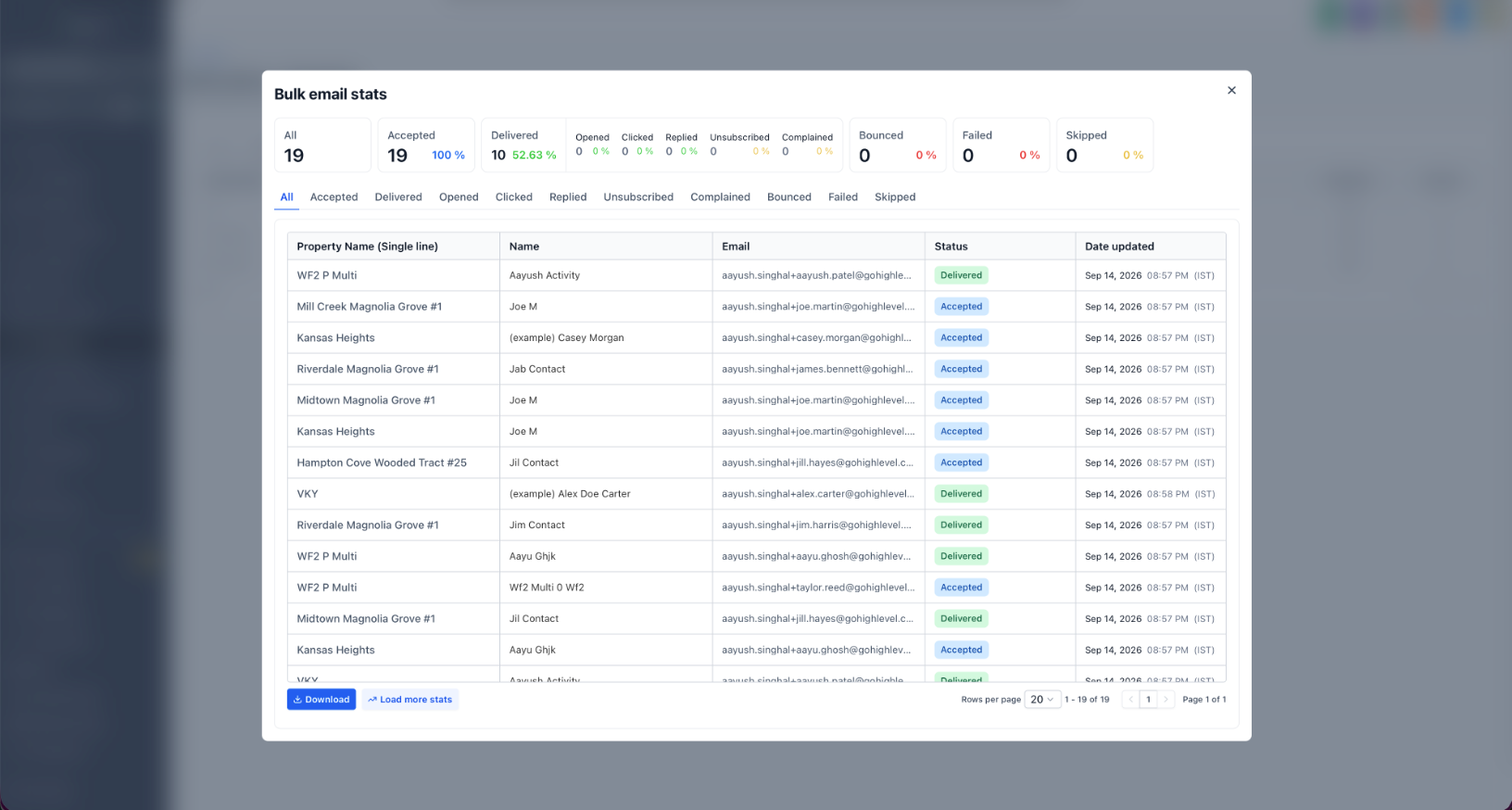
- Open the bulk action entry under Contacts > Bulk Actions to view metrics such as Accepted, Delivered, Opened, Clicked, Bounced, and Skipped.
07What it looks like in HighLevel
08Settings that matter
- Action name. Labels the bulk email job and appears in reporting.
- Association label. Specifies which Custom Object relationships qualify contacts for the send.
- Email recipients. Controls whether to email the most recently associated contact, the earliest associated contact, or all associated contacts for each source record.
- Additional settings, Track Clicks. Enables click through tracking on links in the email.
- Additional settings, UTM Tracking. Appends UTM parameters to links for downstream analytics.
- Send mode. Chooses between sending all emails at once, scheduling a future time, or sending in batch mode.
09Things to know before you rely on it
- The final recipient list is calculated when the bulk action runs; numbers shown before sending are estimates.
- Contacts that qualify through multiple selected association labels receive only one email.
- Contacts without an eligible email address or restricted by consent, permission, or other email safeguards are omitted from the send.
- All existing bulk email restrictions such as rate limits and deliverability protections still apply.
10If something goes wrong
- Send email option is missing from a Custom Object. Ensure the Custom Object has an existing association with contacts; the bulk action appears only after such an association exists.
- A contact does not receive the email. Check that the contact has an eligible email address and that email permissions, consent settings, or other sending protections are not preventing delivery.
11How it connects to the rest of HighLevel
- Getting started with Custom Objects Custom Objects intro
- Create, edit, delete and automate Custom Objects Custom Objects basics
- HighLevel pricing and plans Pricing
Michael's take

Bulk email to associated contacts lets a small business use existing company or custom object records as an email list without recreating a segment under Contacts.
Don’t forget to verify that every record you select actually has an associated contact before you hit send.