
01Who this is for
- Consultants who serve several client companies can keep one contact record linked to each client.
- Accountants can attach a single finance contact to every company they support, simplifying internal searches.
- Portfolio owners can associate a business owner's contact with all companies in their portfolio, maintaining a single data source.
02Association labels, explained
The feature lets you define a new association label between contacts and companies. This label can allow a contact to relate to many companies, unlike the built in Primary Company label which permits only one link.
The custom label lives in Settings under Objects > Companies > Associations. Once created, you can add or link companies from either the contact or the company record, and view the connections in the contact’s association section or in Smart List columns.
03How businesses use association labels
- Consulting firm. Create an association label such as Consultant and Client. Then open each client’s contact record and add the client companies using the new label. The contact now appears under every client without needing duplicate records.
- Accounting practice. Set up an association label like Accountant and Firm. For each firm, link the accountant’s existing contact via the company record. The accountant’s details stay in one place while being visible to all firms.
- Portfolio manager. Define an association label such as Owner and PortfolioCompany. Open the owner’s contact record and add each portfolio company through the Add action, selecting the custom label each time.
04The numbers and rules that matter
- The configured limits for the association determine the allowed links.
05How to set up and use association labels in HighLevel
Create a label for additional companies
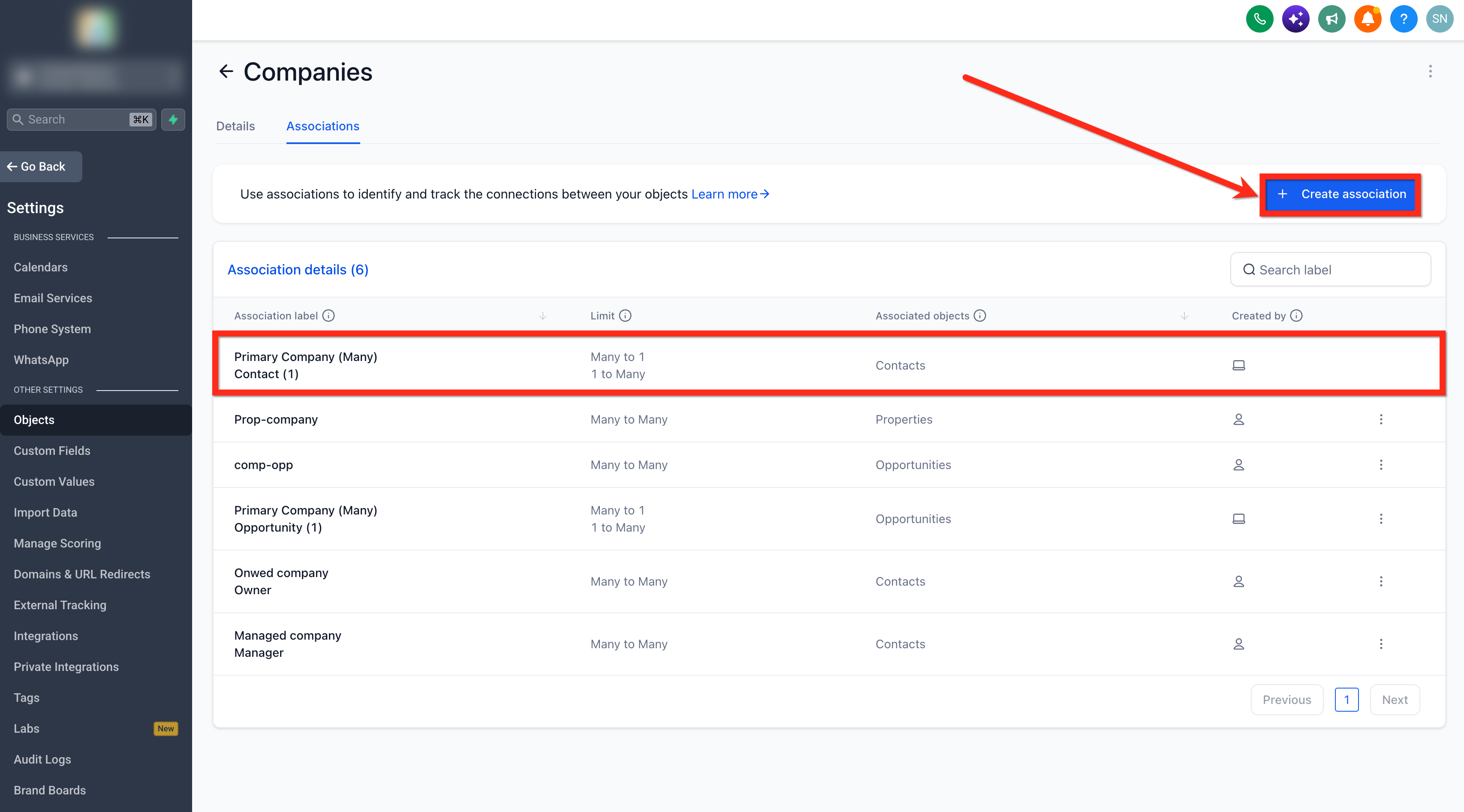
- Navigate to Settings > Objects > Companies > Associations.
- Click Create association and choose Contacts as the related object.
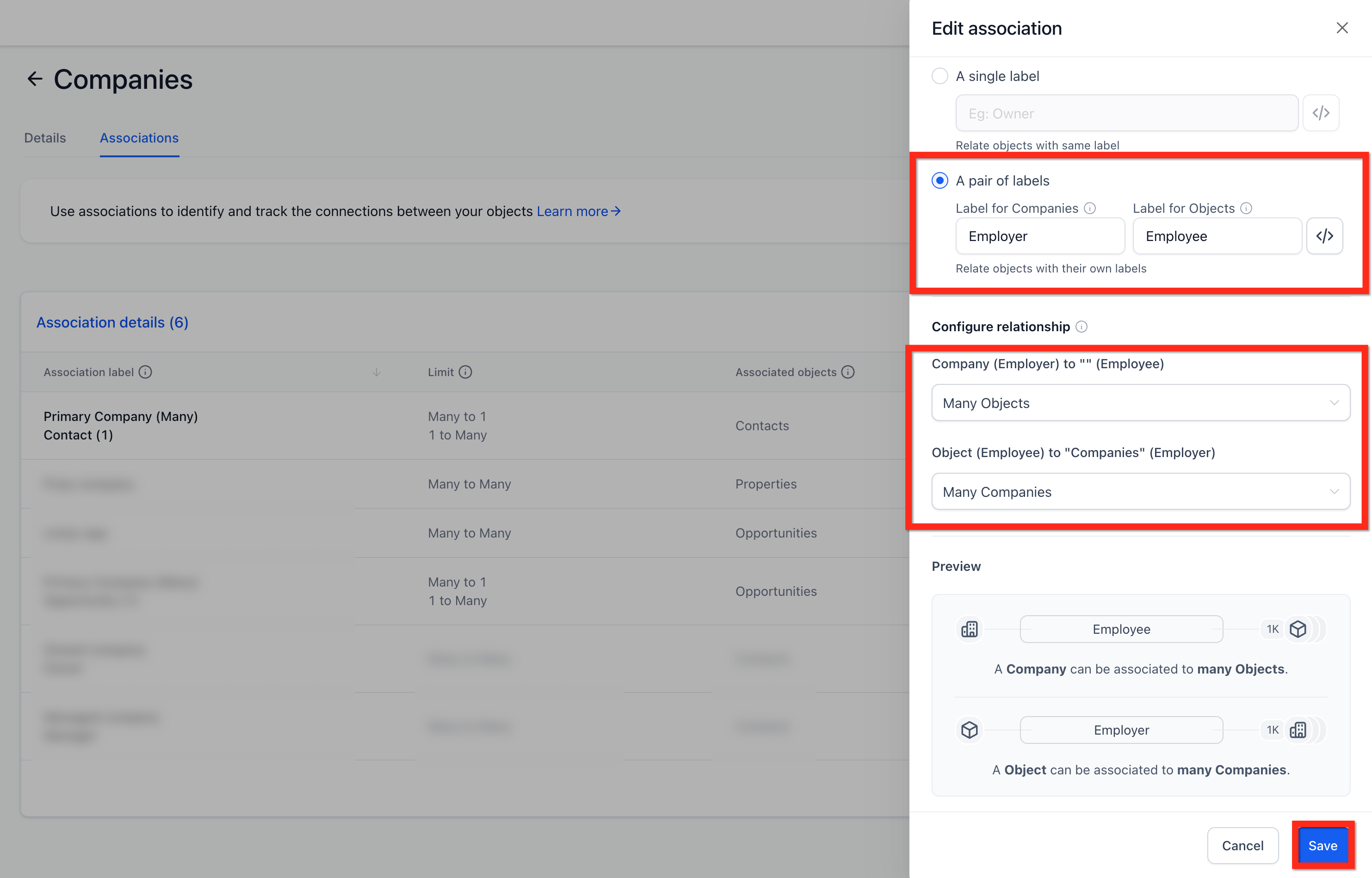
- Enter a descriptive name for the association, for example Employer and Employee.
- Under Configure relationship, set Contacts to Many Companies.
- Click Save to store the new association label.
Add companies to a contact
- Open the desired Contact record.
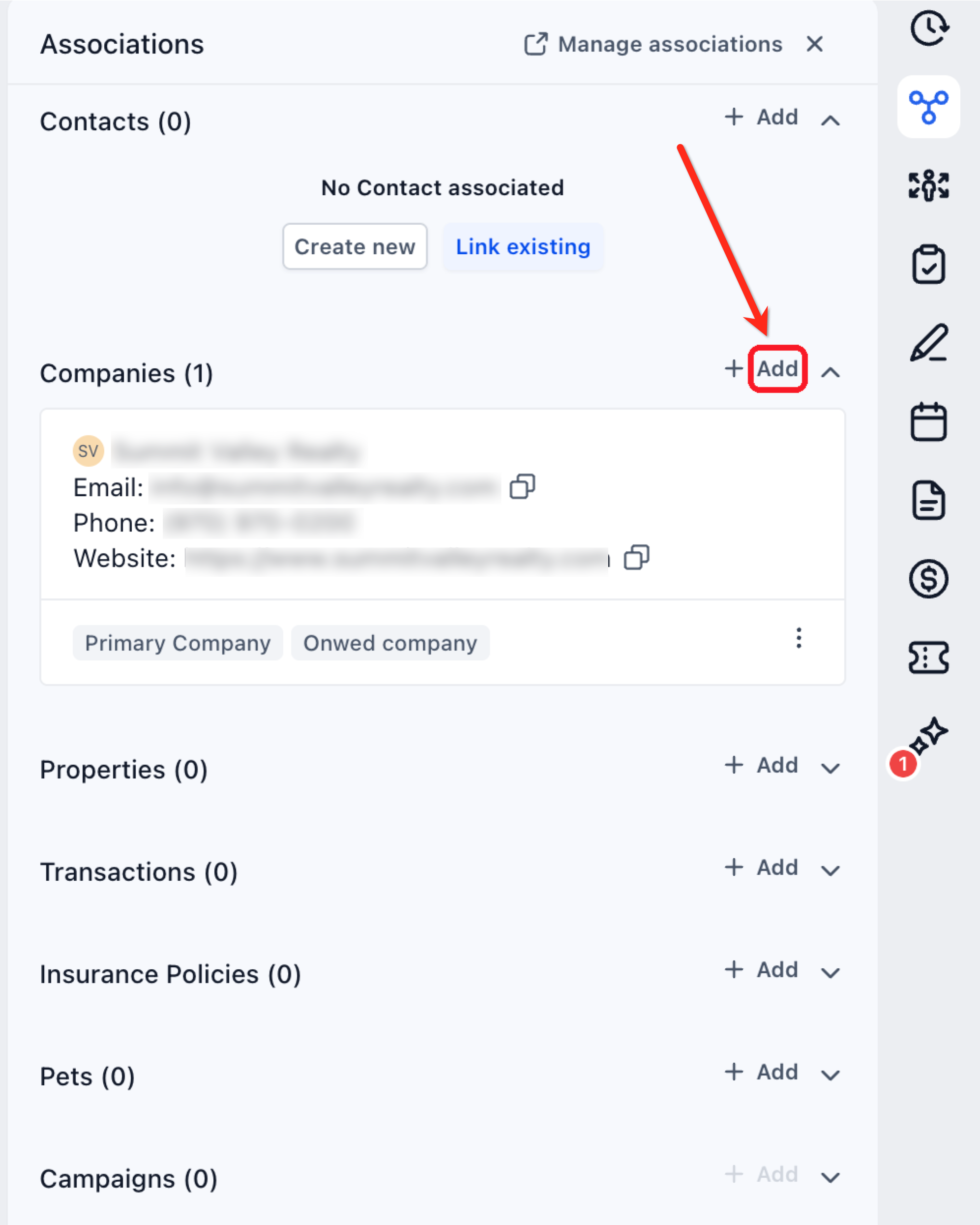
- Locate the Companies section within its association area.
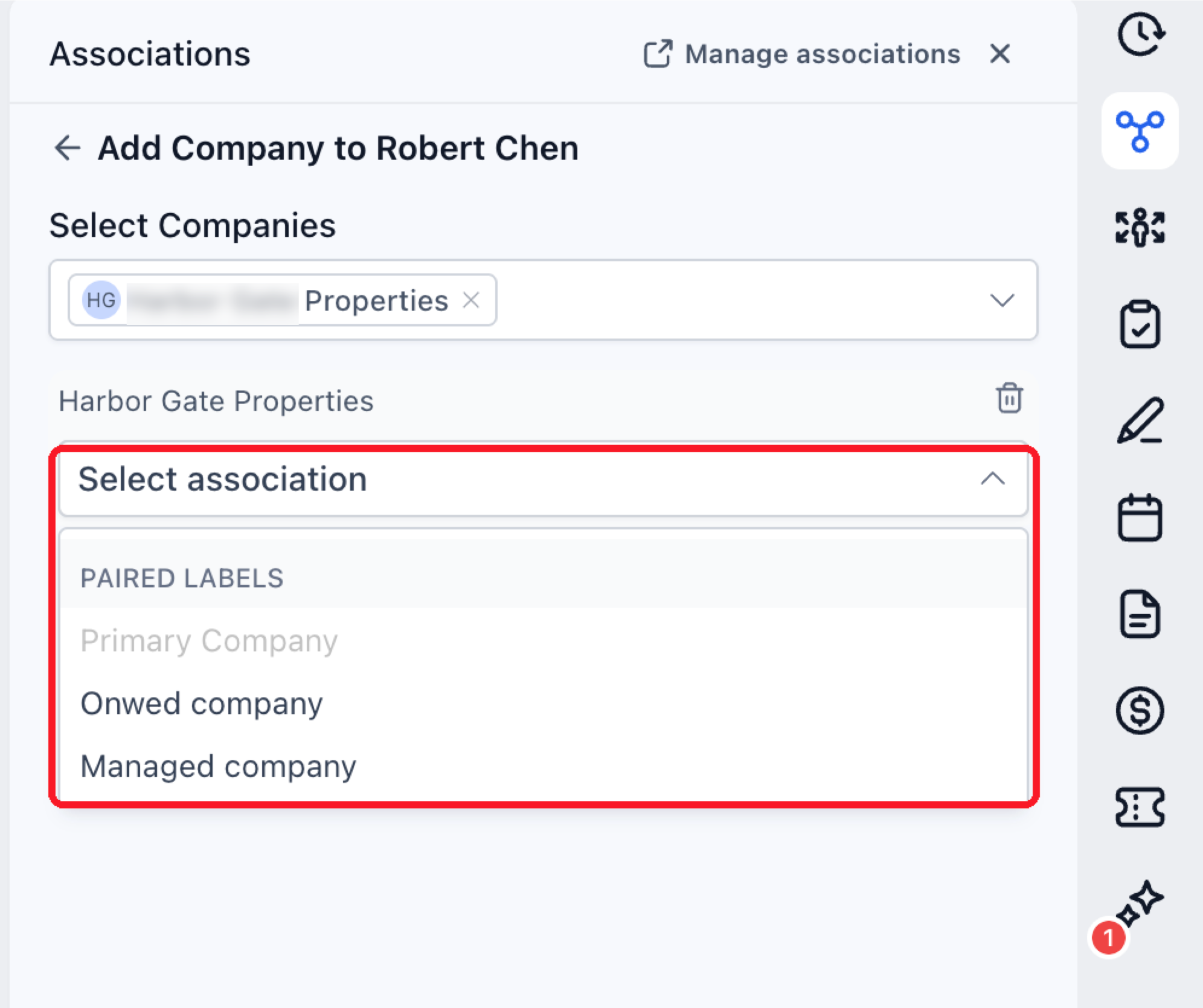
- Click Add and search for the company you want to attach.
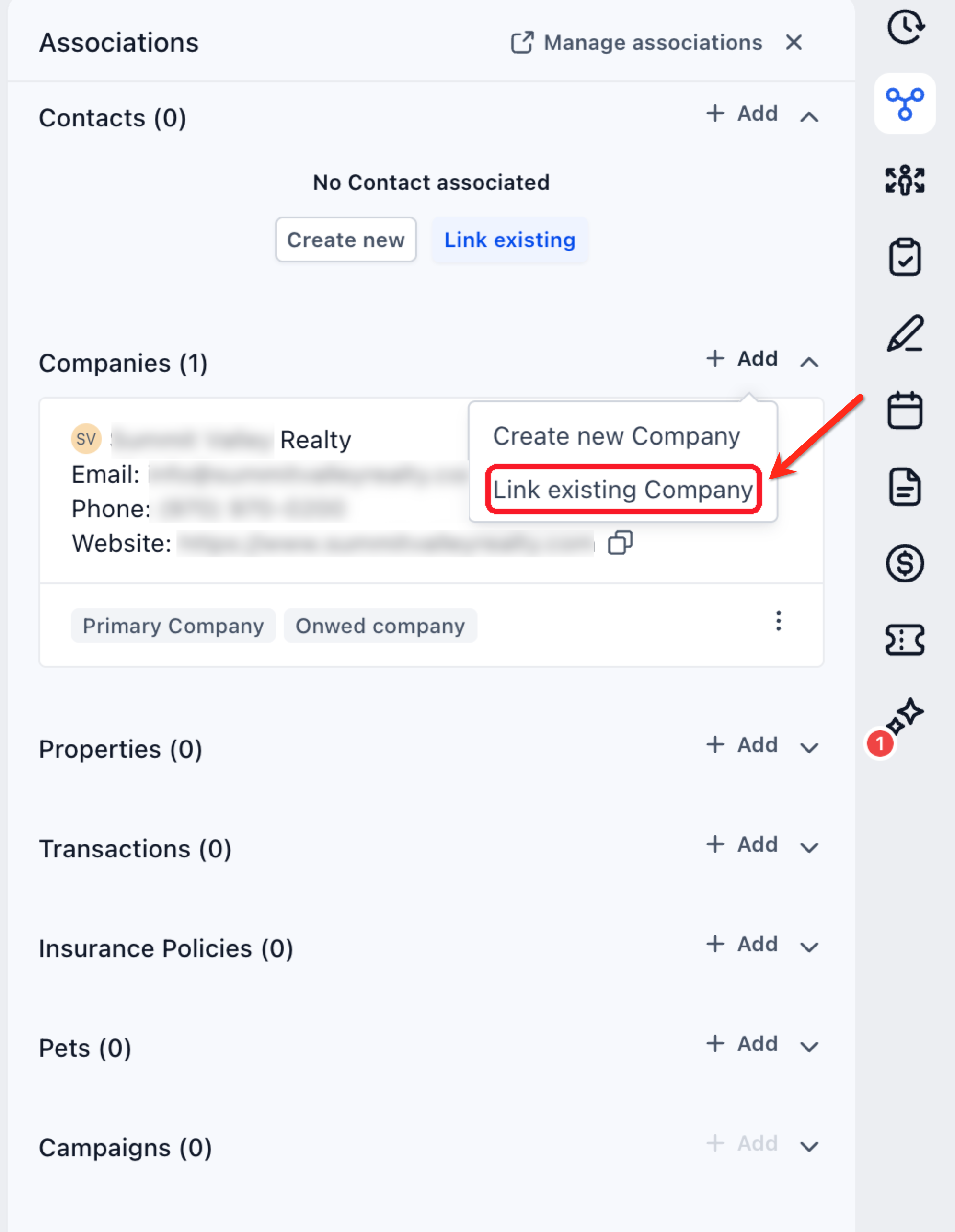
- Choose Link existing Company.
- Select the Company, then choose the appropriate custom association label.
- Confirm the link by clicking Save.
Link an existing contact to a company
- Open the Company record and go to its Associations tab.
- In the Contacts list, click Add and search for the existing contact.
- Pick the custom association label and save the connection.
Review the connections
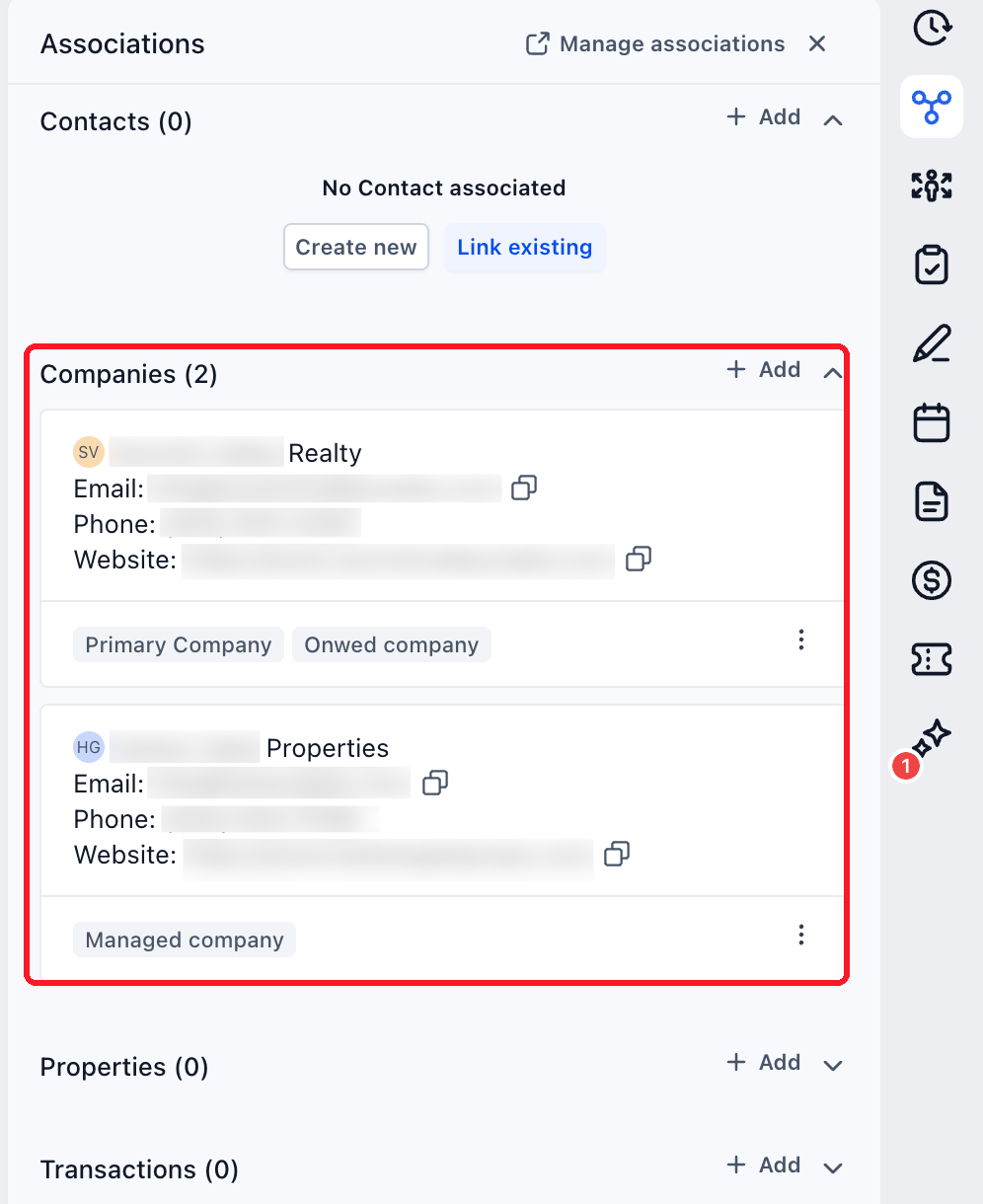
- Open the Contact record and view the Companies listed under Associations.
- Click any Company name to open its record and verify the relationship.
- In Smart Lists, add a Company association column to display additional Companies alongside the Primary Company.
06What it looks like in HighLevel
07Settings that matter
- Primary Company. A system label that links each contact to one main company and cannot be edited.
- Contacts to Many Companies. Controls whether a contact can be associated with multiple companies under a custom label.
08Things to know before you rely on it
- Primary Company is a system label and cannot be edited.
- The number of companies a contact can link to depends on the limits defined for the custom association label.
- Using the bulk Add to primary company action only changes the Primary Company and does not create additional links.
09How it connects to the rest of HighLevel
- Create and manage Smart List columns for company associations Smart Lists guide
- Create, edit, and delete contacts in HighLevel Contact management
- Review pricing and plan options for HighLevel features Pricing
Michael's take

When a single person works with several client companies, keeping a separate contact for each account becomes a mess. Association labels let you keep one contact record and link it to every relevant company, so your team always sees the same details.
The first setting I would lock down is the custom association label definition. Make sure it’s set to allow many companies. That way the extra links behave the way you expect from day one.