
01Who this is for
- Admins who need to manage contact data securely.
- Team members with permission to maintain data hygiene.
02Deleting contacts, explained
The delete function permanently erases a contact record and, depending on system settings, also clears associated items such as messages, notes, tasks, and activity logs. Only users with Admin rights can perform deletions, which helps protect against accidental loss.
Deleted contacts remain recoverable for up to 60 days, but any linked data stays removed. Restoring a contact simply places the record back in the active list without its previous conversations or tasks. For large volumes, HighLevel also offers bulk actions and a workflow based automation option.
The controls live under the Contacts area for manual actions and under Automations > Workflows for automated deletions. The Restore option appears in Contacts > Restore, and the Delete Contact action can be added to any workflow.
03How businesses use deleting contacts
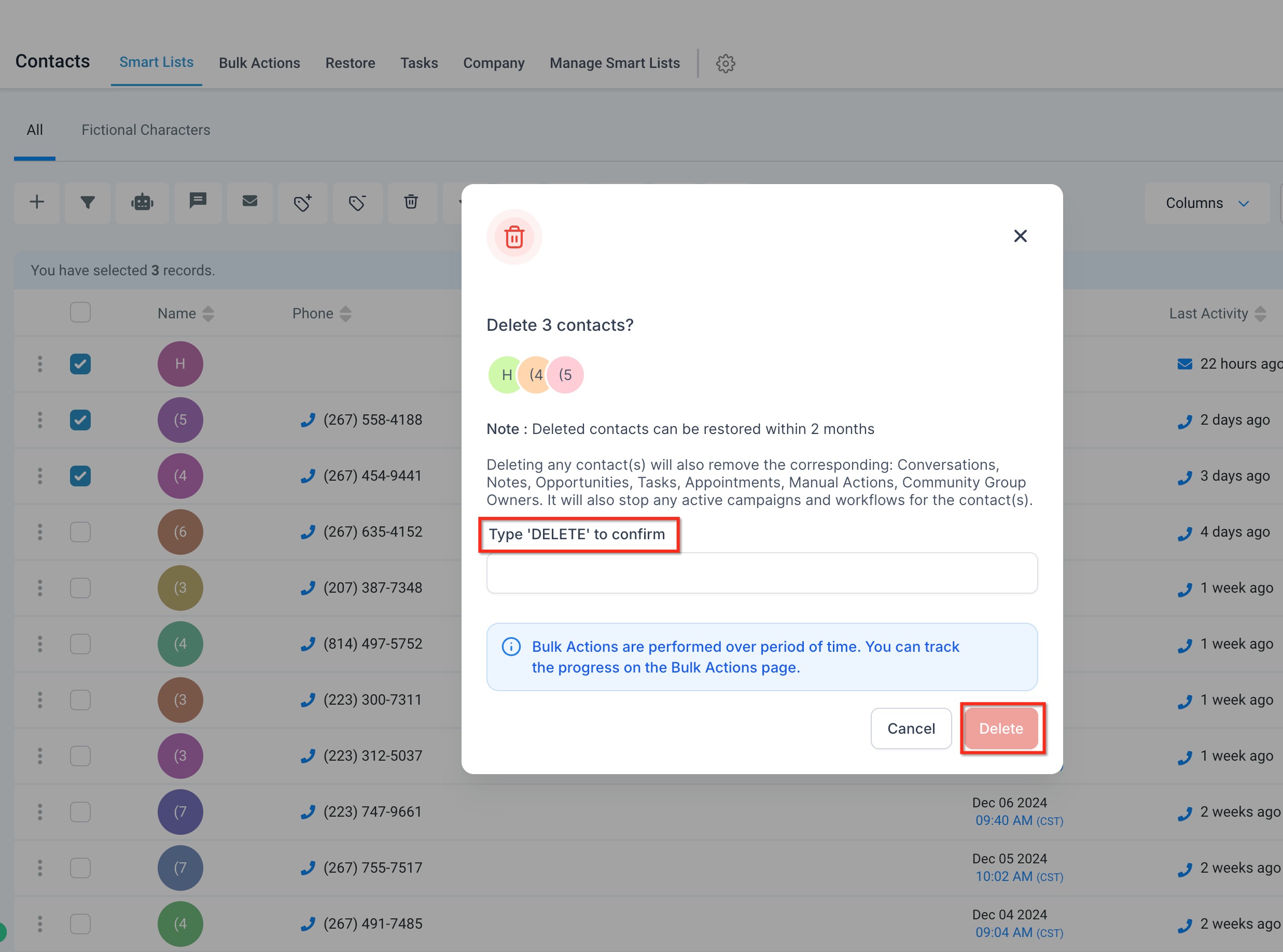
- Real estate agency. The agency selects old property leads in the Contacts list, clicks the Delete button, and confirms by typing DELETE. This clears stale leads and their conversation history, keeping the contact list focused on active prospects.
- Dental practice. If a patient record is removed by mistake, staff go to Contacts > Restore, pick the patient entry, and confirm restoration within the 60 day window. The patient reappears in the roster, though prior notes remain absent.
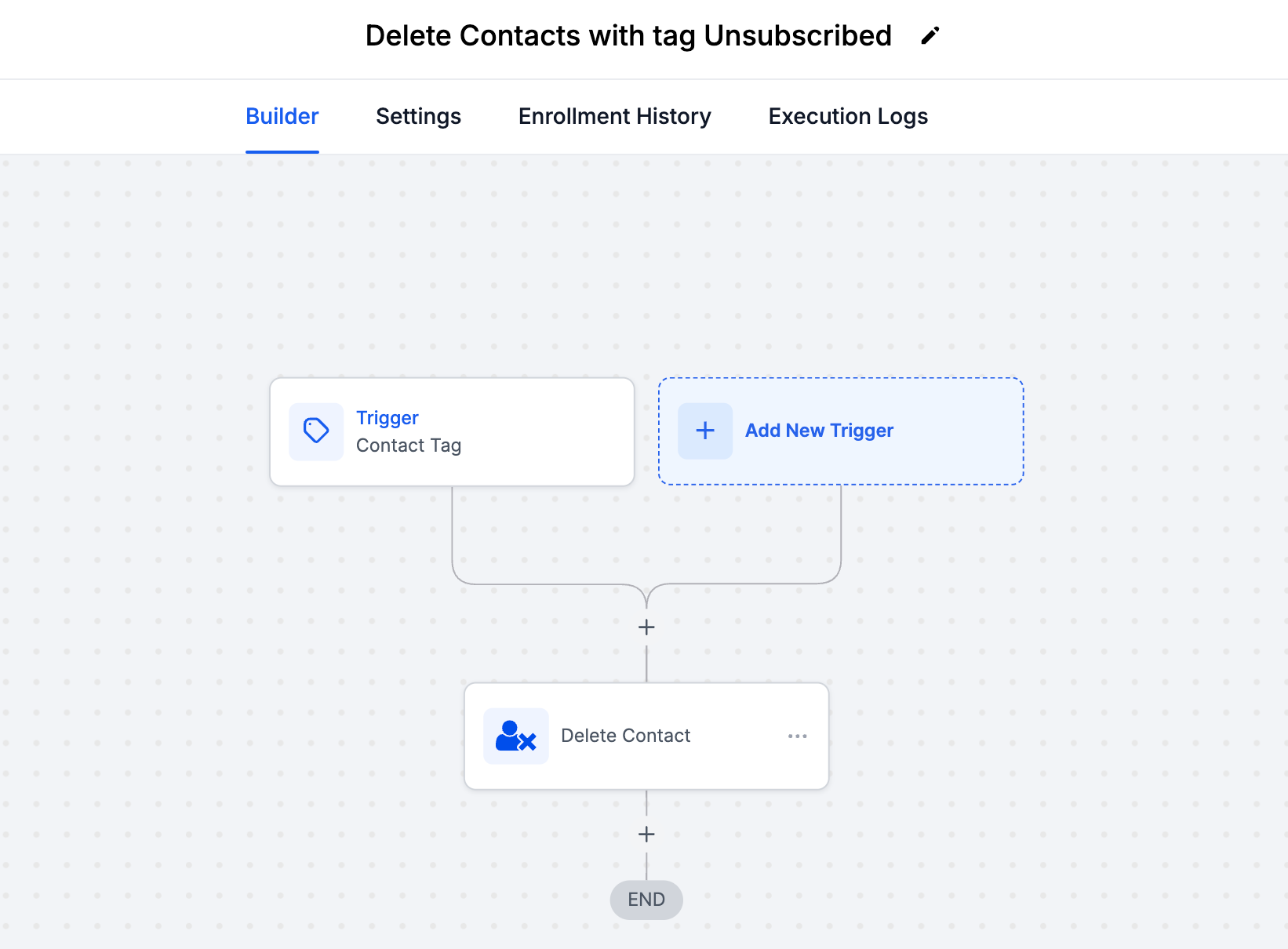
- SaaS startup. The startup creates a workflow that triggers when a contact receives an "Unsubscribed" tag. The workflow runs the Delete Contact action, automatically cleaning the list of users who opted out.
04The numbers and rules that matter
- Deleted contacts can be restored within two months (60 days).
05Before you start
- The user performing deletion must have Admin privileges.
- Export any important contact information to a CSV file before removal.
06How to set up and use deleting contacts in HighLevel
Manually delete one or more contacts
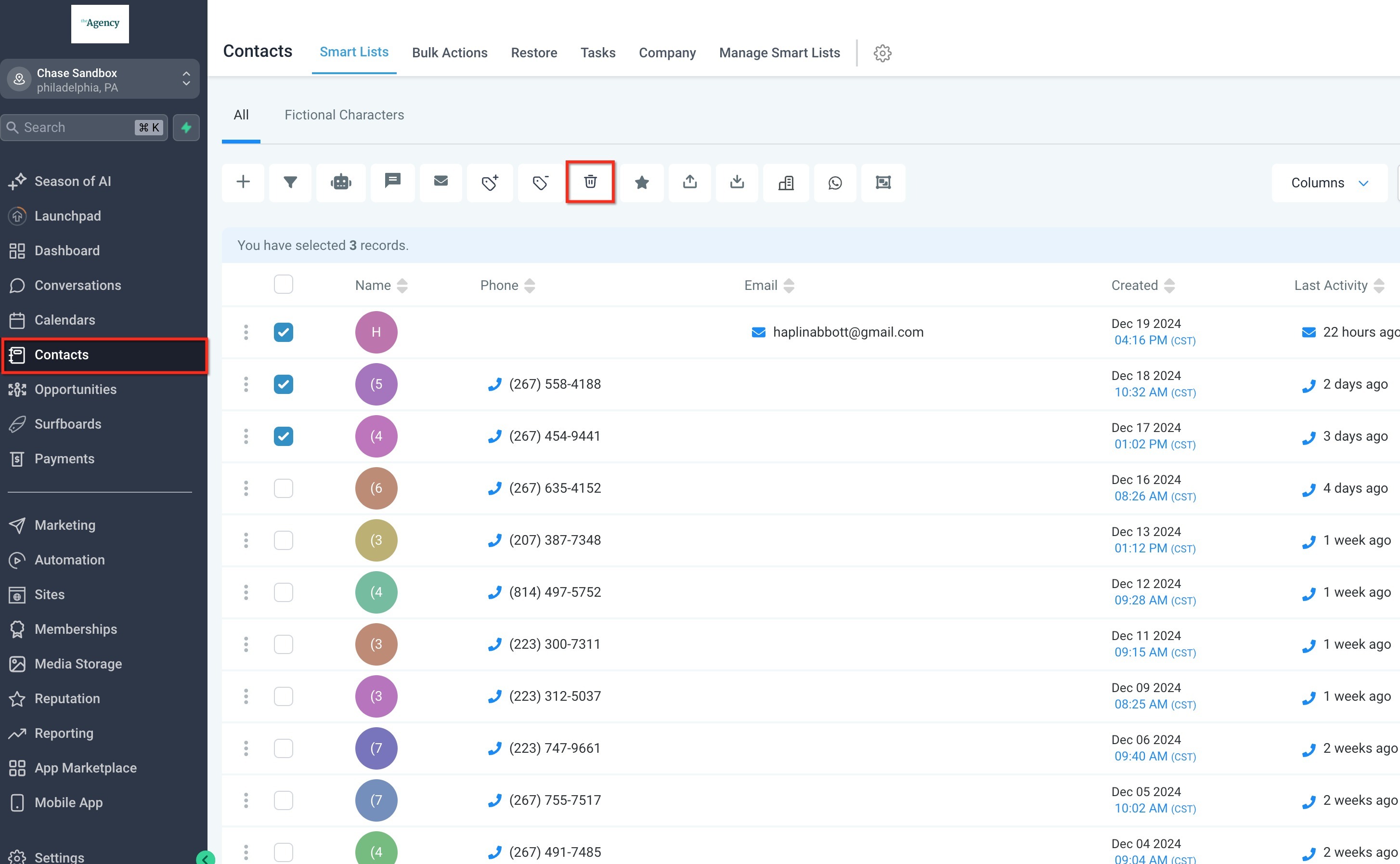
- Open the Contacts section from the HighLevel dashboard.
- Select the contacts you want to remove by checking the boxes next to their names or by using the header checkbox to select all on the page.
- Click the Delete button that appears at the top of the list.
- If the Delete icon does not appear, make sure at least one contact is selected and that you have Admin permissions.
- Enter the word DELETE in the confirmation field to finalize the removal.
Restore contacts that were deleted within 60 days
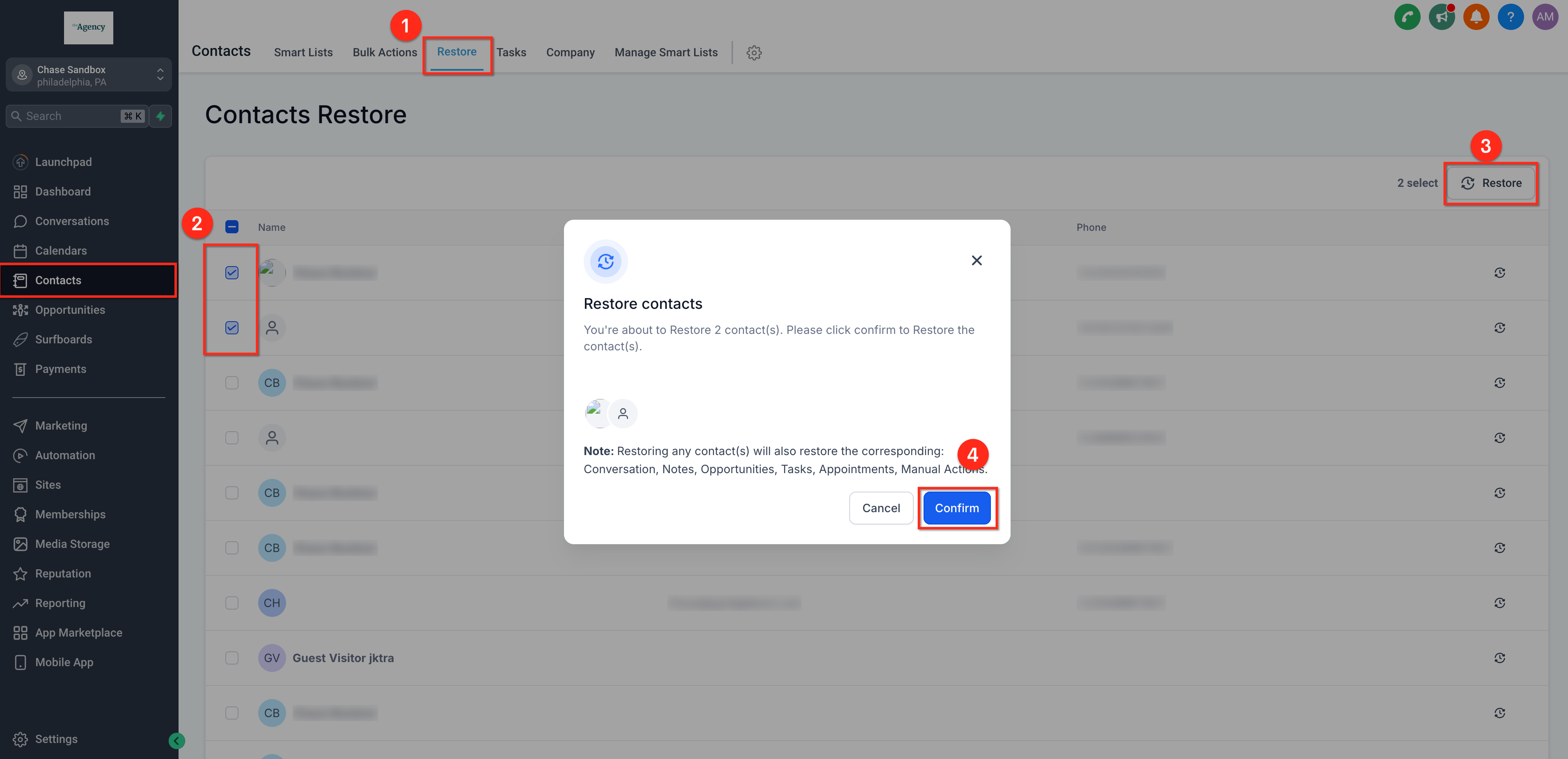
- Navigate to Contacts > Restore.
- Check the boxes next to the contacts you wish to bring back.
- Click the Restore button to return them to the active list.
- Confirm the restoration when prompted.
Automate contact removal with a workflow
- Go to Automations > Workflows and start a new workflow.
- Add the Delete Contact action to the workflow canvas.
- Set a trigger such as a specific tag (for example, "Unsubscribed").
- Test the workflow and then activate it.
07What it looks like in HighLevel
08Things to know before you rely on it
- Only users with Admin rights can delete contacts.
- Restoration is possible only within 60 days of deletion.
- Restoring a contact does not bring back its previous conversations, notes, or tasks.
- Deleting a contact also removes associated data unless system settings specify otherwise.
09How it connects to the rest of HighLevel
- Learn how to create, edit, and delete contacts in HighLevel. Contact management basics
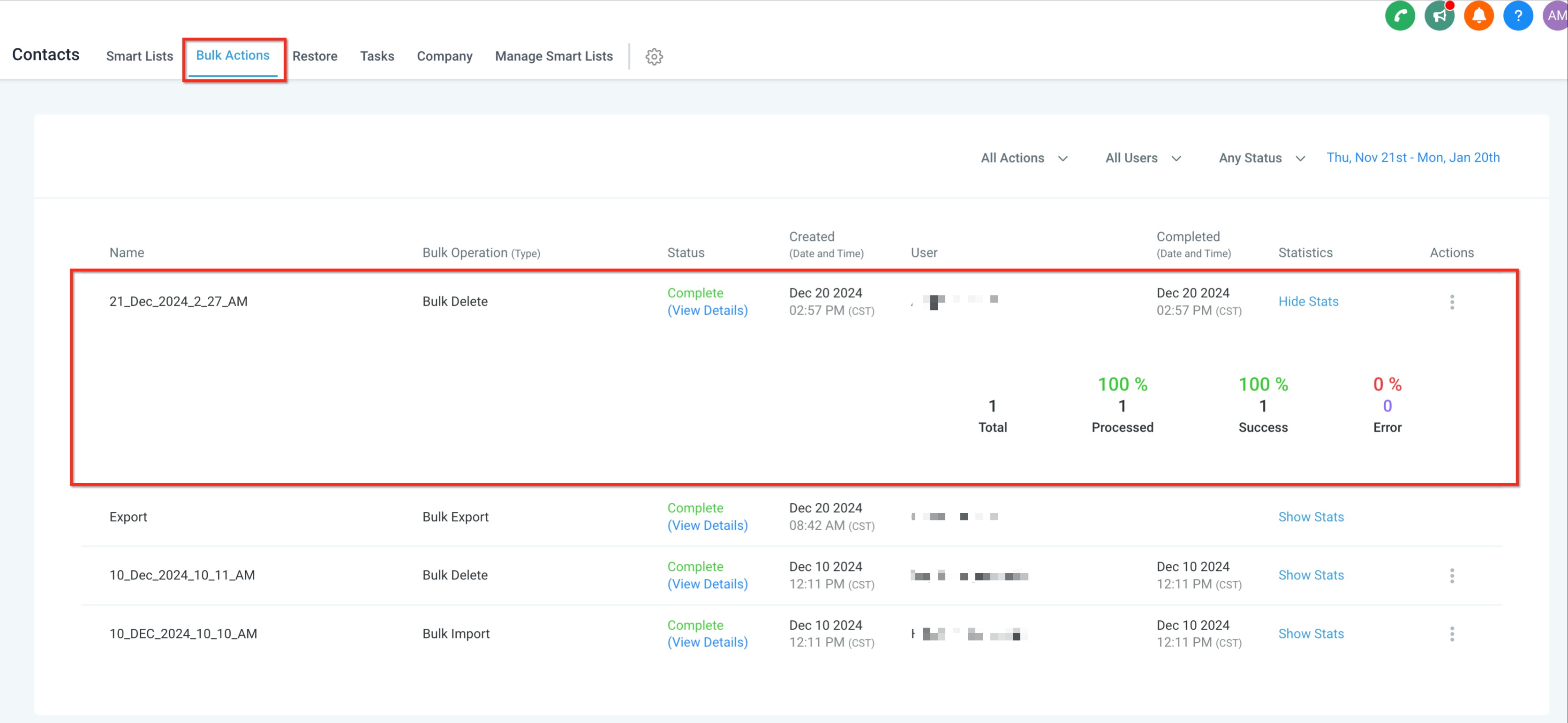
- Use bulk actions to delete many contacts at once. Bulk contact actions
- Explore how to merge duplicate contacts before deletion. Manage duplicate contacts
Michael's take

Deleting contacts is a capable way to keep your database clean, but it carries a risk. Once you remove a contact, all their conversations, notes, tasks, and activity history disappear forever. Even if you restore the contact within 60 days, that surrounding data stays gone, so a backup is essential before you click delete.
When you need to purge outdated leads or comply with data deletion requests, the manual delete or bulk delete options give you quick control, and the workflow automation lets the system handle unsubscribed or inactive contacts without manual effort.