
01Who this is for
- Founders who need a consistent lead score without manual entry, because the field updates whenever the underlying activity fields change.
- Sales managers overseeing Opportunities, as they can track days since a deal opened or until a close date directly on the record.
- Marketing teams that want to combine contact attributes into a single text label, reducing the effort of maintaining static notes.
02Calculated Custom Fields, explained
Calculated Custom Fields live inside the Custom Fields section of the platform. After you choose the record type, Contact, Opportunity, or a custom object, you select the Calculated field type and define a formula or time based rule. The system then calculates the result automatically and stores it as a read only value.
When a source field that the formula references is edited, the platform recomputes the result in real time. The value appears in the record view and can be added as a column in Contact Smart Lists. For time based calculations, the platform treats date only inputs as midnight UTC, which can affect duration results.
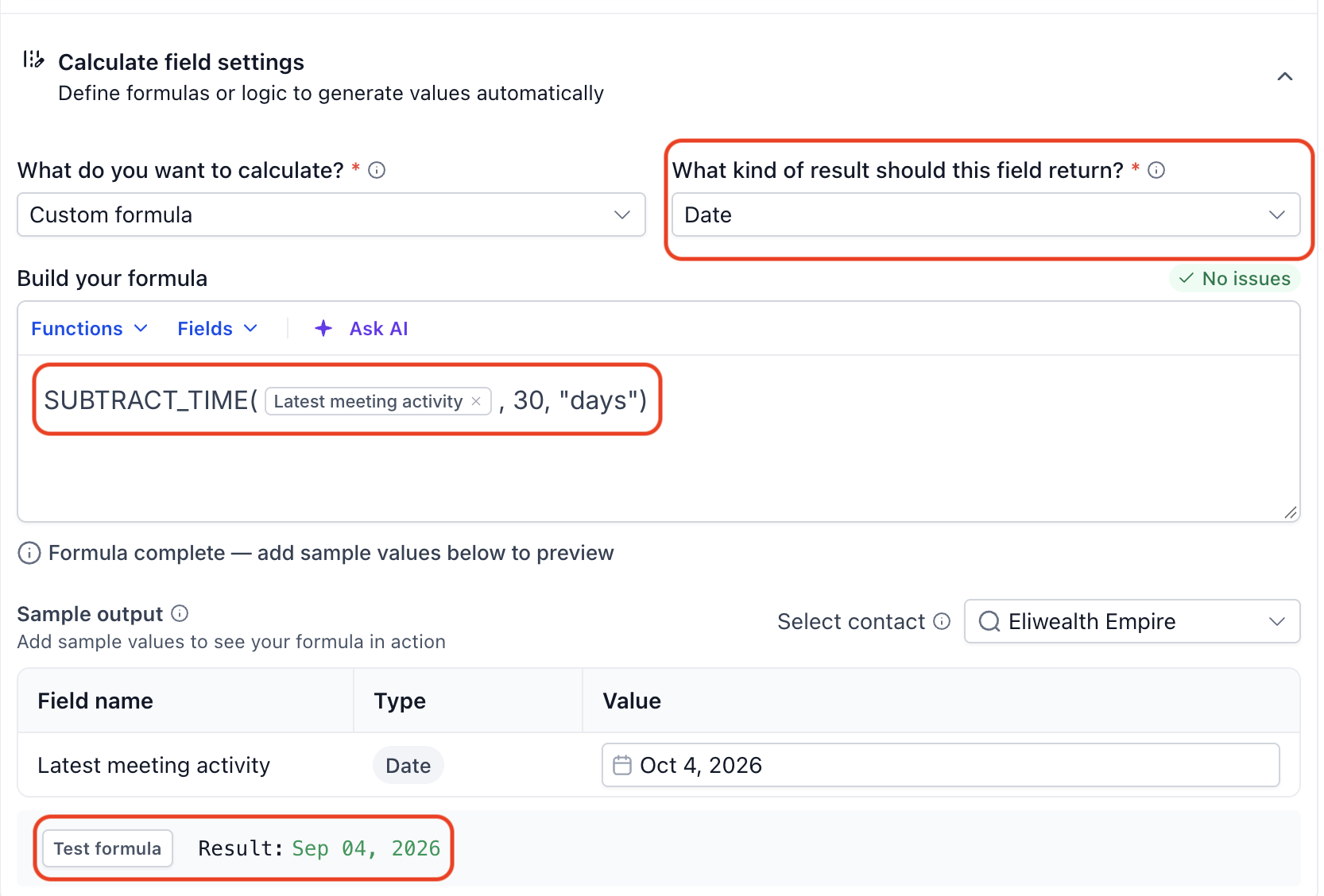
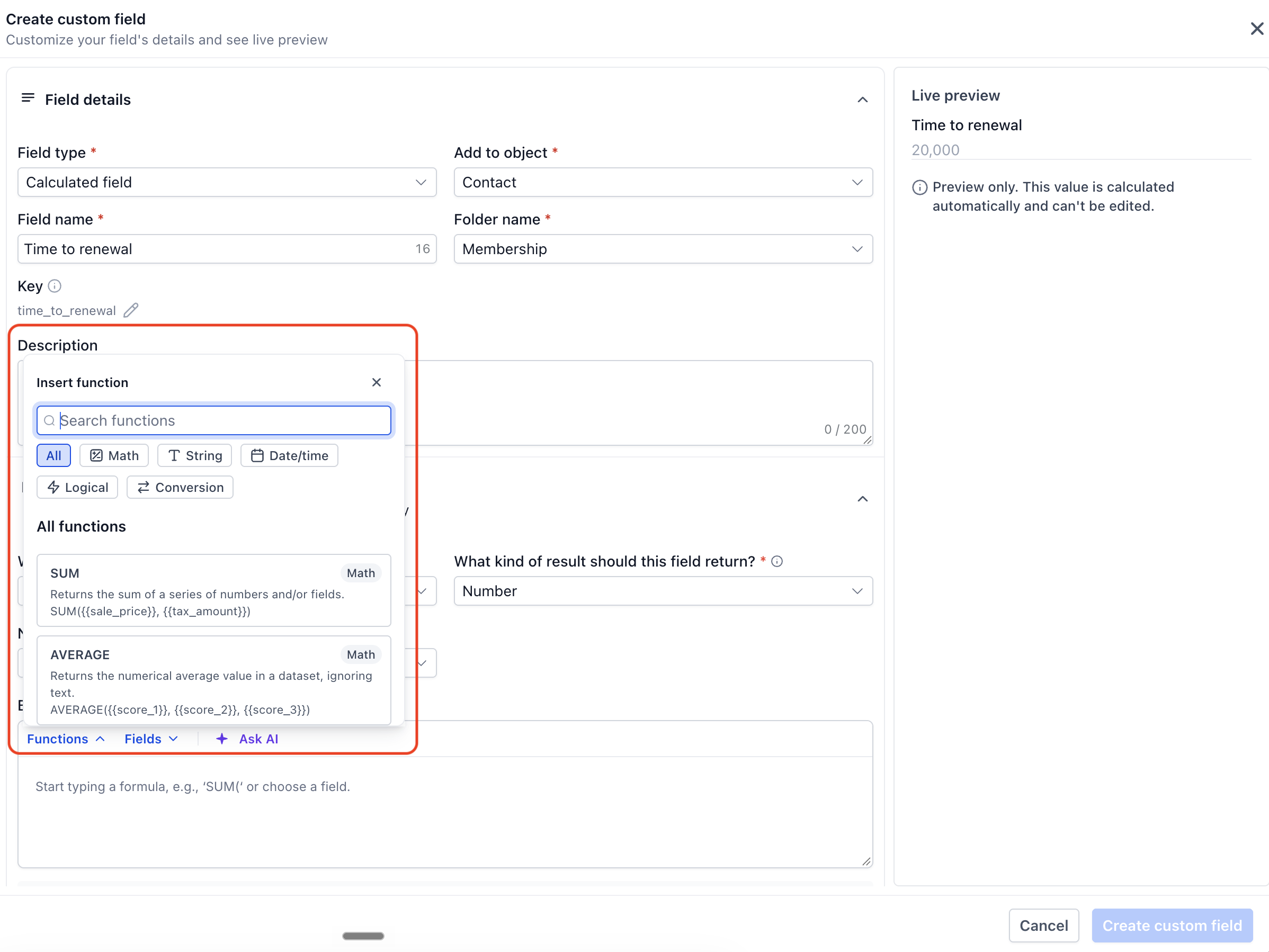
You can test formulas before saving, using sample inputs and a live preview. The Formula Builder offers math, text, date, and logical functions, and you may also ask the built in AI to generate a formula from a plain language description.
03How businesses use Calculated Custom Fields
- Real estate brokerage. The brokerage creates a calculated field that adds the number of properties a lead has viewed and assigns a numeric lead score. The score updates automatically as new view counts are recorded, letting agents see the most engaged prospects in their Smart List.
- Ecommerce retailer. The retailer adds a Time Since field that measures days since a customer's last purchase. The field updates each day, allowing the team to segment contacts who have not bought recently and target them with re engagement campaigns.
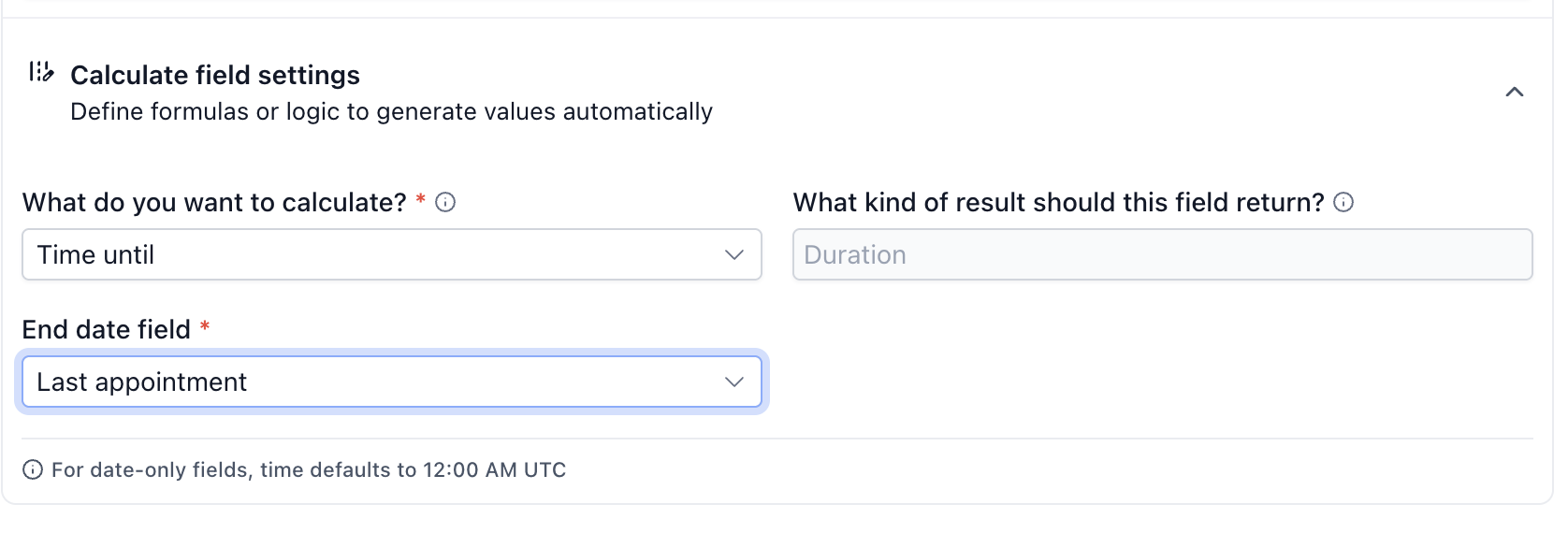
- Consulting firm. The firm sets up a Time Until field for each contract's renewal date. As the renewal approaches, the field shows the remaining days, and the value appears in the contacts view so account managers can plan outreach.
04The numbers and rules that matter
- Supported functions: Math (SUM, AVERAGE, ROUND, MIN, MAX, ABS), Text (CONCAT, UPPER, LOWER, TRIM, LEFT, RIGHT, REPLACE), Date/Time (ADD_TIME, YEAR, MONTH, DAY, WEEKDAY), Logic (IF, AND, OR, IS_KNOWN).
- Date only fields default to 12:00 AM UTC for time calculations.
05How to set up and use Calculated Custom Fields in HighLevel
Create a calculated custom field
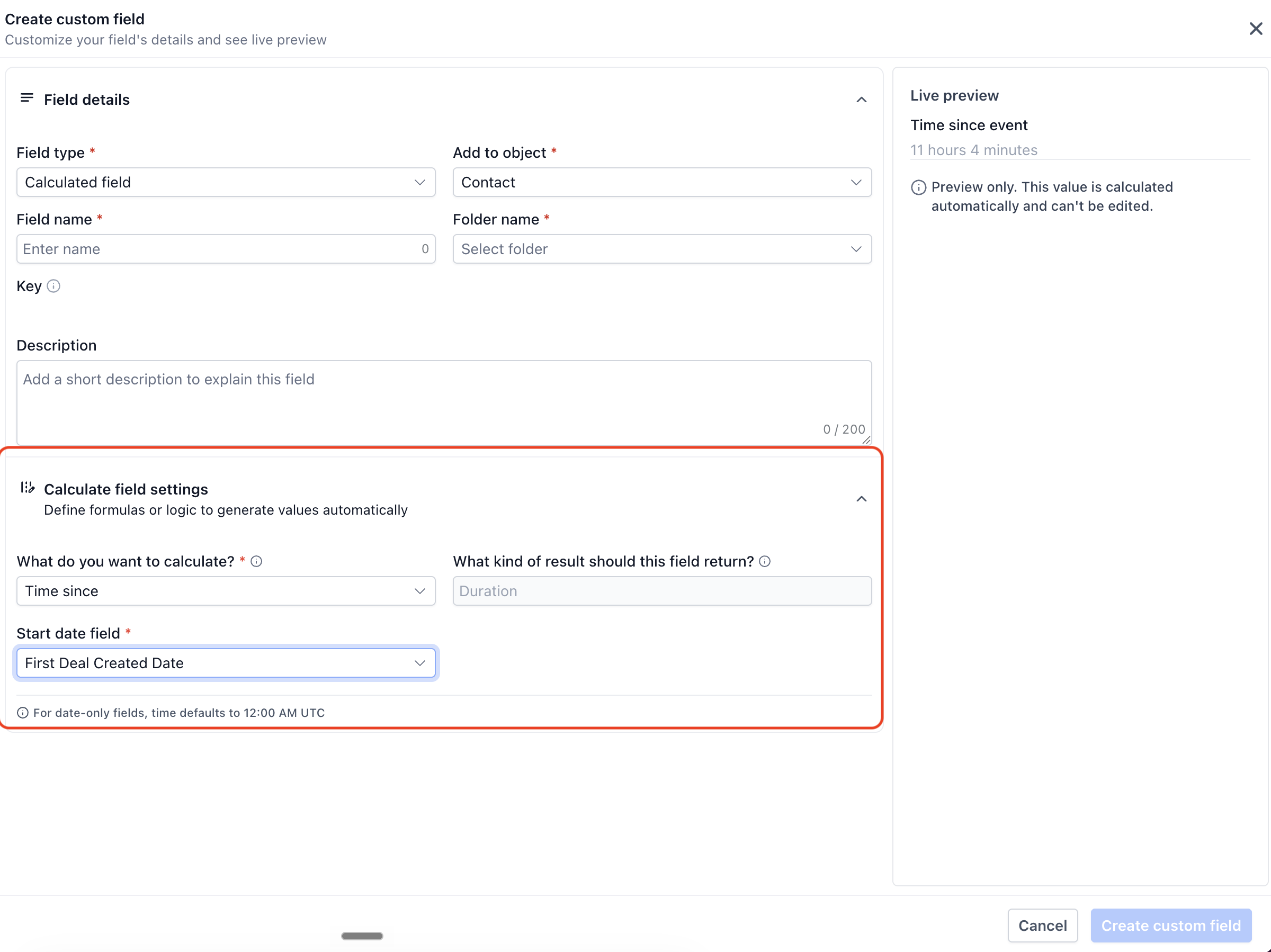
- Open Settings, go to Custom Fields, pick the desired CRM object, and click Create Field.
- Select Calculated as the field type, then fill in the field name, folder and any required details.
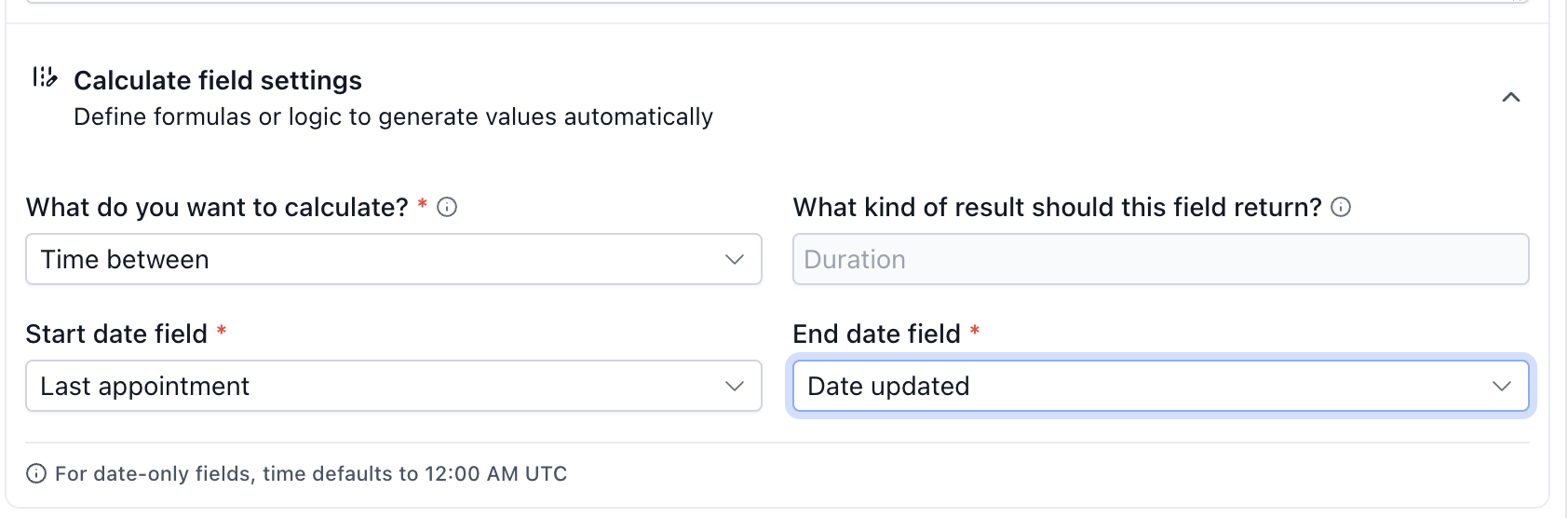
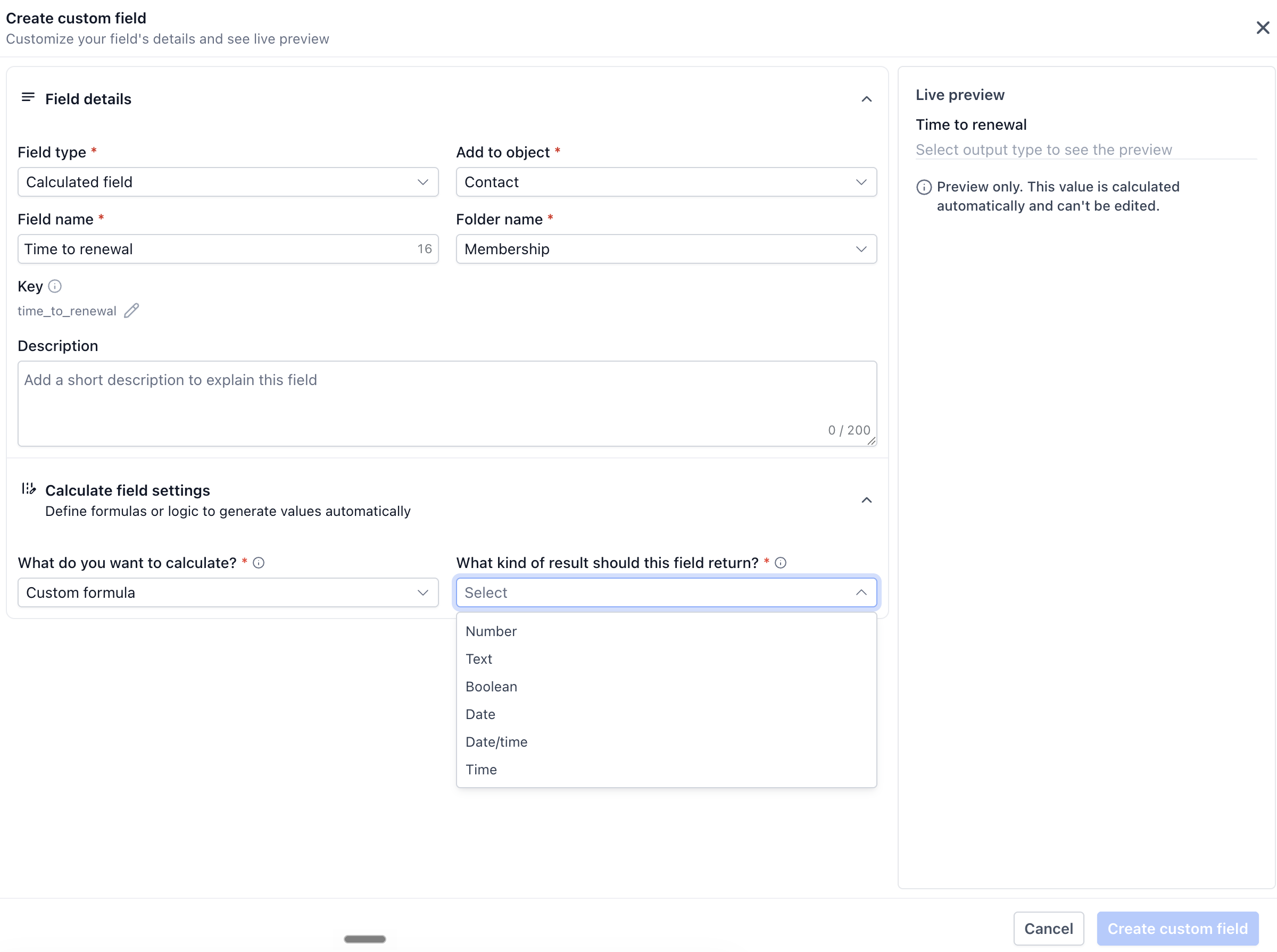
- Under the calculation settings, choose one of the four calculation types: Custom Formula, Time Between, Time Since, or Time Until.
- Provide the necessary configuration, for a custom formula, pick an output type and build the expression using functions, fields or the AI helper; for time calculations, select the relevant start and/or end date fields.
- If building a custom formula, enter example values, press Test Formula, review any errors and look at the live preview to confirm the result.
- Press Create Custom Field to store the definition and show the read only calculated value on the record.
- Remember the field is read only; its value cannot be edited directly or changed by imports or workflows.
06What it looks like in HighLevel
07Settings that matter
- Calculated (field type). Marks the custom field as read only and tells the platform to compute its value from other fields.
- Field Name. The label that appears in the record and in Smart List columns.
- Folder. Organizes the custom field within a group for easier management.
- Calculation Type. Determines whether the field uses a custom expression or measures time between dates.
- Output Type. Specifies the format of the result, such as Number, Boolean, Text, Date, Date/Time or Time.
- Functions. Provides built in operations, math, text, date/time, logic, to use inside custom formulas.
- Ask AI. Generates a formula from a natural language description inside the Formula Builder.
- Start Date Field. The date field used as the beginning point for Time Between or Time Since calculations.
- End Date Field. The date field used as the ending point for Time Between or Time Until calculations.
- Test Formula. Runs the formula with sample data so you can verify correctness before saving.
- Live Preview. Shows the expected output of the formula based on the test values.
08Things to know before you rely on it
- Calculated fields cannot be edited directly, imported or changed by workflows; they only change when source fields are updated.
- Time Since and Time Until fields can be shown as columns in Smart Lists but are not available as filter criteria.
- Date only inputs are treated as 12:00 AM UTC when duration calculations are performed.
09If something goes wrong
- Formula returns an unexpected result even though validation succeeds. Check that the correct source fields are referenced, confirm the chosen output type matches the intended format, and verify the logical conditions in the expression. Use Test Formula with realistic sample values.
- Time based calculation shows a different duration than anticipated. Remember that date only fields default to midnight UTC. Review the selected date fields and their stored values to ensure the calculation uses the intended timestamps.
10How it connects to the rest of HighLevel
- Add calculated fields as columns in Contact Smart Lists for reporting Smart Lists
- Create and manage custom fields across contacts and other objects Contact management
- Use Ask AI to generate a formula from plain language Ask AI
Michael's take

Keeping lead scores or contract dates fresh can feel like a constant race against stale data. The first thing I would lock in is the calculation type that matches the business need. Whether it’s a custom formula for a score or a Time Until field for a renewal deadline.
Once the type is set, I would run a few test values through the formula builder to confirm the output looks right before publishing. That quick validation saves you from surprise mismatches later on.