
01Who this is for
- Marketing agencies that need to move large client lists into the platform quickly, avoiding manual entry.
- SaaS Founders consolidating partner or customer company data from multiple sources into a single system.
- Small business owners who want to keep their company directory up to date by importing periodic CSV exports.
02Bulk import companies, explained
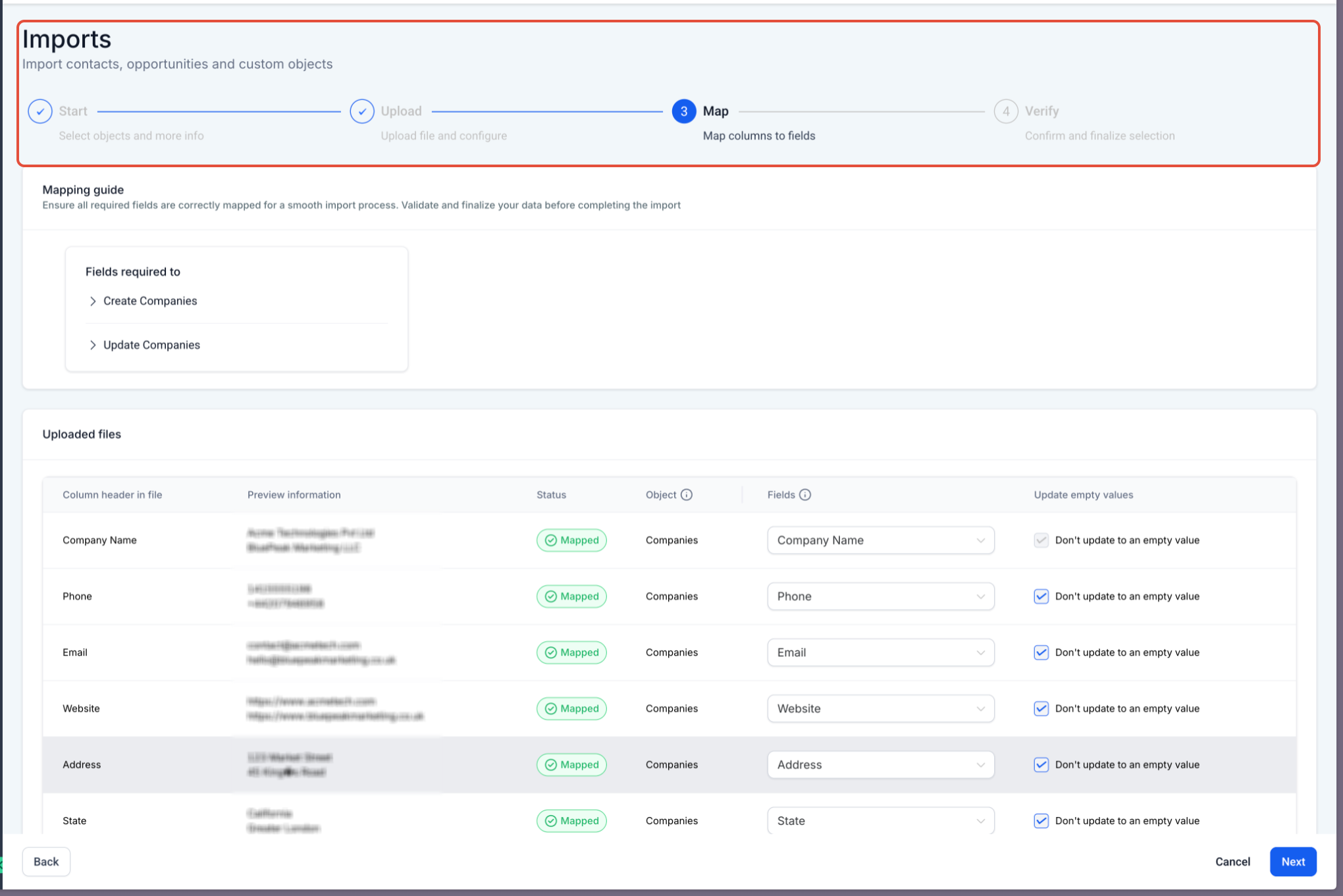
The bulk import tool reads a CSV file and either adds new company records, updates existing ones, or does both in a single run. It uses the Company ID field to recognize existing records and prevents duplicate creation. The wizard shows a preview of your field mappings so you can verify that each column aligns with the correct HighLevel company field.
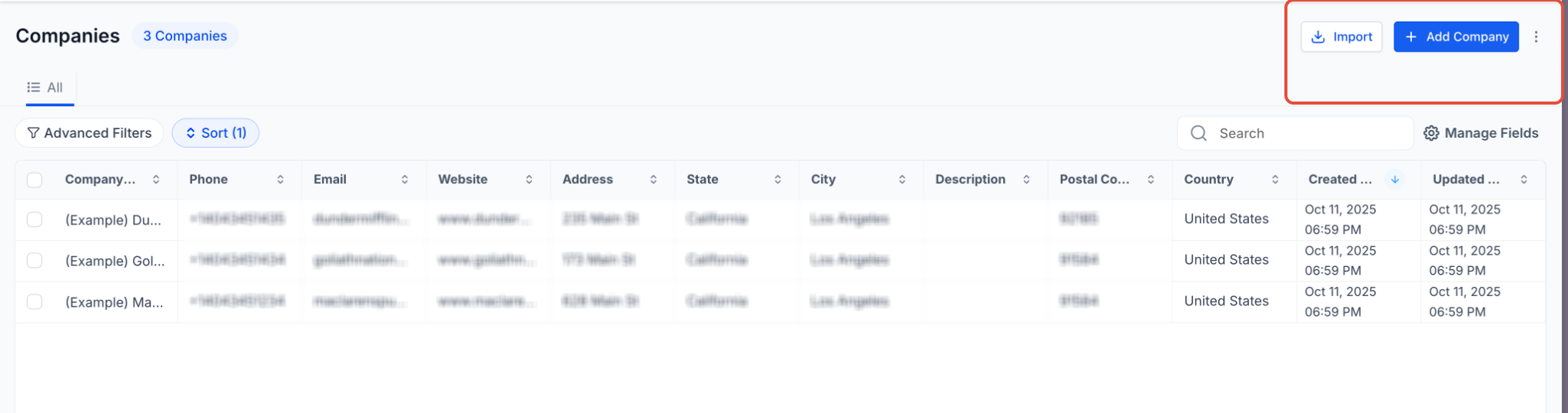
You access the feature after turning on the Labs toggle named "Company and Custom Object Import". Once enabled, an Import button appears in the Companies section. After you start an import, a tracking page under Bulk Actions, Companies shows real time progress and, when finished, provides counts of successful, error and warning records plus a downloadable CSV report.
The import respects the "Don't update to empty value" option, which protects existing data from being overwritten by blank cells in your CSV. Custom company fields can also be mapped, as long as they already exist in the system.
03How businesses use bulk import for companies
- Digital marketing agency. The agency enables the Labs import toggle, prepares a CSV of client companies, and runs the wizard to add hundreds of new accounts at once. It selects the create only mode to avoid altering existing client data.
- SaaS startup. The startup imports a CSV containing current partner Company IDs, chooses the update behavior, and maps columns to custom fields that track subscription tier. It enables "Don't update to empty value" to keep existing contact details intact.
- Local retail franchise. The franchise uploads a CSV of store locations, selects the create and update option, and maps address columns to company fields. After the import, it downloads the report to verify that all locations were added without errors.
04The numbers and rules that matter
- CSV file must be UTF 8 encoded and include a header row.
- Recommended batch size: 1,000 to 5,000 records.
05Before you start
- Enable the "Company and Custom Object Import" toggle in Labs settings for the subaccount.
- Prepare a CSV file that follows the checklist: UTF 8 encoding, header row, include Company IDs for updates, and validate data types.
- Create any custom company fields you intend to map before starting the import.
06How to set up and use bulk import for companies in HighLevel
Enable bulk import feature
- Open your HighLevel subaccount and go to Settings.
- Select Labs from the settings menu.
- Find the toggle labeled Company and Custom Object Import and turn it on.
- Return to the Companies area and confirm that the Import button is now visible.
Import companies
- Navigate to Companies and click the Import button.
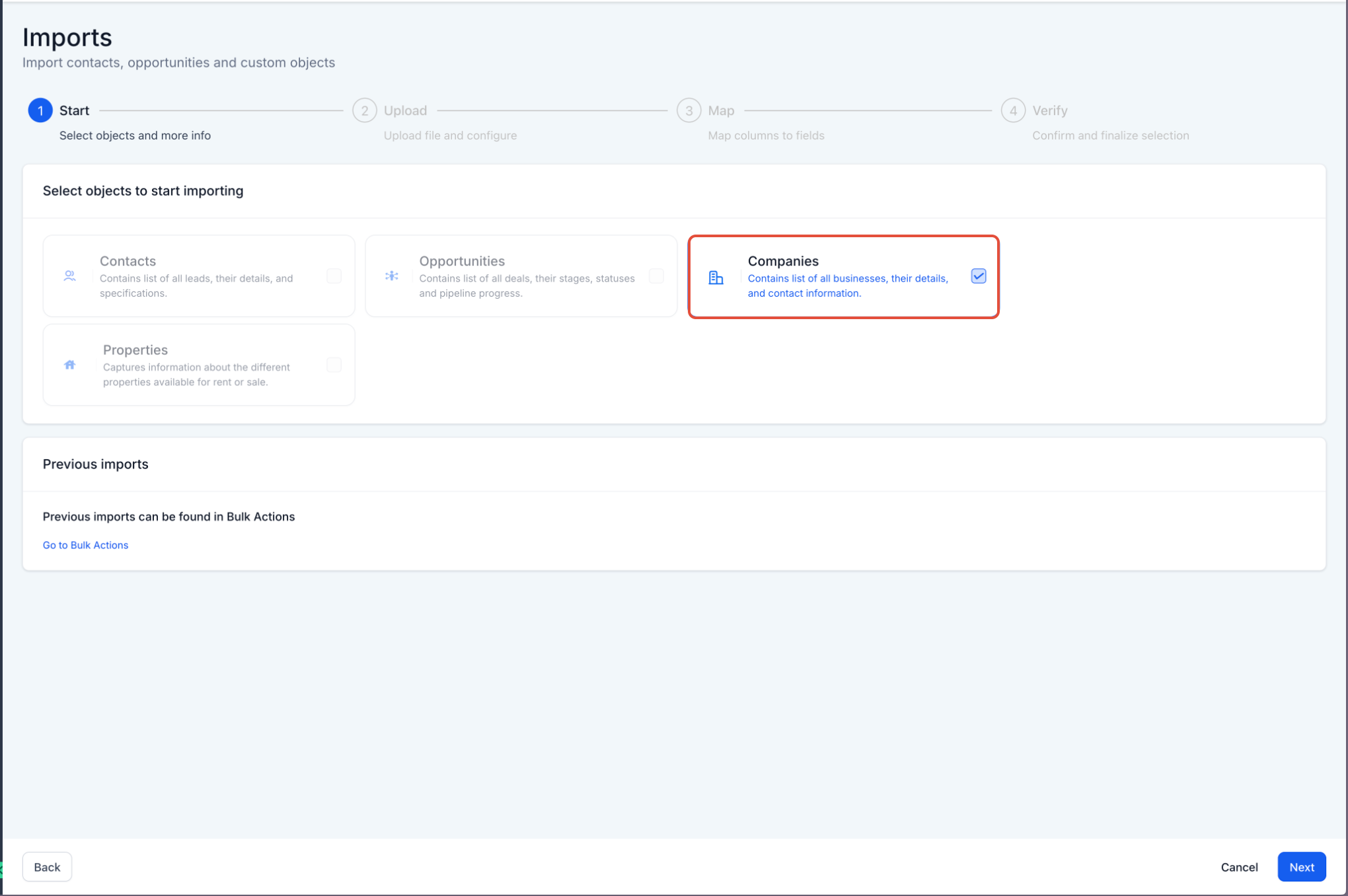
- Choose Companies as the object you want to import.
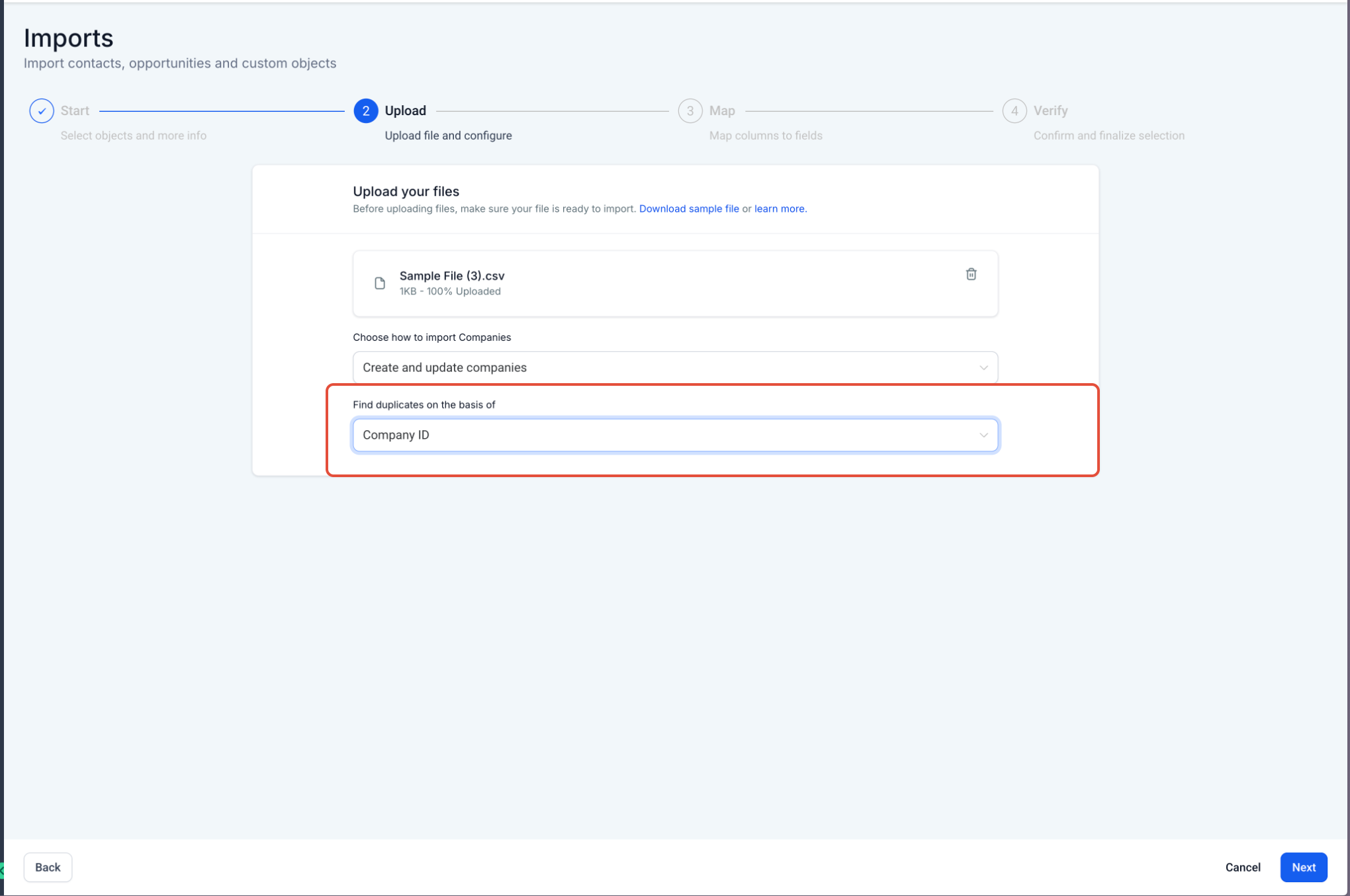
- Upload your prepared CSV file or drag it into the upload zone.
- Pick the import behavior: create, update, or create and update companies.
- Set duplicate detection to use Company ID.
- Map each CSV column to the matching company field shown in the preview.
- Review the verification screen and, if updating, enable "Don't update to empty value" to protect existing data.
- Click Start Bulk Import to begin processing the file.
07What it looks like in HighLevel
08Settings that matter
- Company and Custom Object Import. Activates the bulk import wizard for companies and custom objects in the subaccount.
- Don't update to empty value. When turned on, prevents blank CSV cells from overwriting existing field values during an update.
09Things to know before you rely on it
- The platform does not publish a hard limit, but it recommends importing files in batches of 1,000 to 5,000 records for better performance.
- There is no undo feature; once an import finishes, changes are permanent.
- Very large files may take longer to process and could affect import speed.
10If something goes wrong
- Duplicate company records are created. Select either "Update companies" or "Create and update companies" and ensure the CSV includes the correct Company ID for each existing record.
- Existing data is overwritten by empty cells. Enable the "Don't update to empty value" option on the verification screen before starting the import.
11How it connects to the rest of HighLevel
- Managing companies in HighLevel Companies overview
- Automatic company creation and enrichment Auto create companies
- Bulk delete companies in HighLevel Delete companies
- HighLevel pricing and plans Pricing page
- Start a 30 day HighLevel trial Free trial
Michael's take

Bulk import is handy when you have many companies to add.