
01Who this is for
- Founders who need to keep their company database tidy without spending time on individual deletions.
- Operations managers handling large imports who must quickly remove test or mis imported companies.
02Bulk Delete for Companies, explained
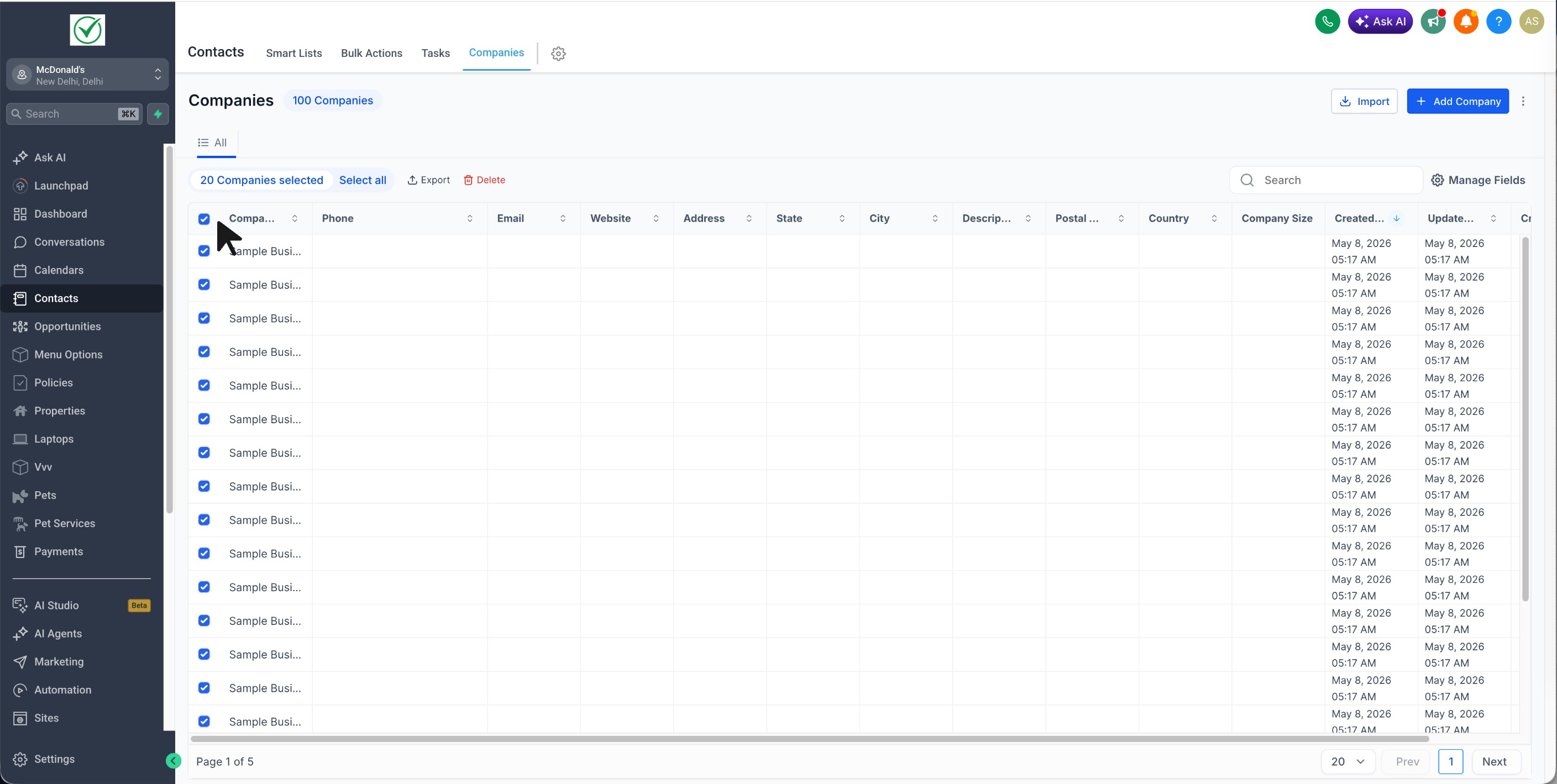
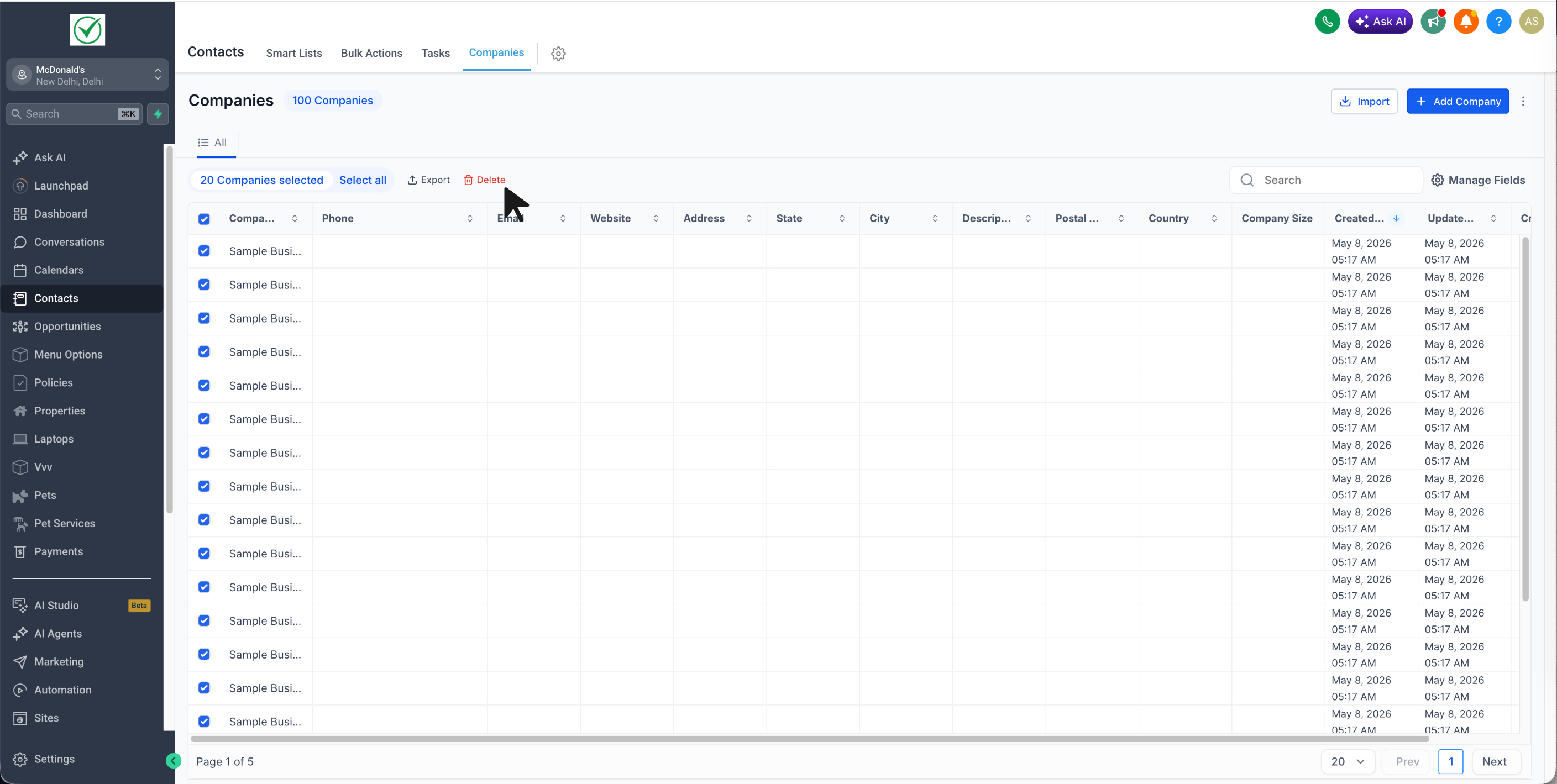
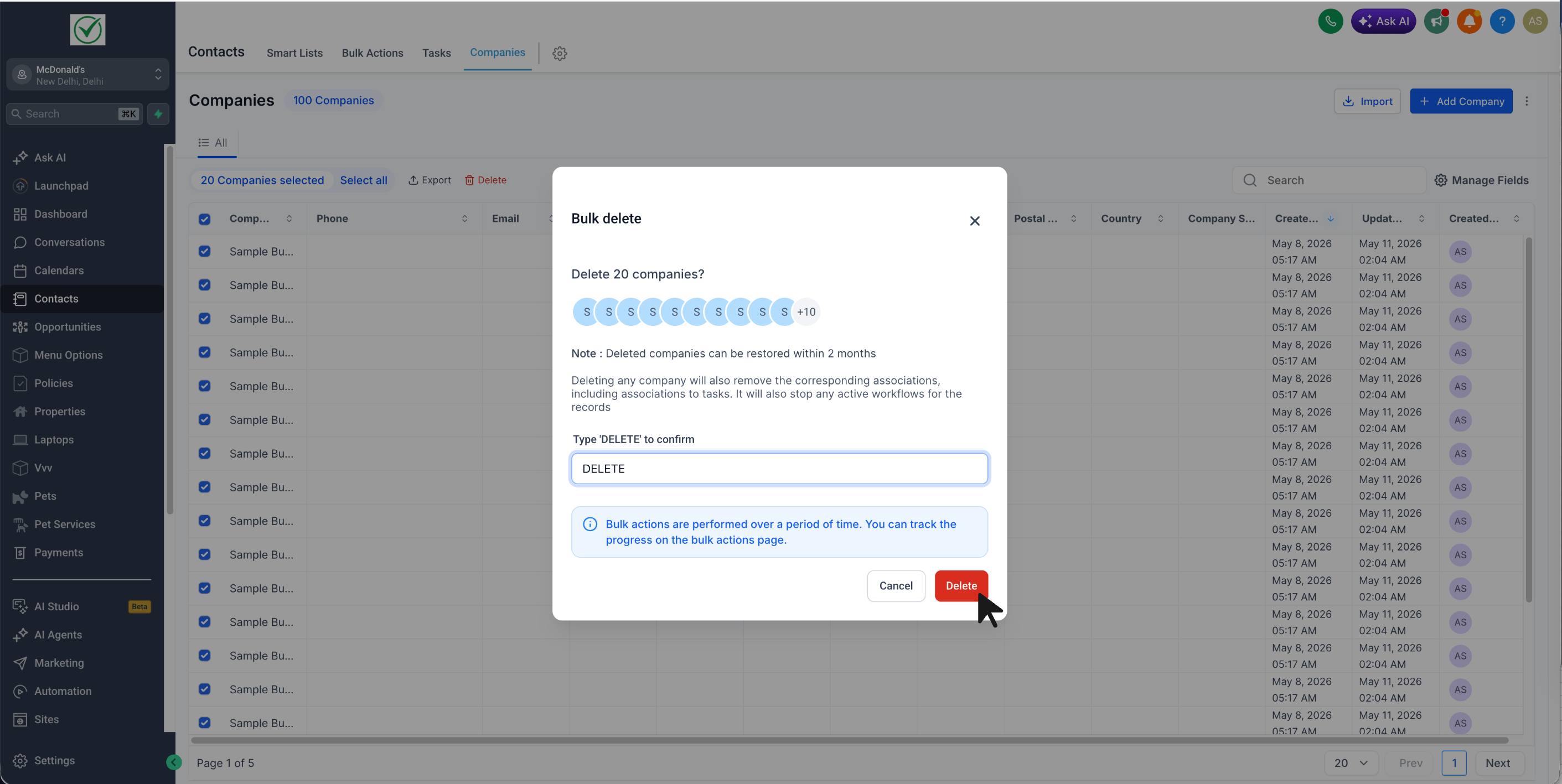
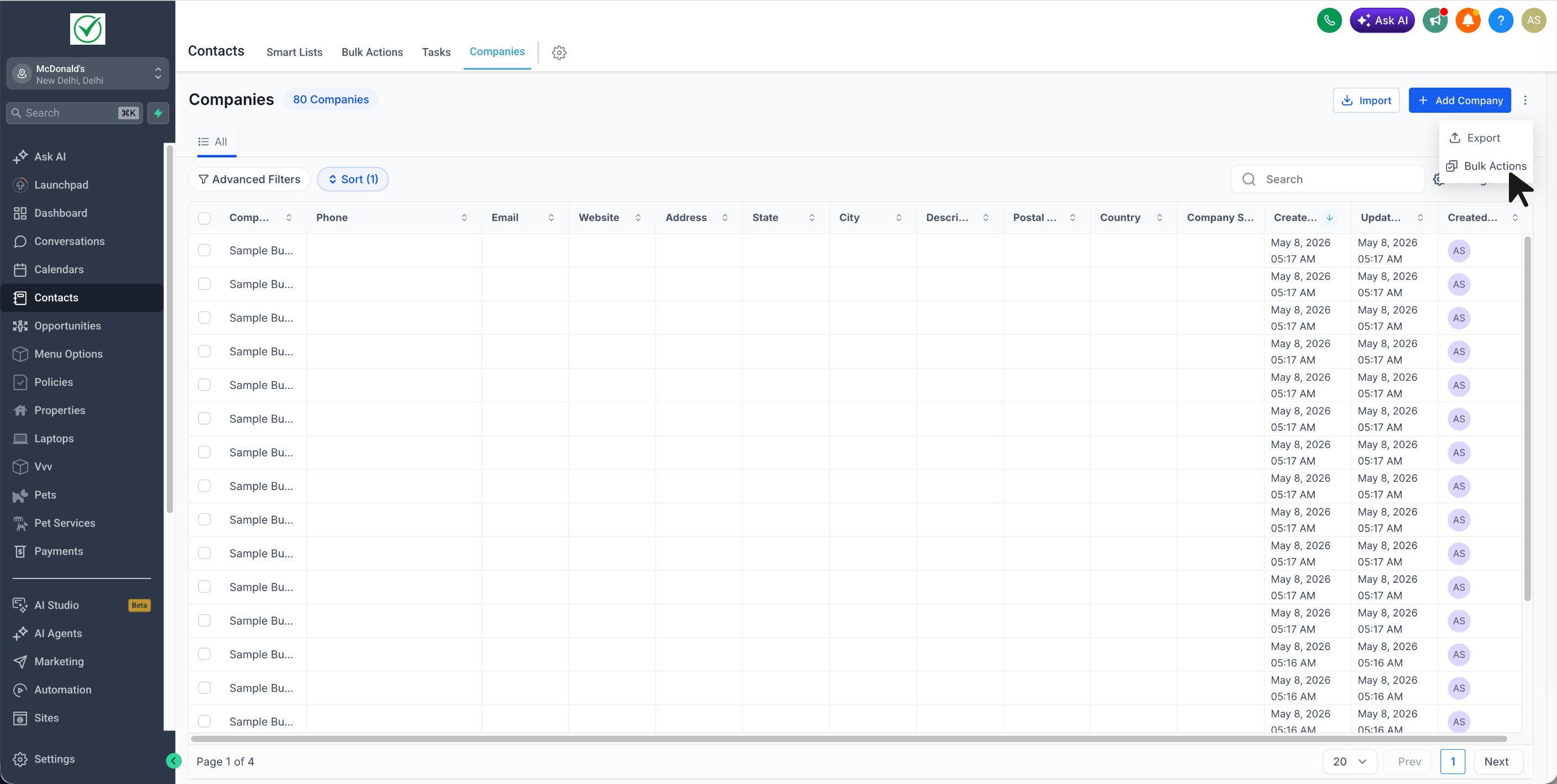
Bulk Delete appears in the Companies list view. It adds a checkbox column and a bulk actions bar where the Delete button lives. After selecting individual rows, the whole page, or filtered results, clicking Delete opens a confirmation dialog. Once confirmed, the platform removes the chosen company records and all of their field values.
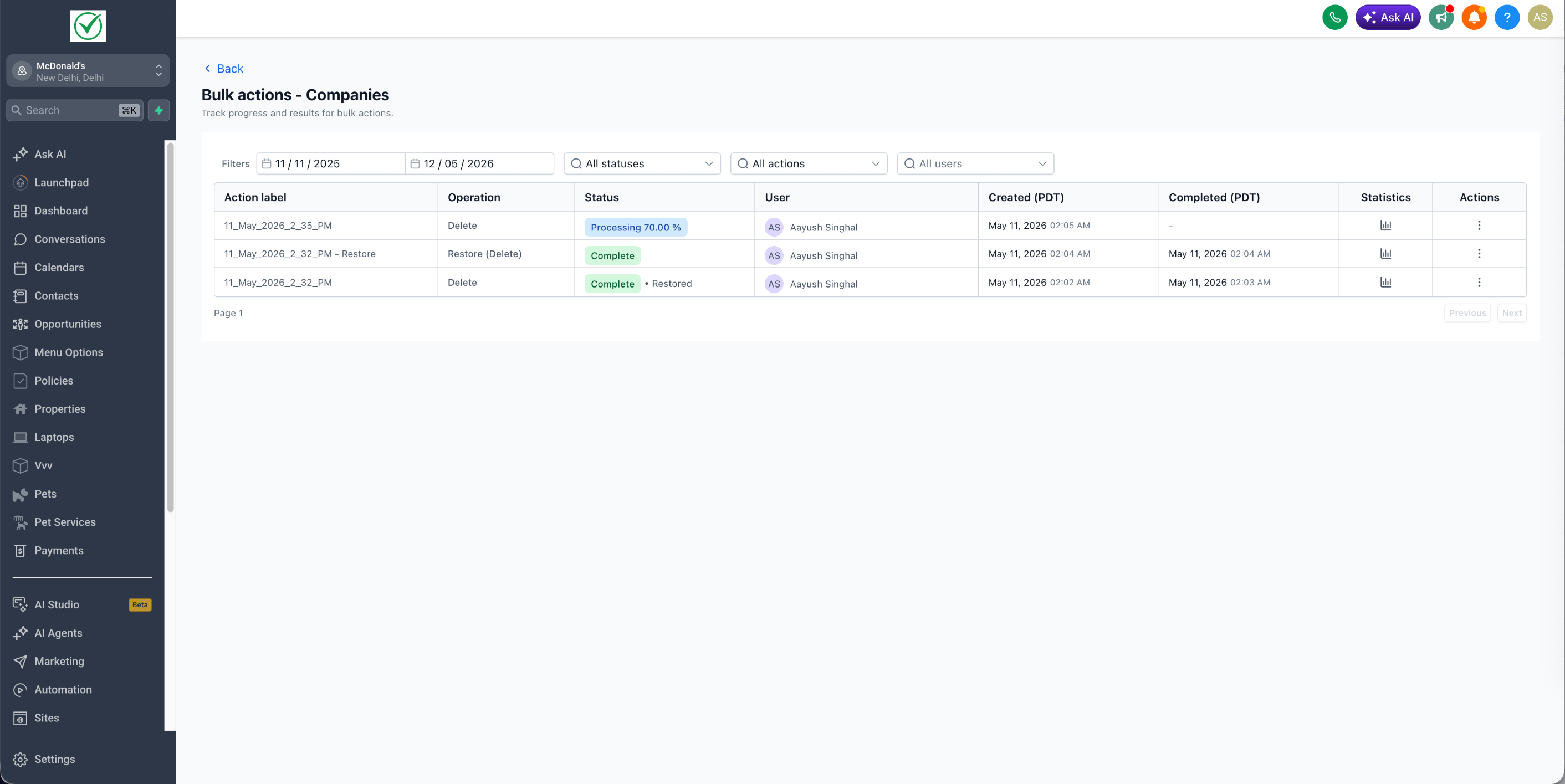
The removal also deletes any associations the companies had, such as linked contacts, opportunities, custom objects, notes, and tasks. Existing cascade rules for companies apply to any directly owned data. The action is recorded on the Bulk Actions page, where progress and logs can be reviewed.
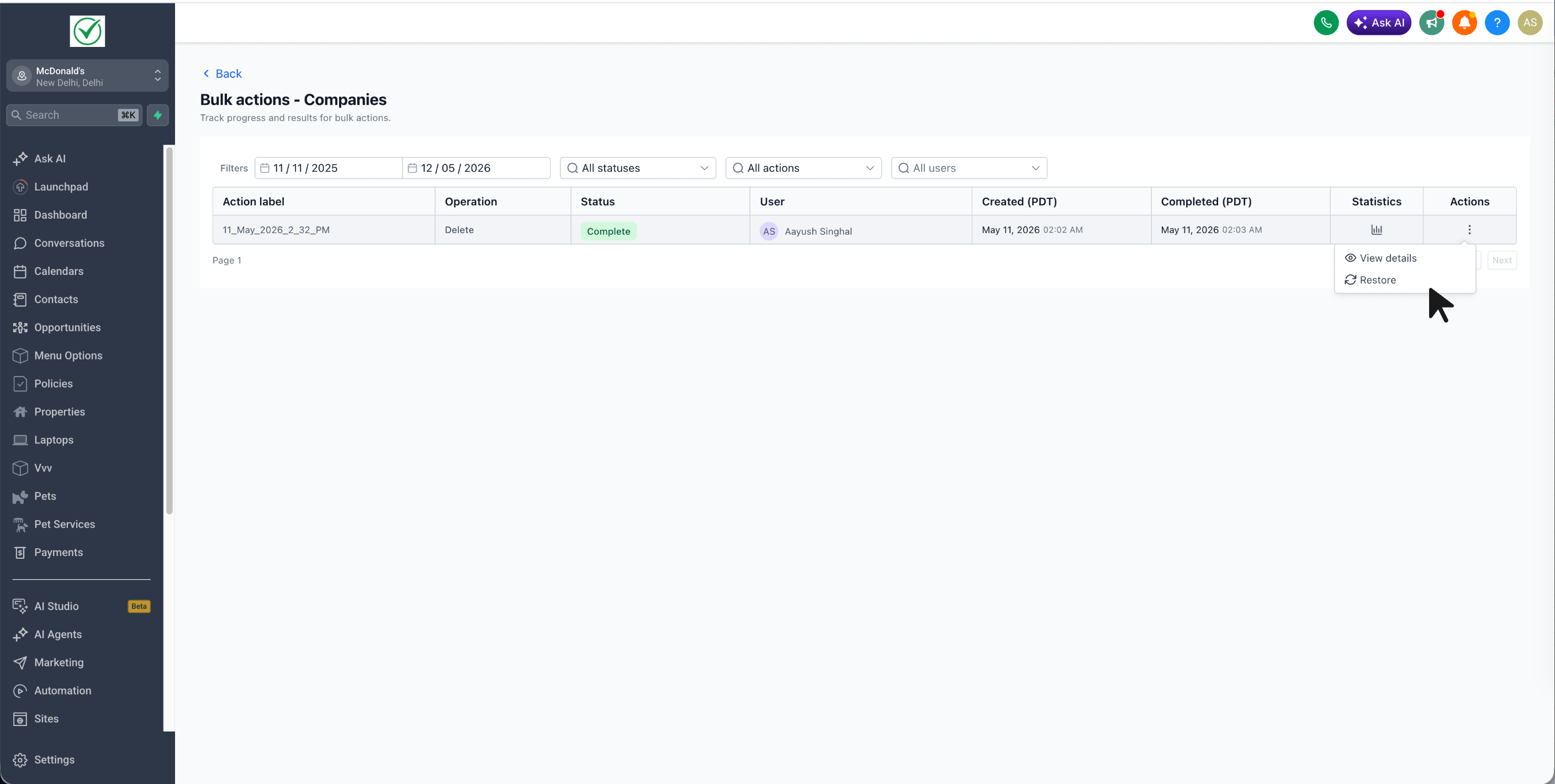
If a bulk deletion was made in error, the Bulk Actions page lets you restore the companies within 60 days. The restore runs as a new job, reinstating the company records with their original field values and associations.
03How businesses use bulk delete for companies
- Marketing agency. After a client migration test, the agency can select all placeholder companies shown in the filtered list and bulk delete them. The platform logs the operation, and the agency can restore any company needed before the 60 day window expires.
- Real estate brokerage. When cleaning up old property management firms that were imported incorrectly, the brokerage applies a filter for those firms, selects the results, and uses Bulk Delete to remove them in one step. Associations to listings and contacts are removed automatically.
- Insurance carrier. During a data audit, the carrier filters companies by a specific status, bulk deletes the inactive ones, and later restores any mistakenly removed companies from the Bulk Actions page, preserving their prior contacts and policy links.
04The numbers and rules that matter
- Recover deleted Companies within 60 days from the Bulk Actions page.
05How to set up and use bulk delete for companies in HighLevel
Bulk delete companies
- Open the Companies section in your subaccount.
- Mark the companies you want to remove using the checkboxes beside each row, or use the header checkbox to select all on the page.
- Click the Delete button that appears in the bulk actions bar.
- Confirm the deletion in the popup dialog.
- View the progress and logs on the Bulk Actions page.
Recover deleted companies
- Navigate to the Bulk Actions page in your subaccount.
- Find the job row for the deletion, click the three dot menu on the right, and choose Restore.
- Confirm the restore in the dialog that appears.
06What it looks like in HighLevel
07Things to know before you rely on it
- Deleted companies can be restored only within 60 days; after that they are permanently removed.
- When a company is deleted, all its field values and any associations to contacts, opportunities, custom objects, notes, and tasks are also removed.
08How it connects to the rest of HighLevel
- Learn how company fields are used across HighLevel. Company fields
- See how automatic company creation and enrichment works. Automatic creation
- Read about managing appointments for companies. Company appointments
Michael's take

Bulk Delete for Companies lets you prune stale or test records without opening each one.
Don’t forget to double check your filters before you hit Delete.