
01Who this is for
- Founders who need quick visibility of client meetings, the tab provides upcoming and past appointments at a glance.
- Account managers handling multiple client accounts, they can add or link calls without switching screens.
- Support teams that schedule onboarding sessions, they keep the schedule attached to the relevant Company for any team member.
02Company appointments, explained
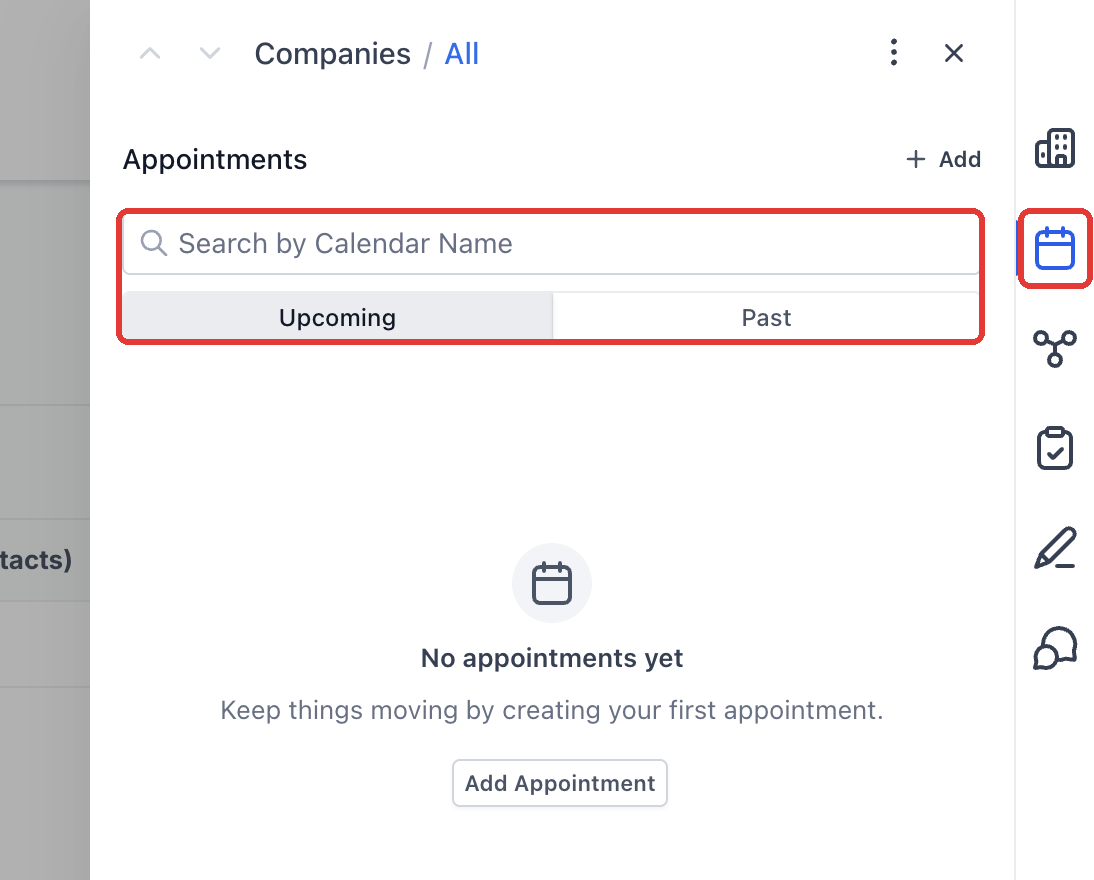
The Appointments tab lives on the Company record. It lists all appointments associated with that Company, separated into Upcoming and Past views. A search box lets you filter by calendar name.
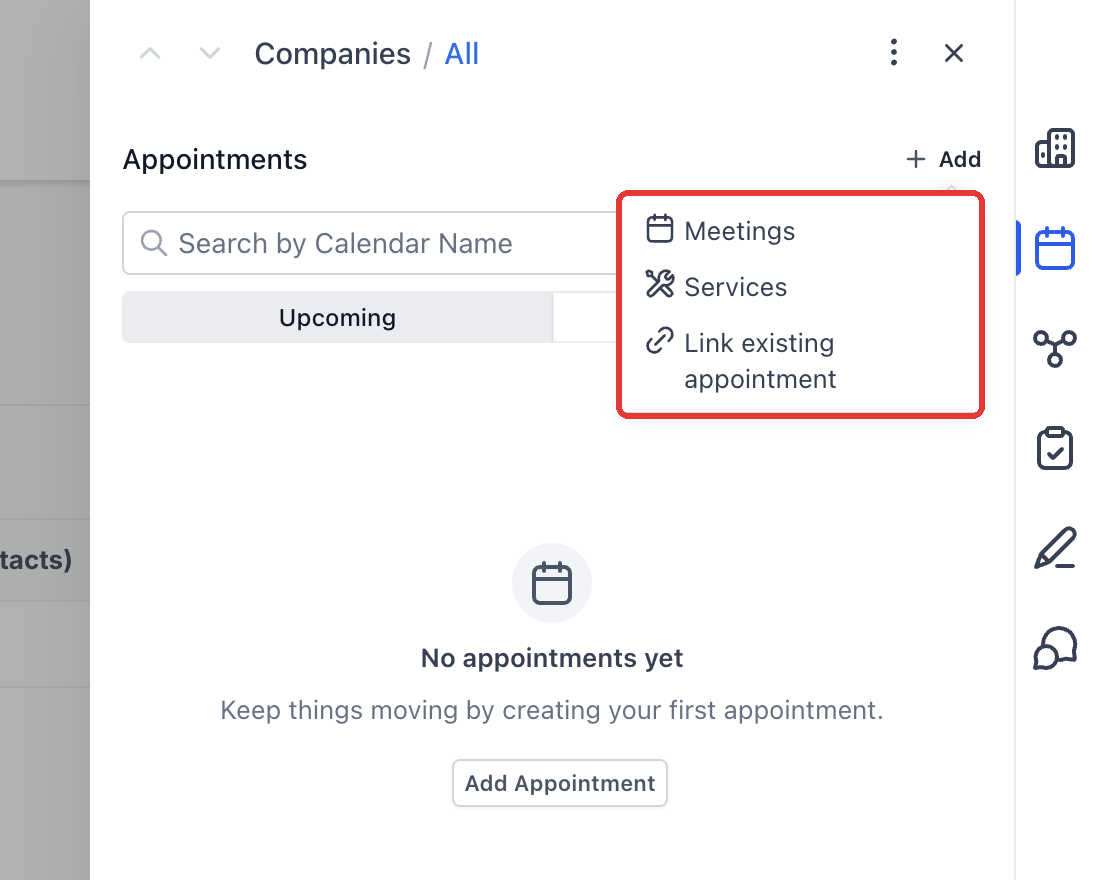
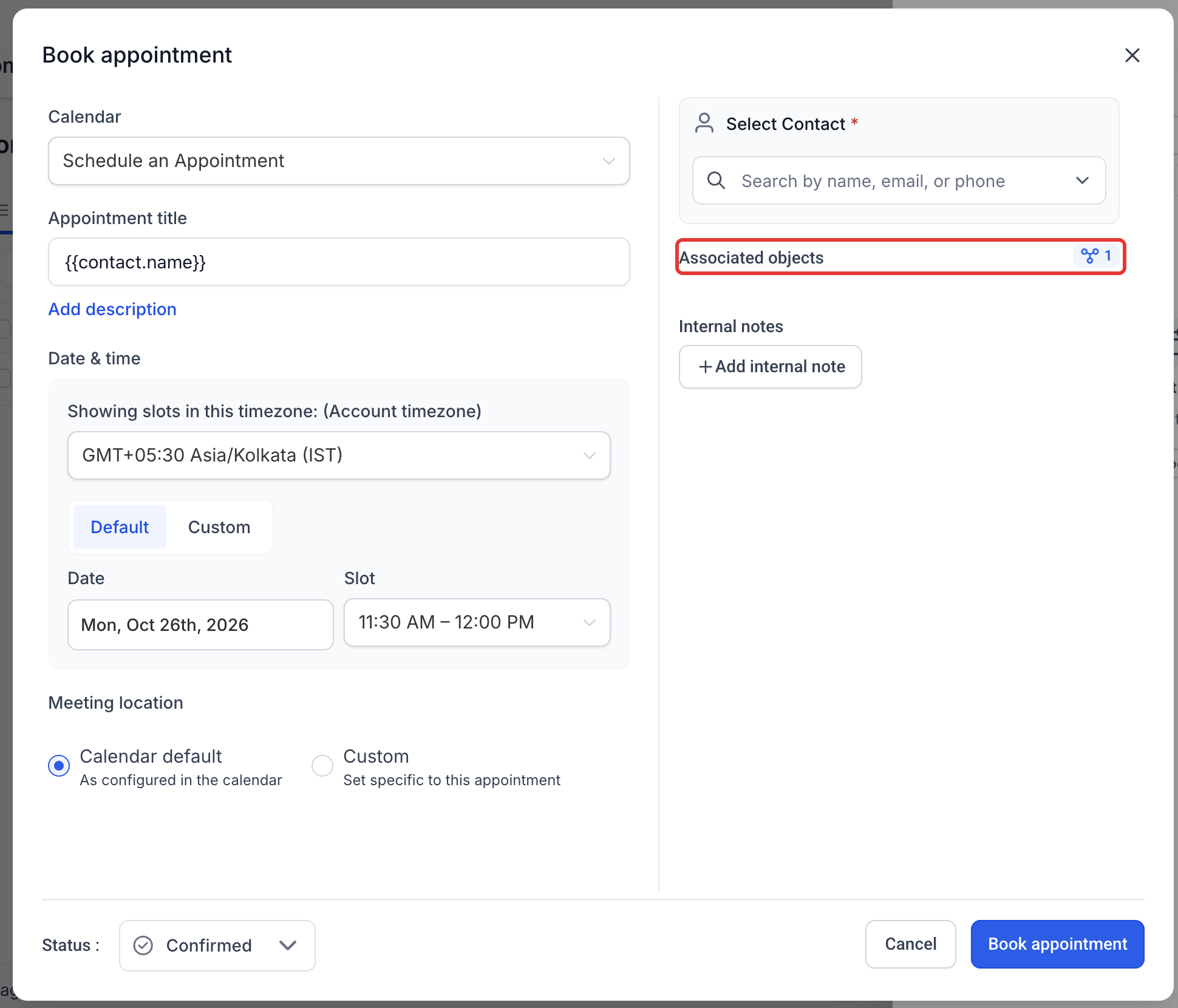
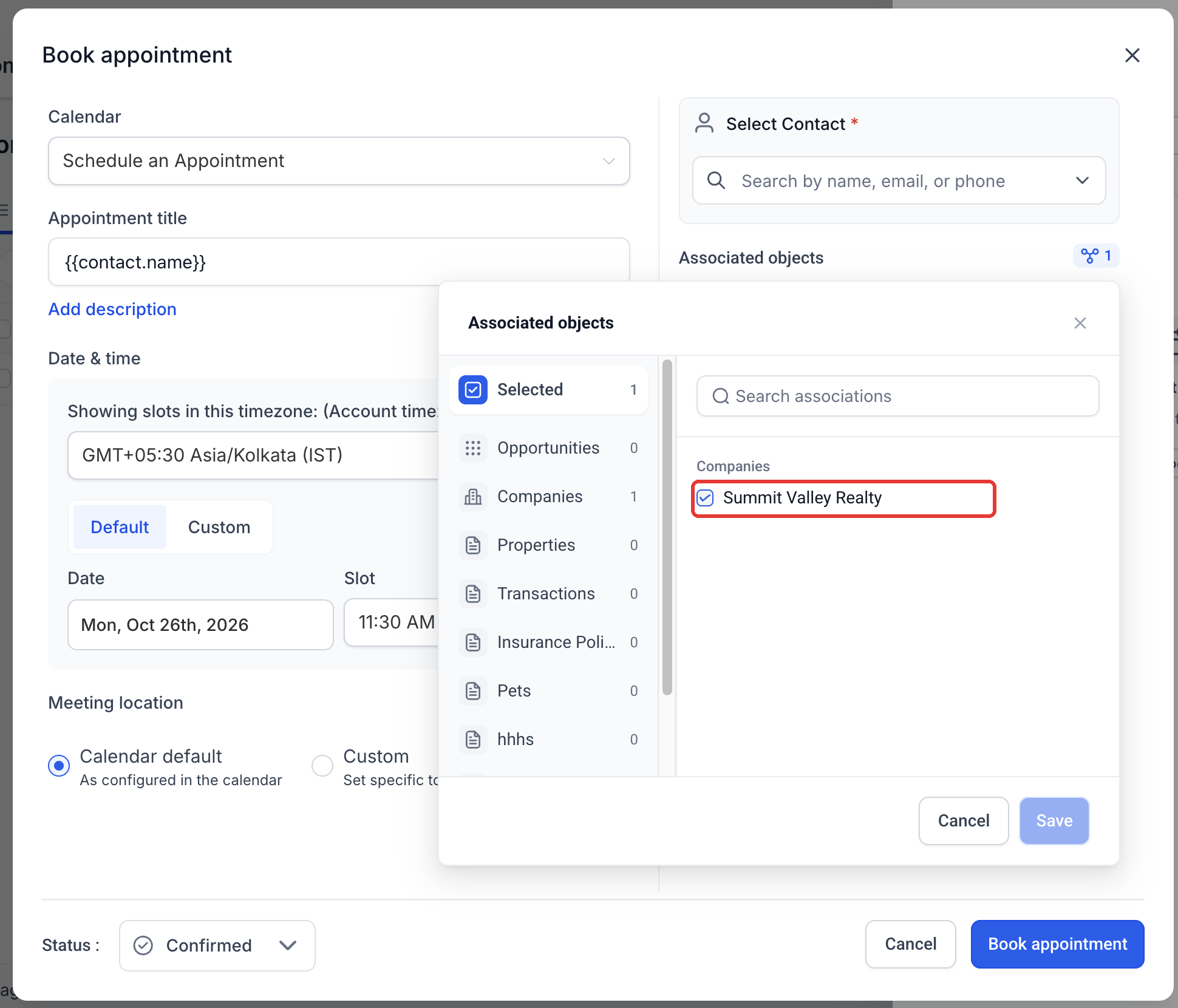
From this tab you can start a new meeting or service booking, or attach an already scheduled appointment to the Company. The booking form includes an Associated objects selector that pre selects the current Company and lets you add other record types if needed.
03How businesses use company appointments
- SaaS startup. Open a Company’s record, view its upcoming demo calls in the Appointments tab, then click Add to schedule a follow up meeting. The new meeting appears in the list for anyone reviewing the account.
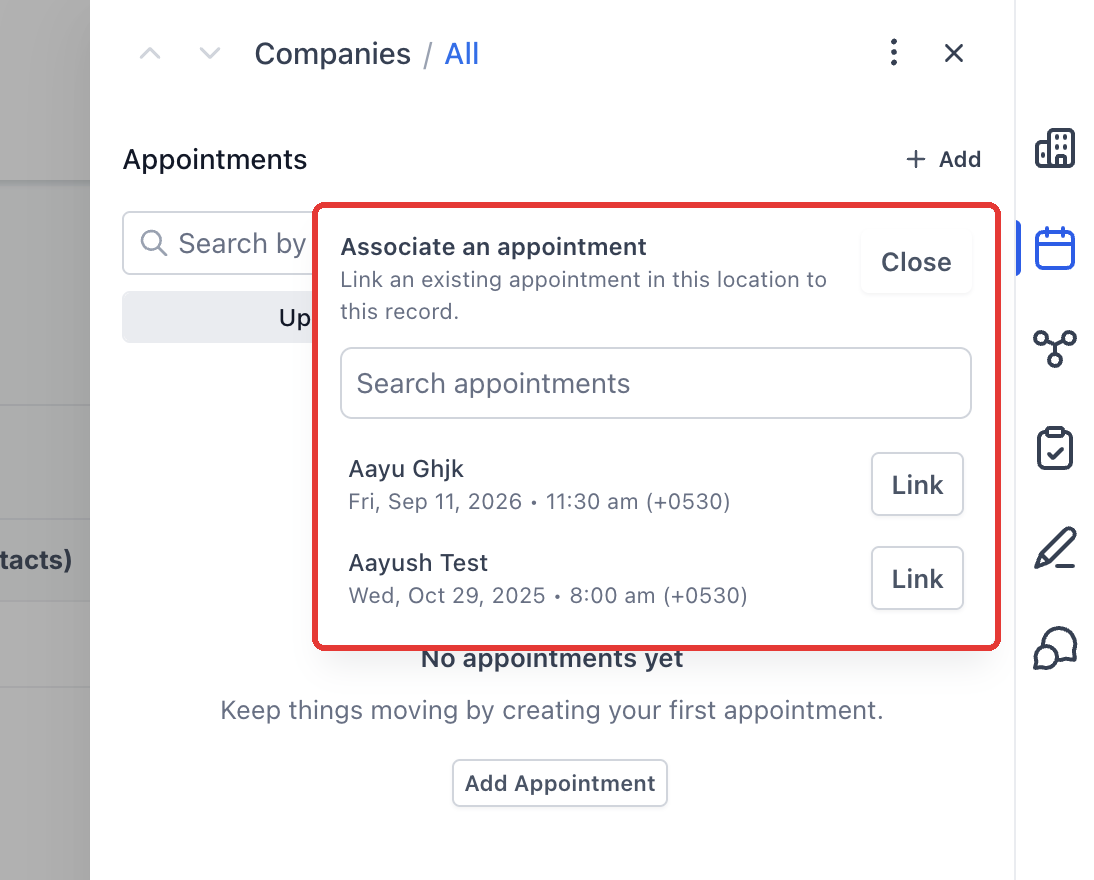
- Consulting firm. When a strategy session is already on the calendar, go to the client’s Company, choose Add > Link existing appointment, search for the session, and click Link. The session becomes visible on the client’s record.
- Real estate brokerage. Create a property tour by selecting Meetings in the Appointments tab, fill in the calendar, date, time, and contact, then Book appointment. The tour is automatically linked to the Company that owns the property.
04The numbers and rules that matter
- Associated objects includes Companies, Custom Objects, and Opportunities.
05Before you start
- Feature must be enabled for the location through the private beta.
- A Company record must exist before opening its Appointments tab.
06How to set up and use company appointments in HighLevel
Open the Appointments tab
- Navigate to Contacts > Companies and select the desired Company.
- Click the Appointments option on the right hand side tab rail.
- Toggle between Upcoming and Past to view different appointment sets.
- Enter a calendar name in the Search field to narrow the list.
Start a new booking
- In the Appointments tab, click the Add button.
- Choose Meetings or Services based on the type of booking you need.
- Enter the calendar, date, time, and Contact for the appointment.
- Review the title, location, status, and any required fields.
- Always verify the Associated objects selection before confirming.
- Press Book appointment to save the new booking.
Review Associated objects
- Within the booking form, select the Associated objects tab.
- Switch between record type tabs to see Companies, Custom Objects, and Opportunities.
- Use the search box to locate specific records if needed.
- Confirm the selected records before saving the appointment.
Link an existing appointment
- Open the Company’s Appointments tab.
- Choose Add > Link existing appointment.
- Search for the appointment inside the current location.
- Click Link next to the desired appointment to associate it with the Company.
07What it looks like in HighLevel
08Settings that matter
- Associated objects. Controls which records (Companies, Custom Objects, Opportunities) are linked to the appointment during booking.
09Things to know before you rely on it
- Feature is available only through a private beta and only in locations where it has been enabled.
- An empty Appointments tab does not prove that the Contact has no other bookings.
10If something goes wrong
- Appointments tab appears empty. Check both Upcoming and Past views and clear any calendar name filter. If the appointment is not linked to the Company, use Link existing appointment to locate it.
11How it connects to the rest of HighLevel
- Getting started with Companies in HighLevel Company basics
- Set up Company based workflows Workflows
- HighLevel pricing and plans Pricing
Michael's take

Company appointments feel like a modest convenience that can prevent a lot of “where did that meeting go?” moments. It’s not a wholesale overhaul of how you run your HighLevel account, but it does give every account manager a single place to see the full history of a client’s calls and services.
A boutique marketing agency that runs monthly strategy reviews for each client will find this especially handy. The team can hop into the client’s company record, glance at the upcoming review, or add a new onboarding call without juggling separate calendars. If I were setting it up, I’d first verify the beta is active for my location, then walk through a couple of companies to make sure the preselected association works as expected.