
01Who this is for
- Sales managers, need a unified view of all account messages to coordinate outreach.
- Customer support leads, want every support exchange tied to the relevant Company for context.
- Account managers, require quick access to past conversations when handling a client.
02Link conversations to companies, explained
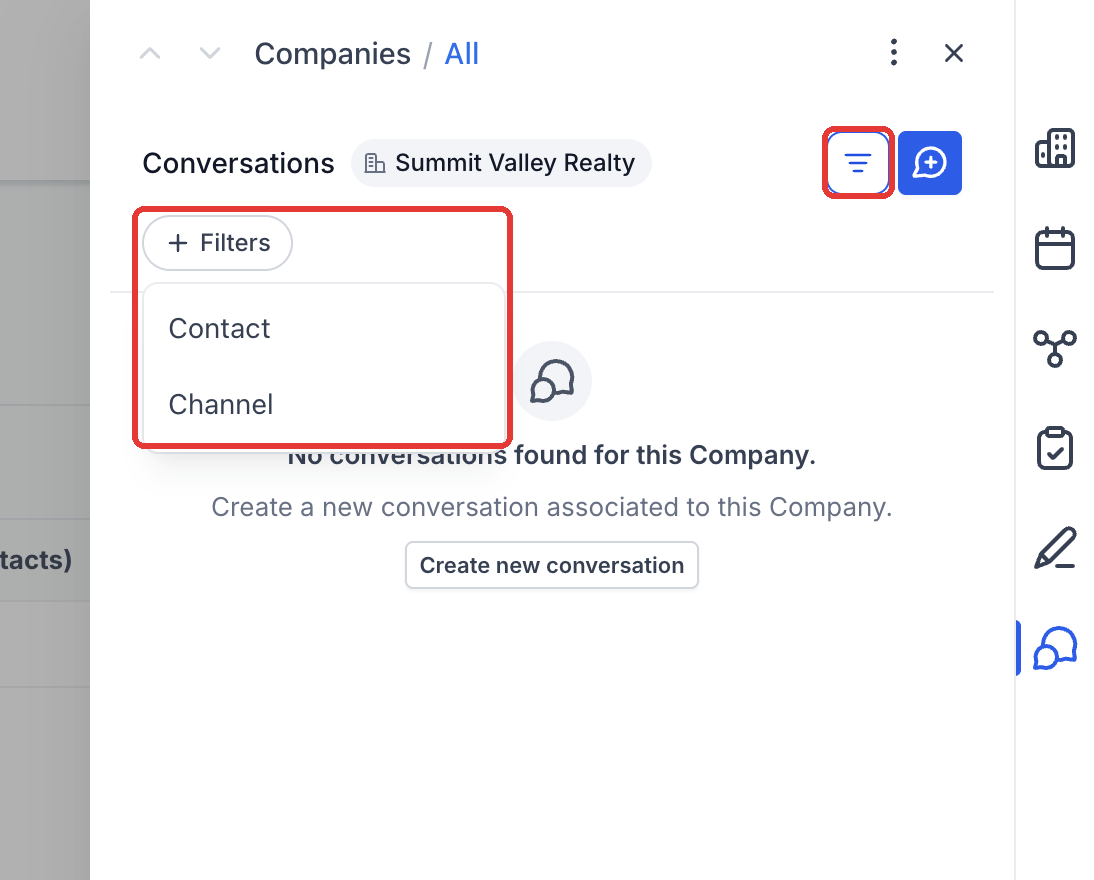
The feature adds a Companies view inside the Conversations tab. When a message is linked, it stays in the original Contact’s conversation and also shows on the selected Company record. Users can filter the Company feed by Contact or Channel to find specific threads.
All linking actions happen from the Conversations interface: starting a new chat from a Company, adding a link while drafting, attaching a link to an existing message, or associating several messages at once. The Company appears as "Linked" automatically when a new conversation originates from its page.
03How businesses use link conversations to companies
- Real estate brokerage. Agents open a property's Company record, view all messages linked to that property, and start a new chat with a buyer while the Company stays linked. This keeps every buyer discussion attached to the property account.
- SaaS subscription service. Support staff link incoming support emails to the subscriber’s Company. The email remains in the contact’s thread and also appears on the Company, giving the entire team visibility of the issue.
- Insurance agency. Agents bulk associate several text messages from a policyholder with the policy’s Company record, ensuring all related communication is viewable from the Company’s conversation feed.
04Before you start
- The feature must be enabled for your account through the private beta and is only available in locations where it is turned on.
05How to set up and use link conversations to companies in HighLevel
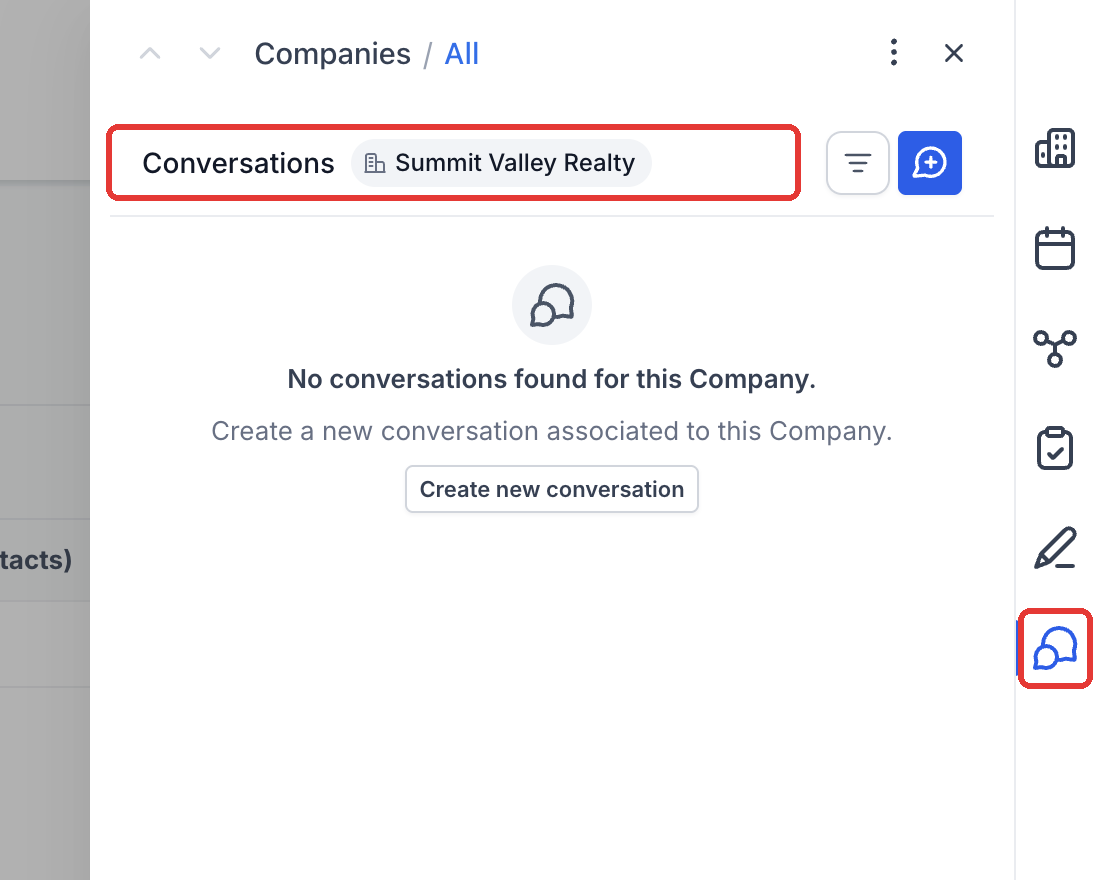
View a Company's conversations
- Navigate to Contacts > Companies and open the desired Company.
- Click the Conversations option in the side panel.
- Open the filter menu and choose Filters to narrow the feed by Contact or Channel.
Start a conversation from a Company
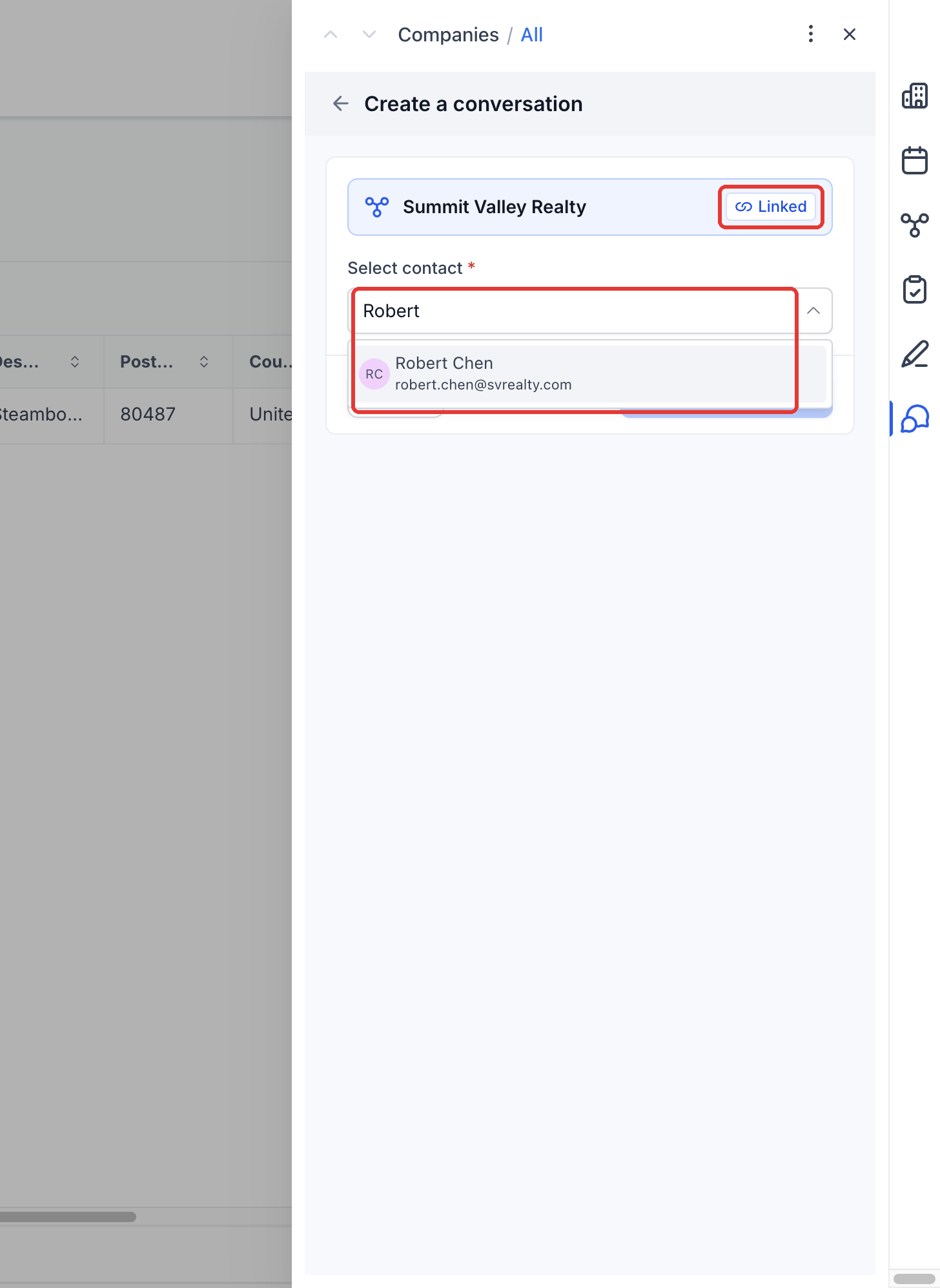
- In the Company's Conversations tab, select Create a conversation.
- Verify that the Company is displayed as Linked.
- Choose the Contact you wish to message under Select contact.
- Press Create conversation to open the chat window.
Link messages while composing
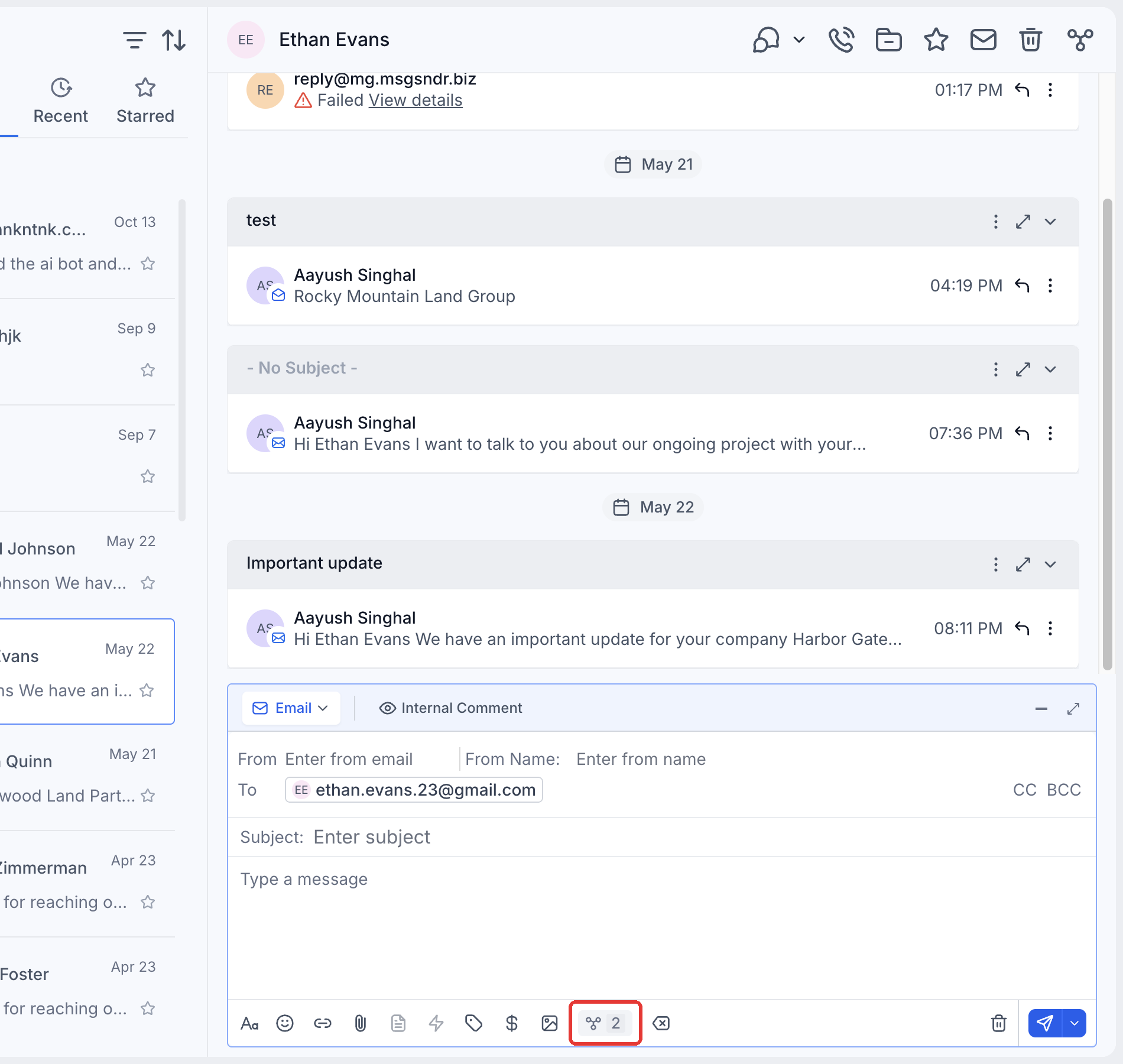
- While drafting a message, click the associations button in the composer.
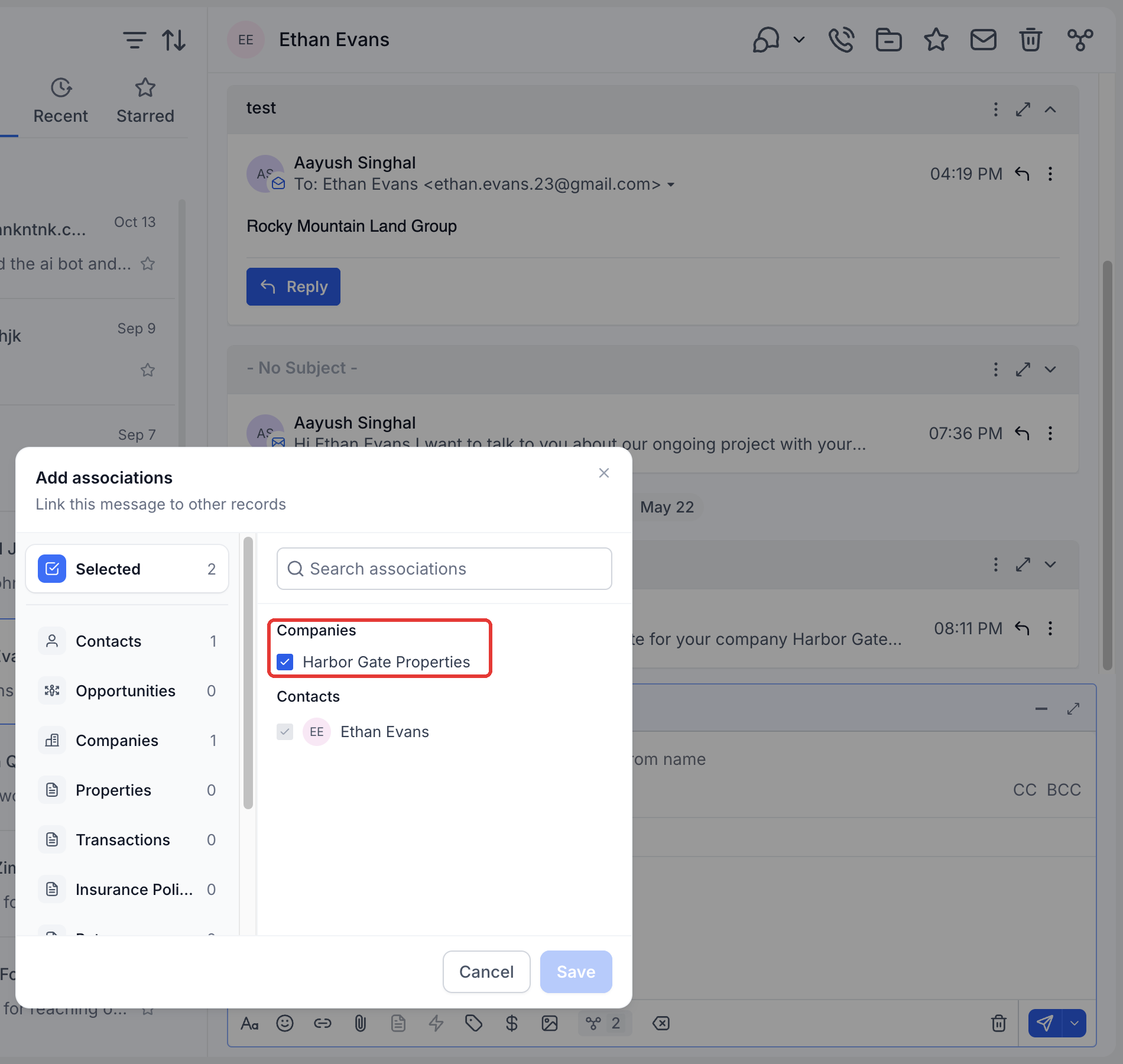
- Select Companies, locate the desired Company, and click Save.
- Review the message and recipients, then send it.
Link an existing message
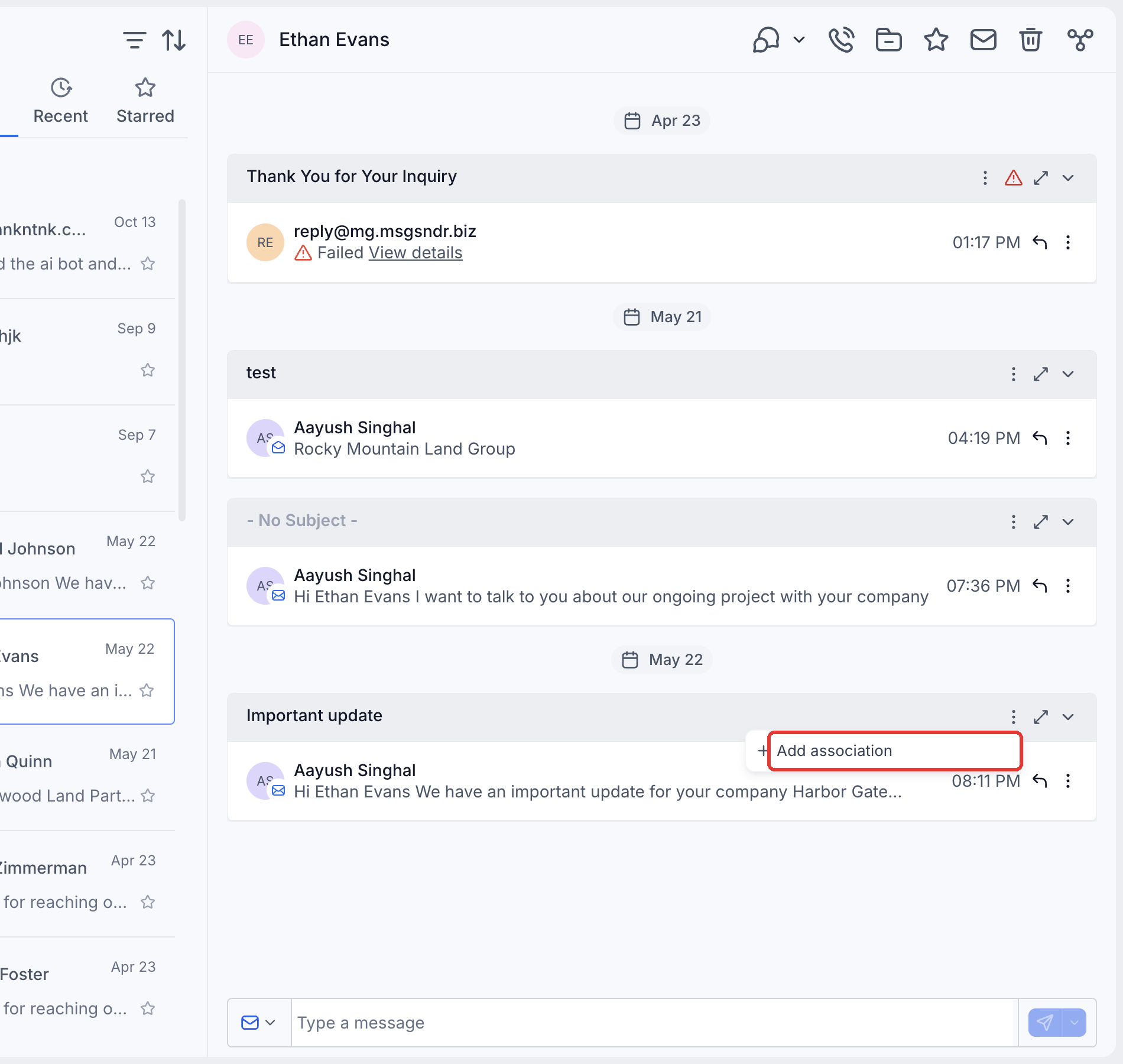
- Open the three dot menu on the message (or on the email header) and choose Add association.
- Pick Companies from the list of record types.
- Search for the target Company and select it.
- Click Save to attach the message to the Company.
Bulk associate several messages
- Click Bulk associate messages in the conversation header.
- Select the messages you want to link.
- Choose Add associations and pick Companies.
- Press Save to confirm the associations.
06What it looks like in HighLevel
07Things to know before you rely on it
- The feature is only available through a private beta and only in locations where it has been enabled.
- Group SMS and internal chat messages cannot be linked to Companies.
08How it connects to the rest of HighLevel
- Learn the core capabilities of Companies and how they fit into your workflow. Managing companies
- Set up automatic creation and enrichment of Company records. Automatic company creation
- Create workflows that trigger actions based on Company events. Company based workflows
Michael's take

Be aware that this capability is still in private beta and only works in locations where HighLevel has turned it on. It won’t be available everywhere yet, so you may find some accounts without the option.
When it is available, linking conversations to Companies lets the whole team see every relevant message right on the account record.