
01Who this is for
- Founders of SaaS startups, keep client Companies aligned with email domains and avoid manual linking.
- Sales managers at B2B agencies, ensure every Contact auto associates with the correct Company record.
- Marketing teams in service firms, obtain Company logos and names automatically for richer outreach.
02Automatic company creation and enrichment, explained
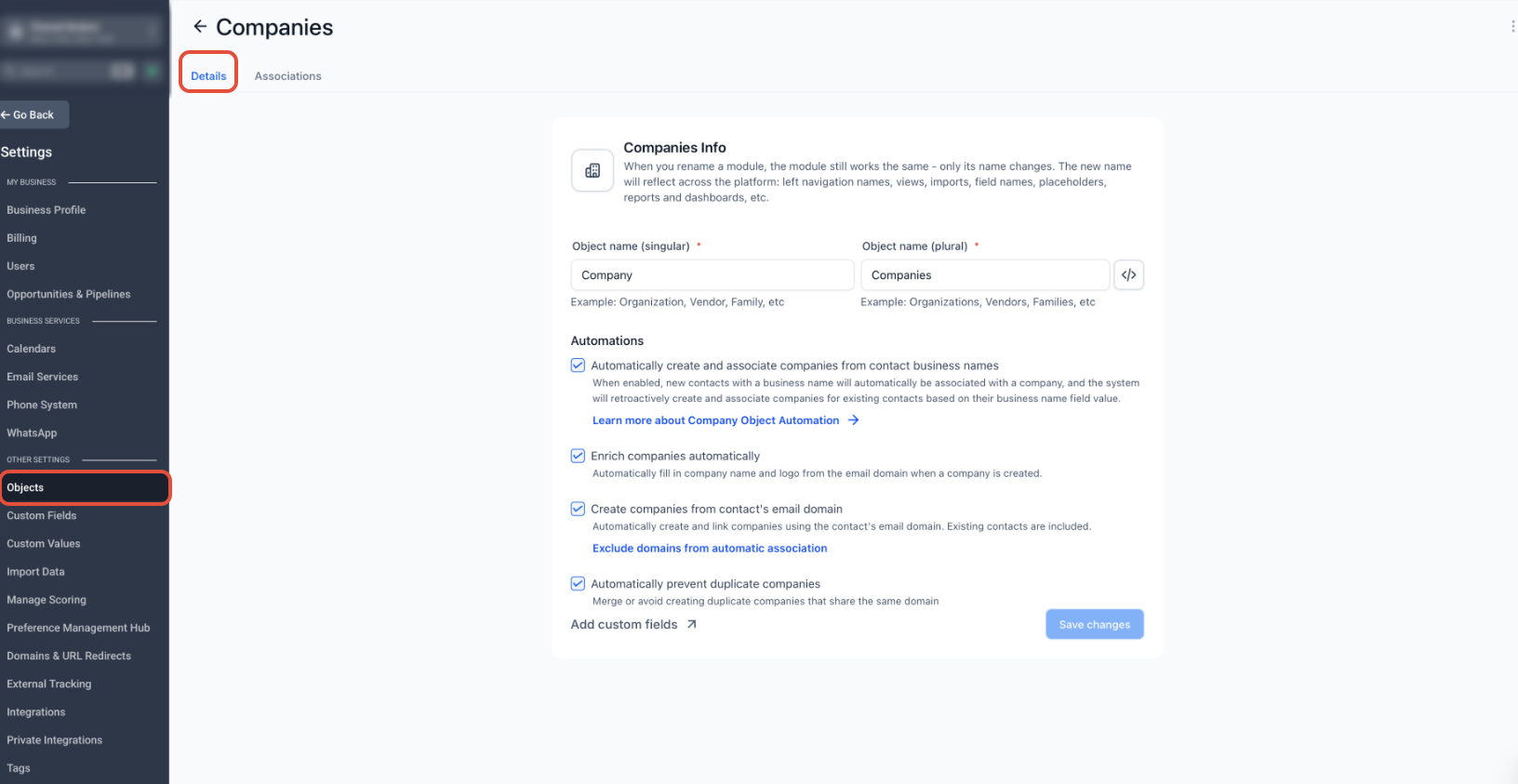
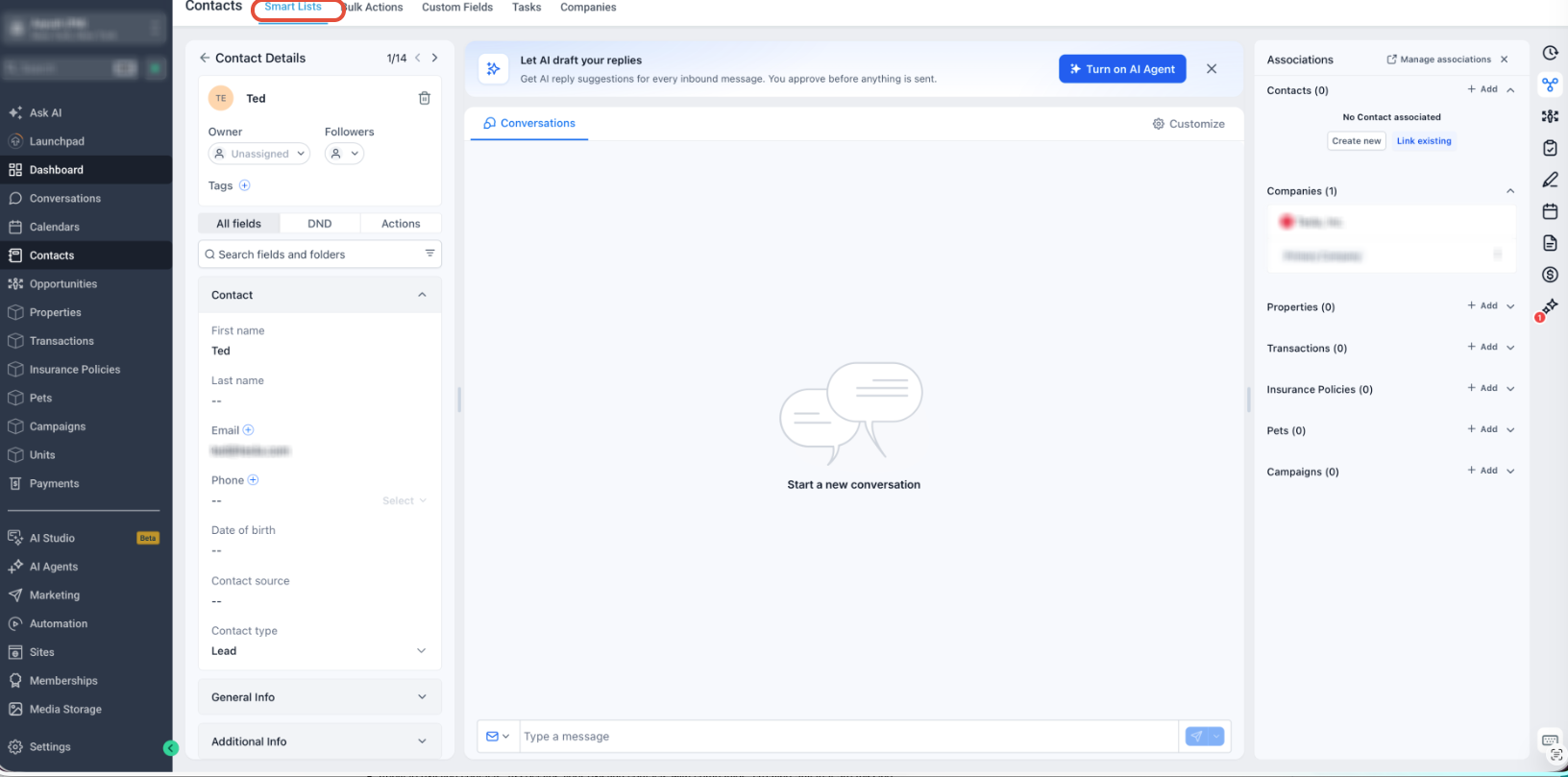
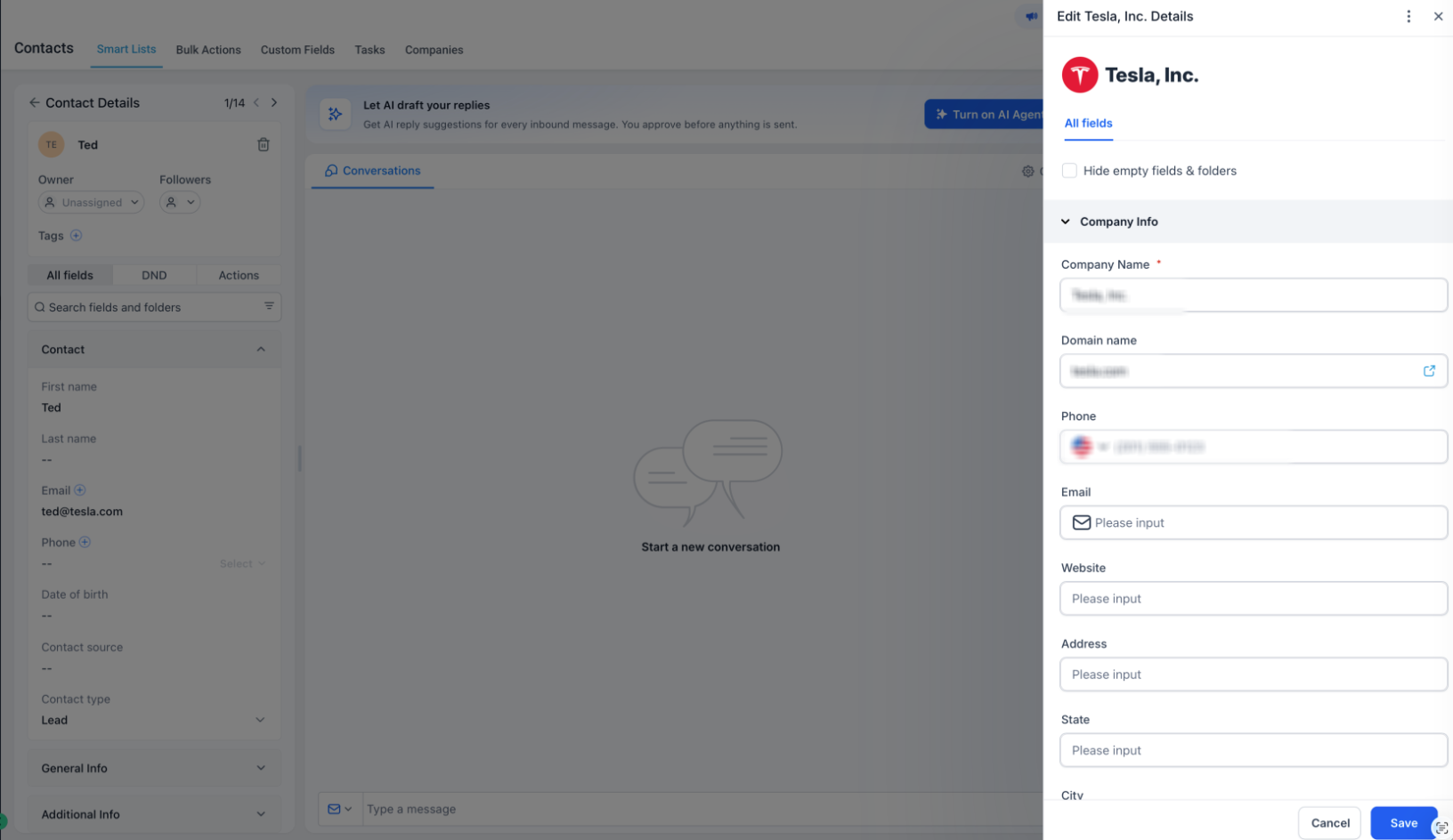
The feature is configured under Settings > Objects > Companies > Automations. It examines a Contact’s Business Name and the domain portion of a business email address. Depending on the selected automation options, HighLevel will attach the Contact to an existing Company, add a missing domain to a Company, or generate a new Company record. When a new Company is created, the system attempts to enrich it with a name and logo derived from the domain. Turning the automation off stops future processing but does not reverse Companies, associations, domains, or logos that were already created. Existing associations remain unchanged.
03How businesses use automatic company creation and enrichment
- SaaS startup. Enable domain based matching so every lead Contact is linked to the correct Company automatically, and let the system fill in the Company’s logo for a ready made profile.
- Real estate brokerage. Turn on Business Name automation to create a Company from an agent’s listed business name when the email domain does not match a known Company.
- Dental practice. Add the practice’s domain to the exclusion list to keep personal Gmail addresses from creating unwanted Company records while still using domain matching for supplier contacts.
04Before you start
- Admin access to Settings is required.
- The Companies object must be enabled in the subaccount.
- Contacts need a business email address for email domain matching.
05How to set up and use automatic company creation and enrichment in HighLevel
Enable automatic company creation and enrichment
- Open Settings > Objects > Companies.
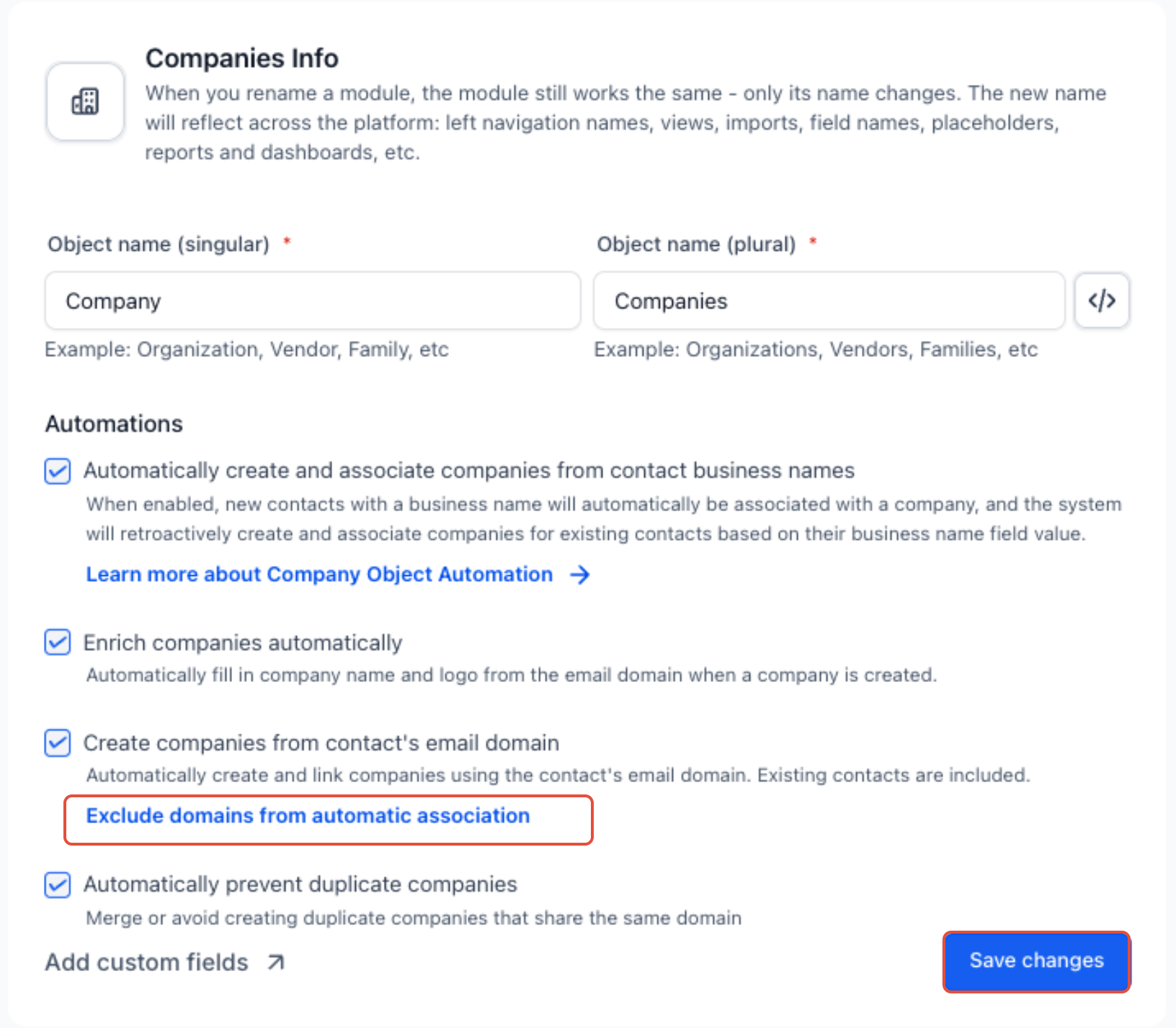
- In the Automations section, switch on “Create companies from contact's email domain”.
- Switch on “Enrich companies automatically”.
- Switch on “Automatically prevent duplicate companies”.
- Leave “Automatically create and associate companies from contact business names” off if domain matching should be primary.
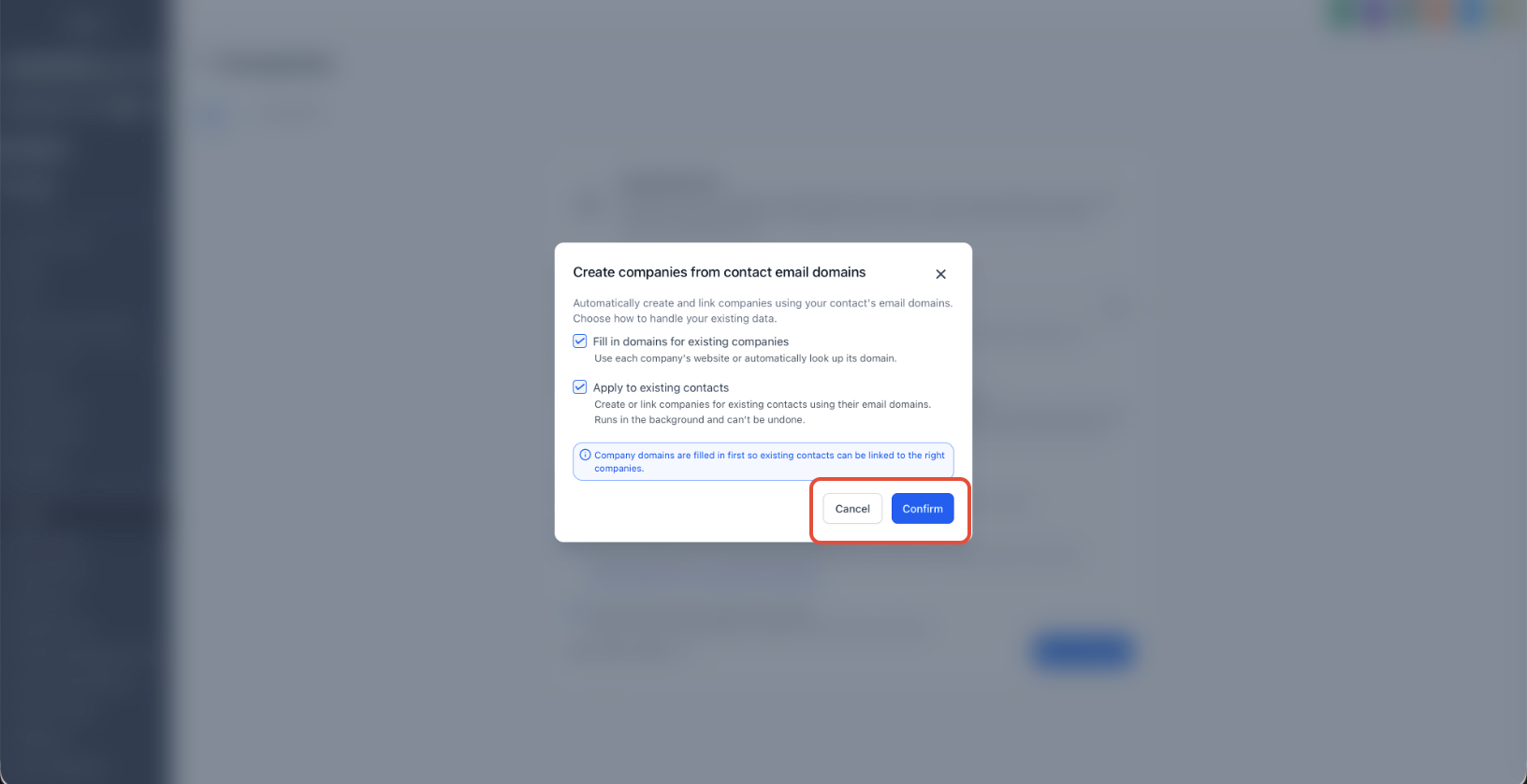
- Optionally enable “Fill in domains for existing companies” and “Apply to existing contacts” to process records that already exist.
- Click Save changes.
- Verify that the settings match the recommended configuration.
06What it looks like in HighLevel
07Settings that matter
- Automatically create and associate companies from contact business names. Uses the Contact’s Business Name to find or create a matching Company.
- Create companies from contact's email domain. Matches the domain after the @ in a Contact’s email to an existing Company or creates a new one.
- Enrich companies automatically. Attempts to fill the Company’s name and logo based on the domain data.
- Automatically prevent duplicate companies. Stops more than one Company from being assigned the same email domain.
- Exclude domains from automatic association. Lists domains that should not trigger Company creation via email domain matching.
08Things to know before you rely on it
- Free email provider domains such as Gmail, Yahoo, Outlook and iCloud are always excluded.
- Domain matching requires an exact match; subdomains are treated as different domains.
- Each Company can store only one domain.
- Business Name matching ignores case but respects spelling, spaces, punctuation and legal suffixes.
- Enrichment is best effort; missing name or logo does not stop Company creation.
- Duplicate prevention blocks only new duplicate domains; existing duplicates must be resolved manually.
09If something goes wrong
- No Company was created. Confirm the Contact has a business email, the domain is not excluded or a free provider, and the Contact is not already associated with a Company.
- A Company was created from an excluded domain. Check whether Business Name automation is enabled; the Company may have been created from the Business Name instead of the email domain.
- A duplicate Company was created. Review the existing Company’s domain and Business Name. Differences in spacing, punctuation, legal suffixes, or domain values can prevent a match.
- A Company has no logo. The domain may not have been recognized, enrichment may be disabled, or the Company existed before enrichment was turned on.
- A Company still has no domain after backfill. The Company may use a free, social or website builder domain, may lack a usable website, or may conflict with another Company using the same domain.
10How it connects to the rest of HighLevel
- Key features and tips for managing Companies Managing companies guide
- Details on the Company domain field and duplicate prevention Domain field and duplicate rules
- How to set up Company based workflows Company workflows
Michael's take

HighLevel handles linking automatically once you enable the settings, pulling data from email domains or business names and adding a logo when it can find one. It keeps your HighLevel account tidy without overwriting anything you’ve already linked.
I’d start by enabling email domain matching and the duplicate prevention option. You can add a few exclusion domains if you have internal or testing addresses you don’t want turning into companies.