
01Who this is for
- Sales teams benefit because they can keep all contacts from a prospect company together, making pipeline tracking easier.
- Account managers use it to maintain up to date partner and vendor information in a single record.
- Marketing groups can segment companies by industry or location for targeted outreach.
02Companies, explained
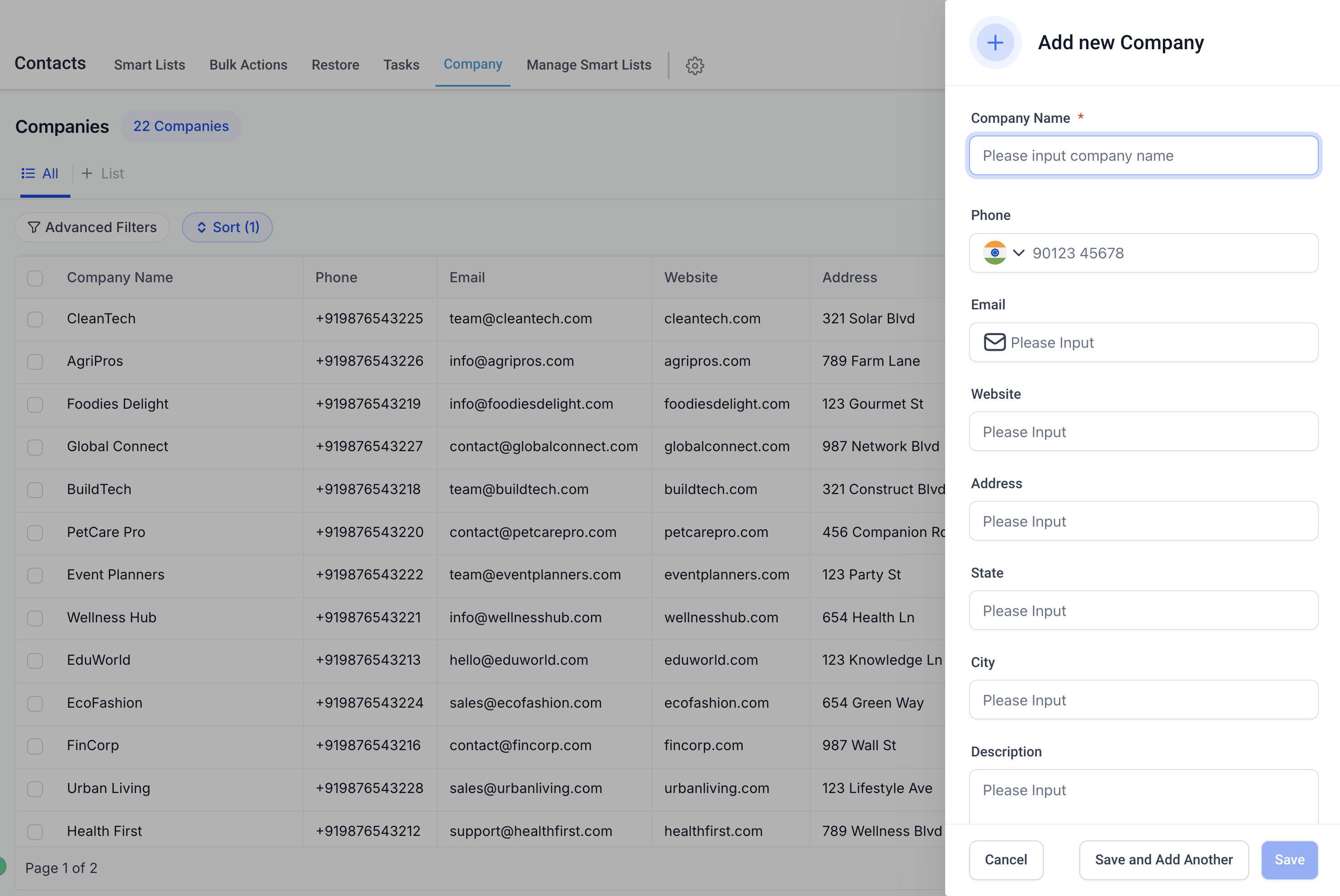
HighLevel provides a Companies module where each record represents a business entity. You can create a new company, edit existing records, and store core details such as phone, email, website, address, and a description.
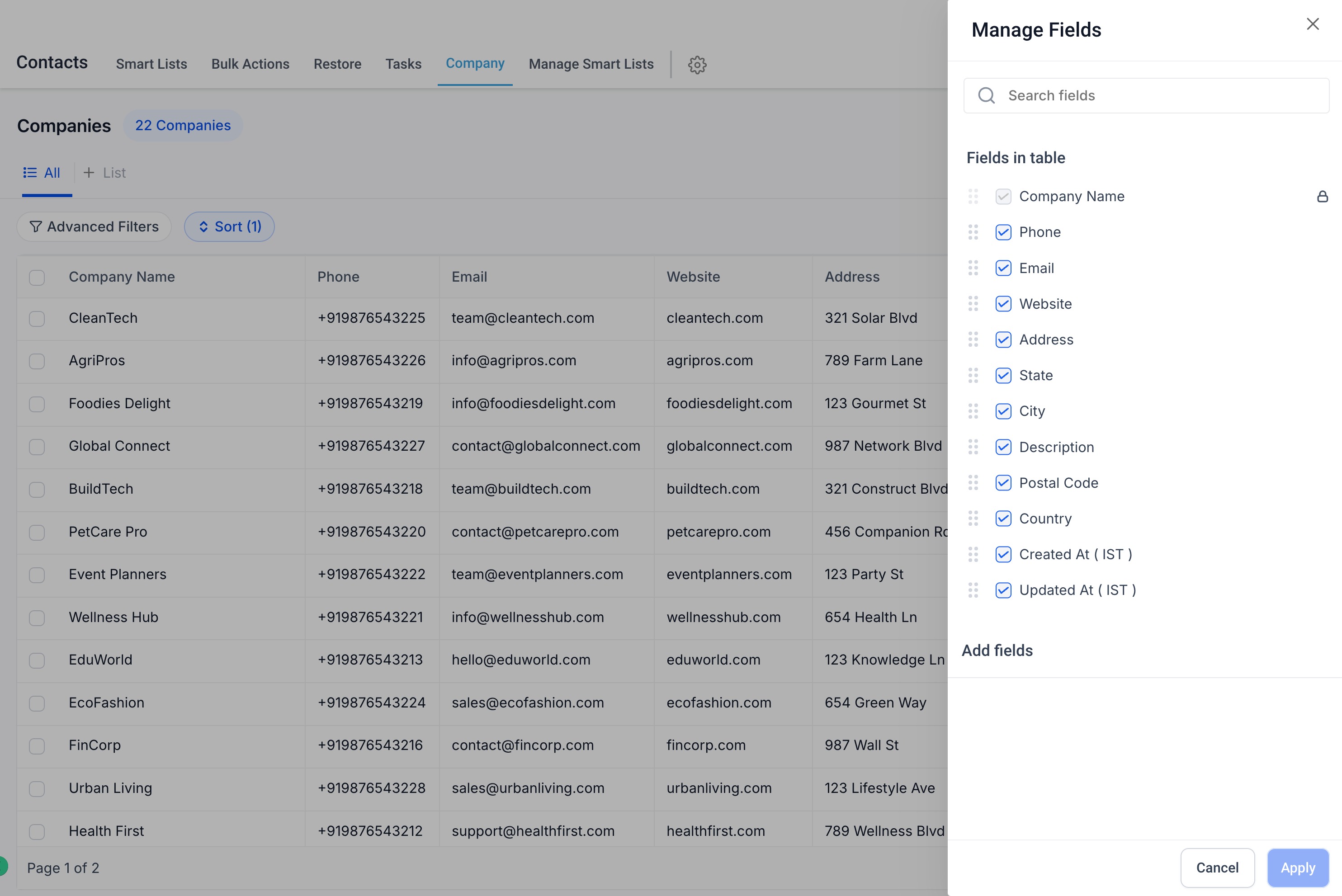
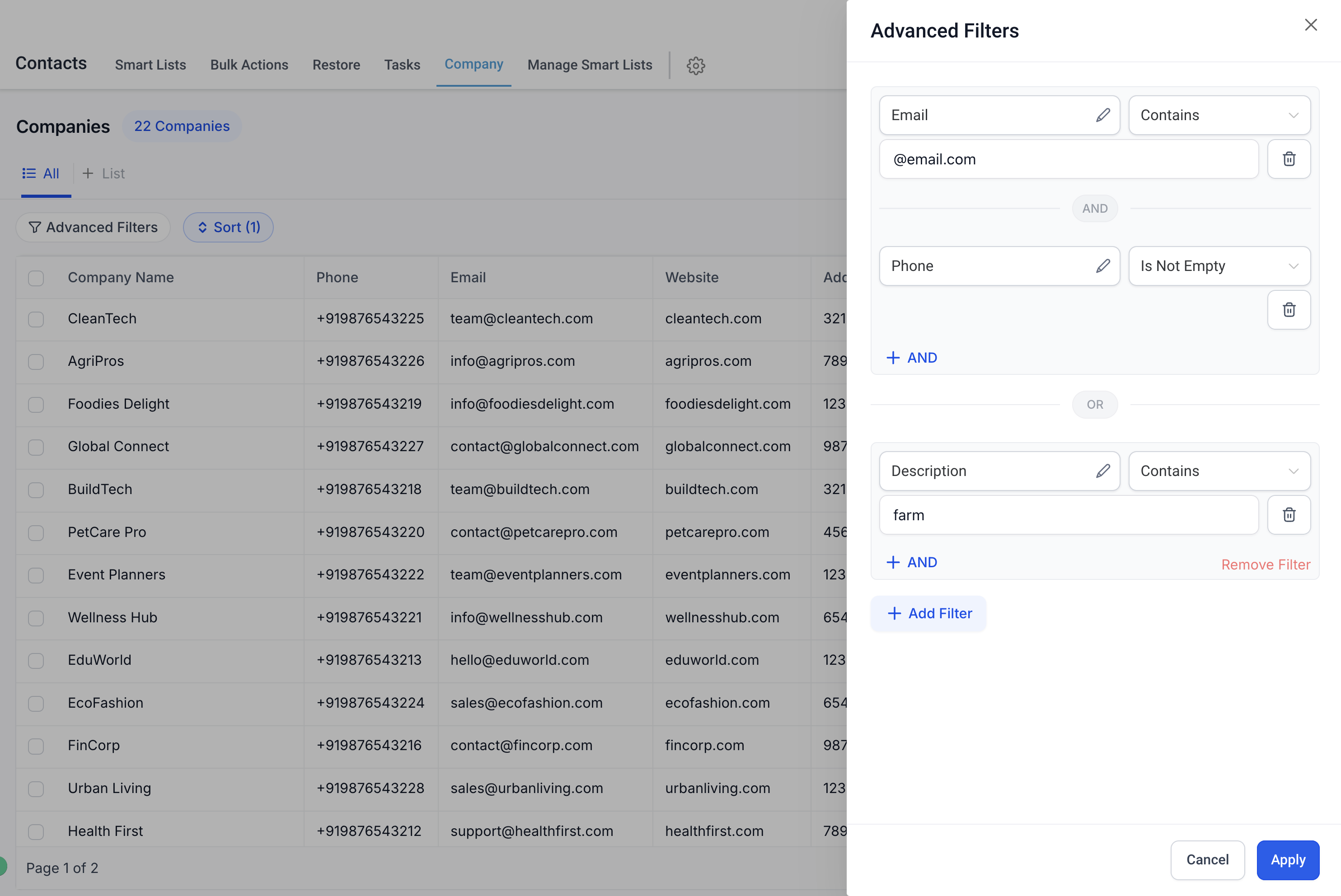
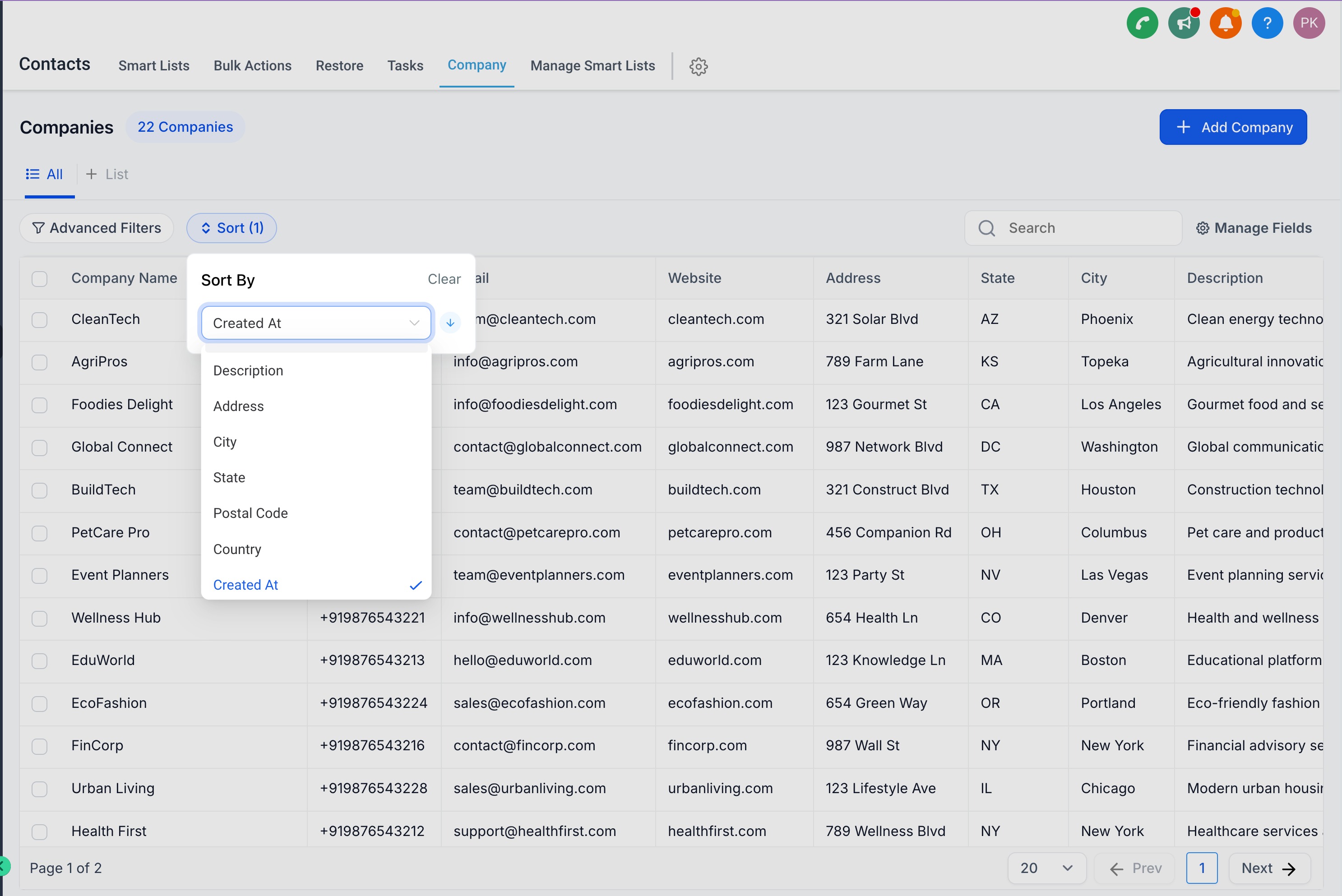
The module supports custom fields, allowing you to add data points like industry type or revenue range. List views can be tailored via the Manage Fields option, and Advanced Filters let you narrow records by any standard or custom attribute. Sorting and a universal Search let you quickly locate companies.
03How businesses use companies
- Real estate brokerage. The brokerage adds each property owner company, filling in address and contact details. Custom fields capture the number of units managed. Agents filter by city to see owners in a target market and sort by company name for quick lookup.
- IT services firm. The firm creates company records for each client organization, adding custom fields for industry and employee count. Account managers use Advanced Filters to view only clients in the healthcare sector and search by custom field when planning service upgrades.
- Event planning agency. The agency stores venue companies with website and description fields. Using Manage Fields they display only the venue name and city in the list view. They sort by state to plan regional events and search by custom field for venues offering catering.
04How to set up and use companies in HighLevel
Create, edit, and save company details
- Add a new company record or modify an existing one, filling in fields such as name, phone, email, website, address, and description.
Create and manage custom fields
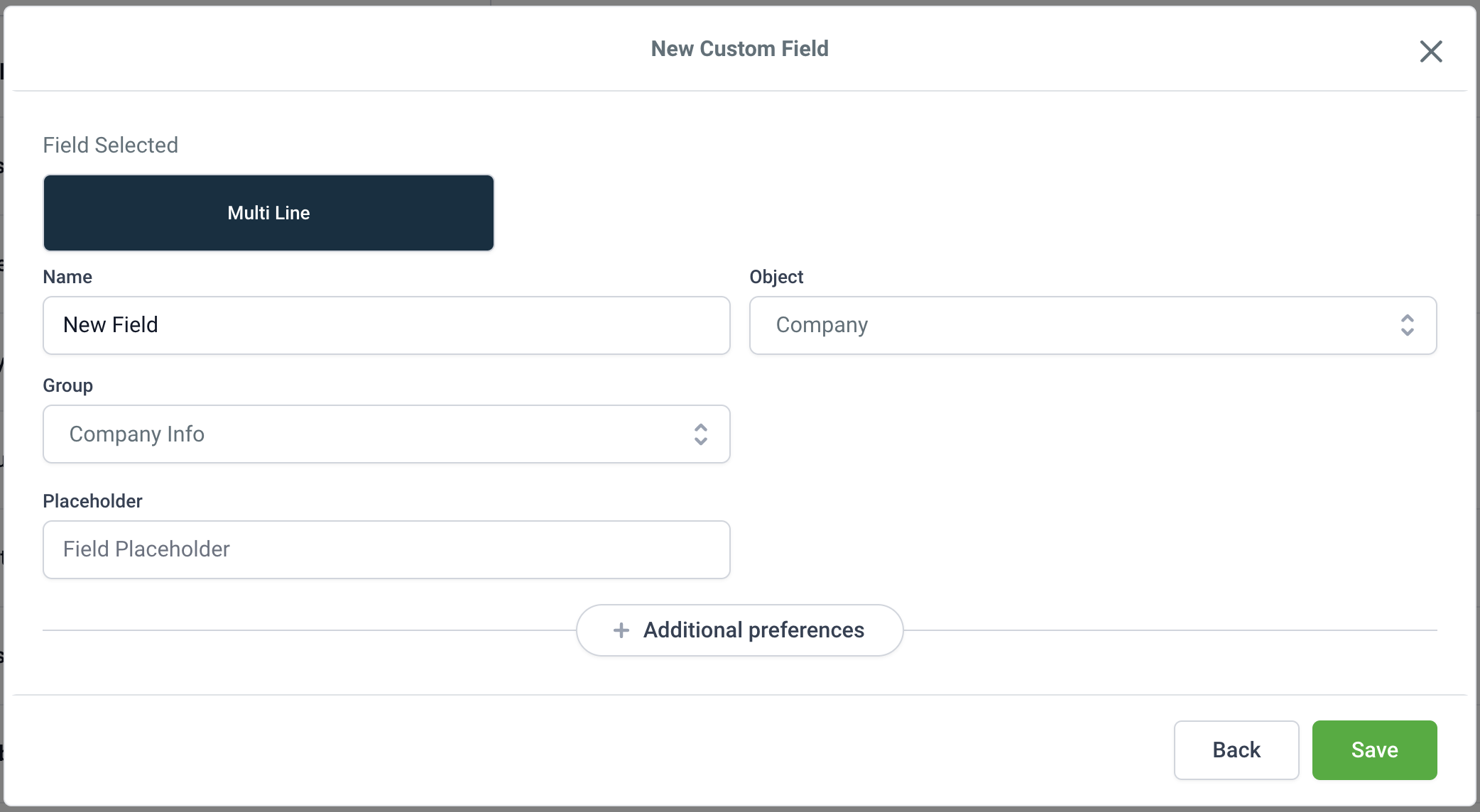
- Define custom fields like industry type, revenue range, or employee count, then edit or update them as needed for each company.
Customize the list view
- Open the Manage Fields option and select which columns, such as Website or State, should appear in the company list.
Apply advanced filters
- Set filter criteria on standard or custom fields, for example City or Industry, to narrow the displayed company records.
Sort company records
- Choose a field like Company Name, City, or State to order the list for easy navigation.
Search across standard and custom fields
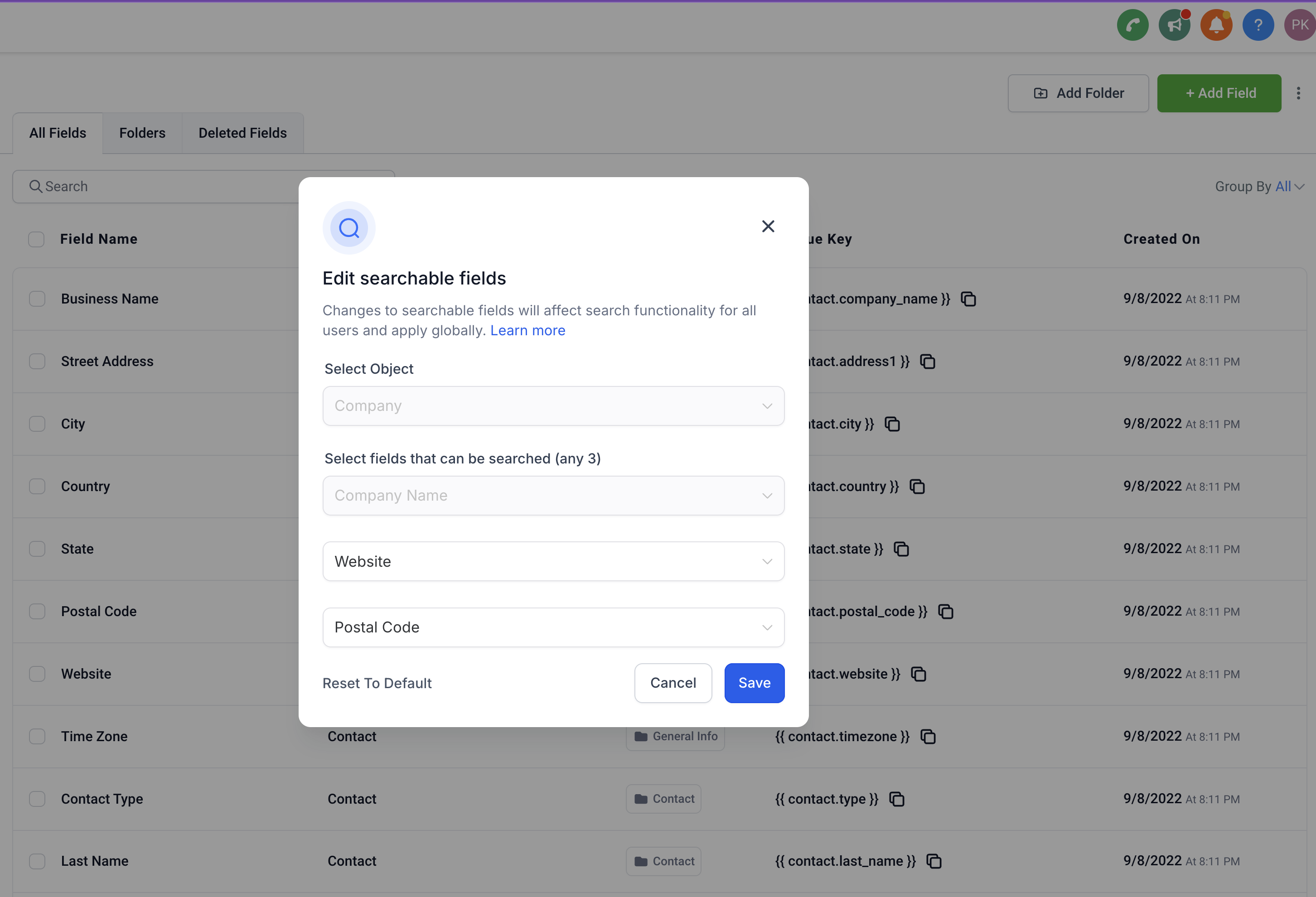
- Enter a term in the Search box to locate companies by any searchable field, including custom fields you have defined.
05What it looks like in HighLevel
06Settings that matter
- Manage Fields. Controls which columns are visible in the Companies list view.
- Advanced Filters. Enables filtering of company records based on chosen field values.
- Custom Fields. Allows creation of additional data points specific to your business needs.
- Sorting. Determines the order in which company records are displayed.
- Search. Finds company records using any standard or custom field content.
07How it connects to the rest of HighLevel
- Explore all company related capabilities All Companies features
- Import many companies at once Bulk Import Companies
- Prevent duplicate entries with domain checks Company domain name field and duplicate prevention
Michael's take

Companies feels like a modest convenience that can become a real shift for teams juggling many contacts at the same firm. It pulls everything together so you stop hunting across scattered records.
A B2B service provider that works with several contacts at each client will love this. One record holds the phone, email, website, address, and any custom notes like industry or revenue range, making follow up and reporting much smoother.