
01Who this is for
- Sales managers who handle large lead lists benefit because contacts are right away tied to their companies.
- Marketing agencies that segment contacts by company can keep company data consistent without extra steps.
- Service firms that need company level reporting gain accurate associations as contacts are imported.
02Contact business name automation, explained
The automation watches the Business Name field on every contact. When a new contact is created or an existing one is updated, the system checks if a company with that name exists. If not, it creates a new company record and links the contact to it. The process also runs during bulk contact imports, so large CSV uploads trigger the same behavior. Existing contacts that already have a Business Name value are processed retroactively once the automation is turned on, ensuring all contacts become associated with companies.
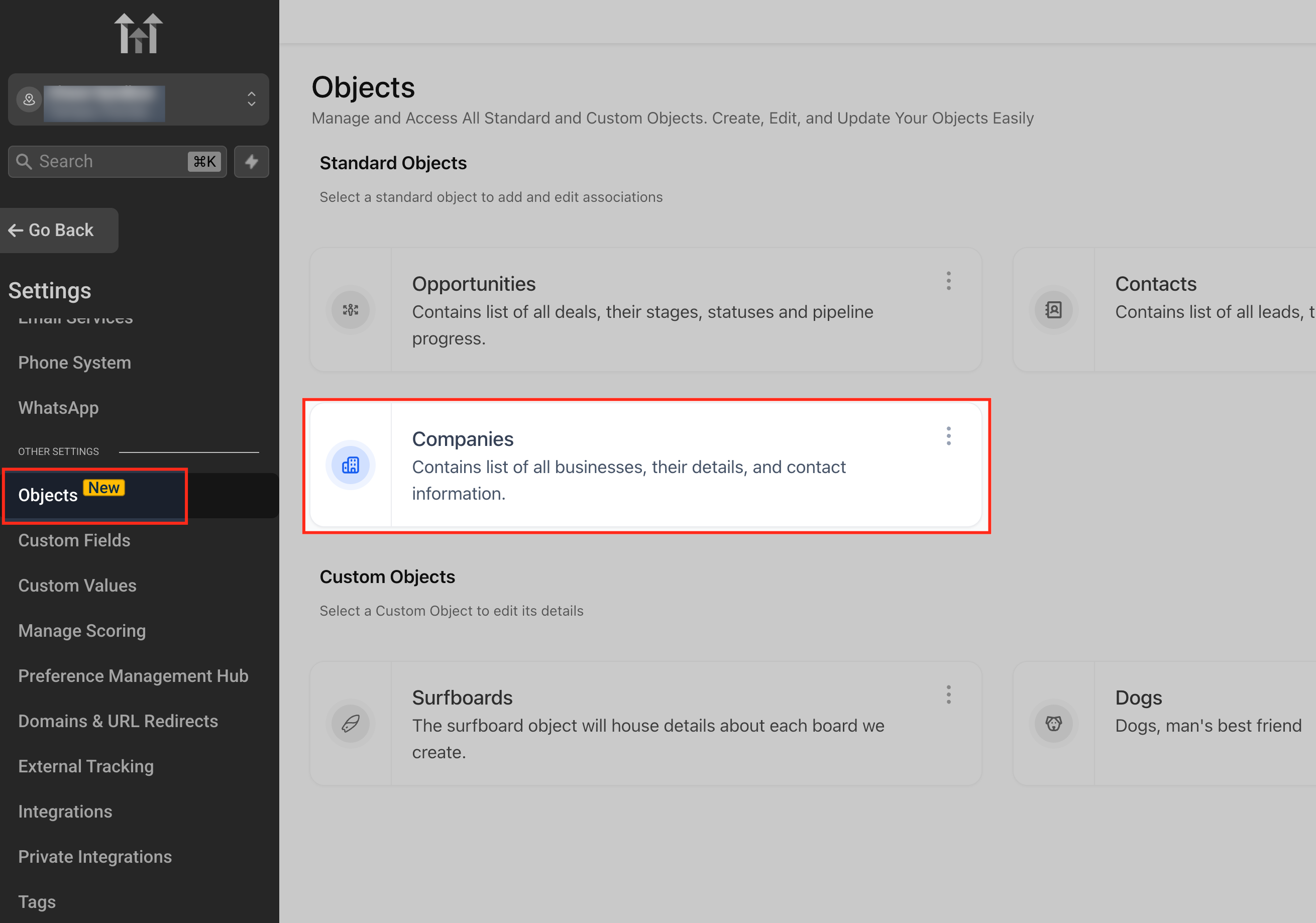
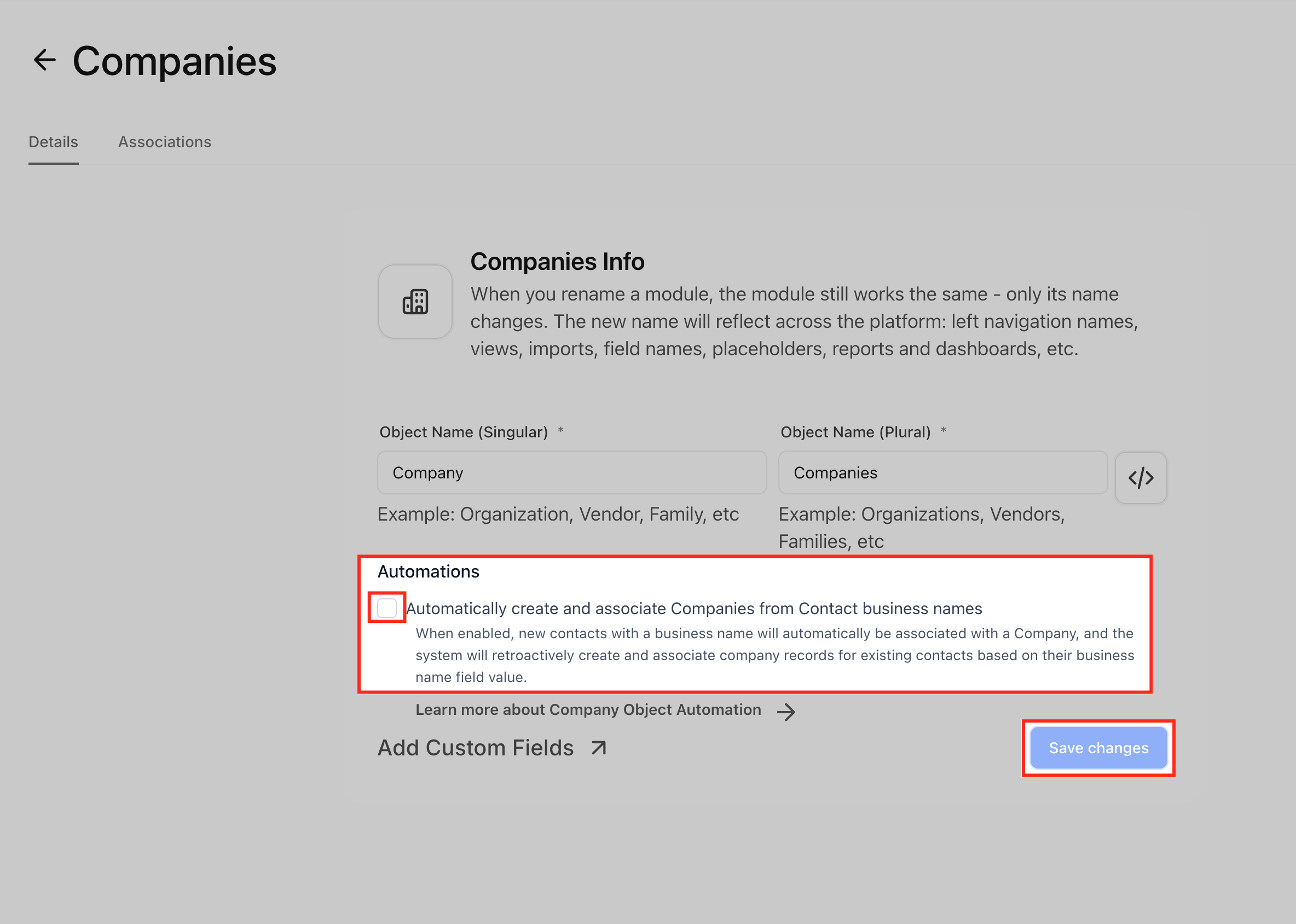
The setting lives in the Companies object configuration. It is enabled per subaccount under Settings > Objects > Companies. After checking the option for automatic creation and association, you must save the change for the feature to take effect. No additional mapping or custom fields are needed beyond the Business Name column in the contact CSV.
03How businesses use contact business name automation
- Digital marketing agency. The agency prepares a CSV of leads that includes a Business Name column. After turning on the automation, they import the contacts. The platform automatically builds company records for each client organization and links the leads to those companies, ready for company based workflows.
- Real estate brokerage. Agents upload a contact list of property owners with the Business Name column filled. The automation creates a company record for each owning entity and ties each agent’s contacts to the appropriate company, simplifying reporting on corporate clients.
- IT services provider. The provider imports a CSV of employee contacts that contain the Business Name of their employer. HighLevel automatically generates or updates the employer’s company record and associates each employee contact, enabling company level ticket routing.
04The numbers and rules that matter
- Automation is enabled per subaccount in Settings > Objects > Companies.
05Before you start
- Enable the Contact Business Name automation in Settings > Objects > Companies for the subaccount.
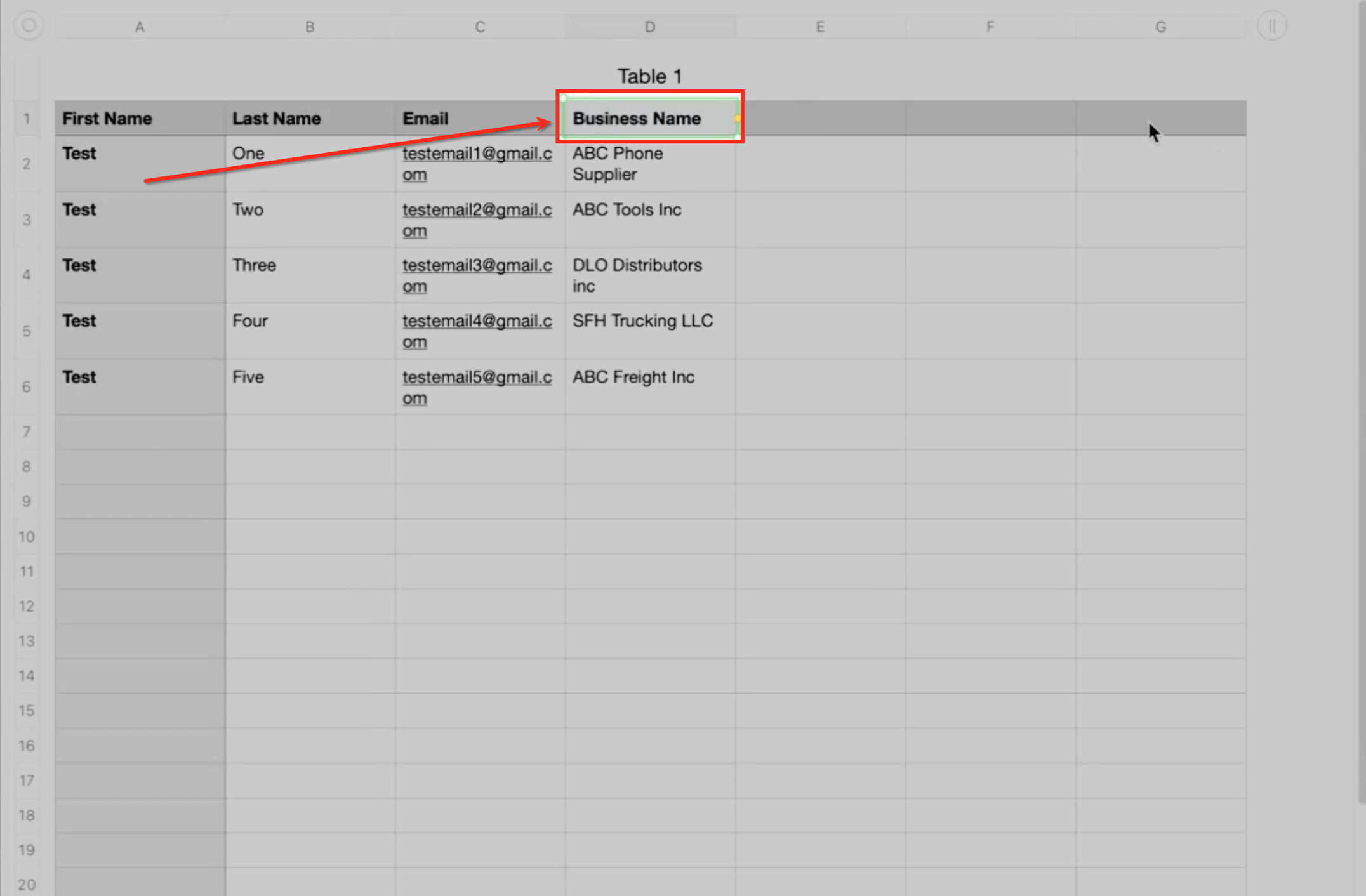
- Create a CSV file that contains a column named Business Name with exact spelling.
06How to set up and use contact business name automation in HighLevel
Enable Contact Business Name automation
- Open Settings and select Objects.
- From the object list, open Companies.
- Check the box for automatically create and associate companies from contact business names.
- Save the changes to activate the automation.
Import contacts and automatically create associated companies
- Prepare a CSV file that includes a column titled Business Name.
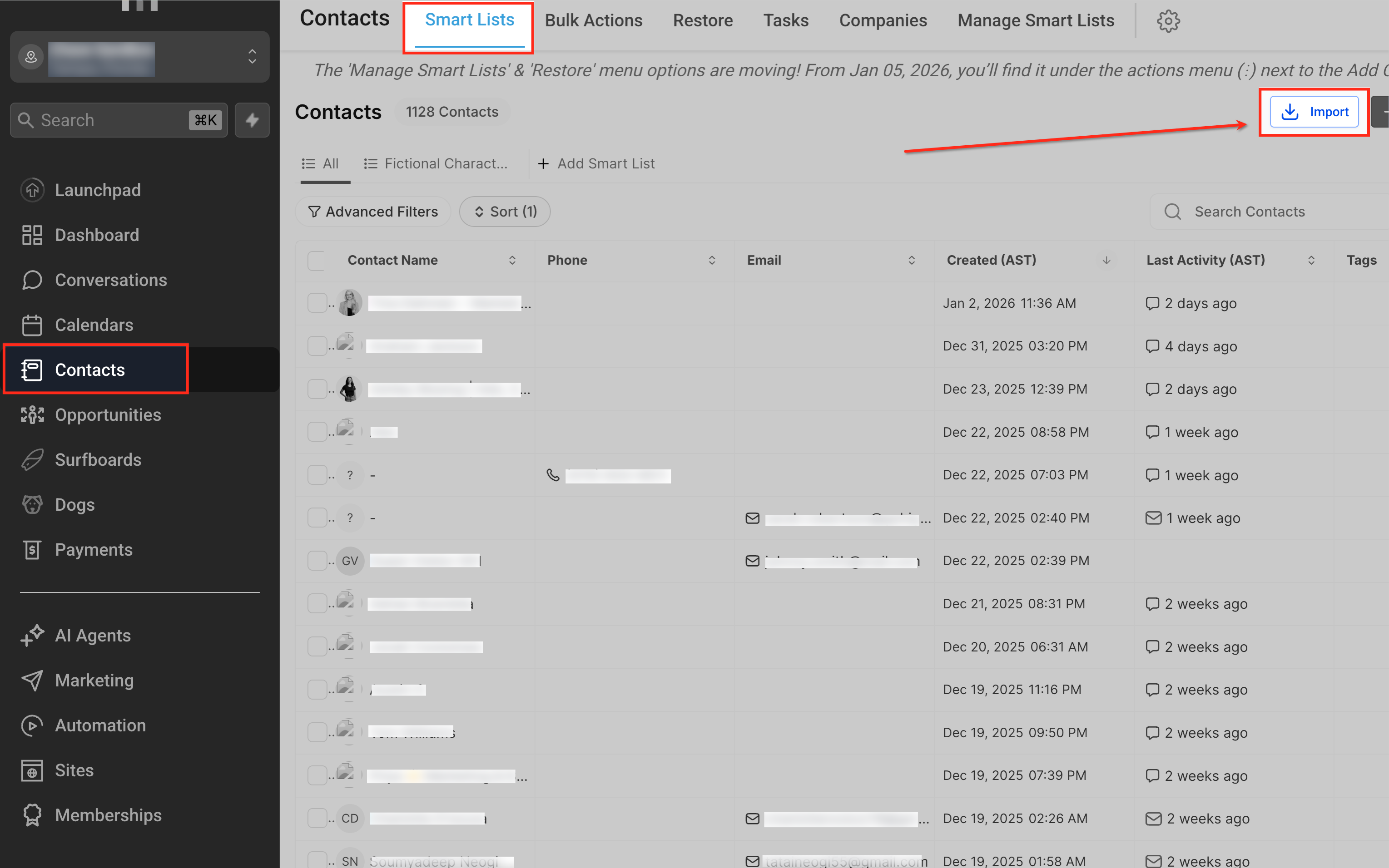
- Navigate to the Contacts area and click Import.
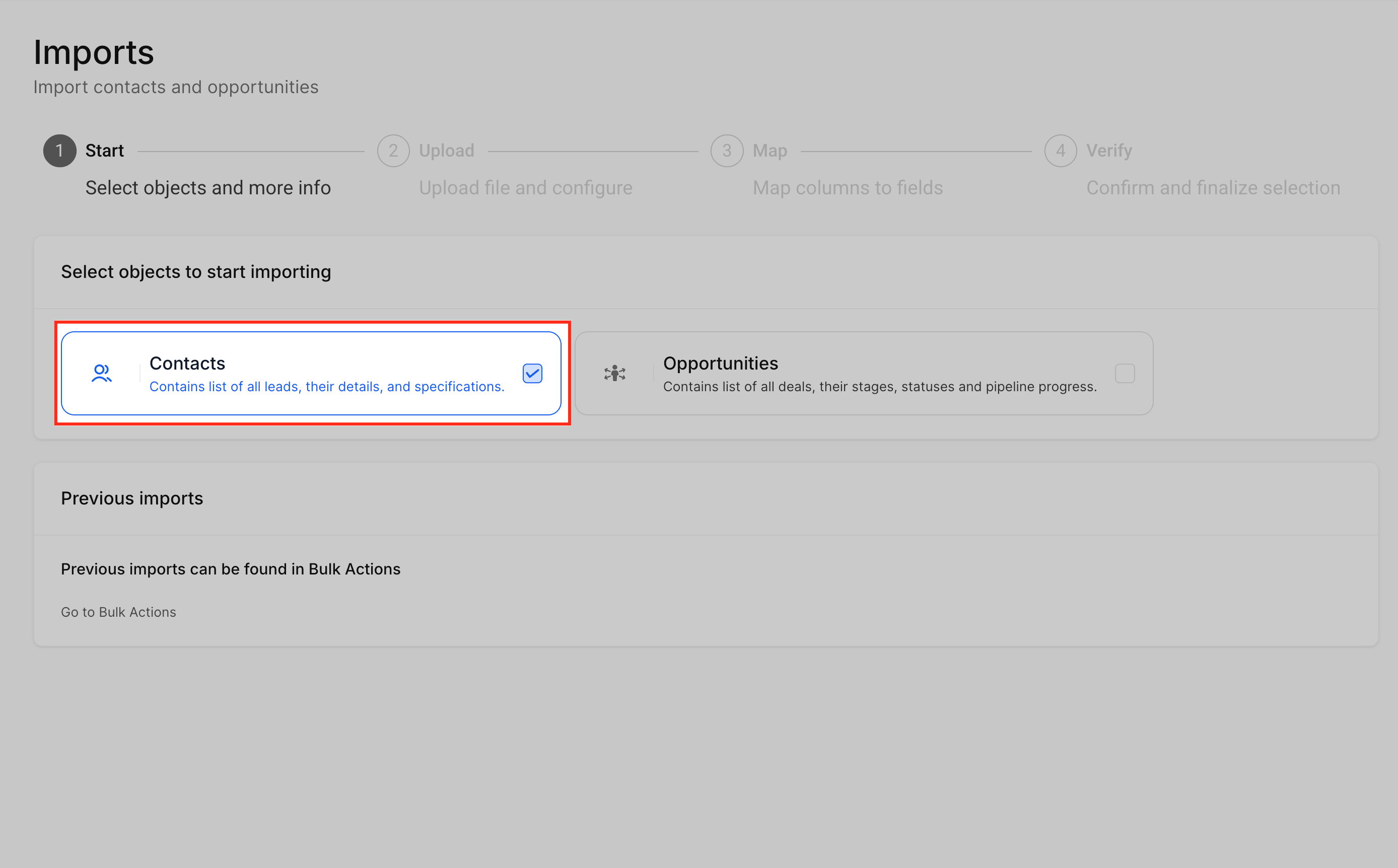
- Select Contacts as the object to import.
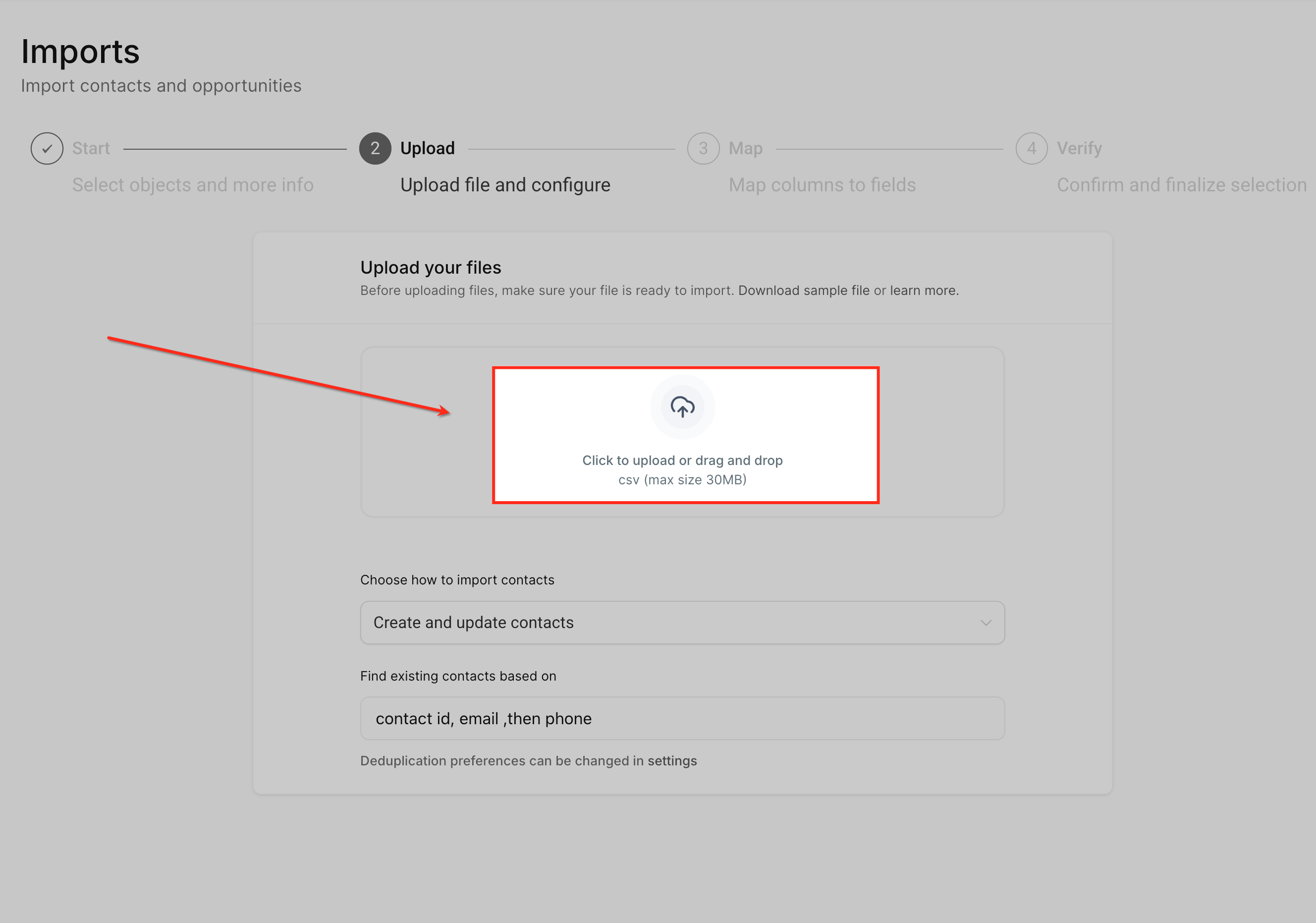
- Upload the CSV file or drag it into the upload window.
- Select Create and update contacts as the import action.
- Map the Business Name column to the Business Name field on the Contact object.
- Complete the import.
- Verify company creation by opening a contact record and checking the Companies section under Associations, or by reviewing the Companies tab for records that match the Business Name values.
07What it looks like in HighLevel
08Settings that matter
- automatically create and associate companies from contact business names. When enabled, the platform uses the Business Name value on a contact to generate a new company record or update an existing one and then links the contact to that company.
09Things to know before you rely on it
- The feature does not import companies directly; companies are created only when contacts are imported or updated.
- The Business Name column name must match exactly in the CSV file for the automation to fire.
- Automation must be enabled per subaccount, and the setting must be saved before imports run.
10How it connects to the rest of HighLevel
- Learn the core capabilities of managing companies in HighLevel. Managing companies
- Explore how to set up company based workflows that can use the automatically created companies. Company workflows
- Read about automatic company creation and enrichment on the platform. Automatic creation
Michael's take

Avoid using a column name that doesn’t match exactly; the automation won’t fire.