
01Who this is for
- Account managers can see linked contacts and schedule review meetings while staying in the company list.
- Real estate agents can open a property record, view potential buyers, reply to inquiries and book viewings all in one pane.
- Insurance agents can open a policy record, check renewal conversations and create follow up tasks without navigating away.
02Record side panel, explained
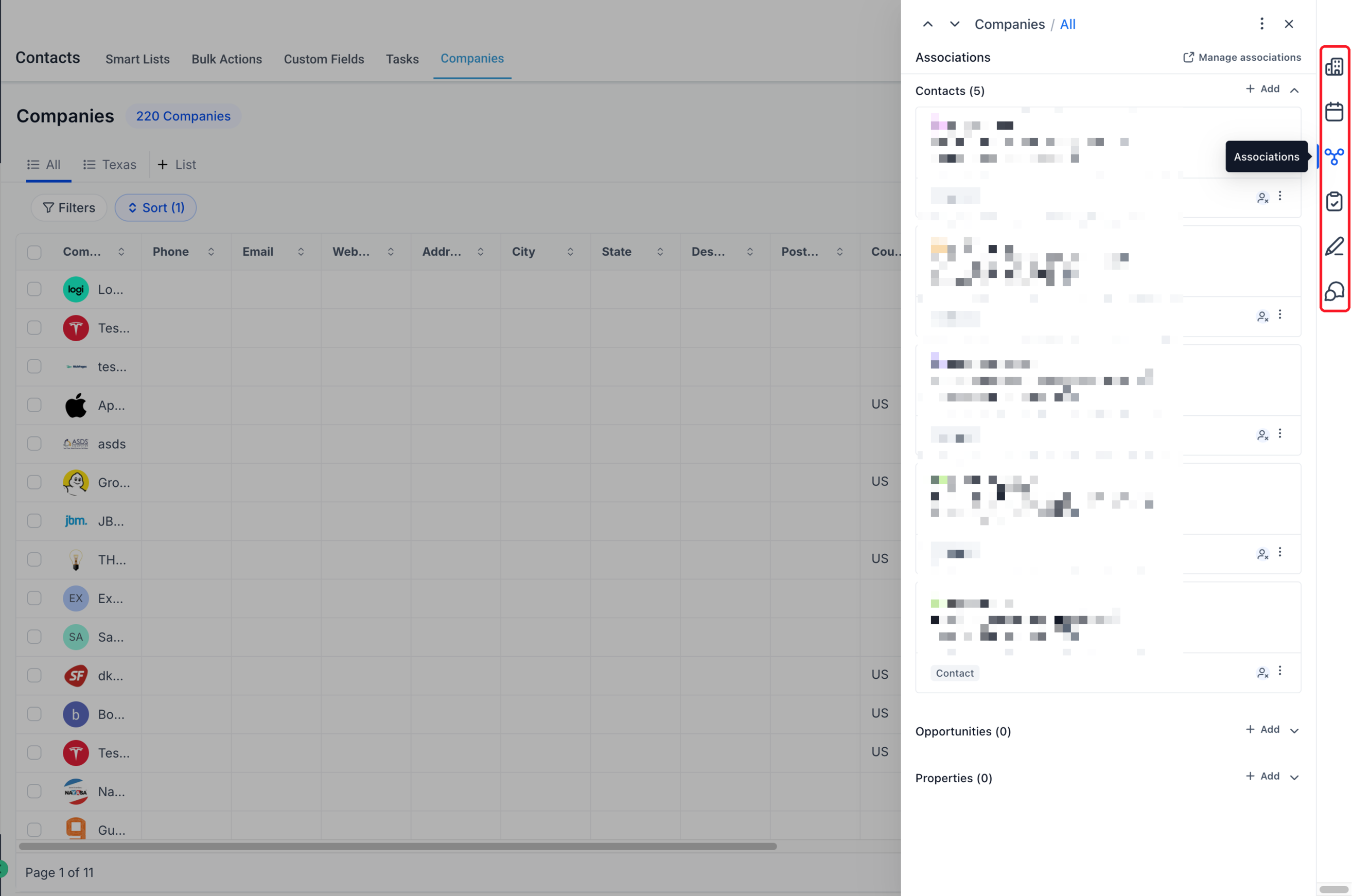
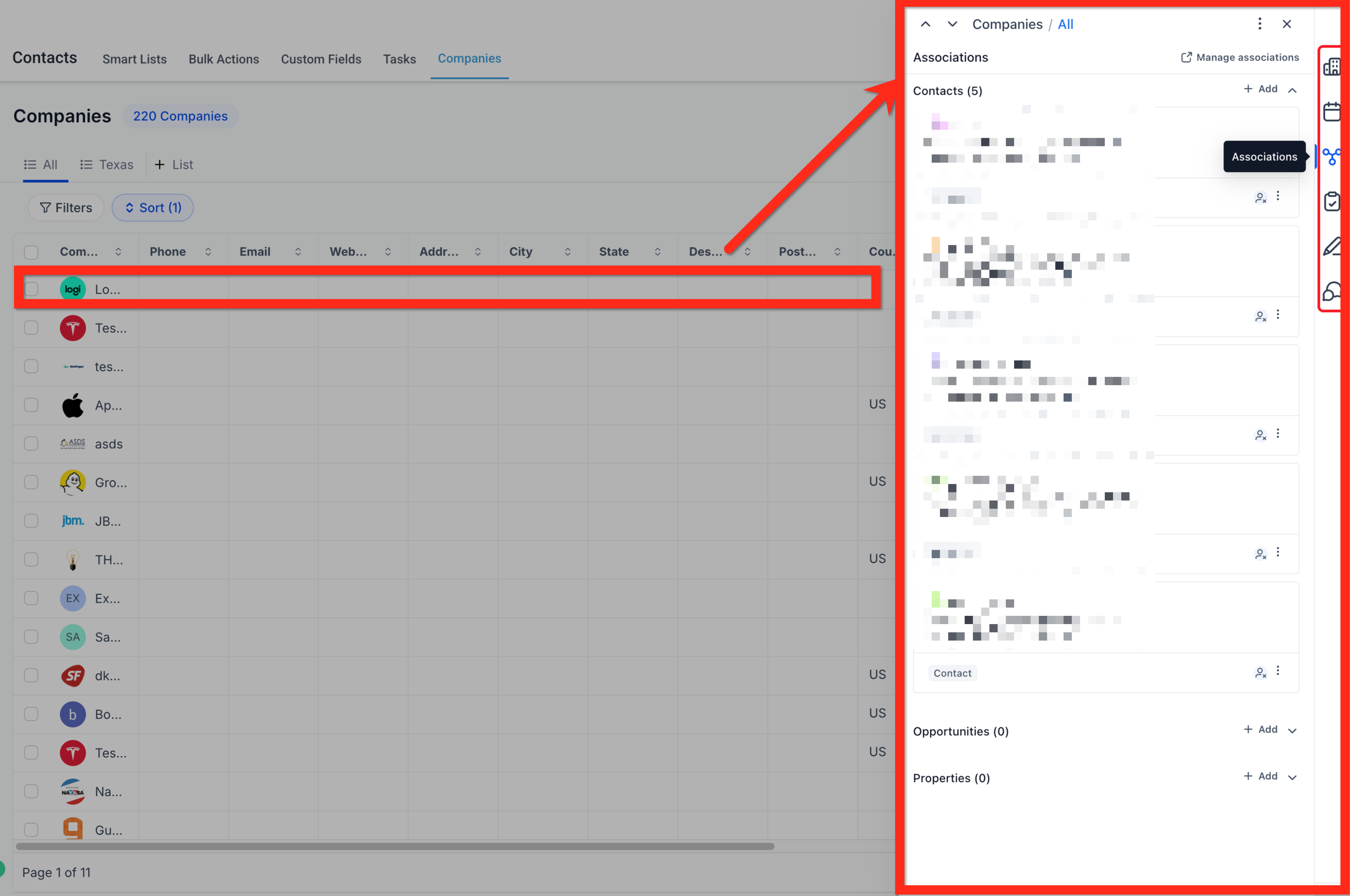
The record side panel opens to the right of a record list when you click a Company or Custom Object name. It keeps the selected record’s fields, related records and recent activity visible while the rest of the list stays in view.
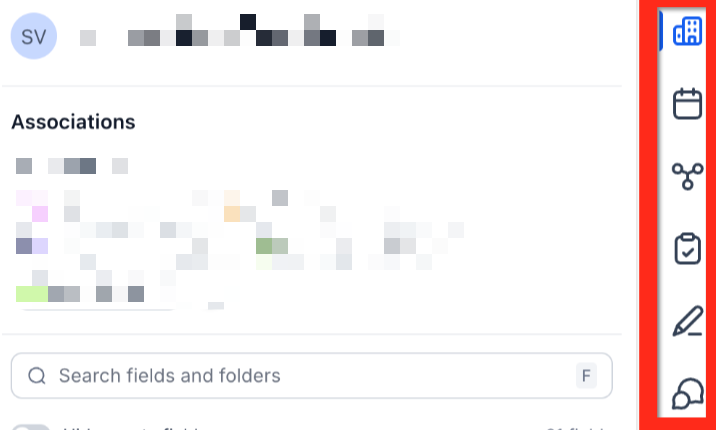
Tabs on the right side let you switch between Details, Appointments, Associations, Tasks, Notes and Conversations. Each tab provides quick actions such as adding an association, starting a conversation, booking or linking an appointment, and creating tasks or notes.
Navigation arrows at the top let you move to the previous or next record without closing the panel. A three dot menu offers record level actions like copying the record ID, viewing audit logs or deleting the record.
03How businesses use the record side panel
- Real estate agency. Open a Property record, view linked buyer contacts in the Details tab, then start a conversation with a selected buyer from the Conversations tab. Book a showing by adding an appointment from the Appointments tab and record feedback with a note.
- Insurance agency. Select a Policy record, check existing renewal messages in the Conversations tab, and start a new dialogue with the policy holder. Link an already scheduled renewal call via the Appointments tab and add a task to follow up on the outcome.
- Marketing firm. Open a Company record for a client, add a new contact association from the Details tab, and create a task for the next campaign step. Use the Notes tab to capture meeting highlights, all without leaving the company list.
04Before you start
- Your location must be included in the private beta via the beta access form.
- Open the appropriate record list (CRM > Companies or CRM > Custom Object) before accessing the side panel.
05How to set up and use the record side panel in HighLevel
Add an association from Details
- Find the relationship label you want to link in the Associations section of the Details tab.
- Click the plus sign next to that label.
- Search for the existing record and select it to create the link.
Start a conversation
- Open the Conversations tab in the side panel.
- Click the blue message button with a plus sign labeled Create a conversation.
- Select the Contact who will receive the message.
- Compose the message and send it; the current record stays linked.
Add an appointment
- Open the Appointments tab.
- Click Add and choose the appropriate option: Meetings, Services, or Link existing appointment.
- Complete the booking flow or select the existing appointment to link.
- Save the appointment to attach it to the current record.
Add a task
- Open the Tasks tab.
- Click Add Task.
- Enter the task details, set the assignee and due date, and verify the Associate To field.
- Click Save to attach the task to the record.
Add a note
- Open the Notes tab.
- Click Add Note.
- Enter the information you want to capture.
- Click Save to store the note on the record.
Move between records
- Use the previous and next arrows at the top left of the panel to navigate without closing the side panel.
Delete a record (warning)
- Click the three dot menu at the top right of the panel.
- Select Delete only when you intend to remove the entire record; do not use it to change a relationship.
06What it looks like in HighLevel
07Settings that matter
- Hide empty fields. When turned on, it removes fields without values from view in the Details tab, helping you focus on populated data.
08Things to know before you rely on it
- The redesigned side panel is only available to locations that have been added to the private beta.
- The quick add association flow links only existing records; it does not create new Companies or Custom Objects.
- Deleting a record from the three dot menu removes the entire record; use it only when you intend to delete, not merely change a relationship.
09If something goes wrong
- I don’t see the redesigned side panel. Confirm that your location is part of the private beta via the beta access form.
- I can’t find a field in Details. Check the search text, expand the appropriate folder, and verify whether Hide empty fields is enabled.
10How it connects to the rest of HighLevel
- Learn how to manage Companies and their key features Managing companies
- Set up Company based workflows and triggers Company workflows
- Use Company fields as custom values across the platform Company fields as custom values
Michael's take

The record side panel feels like a small convenience that can become a real shift for teams that juggle many touches on a single record. Anything that keeps context in view while you act saves clicks and prevents missed follow ups.
A property manager will love it. Open a listing, see the interested buyers, fire off a message and schedule a showing all from the same pane. It keeps the conversation tied to the right property without hopping between screens.