
01Who this is for
- B2B sales managers who need to pull company data for quarterly reports, because the feature provides a quick bulk download.
- Operations analysts who review company information offline, as the CSV format works with Excel or Google Sheets.
- Marketing teams that share company lists with external partners, since the export creates a standard spreadsheet file.
02Company export, explained
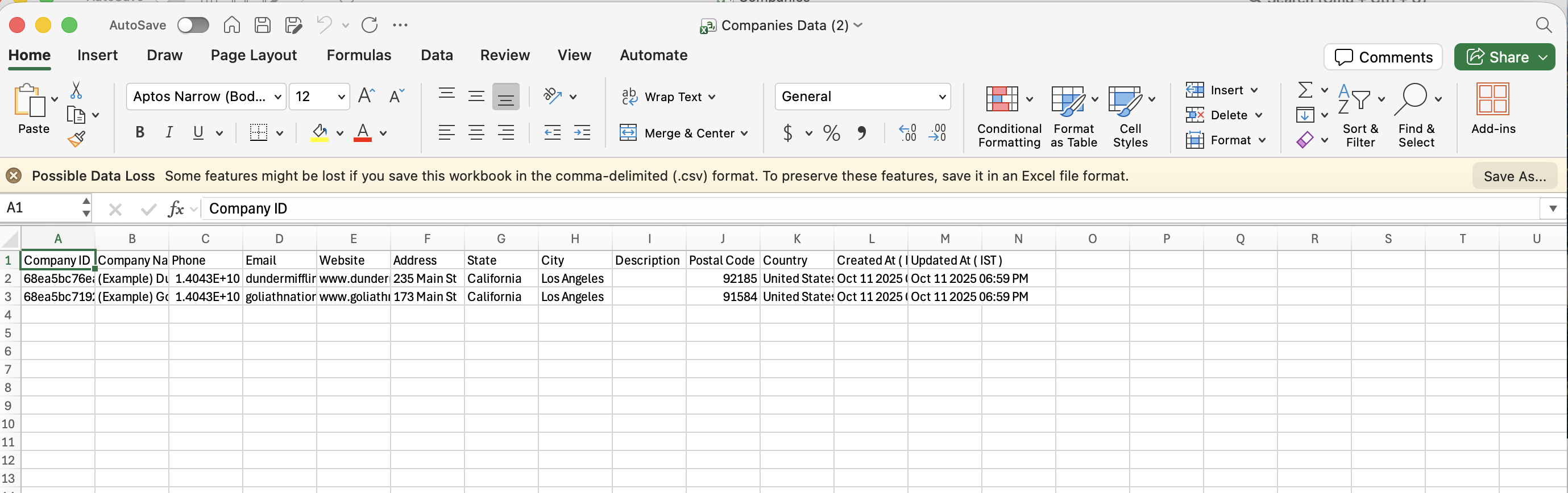
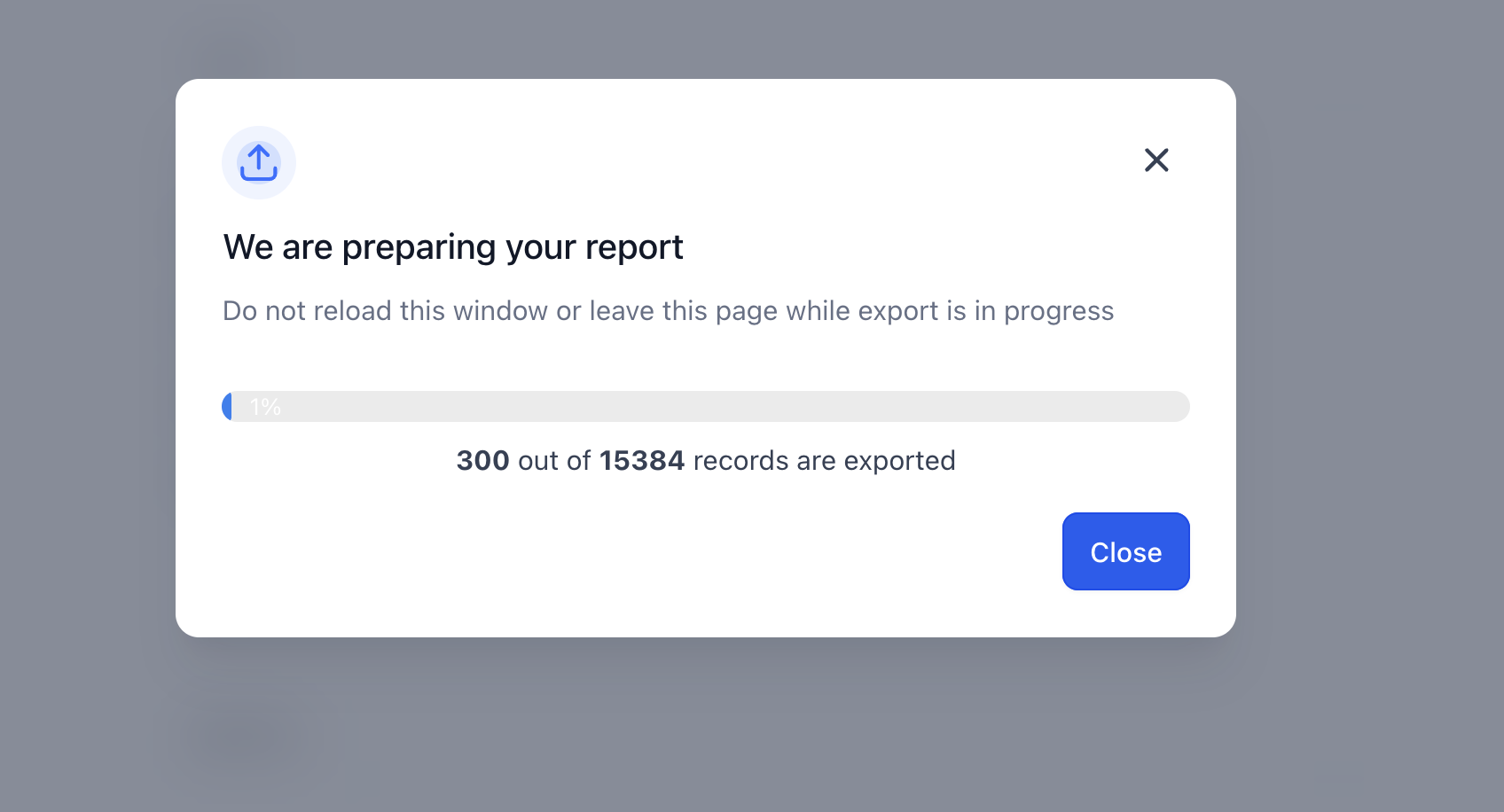
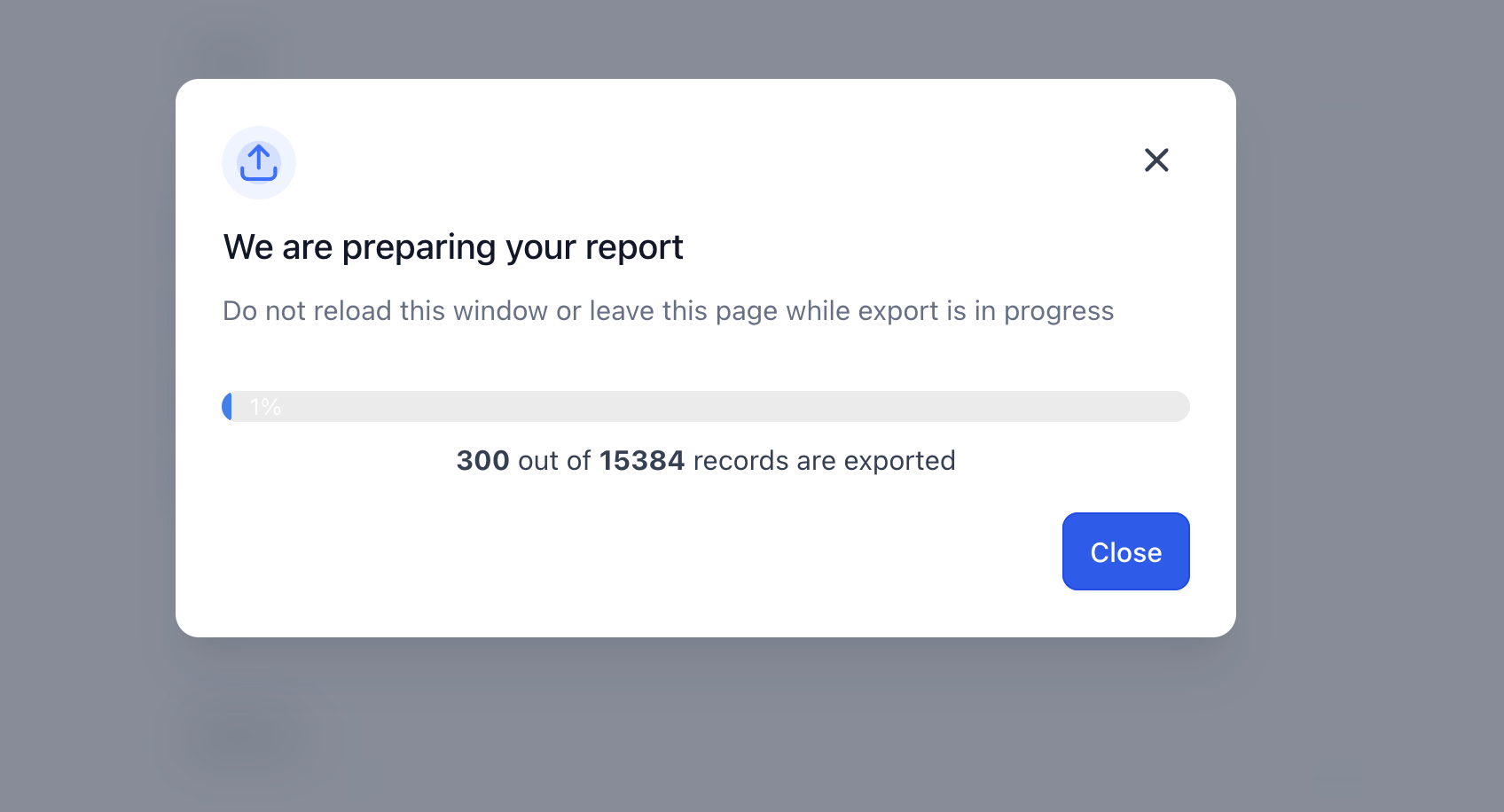
Company Export is a HighLevel option that creates a CSV file containing the fields of each selected company record. The export runs from the Companies view under Contacts and can include any custom company fields that are visible on the screen. A progress modal shows how many records have been processed and the percent complete, so users know when the file is ready.
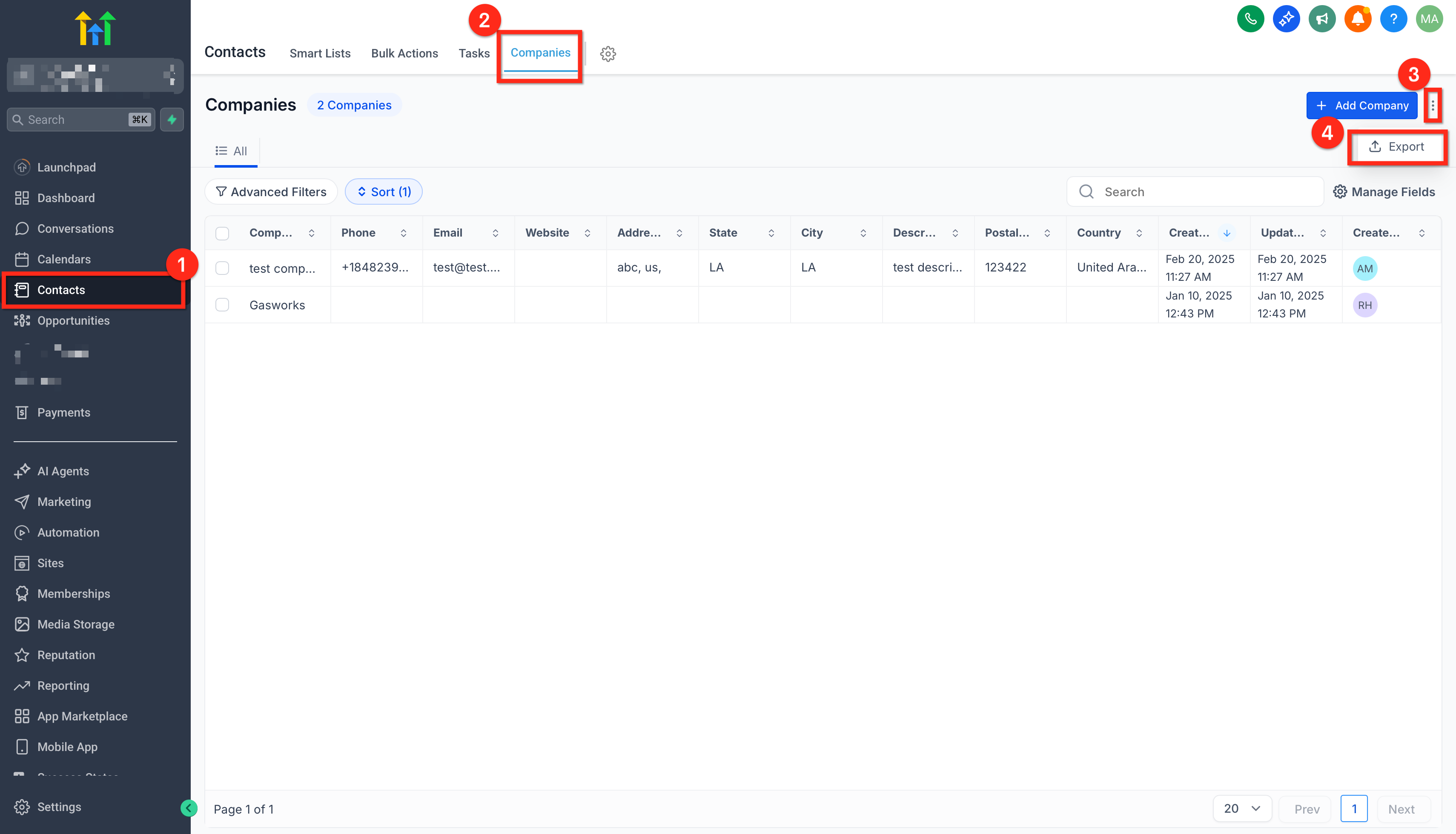
The feature is accessed either through the action bar after checking individual companies or via the three dot menu to pull the entire company list. No prior configuration is required, but users should verify that any needed custom fields appear in the view before exporting.
03How businesses use company export
- Software as Service provider. The team opens the Companies page, selects the accounts they need for a client invoice, and clicks Export in the action bar. HighLevel generates a CSV that includes all visible fields, which they then attach to the invoice email.
- Consulting firm. Consultants navigate to Companies, use filters to isolate firms in a specific industry, and use the three dot menu to export the full filtered list. The resulting spreadsheet helps them prepare a market analysis without manual data entry.
- Recruitment agency. Recruiters go to the Companies screen, check the boxes for the employers they are working with, and trigger an export. The CSV contains custom fields like “Recruiting manager” that are later imported into their applicant tracking system.
04The numbers and rules that matter
- All visible company fields, including Custom Fields, are included in the export.
05How to set up and use company export in HighLevel
Export selected companies
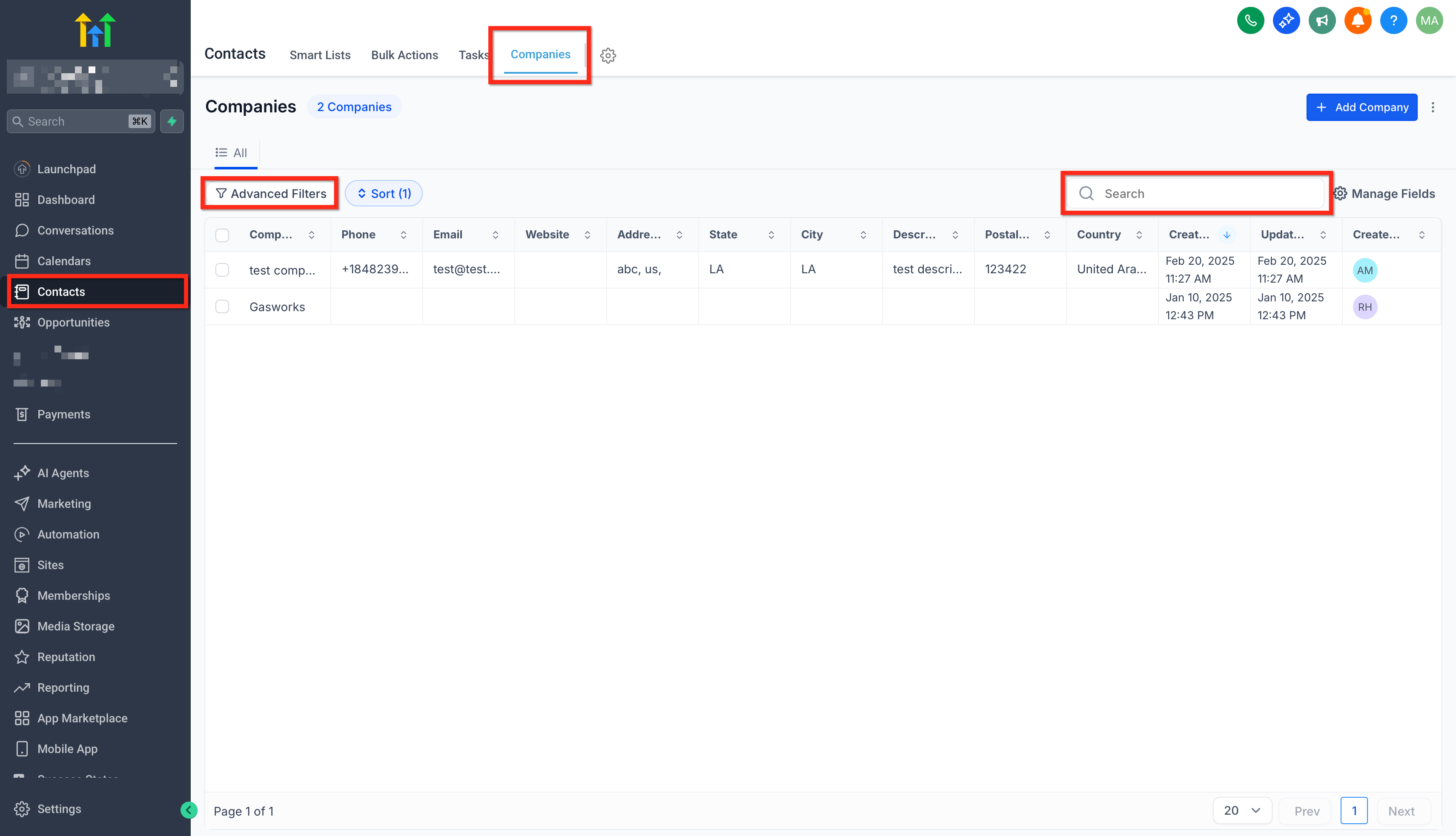
- Open the Contacts > Companies section.
- Apply any search terms or filters to narrow the list.
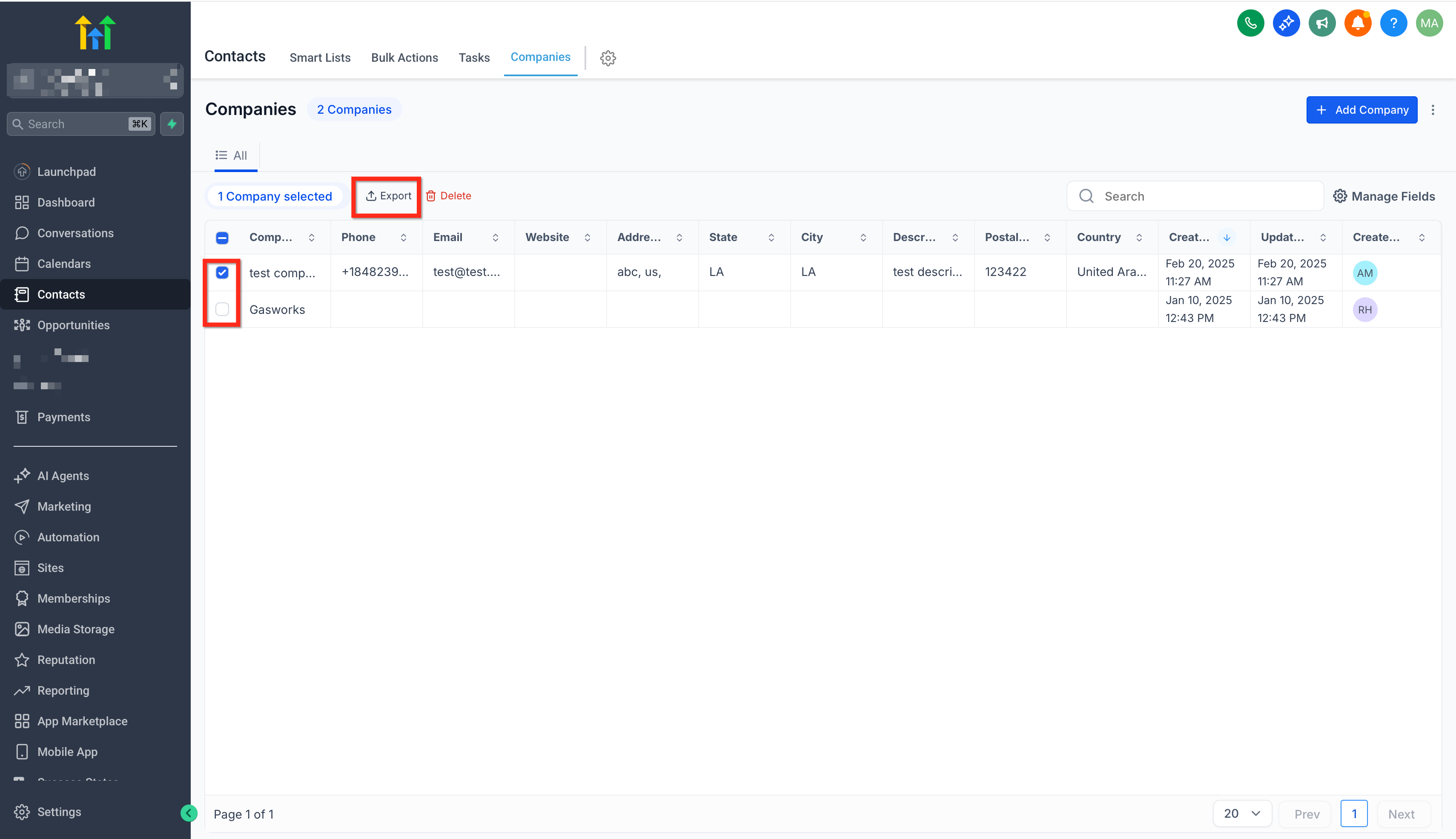
- Mark the checkboxes next to the companies you want to export.
- Press the Export button located in the action bar.
- Watch the progress modal until it reports completion.
- When the file appears, download or open the CSV.
Export all companies
- Open the Contacts > Companies page.
- Click the three dot (⋮) menu at the top right of the screen.
- Choose Export from the menu options.
- Observe the progress modal until the export finishes.
- Download or open the generated CSV file.
06What it looks like in HighLevel
07If something goes wrong
- Team member cannot see the Export option. Check the user’s role permissions and make sure they have access to Companies and the export/download capability.
08How it connects to the rest of HighLevel
- Learn how to manage companies and their key features Managing companies in HighLevel
- Set up company based workflows that can trigger actions after an export Company based workflows
- Import companies in bulk to prepare datasets before exporting Bulk Import Companies
Michael's take

Company export feels like a small convenience that can become a real shift for teams that need to move data out of HighLevel quickly. When you can grab a full spreadsheet of all your company records in one click, reporting and stakeholder updates stop feeling like a manual nightmare.
A SaaS startup that runs a B2B lead gen funnel will find this useful. I’d give the feature a quick test run with a handful of records to confirm the Custom Fields show up as expected before making it a regular part of the reporting cadence.