
01Who this is for
- Account managers, need quick access to renewal focused company views.
- Customer success teams, track churn risk accounts with a consistent filter set.
- Sales leaders, monitor top tier customers using a shared list.
02Company Smart Lists, explained
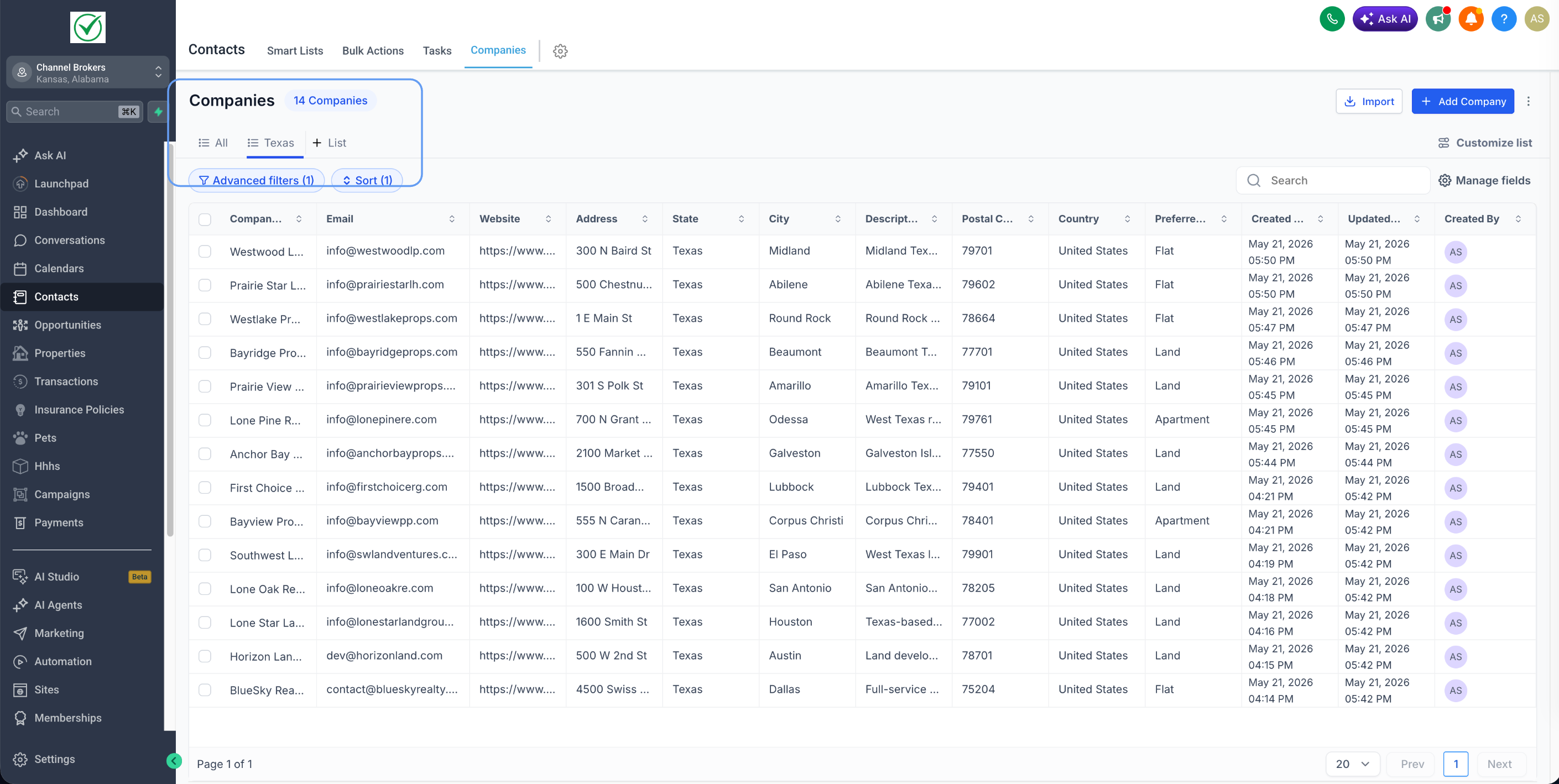
A Company Smart List is a saved view of companies that includes advanced filters, a sort order and the fields shown in the list. The saved configuration can be opened later and always reflects the latest company data.
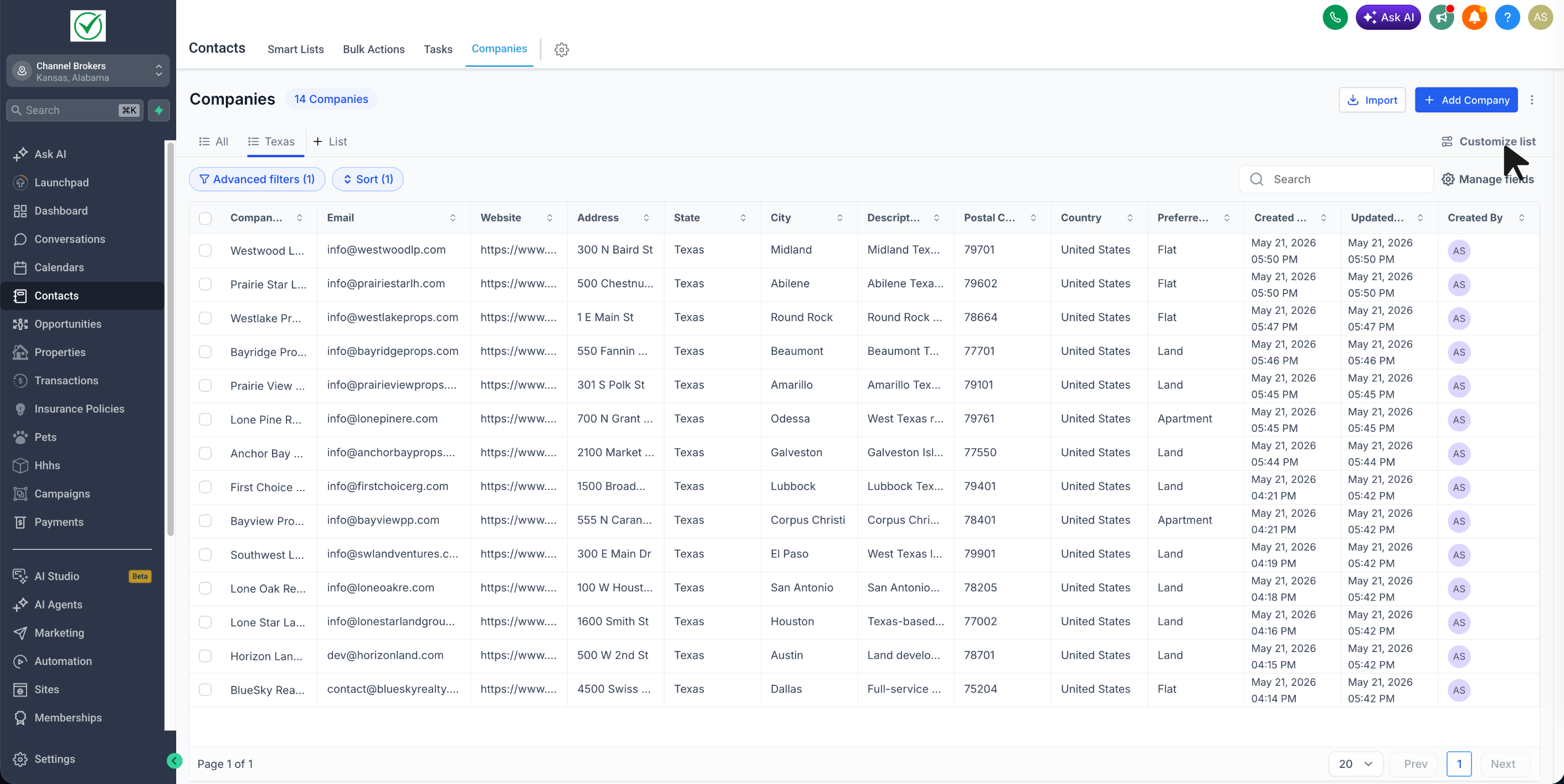
Smart Lists live inside the Companies section of HighLevel. They are created, edited, duplicated, shared and exported from the list view using the Customize list menu. All lists are accessible from the Manage Smart lists screen.
03How businesses use Company Smart Lists
- SaaS startup. The team creates a Smart List for accounts with MRR above a threshold and a recent activity date. They open the list to see which accounts need upsell outreach without rebuilding the filter each time.
- Managed services provider. A manager builds a Smart List that shows clients whose contracts are expiring within 30 days. The list is shared with all account managers so they can each view and update renewal tasks.
- Digital marketing agency. The agency duplicates an existing Smart List of high value clients, changes the visible fields to include campaign metrics, and saves it as a new list for the creative team.
04Before you start
- Company Smart Lists must be enabled from Subaccount Labs before they can be used.
05How to set up and use Company Smart Lists in HighLevel
Create a Smart List
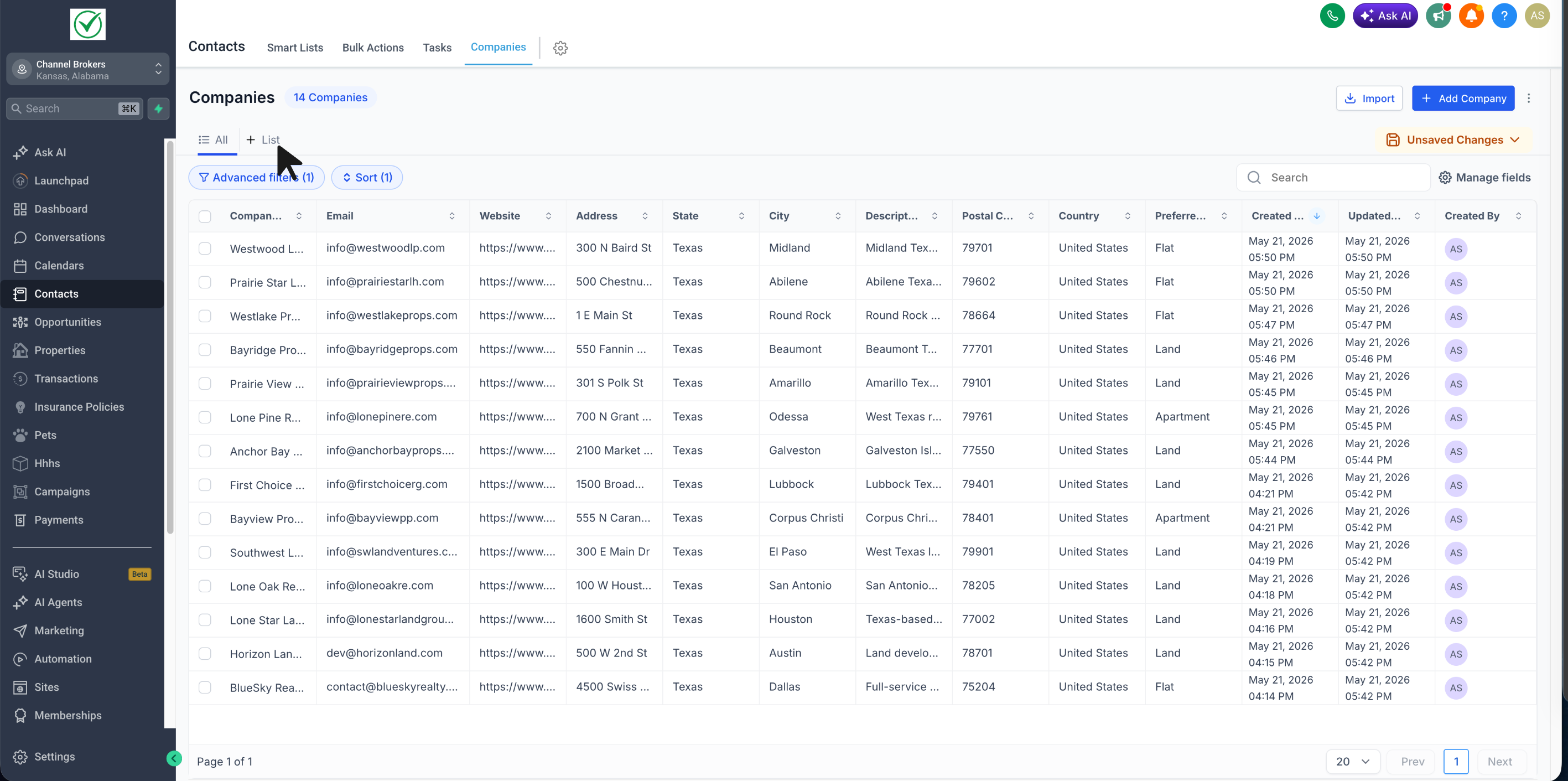
- Navigate to Contacts > Companies.
- Click the +List button.
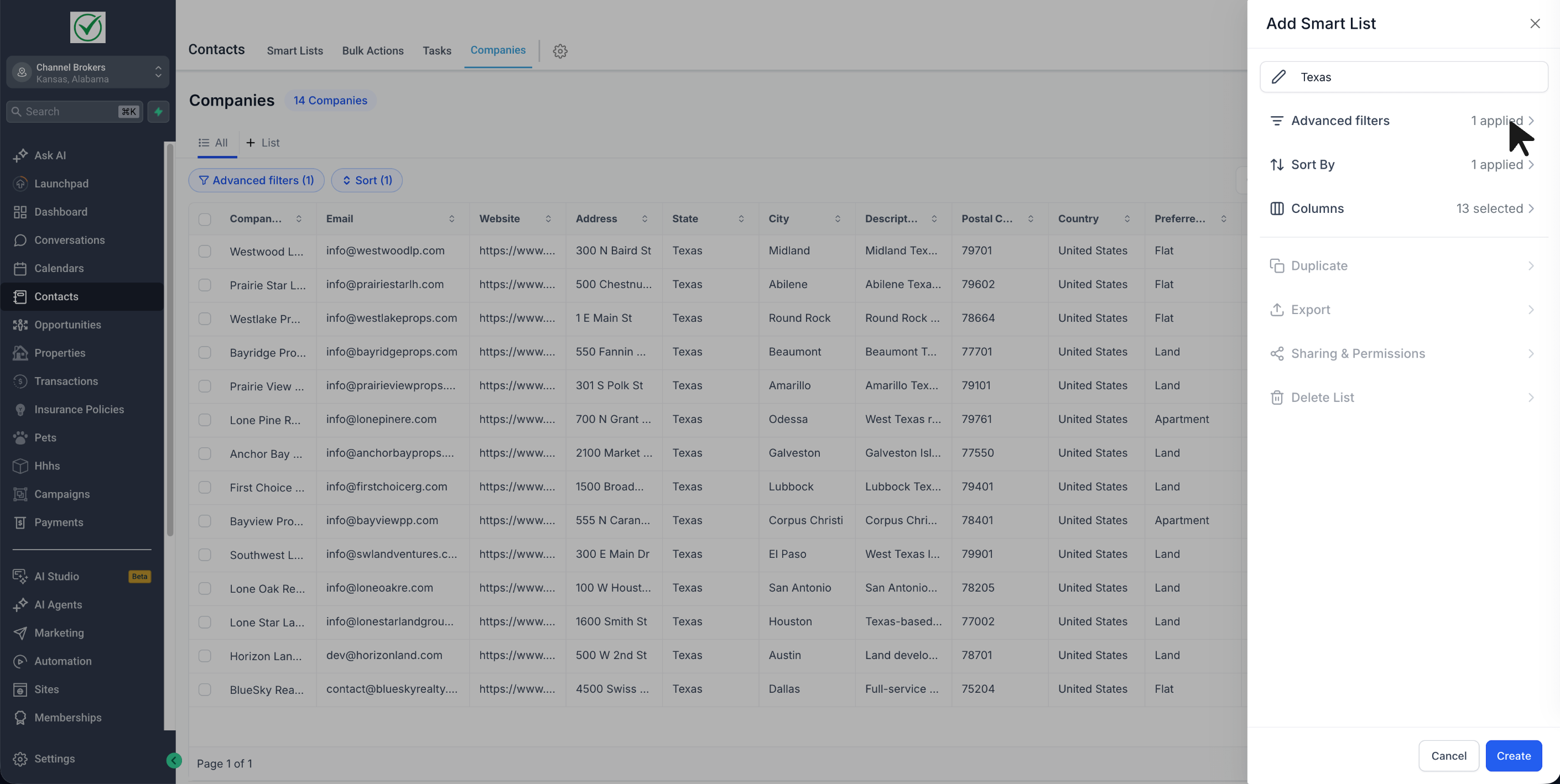
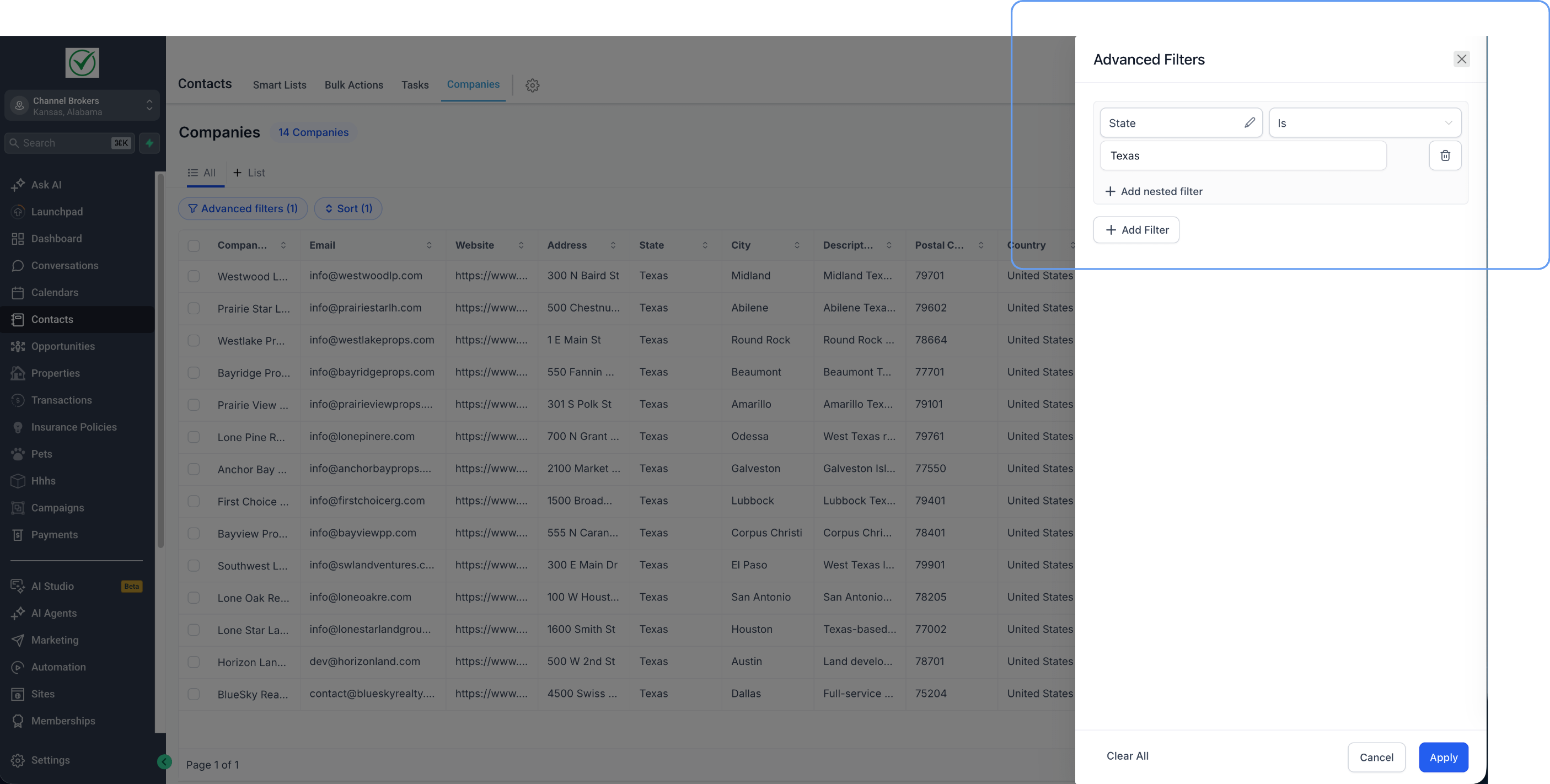
- Add the desired advanced filters, sort order and visible fields.
- Enter a name for the Smart List.
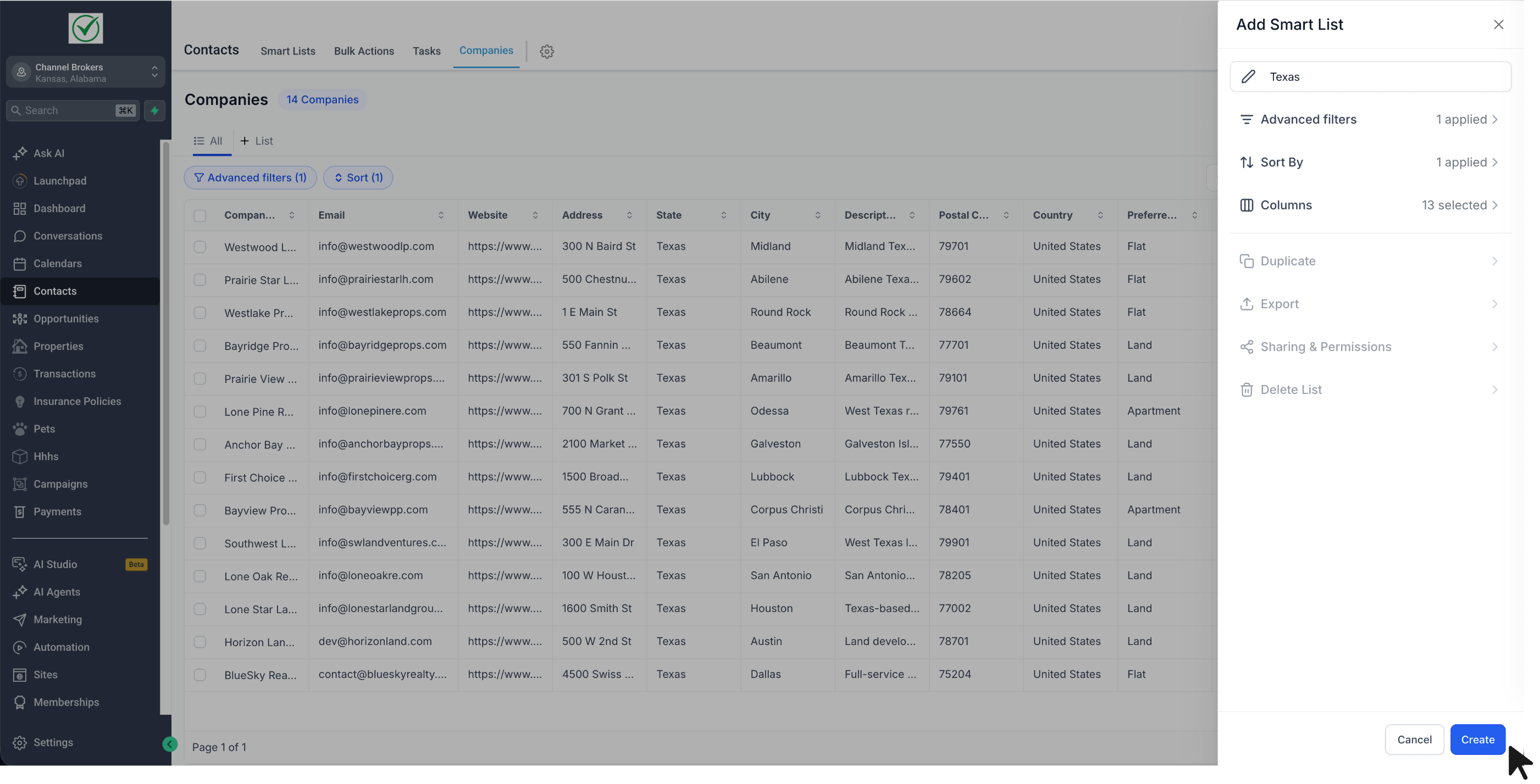
- Save the new list.
Edit an existing Smart List
- Open the Smart List you want to modify.
- Adjust filters, sorting, or visible fields as needed.
- Notice the Unsaved Changes indicator appear.
- Click Save to overwrite the current configuration.
- Select Save as new smartlist to keep the original and create a new version.
- Choose Discard Changes to cancel any edits.
Duplicate a Smart List
- Open the Smart List you wish to copy.
- Click Customize list.
- Choose Duplicate.
- Provide a new name for the duplicated list.
- Save the duplicated Smart List.
Export a Smart List
- Open the Smart List.
- Click Customize list.
- Select Export to download the matching company records.
Manage all Smart Lists
- Go to Companies.
- Click the three dot menu at the top right.
- Select Manage Smart lists to view every list.
Share a Smart List
- Open the Smart List.
- Click Customize list.
- Select Sharing & Permissions.
- Choose to share with All users or Selected users.
- Set the access level to Can view or Can edit.
- Save the sharing settings.
Delete a Smart List
- Open the Smart List.
- Click Customize list.
- Select Delete List.
- Confirm the deletion when prompted.
06What it looks like in HighLevel
07Settings that matter
- Company Smart Lists. Enables the Smart List feature; it must be turned on in Subaccount Labs before any lists can be created or used.
- Sharing & Permissions. Controls which users can view or edit a Smart List and defines their level of access.
08Things to know before you rely on it
- Smart Lists are unavailable until the feature is enabled from Subaccount Labs.
- Only users given Can edit permission can change a Smart List’s configuration or its sharing settings.
- Duplicate and Export functions are accessed through the Customize list menu.
- Deleting a Smart List permanently removes it for all users; confirm before proceeding.
09How it connects to the rest of HighLevel
- Overview of Companies features and navigation Companies overview
- Set up company based workflows that can use Smart List filters Company workflows
- Pricing and plan information for HighLevel Pricing
Michael's take

Michael ReimerFounder of CRM Pros, HighLevel Commander and Certified Admin
Company Smart Lists let me keep my favorite company views handy. If my team rarely reuses the same filters, we might not need this feature.
Get More InformationOpens on HighLevelPublished November 2, 2026 · Updated November 17, 2026