
01Who this is for
- Founders who want a cohesive portal experience can describe their vision and have the AI generate pages, keeping branding consistent.
- Coaches with online courses can expose their existing course library through a new app without rebuilding the membership system.
- Community managers can provide members a single entry point to groups, shared files, and schedules by integrating the portal resources.
02Client app builder, explained
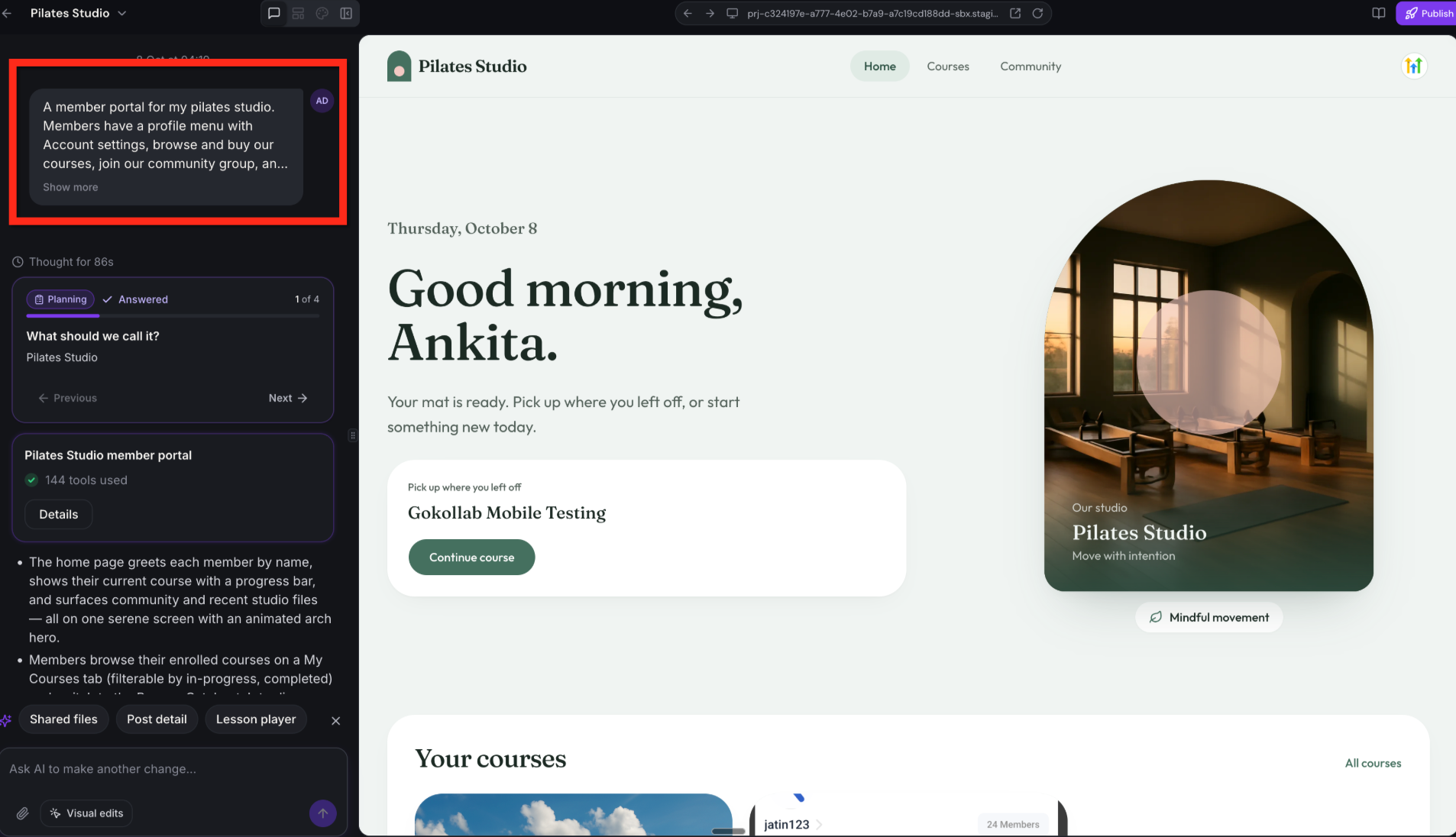
Client App Builder is a private beta feature that converts plain language prompts into functional pages inside the HighLevel Client Portal. Users describe the desired experience, answer a few questions, and select a design system. The AI then creates the pages and ties them to existing courses, communities, files, appointments, and account settings.
The generated application works on both web browsers and native iOS/Android apps. After generation, users can refine layout or functionality through a chat interface, ready made prompt suggestions, or visual selection of elements. Publishing makes the new branded portal live for members while preserving the underlying HighLevel resources.
The builder lives within the HighLevel platform under the Client Portal section. Access is controlled by the private beta invitation, and all changes are saved in a project gallery that displays thumbnails for each application.
03How businesses use client app builder
- Fitness coaching business. The coach describes a member dashboard that shows upcoming classes, progress, and nutrition resources. The builder creates pages linked to the existing course library and appointment schedules. The coach then tweaks colors via the chat prompt and publishes the app for clients.
- Professional services firm. The firm requests a portal that displays client documents, case files, and a community forum. The app builder generates a layout using the Counsel design system, connects to shared files and community groups, and the firm refines headings through visual editing before publishing.
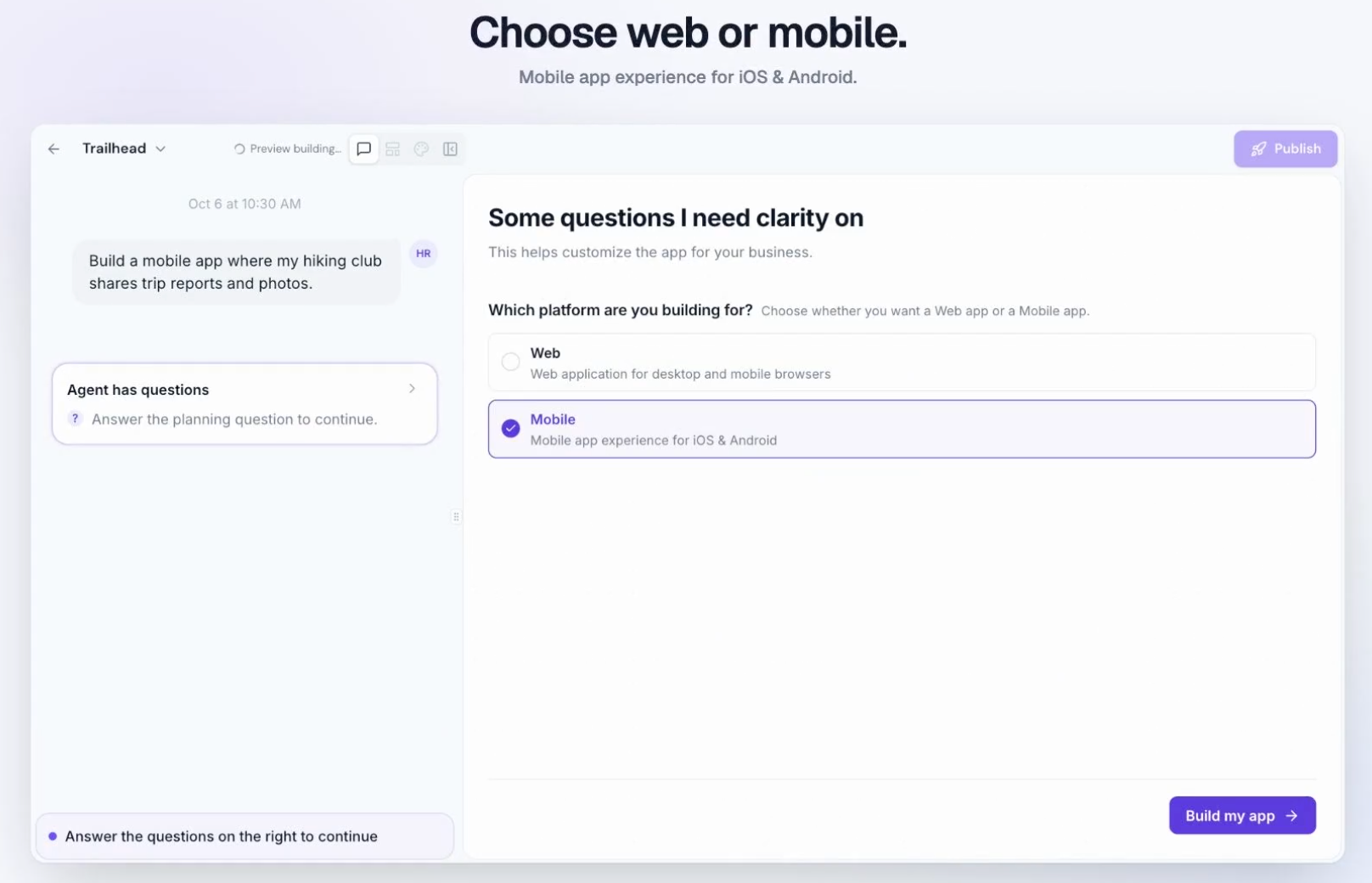
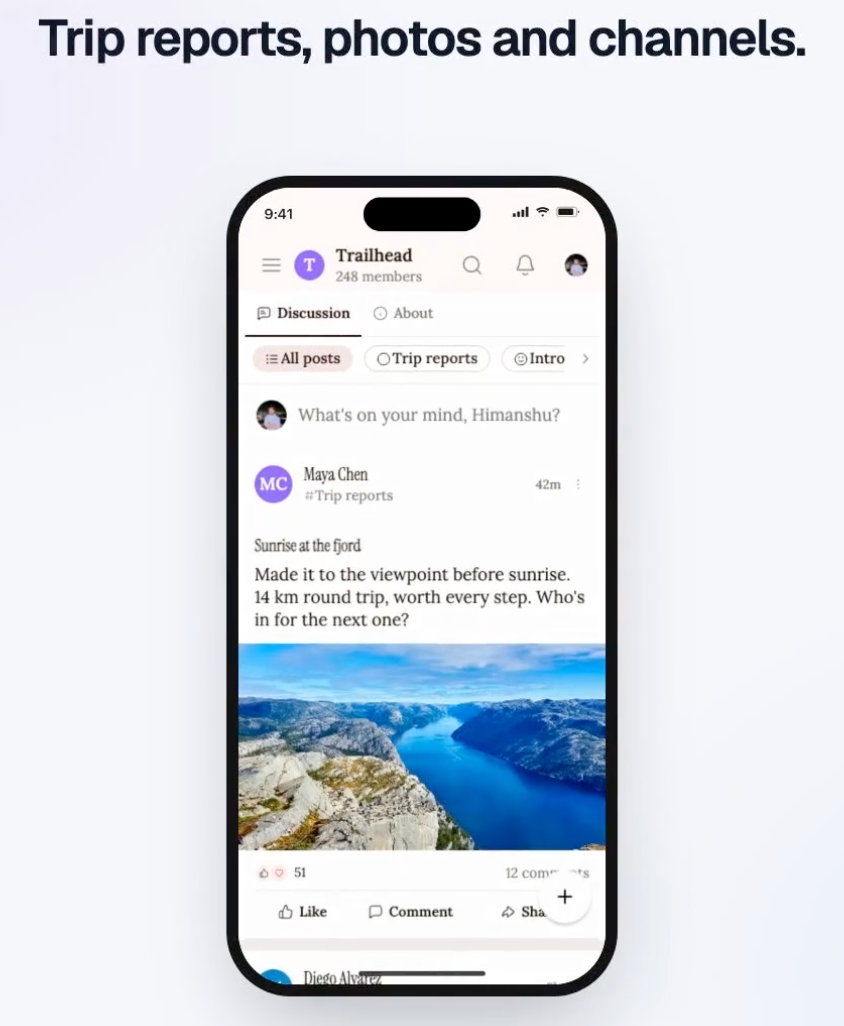
- Outdoor adventure club. The club selects the Mobile experience option and describes a trip report feature. The builder produces a mobile focused interface that integrates the existing community and shared file sections. The club adds a dark theme via a prompt suggestion and releases the app to members.
04The numbers and rules that matter
- Up to 10 custom domains per application.
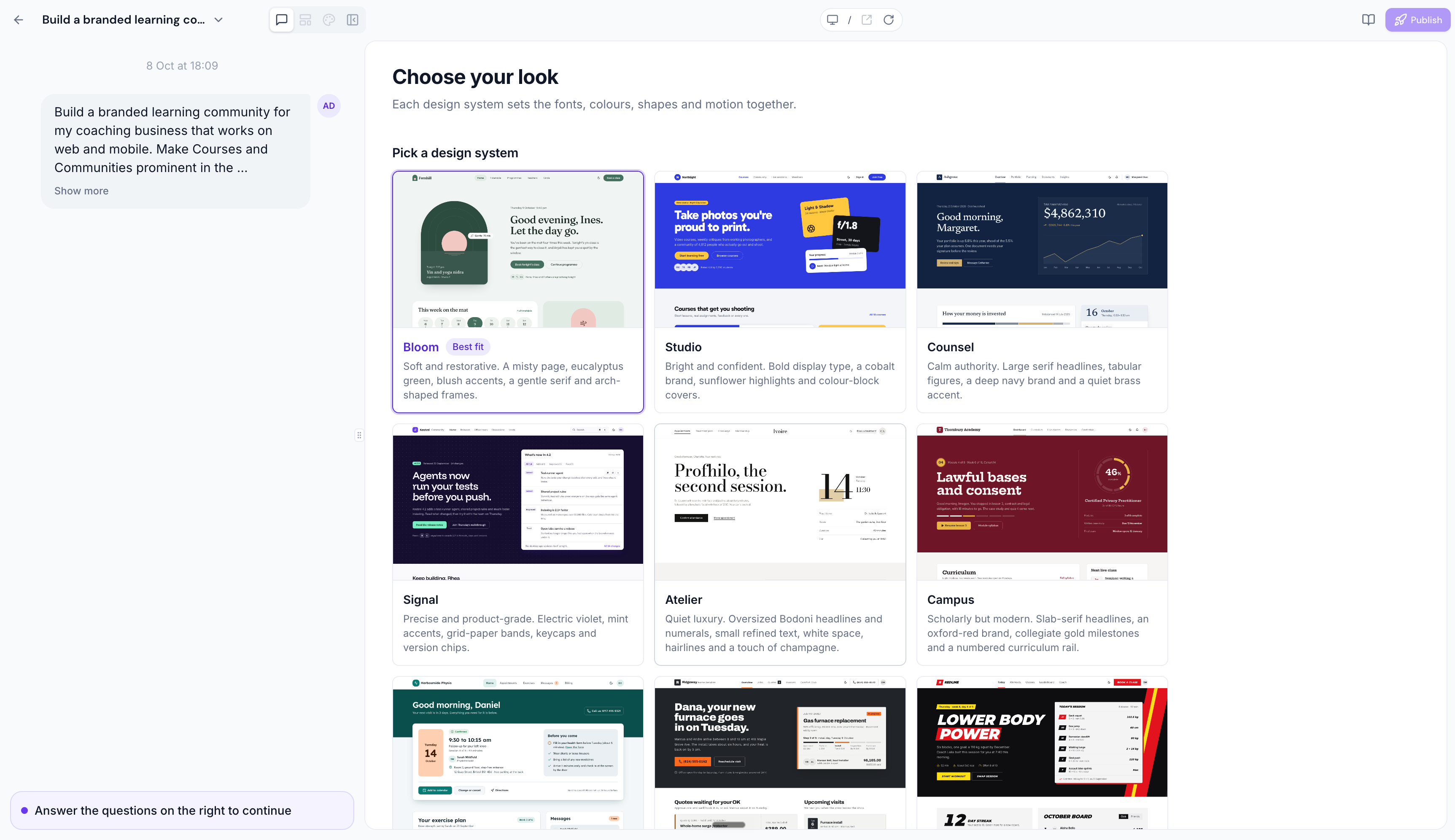
- Design systems include Bloom, Studio, Counsel and more.
05Before you start
- Access to the Client App Builder private beta must be granted to the account.
- Existing Client Portal resources such as courses, communities, shared files, and member permissions need to be configured.
06How to set up and use client app builder in HighLevel
Create a new client app
- Open the Client App Builder from the Client Portal menu.
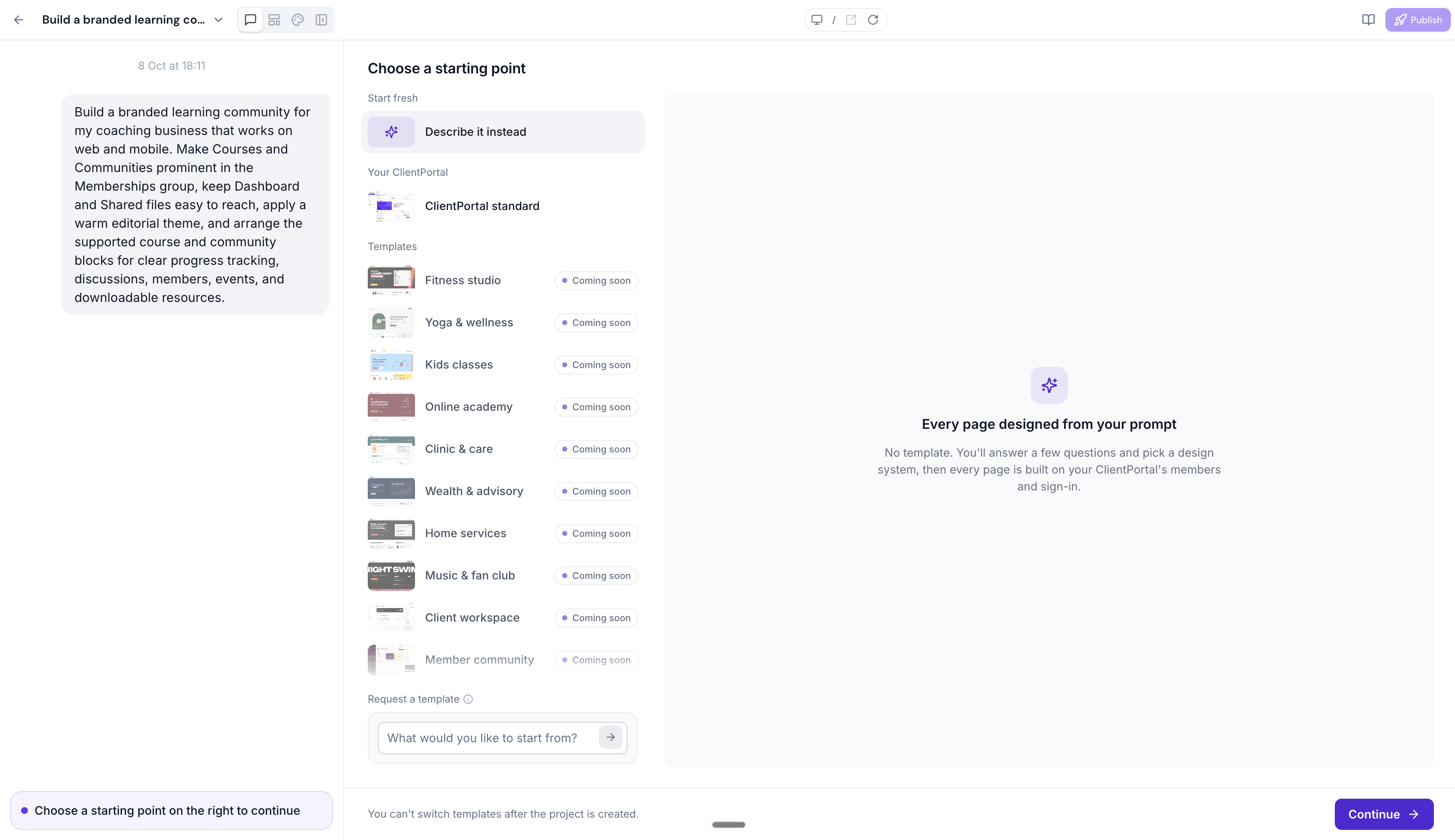
- Choose a starting point, describe a new app, use the current portal, or select an available template.
- If a template is chosen, note that templates marked Coming soon cannot be selected and the template cannot be changed after the project is created.
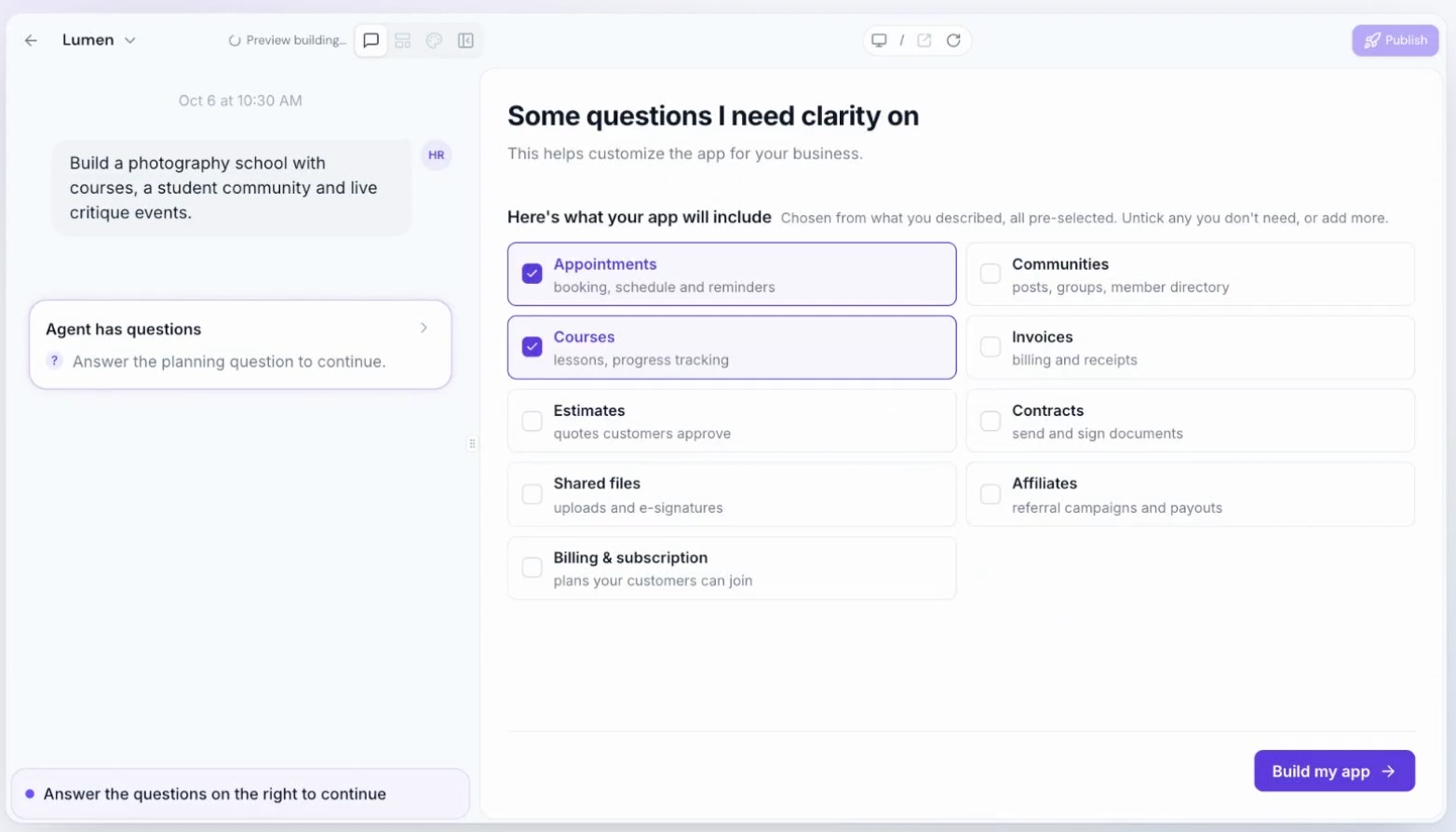
- Provide a natural language description of the desired experience and answer the AI’s follow up questions.
- Select a design system from the gallery (e.g., Bloom, Studio, Counsel).
- Review the AI generated pages that connect to existing courses, communities, files, and other portal features.
- Refine the design or functionality using conversational prompts, the Prompt Guide, or visual editing tools.
- Publish the completed application to make it available to members.
Edit an existing app
- Open the project gallery and select the thumbnail of the app you want to modify.
- Choose the page or element you wish to change in the preview.
- Enter a focused instruction in the chat interface describing the desired edit.
- Review the updated preview to ensure the change reflects the request.
- Save the changes and republish the application.
07What it looks like in HighLevel
08Settings that matter
- Builder Appearance. Controls whether the builder interface shows a Light, Dark, or System matched theme; it does not affect the published application's colors.
- Design system. Sets the overall visual style for the generated pages, applying coordinated typography, colors, and layout presets.
09Things to know before you rely on it
- Templates marked as Coming soon cannot be selected until they are released.
- After a project is created, the chosen template cannot be switched.
- The feature is currently available only to accounts invited to the private beta.
- Up to ten custom domains can be connected to an AI generated application.
- Appointment functionality depends on the underlying portal configuration and may not be supported in every generated app.
10If something goes wrong
- Client App Builder does not appear in the HighLevel account.. Verify that the account has been granted access to the private beta.
- Members cannot see certain courses or communities in the new app.. Check that the corresponding resources are properly configured and that members have the required enrollments or permissions.
11How it connects to the rest of HighLevel
- Step by step setup of the HighLevel client portal Client portal setup guide
- Manage invites and magic links for client portal users Portal dashboard
- Details on subscription management within the client portal Subscription management
Michael's take

I would begin with choosing a design system to set the visual language, then use conversational editing to add or adjust pages such as a Community page.