
01Who this is for
- Admins can view and manage all subscriptions and invoices within the client portal.
- Support staff can filter transactions by source, status, or date to assist with billing inquiries.
02Subscription management, explained
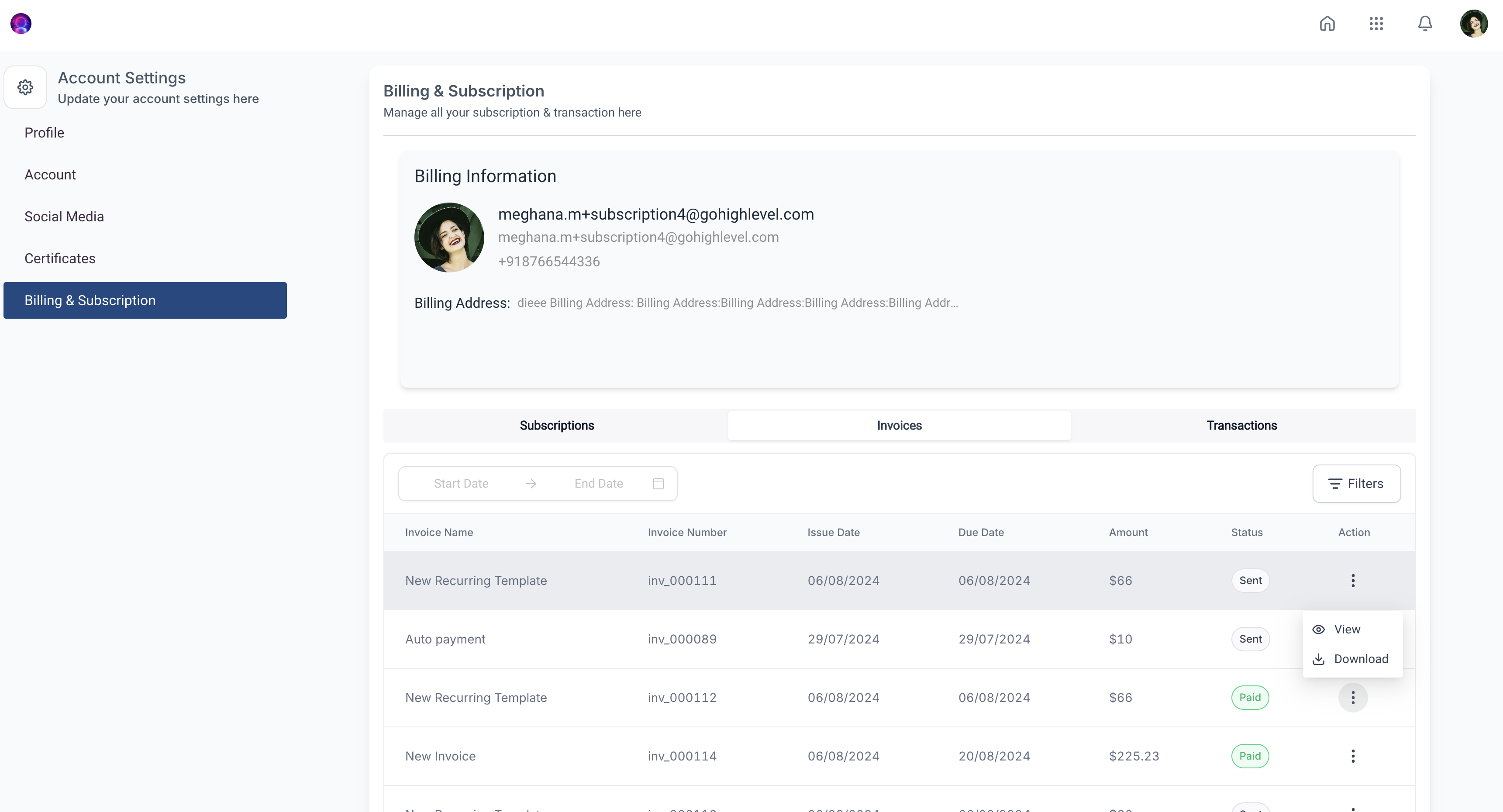
Subscription Management lives inside the client portal under Account Settings > Billing & Subscription. It lists every subscription linked to the account, letting users see details, filter results, and download related invoices.
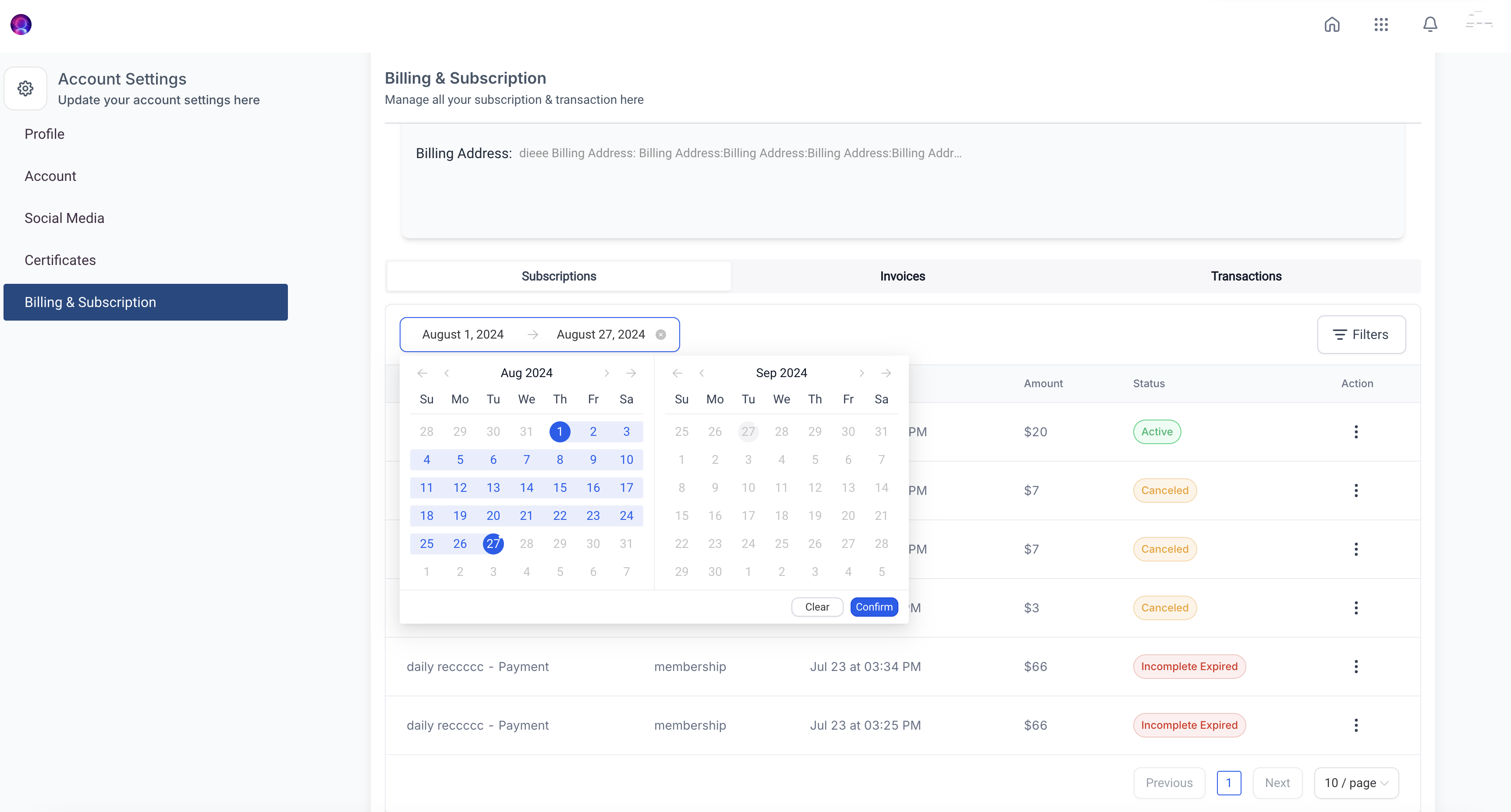
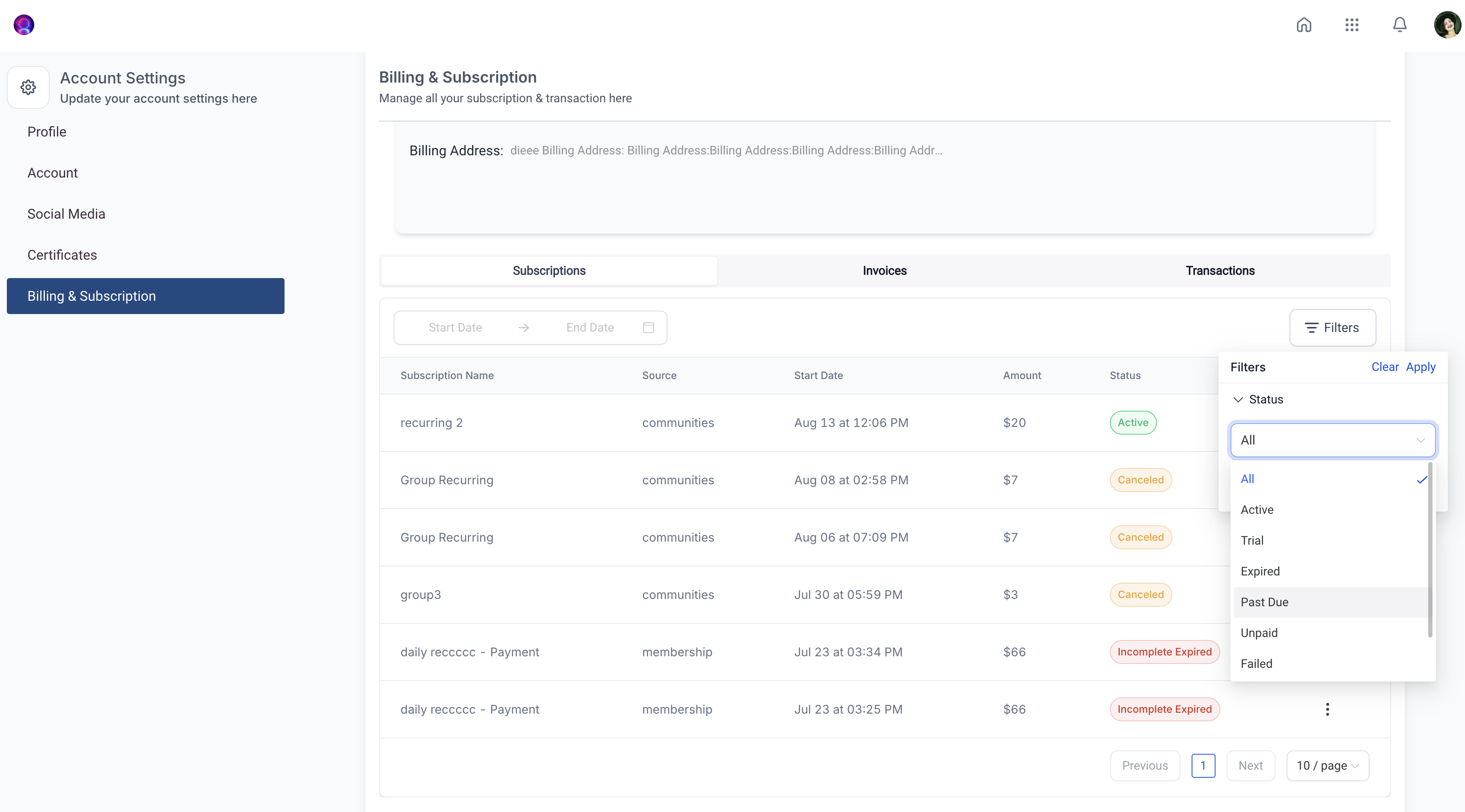
When a subscription is cancelled from this page, access to that service ends immediately. The feature also includes advanced filters that sort subscriptions by their origin, current status, or a chosen date range.
Admins can control whether other portal users see this section by adjusting app permissions, which revokes access for selected roles.
03How businesses use subscription management
- SaaS startup. An admin opens the client portal, navigates to Billing & Subscription, filters subscriptions by status, cancels any trial subscriptions that should not continue, and downloads invoices for accounting.
- Digital marketing agency. An agency administrator accesses the subscription list, locates a client’s recurring ad spend plan, uses the cancel option when the contract ends, and downloads the final invoice for the client’s records.
- Online course provider. The course manager filters subscriptions by source to see which students purchased via the website, cancels access for students who request refunds, and retrieves the associated invoices for the finance team.
04Before you start
- User must be logged into the HighLevel client portal.
- User must have the appropriate permissions to view Billing & Subscription settings.
05How to set up and use subscription management in HighLevel
Access subscription management
- Sign in to the client portal.
- Select the Profile icon located at the upper right corner.
- Choose Account Settings and then open Billing & Subscription.
Cancel a subscription
- Enter the Billing & Subscription area in the client portal.
- Find the subscription you wish to end.
- Click the Cancel button associated with that subscription.
- Confirm the cancellation when prompted.
06What it looks like in HighLevel
07Settings that matter
- Billing & Subscription. Controls access to the page where subscriptions, invoices, and transaction filters are displayed.
- App permissions. Allows an admin to revoke or grant other users the ability to see the Subscription Management feature.
08Things to know before you rely on it
- Cancelling a subscription removes access to that plan immediately.
- Advanced filtering options are limited to source, status, and date range criteria.
09How it connects to the rest of HighLevel
- Step by step setup of the client portal Client portal setup guide
- How customers can log in to the portal Customer access guide
- Managing invites and magic links in the portal dashboard Portal dashboard overview
Michael's take

Subscription management provides a single place to control billing, cancel subscriptions, and keep copies of invoices without hopping between screens.
Don't forget to double check the cancellation confirmation; a missed step can leave a client still paying.