
01Who this is for
- Founders of SaaS businesses that host multiple client portal apps, they can give each client instant entry without passwords.
- Marketing teams that send onboarding emails, they can embed a single link that takes a new user straight to the relevant course.
- Support managers for membership sites, they can reduce login related tickets by providing one click access.
02SSO magic links, explained
SSO magic links are unique, authenticated URLs tied to a contact and a specific client portal app. When a user clicks the link, the platform logs them in automatically and redirects them to the selected destination.
The feature lives in the Client Portal Dashboard under the Sites tab. From there you generate a link, choose the app, and copy the URL. The same link can then be added as a custom menu entry via Agency Settings, where you control its appearance, visibility and behavior.
03How businesses use SSO magic links
- Online course provider. Create a magic link for each enrolled student that opens the course dashboard. Paste the link into the welcome email so the student lands directly on their learning area without entering credentials.
- Community platform. Generate a link that points to the community hub for a specific client. Add the link as a custom menu item so the client sees a “Community” shortcut in their portal sidebar.
- Affiliate program manager. Produce a magic link that opens the affiliate portal for a partner. Place the link in the custom menu and limit visibility to Admin roles, giving partners quick access while keeping it hidden from other users.
04The numbers and rules that matter
- Magic Links generated from the Client Portal expire after 15 minutes.
05How to set up and use SSO magic links in HighLevel
Generate a magic link
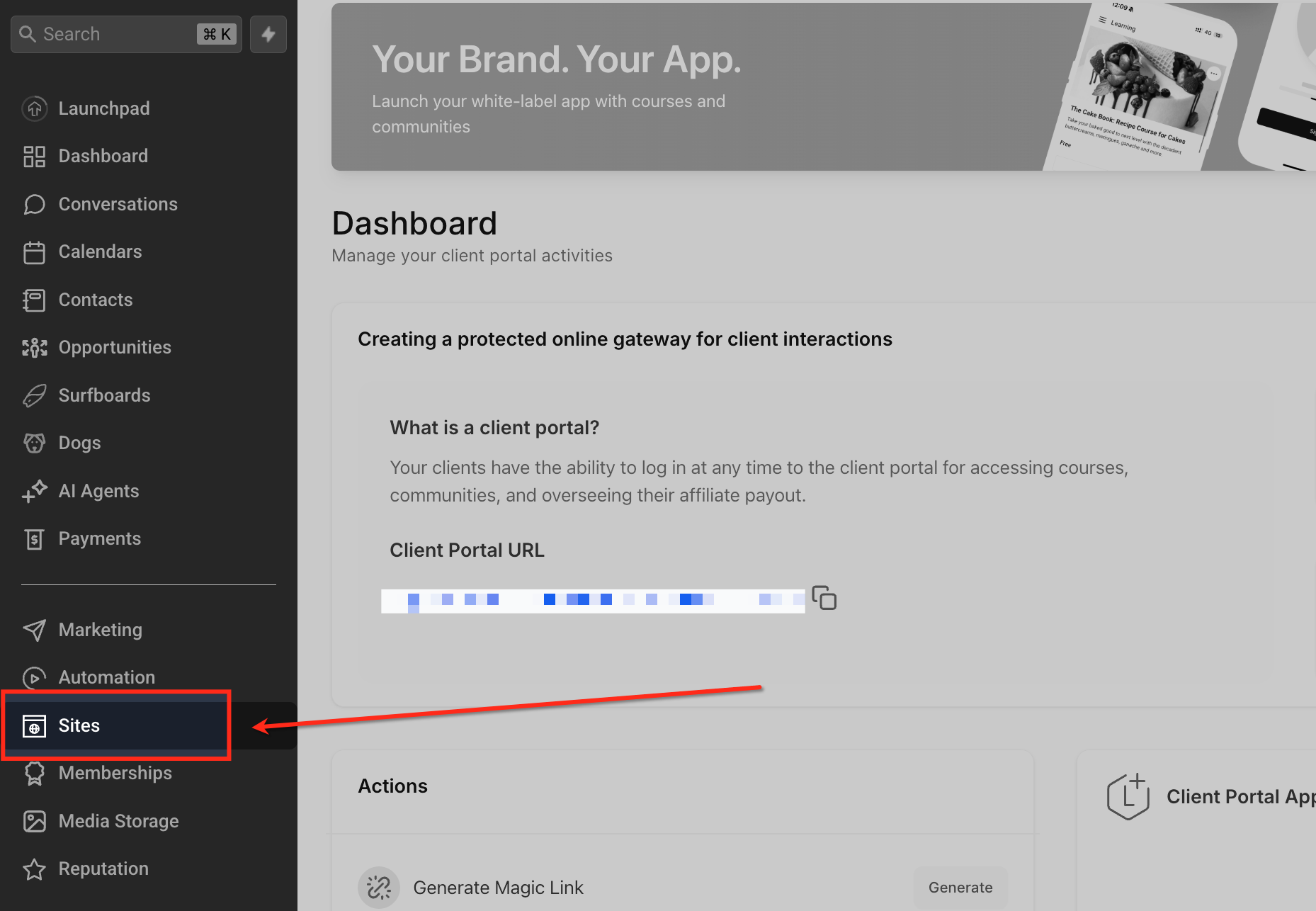
- Open the Sites tab from the left hand menu.
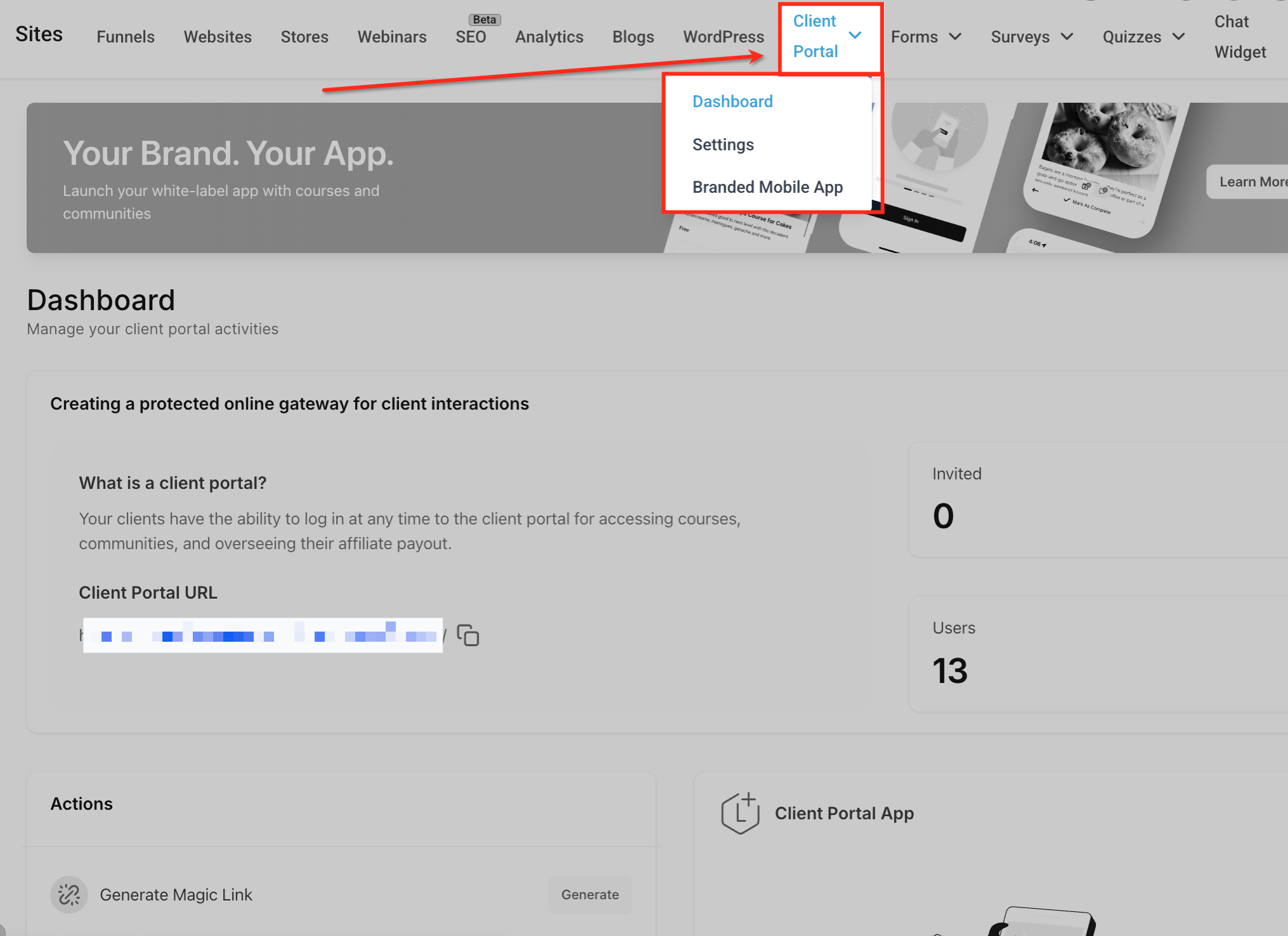
- Select Client Portal > Dashboard from the dropdown.
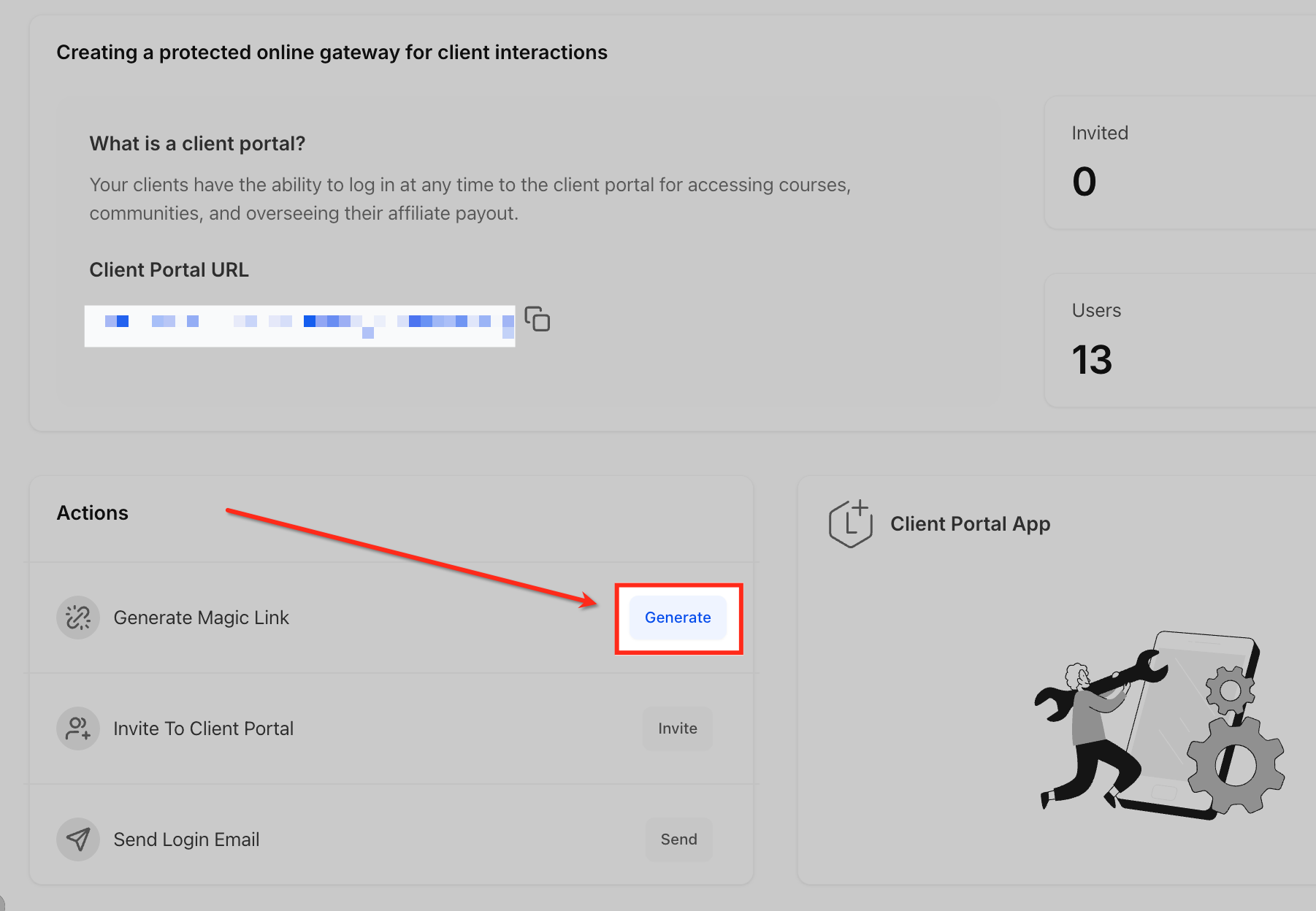
- In the Actions panel, click the Generate button next to “Generate Magic Link.”
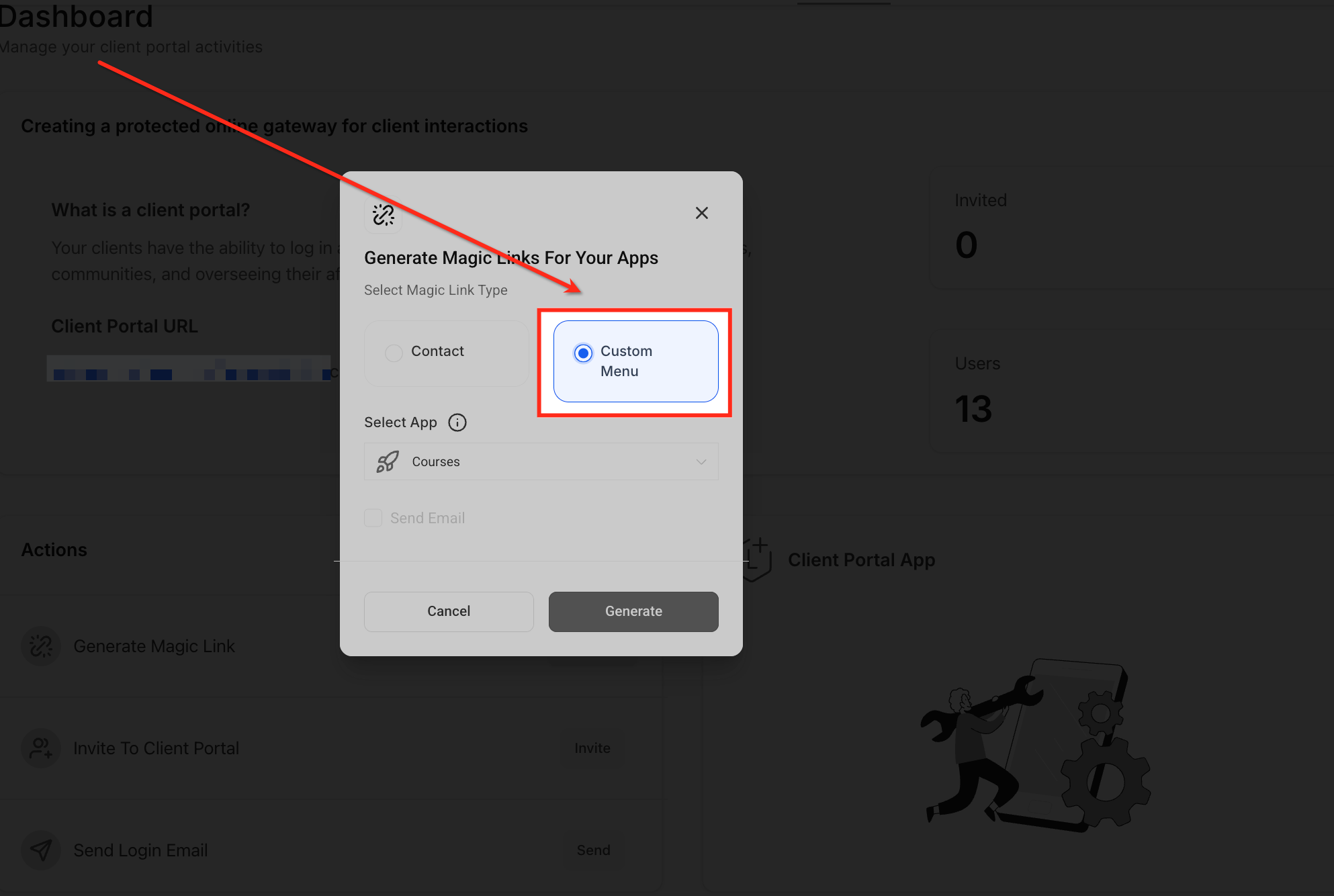
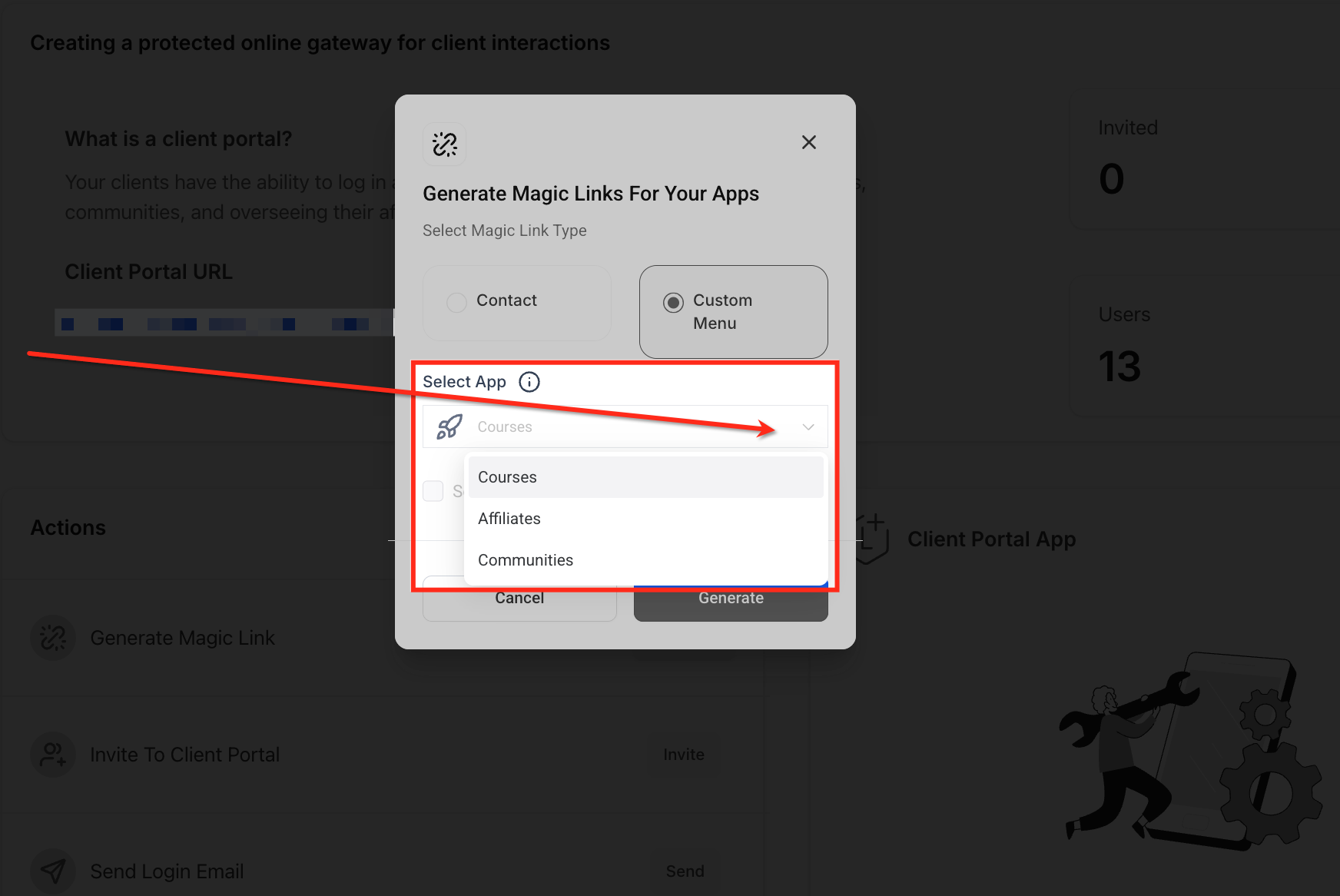
- Choose Custom Menu as the link type.
- Pick the desired app, Courses, Affiliates, or Communities, from the Select App dropdown.
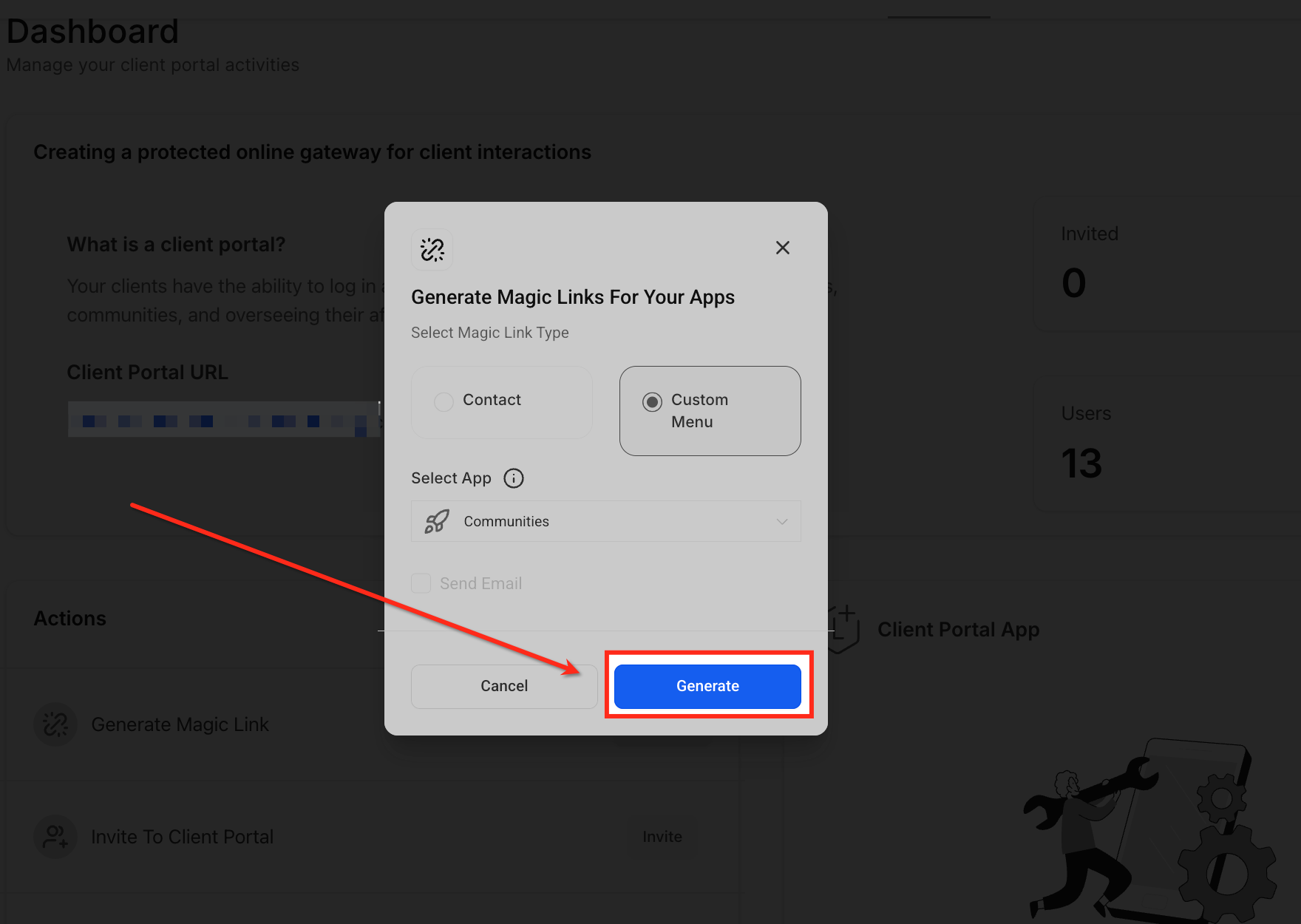
- Click Generate, then copy the produced URL.
- A countdown timer shows the remaining time before the link expires.
- When the link expires, the Generate Magic Link button becomes available again for a new link.
Add magic link as a custom menu link
- From the subaccount dashboard, click the account name dropdown and choose Switch to Agency View.
- Scroll to the bottom of the left sidebar and select Settings.
- In Settings, click Custom Menu Links.
- Press the + Create New button in the top right corner.
- Enter the required fields: an icon identifier, a link title, and the copied magic link URL.
- Select how the link should open, inside an iFrame, in a new tab, or in the same window.
- Choose sidebar visibility: Agency, Subaccount, or both.
- Assign the menu link to one or more subaccounts.
- Define role based visibility, Admins, Users, or All.
- Optionally enable microphone and camera permissions if needed.
- Click Save to finalize the custom menu link.
06What it looks like in HighLevel
07Settings that matter
- Link Icon. Specifies the icon that appears next to the menu item in the sidebar.
- Link Title. Sets the text label shown for the custom menu entry.
- URL. Holds the magic link URL that will be opened when the menu item is clicked.
- Link Behavior. Determines whether the link loads inside an embedded iFrame, a new browser tab, or the current window.
- Sidebar Visibility. Controls whether the link appears in the Agency sidebar, Subaccount sidebar, or both.
- Subaccounts. Limits the custom menu link to selected subaccounts only.
- Role Based Visibility. Restricts access to the menu link based on user roles such as Admin, User, or all users.
- Enable Permissions. Allows the embedded content to use the microphone and camera if required.
08Things to know before you rely on it
- Magic links expire 15 minutes after generation.
- The Generate Magic Link button becomes active again only after the current link expires.
- Custom Menu type links are reusable and can be placed in sidebars.
09How it connects to the rest of HighLevel
- Step by step client portal setup guide Client portal setup
- Manage invites and magic links from the dashboard Client portal dashboard
- HighLevel pricing and plans Pricing
Michael's take

Be aware that magic links are time sensitive and only last 15 minutes, so you’ll need a process to refresh them for ongoing access. Treat them like temporary keys; you don’t want old links floating around longer than necessary.
When you have them set up, the convenience they bring is impressive. Clients can jump straight into a course or community with a single click, which makes onboarding feel slick and cuts down on password reset tickets.