
01Who this is for
- Team members who need to grant clients portal access without requiring passwords.
- Administrators who want to track invited versus joined users and manage portal invitations.
02Client Portal dashboard, explained
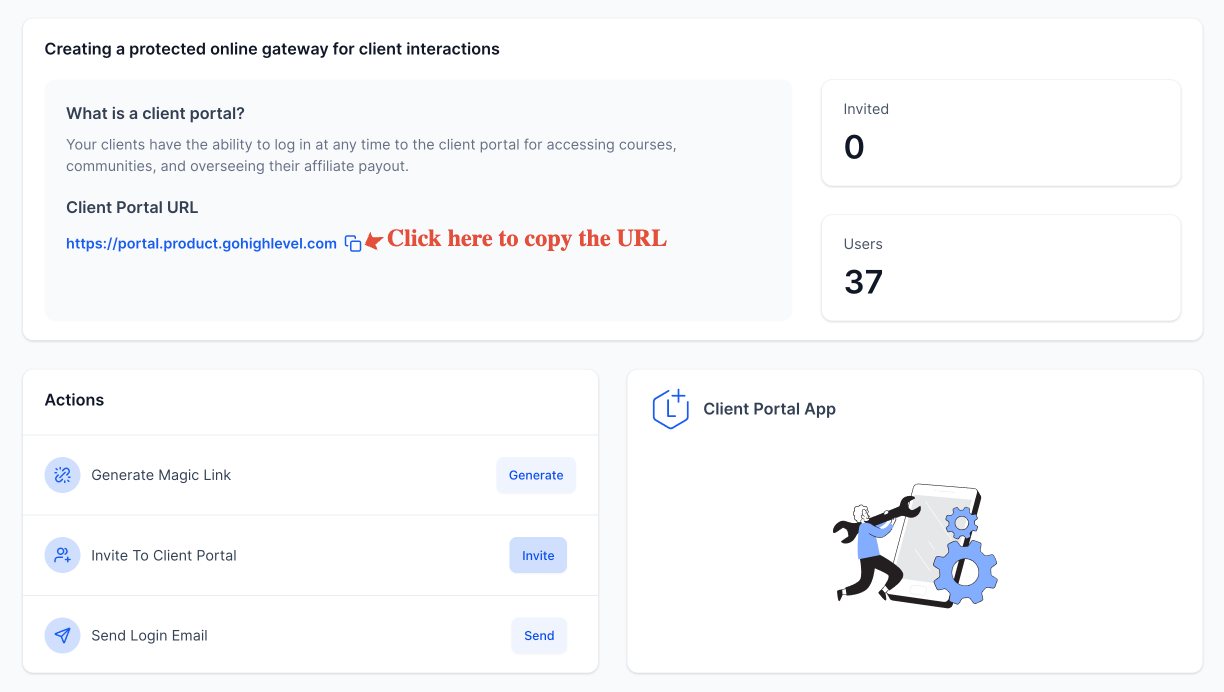
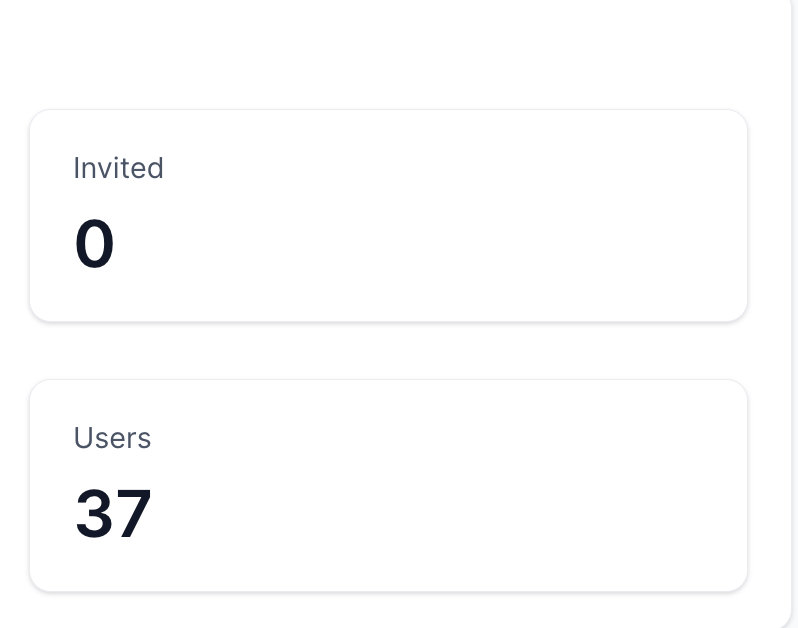
The dashboard appears inside the Client Portal section of HighLevel. It lists the total number of invited users and the number of users who have completed sign up. Each row includes an action menu for generating a magic link, sending an invitation, or emailing a quick login button.
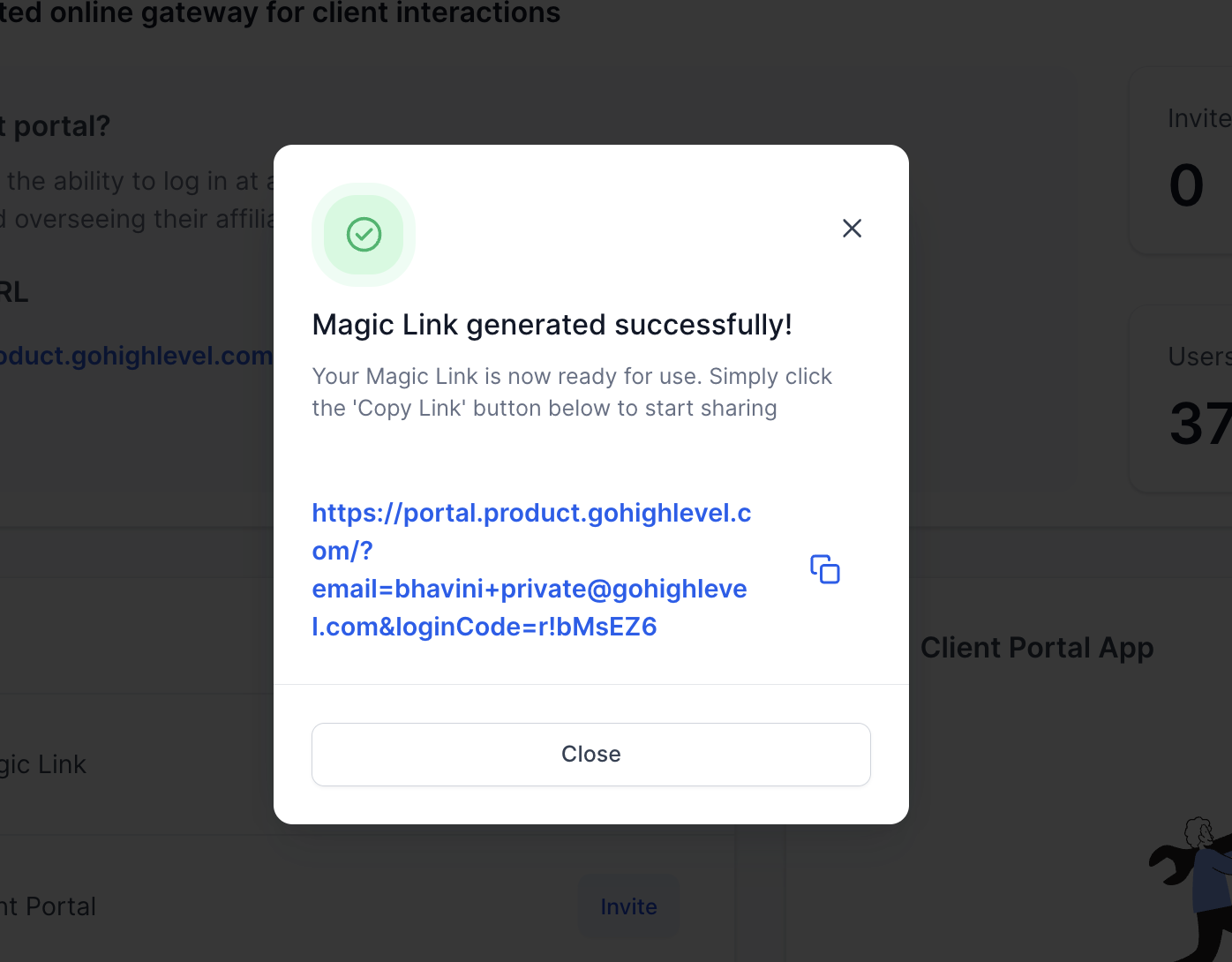
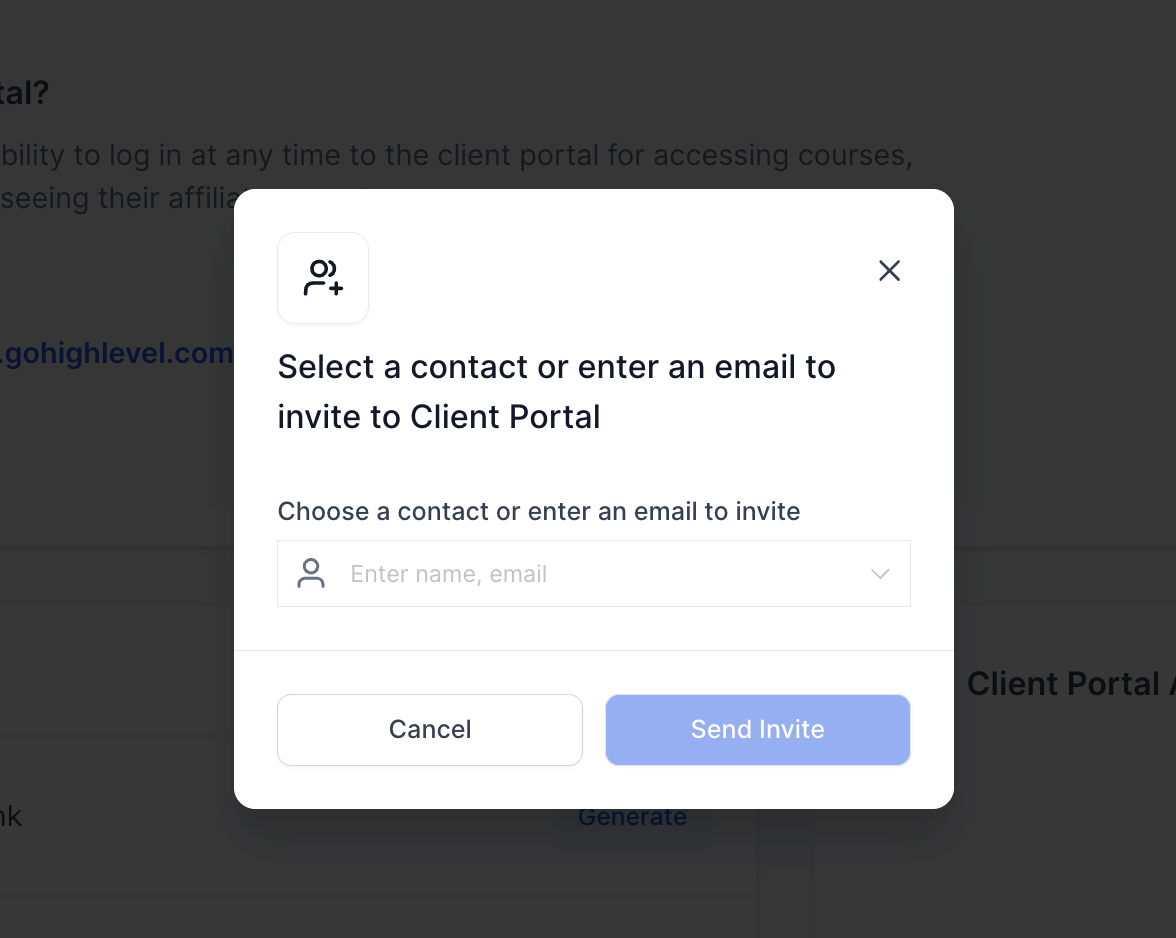
Magic links are short lived URLs that log a contact into the portal directly. They are created per contact and disappear after 15 minutes, after which the generate button becomes active again. Invitations can be sent to existing contacts or new email addresses, using the account’s default domain. Login emails contain a button that lets the recipient enter the portal without typing a password.
03How businesses use Client Portal dashboard
- Marketing agency. The agency selects a client contact in the dashboard, chooses the generate magic link action, copies the short lived URL, and sends it via a message, allowing the client to view reports right away.
- Fitness studio. The studio clicks the invite action, enters a new member’s email, and sends the invitation, which arrives from the studio’s default domain for smooth onboarding.
- Consulting firm. The firm selects multiple contacts, triggers the login email action, and each contact receives an email with a quick login button to access shared documents without entering a password.
04The numbers and rules that matter
- Magic links generated from the Client Portal Dashboard expire after 15 minutes.
- Magic links are generated per contact.
05How to set up and use Client Portal dashboard in HighLevel
Generate magic link
- Open the client portal dashboard in HighLevel.
- Locate the contact for which a link is needed.
- Open the action menu for that contact.
- Select the Generate Magic Link option.
- Copy the displayed link before the 15 minute timer ends. The button becomes active again after the link expires.
Invite to client portal
- Open the client portal dashboard in HighLevel.
- Click the Invite action in the toolbar.
- Choose an existing contact or type a new email address.
- Confirm the invitation details.
- Send the invitation, which is delivered from the default domain.
Send login email
- Open the client portal dashboard in HighLevel.
- Select one or more contacts from the list.
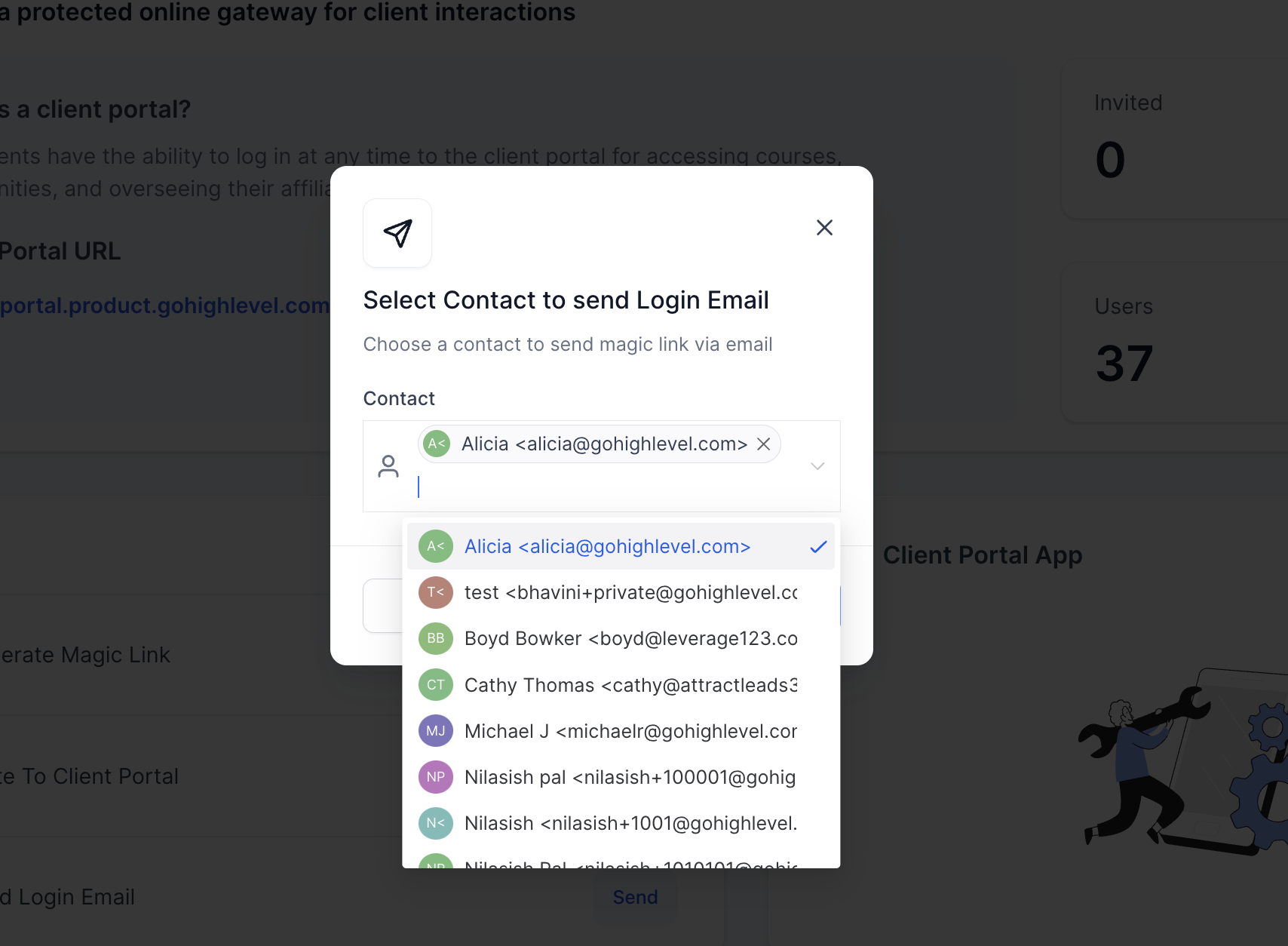
- Choose the Send Login Email action.
- Confirm that the email should be sent.
- Each selected contact receives an email with a quick login button.
06What it looks like in HighLevel
07Settings that matter
- Client portal URL. Controls the web address that clients use to reach the portal; it updates automatically when a custom domain is selected.
- Default domain. Determines which domain name is used as the sender for invitation and login emails.
08Things to know before you rely on it
- Magic links generated from the dashboard expire after 15 minutes.
- A magic link is created for a single contact; bulk links require workflow custom values.
- After a link expires, the Generate Magic Link button becomes available again.
09How it connects to the rest of HighLevel
- How customers can access the HighLevel client portal Customer access
- Subscription management features inside the client portal Subscription management
- Enable one click SSO magic links for client apps SSO magic links
Michael's take

Wondering if the Client Portal dashboard is worth the effort for your business? It’s a simple way to keep tabs on who you’ve invited versus who actually shows up, and it lets you push access without a password when you need to move fast.
If I were setting it up, I’d start by sending a magic link to a key client to see how quickly they can get in. Then I’d run a quick test of the bulk login email on a few internal contacts to be sure the quick login button works as expected.