
01Who this is for
- Field technicians who need to view and update their daily work without a desktop.
- Dispatch managers who schedule visits and assign staff while on the go.
02Field services, explained
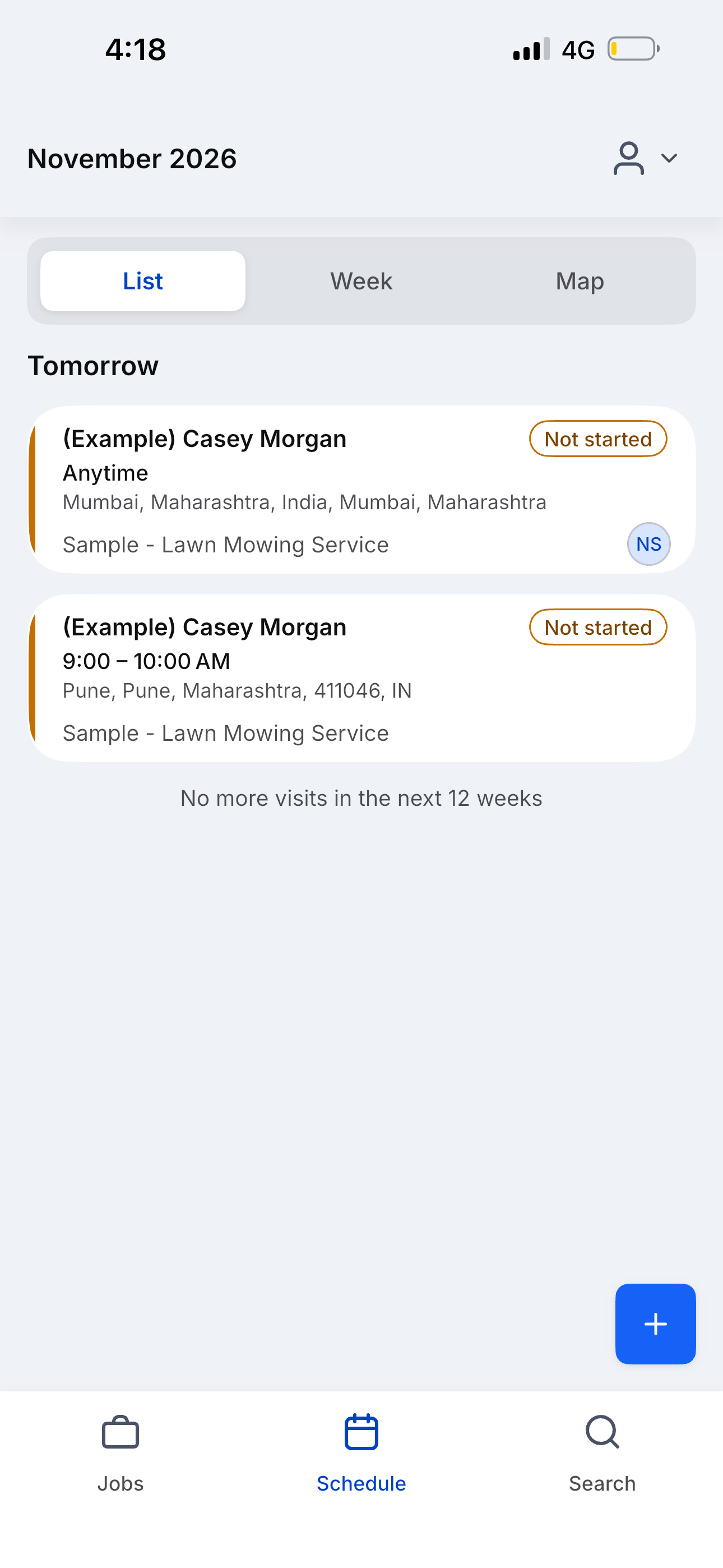
Field Services is a private beta feature that appears on the mobile app as the Jobs section. After completing the web setup, field staff can launch the HighLevel app, select the location, and work with Jobs, Schedule and Search tabs. All actions performed in the app synchronize with the web platform right away. The Jobs tab lists work orders, the Schedule tab shows visits in list, week or map formats, and the Search tab filters records across jobs, requests, estimates and invoices.
03How businesses use field services
- Plumbing company. The plumber opens the Jobs tab, creates a new job for a customer address, selects the required service, and schedules a visit. While on site, the technician updates the visit status and checks off items from the checklist.
- Home cleaning service. The cleaning crew uses the Schedule view on the phone to see the day’s appointments in map mode, taps a visit card to verify address and assigned staff, and marks the job as completed when the cleaning is finished.
- HVAC repair business. The dispatcher searches for pending estimates from the Search tab, opens a chosen estimate, and converts it into a job directly on the mobile app, assigning a technician and setting the visit time.
04Before you start
- The subaccount must have Field Services enabled and show a Beta tag in the left navigation on the web.
- Complete the basic web setup, including staff, service areas and services, so jobs are available to open.
05How to set up and use field services in HighLevel
Get the mobile app
- On web, open Field Services > Home.
- Open the Setup guide from the Home screen.
- Under Get the mobile app, scan the QR code for the App Store or Google Play.
- Install the app and sign in with the same login you use on the web.
- Select the location where Field Services is set up.
- Alternatively, search for the HighLevel app in the store, install it, and sign in.
Open Field Services on mobile (Jobs)
- Launch the HighLevel app and pick the location where Field Services is enabled.
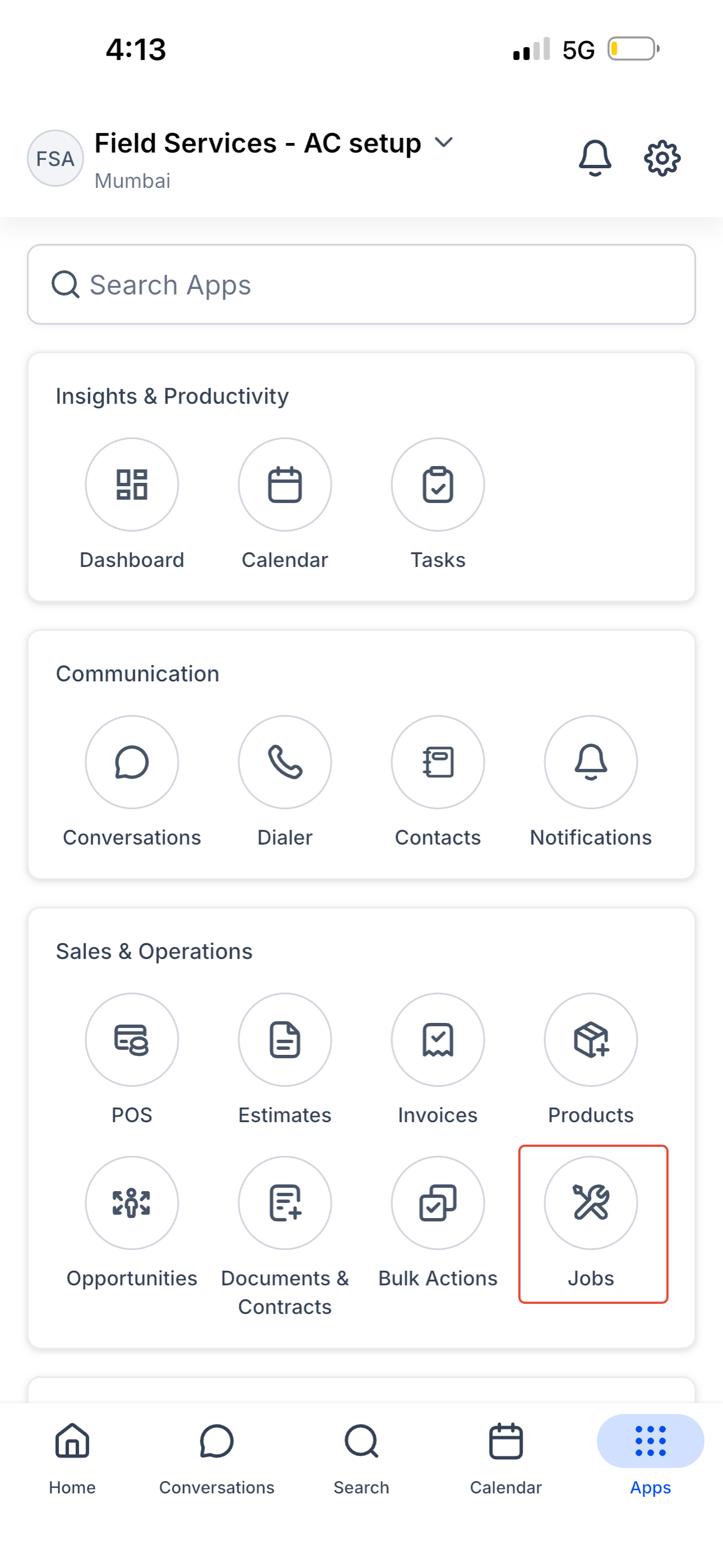
- Tap Apps in the bottom navigation.
- Under Sales & Operations, select Jobs.
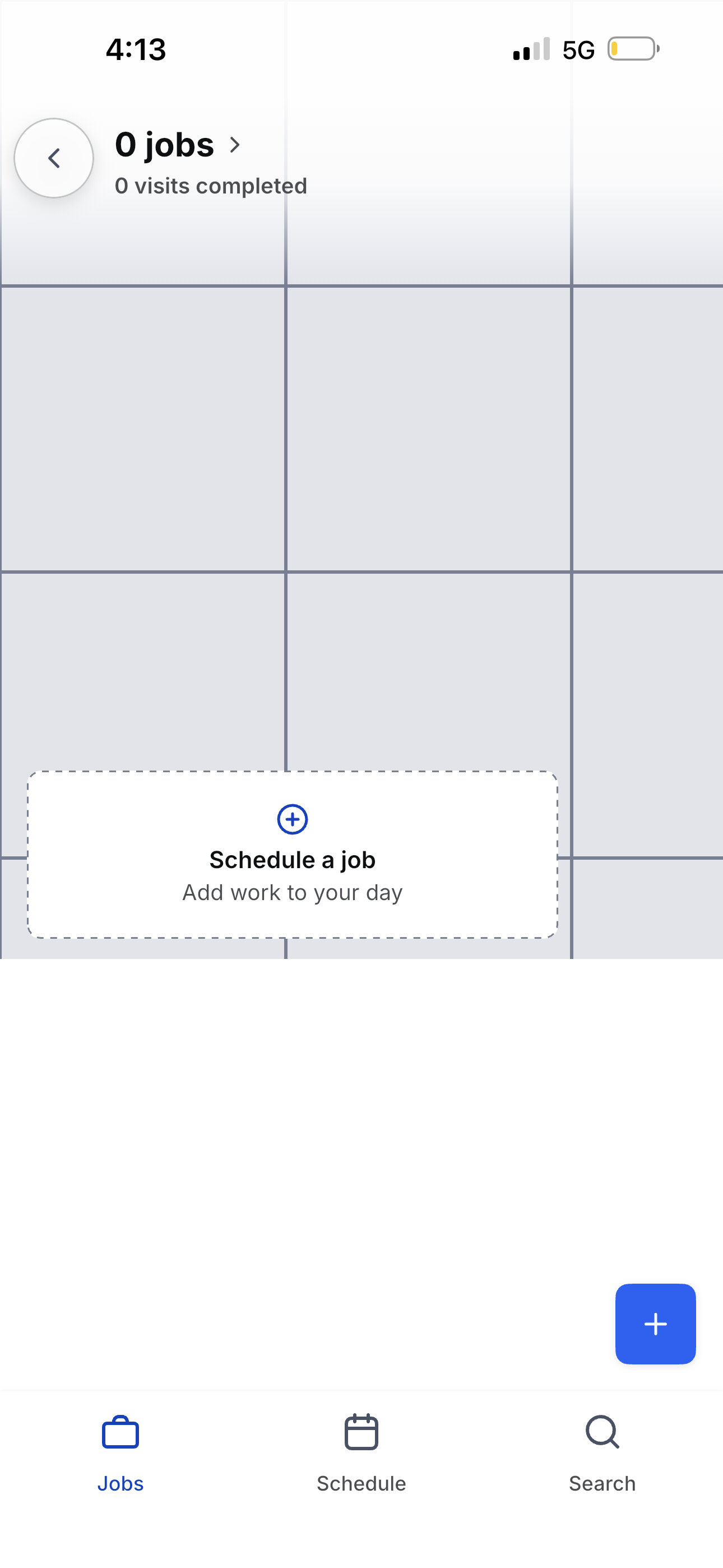
- The Jobs screen appears and the bottom navigation switches to Jobs, Schedule and Search.
- Note that on mobile the feature appears as Jobs, not a separate Field Services label.
Create a request, job, or estimate
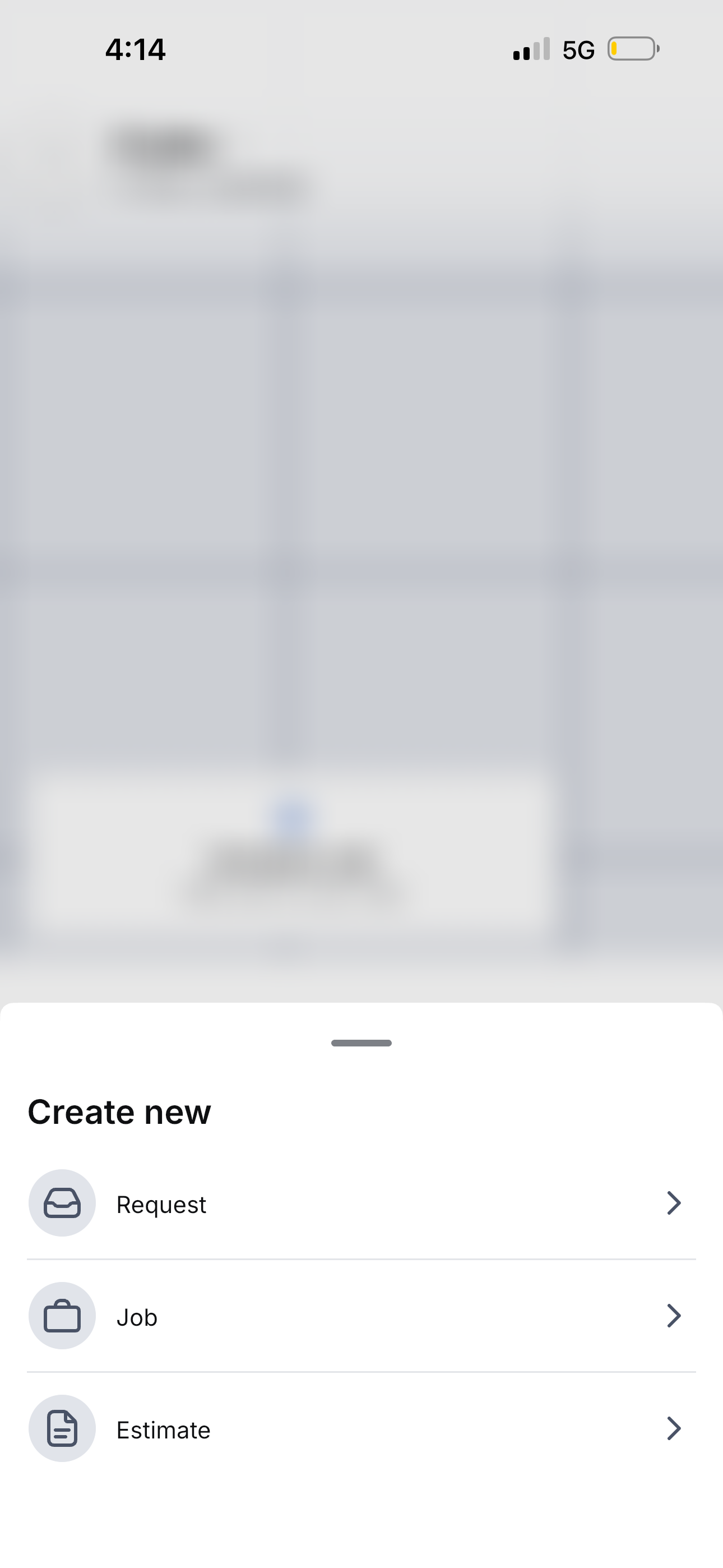
- Tap the blue + button from the Jobs, Schedule, or Search screen.
- Choose Create new and then select Request, Job, or Estimate.
- Proceed with the selected option to start the appropriate record.
Create and manage a job
- Tap the + icon and pick Job, or use Schedule a job from an empty Jobs screen.
- Select an existing contact under the Job for field.
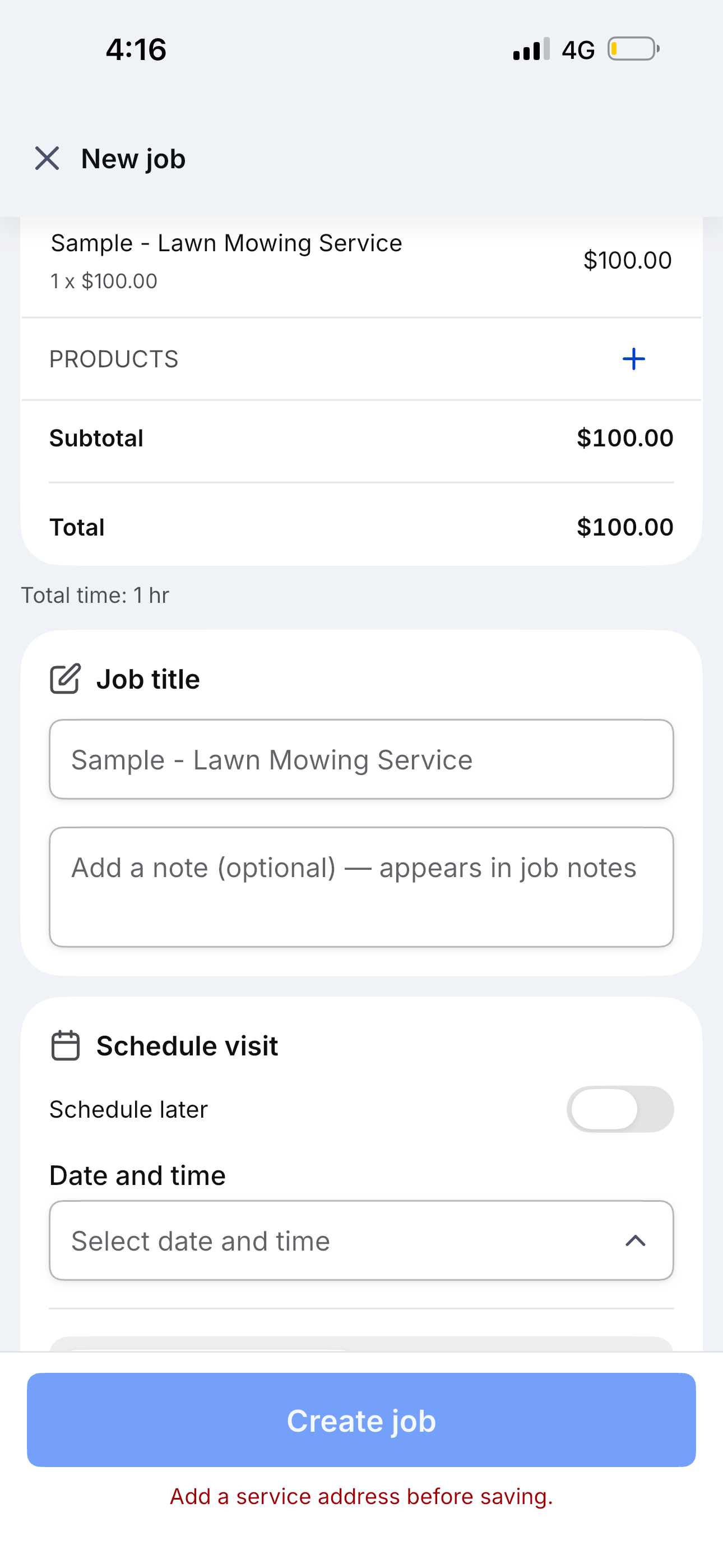
- Enter the service address; the job cannot be saved without it.
- Add Services and optional Products, adjusting quantity or unit price where allowed.
- Provide a Job title and include any optional note.
- Schedule the visit by selecting a date and time, enabling Schedule later, or using Find a time / Manual scheduling; assign staff and set the visit status.
- Add any needed checklists to the job.
- Tap Create job to save the record.
Use Schedule on mobile
- Open the Jobs tab and then tap Schedule.
- Switch among List, Week, and Map views as needed.
- Tap a visit card to view its details, including status, time, address and assigned staff.
Search jobs, requests, estimates, and invoices
- From the Jobs screen, tap the Search tab.
- Apply filters to choose Jobs, Requests, Estimates or Invoices.
- Tap a result entry to open its full record.
06What it looks like in HighLevel
07Settings that matter
- Schedule later. Allows a visit to be saved without an immediate date and time, postponing scheduling to a future step.
- Find a time / Manual scheduling. Provides options to automatically locate an available slot or to manually set the visit date and time.
- Visit status. Sets the current state of a visit, such as Not started, On my way, or other predefined statuses.
08Things to know before you rely on it
- Field Services is in a private beta and only selected accounts can enable it.
- The feature must be configured on the web before it becomes visible on the mobile app.
- A job cannot be saved until a service address is entered.
- At least one service is required for a visit so the platform can calculate duration and staff eligibility.
09If something goes wrong
- Jobs does not appear under Apps in the mobile app. Confirm Field Services is enabled for the location on the web, then pull to refresh or sign out and sign back in.
- Unable to create a job. Make sure a contact is selected, a service address is entered, and at least one service is added before saving.
10How it connects to the rest of HighLevel
- Field Services overview and beta enrollment Field Services overview
- Details on the Field Services Home page Home overview
- How to create and close work orders in Field Services Jobs guide
- Guide to scheduling visits and finding availability Visit scheduling
- Visit status options in Field Services Visit statuses
Michael's take

Michael ReimerFounder of CRM Pros, HighLevel Commander and Certified Admin
I would focus on getting the basic web setup right first, then encourage the team to use the Jobs tab to capture work as they move between sites. The instant sync keeps the whole operation aligned.
Get More InformationOpens on HighLevelPublished November 6, 2026 · Updated November 17, 2026