
01Who this is for
- Field service managers can limit jobs to locations their crews can reach, ensuring realistic schedules.
- Owners of delivery businesses can add travel fees automatically for jobs in specific zones.
- Customer support teams can flag out of area bookings for review, preventing unsupported requests.
02Service areas, explained
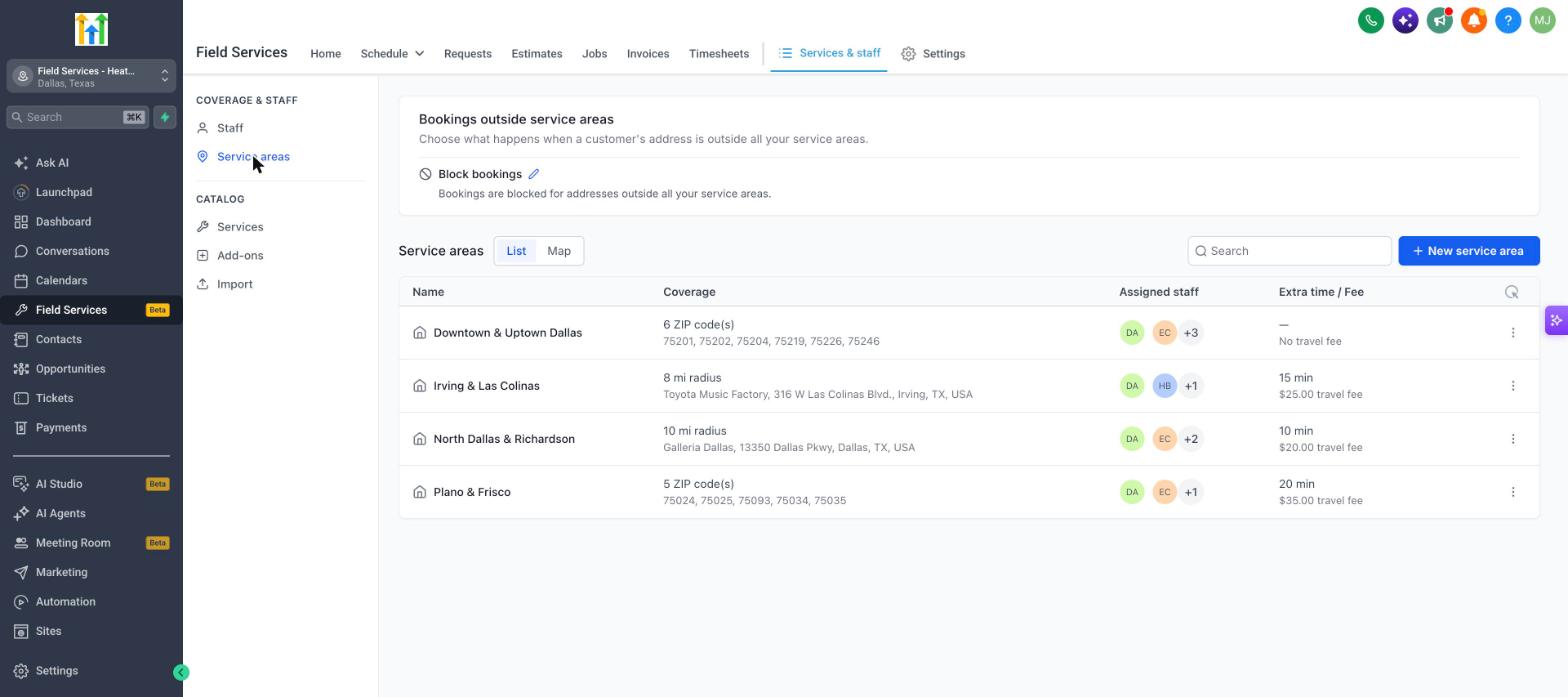
Service areas are geographic definitions such as a radius from an address or a list of ZIP/postal codes. Each area includes a name, a coverage definition, assigned staff, and optional travel fee or buffer time settings. A default area is created automatically when you begin using Field Services.
The feature lives under the Field Services module. From the Field Services dashboard choose Services & staff, then click Service areas under Coverage & staff. You can view areas as a list or on a map, see assigned staff, and edit travel options.
When a customer books online, the system checks the entered address against your service areas. Only staff assigned to the matching area are suggested, and any travel fee or extra buffer is applied to the job. If the address lies outside all areas, a policy determines whether the booking is blocked or flagged for review.
03How businesses use service areas
- Plumbing company. The company creates a radius based service area around its depot, assigns plumbers who can travel that distance, and adds a travel fee for jobs outside the core zone. When a homeowner tries to book outside the radius, the system blocks the request.
- Home cleaning service. The business defines several ZIP code service areas for different neighborhoods, assigns cleaners to each, and sets extra buffer time for areas with tight parking. Online bookings are matched only to cleaners who serve the entered ZIP code.
- HVAC maintenance firm. The firm enables the "Allow booking with review" policy, so customers can request service outside any defined area. The request is flagged, a custom message is sent to the customer, and a designated service area is assigned for internal handling.
04The numbers and rules that matter
- Travel fee is added once per job.
- Message to customer for review can be up to 500 characters.
05Before you start
- Field Services must be enabled in your account, which is currently a private beta available to selected users.
06How to set up and use service areas in HighLevel
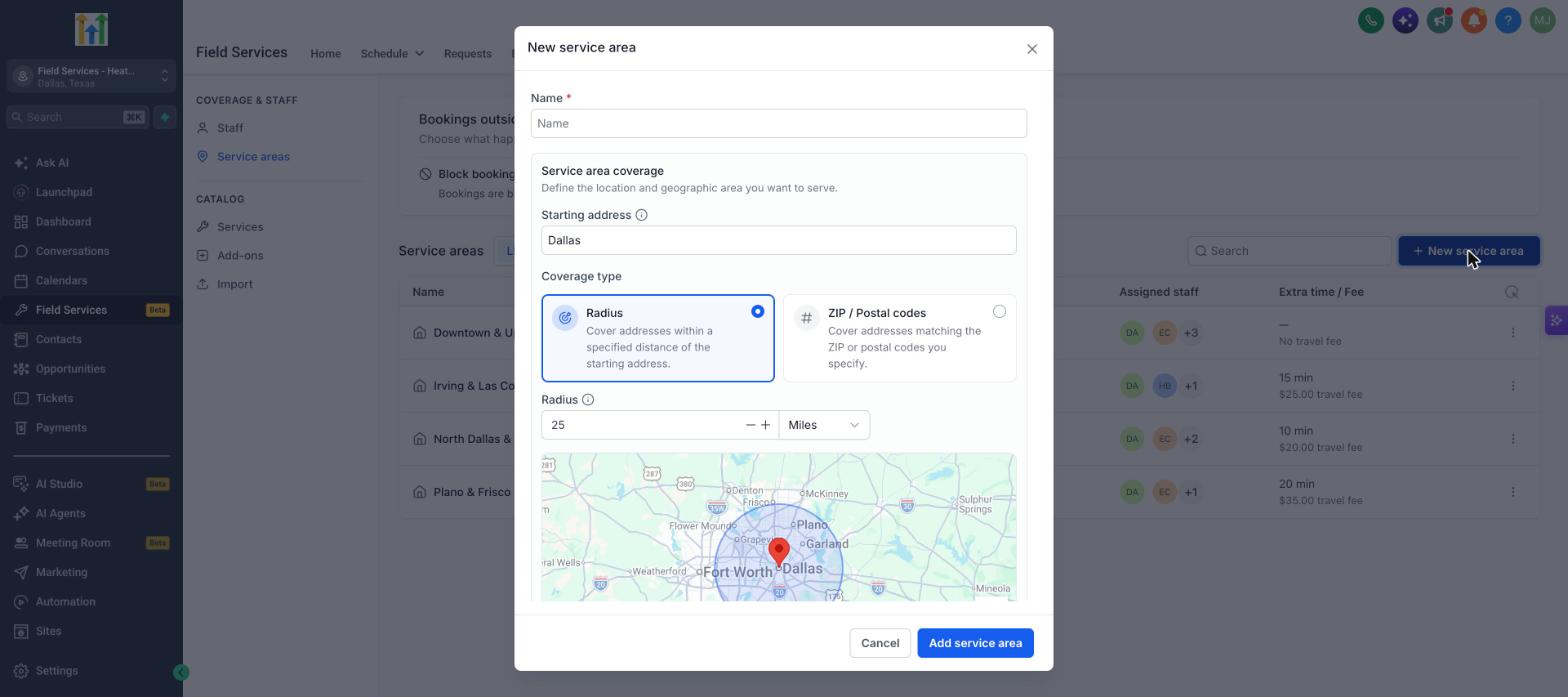
Create a new service area
- Open the Service areas page from Field Services > Services & staff.
- Click the New service area button.
- Enter a name for the area.
- Provide the starting address that serves as the center point.
- Select the coverage type (Radius or ZIP / Postal codes).
- If Radius is chosen, type the distance value and pick Miles or Kilometers.
- If ZIP / Postal codes is chosen, enter the relevant ZIP or postal codes.
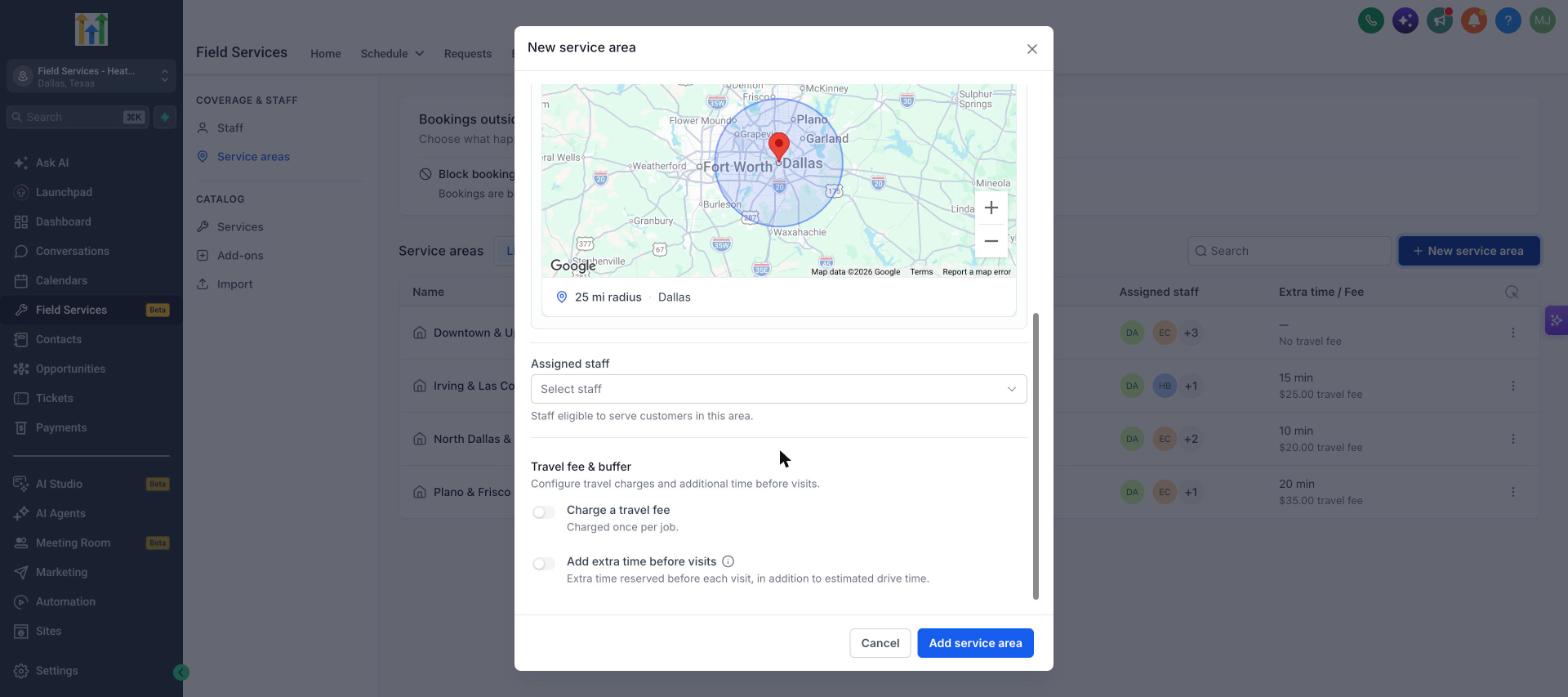
- Choose the staff members who can serve this area.
- Set a travel fee option if you want to charge one for jobs in the area.
- Set an extra time buffer if you need additional scheduling time before visits.
- Avoid creating overlapping areas unless staff can serve both, to keep availability accurate.
- Click Add service area to save the new definition.
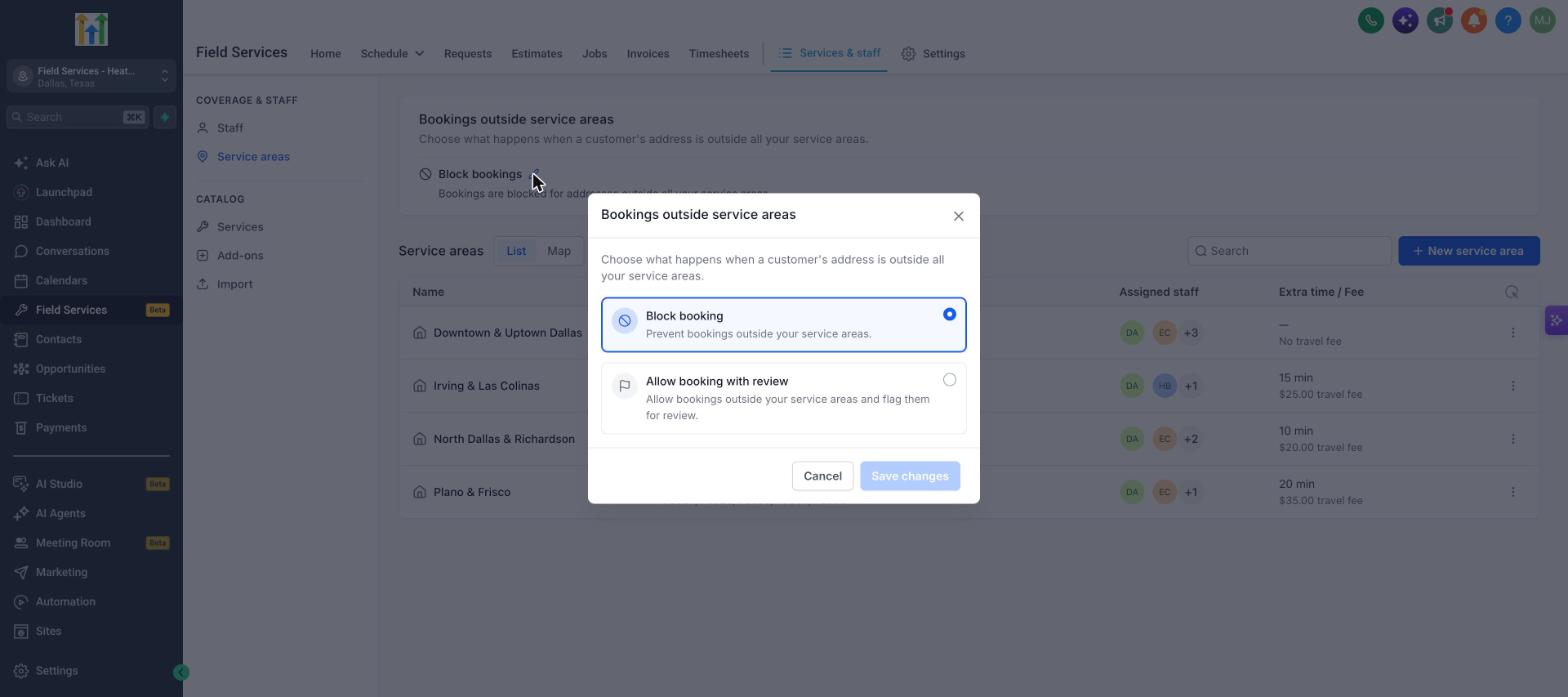
Set the policy for bookings outside service areas
- Navigate to the Service areas page.
- Locate the Bookings outside service areas card at the top of the page.
- Click the pencil icon on the card to edit the policy.
- Select either Block booking or Allow booking with review.
- If Allow booking with review is selected, edit the customer message (up to 500 characters) and choose which service area will manage flagged bookings, then save the changes.
Create a job for an address outside service areas
- When creating a job, enter an address that does not match any defined service area.
- The system displays a warning: Outside your service area. The job will be flagged for review and shows which service area is handling it.
07What it looks like in HighLevel
08Settings that matter
- Travel fee & buffer. Controls whether a travel fee is added to jobs in the area and whether extra scheduling time is reserved before each visit.
- Bookings outside service areas. Determines how the system handles bookings whose addresses do not match any defined service area.
09Things to know before you rely on it
- Field Services is in a private beta; availability is limited to selected accounts.
- Overlapping service areas should be created with care to avoid scheduling conflicts.
- The automatically created Default service area cannot be deleted, though its coverage and staff can be edited.
10How it connects to the rest of HighLevel
- Enable Field Services and learn the overall setup process. Field Services overview
- Assign workers and define routes for each service area. Staff setup
- Manage jobs that are flagged when an address is outside a service area. Jobs handling
Michael's take

When I need clear geography, service areas let me define where we work and set travel fees or extra buffer as needed.