
01Who this is for
- Home service business owners gain a single dashboard for requests, scheduling, dispatch, invoicing and customer communication.
- Office staff or dispatchers can create jobs, assign technicians, view routes and monitor progress without switching tools.
- Field technicians use the mobile app to see daily visits, update statuses, follow checklists and log time.
02Field Services, explained
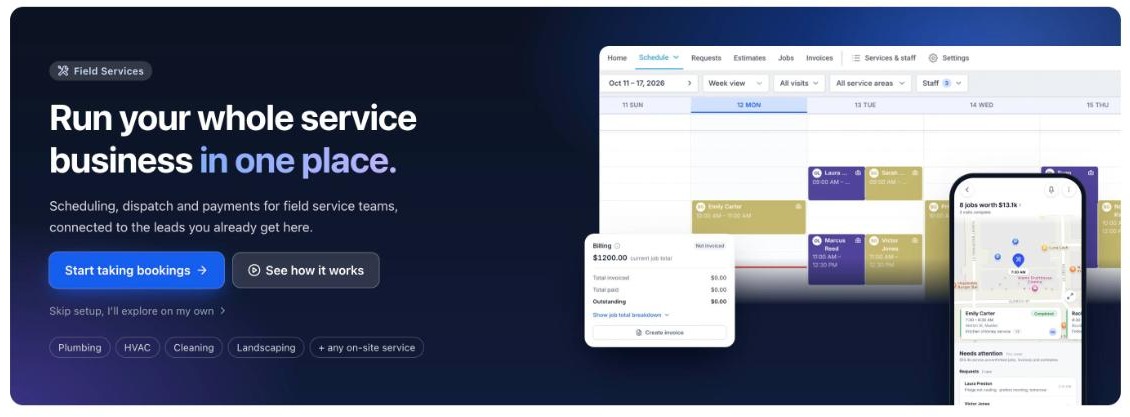
Field Services combines request capture, quoting, scheduling, dispatch, route optimization, work tracking, invoicing and notifications into a single workflow. The module lives in the left navigation of a subaccount once the account is enrolled in the private beta and appears with a Beta tag.
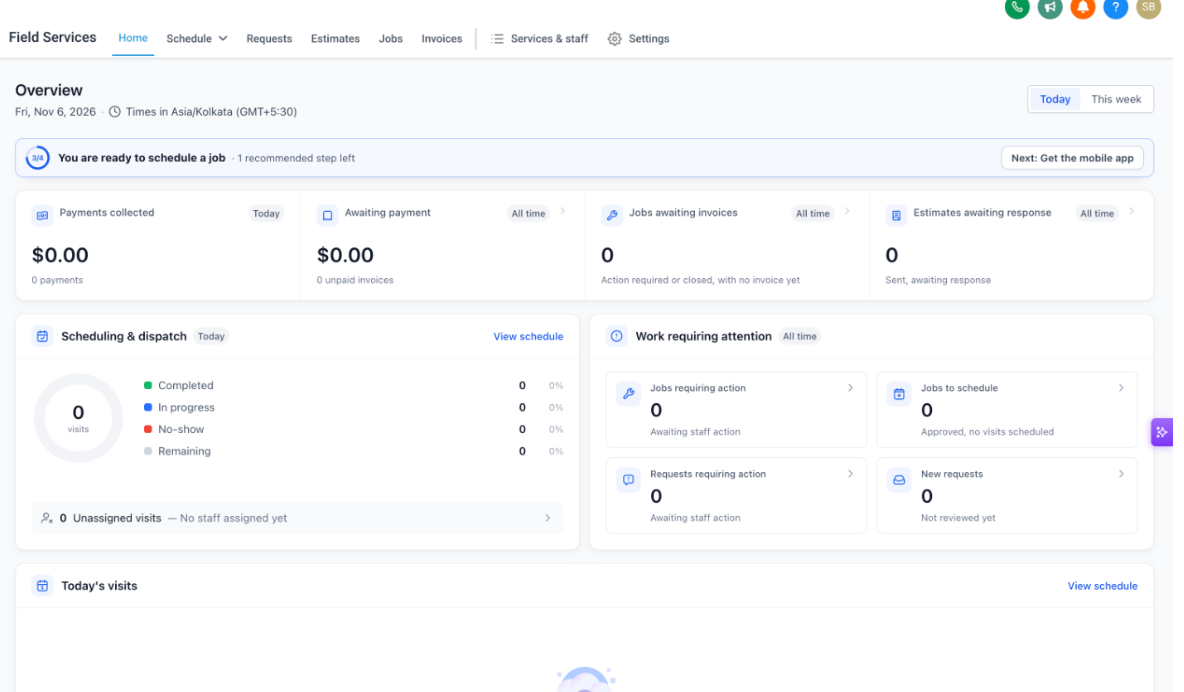
The top navigation inside the module provides tabs for Home, Schedule, Requests, Estimates, Jobs, Invoices, Timesheets, Services & staff and Settings. Each tab contains the tools needed for its part of the job lifecycle, and changes made on mobile sync in real time with the web interface.
03How businesses use Field Services
- HVAC company. The company registers for the private beta, enables Field Services and sets up service areas, staff and HVAC services. When a customer books a service, the request turns into a job, a visit is scheduled, the technician follows a checklist on the mobile app, and an invoice is generated at completion.
- Residential cleaning service. The cleaning business creates service areas and assigns cleaners as staff. Customers use the branded booking page to request a cleaning; the request is turned into a job, visits are scheduled using availability helpers, and cleaners receive route optimized schedules on their phones.
- Landscaping business. The business defines its service zones, loads landscaping services and addons, and configures notifications. When a client requests a yard makeover, the team creates a job, adds multiple visits for design and installation, and tracks time on each visit through Timesheets.
04Before you start
- The account must be enrolled in the private beta before Field Services appears in the navigation.
05How to set up and use Field Services in HighLevel
Enable Field Services in a subaccount
- Fill out the interest form to apply for the private beta.
- After the account is added to the beta, open the subaccount.
- Click the Field Services item marked with a Beta tag in the left navigation.
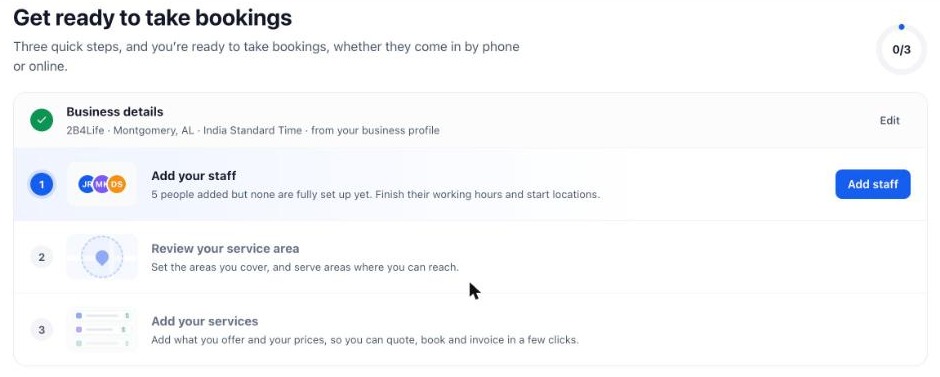
- On the Home tab, complete the setup checklist for staff, service area and services.
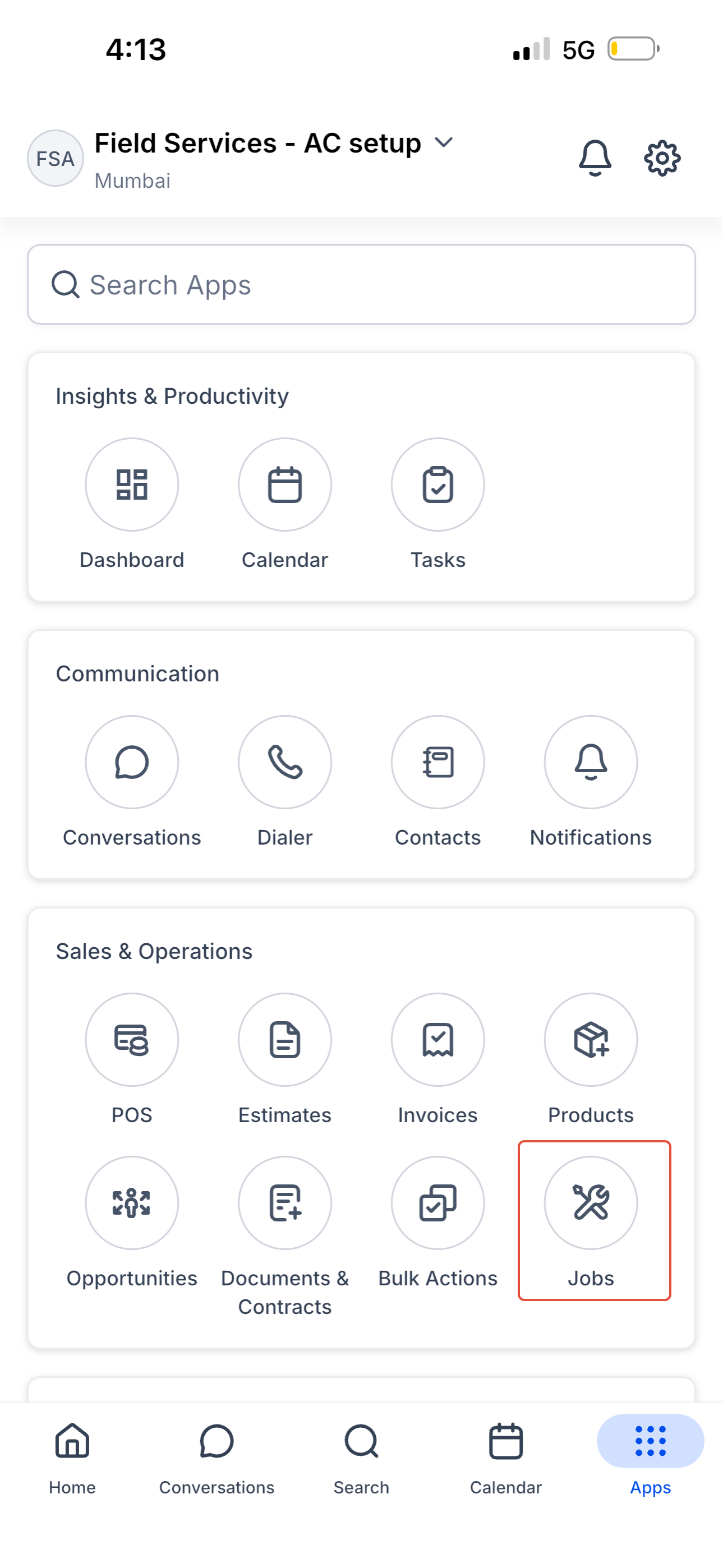
Find Field Services on the mobile app (when the app is not yet installed)
- In the web app, open Field Services > Home.
- Open the Setup guide or the welcome page for new accounts.
- In the Get the mobile app section, scan the QR code for the App Store or Google Play.
- Install the app and sign in with the same login used on the web.
- Open the location where Field Services is configured and follow the prompts to open Jobs.
Follow the recommended setup order for Field Services
- Create your service areas in Field Services > Services & staff > Service areas.
- Add staff members and set their working hours, assigned services, eligible service areas and route start/end points.
- Create services and add ons, importing existing ones if needed.
- Review Field Services Settings to choose booking options, payment methods and request form details.
- Customize the branded booking page using the Booking Page Editor.
- Set up notifications for customers, assigned staff and dispatchers.
- Create your first request or job and schedule a visit using the scheduling tools.
06What it looks like in HighLevel
07Settings that matter
- Online Booking. Controls how customers book appointments, the payment options presented, and the fields shown on the request form.
- Jobs, Visits and Preferences. Controls default behaviours for jobs and visits, such as required services for a visit and automatic status updates.
- Notifications. Controls email, SMS and WhatsApp alerts sent to customers, staff and dispatchers at each milestone.
- Booking Page Editor. Controls the layout, fields and branding of the public booking page that customers use to request or schedule service.
08Things to know before you rely on it
- Field Services is currently in private beta; access is limited to selected accounts.
- Some features are still being built and may change before the public release.
09If something goes wrong
- Field Services does not appear in the left navigation.. Confirm the account has been added to the private beta; the module appears after enrollment.
- Jobs does not show under Apps in the mobile app.. Verify Field Services is enabled for that location on the web, then pull to refresh or sign out and back in.
10How it connects to the rest of HighLevel
- Read the private beta enrollment guide. Private beta guide
- See the Home overview after enabling the module. Home overview
- Learn how to manage work on mobile through the Jobs screen. Jobs on mobile
Michael's take

Field Services gives a small home service business a single place to run every step, from the first phone call to getting paid, and keeps the whole team on the same page.
Don’t start booking customers before you’ve tested the booking page with an address inside your service area.