
01Who this is for
- Field service managers need a clear catalog to assign the right staff to each job.
- Small business owners offering appointments use services to control booking options and pricing.
- Operations coordinators rely on add ons to capture additional tasks without creating separate services.
02Services and add ons, explained
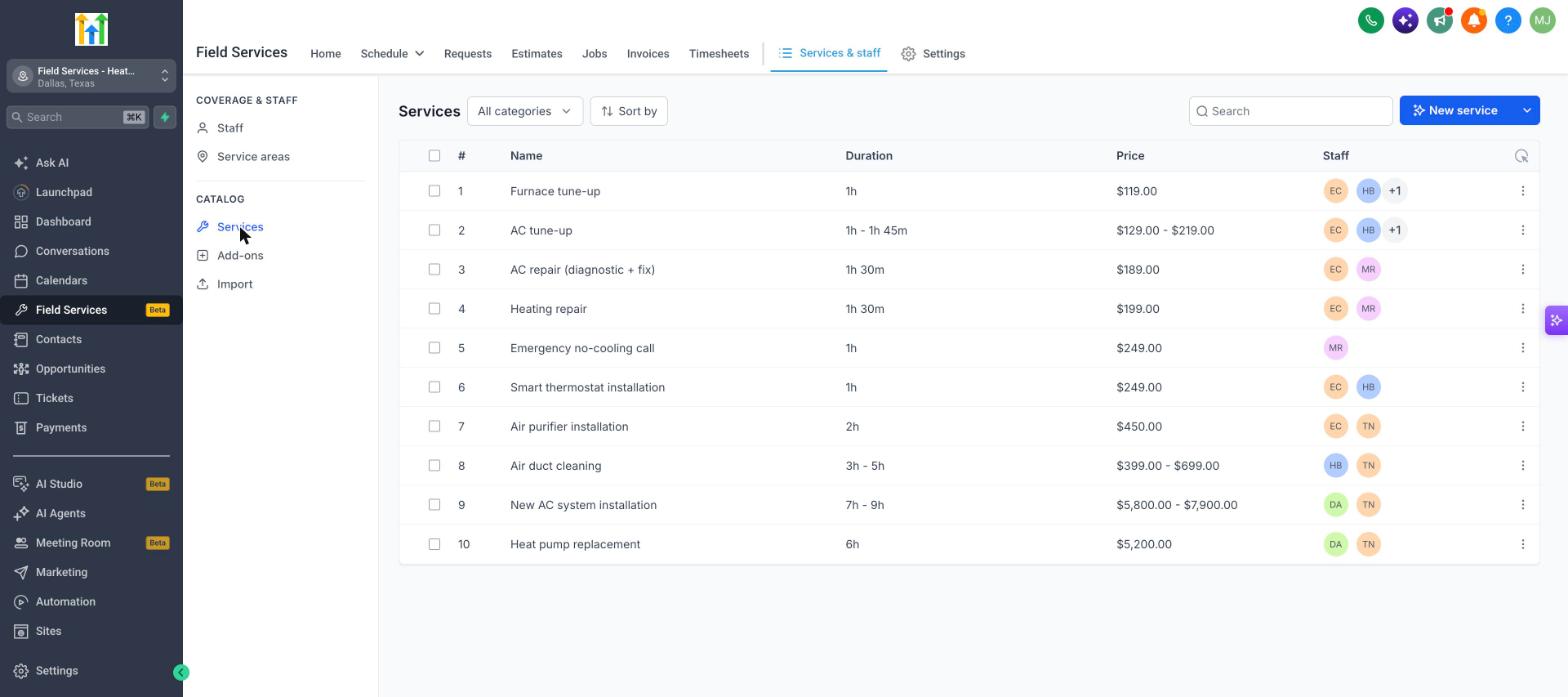
The Services catalog holds every work type your company offers. Each entry stores a name, image, color, category, price, duration, and which staff members are qualified. The catalog lives under Field Services > Services & staff and feeds the booking page and job creation screens.
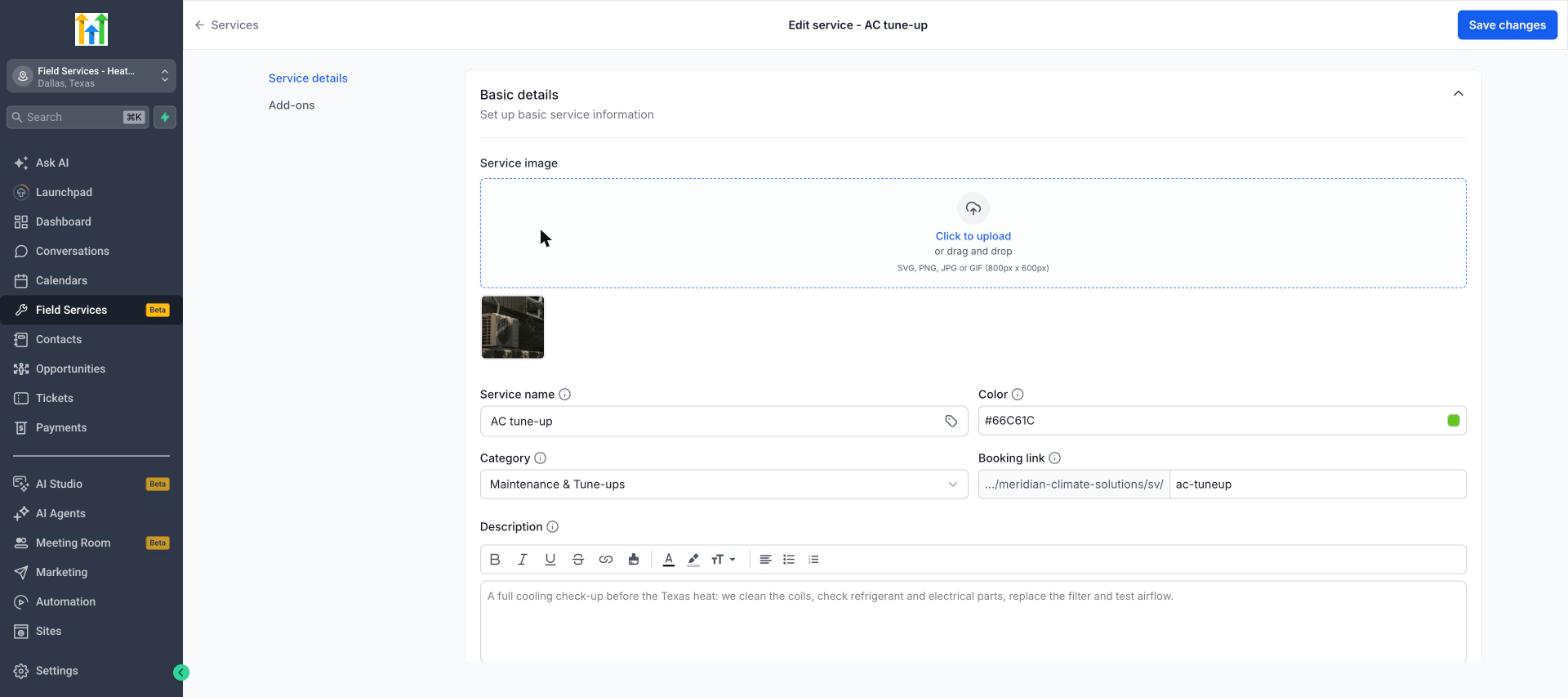
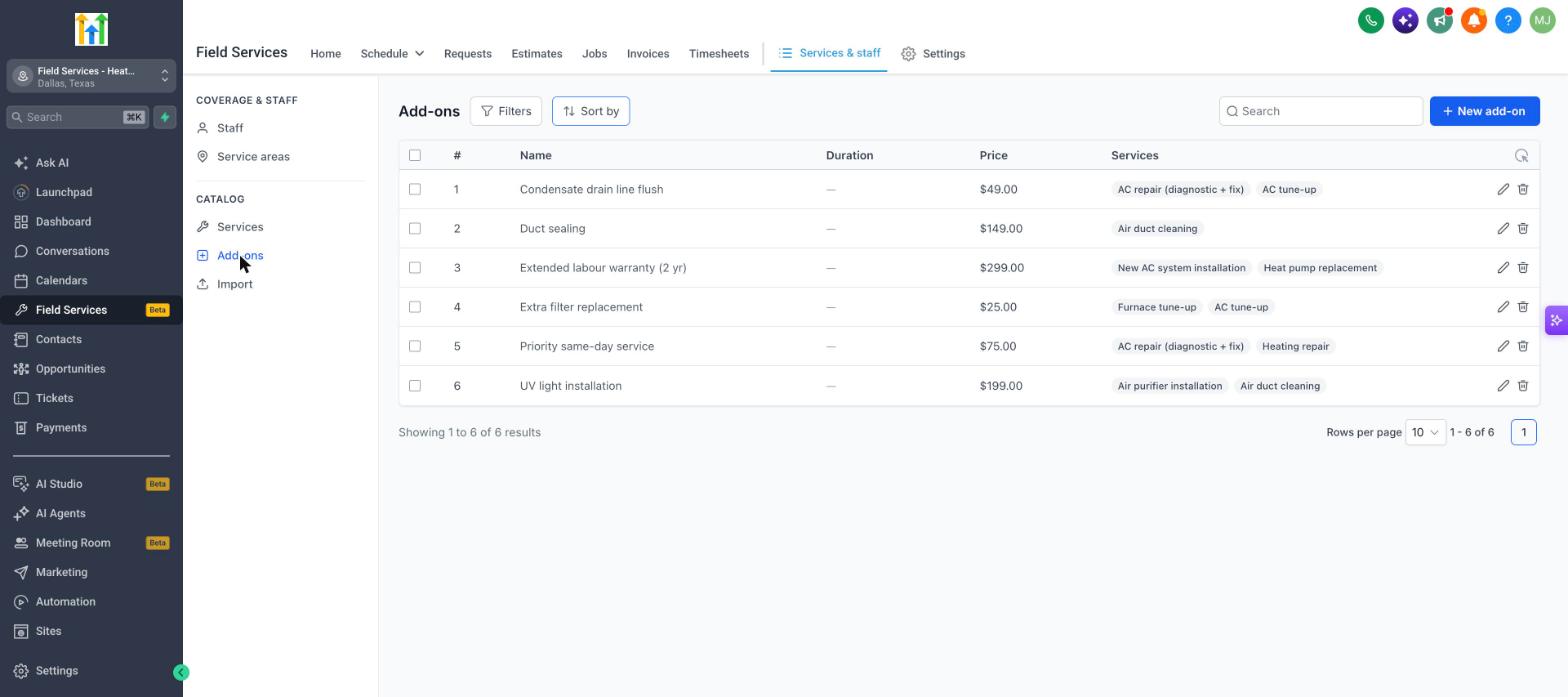
Advanced settings let you configure taxes, pick a service level form, or create variants with different sizes or levels. Add ons are managed in the same area and can be attached to one or more services, appearing as optional selections during booking.
03How businesses use services and add ons
- HVAC company. Create a service called “AC tune up” with its standard duration and price. Attach an add on for “filter replacement” so customers can select it when they book. Assign the technicians who can perform the tune up so the system routes the job correctly.
- Home cleaning service. Set up a “Standard cleaning” service and add a “deep cleaning” add on. Define the price and time for each. Choose the cleaning crew members authorized for the service so the schedule shows them in the appropriate color.
- Mobile pet grooming. Create a “Full grooming” service, specify its length, and add an optional “nail trim” add on. Link the traveling groomer staff to the service. Customers book the combined package through the booking link.
04The numbers and rules that matter
- Recommended image size: 800 x 600 px.
05Before you start
- The account must have access to the Field Services private beta.
06How to set up and use services and add ons in HighLevel
Create a service
- Open the Services page and click the New service button.
- Upload a service image in SVG, PNG, JPG or GIF format sized 800 × 600 px, if desired.
- Enter the name of the service.
- Select a color to identify the service in the schedule.
- Choose a category; the default category is used unless another is selected.
- Verify the booking link and edit its final segment if needed.
- Write a description, using formatting and links as required.
- In the Service details section, pick the staff members who can perform the service.
- Assign at least one staff member; a service with no staff cannot be booked online.
- Enter the price for the service.
- Enter the duration the service takes.
- Click Add service to save the new entry.
Edit, duplicate or delete a service
- Find the desired service in the list and click the three dot icon at the end of its row.
- Select Edit to modify, Duplicate to copy, or Delete to remove the service.
- For Edit, make changes and click Save changes; for Delete, confirm the removal.
Create an add on
- Navigate to Field Services > Services & staff > Add ons.
- Click New add on to open the add on form.
- Enter the add on name, duration, and price, and select the services it should apply to.
- Save the add on to make it available for selection on bookings.
07What it looks like in HighLevel
08Settings that matter
- Advanced settings. Opens the full editor where you can modify basic details, service duration, payment options, service level forms, and variants.
- Payment. Allows you to set the service price and configure tax rules; partial payments become available after a payment provider is linked.
- Service, level form. Specifies a custom form that appears when the service is booked alone, overriding the booking page’s default form.
- Variants. Enables multiple options for the same service, each with its own name, duration, and price.
09Things to know before you rely on it
- Field Services is in a private beta and only selected accounts can use it; features and screens may change.
- Every service must have at least one staff member assigned; otherwise it cannot be booked online.
- Online payment requires a connected payment provider; without one, only in person payment is available.
- Services created in Field Services do not appear in other Service catalogs; they remain separate.
10How it connects to the rest of HighLevel
- Enable Field Services beta and set up mobile access Field Services overview
- Configure workers and routes for field staff Staff in Field Services
- Define service areas for field operations Service areas
Michael's take

It controls what customers can book and which staff can be assigned.
If I were setting this up, I would first add the core services and make sure each has at least one staff member, then add the add ons. I would also verify the booking links and payment provider connection.